

How to Sell Offline and Sync Orders
A dropped connection does not stop the POS. Sales are kept on the device and sent to the server when the connection returns.
Step 1: Keep selling
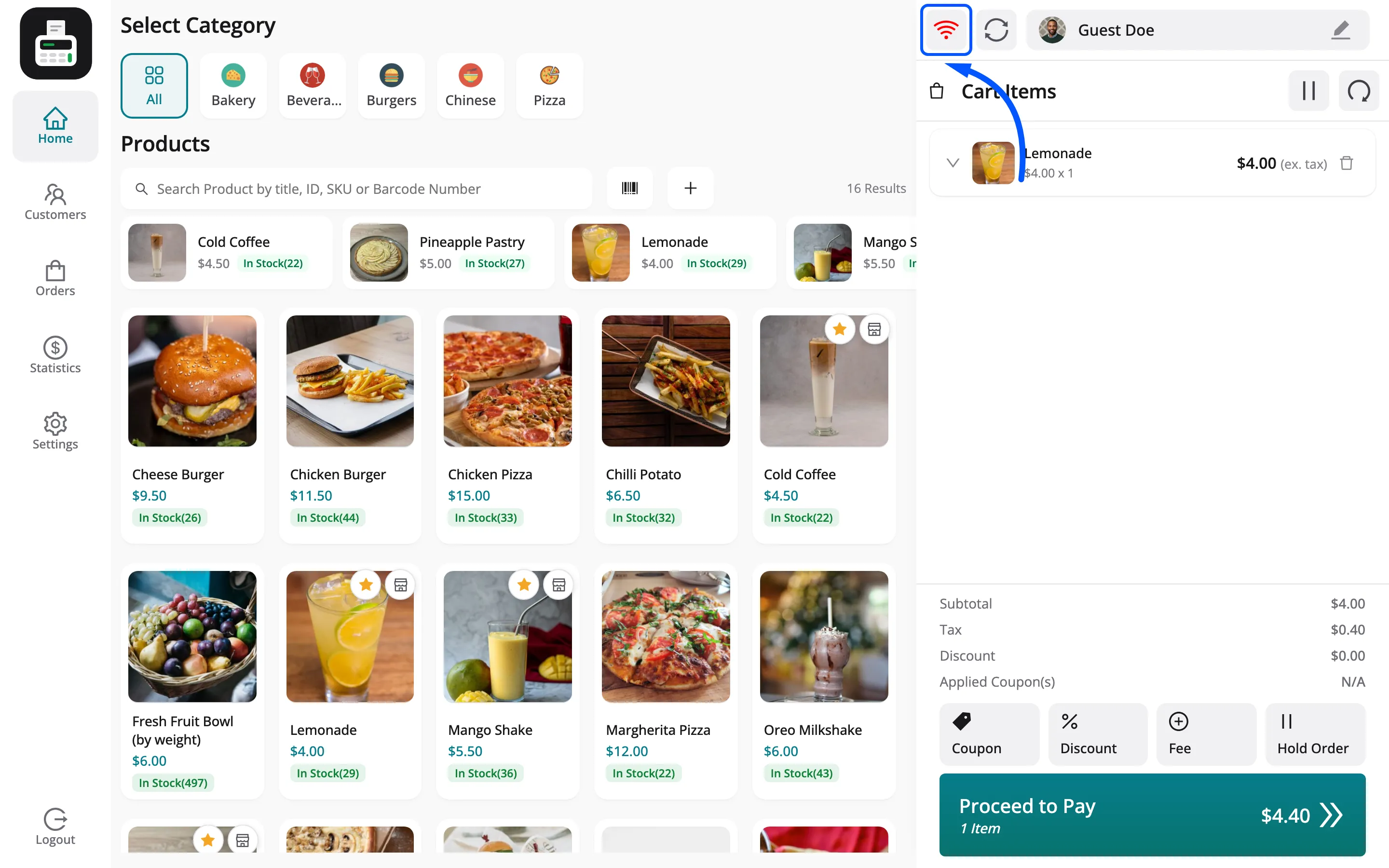
Section titled “Step 1: Keep selling”When the connection drops, the Wi-Fi icon in the cart header turns red and reads Offline.
Step 2: Take payment as usual
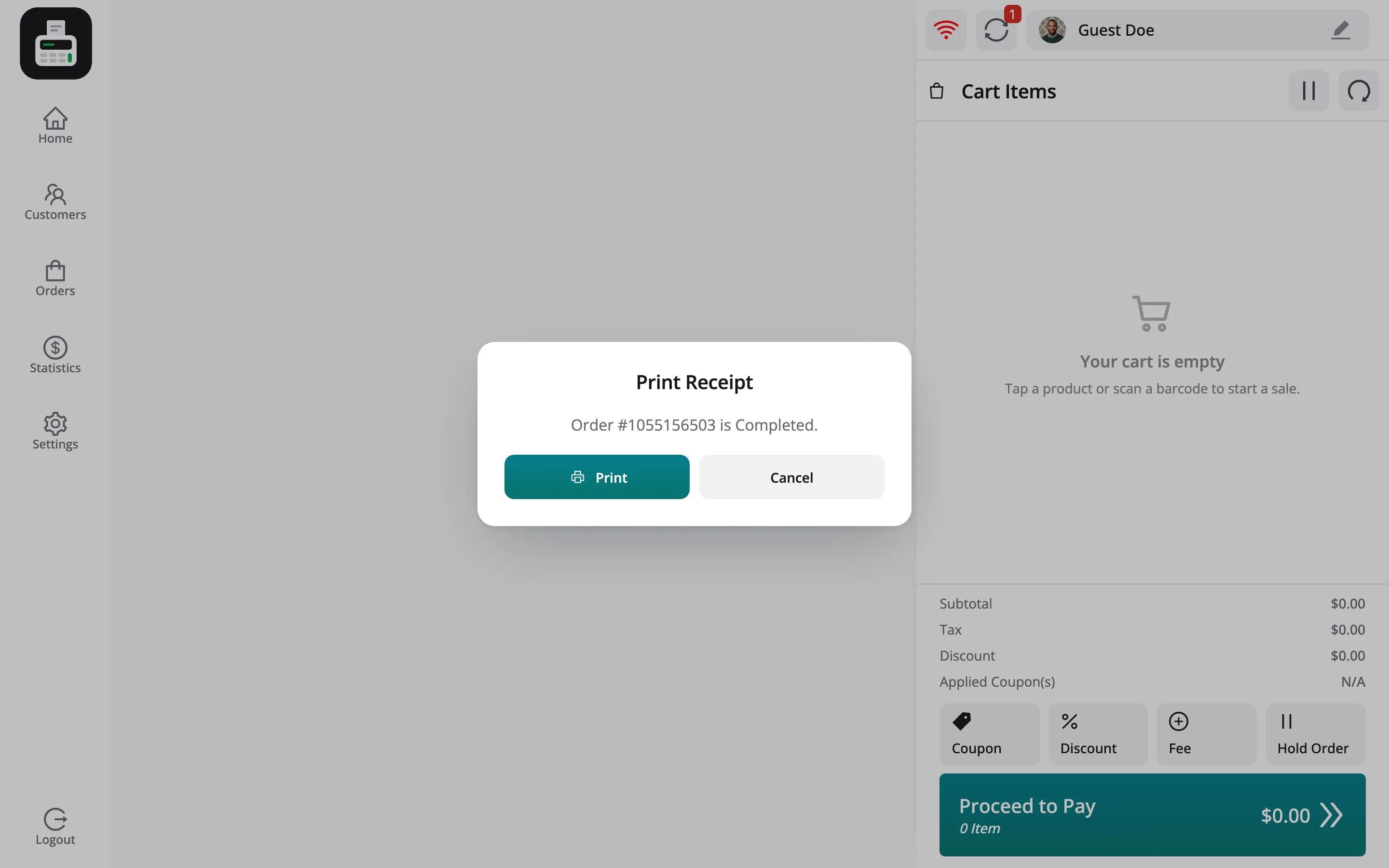
Section titled “Step 2: Take payment as usual”Take payment as normal. The receipt prompt shows a temporary number, such as Order #287793938.
Step 3: Wait for the connection
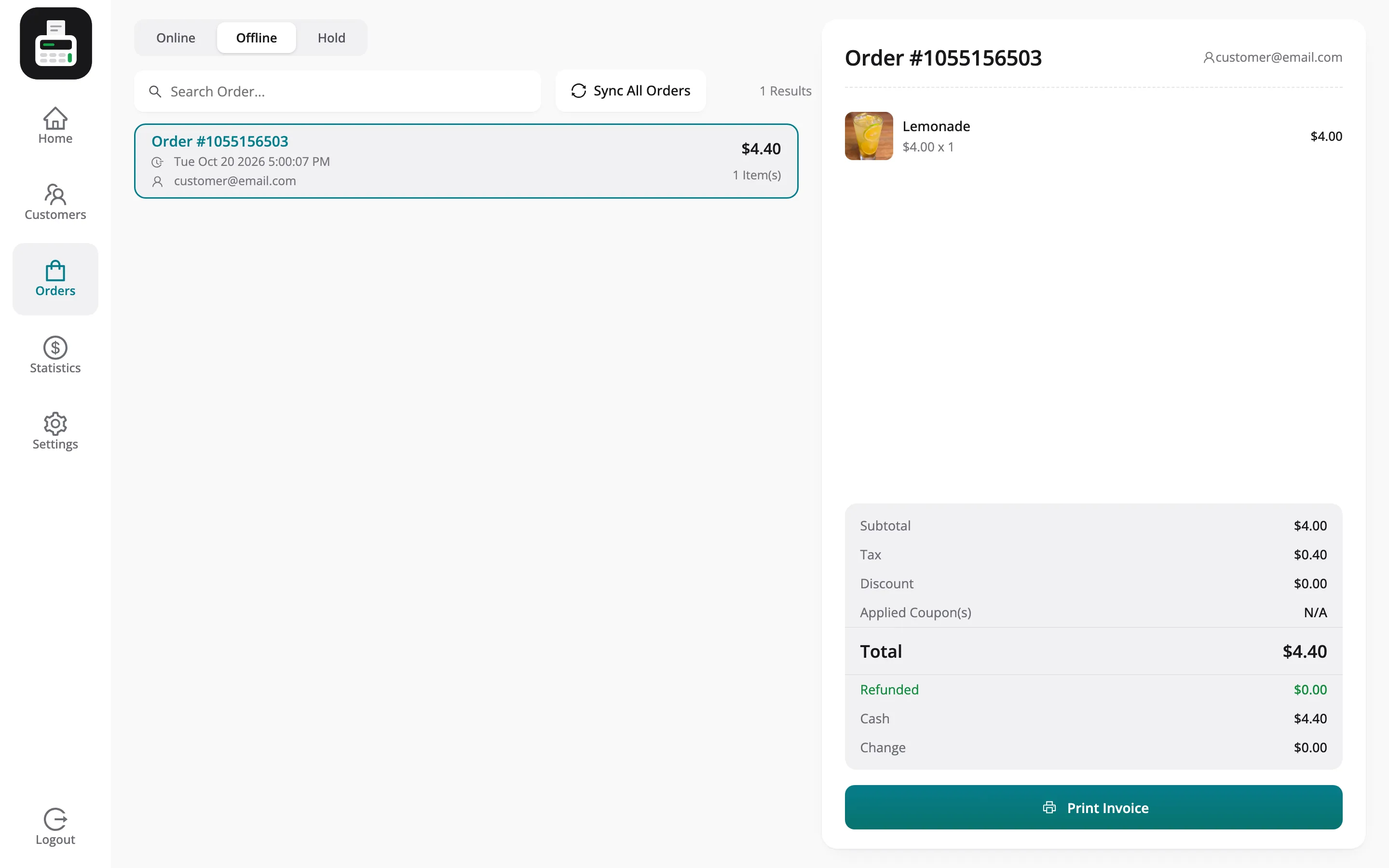
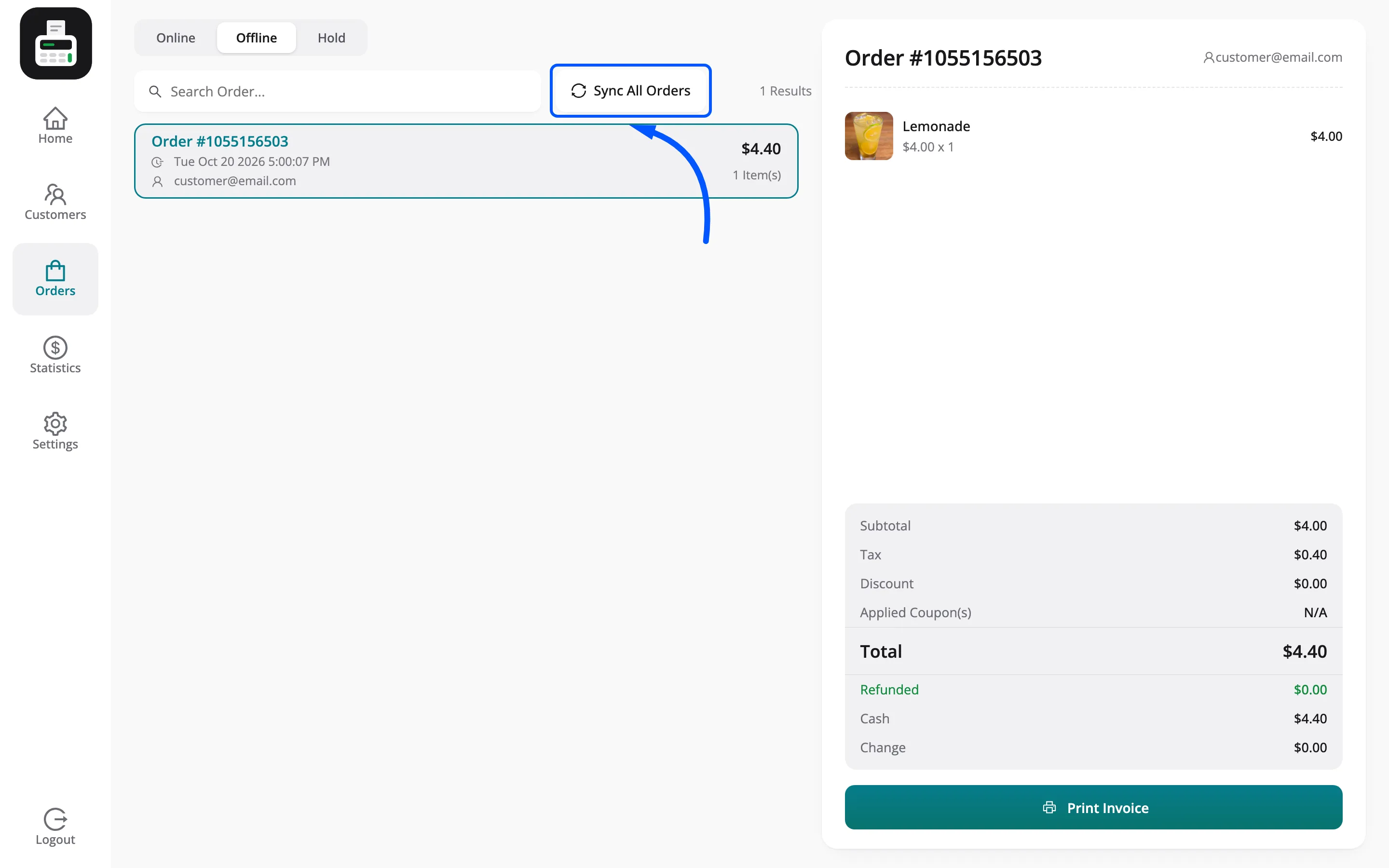
Section titled “Step 3: Wait for the connection”The order waits under Orders → Offline.
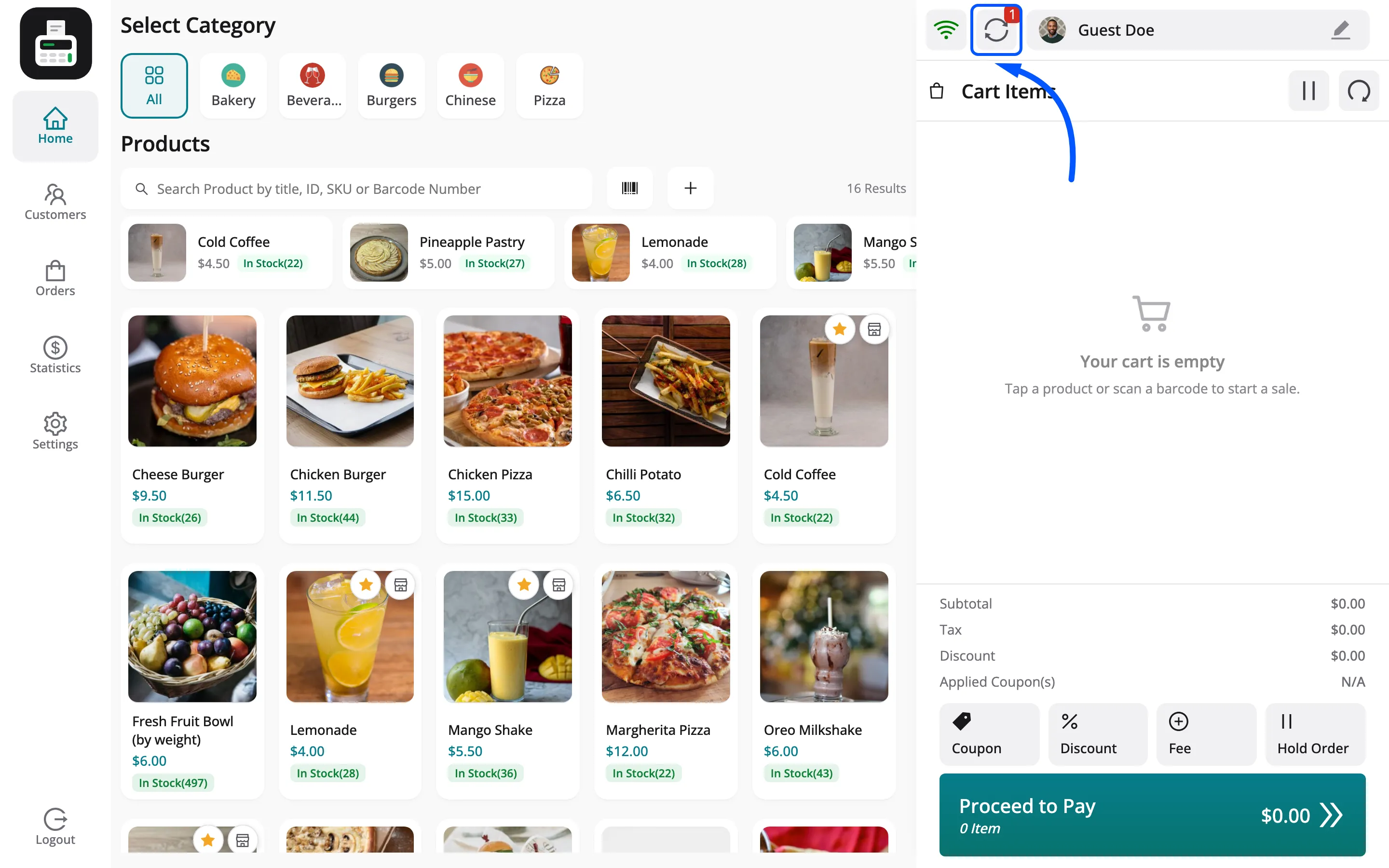
Once the connection is back, the sync icon in the cart header shows how many orders are waiting.
Step 4: Sync the orders
Section titled “Step 4: Sync the orders”Click the sync icon to open the Offline tab, then Sync All Orders.
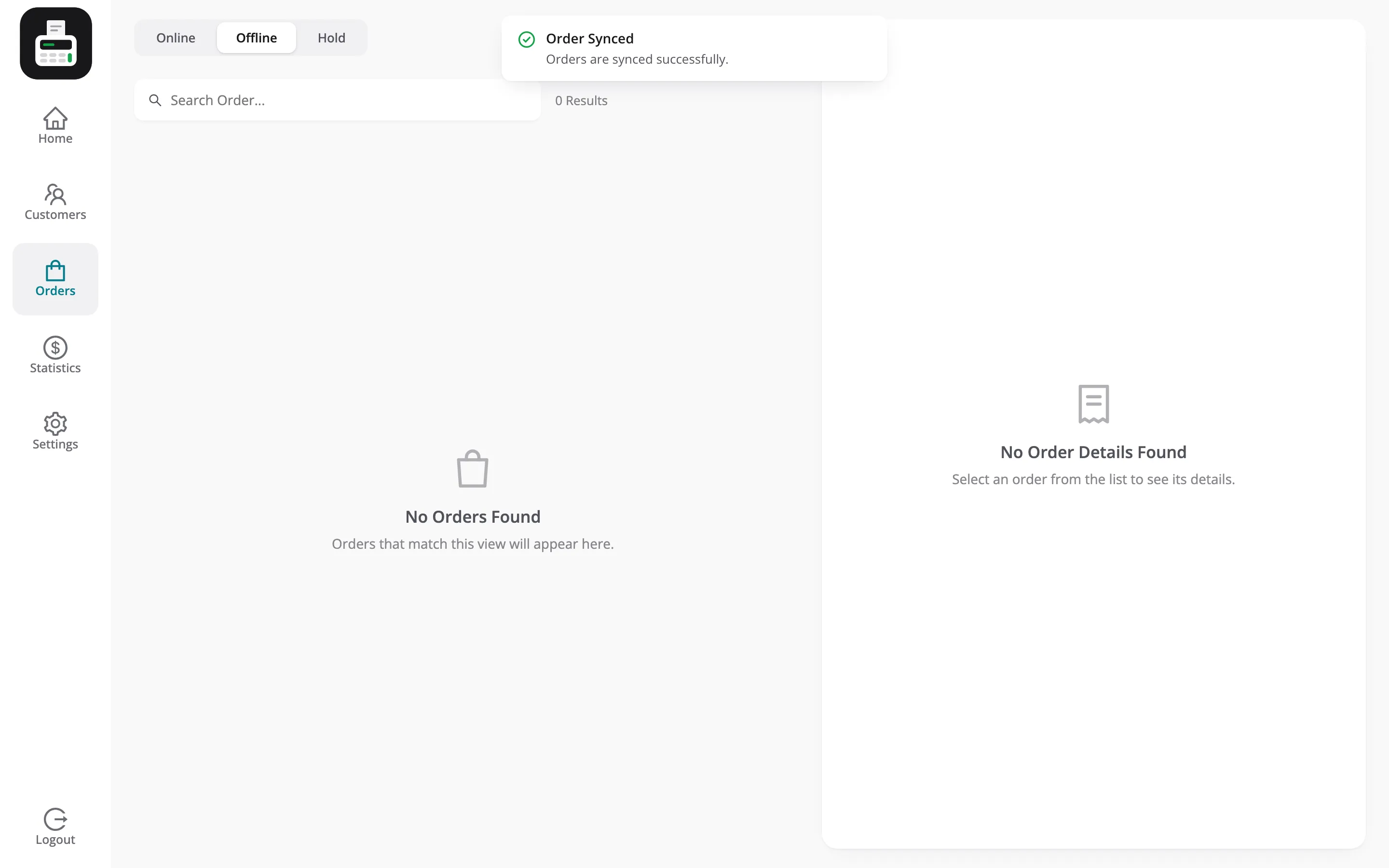
The POS confirms Orders are synced successfully.
Step 5: Check the orders
Section titled “Step 5: Check the orders”Under Online, the sale now has a real order number, and the offline number is kept on it.
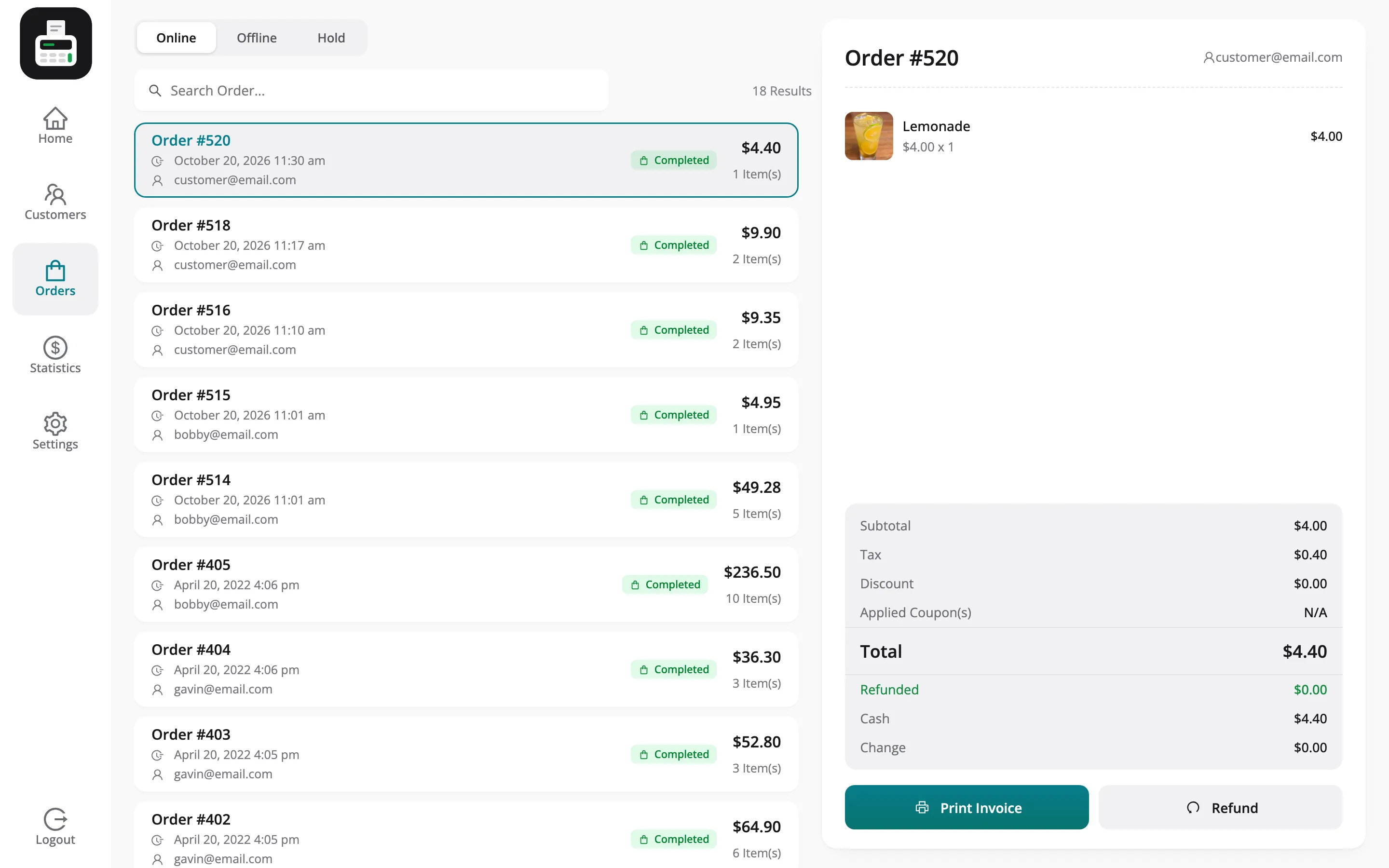
The synced order is a normal WooCommerce order, and a vendor’s is recorded in WCFM with its earning.
Things to know
Section titled “Things to know”- Do not sign out or clear the browser while orders are waiting. They are kept on that device.
- A sync sent twice does not create the order twice.
- Approvals need a connection. A manager’s PIN cannot be checked offline; discounts above the limit are flagged on the Orders screen instead.
- Centralized stock: An outlet sharing WooCommerce stock stops taking payment offline unless Keep selling when the internet drops is on.