Assign Stocks in MultiPOS for WCFM
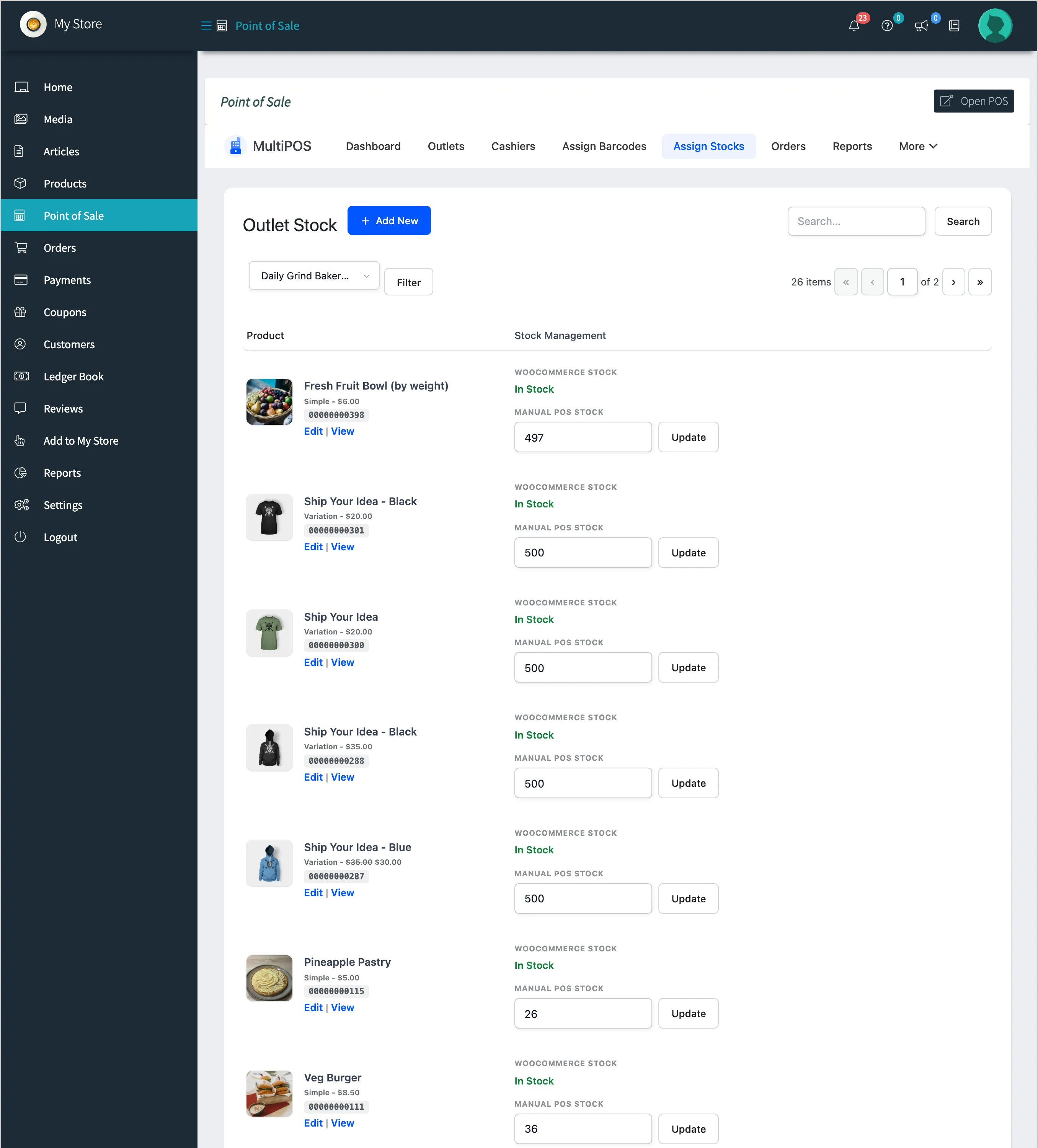
Assign Stocks holds a separate stock count for each outlet that runs on Custom inventory. The owner opens it under DevDiggers Plugins → MultiPOS → Assign Stocks. A vendor opens Point of Sale → Assign Stocks, for their own outlets and products.
Pick the outlet
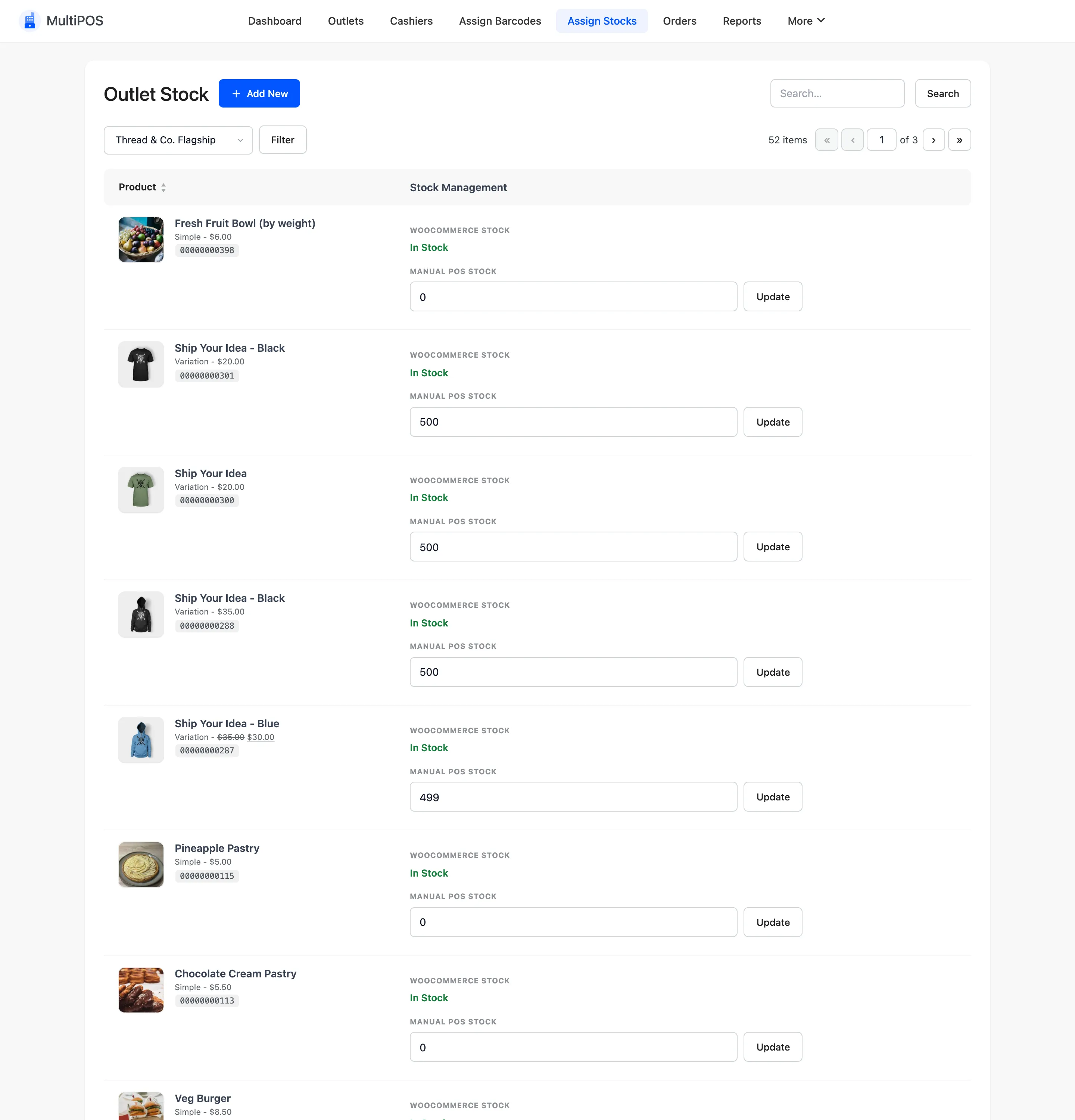
Section titled “Pick the outlet”Choose the outlet in Select Outlet and click Filter. The Assign Stocks button on an outlet’s row opens this screen with the outlet already chosen.
The columns
Section titled “The columns”- Product: The name, type, price and barcode.
- Stock Management: WooCommerce Stock, read only here, beside the outlet’s own count with an Update button.
Type the count and click Update. It saves at once.
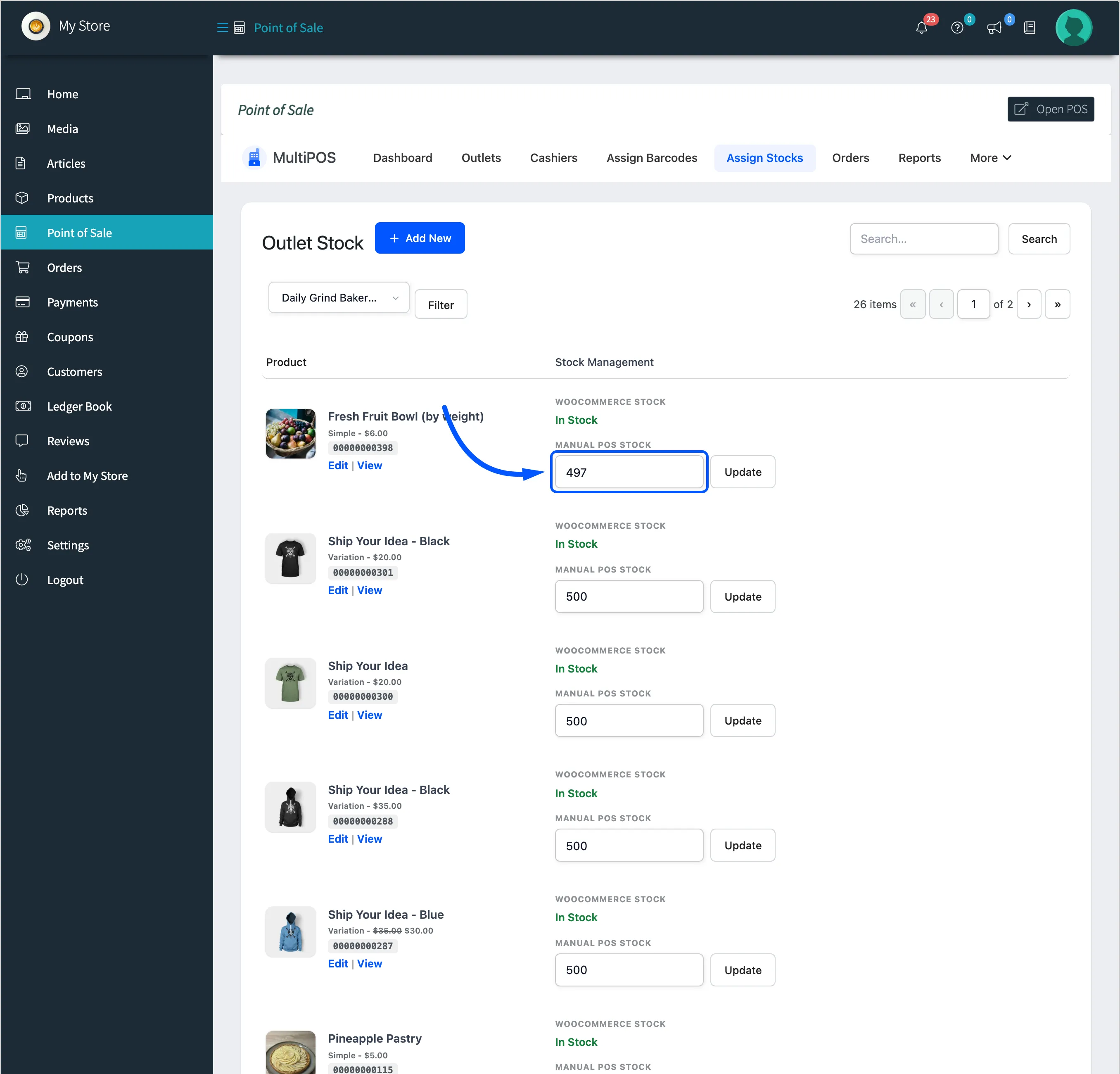
Variable products are listed one variation per row, each with its own count.
Which count the POS uses
Section titled “Which count the POS uses”- Centralized: The POS sells from WooCommerce stock, shared with the website.
- Custom: The POS sells from this outlet’s count. A product with no count set for the outlet does not appear in its POS at all.
That second rule is the one to know. A vendor who switches an outlet to Custom and forgets this screen opens a POS with an empty grid.
The vendor’s screen
Section titled “The vendor’s screen”