

How to Install the POS as an App
An installed POS opens from the home screen, full screen, with your icon. Vendors’ devices install the same app.
Step 1: Fill in the PWA tab
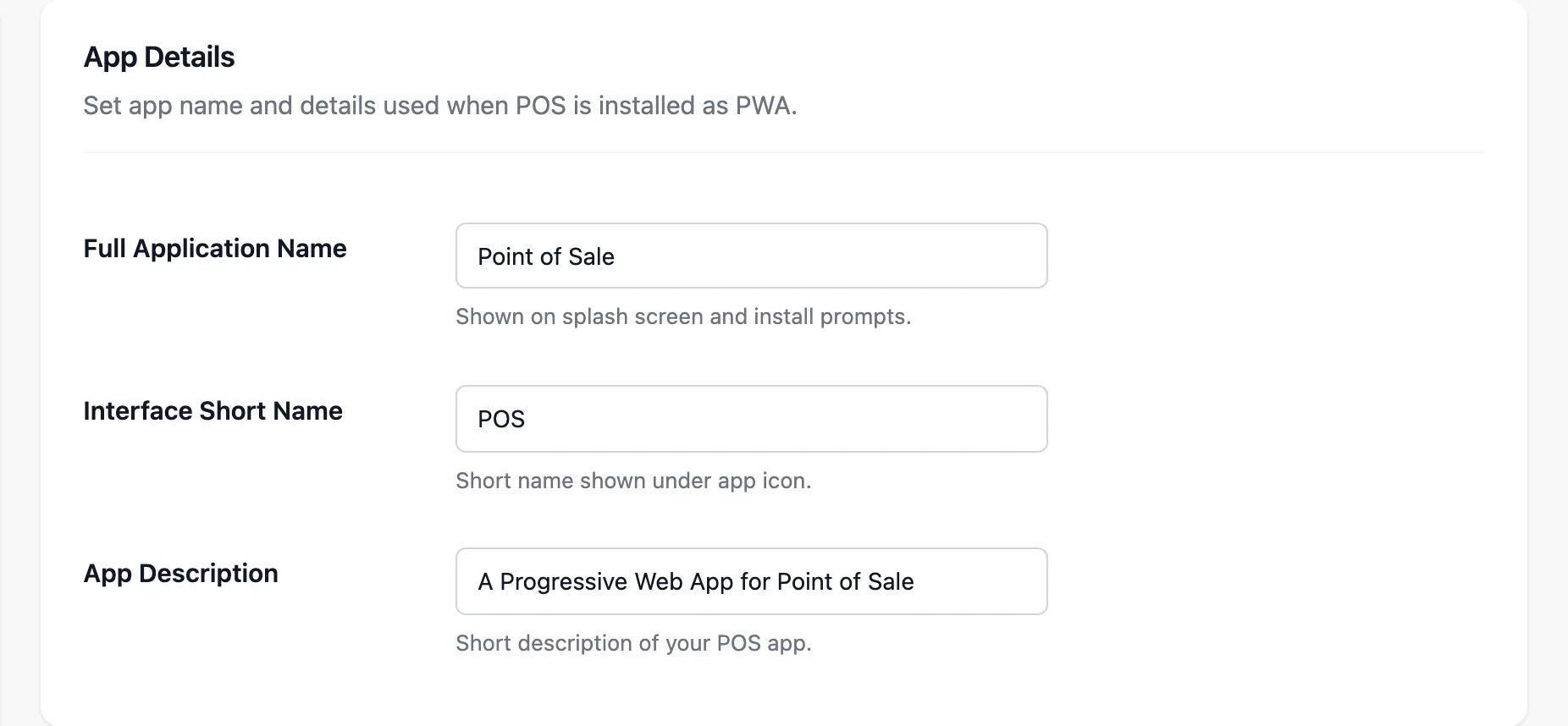
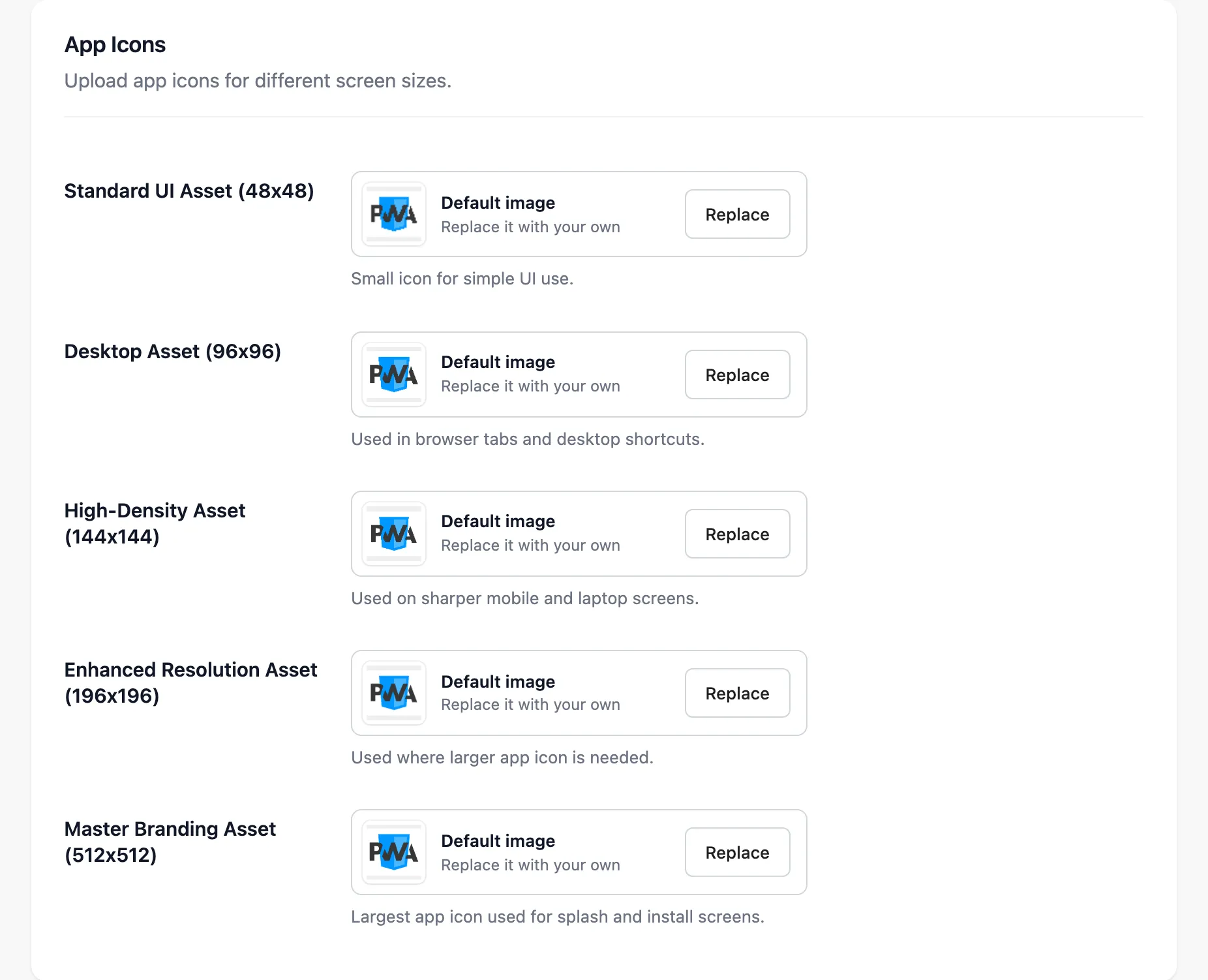
Section titled “Step 1: Fill in the PWA tab”Under Configuration → PWA, set the names and colours and upload all five icons.
Step 2: Open the POS on the device
Section titled “Step 2: Open the POS on the device”Visit yoursite.com/pos on the tablet, phone or desktop.
Step 3: Install it
Section titled “Step 3: Install it”- Android and desktop Chrome: accept the install prompt, or the install icon in the address bar.
- iPad and iPhone: Share → Add to Home Screen.
Step 4: Open it from the home screen
Section titled “Step 4: Open it from the home screen”The app opens straight to the POS sign-in, with no address bar for a customer to change.
Things to know
Section titled “Things to know”- One app for the marketplace. A vendor’s cashier signs in and lands on the vendor’s outlets.
- After changing the icons, remove and reinstall the app on devices that have it.