MultiPOS for WCFM Dining Tables
The Tables tab lists the dining tables of your restaurant or cafe. A cashier attaches a table to an order so the kitchen and the floor know where it goes. Tables only appear at an outlet whose Operation Mode is Restaurant/Cafe.
Go to DevDiggers Plugins → MultiPOS → Configuration → Tables.
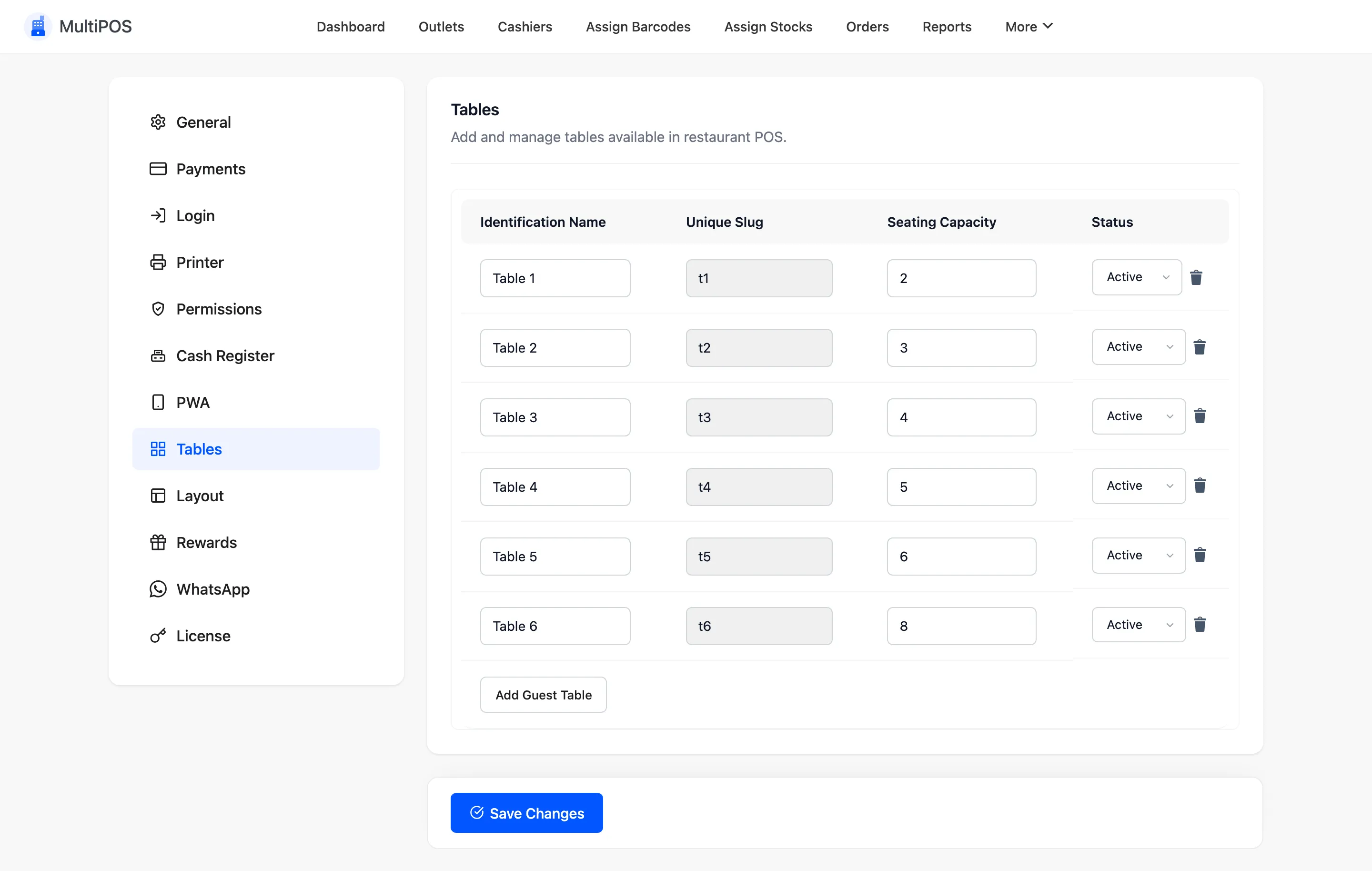
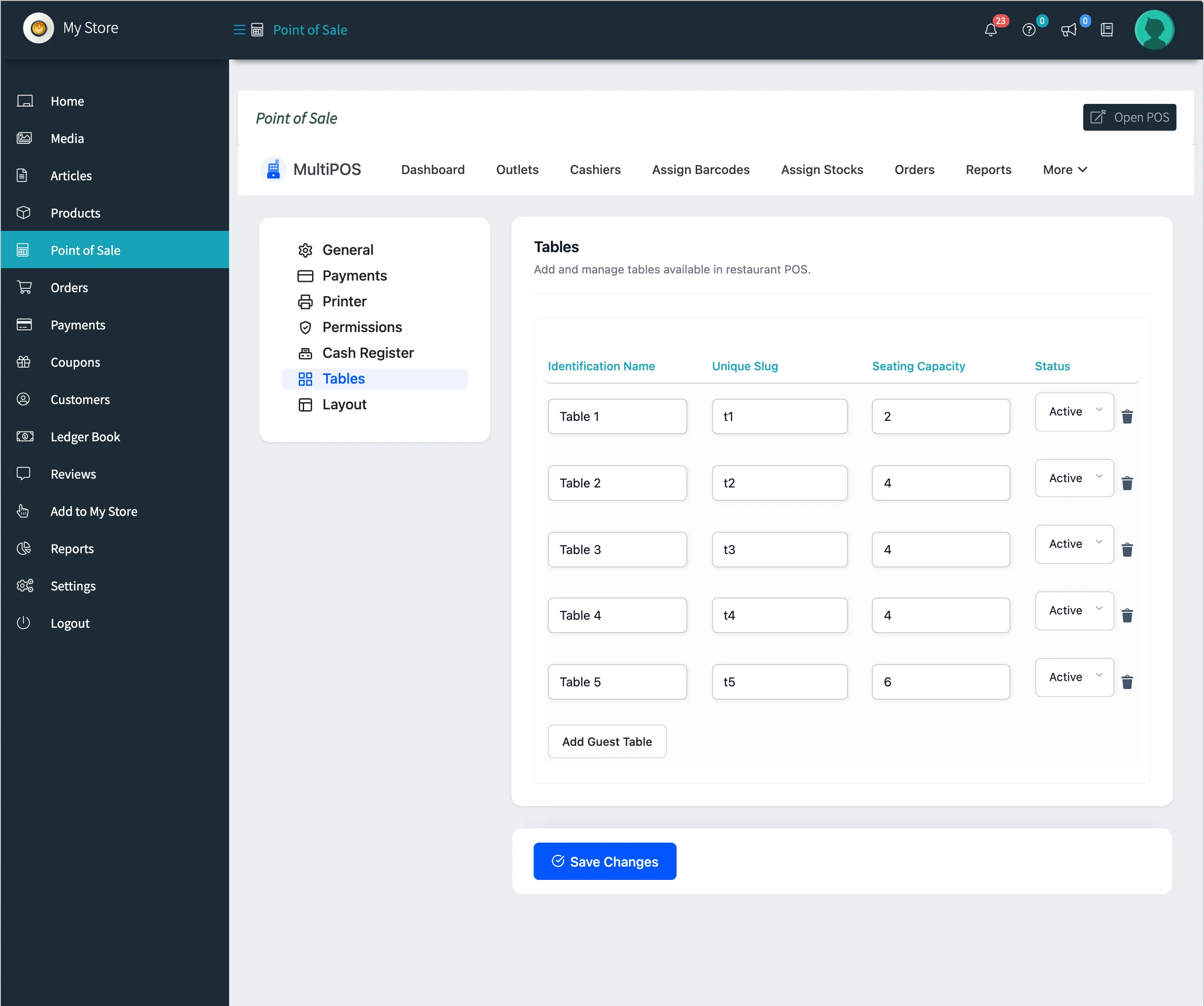
The columns
Section titled “The columns”| Column | What it is |
|---|---|
| Identification Name | What the cashier sees, such as Table 1 or Window |
| Unique Slug | The key saved on the order |
| Seating Capacity | How many people the table seats |
| Status | Active or Inactive |
Add a table
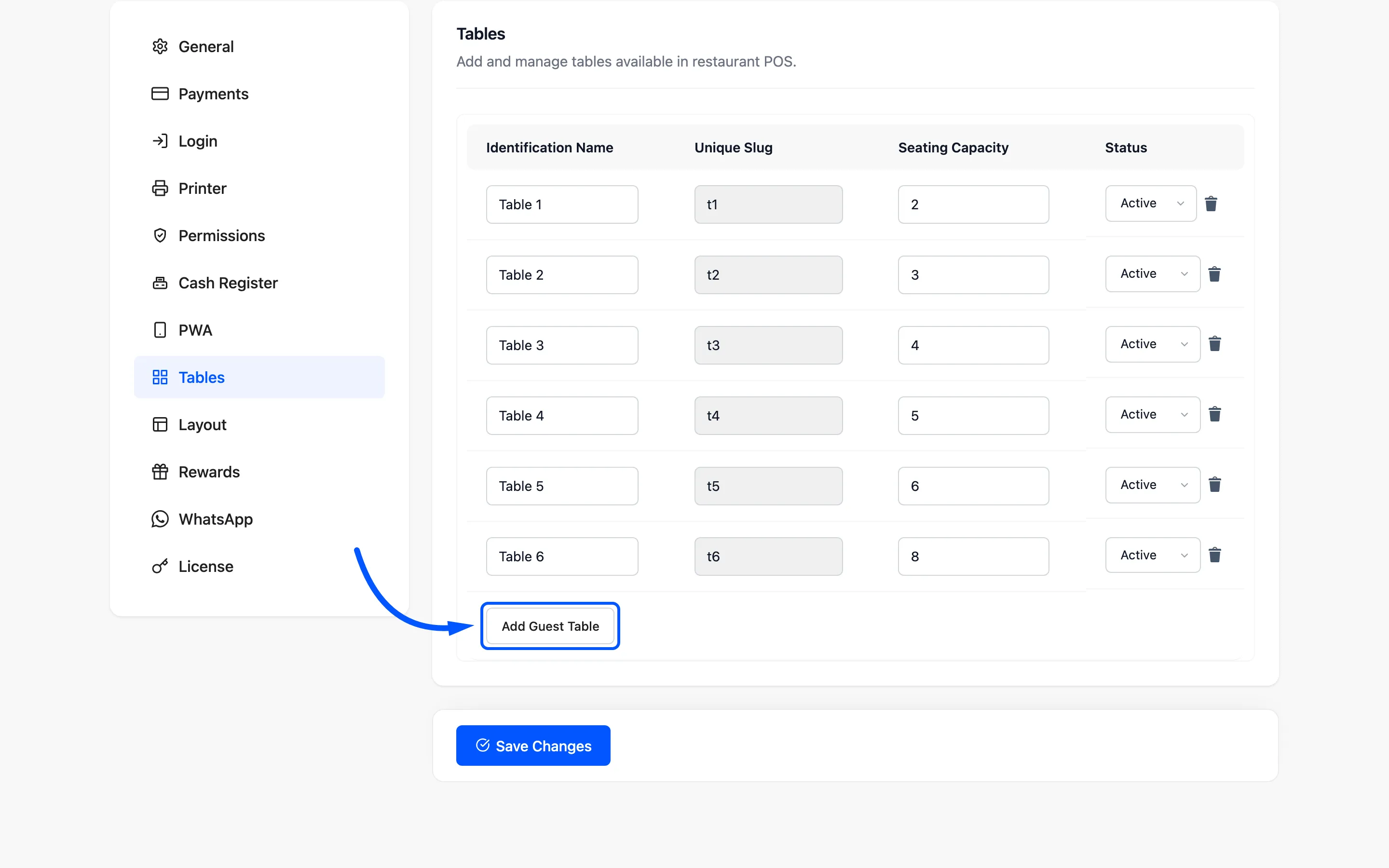
Section titled “Add a table”Click Add Guest Table under the list, fill in the row, and click Save Changes.
 Name tables the
way your staff say them out loud.
The seat count is what the POS table search matches, so a cashier who types 4 sees every
four-seat table.
Switch a table off
Section titled “Switch a table off”Set it to Inactive rather than deleting it. It leaves the floor plan and stays on past orders.
Tables must be assigned to the outlet
Section titled “Tables must be assigned to the outlet”A table only appears on the floor plan once it is ticked under Dining Tables on a Restaurant/Cafe outlet.
Vendors keep their own floor plan
Section titled “Vendors keep their own floor plan”A vendor’s Tables tab is the vendor’s own list, for their own restaurant outlets. Their tables never appear at anyone else’s outlet.
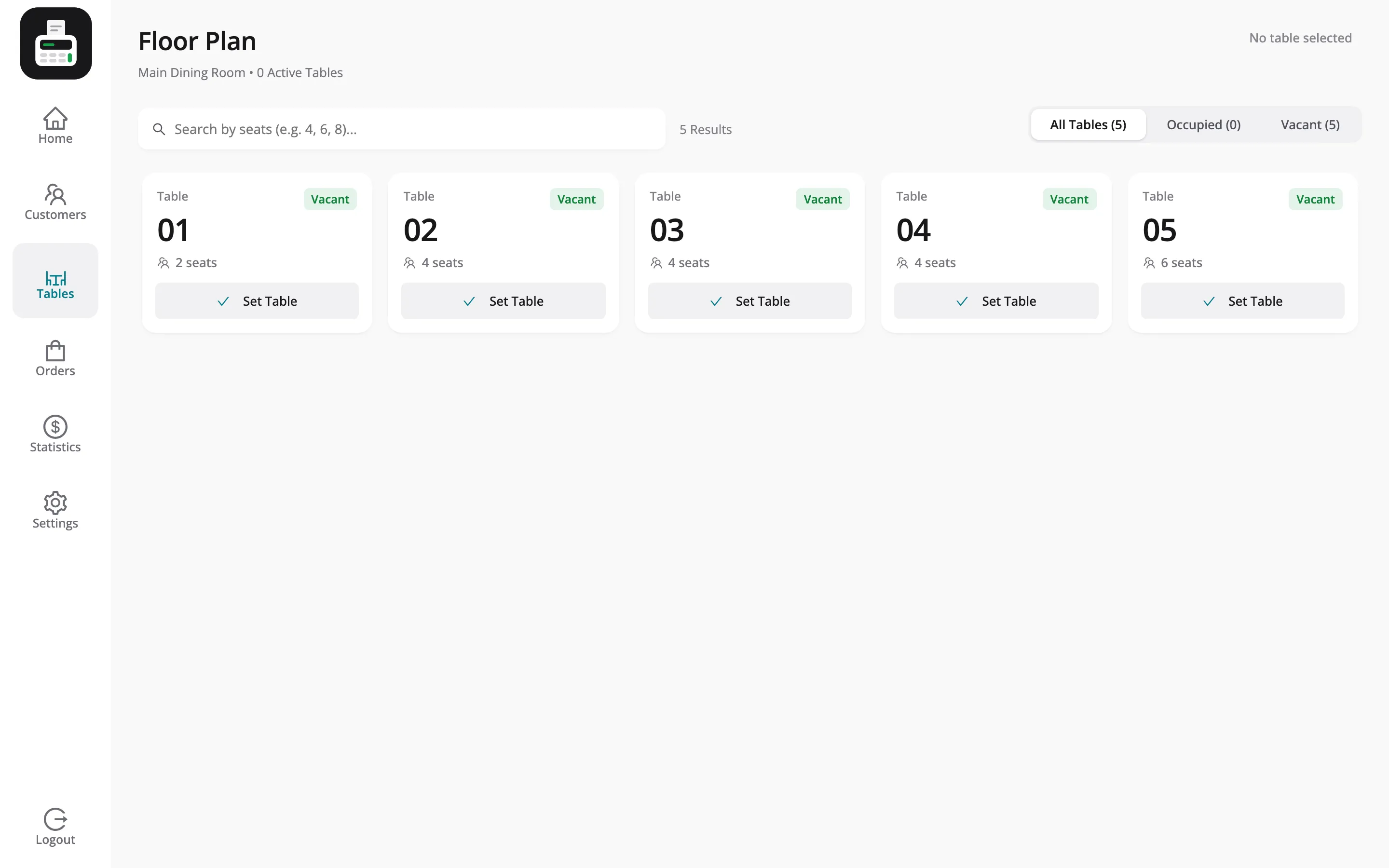
What the cashier sees
Section titled “What the cashier sees”Tables in the POS menu opens the floor plan, with All Tables, Occupied and Vacant filters. Set Table attaches a table to the cart.