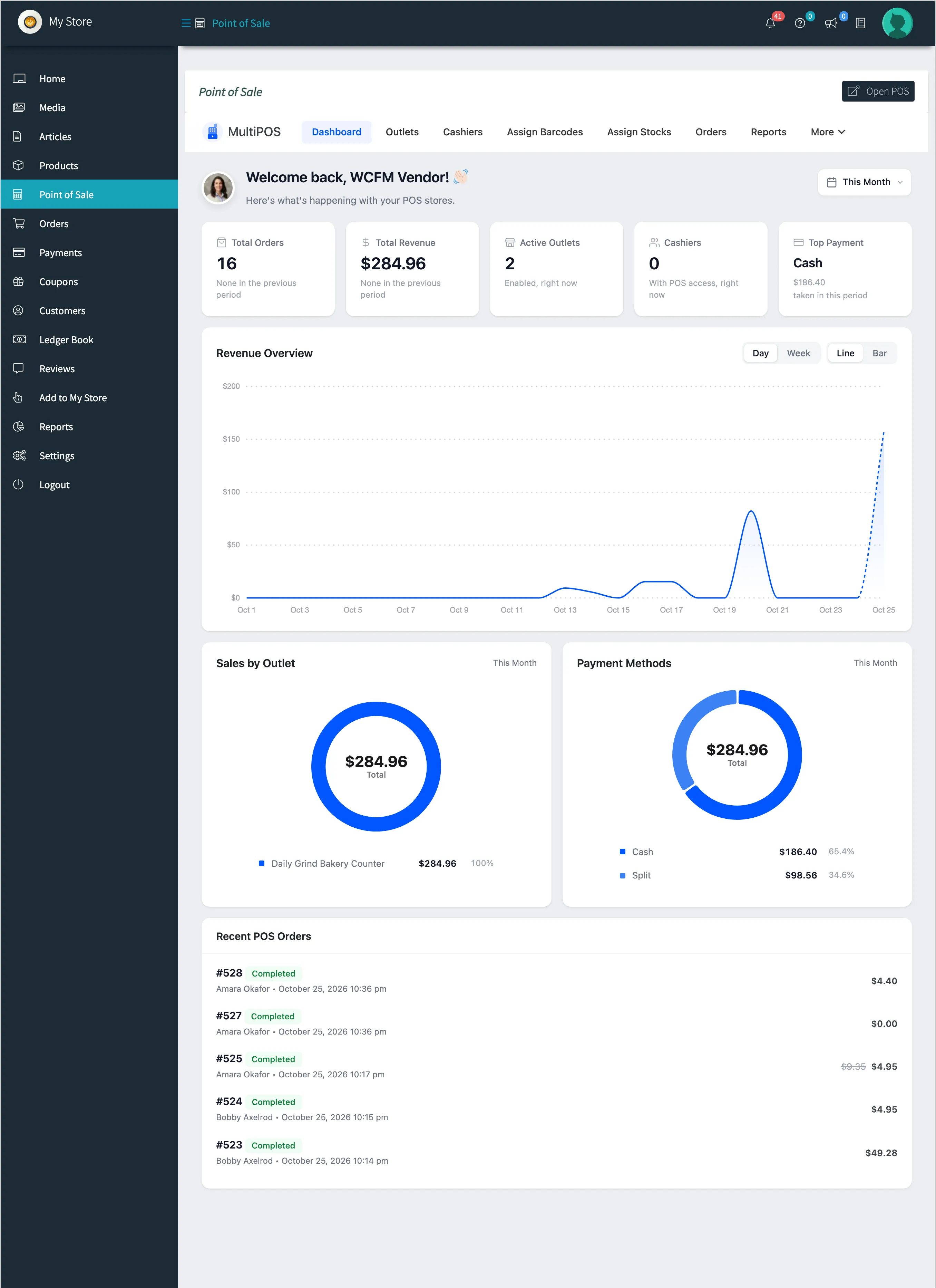
How Vendor POS Works
A vendor’s counter sale passes through the owner’s settings, the vendor’s back office, the POS, WooCommerce and WCFM Marketplace. This page follows one sale through all five, so the rest of the docs fit together.
1. The owner decides who gets a POS
Section titled “1. The owner decides who gets a POS”Configuration → General → Marketplace → Vendor POS has three choices:
- Enabled for all vendors: Every vendor gets the POS. This is the default.
- Manual, per vendor: Only vendors ticked on their WordPress profile get it.
- Disabled: No vendor gets it. The owner’s own POS keeps working.
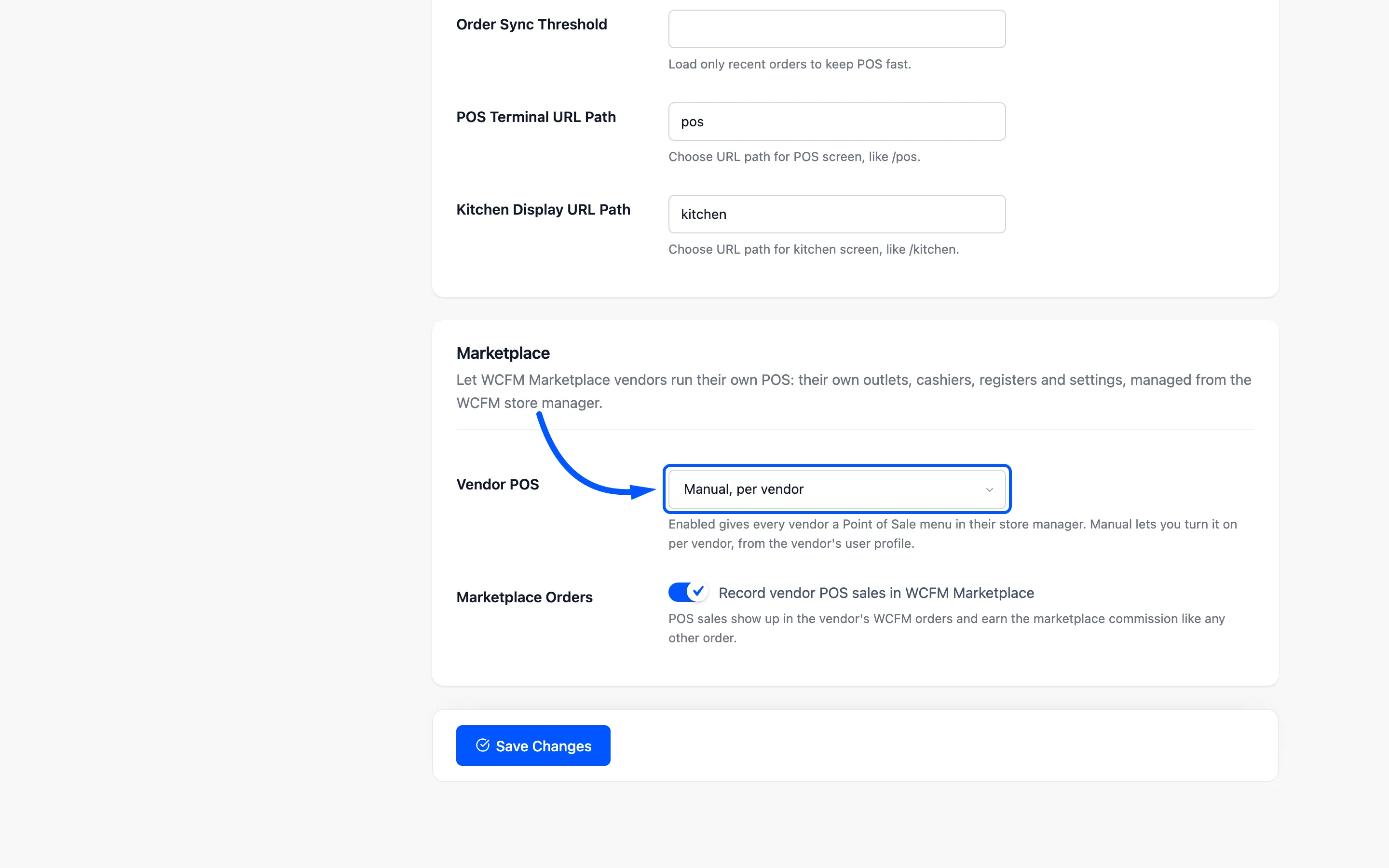
Switching a vendor off closes their Point of Sale menu and the POS for them and for every cashier they employ, at once.
2. The vendor finds Point of Sale in the store manager
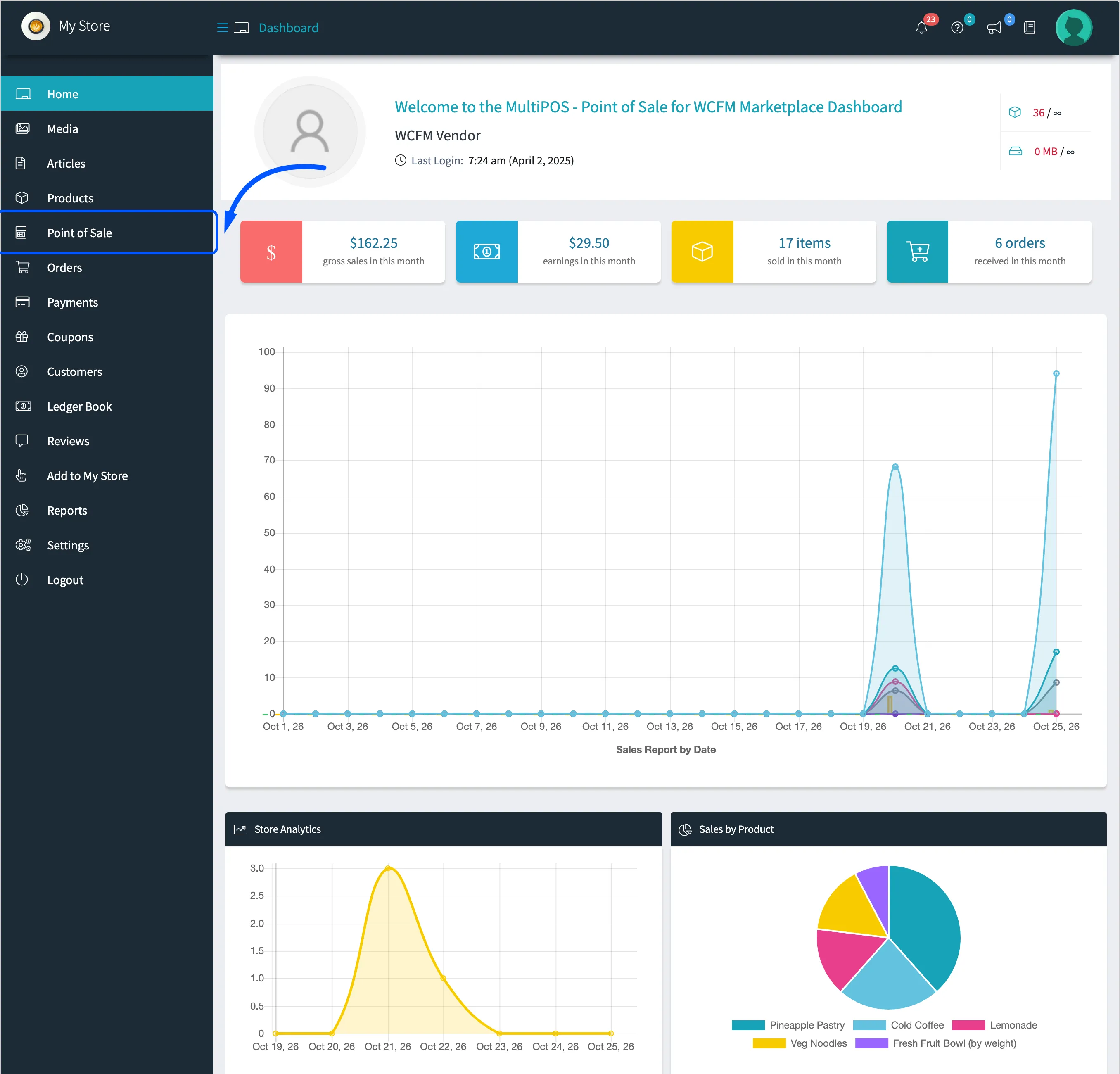
Section titled “2. The vendor finds Point of Sale in the store manager”A vendor with the POS sees Point of Sale in the WCFM store manager menu. It opens the vendor’s own copy of the MultiPOS back office.
3. The vendor sets up an outlet
Section titled “3. The vendor sets up an outlet”An outlet is a counter: an address, a mode (retail or restaurant), payment methods, a receipt and a stock mode. Every outlet a vendor creates belongs to the vendor’s store.
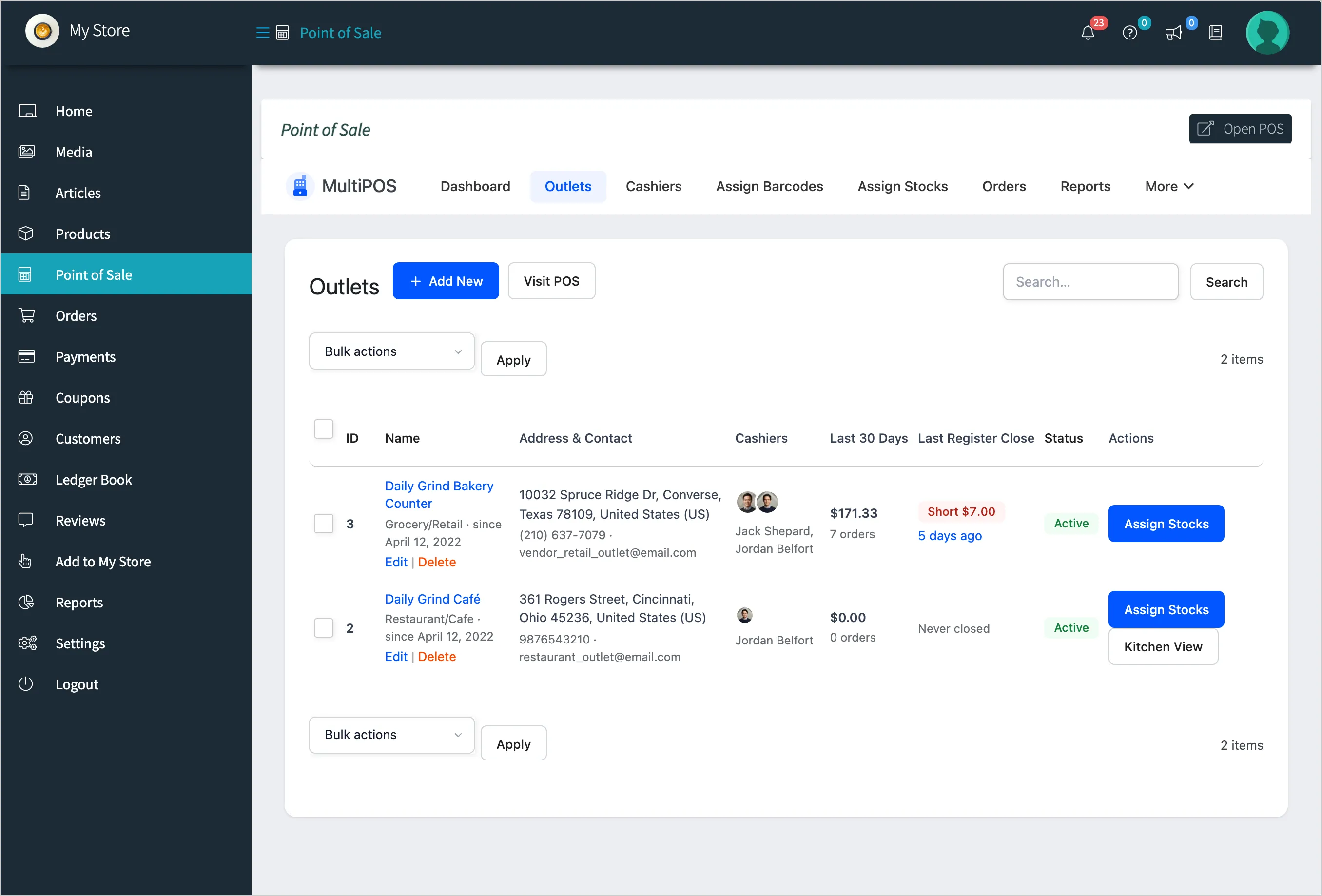
The owner sees every outlet in the marketplace, with a Store column naming its vendor, and can move an outlet to another vendor.
4. The vendor adds cashiers
Section titled “4. The vendor adds cashiers”Cashiers a vendor adds are ordinary WordPress users with the POS Cashier role. They belong to the vendor’s store, open only the vendor’s outlets, and follow the vendor’s cashier rules. A vendor can also open the POS themselves.
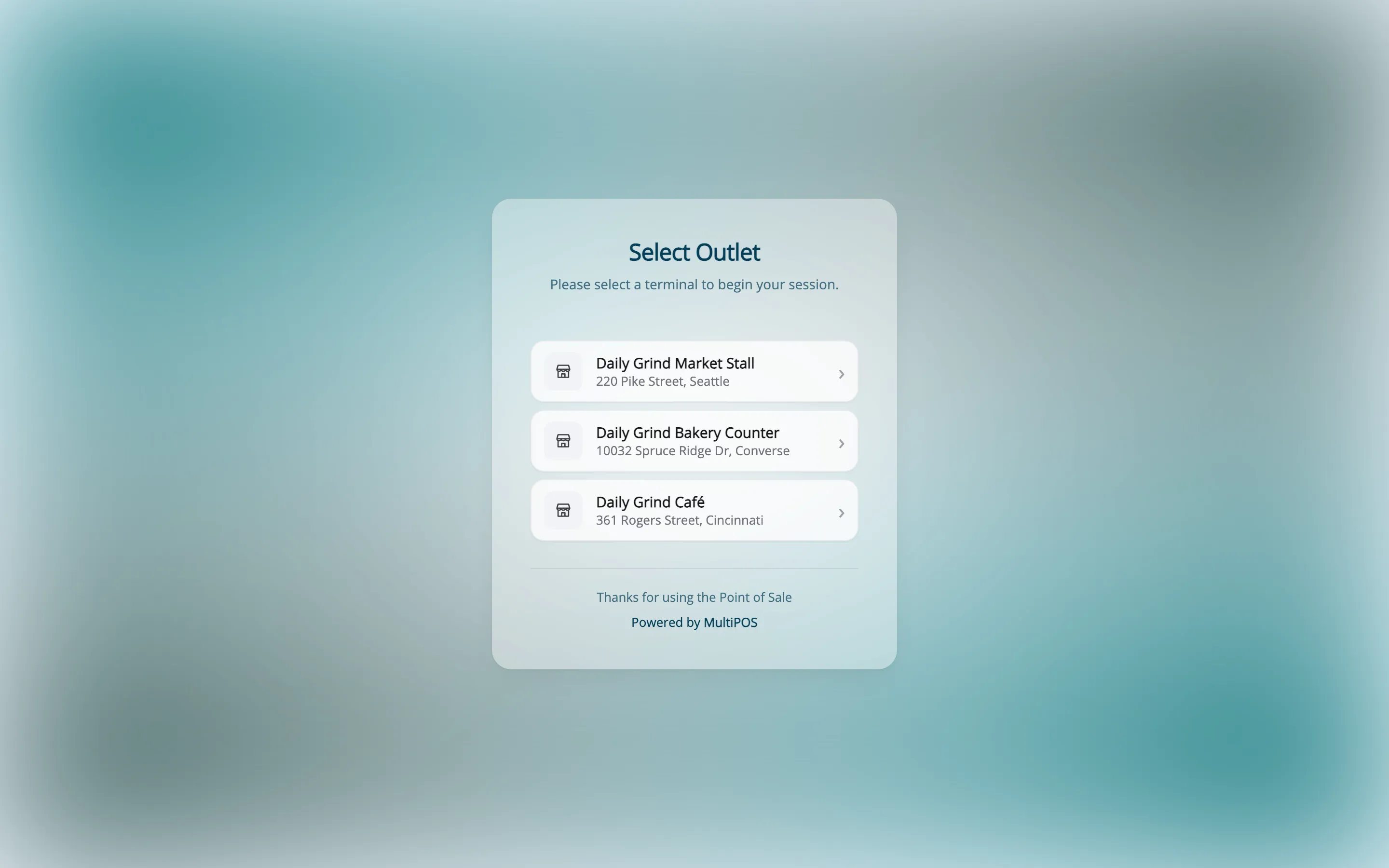
5. The POS opens at the vendor’s outlet
Section titled “5. The POS opens at the vendor’s outlet”The vendor, or one of their cashiers, opens yoursite.com/pos and picks an outlet. Only the
vendor’s outlets are offered.
6. The POS shows the vendor’s products only
Section titled “6. The POS shows the vendor’s products only”The product grid, the categories and the search all come from the vendor’s own products. An outlet on Custom stock also hides any product with no stock set for that outlet.
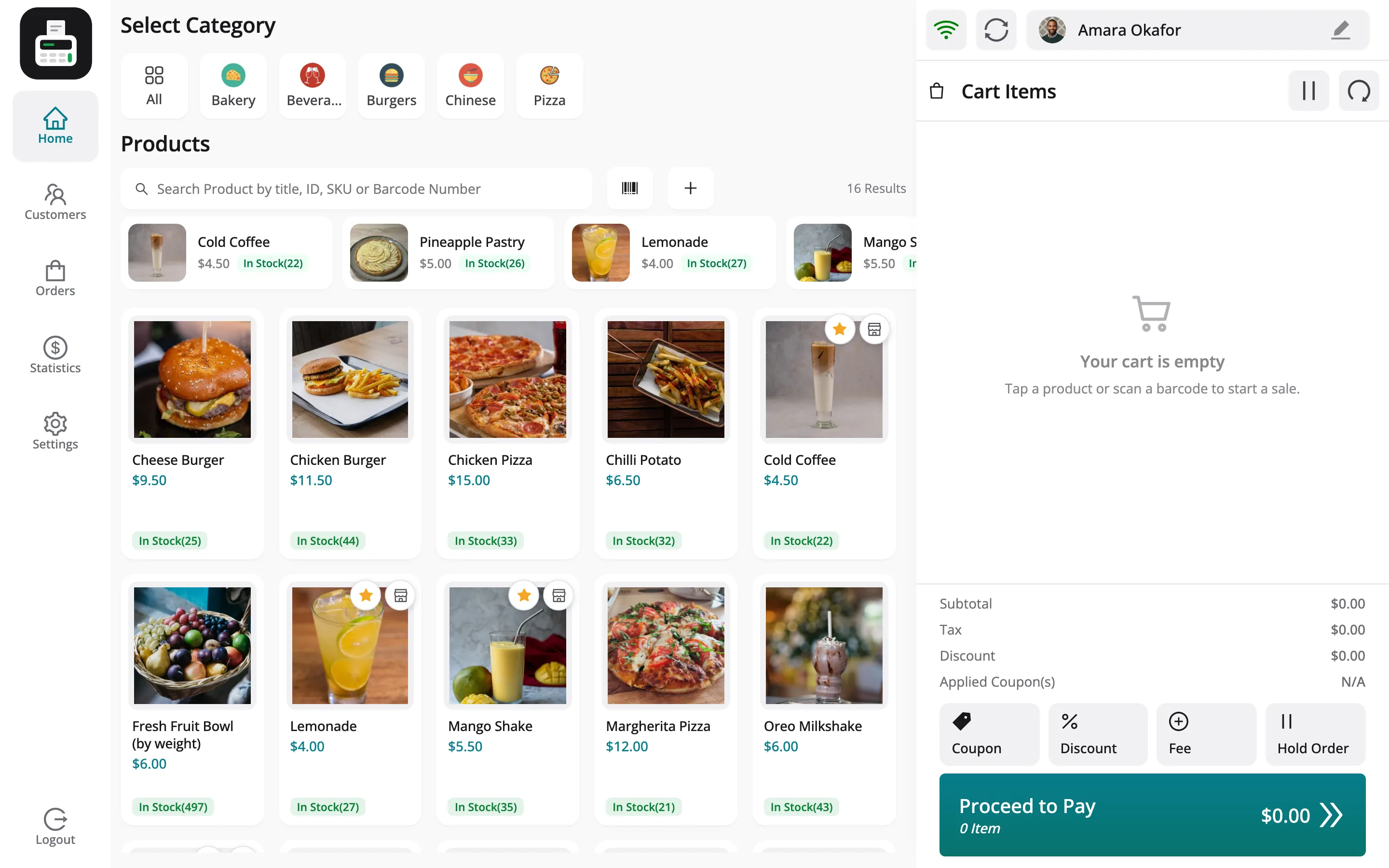
The server checks this again when the sale is placed. An outlet refuses another store’s product, and the owner’s outlets sell only the marketplace’s own products.
7. The customer is one of the vendor’s
Section titled “7. The customer is one of the vendor’s”A vendor’s POS lists the shared walk-in account and the vendor’s own customers. Those are the customers the vendor added at the POS, and the ones who have bought from the vendor.
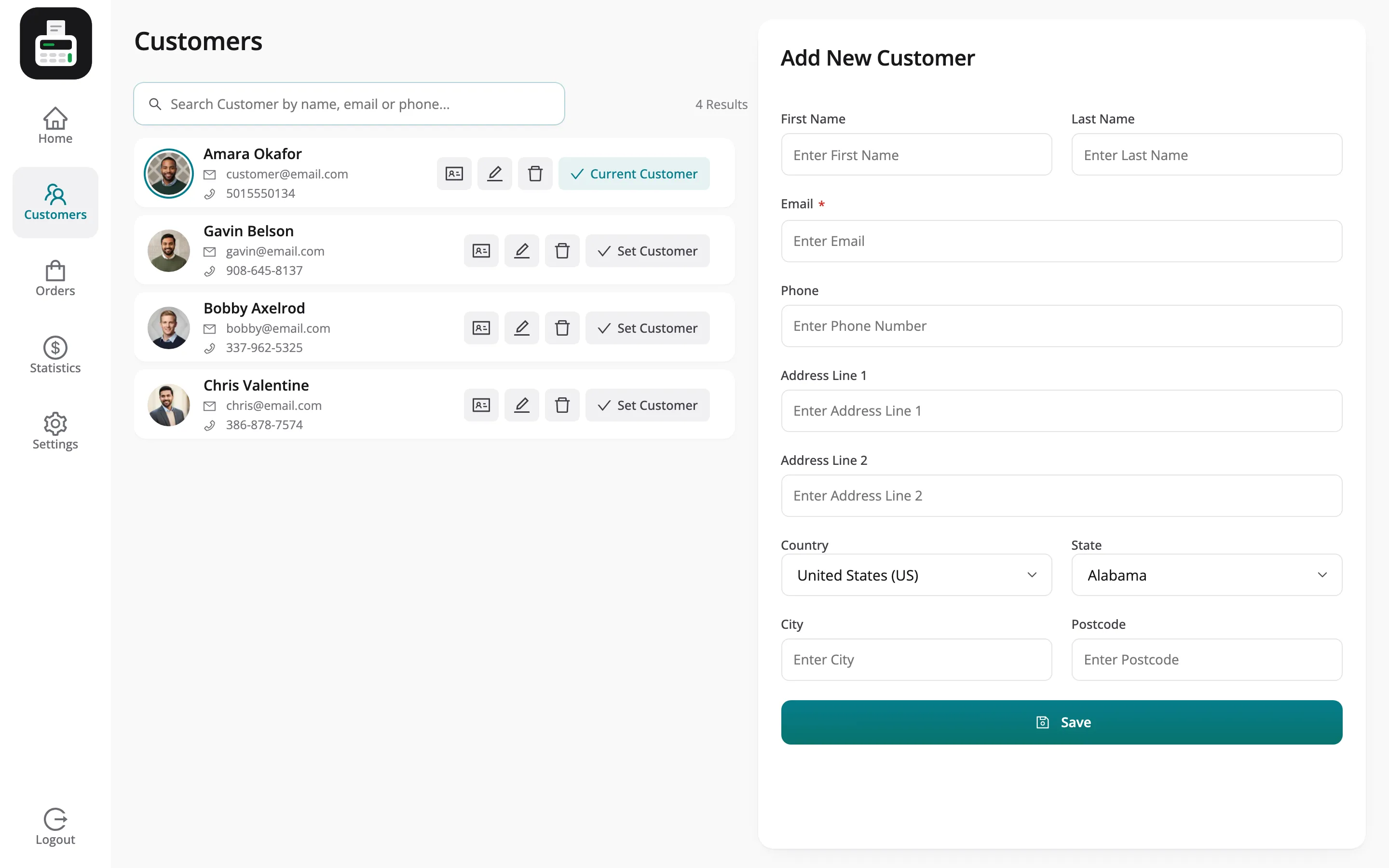
A customer added at a vendor’s POS becomes that vendor’s customer in WCFM too.
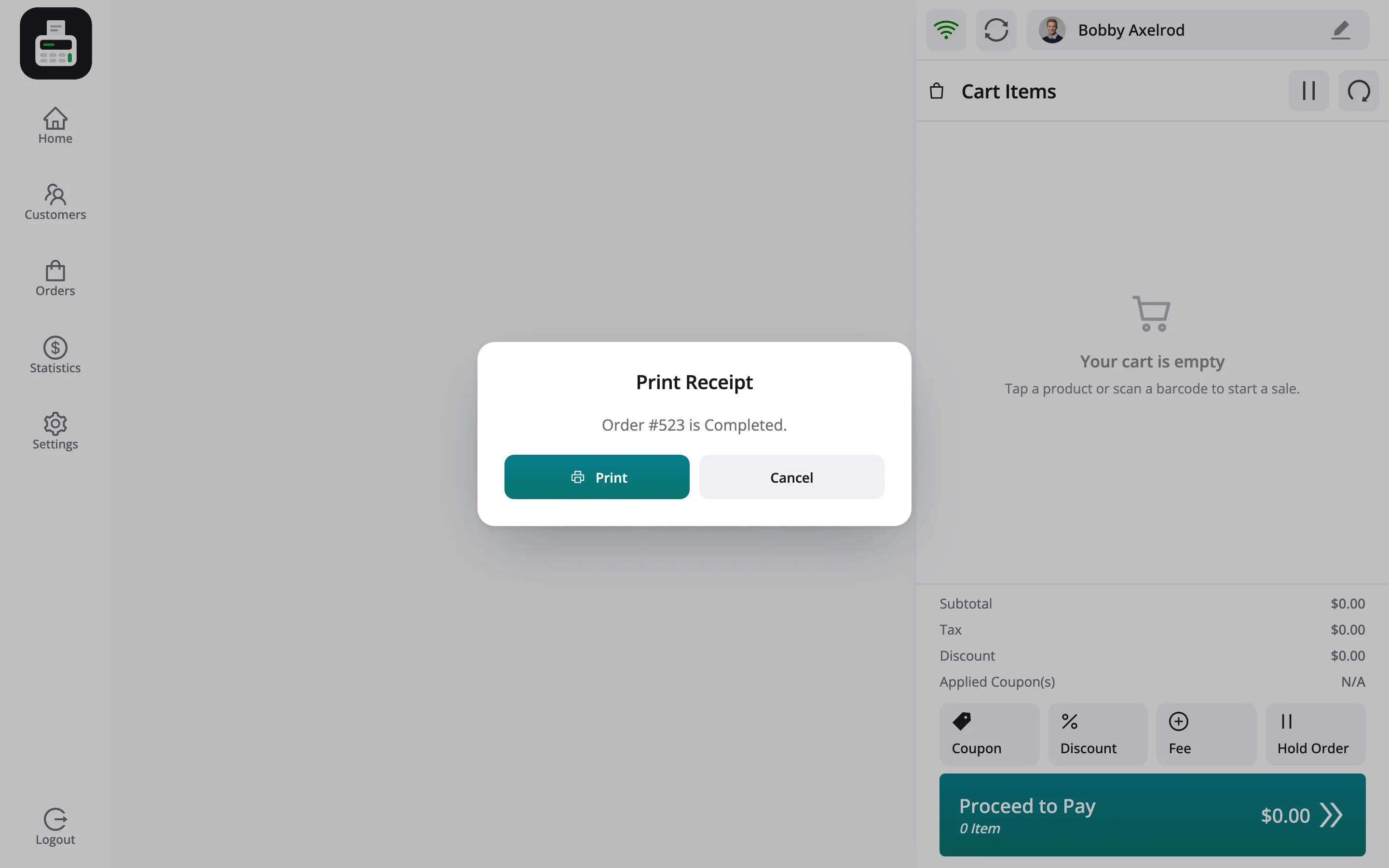
8. A WooCommerce order is created
Section titled “8. A WooCommerce order is created”Paying creates a normal WooCommerce order. It carries the outlet, the cashier, the payment methods and the outlet’s address, and takes stock from WooCommerce or from the outlet.
9. WCFM Marketplace records the sale
Section titled “9. WCFM Marketplace records the sale”With Marketplace Orders switched on, the finished sale is recorded in WCFM Marketplace like any other vendor order. It shows in the vendor’s Orders screen with its earning, and in the owner’s marketplace orders with the commission.
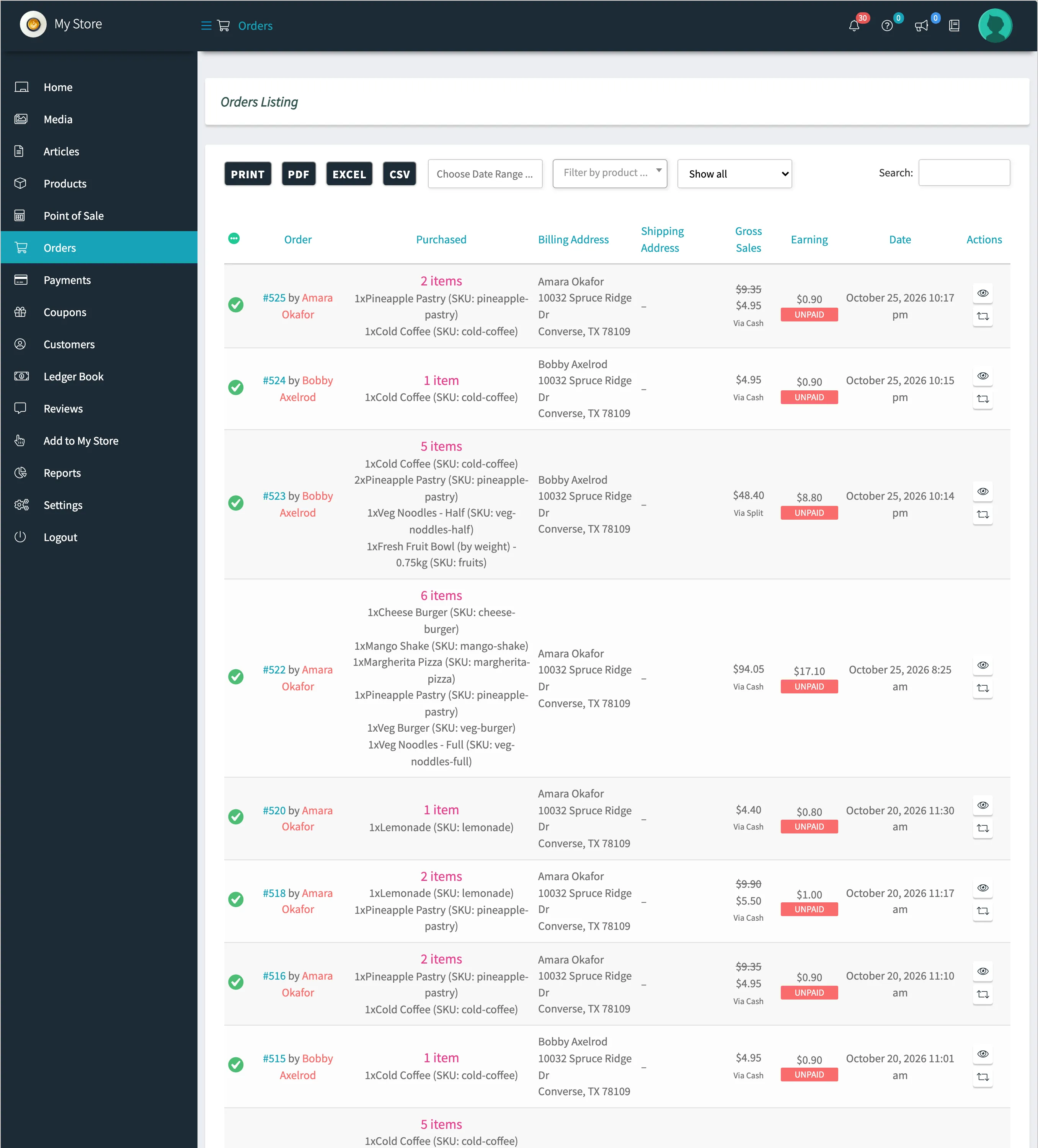
The sale is recorded once it is complete, with its taxes, so the vendor’s earning follows your WCFM commission settings exactly. A refund at the POS works the commission out again for the items returned.
10. The vendor reads the results
Section titled “10. The vendor reads the results”The vendor’s Orders, Transactions, Registers and Reports screens show the sale and the cash it moved, for their store alone.
When a register closes, the Z-report is emailed to the recipients in the vendor’s Cash Register settings. A vendor who never saved that tab uses the owner’s recipients. With no recipient set anywhere, the report goes to the vendor’s own email address.