

MultiPOS for WCFM Payment Methods
The Payments tab lists the ways a customer can pay at the counter: cash, a card terminal, a bank transfer. These are not your WooCommerce payment gateways, which handle website checkout.
Open the tab
Section titled “Open the tab”Go to DevDiggers Plugins → MultiPOS → Configuration → Payments.
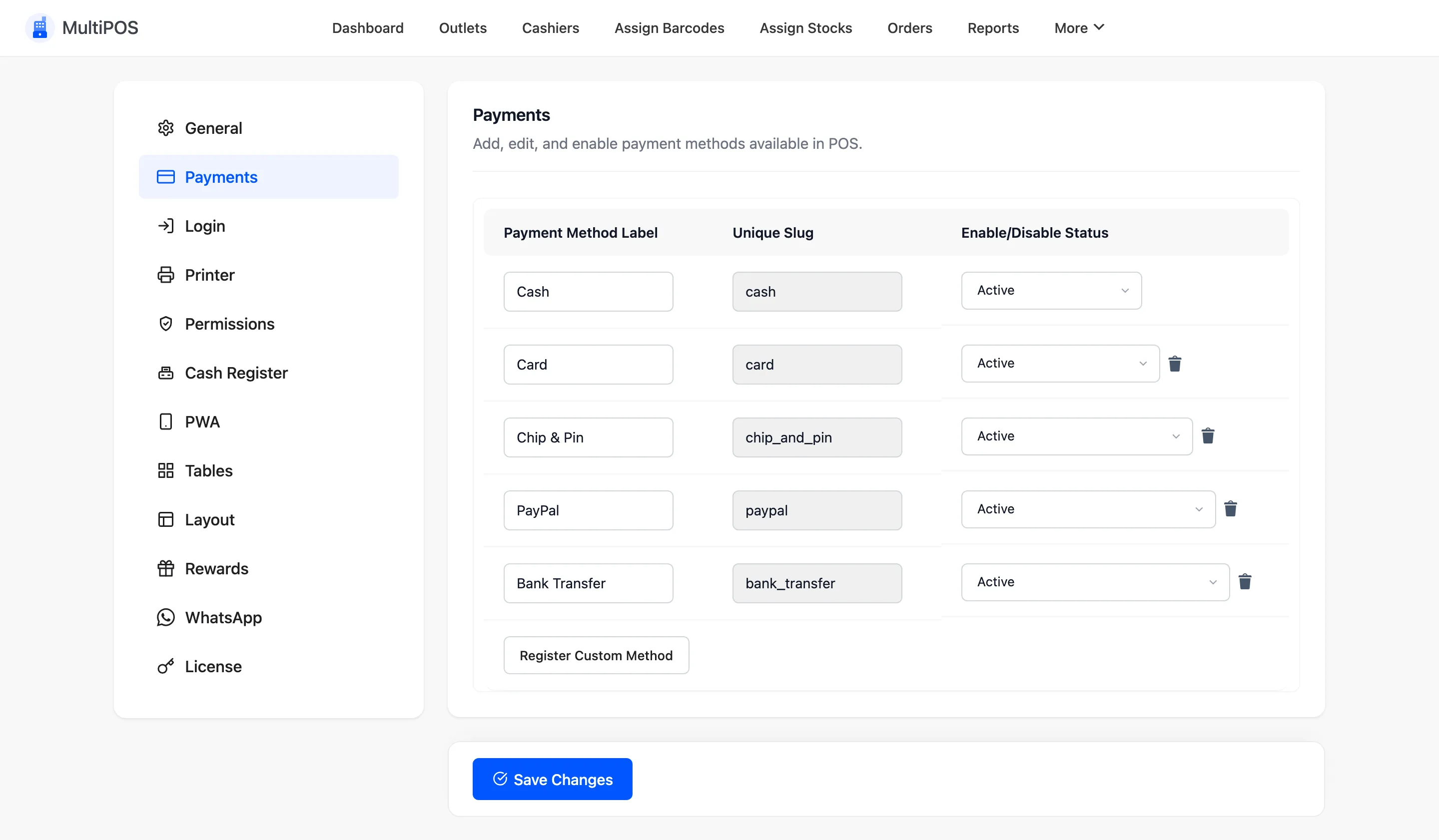
The columns
Section titled “The columns”| Column | What it is |
|---|---|
| Payment Method Label | What the cashier taps at payment |
| Unique Slug | The key saved on the order |
| Enable/Disable Status | Active or Inactive |
Cash, with the slug cash, ships with the plugin and cannot be deleted. Change of a cash payment
is only recorded for the slug cash, so rename its label if you like, never its slug.
Add a method
Section titled “Add a method”Click Register Custom Method under the table, fill in the label and slug, set it Active and click Save Changes.
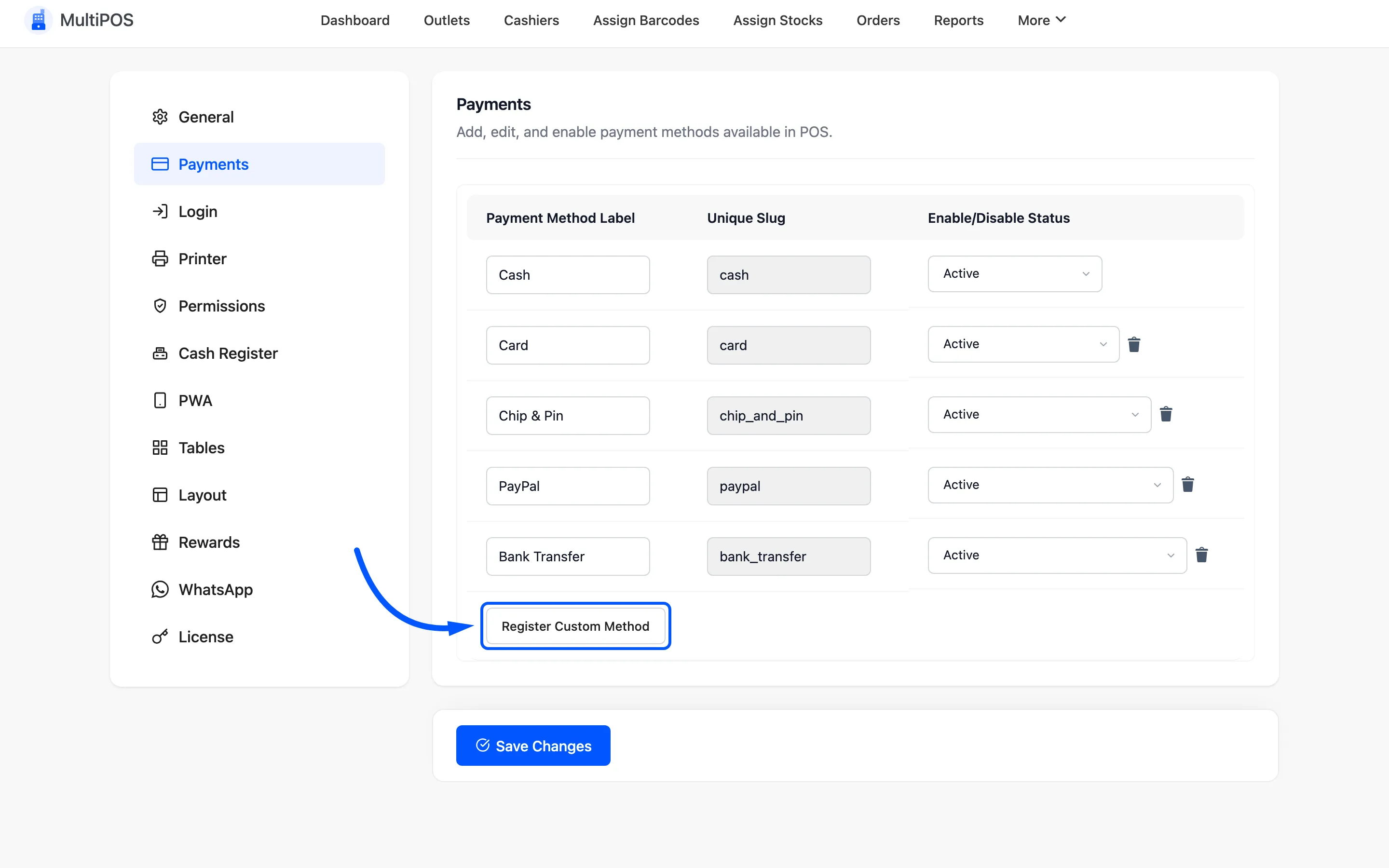 Card, Chip and Pin, Bank Transfer, Gift Card and Account are common additions.
Switch a method off
Section titled “Switch a method off”Set it to Inactive rather than deleting it. It leaves the payment screen but stays on the orders that used it.
Assign methods to an outlet
Section titled “Assign methods to an outlet”A method only appears at the POS once it is ticked under Payment Methods on the outlet. The payment screen offers the outlet’s methods that are also Active here.
Vendors keep their own list
Section titled “Vendors keep their own list”A vendor’s Payments tab in the store manager is the vendor’s own list. It starts as a copy of yours, and once the vendor saves it, adding or switching off a method there changes the vendor’s outlets only.
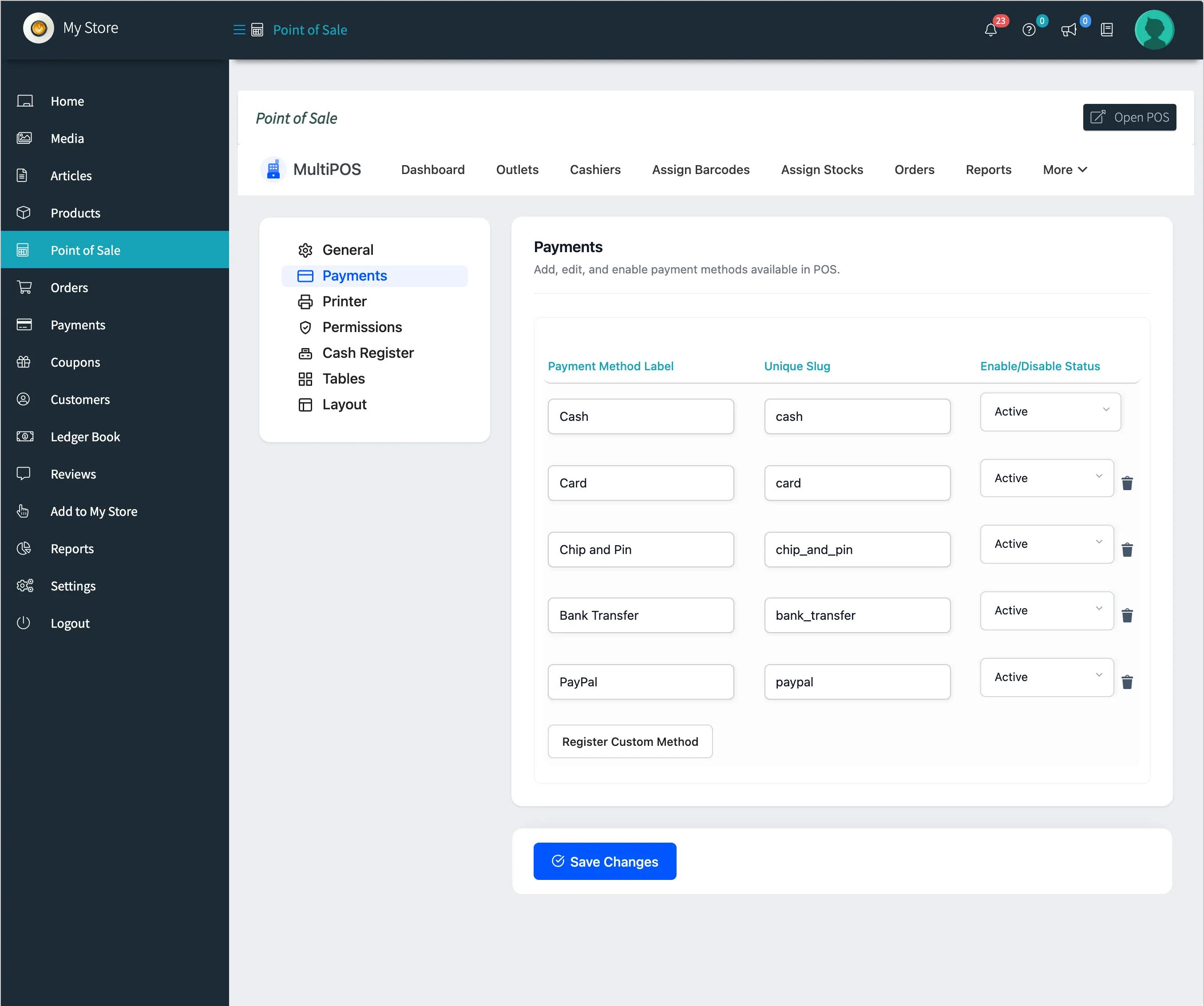
A vendor who takes cards on their own terminal can add Card for their store without it appearing at anyone else’s counter.
What the cashier sees
Section titled “What the cashier sees”The payment screen offers the outlet’s methods in the Method list beside the amount.
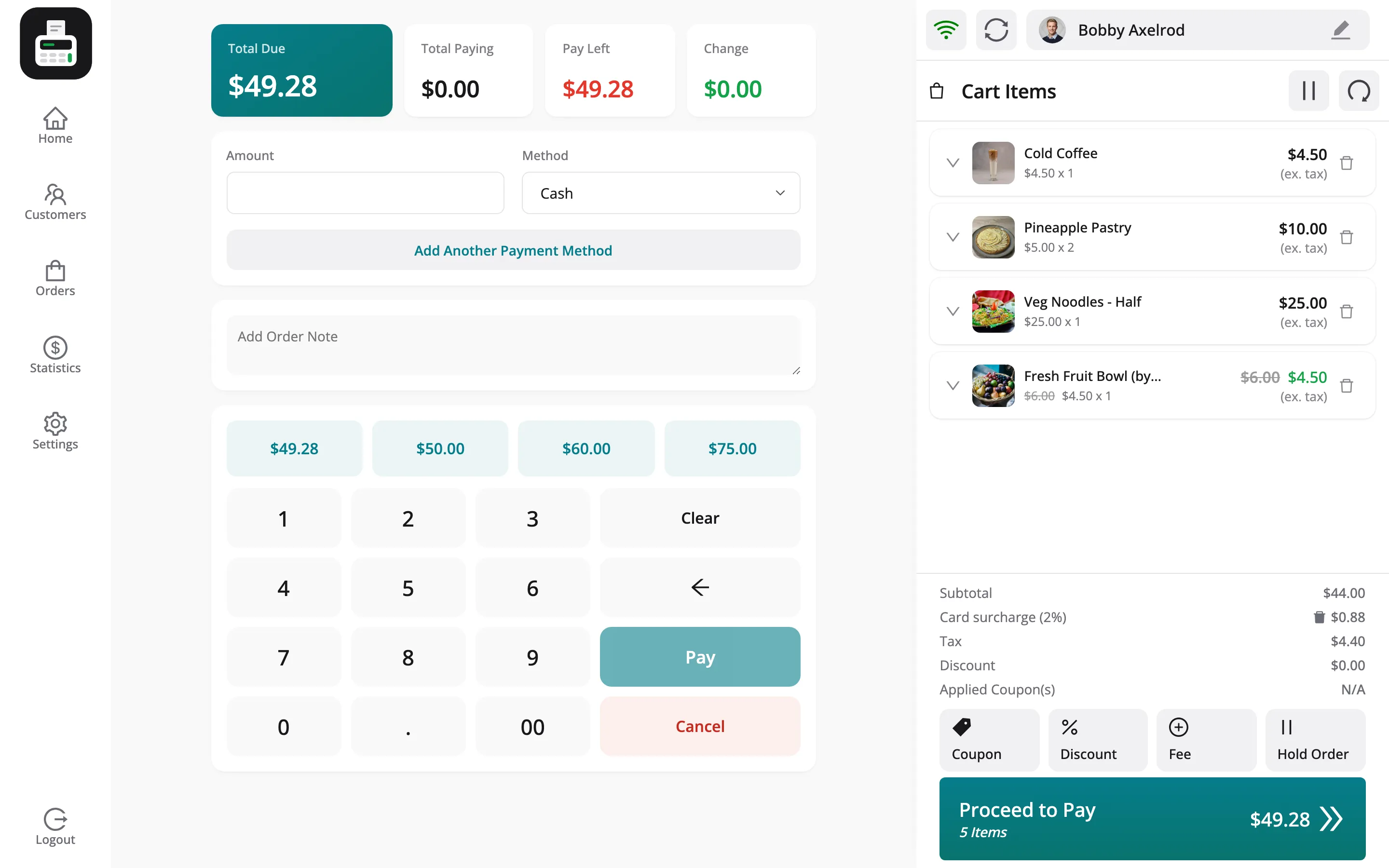
With Multi-Payment Support on, Add Another Payment Method splits a sale across methods. See How to Split a Payment.
Where to go next
Section titled “Where to go next”- Outlets to assign methods.
- Transactions for what each payment records.