

MultiPOS for WCFM General Settings
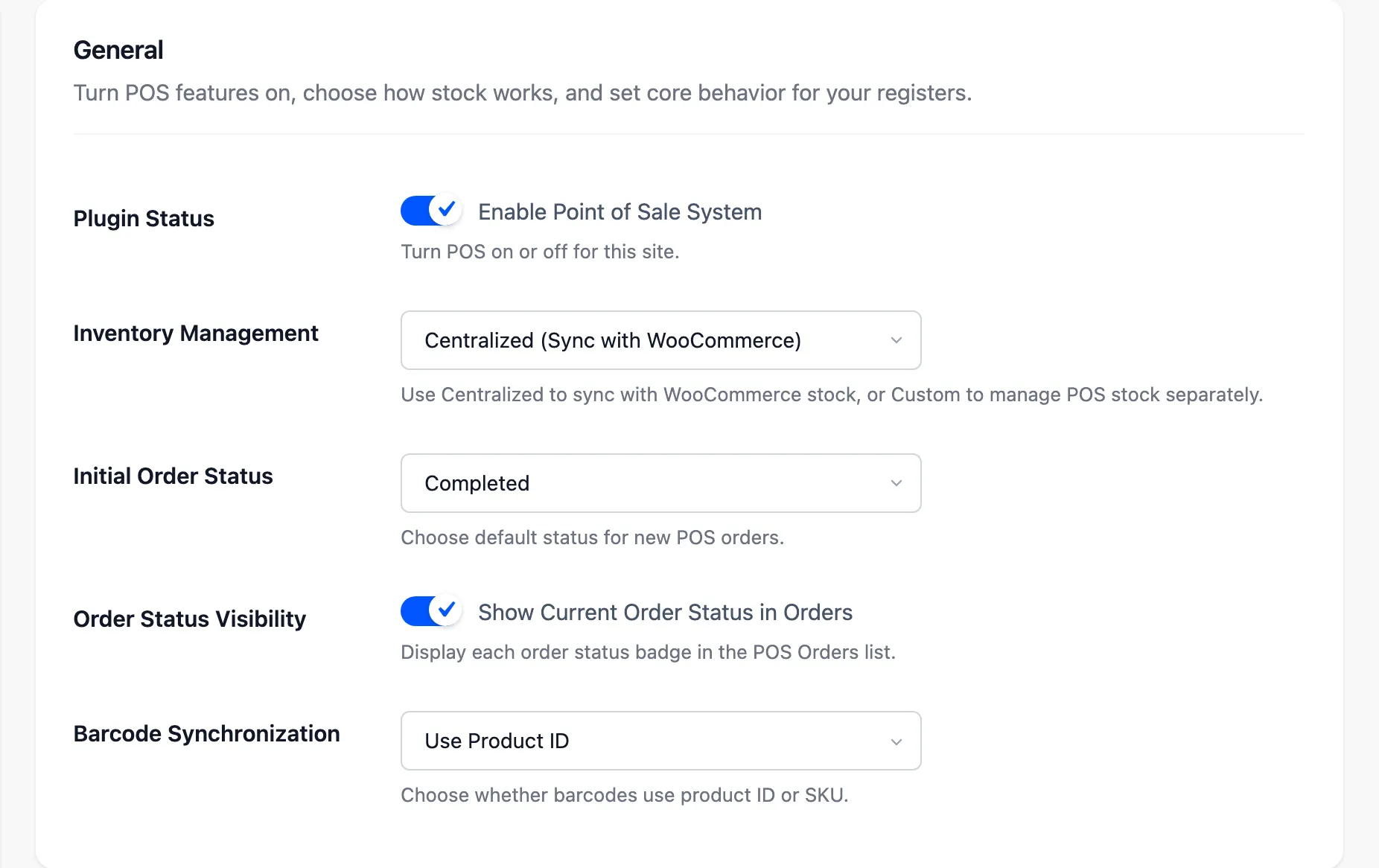
The General tab switches the POS on, sets how stock and orders behave, and decides which vendors get a POS. Seven sections.
Open the tab
Section titled “Open the tab”Go to DevDiggers Plugins → MultiPOS → Configuration → General.
The tabs down the left are the whole Configuration screen: General, Payments, Login, Printer, Permissions, Cash Register, PWA, Tables, Layout, Rewards, WhatsApp and License.
General
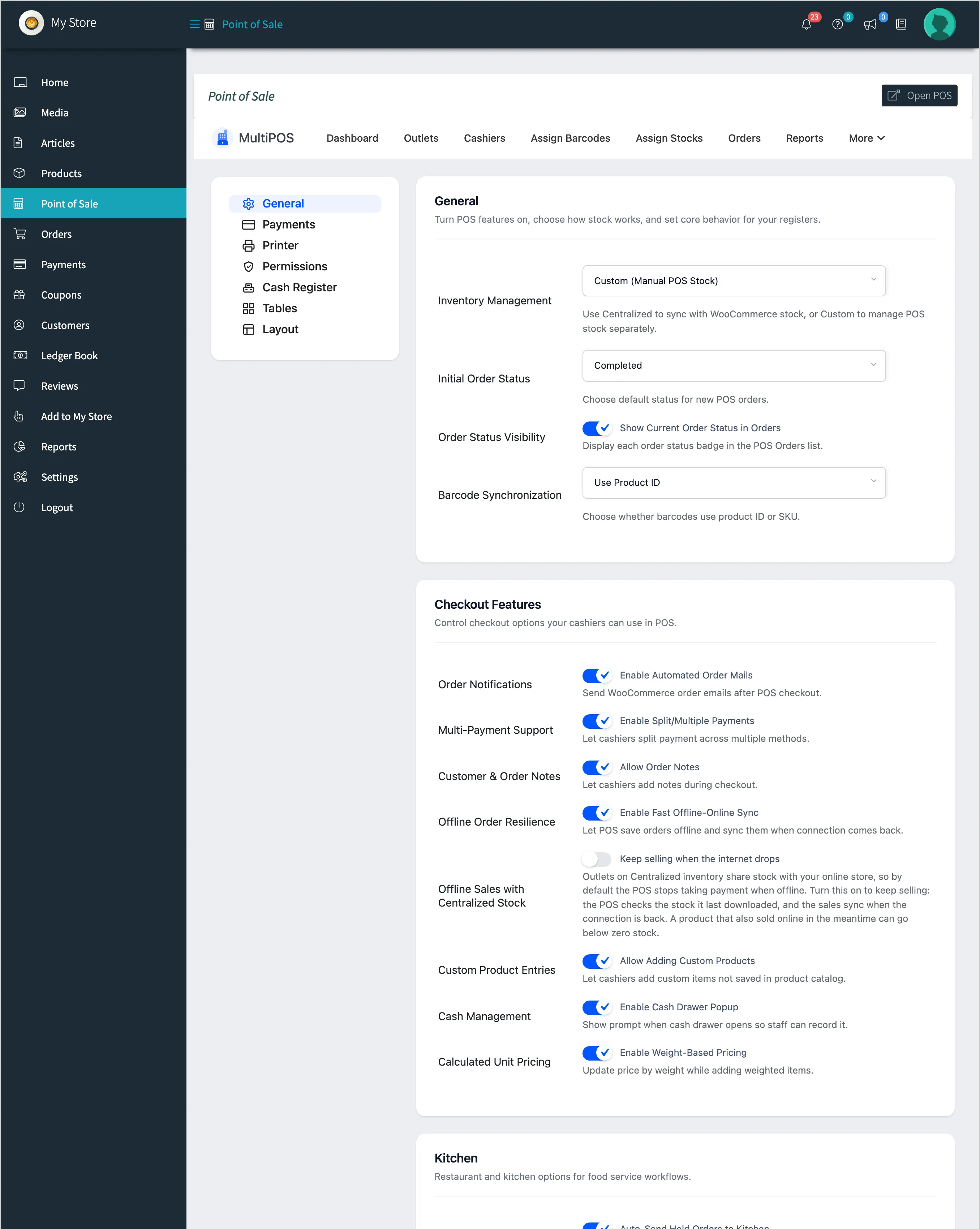
Section titled “General”- Plugin Status: Enable Point of Sale System turns the POS on for the whole marketplace, vendors included.
- Inventory Management: Centralized (Sync with WooCommerce) sells from the product’s WooCommerce stock. Custom (Manual POS Stock) keeps a separate count per outlet. An outlet can override this with its own setting.
- Initial Order Status: The status every POS order is created with. Completed by default.
- Order Status Visibility: Shows each order’s status badge in the POS Orders list.
- Barcode Synchronization: Builds barcodes from the Product ID or the Product SKU.
Checkout Features
Section titled “Checkout Features”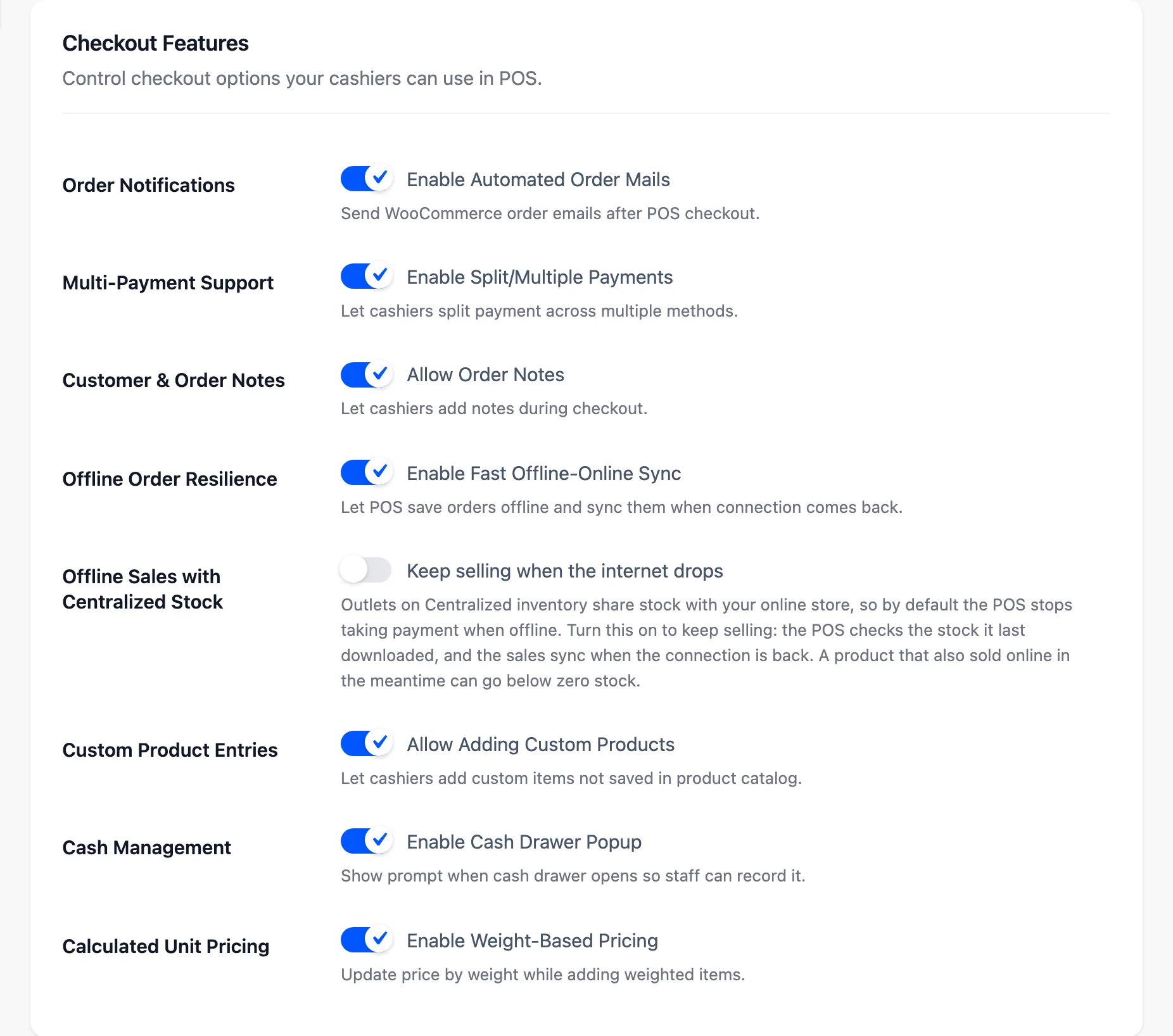
| Field | What it does |
|---|---|
| Order Notifications | Sends the usual WooCommerce order emails after a POS sale |
| Multi-Payment Support | Lets a cashier split one sale across payment methods |
| Customer & Order Notes | Adds a note field to the payment screen |
| Offline Order Resilience | Keeps selling offline and syncs when the connection returns |
| Offline Sales with Centralized Stock | Keeps selling offline at an outlet on Centralized stock |
| Custom Product Entries | Lets a cashier sell an item that is not in the catalogue |
| Cash Management | Asks for the opening drawer amount at the start of a shift |
| Calculated Unit Pricing | Prices an item by weight as it is added |
An outlet on Centralized stock shares it with the website, so by default the POS stops taking payment while offline. Keep selling when the internet drops lifts that. The risk is that a product sold online in the meantime goes below zero.
Kitchen
Section titled “Kitchen”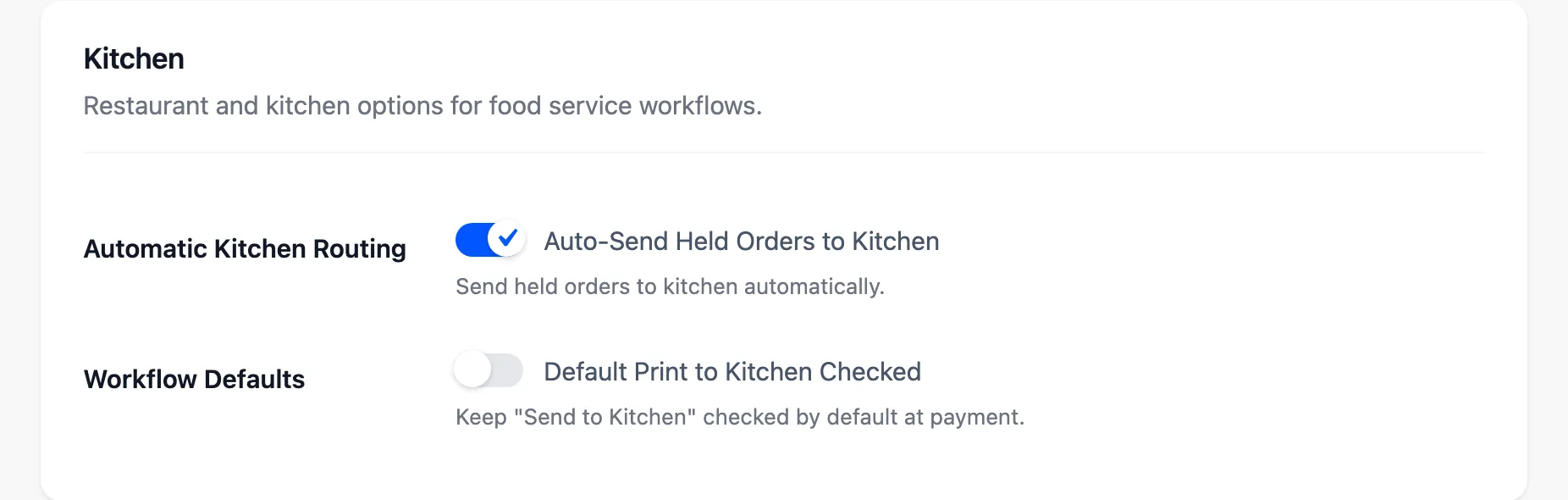
- Automatic Kitchen Routing: Auto-Send Held Orders to Kitchen sends a held order to the kitchen screen as soon as it is held.
- Workflow Defaults: Default Print to Kitchen Checked keeps Send to Kitchen ticked on the payment screen.
Both only matter at a Restaurant/Cafe outlet.
Branding
Section titled “Branding”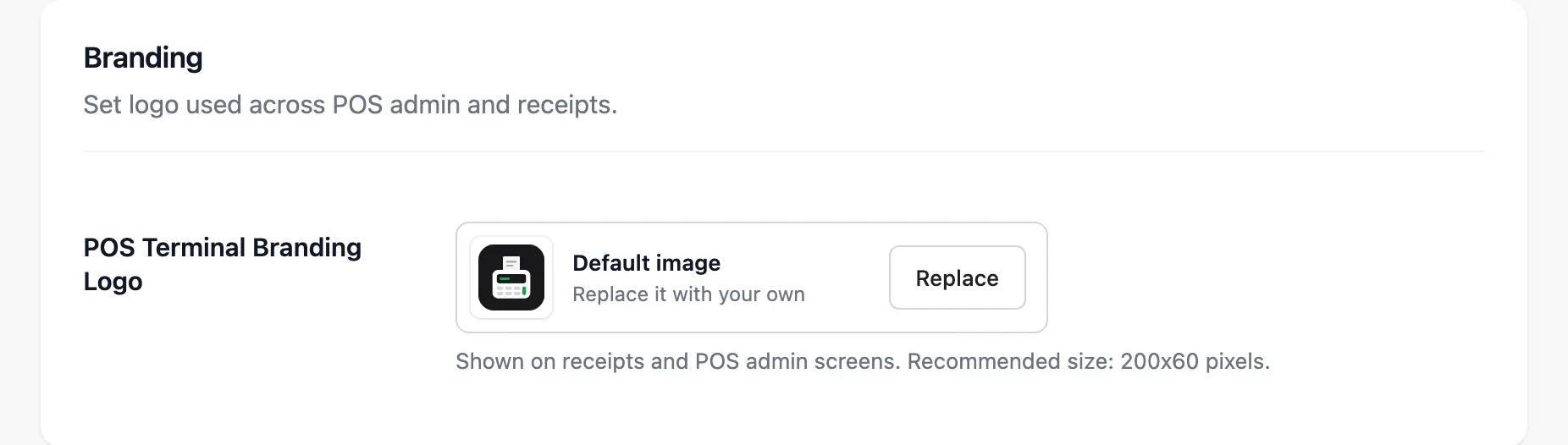
POS Terminal Branding Logo appears on receipts and in the POS sidebar. 200 by 60 pixels works best. Pick one that still reads on a thermal printer.
Customers
Section titled “Customers”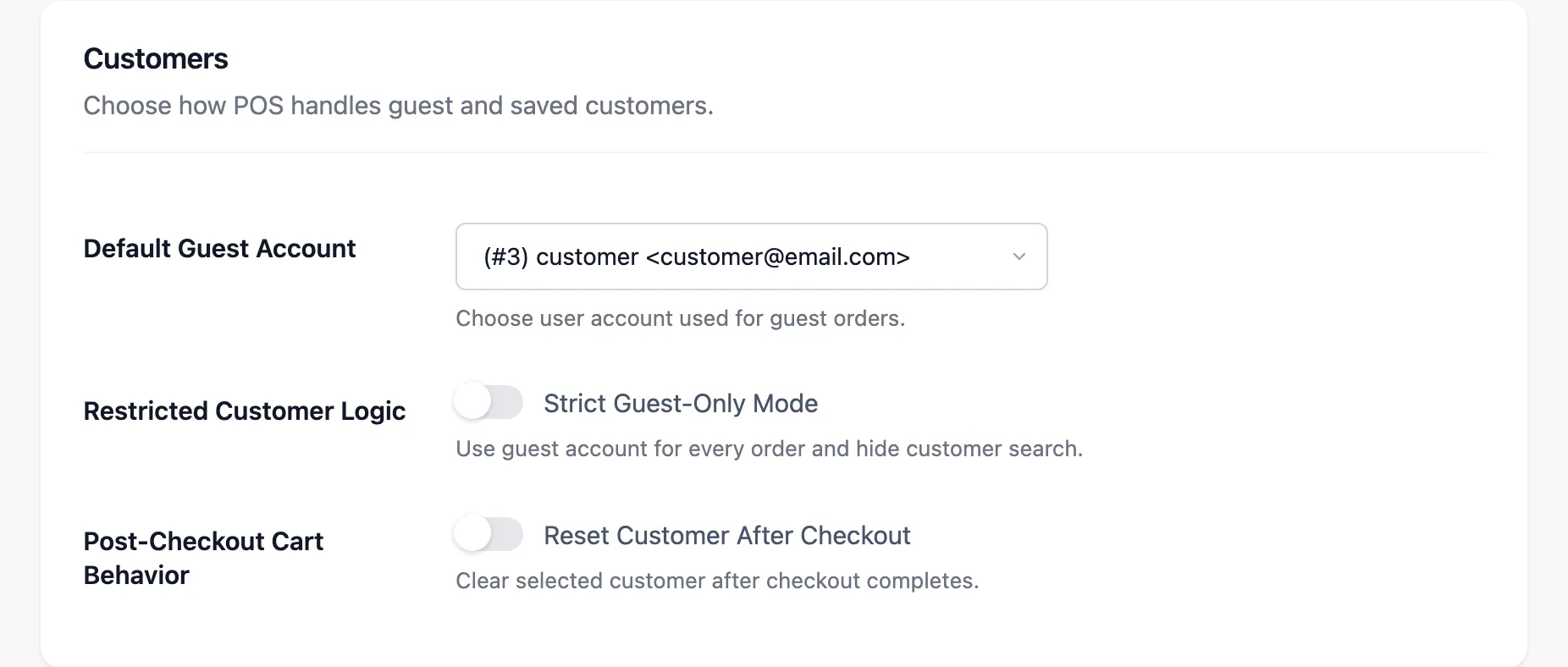
- Default Guest Account: The customer every walk-in sale is billed to. Every vendor’s POS shares it.
- Restricted Customer Logic: Strict Guest-Only Mode bills every sale to the guest account and hides the customer search.
- Post-Checkout Cart Behavior: Reset Customer After Checkout clears the customer once a sale is paid, so the next sale does not inherit them.
Advanced
Section titled “Advanced”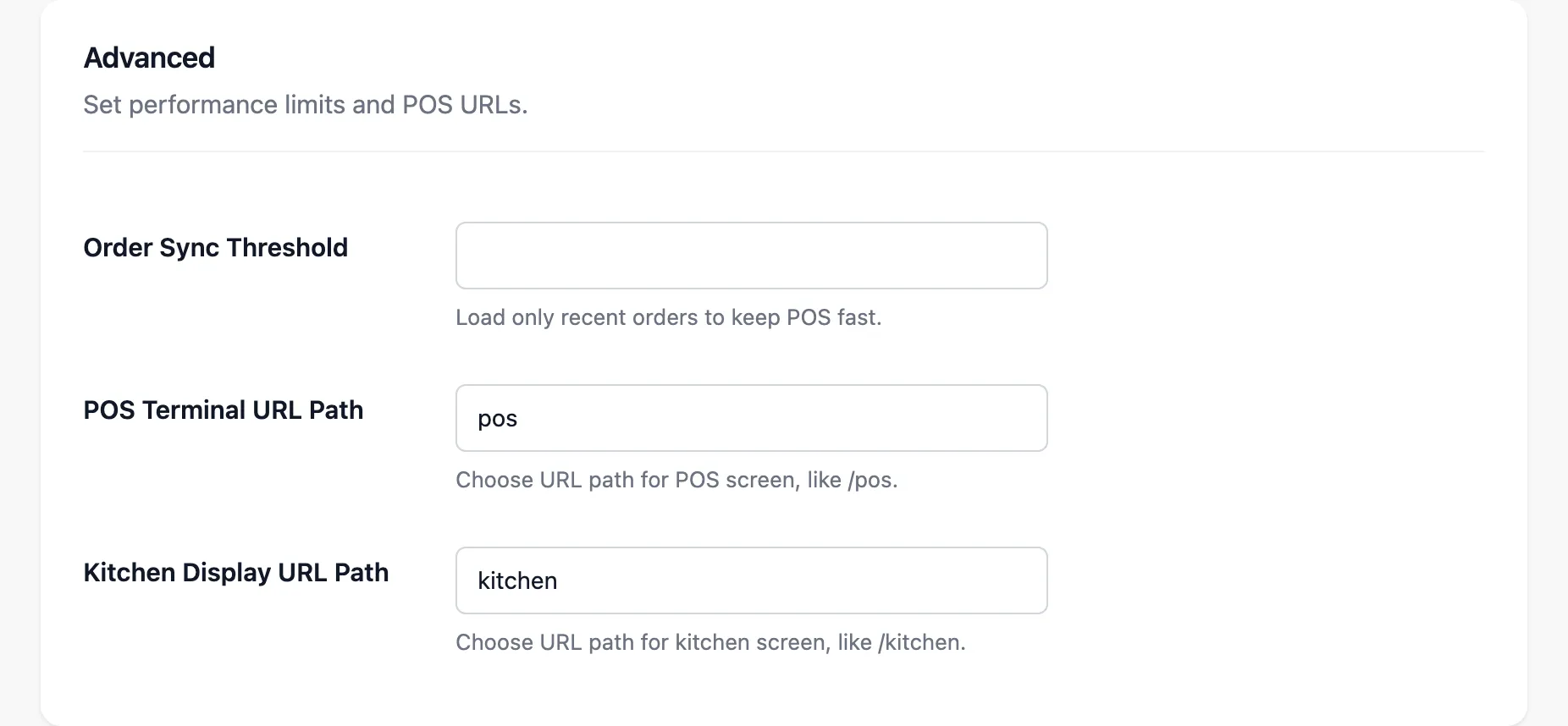
- Order Sync Threshold: Loads only recent orders into the POS, to keep it fast.
- POS Terminal URL Path: The POS address.
posgivesyoursite.com/pos. - Kitchen Display URL Path: The kitchen screen’s address.
kitchenby default.
Both paths serve the owner and every vendor.
Marketplace
Section titled “Marketplace”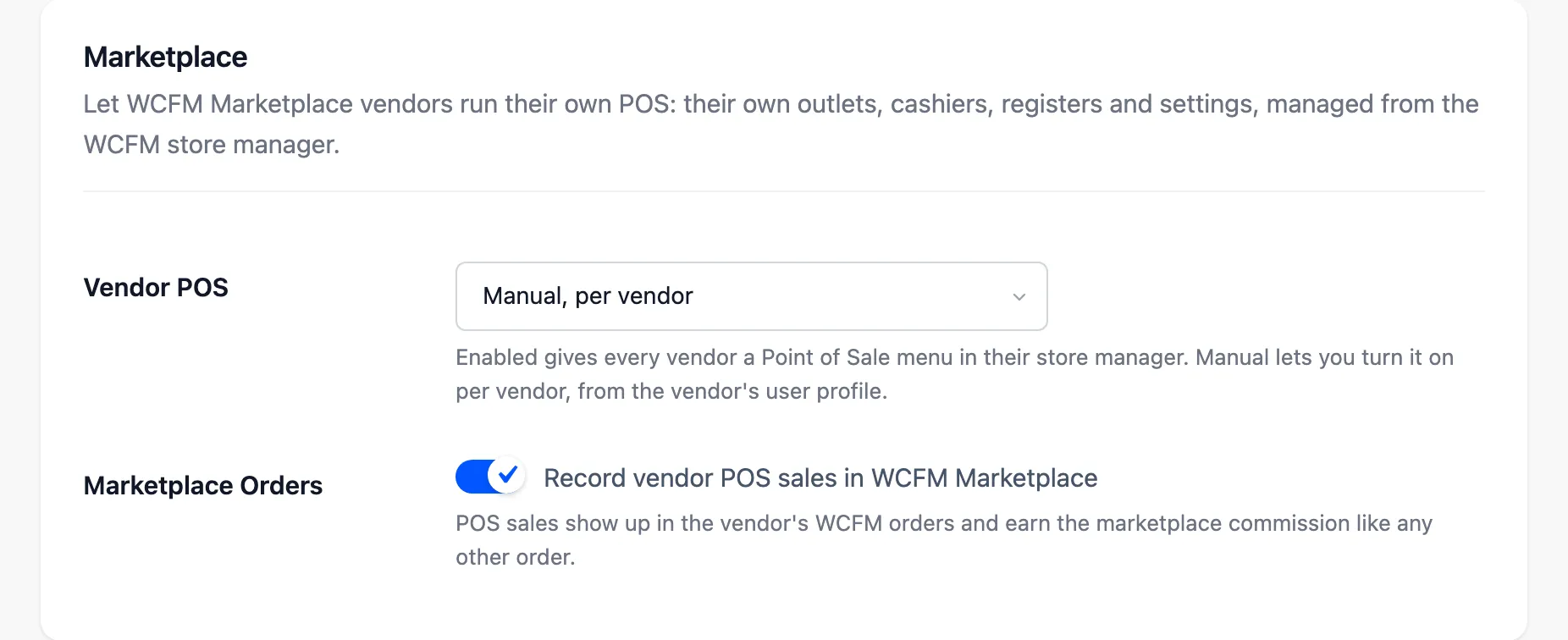
Vendor POS decides which vendors get a POS:
- Enabled for all vendors: Every vendor gets Point of Sale in the store manager. The default.
- Manual, per vendor: Only vendors ticked on their WordPress profile get it.
- Disabled: No vendor gets it.
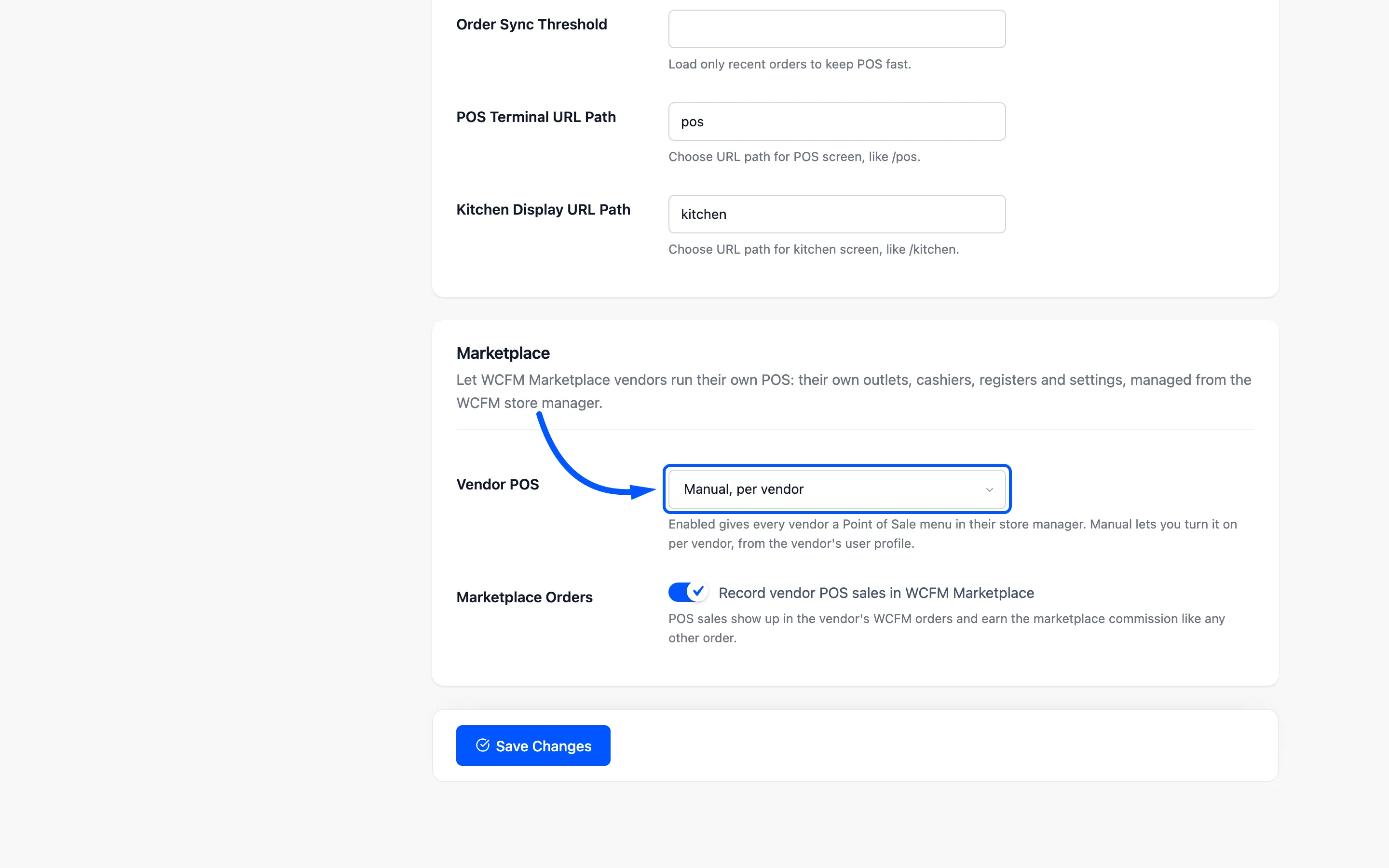
Turning a vendor off is immediate. Their menu disappears, and the vendor and their cashiers are sent to My Account if they open the POS.
Marketplace Orders, labelled Record vendor POS sales in WCFM Marketplace, is on by default. A vendor’s POS sale is then recorded in WCFM like an online order. It shows in the vendor’s Orders with its earning, and the marketplace commission applies.
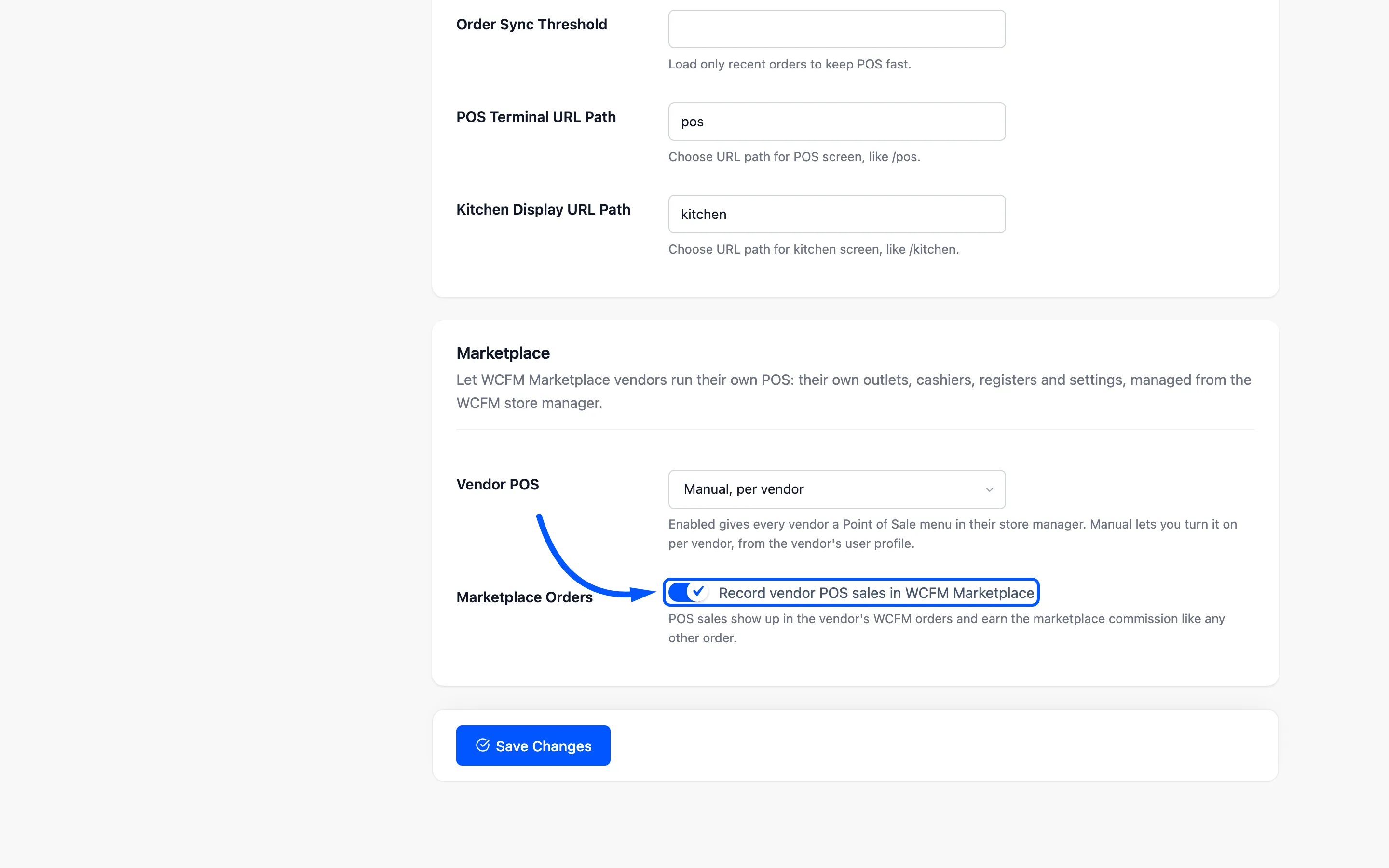
Turn it off if you settle counter sales with vendors outside WCFM. Sales stay normal WooCommerce orders either way.
Click Save Changes at the foot of the tab.
What vendors see of this tab
Section titled “What vendors see of this tab”A vendor’s General tab keeps the four stock and order fields at the top, the whole of Checkout Features, Kitchen and Branding. It also keeps the two customer switches and Order Sync Threshold.
The plugin switch, the guest account, both addresses and the Marketplace section are yours alone.