

How to Hold and Resume an Order in the POS
Holding parks a cart under a note, so you can serve the next customer and come back to it.
Step 1: Hold the cart
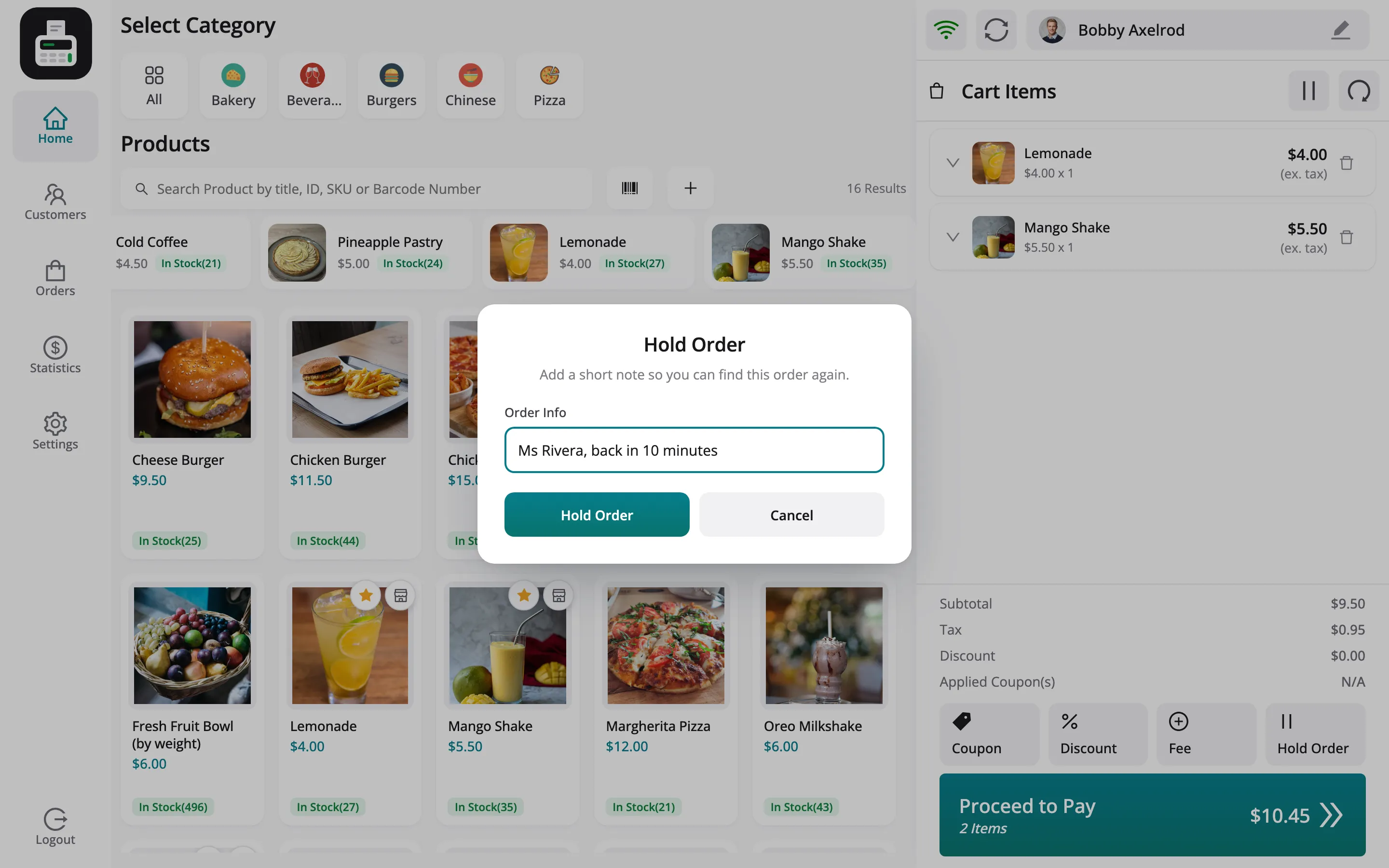
Section titled “Step 1: Hold the cart”Click Hold Order and type a note you will recognise, such as a name. Click Hold Order in the popup.
Step 2: Serve the next customer
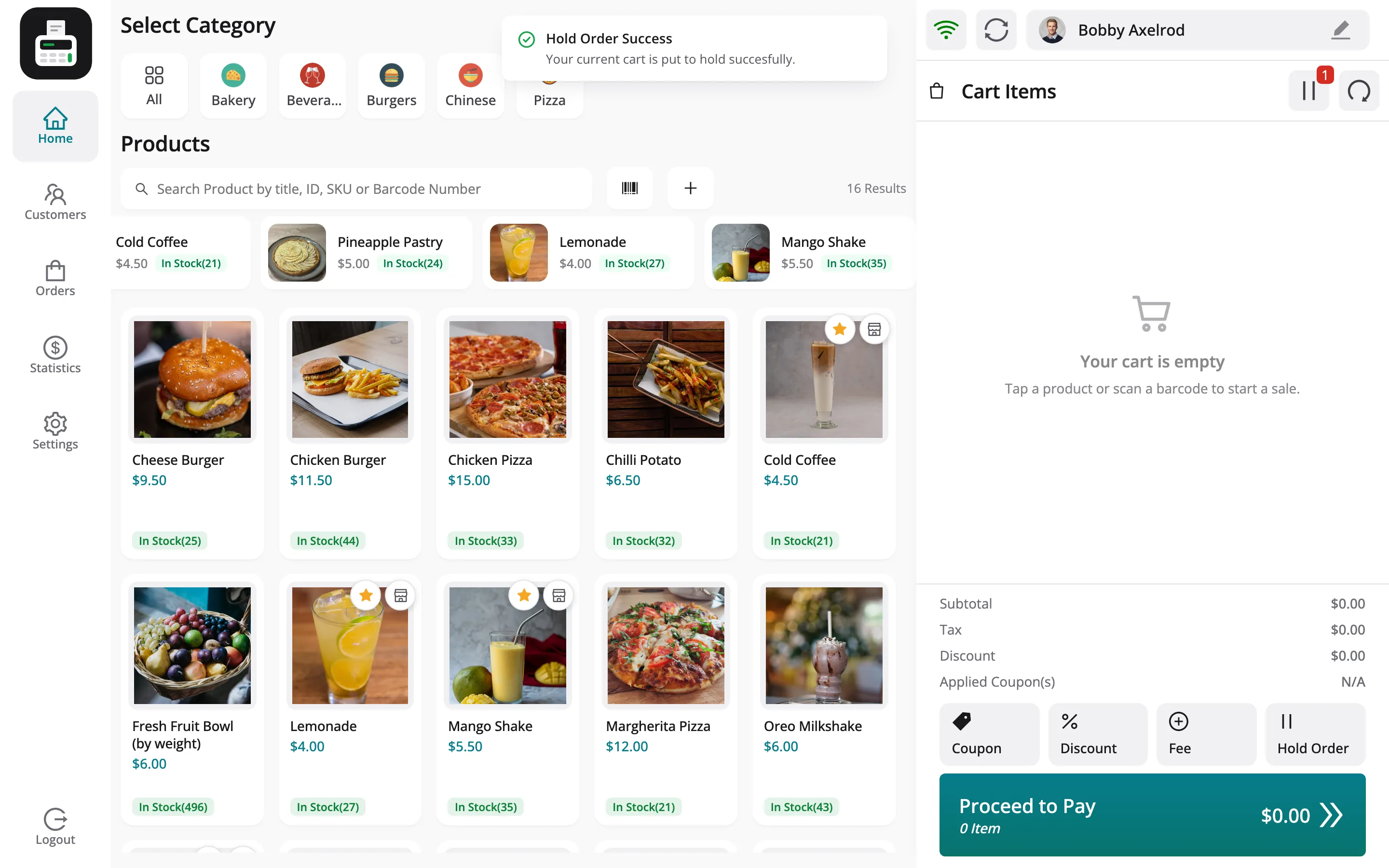
Section titled “Step 2: Serve the next customer”The cart empties, and the pause icon in the cart header counts the held orders.
Step 3: Find the held order
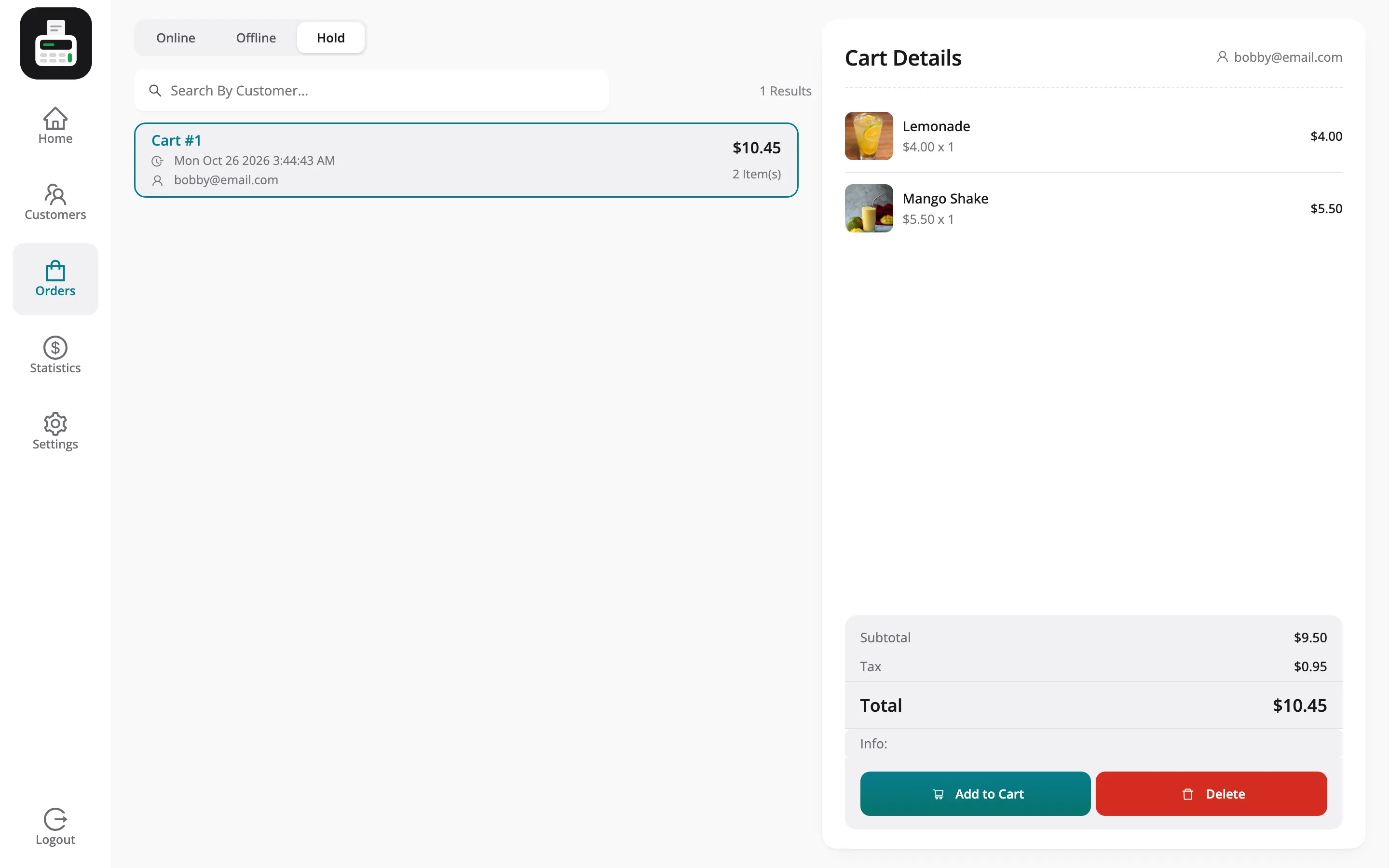
Section titled “Step 3: Find the held order”Click the pause icon, or open Orders → Hold. Each held cart is listed with its total.
Step 4: Resume it
Section titled “Step 4: Resume it”Open it and click Add to Cart. It comes back with its coupons, fees and cart discount, as it was when you held it. Delete throws it away, adjustments and all.
Things to know
Section titled “Things to know”- Held carts live in the browser of the POS that held them. Another POS does not see them.
- At a restaurant outlet, holding can also send the order to the kitchen. See How to Run a Restaurant with Tables.