

MultiPOS for WCFM Cash Register Settings
The Cash Register tab controls the end of a shift. The cashier counts the drawer, the POS compares it with what should be there, and a Z-report is saved and emailed.
Go to DevDiggers Plugins → MultiPOS → Configuration → Cash Register.
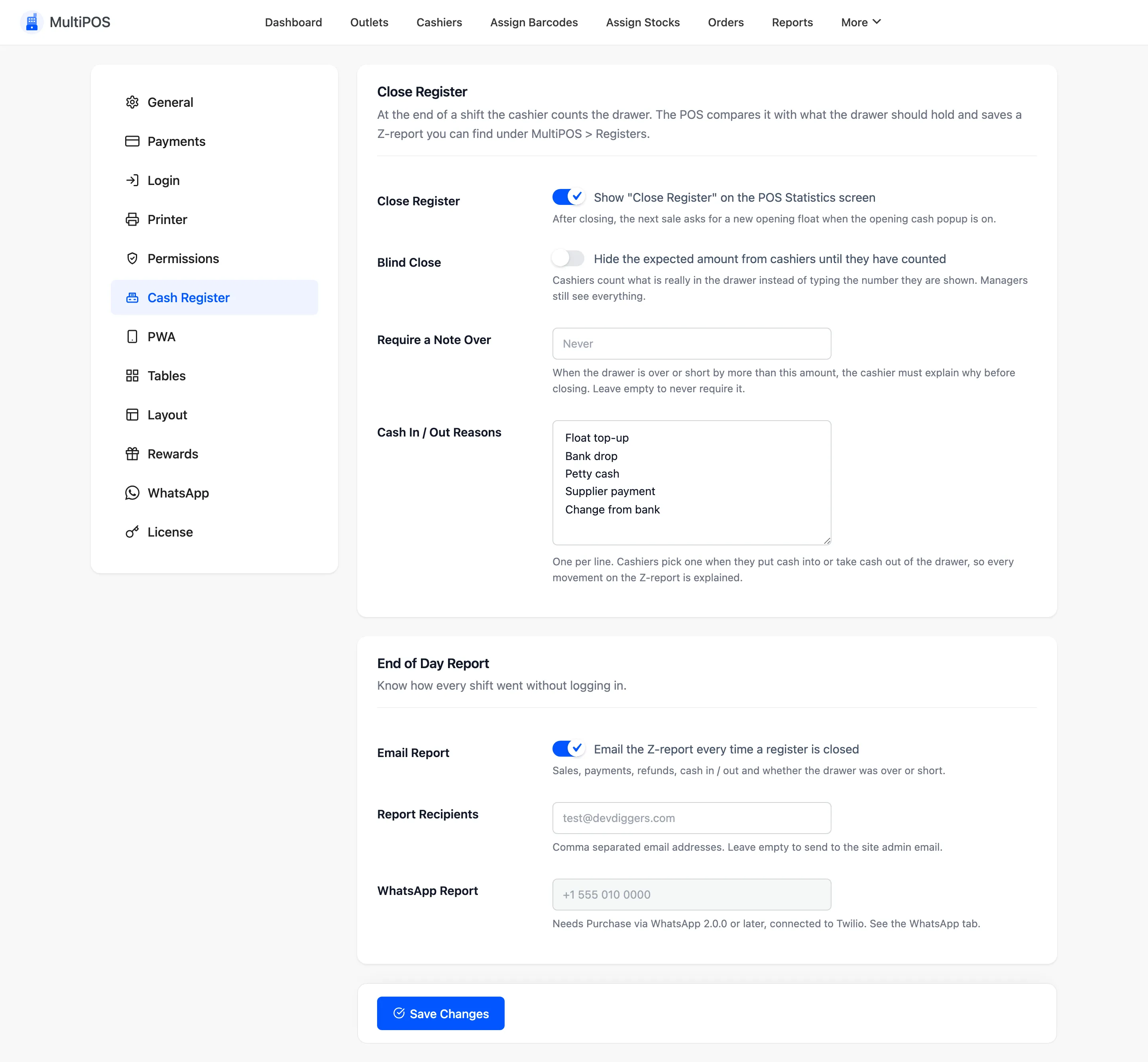
The opening amount is switched on elsewhere, by Cash Management on the General tab.
Close Register
Section titled “Close Register”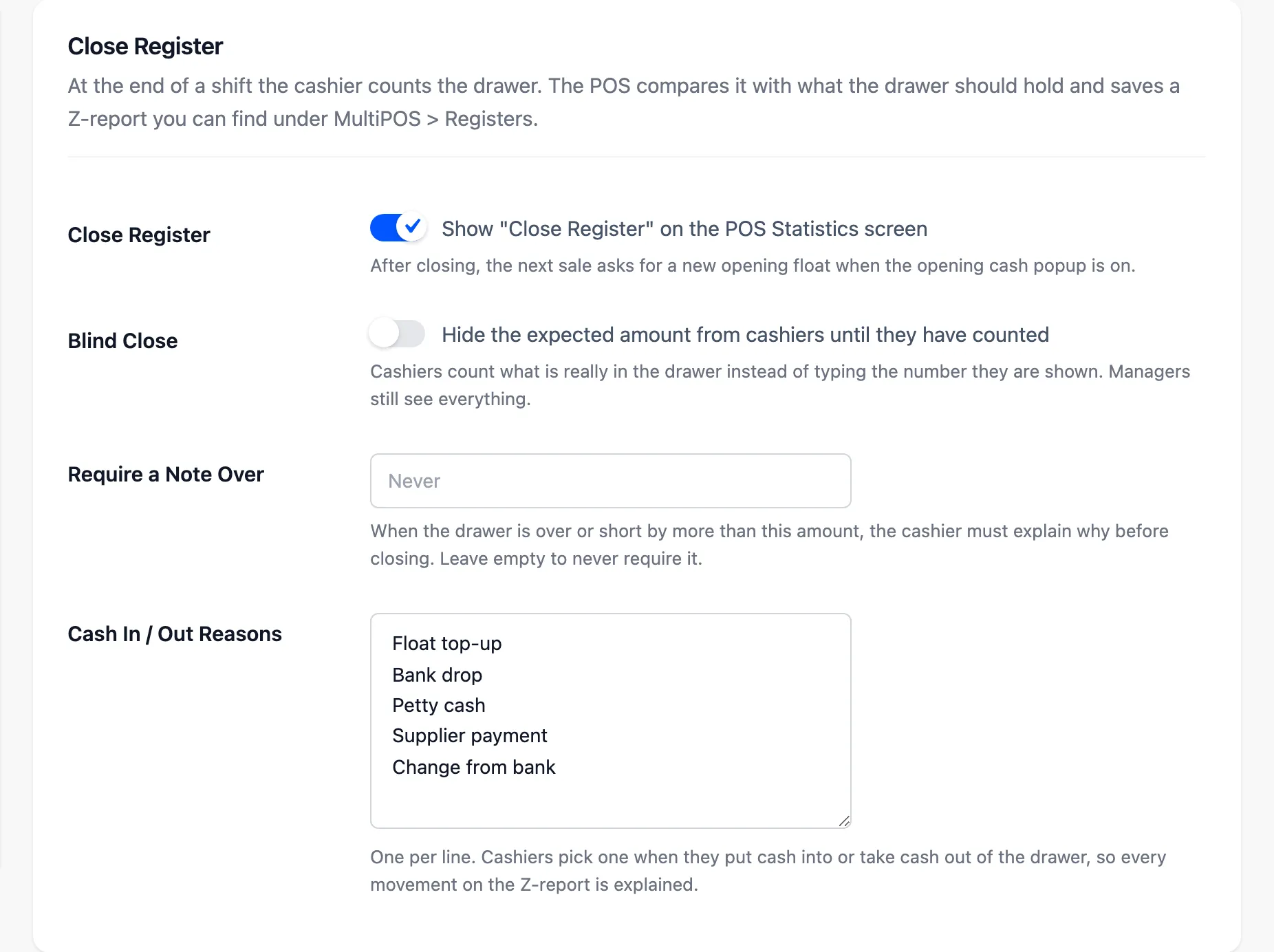
- Close Register: On by default. Shows Close Register on the POS Statistics screen.
- Blind Close: Off by default. Hides the expected amount from cashiers until they have counted.
- Require a Note Over: Empty by default, meaning never. When the drawer is over or short by more than this amount, the cashier must explain why before the register closes.
- Cash In / Out Reasons: One reason per line. They ship as Float top-up, Bank drop, Petty cash, Supplier payment and Change from bank, and appear as buttons in the Manual Transaction popup.
End of Day Report
Section titled “End of Day Report”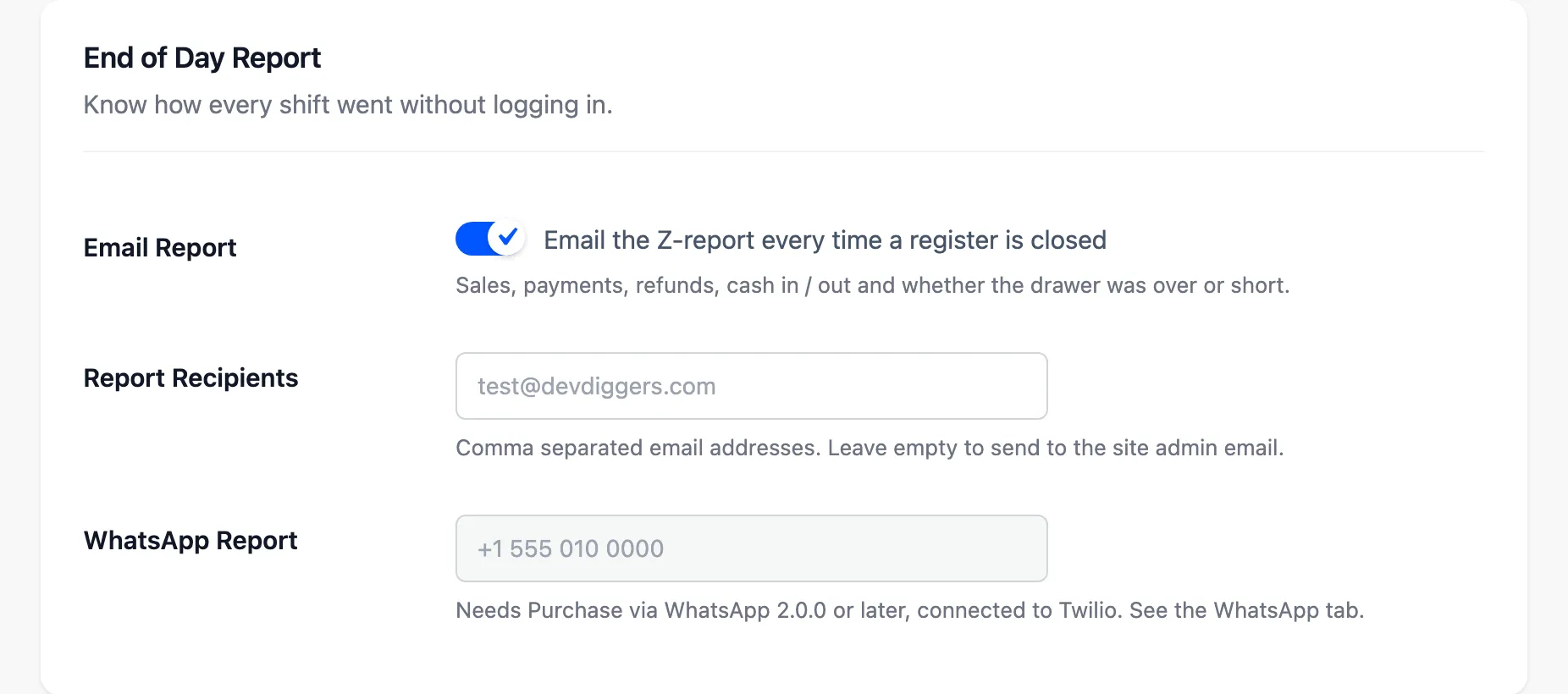
- Email Report: On by default. Emails the Z-report each time a register closes.
- Report Recipients: Comma-separated addresses.
- WhatsApp Report: A WhatsApp number that also receives the report. It needs Purchase via WhatsApp 2.0.0 or later, connected to Twilio, and is greyed out until then.
The email subject is a one-line summary, such as Register closed at Daily Grind Bakery Counter by Jack Shepard: $9.35 sales, short $7.00.
Where each vendor’s report goes
Section titled “Where each vendor’s report goes”Every vendor has this tab in the store manager, and their values apply to their own registers.
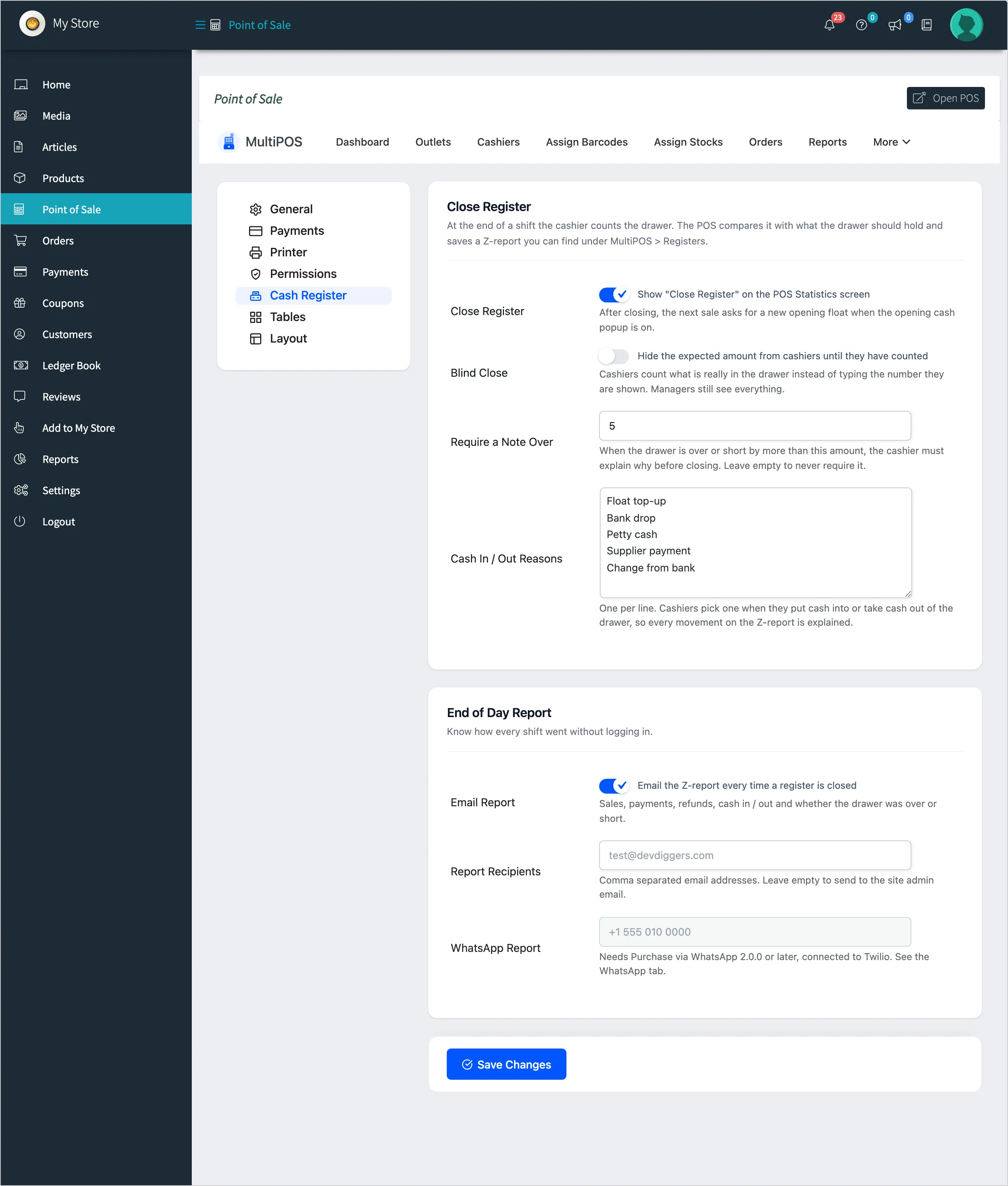
A register’s Z-report goes to:
- The vendor’s Report Recipients, once the vendor has saved this tab.
- Otherwise your Report Recipients.
- With no recipient anywhere, the vendor’s own account email. For your own outlets, the site’s admin email.
So leave your Report Recipients empty if you want each vendor to receive their own reports by default.