

The Vendor's POS Dashboard in the WCFM Store Manager
Every vendor with the POS turned on gets Point of Sale in the WCFM store manager. It is the same back office the owner uses in wp-admin, limited to the vendor’s store.
Open it
Section titled “Open it”Sign in as the vendor, open Store Manager, and click Point of Sale in the menu.
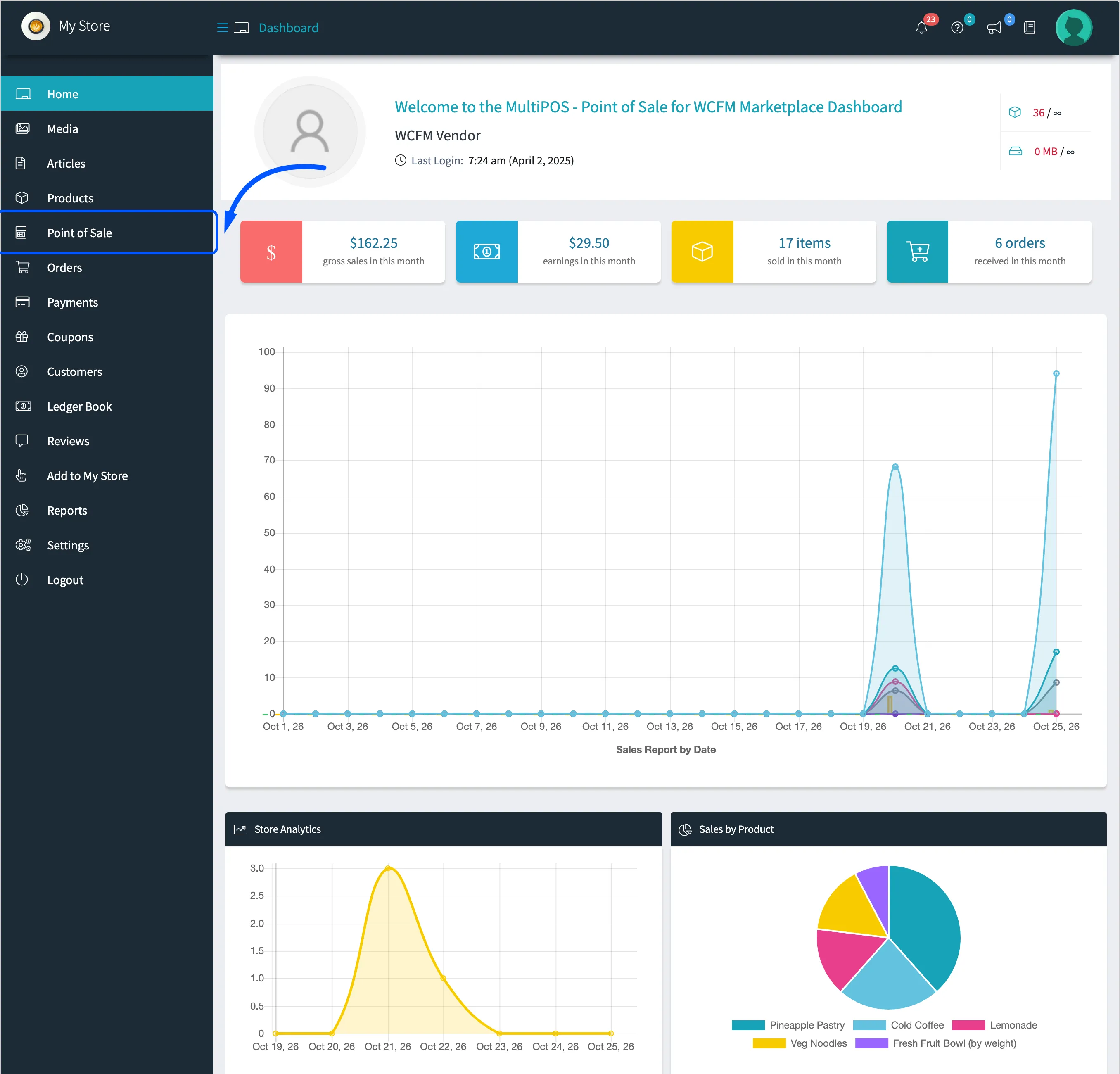
The Open POS button at the top right opens the POS in a new tab.
The menu
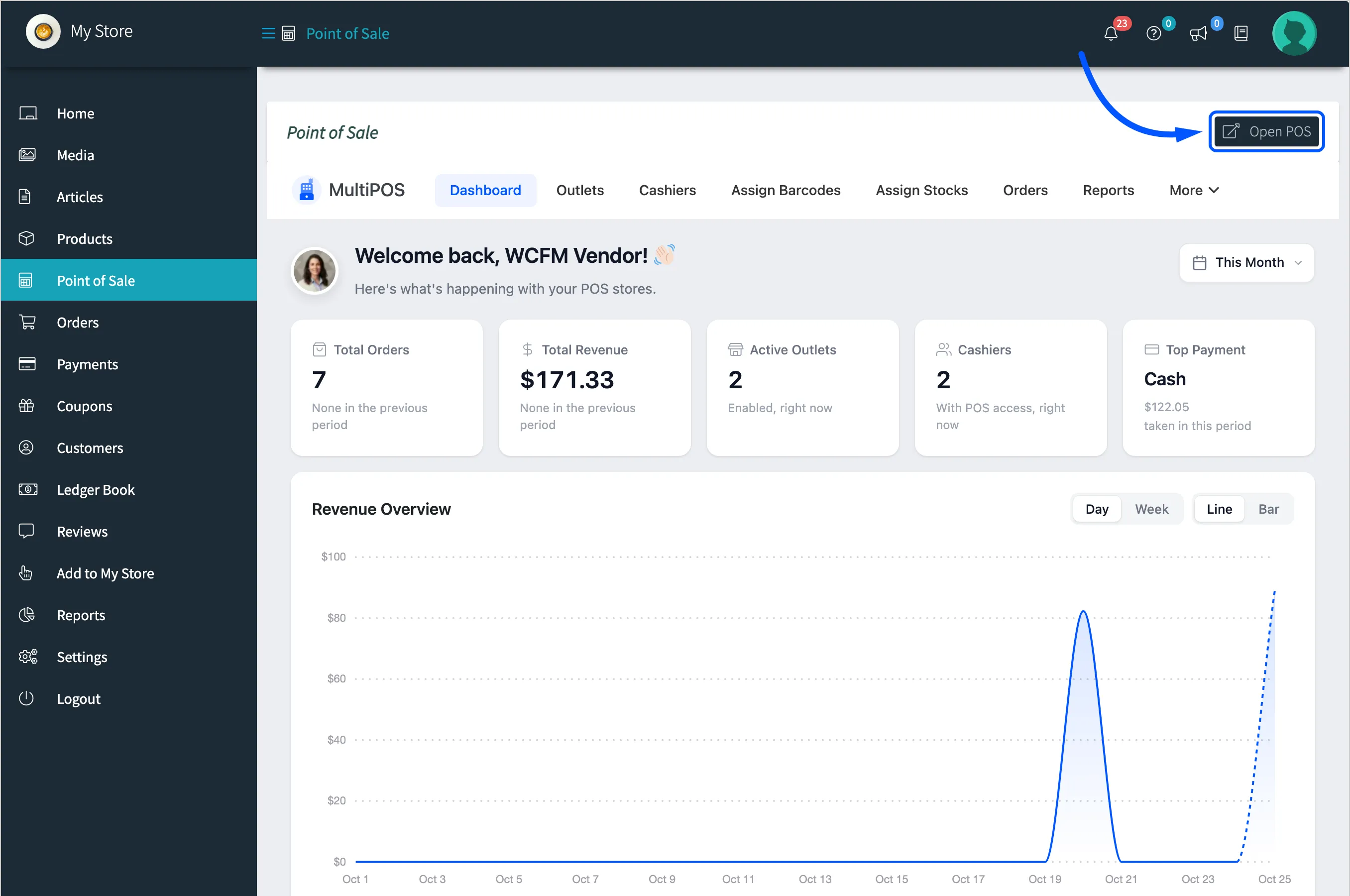
Section titled “The menu”The row of tabs is the MultiPOS menu. More holds the last five.
| Tab | What the vendor does there |
|---|---|
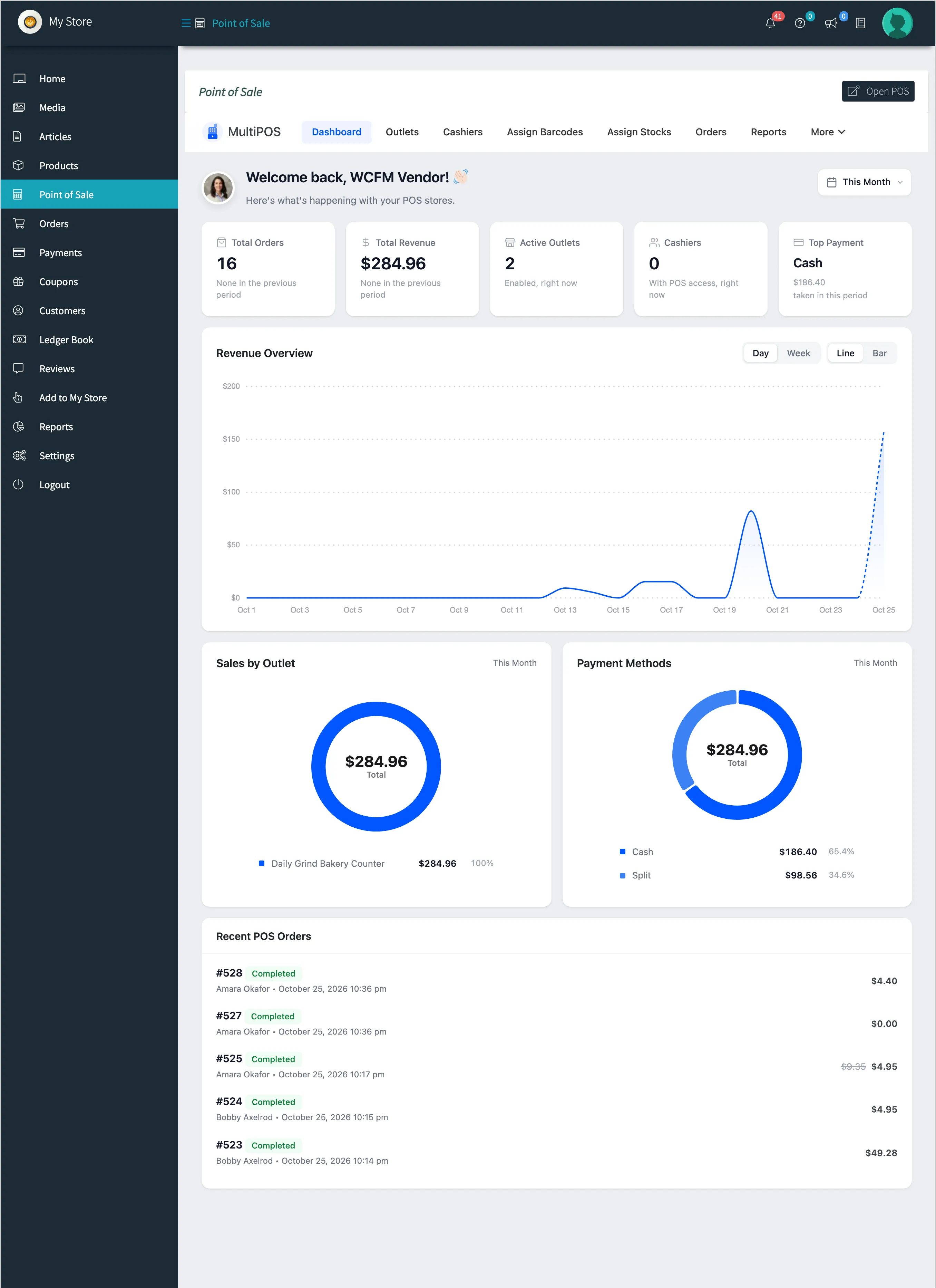
| Dashboard | Sales, revenue and payment split for the vendor’s outlets |
| Outlets | Add and edit the vendor’s counters |
| Cashiers | Add cashiers and shift supervisors for the vendor’s store |
| Assign Barcodes | Give the vendor’s products barcodes and print labels |
| Assign Stocks | Set stock per outlet for outlets on Custom stock |
| Orders | POS orders from the vendor’s outlets |
| Reports | Sales, cashiers, busiest hours, payments, products and the drawer for the vendor’s outlets |
| Transactions | Cash in and out of the vendor’s drawers |
| Registers | The vendor’s closed registers and their Z-reports |
| Invoices | The vendor’s receipt templates |
| Configuration | The vendor’s own settings |
The vendor’s settings
Section titled “The vendor’s settings”Configuration has seven tabs: General, Payments, Printer, Permissions, Cash Register, Tables and Layout.
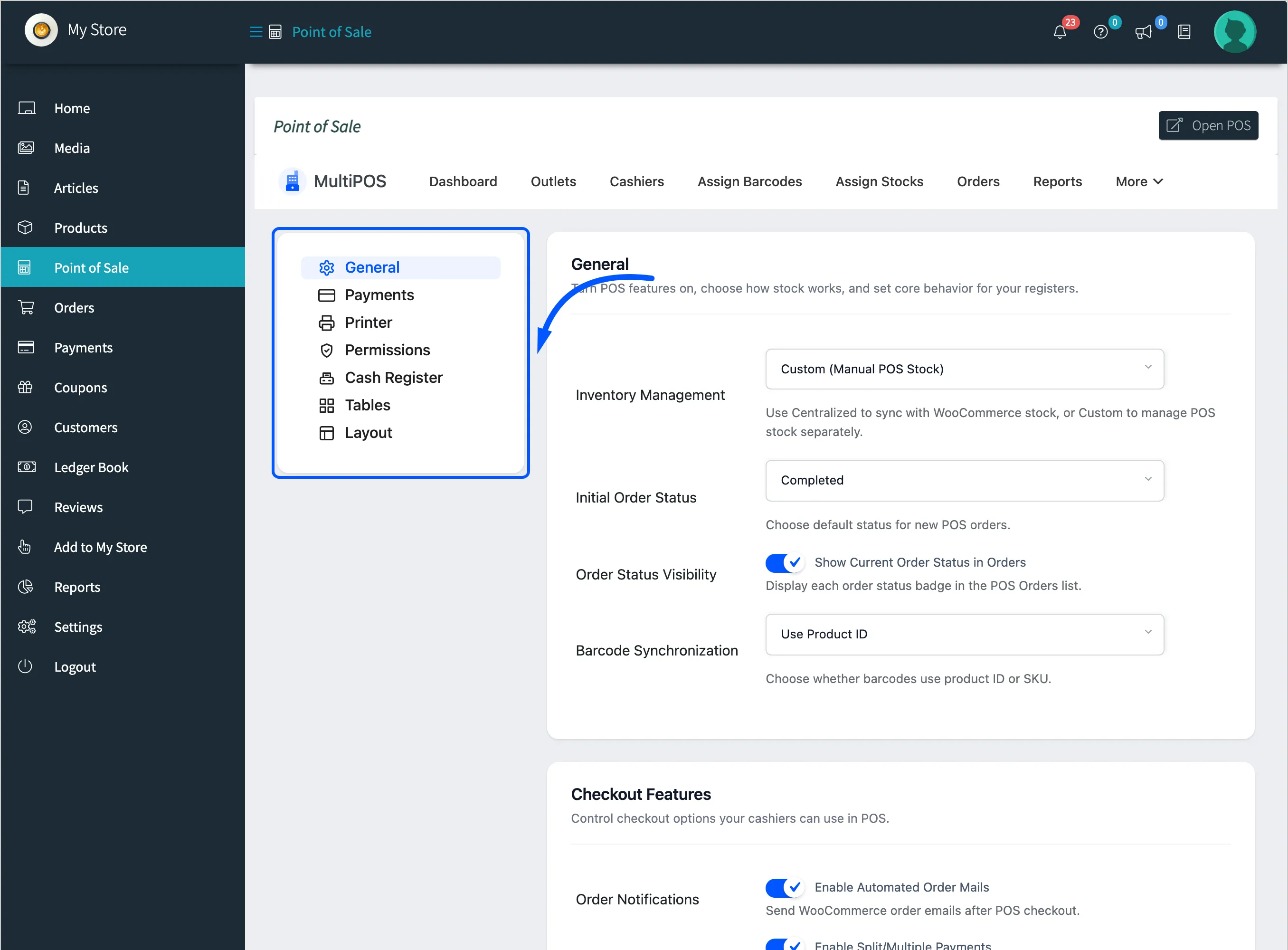
A vendor’s settings start as copies of the owner’s. The first time a vendor saves a tab, that tab’s values become the vendor’s own. Tabs the vendor never saves keep following the owner. See Vendor Settings for exactly which fields a vendor can change.
What a vendor cannot change
Section titled “What a vendor cannot change”These stay with the owner, and do not appear on a vendor’s screens:
- The Login, PWA, Rewards, WhatsApp and License tabs.
- The plugin’s on and off switch, the default guest account, the POS and kitchen addresses, and the Marketplace section.
- Barcode Print Orientation on the Printer tab.
- Which store an outlet belongs to.
What a vendor never sees
Section titled “What a vendor never sees”Other stores. Every list, count, chart and search on these screens covers the vendor’s own outlets, cashiers, products, customers, orders and transactions.