

How to Refund an Order at the POS
A refund at the POS returns money for some or all of a sale, puts the stock back, and records the cash leaving the drawer.
Step 1: Find the order
Section titled “Step 1: Find the order”Open Orders in the POS menu and select the sale.
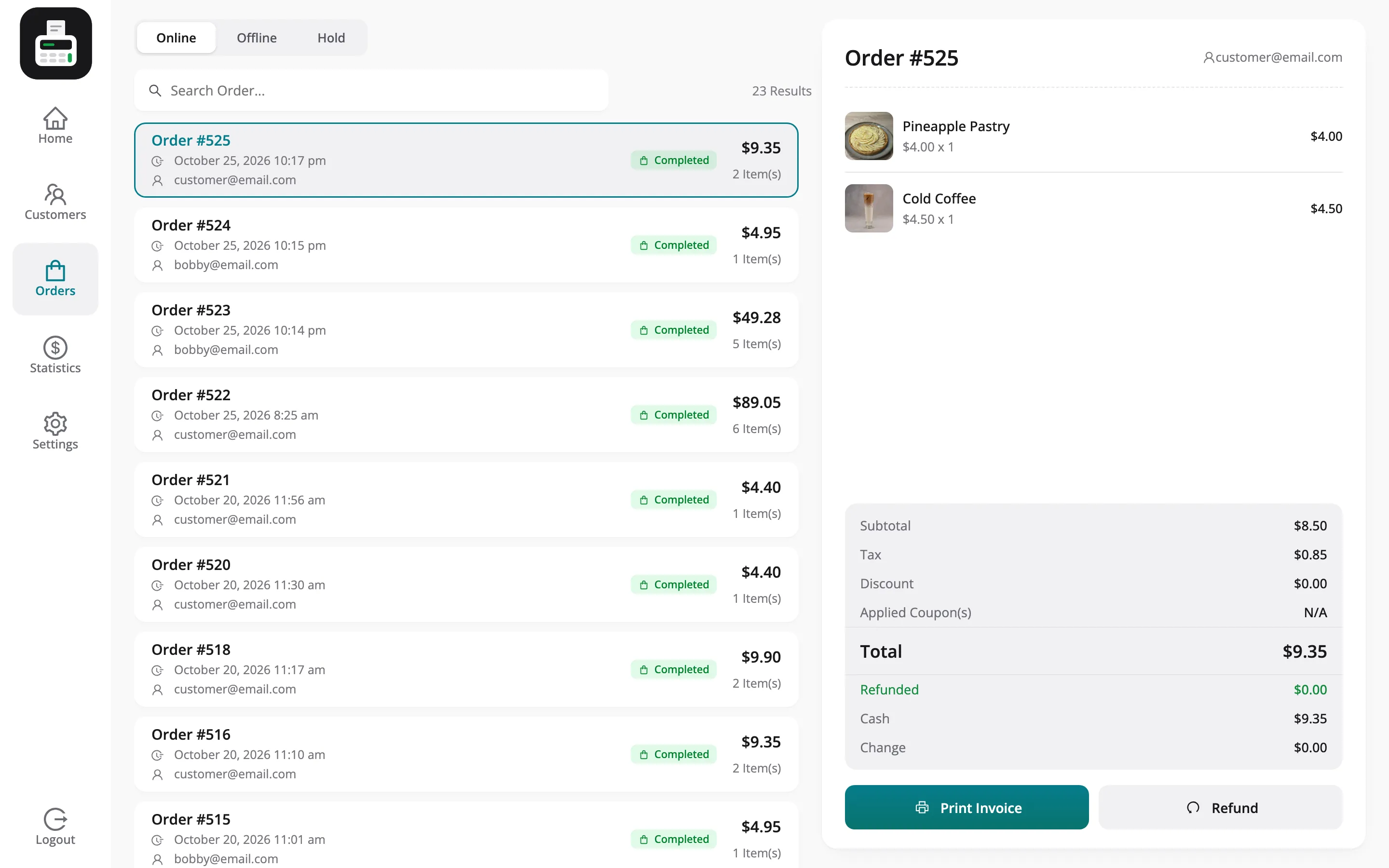
A cashier can refund orders placed at an outlet they work at.
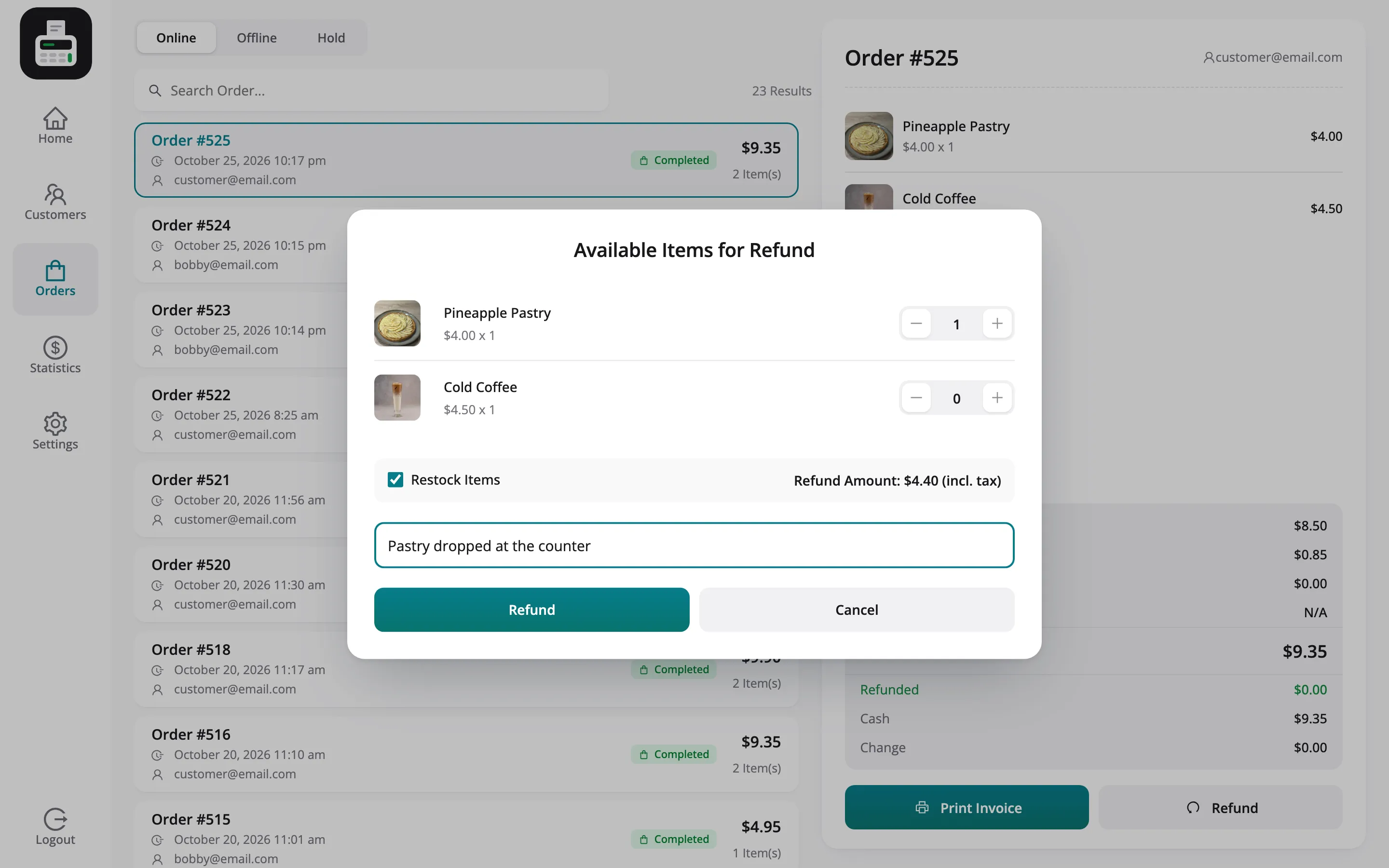
Step 2: Choose what to refund
Section titled “Step 2: Choose what to refund”Click Refund. Set the quantity to return for each item, keep Restock items ticked to put them back into stock, and type a reason.
Step 3: Confirm the refund
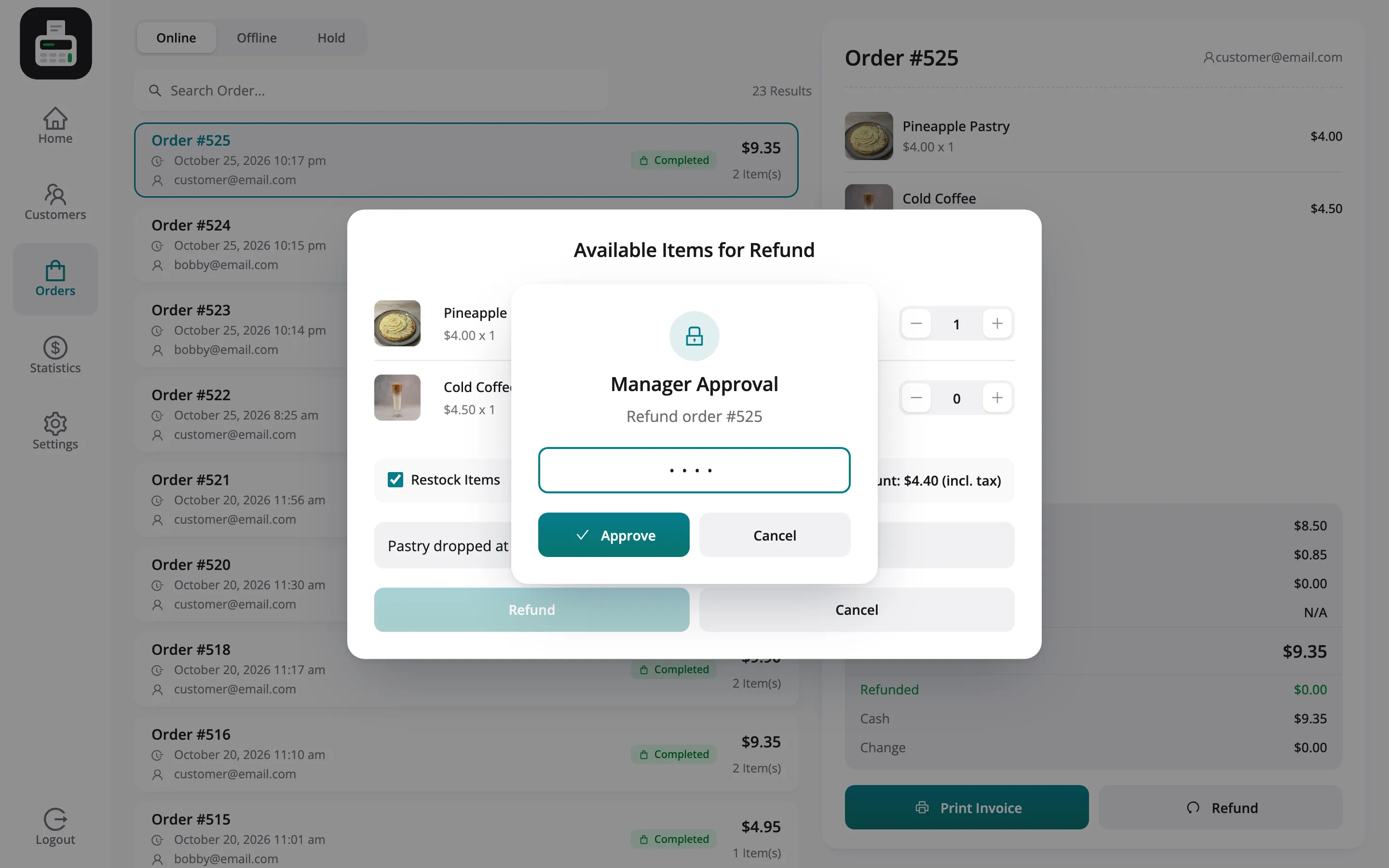
Section titled “Step 3: Confirm the refund”Click Refund. At Daily Grind Café cashiers may not refund alone, so the POS asks a manager to approve. The supervisor types their PIN and presses Approve.
Step 4: Check the order
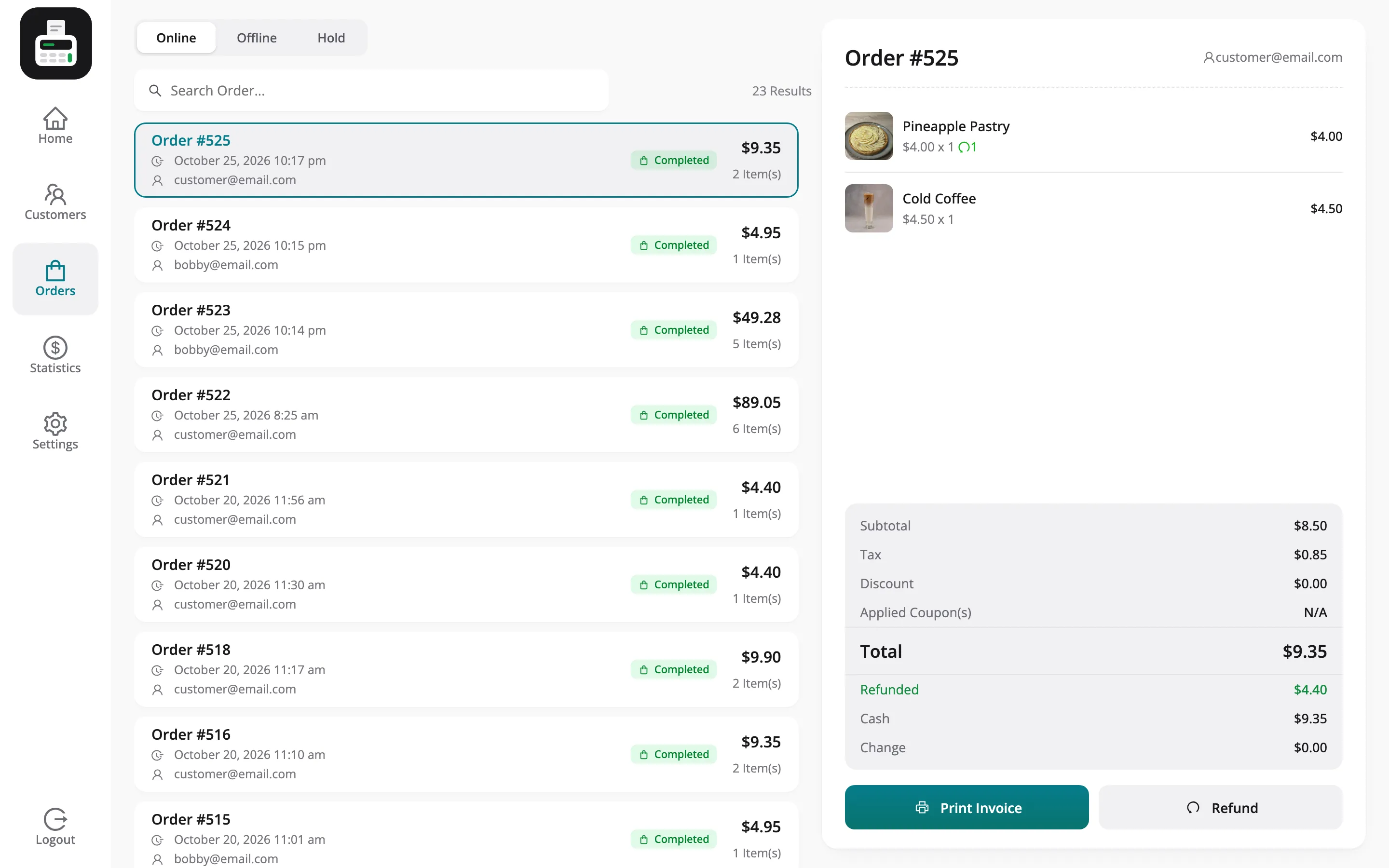
Section titled “Step 4: Check the order”Refund Success confirms it, and the order now shows Refunded $4.40.
What a refund changes
Section titled “What a refund changes”- WooCommerce: A normal refund on the order, with the reason and the approver in the note.
- Stock: The items return to stock, at the outlet for Custom stock.
- The drawer: A refund transaction with the amount in Out, which lowers the expected drawer.
- WCFM: The vendor’s commission is worked out again, so returned items earn nothing.