

How to Give a Discount in the POS
A discount can go on the whole cart or on a single line. Above the store’s Maximum Discount, a cashier needs a manager’s approval.
Step 1: Discount the whole cart
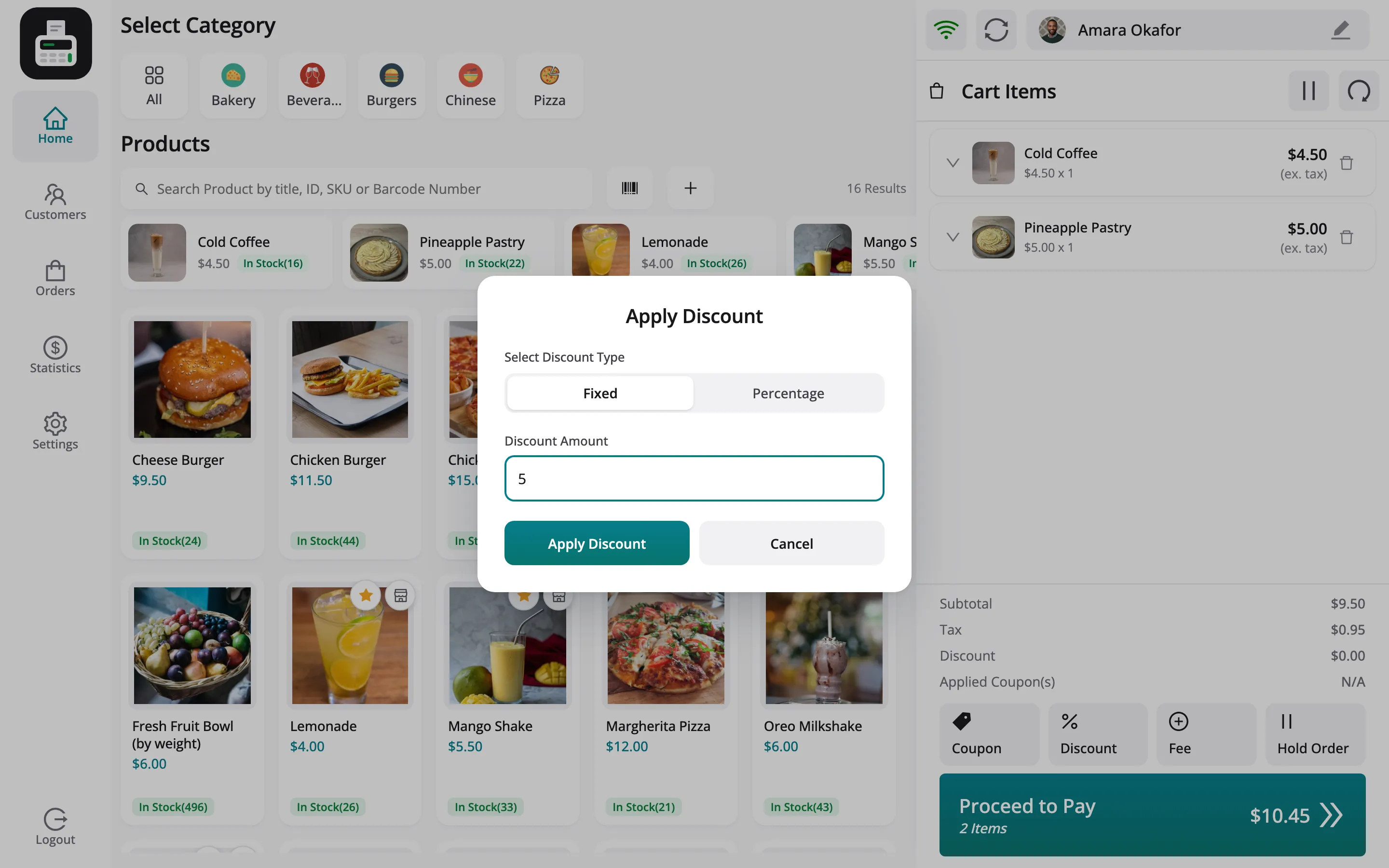
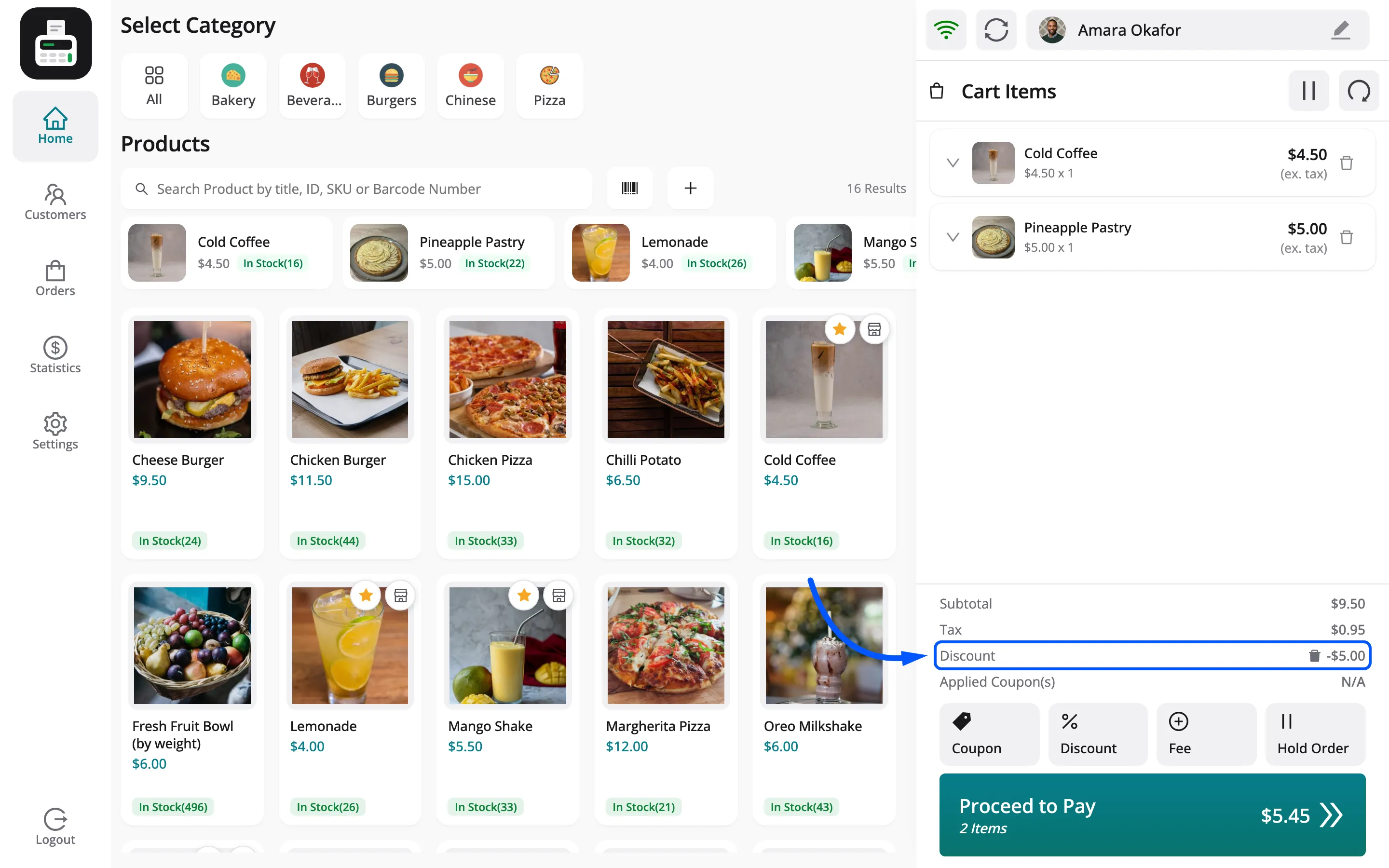
Section titled “Step 1: Discount the whole cart”Click Discount under the cart totals. Choose Fixed or Percentage, enter the amount and click Apply Discount.
The Discount row shows it, and the total drops.
Step 2: Discount one line
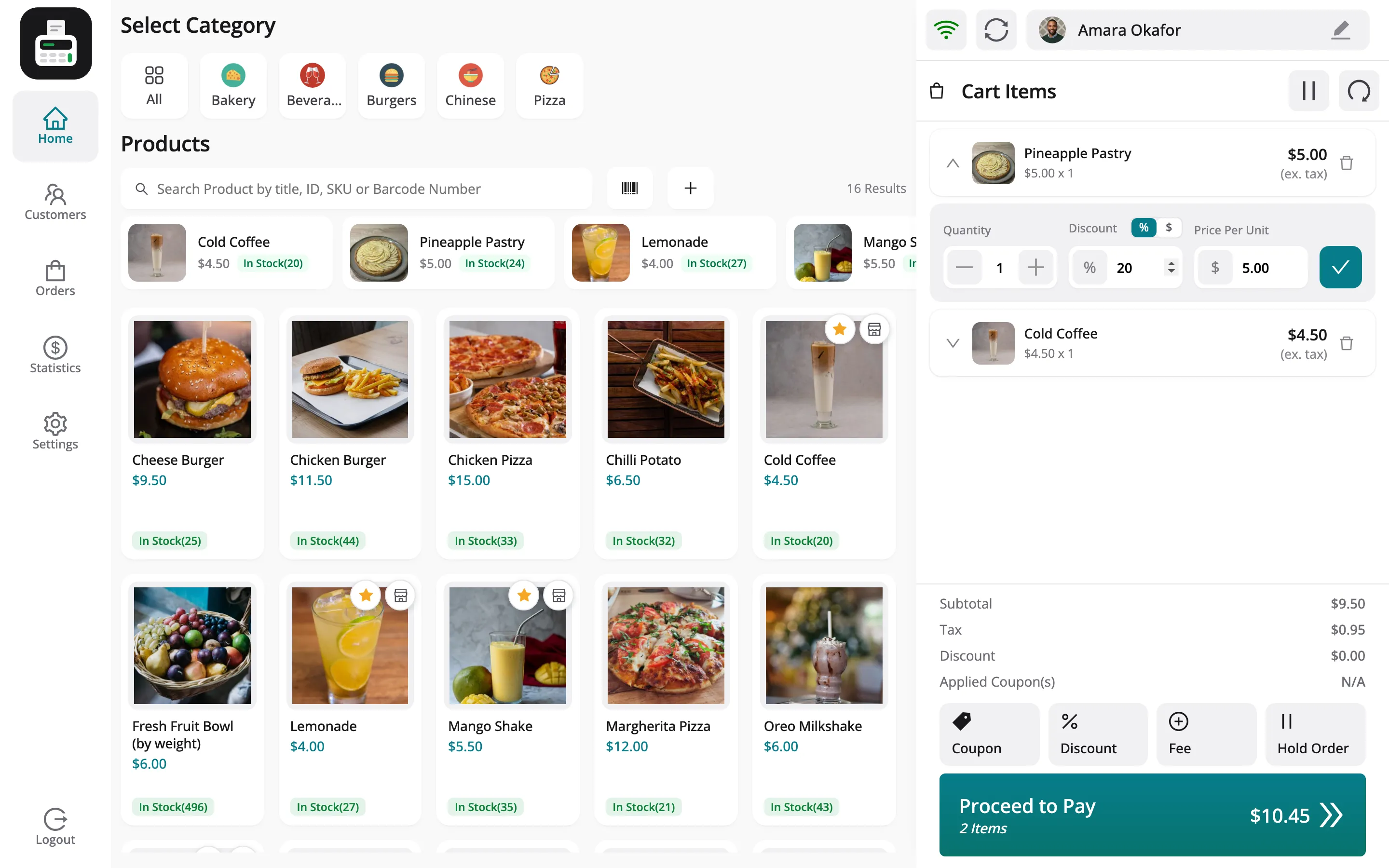
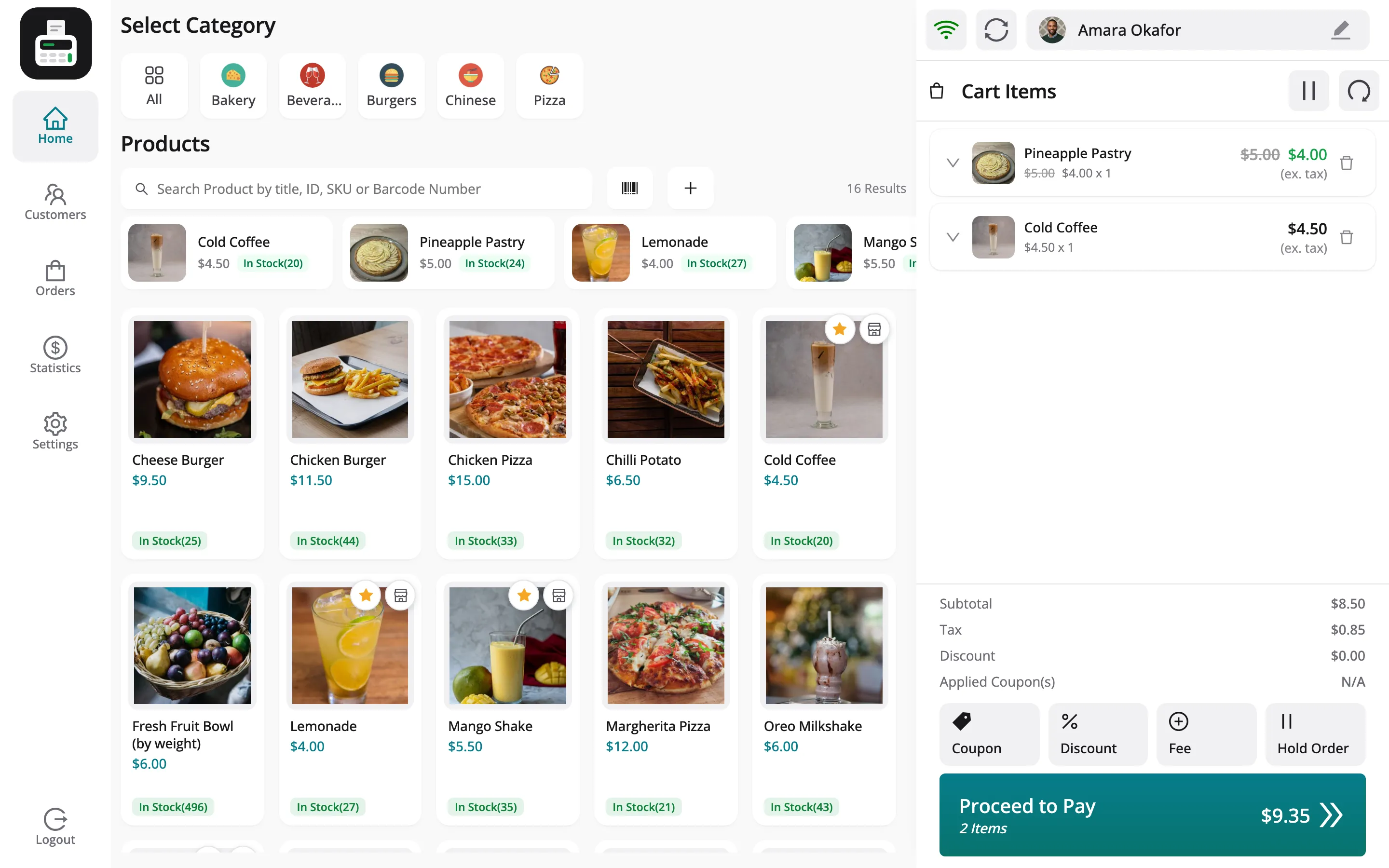
Section titled “Step 2: Discount one line”Click the arrow on a cart line to open it. Switch the discount to percent or a fixed amount, type it, and click the tick to update.
Step 3: Get approval over the limit
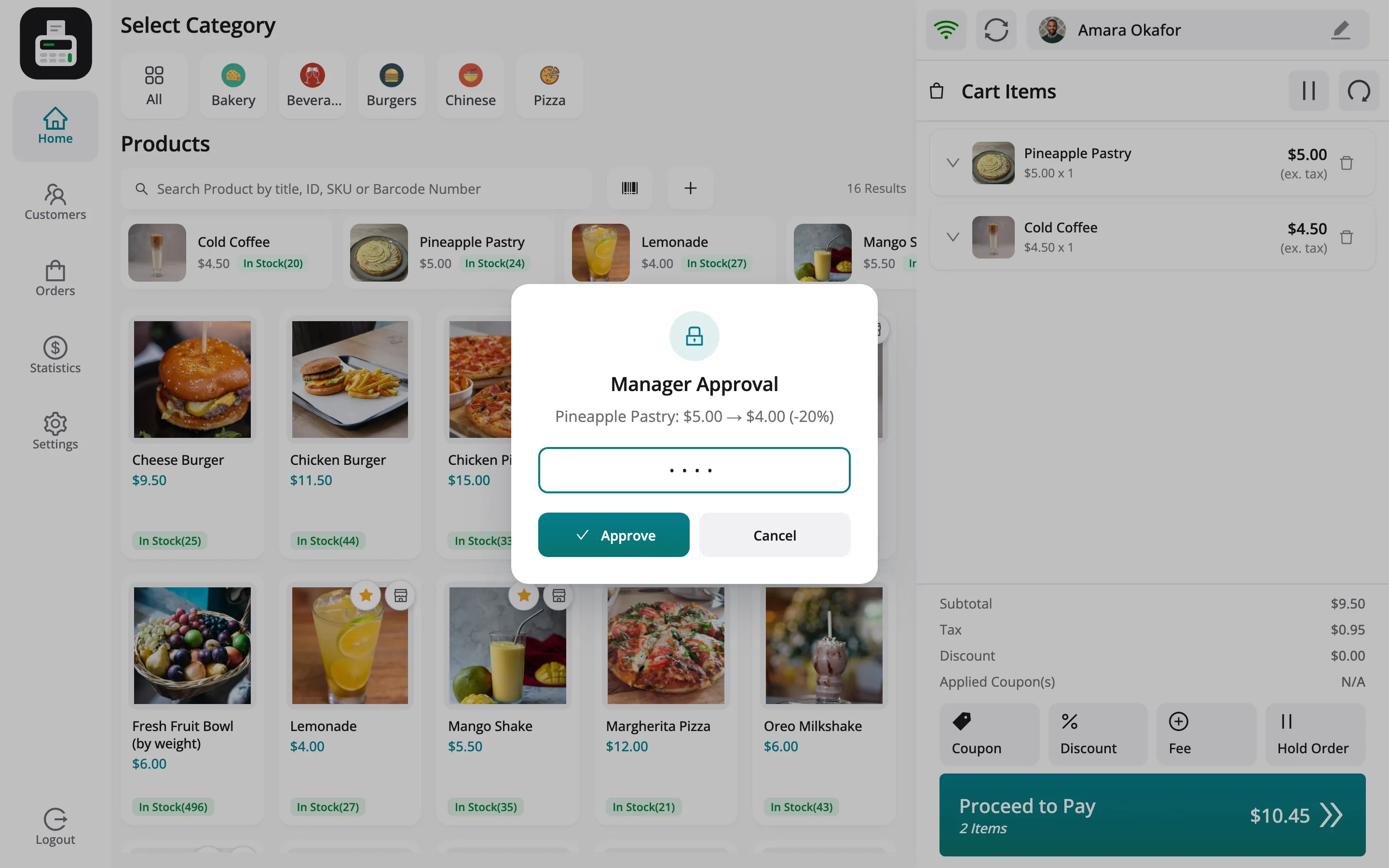
Section titled “Step 3: Get approval over the limit”At Daily Grind Café the Maximum Discount is 10%, so Jack’s 20% asks for a manager. The popup names the change, such as Pineapple Pastry: $5.00 → $4.00 (-20%). The shift supervisor, Jordan Belfort, types a PIN and presses Approve.
Step 4: Check the totals
Section titled “Step 4: Check the totals”The line now reads $4.00 with the old price struck through.
The order note records the discount and who approved it.
Things to know
Section titled “Things to know”- The limit covers both kinds: A cart discount above the limit asks for approval too.
- Discounts are not coupons: A discount typed at the POS does not appear in the coupon charts on Reports.
- Vendors set their own limit on their Permissions tab.