

Roles and POS Access in MultiPOS for WCFM
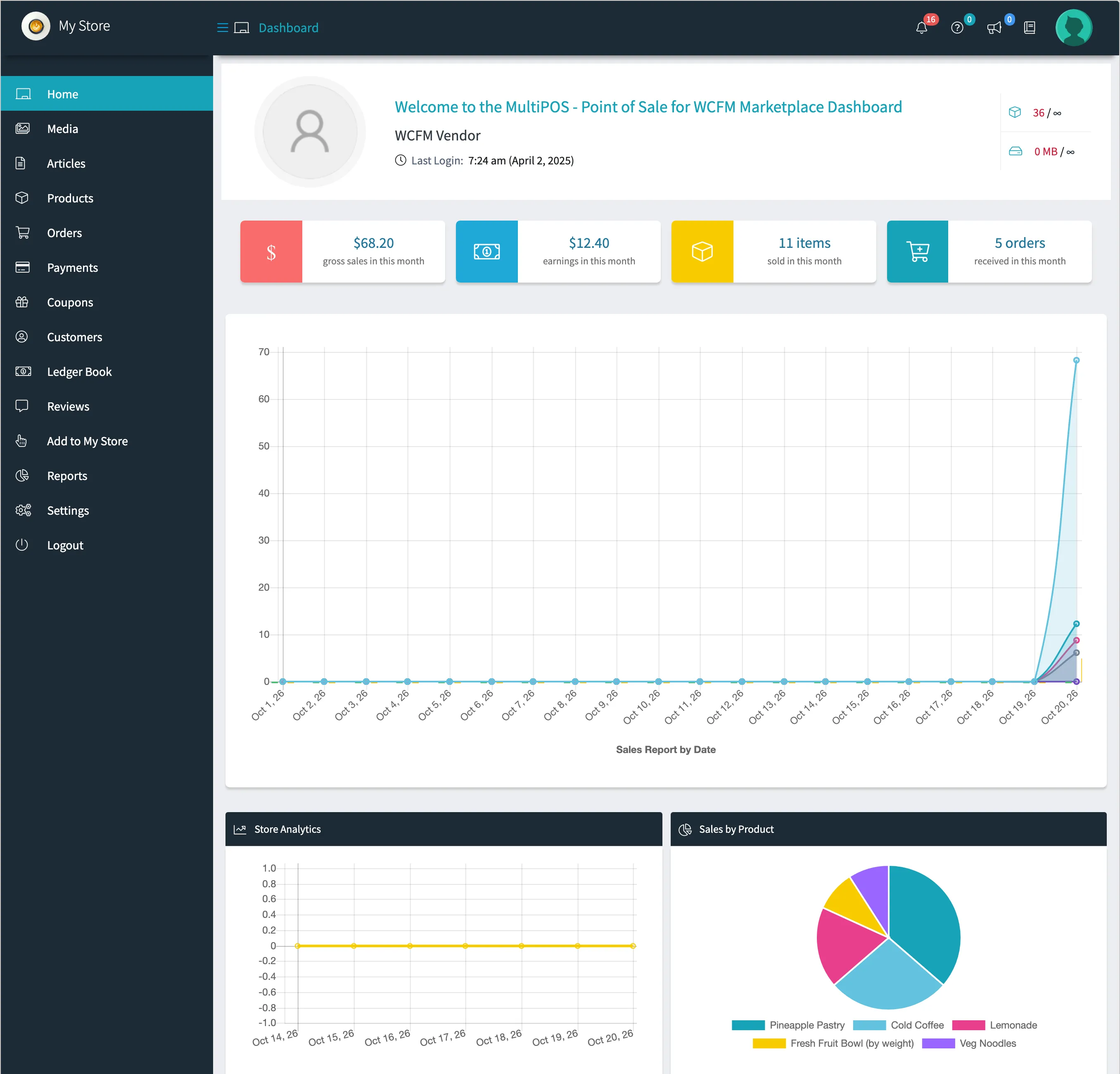
Five kinds of people use MultiPOS on a marketplace. What each one can open, and which store they work for, is decided by their role and by the person who created them.
| Person | Opens the POS | Back office | Works for |
|---|---|---|---|
| Administrator or Shop manager | Yes | wp-admin, every store | The marketplace |
| Vendor with the POS on | Yes | Store manager, their store | Their own store |
| Cashier added by the owner | Yes | None | The marketplace |
| Cashier added by a vendor | Yes | None | That vendor |
| Customer, or a vendor without the POS | No | None |
The owner and shop managers
Section titled “The owner and shop managers”Administrators and WooCommerce shop managers run the marketplace’s own POS. They see every outlet, cashier, order and report in wp-admin, and can open any outlet at the POS.
Vendors
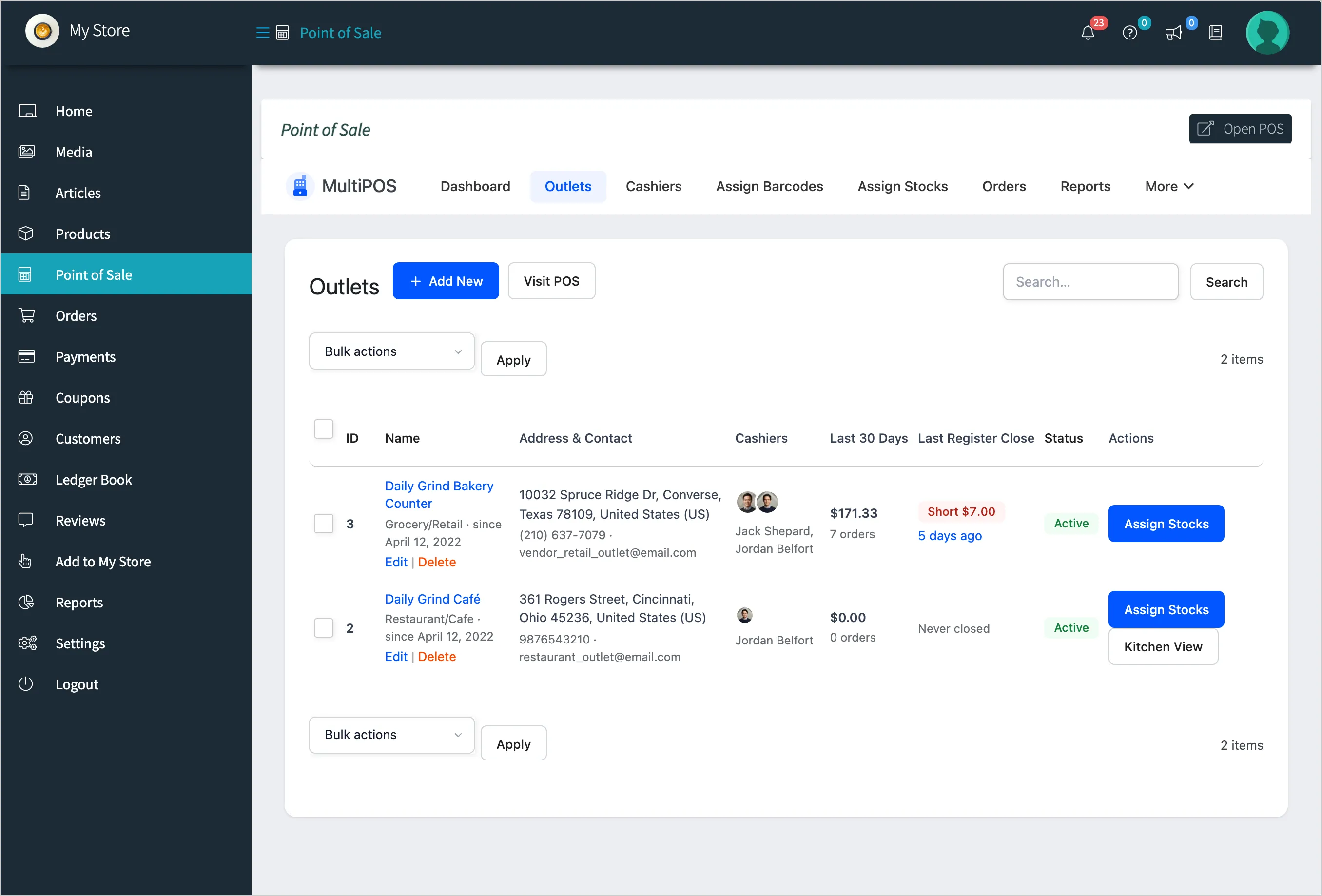
Section titled “Vendors”A vendor with the POS turned on is the manager of their own store. They:
- Find Point of Sale in the WCFM store manager, with the full back office for their store.
- Open the POS at their own outlets.
- Approve their own cashiers with their Manager PIN.
A vendor with the POS turned off has no Point of Sale menu, and is sent to My Account if they visit the POS address.
Cashiers
Section titled “Cashiers”A cashier is a WordPress user with the POS Cashier role. The role opens the POS and nothing else: no wp-admin, no store manager, no products, no settings.
The cashier belongs to whoever created them:
- Added by the owner: works at the marketplace’s outlets.
- Added by a vendor: works at that vendor’s outlets only and follows that vendor’s rules. They lose the POS the moment the vendor’s POS is turned off.
The owner’s Cashiers screen shows a vendor’s cashier with the store name after the role.
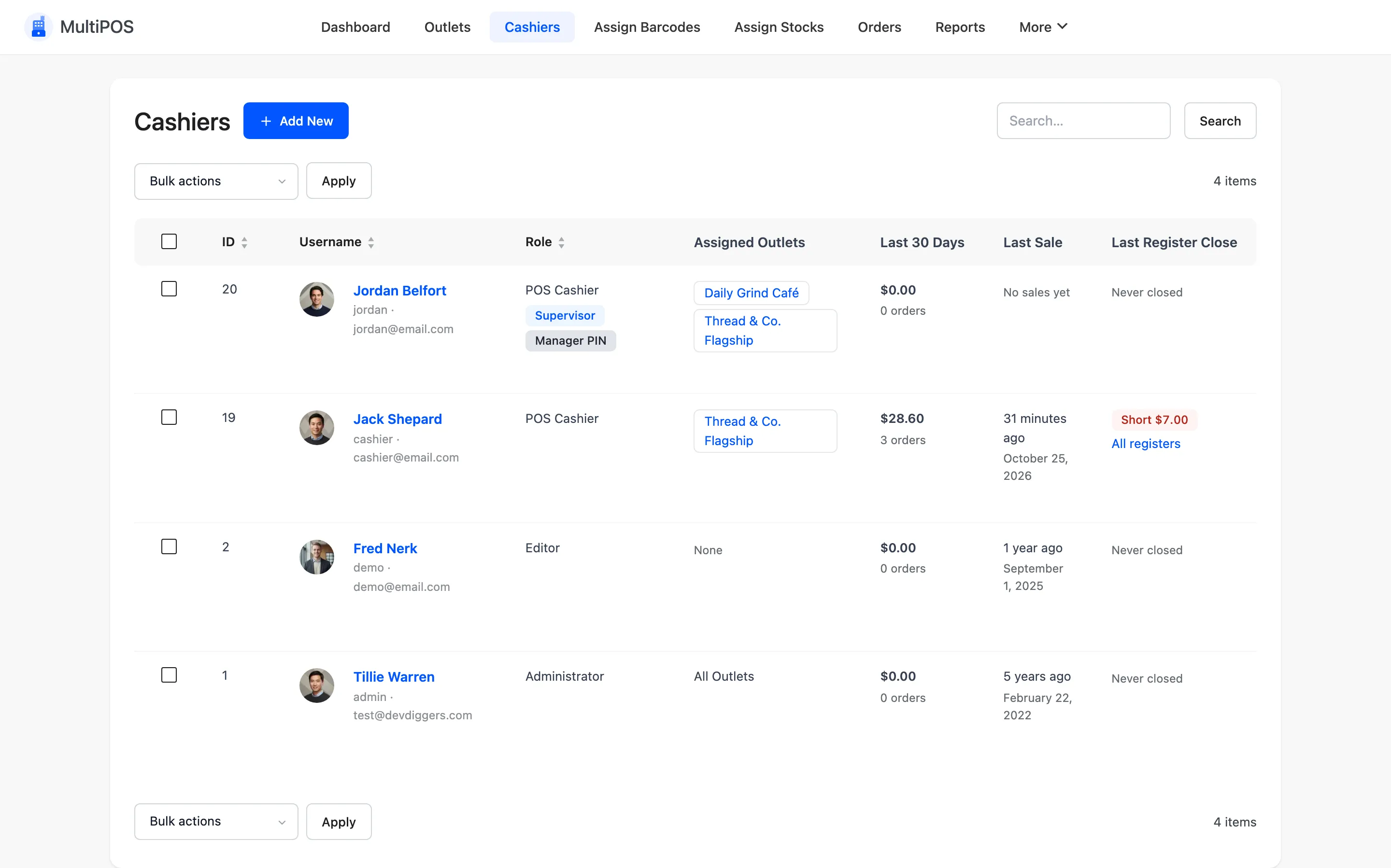
Each cashier opens only the outlets ticked under Assigned Outlets on their cashier screen.
Everyone else
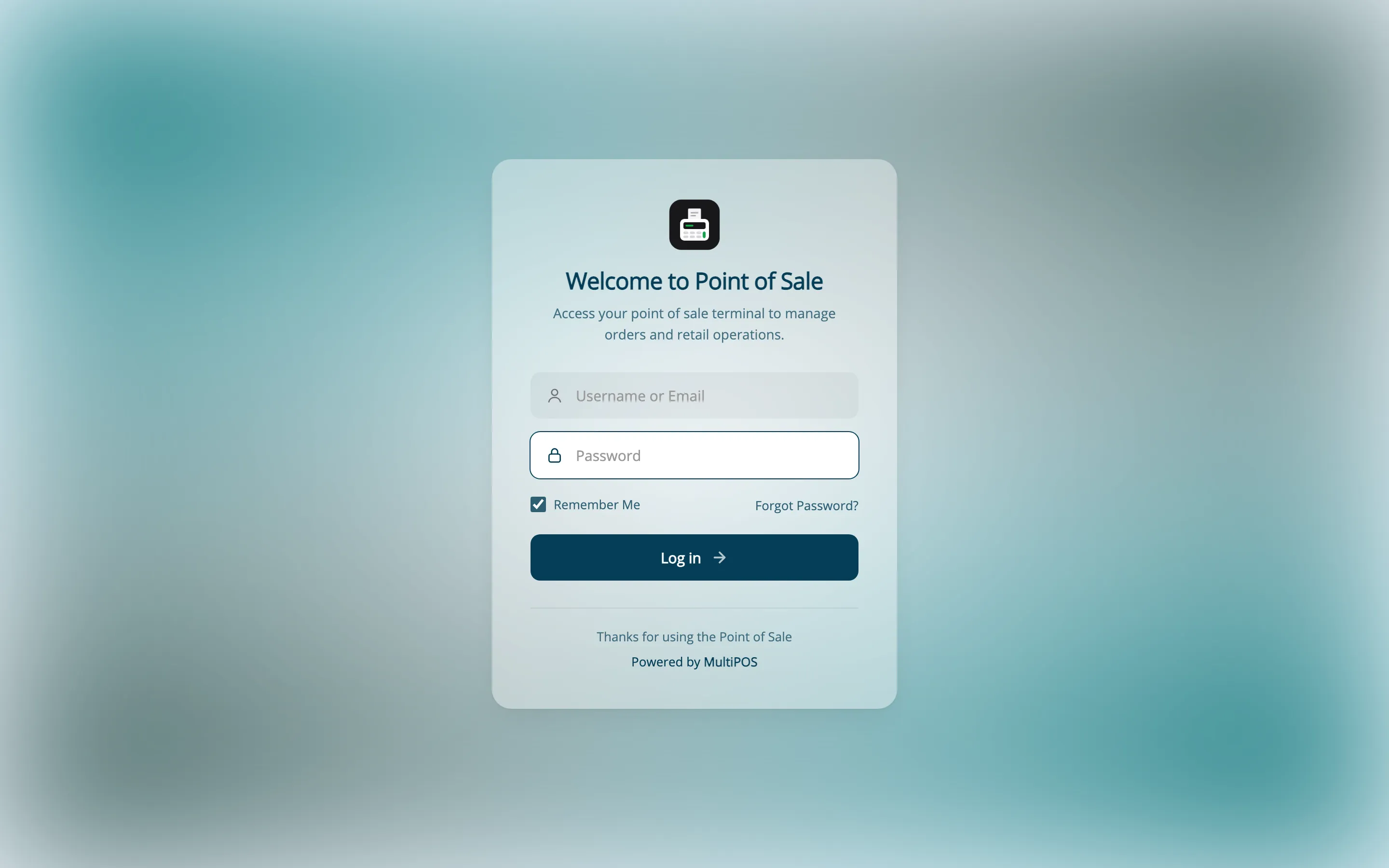
Section titled “Everyone else”A signed-in customer who visits the POS address is sent to My Account. A visitor who is not signed in sees the POS login screen.
Who can approve a cashier
Section titled “Who can approve a cashier”When a cashier is refused an action, a manager can approve it on the spot by typing a PIN.
- Administrators and shop managers: approve at every outlet in the marketplace. They set their PIN under Users → Profile → MultiPOS Manager PIN.
- Vendors: approve at their own store only. They set their PIN under Configuration → Permissions → Your Manager PIN in the store manager.
- Shift supervisors: cashiers ticked as Shift Supervisor. They approve the cashiers of their own store only.
A vendor’s PIN does nothing at another vendor’s POS. See How to Approve Actions with a Manager PIN.