The Cashier Experience at a Vendor's POS
The POS looks the same to the owner, a vendor and every cashier. What changes is the content: a vendor’s POS shows that vendor’s outlets, products, customers and orders. This tour follows the Daily Grind bakery counter on the demo, a vendor’s outlet.
Signing in
Section titled “Signing in”The POS lives at yoursite.com/pos. A visitor who is not signed in gets the POS login screen.
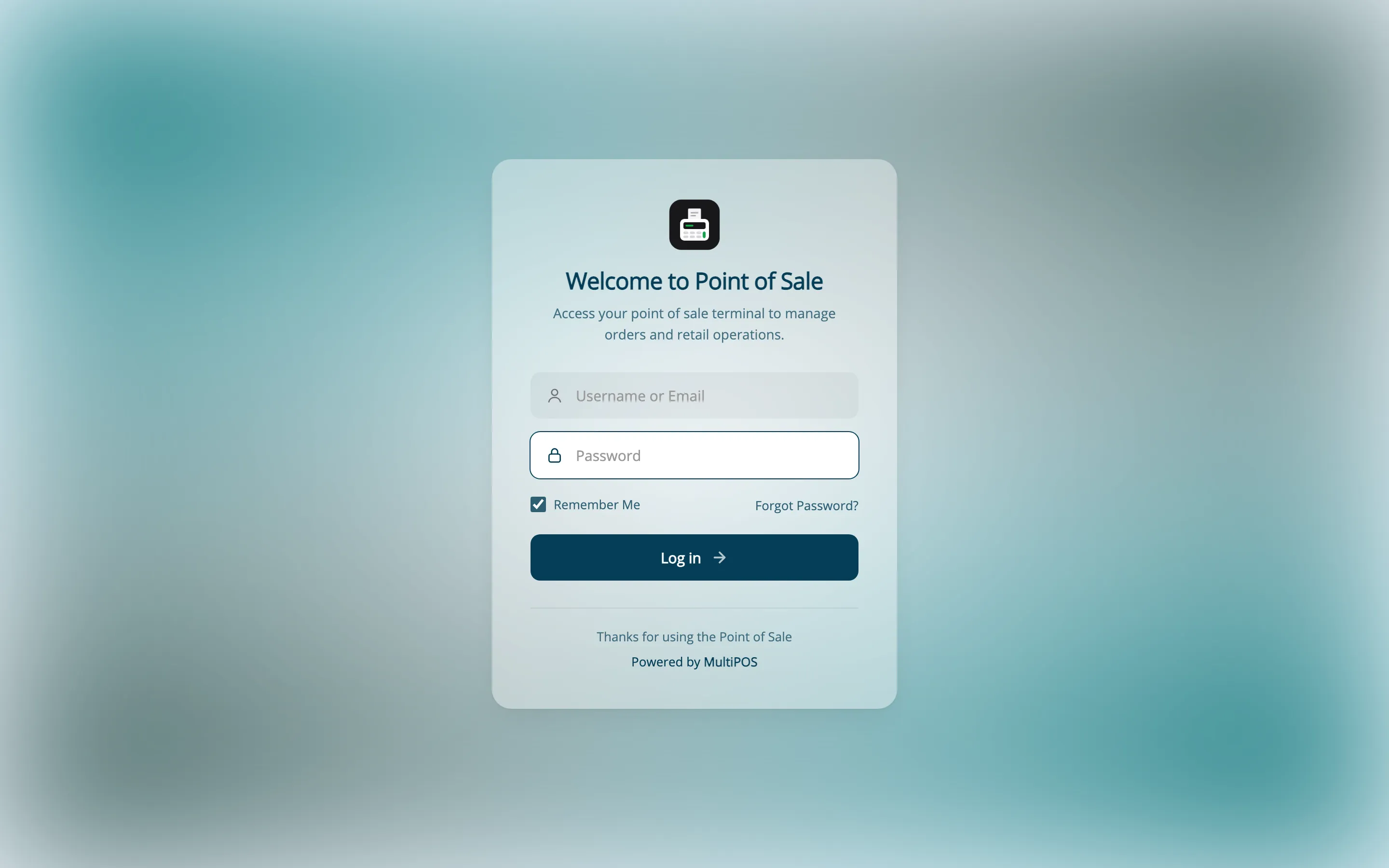
The look of this screen belongs to the owner, under Configuration → Login. The eye icon in the password field shows what was typed, which helps on a touch screen. Press it again to hide it.
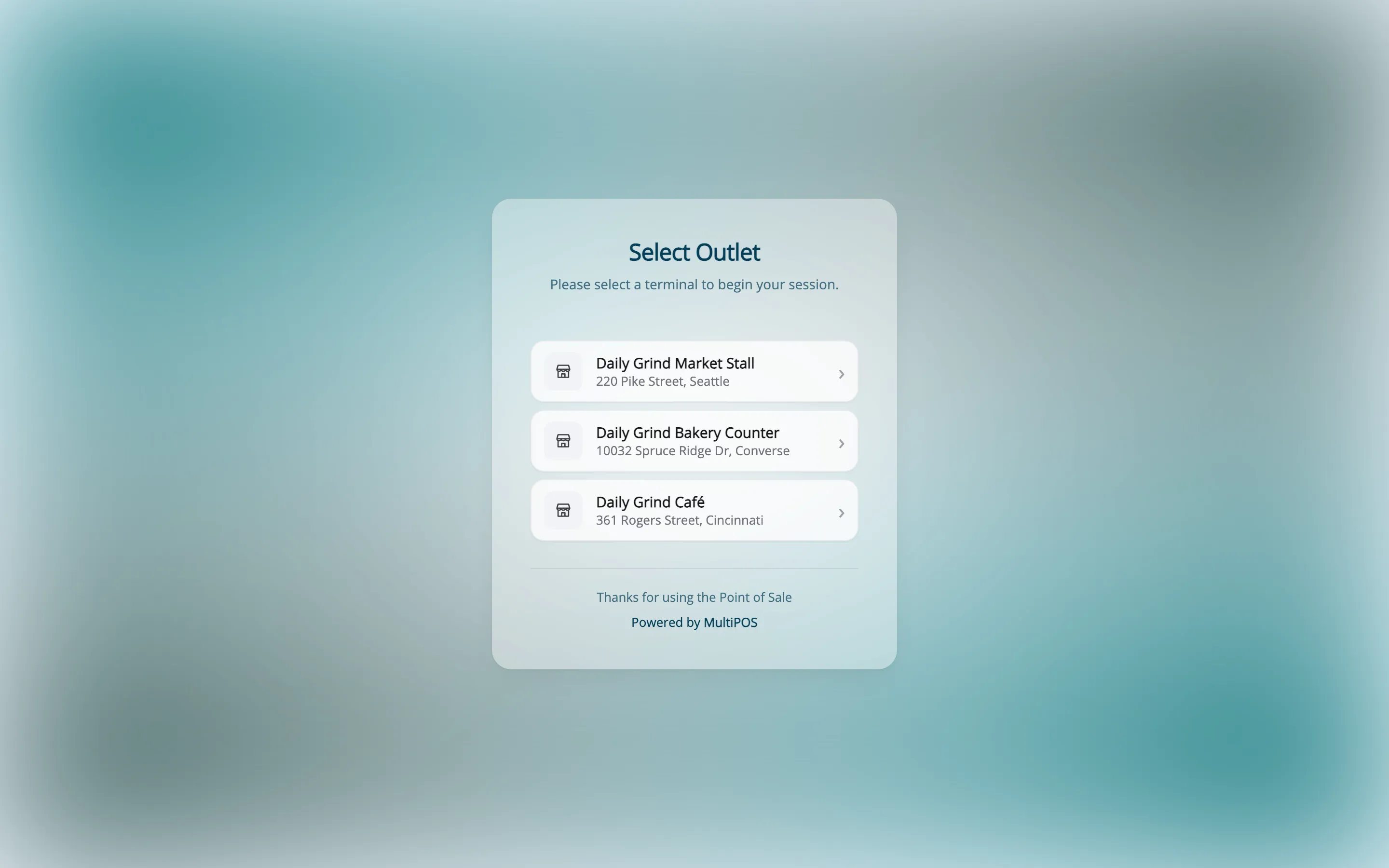
Choosing the outlet
Section titled “Choosing the outlet”Someone who works at more than one outlet picks one. The POS remembers the choice on that device.
Counting the opening amount
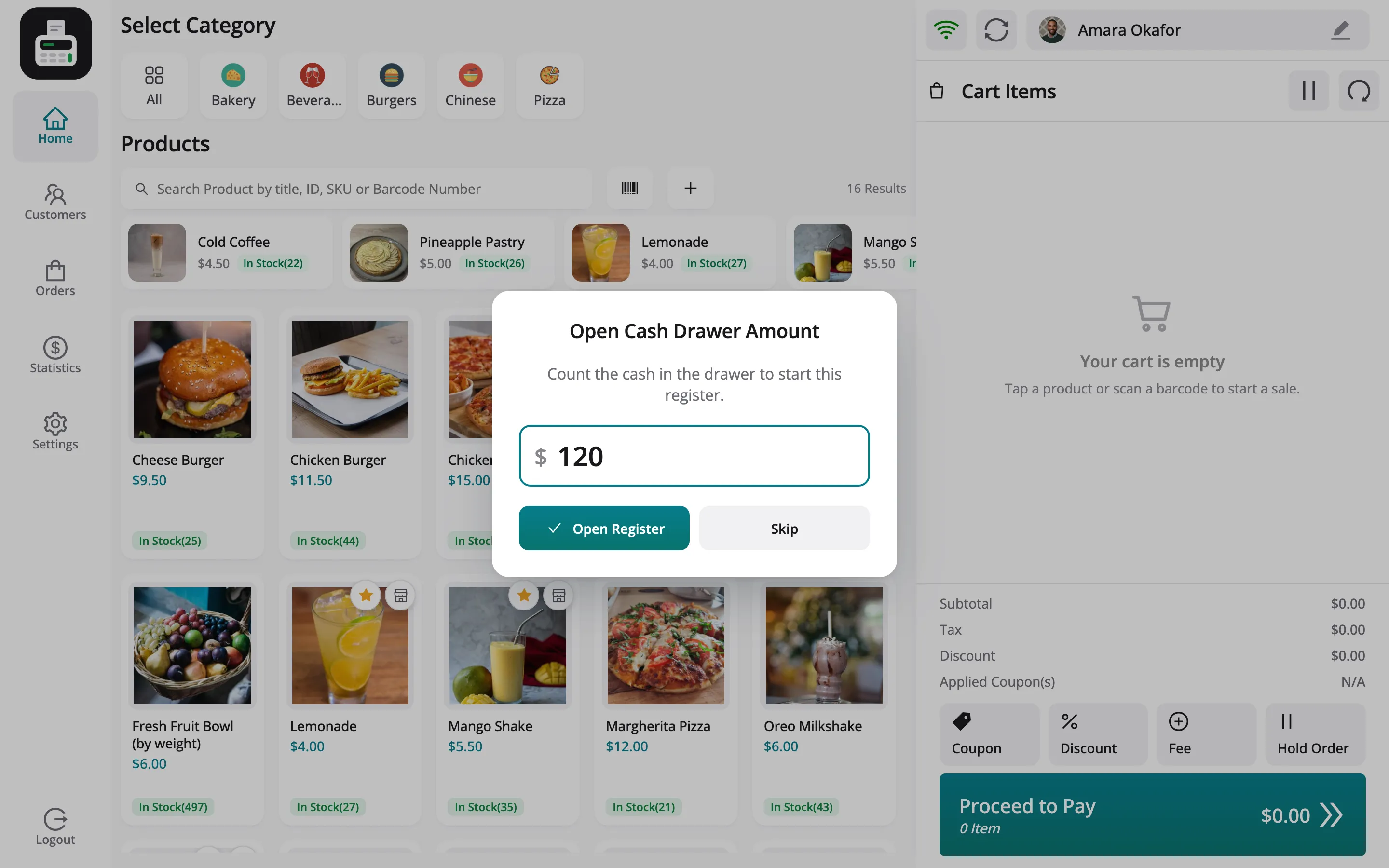
Section titled “Counting the opening amount”At the start of a shift the POS asks for the cash already in the drawer. Skip opens the POS without it.
The home screen
Section titled “The home screen”Categories along the top, the search and the product grid in the middle, the cart on the right.
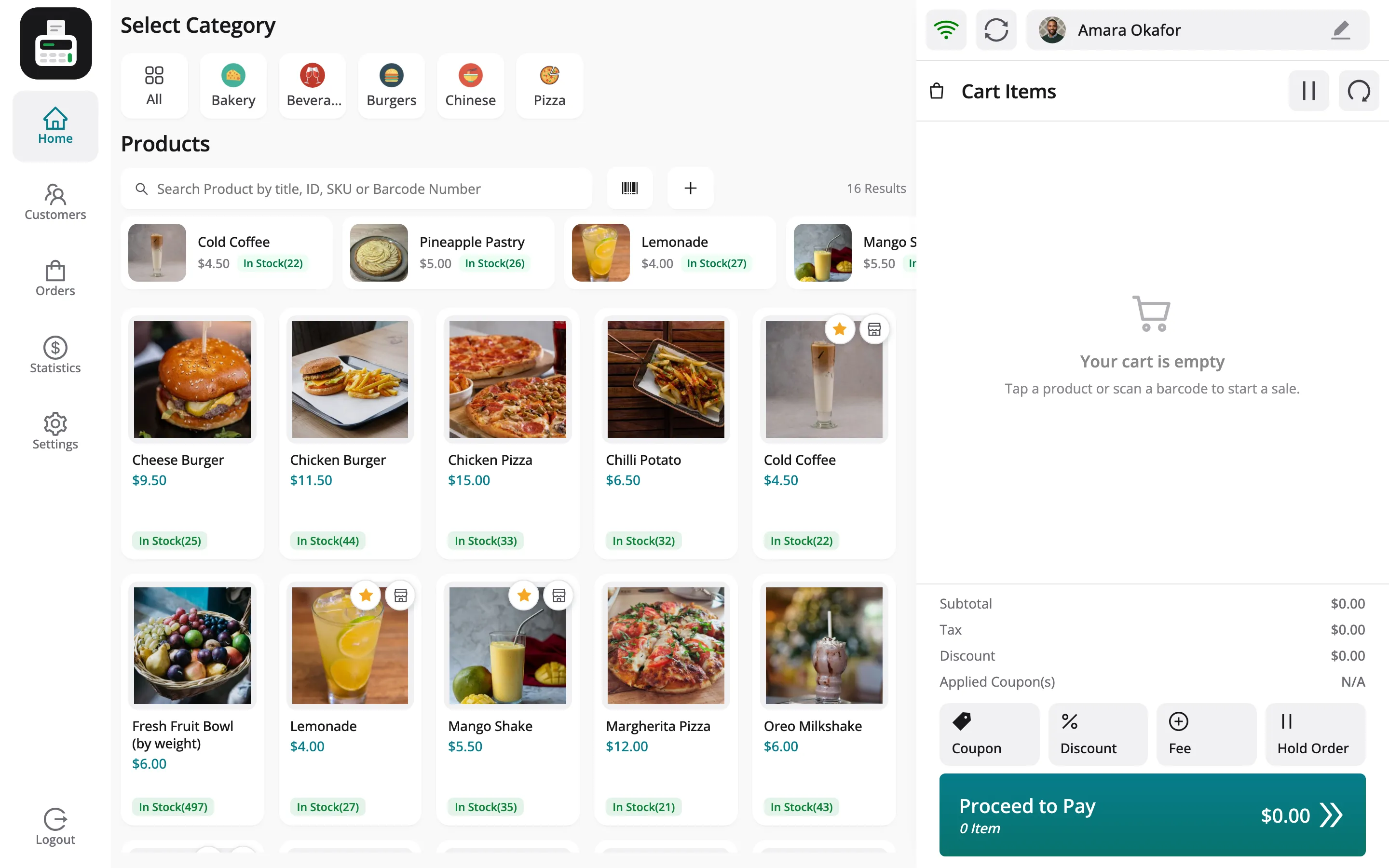
- Categories: only categories that hold the vendor’s products.
- Search: matches a product’s title, ID, SKU or barcode number.
- Product cards: price, stock and an add button. A star pins a product to Quick Keys.
- Quick Keys: a row of pinned products above the grid, one tap each.
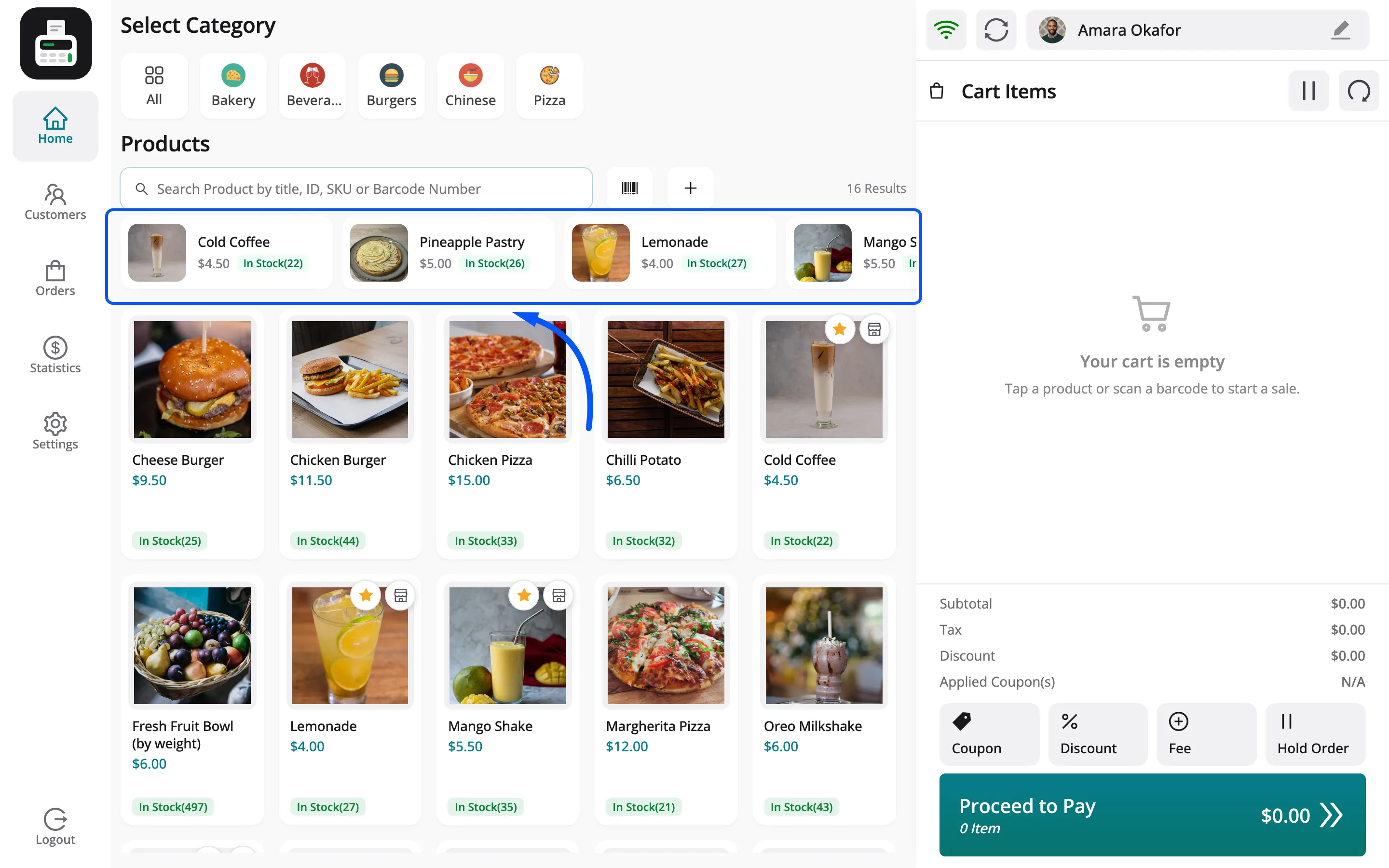
The cart
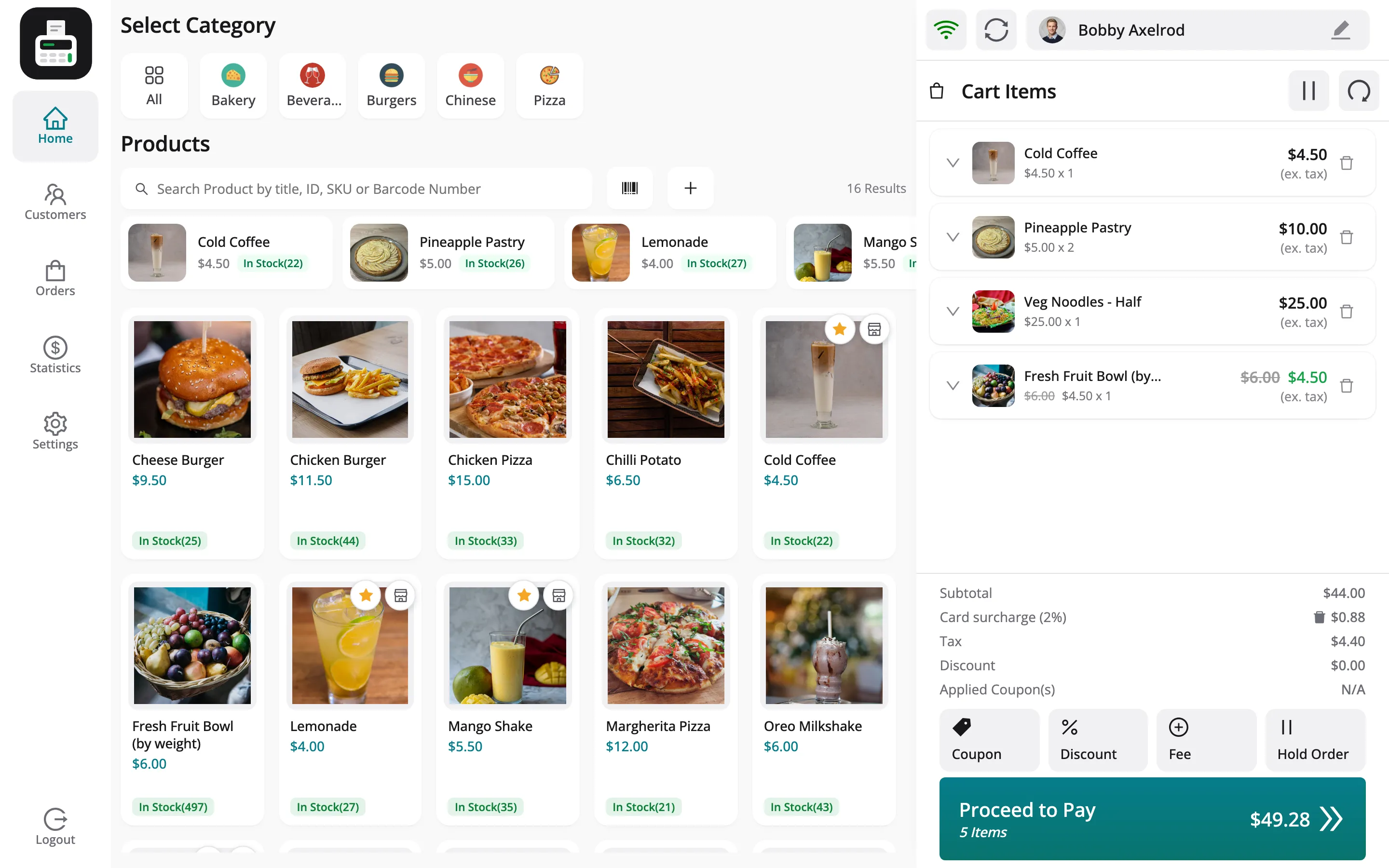
Section titled “The cart”Each tap adds a line. The cart shows the subtotal, tax, discount and coupons, with buttons for Coupon, Discount, Fee and Hold Order below.
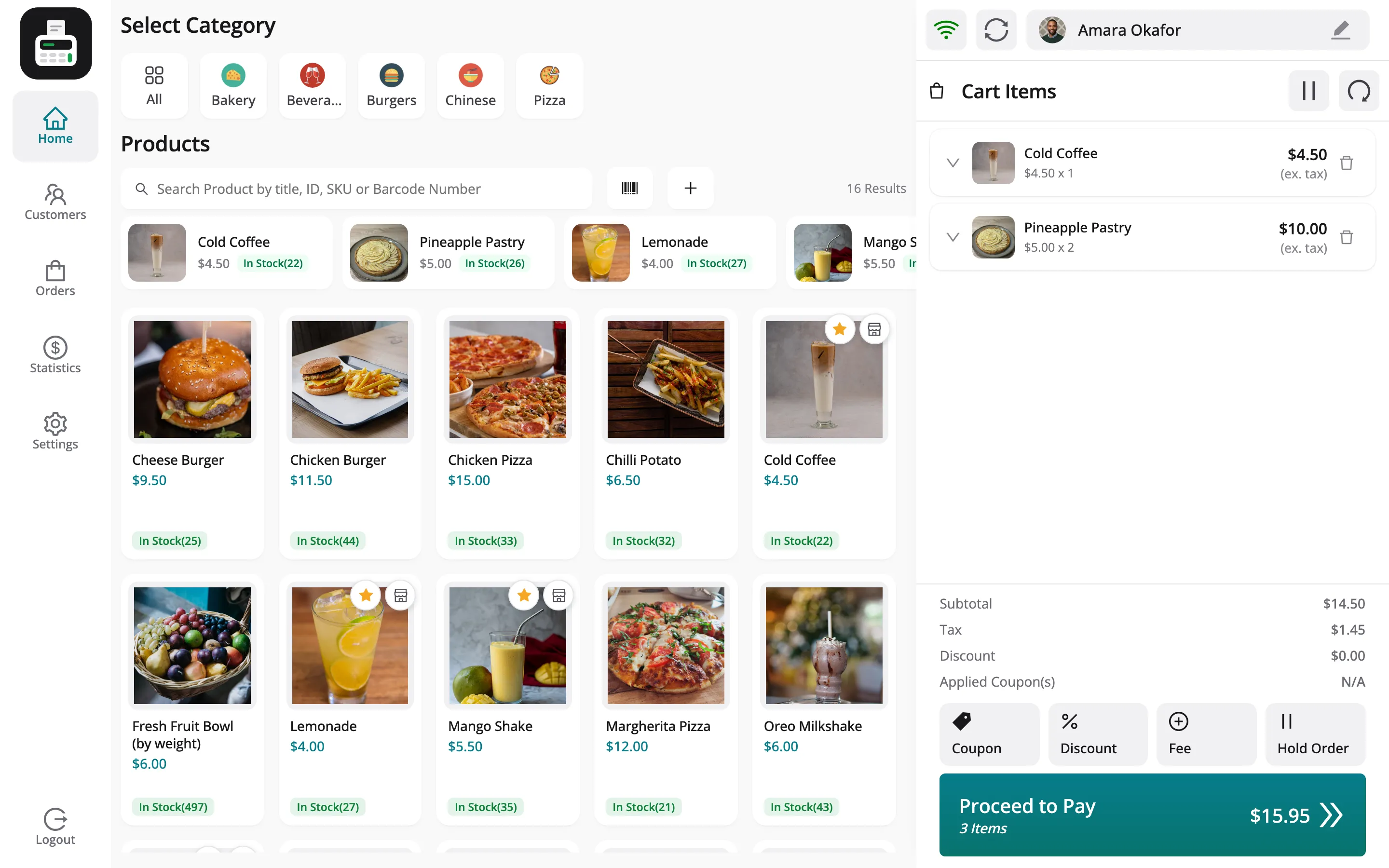
The customer sits at the top of the cart. A walk-in sale stays on the guest account. Tapping the customer opens the vendor’s customer list.
Taking payment
Section titled “Taking payment”Proceed to Pay opens the payment screen: the total due, a payment method, the amount and a keypad with quick amounts.
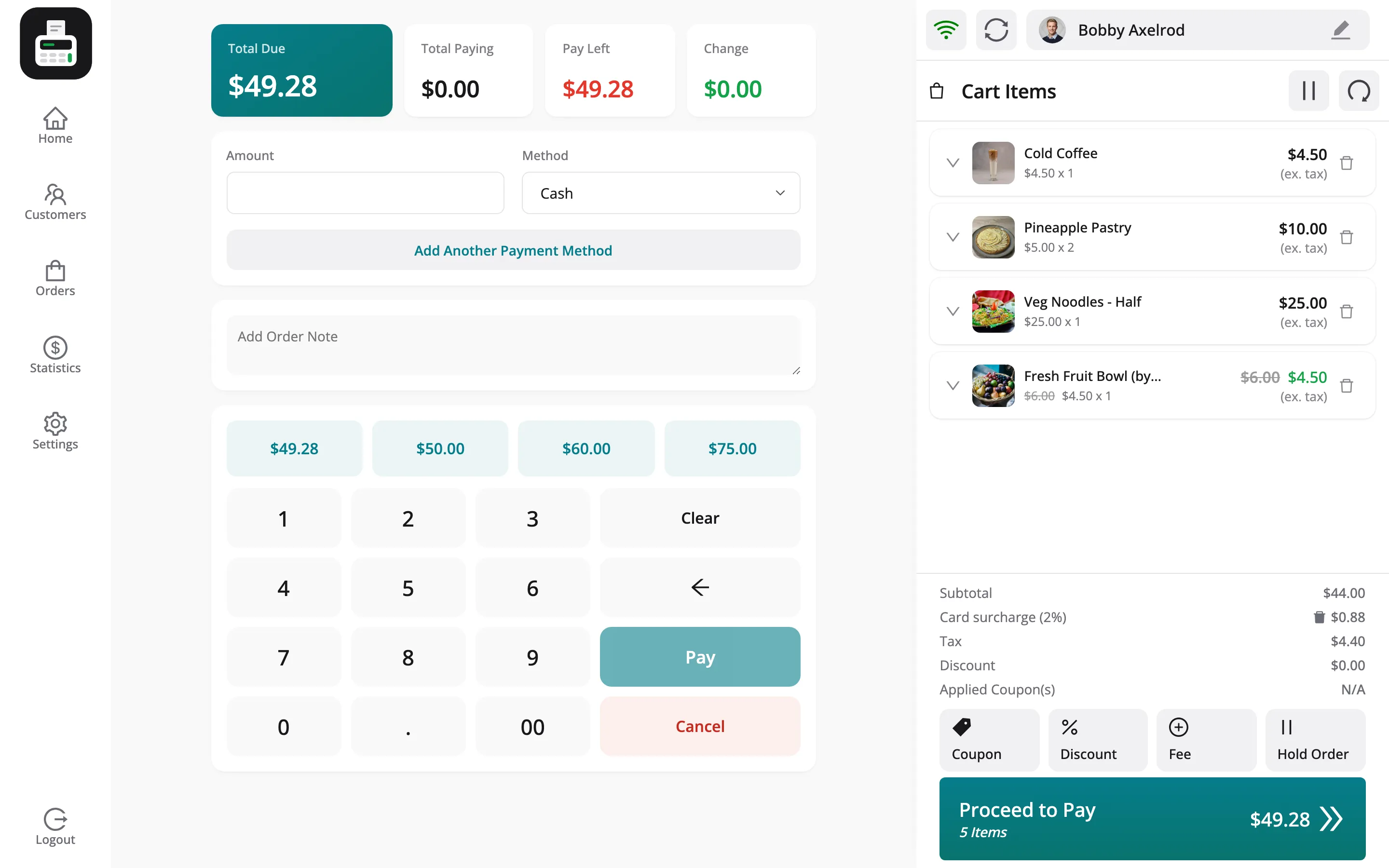
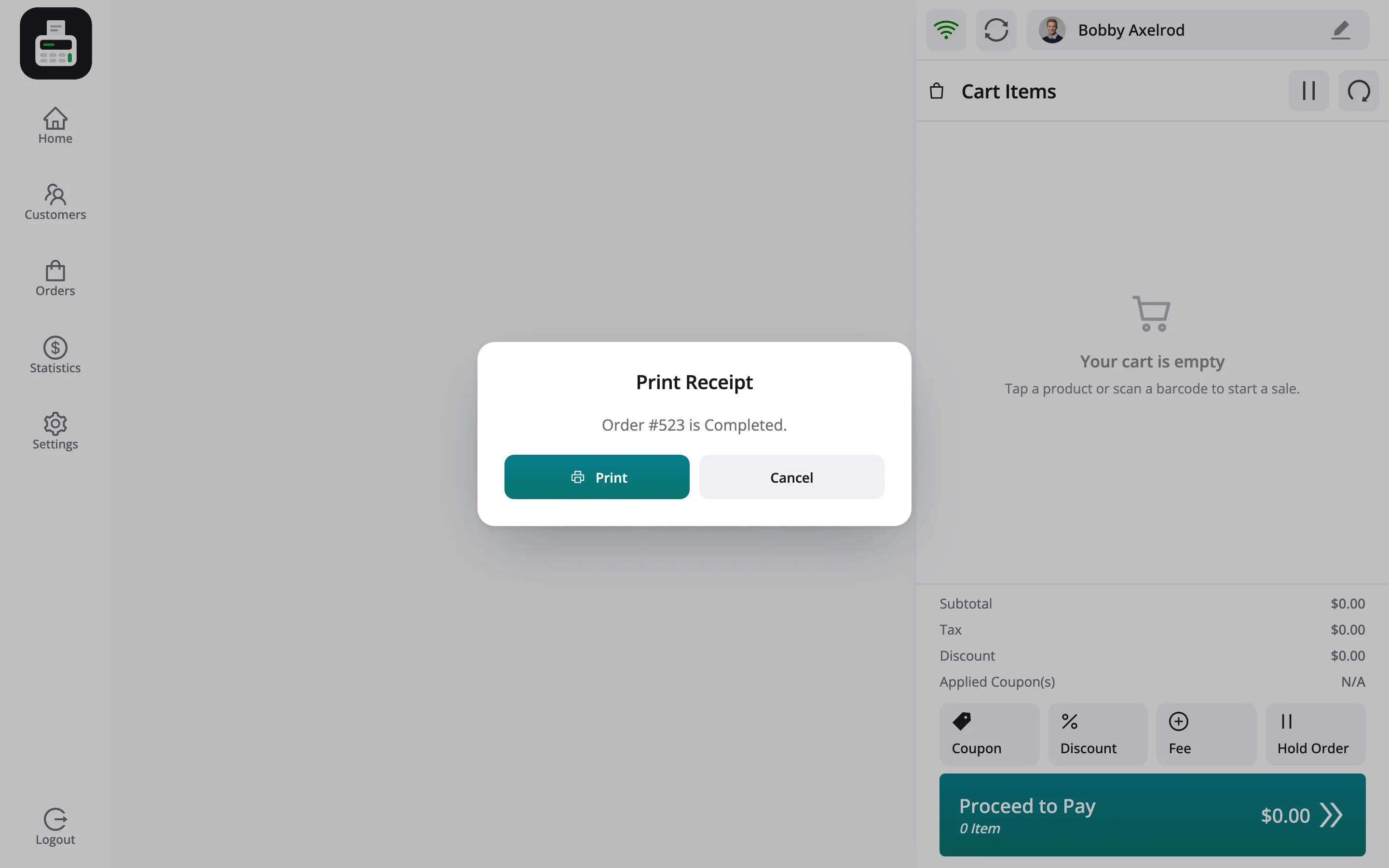
Pay creates the order and offers to print the receipt.
Orders
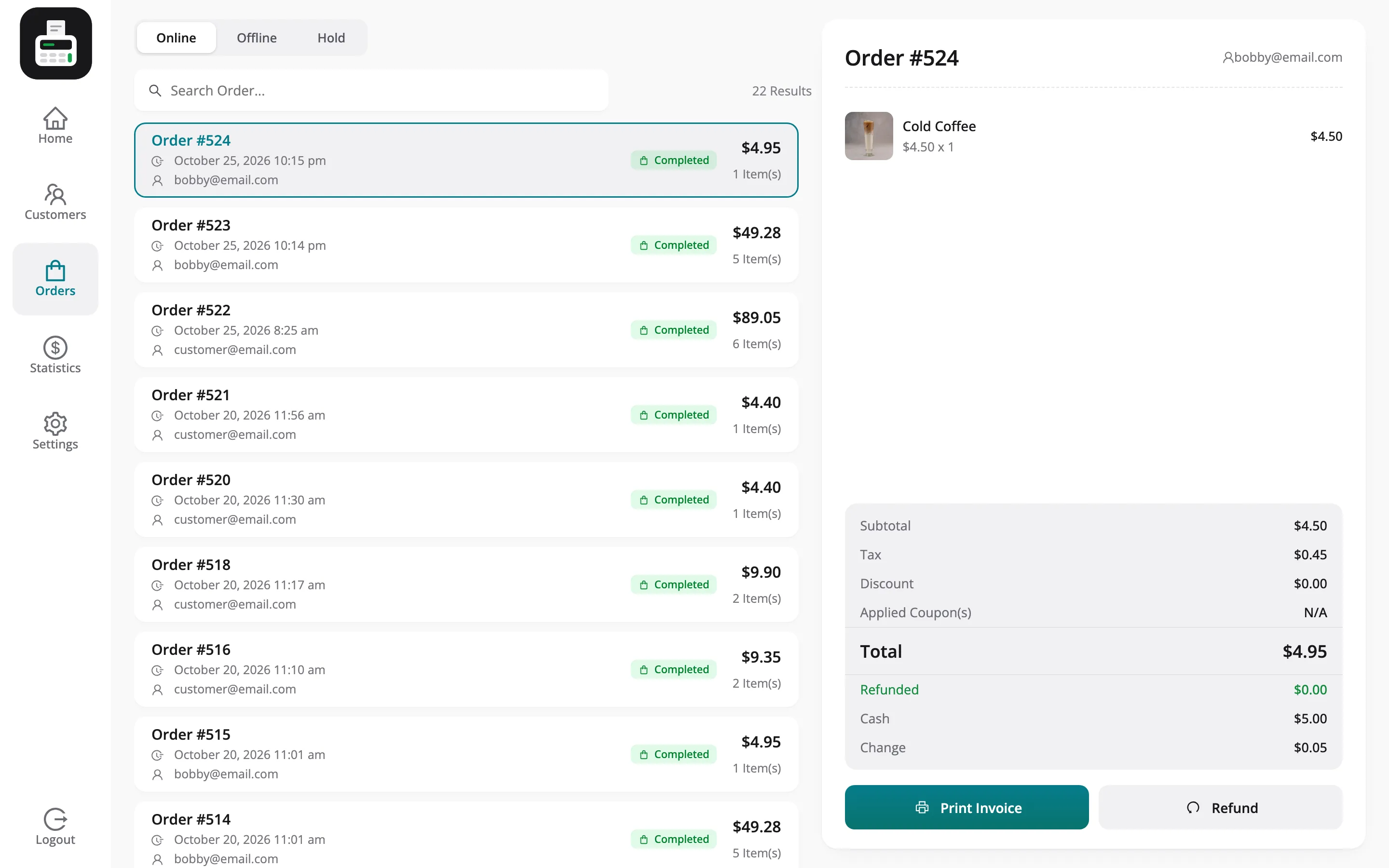
Section titled “Orders”Orders lists the outlet’s sales, with Online, Offline and Hold tabs. Opening one shows its lines, totals, Print Invoice and Refund.
Statistics
Section titled “Statistics”Statistics shows the drawer for the shift: the opening amount, today’s cash sales, today’s total sales and the expected drawer amount, above today’s transactions.
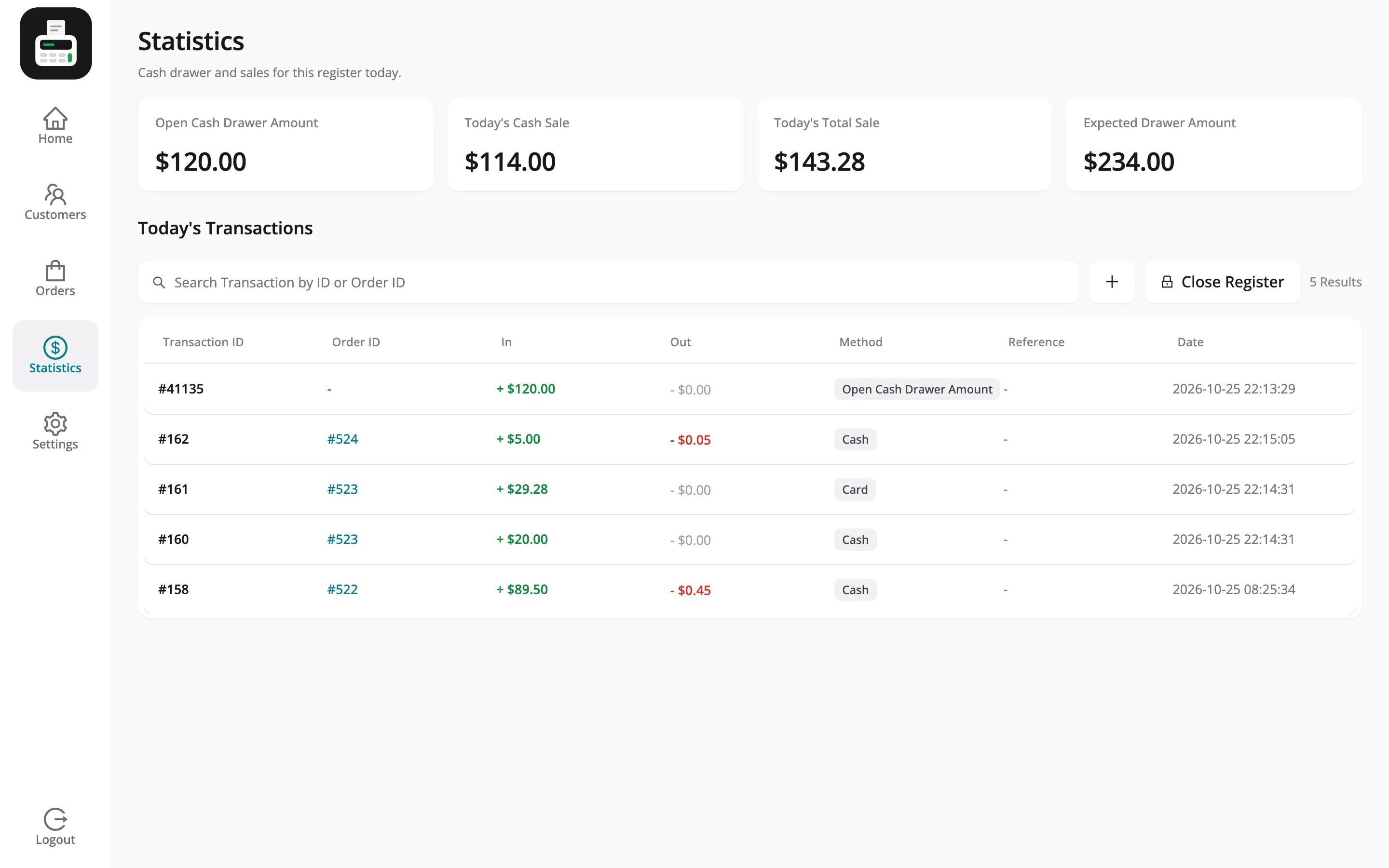
Close Register at the top of the transactions ends the shift. See How to Close the Cash Drawer.
Settings
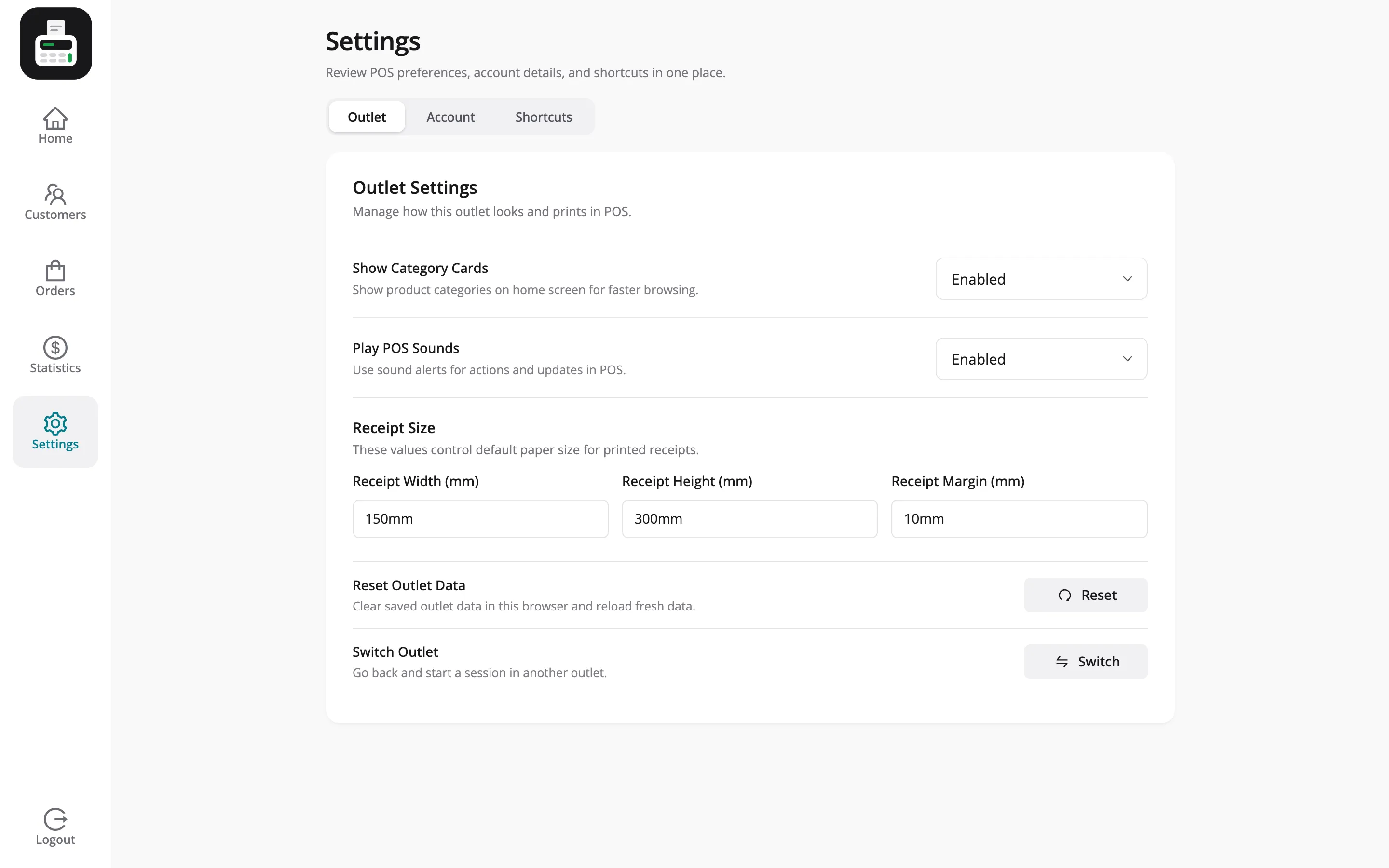
Section titled “Settings”Settings holds the outlet’s display options, the receipt size, the cashier’s account and the keyboard shortcuts. These are stored per browser, so two terminals do not share them.
Restaurant outlets
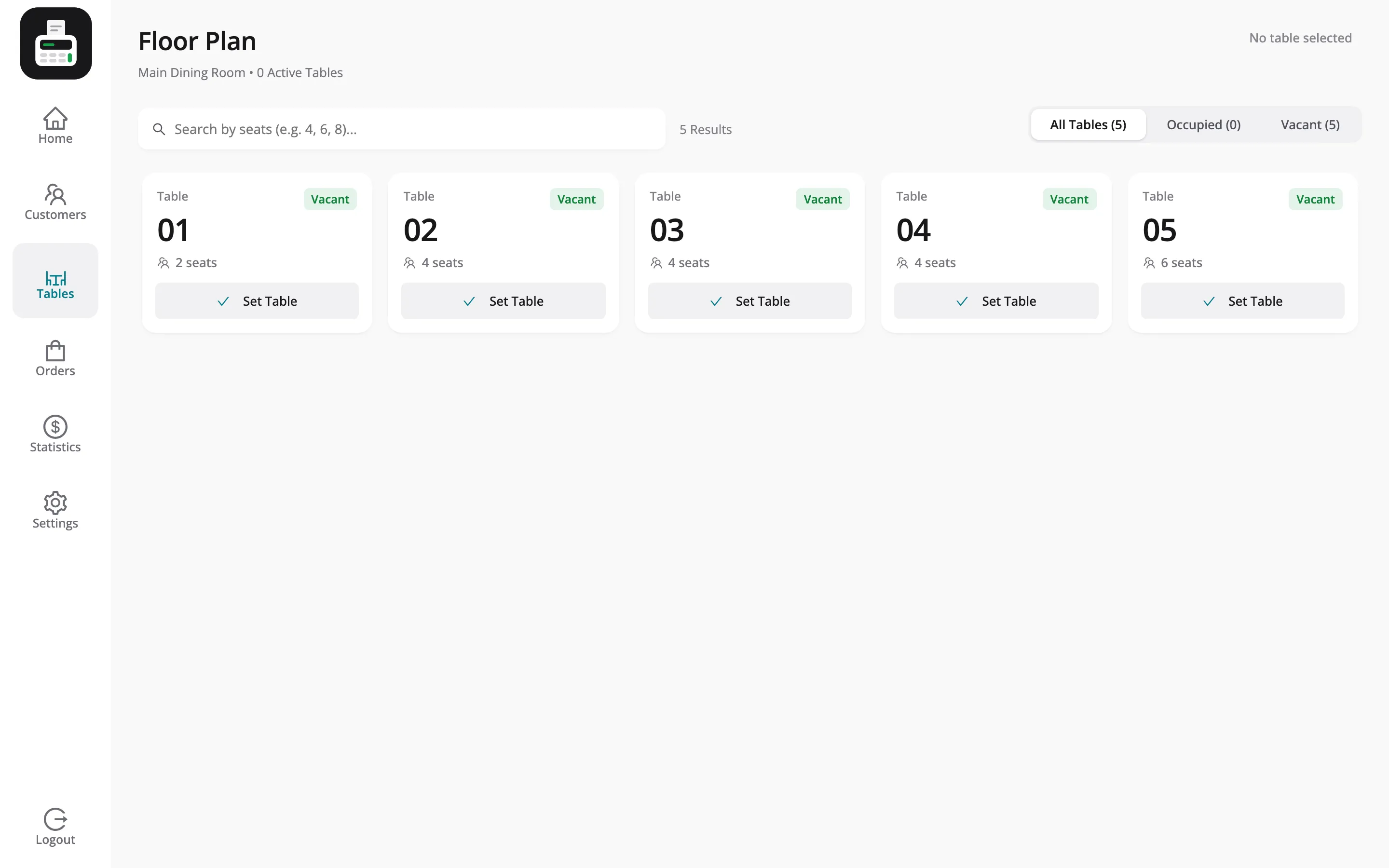
Section titled “Restaurant outlets”An outlet in Restaurant/Cafe mode adds Tables to the menu and a Select Table button to the cart.