The Kitchen Display in MultiPOS for WCFM
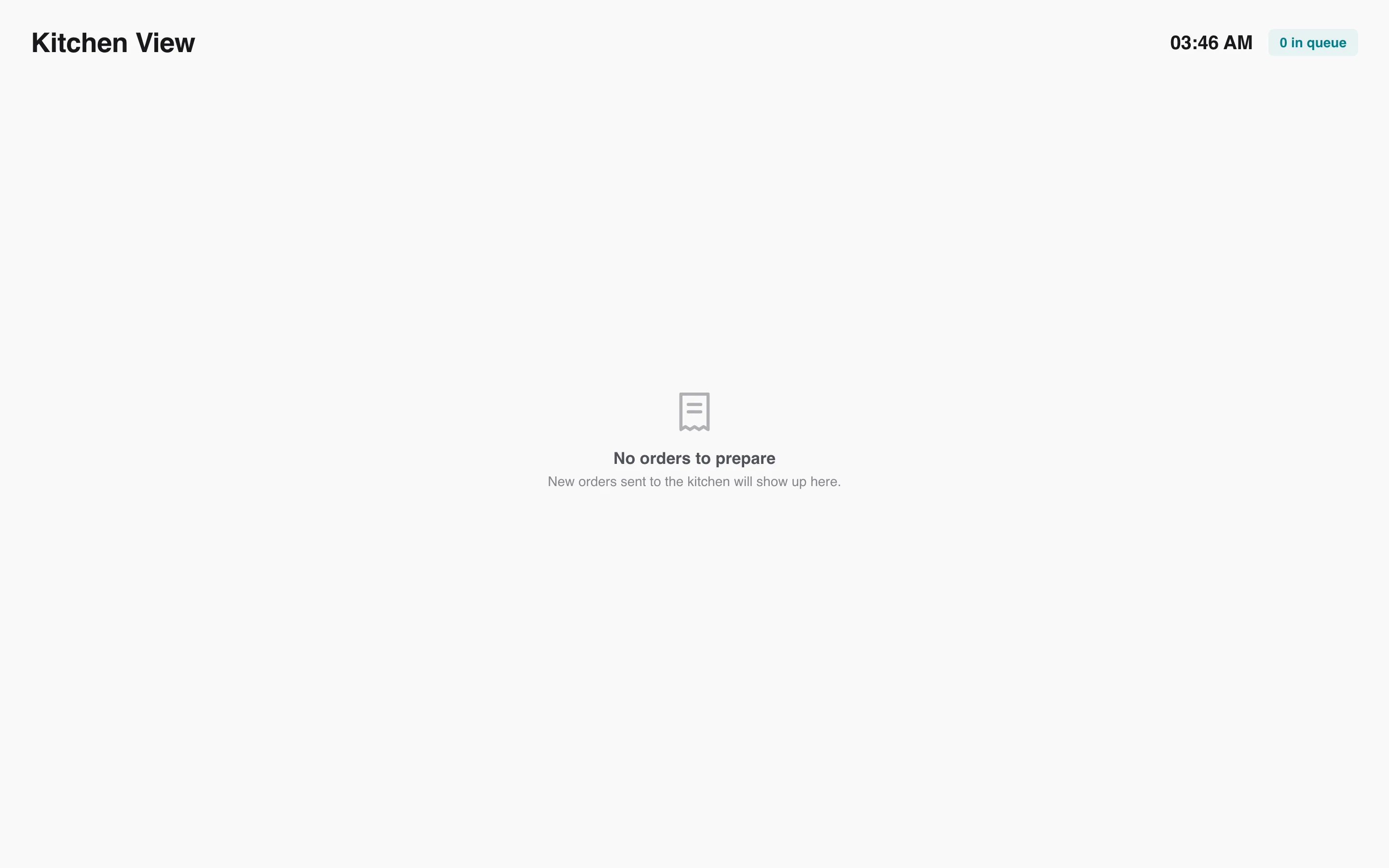
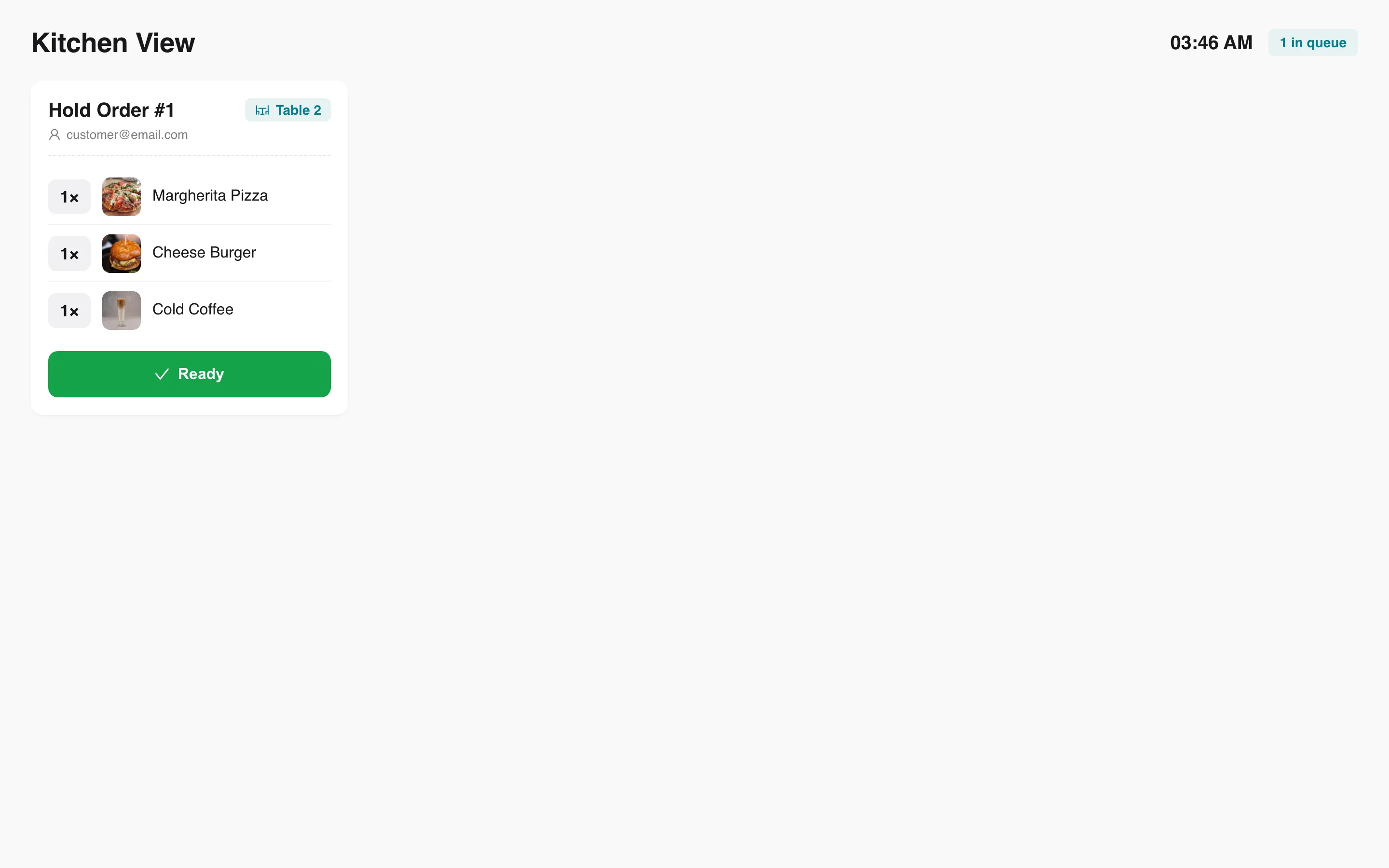
The Kitchen Display is a screen for the people cooking. Orders from a restaurant outlet arrive as cards, and each one is cleared with Ready.
Open it
Section titled “Open it”Press Kitchen View on a Restaurant/Cafe outlet’s row, on the owner’s or the vendor’s
Outlets screen. Or open yoursite.com/kitchen?outlet_id=<id> directly. Each outlet has its own
queue, so a vendor’s kitchen only sees that vendor’s tickets.
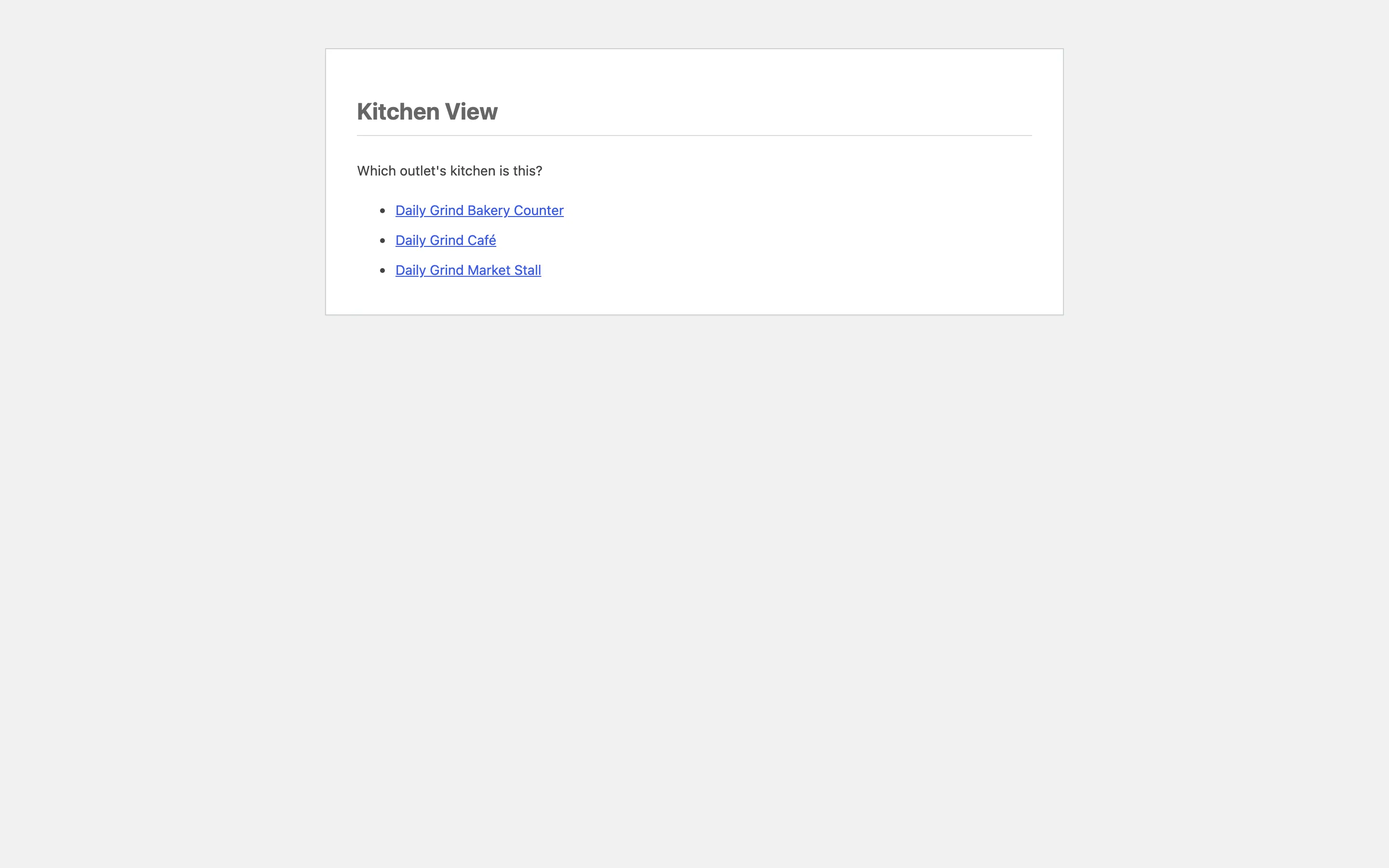
Open plain yoursite.com/kitchen and the screen works out the outlet. With one outlet it opens
that queue. With several, it asks Which outlet’s kitchen is this? and lists them. A vendor only
ever sees their own outlets in that list.
Sign the screen in
Section titled “Sign the screen in”The kitchen needs someone signed in who can use the POS: a cashier, the vendor, or the store’s staff.
- Signed out: The kitchen address sends you to sign in, then straight back to the kitchen.
- Signed in without POS access: The screen says This account cannot open the kitchen screen. Sign in with a POS cashier, manager or vendor account.
Sign the kitchen screen in once with a cashier account of the outlet’s store and leave it open. When the sign-in runs out on a screen left on all day, it reloads itself once to pick up a fresh one.
What puts a ticket on it
Section titled “What puts a ticket on it”- Holding a cart at a restaurant outlet, with Auto-Send Held Orders to Kitchen on.
- Send to Kitchen ticked on the payment screen.
A card shows the order or hold number, the table, the customer’s email and each item with its quantity. The header counts the queue, such as 1 in queue. The cashier’s hold note stays with the POS; it is not printed on the card.
Ready asks for confirmation, then removes the card.