

Fraud Prevention Settings (Pro)
The Fraud Prevention tab decides two things. Which orders can earn a commission at all, and what happens when an order looks like an affiliate buying through their own link.
Open it from DevDiggers Plugins → Affiliates → Configuration → Fraud Prevention.
Referral Eligibility
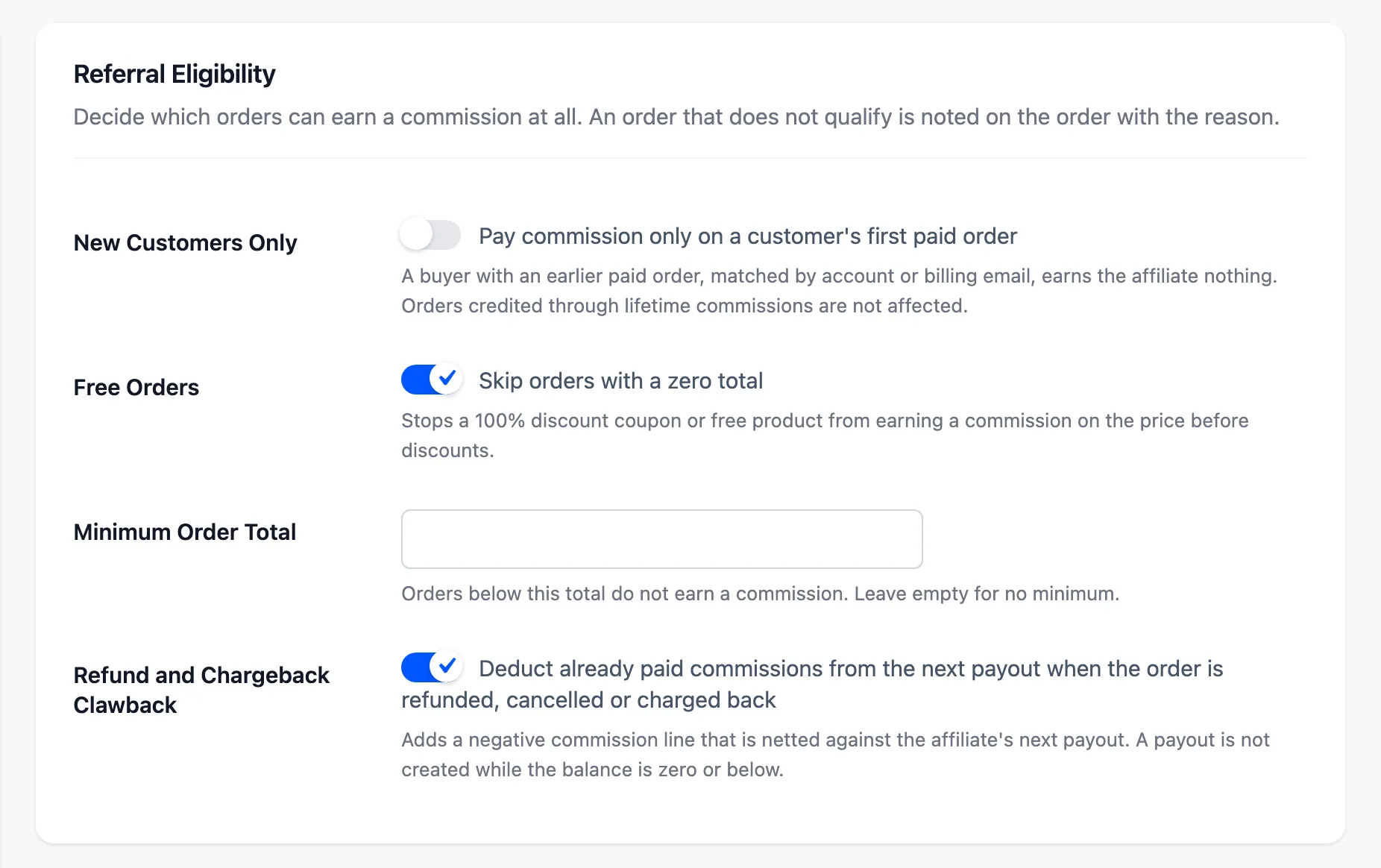
Section titled “Referral Eligibility”These four rules apply to every referred order, fraud or not. An order that does not qualify is noted on the order with the reason, and listed on the Fraud report.
| Field | Default | What it does |
|---|---|---|
| New Customers Only | Off | Pays only on a customer’s first paid order. A buyer with an earlier paid order, matched by account or billing email, earns the affiliate nothing. |
| Free Orders | On | Skips orders with a zero total, so a 100% coupon or a free product earns nothing. |
| Minimum Order Total | Empty | Orders below this total earn no commission. Empty means no minimum. |
| Refund and Chargeback Clawback | On | Takes back commission you already paid when the order is refunded, cancelled or charged back. |
New Customers Only does not touch lifetime commissions. A customer an affiliate already won keeps earning them commission on later orders.
How clawback works
Section titled “How clawback works”A paid commission cannot be un-paid, because the money has left. So with Refund and Chargeback Clawback on, a refund adds a new negative commission line for the same affiliate, labelled Clawback from a refund or chargeback. The paid line stays as it was, so the payout history still matches what was sent.
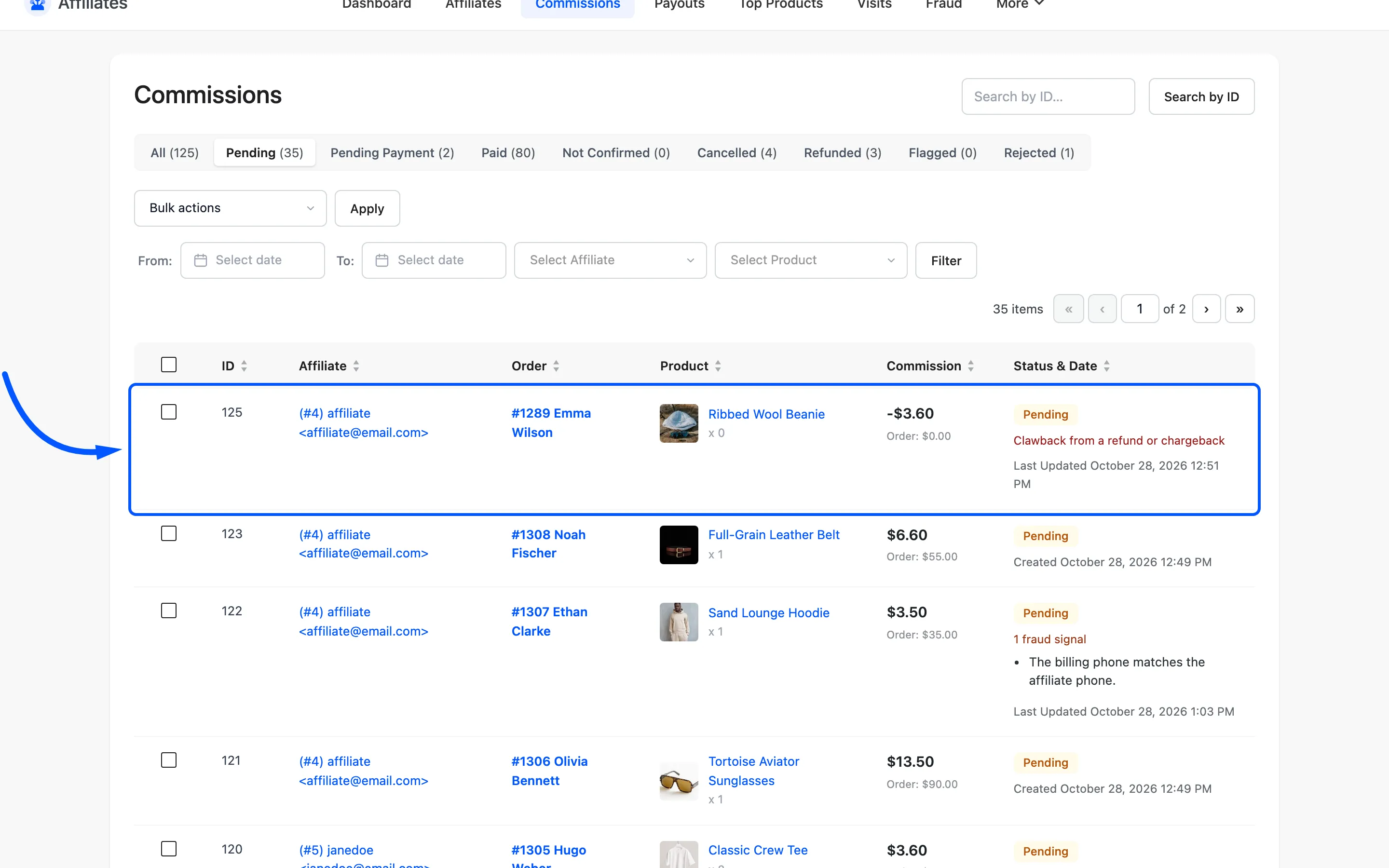
The negative line sits at Pending, and the next payout nets it against the affiliate’s new earnings. A partial refund claws back only the share of the refund that falls on that line. While an affiliate’s balance is zero or below, no payout is created for them.
On the demo, refunding an order whose $3.60 commission had already been paid added a -$3.60 line straight away.
Referral Fraud Prevention
Section titled “Referral Fraud Prevention”Self referral is the most common way an affiliate program leaks money. An affiliate buys through their own link with a second account and collects a discount disguised as commission.
The four signals
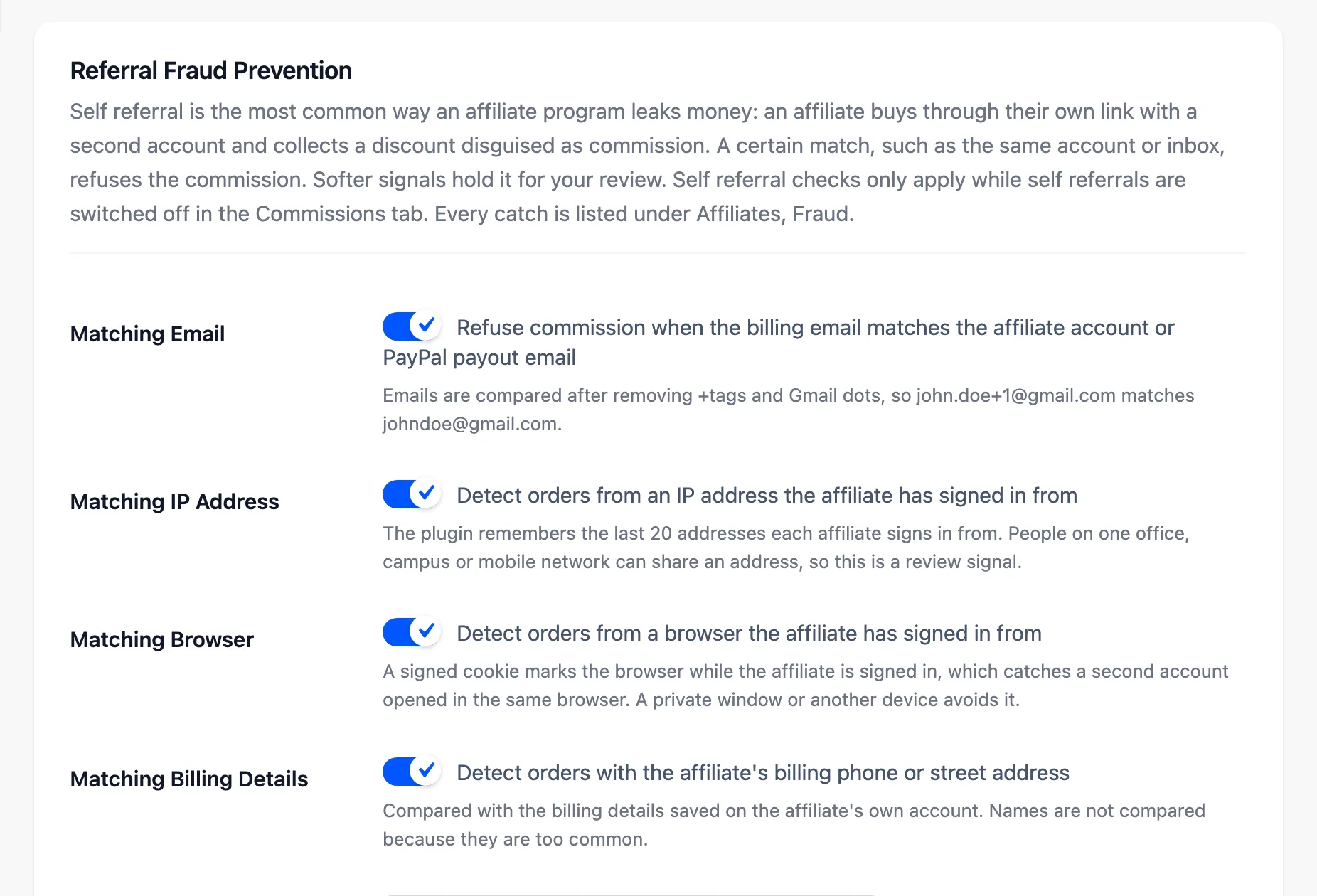
Section titled “The four signals”Each check compares the order with what the plugin knows about the affiliate. All four are on by default.
| Field | What it compares | What a match does |
|---|---|---|
| Matching Email | The billing email with the affiliate’s account email and PayPal payout email | Refuses the commission |
| Matching IP Address | The order’s IP with the last 20 addresses the affiliate signed in from | Uses When A Signal Matches |
| Matching Browser | A signed cookie the plugin sets while the affiliate is signed in | Uses When A Signal Matches |
| Matching Billing Details | The billing phone and street address with the affiliate’s own billing details | Uses When A Signal Matches |
Matching Email is the certain one, so it always refuses. Emails are compared after removing
+tags and Gmail dots. On the demo, an order billed to affiliate+gifts@email.com was refused
for the affiliate whose email is affiliate@email.com.
The other three are softer. An office, a campus or a mobile network can share one IP address. A private window or a second device gets past the browser check. Names are never compared, because too many people share them.
What happens on a match
Section titled “What happens on a match”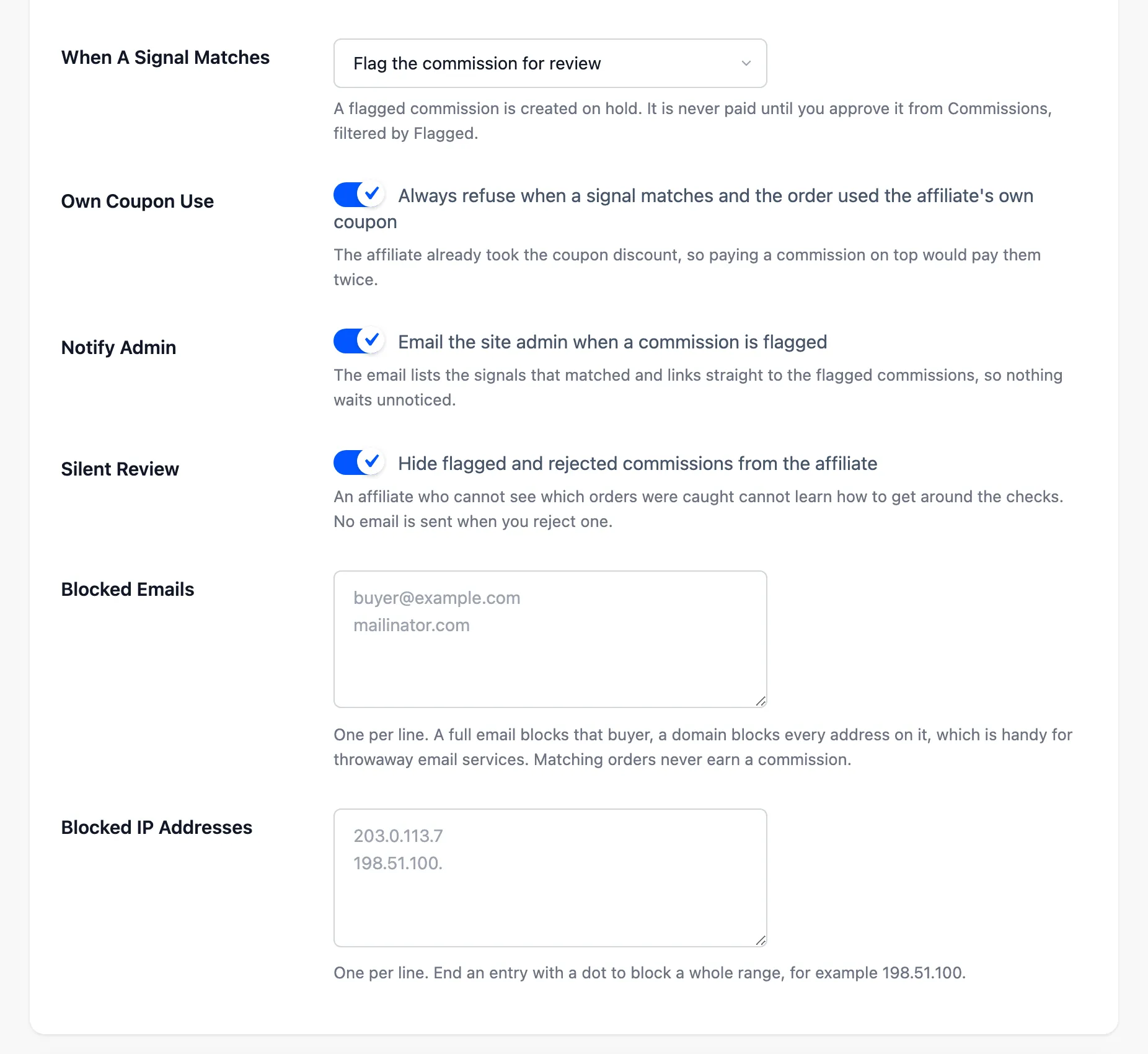
- When A Signal Matches: Flag the commission for review (the default) or Refuse the commission. A flagged commission is created on hold with the status Flagged for Review, and it is never paid until you approve it.
- Own Coupon Use: on by default. When a signal matches and the order used the affiliate’s own coupon, the commission is always refused. The affiliate already took the coupon discount, so a commission on top would pay them twice.
- Notify Admin: on by default. Emails the site admin when a commission is flagged, listing the signals that matched and linking to the flagged commissions.
- Silent Review: on by default. Hides flagged and rejected commissions from the affiliate’s dashboard, and sends no email when you reject one. An affiliate who cannot see what was caught cannot learn how to get around the checks.
How to work through what gets flagged is in How to Review Flagged Commissions.
Blocked lists
Section titled “Blocked lists”Two lists stop an order earning anything, whoever the affiliate is. Both are empty by default.
- Blocked Emails: one per line. A full address blocks that buyer. A domain such as
mailinator.comblocks every address on it, which is handy for throwaway email services. - Blocked IP Addresses: one per line. End an entry with a dot to block a whole range, for
example
198.51.100..
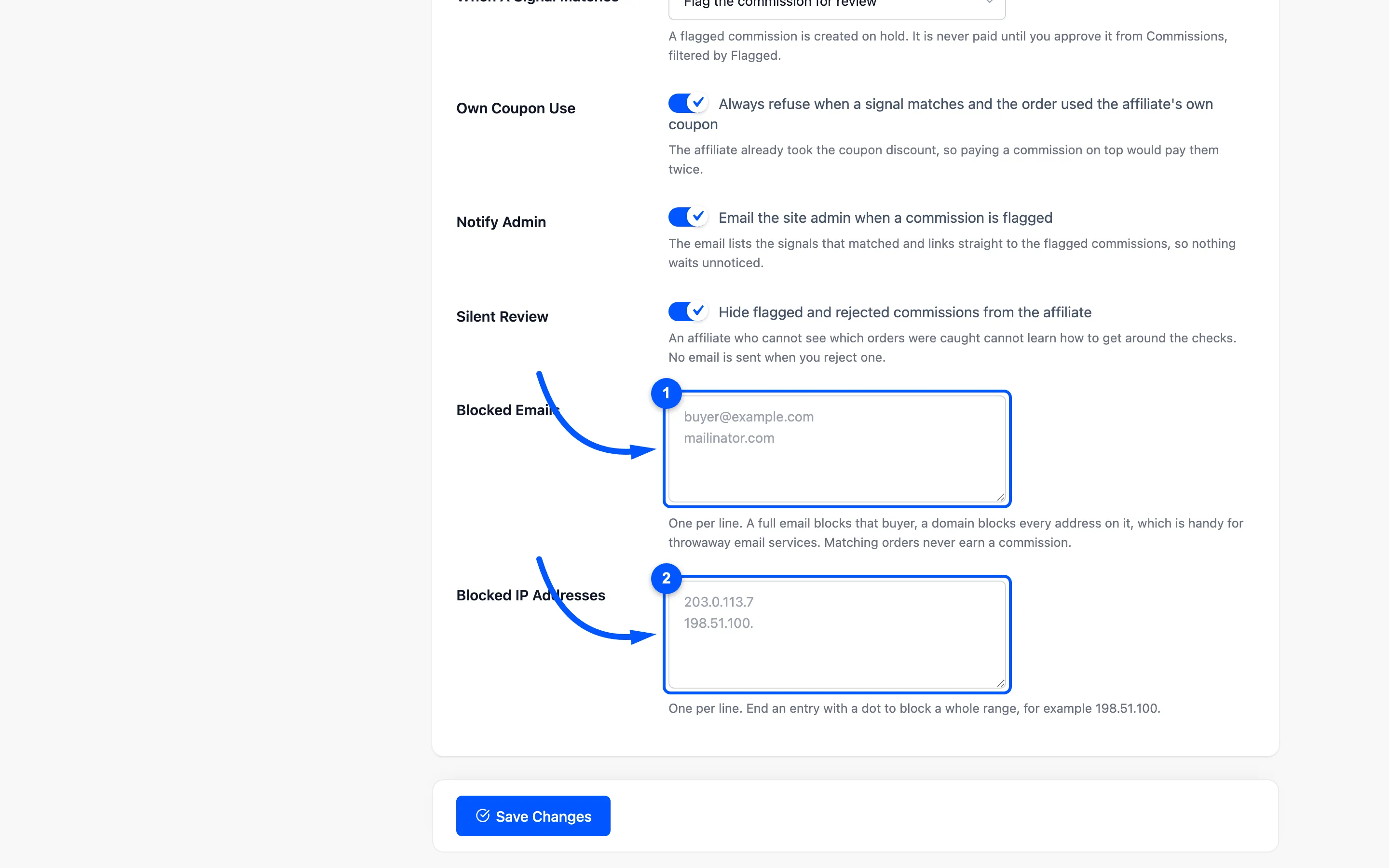
A blocked order is refused, not flagged, and the order note says why: The billing email is on the blocked emails list.
Refused, flagged and rejected
Section titled “Refused, flagged and rejected”Three words that are easy to mix up:
| Commission created? | Can it be paid? | |
|---|---|---|
| Refused | No. The order note and the Fraud report record the reason. | No |
| Flagged for Review | Yes, on hold | Only after you approve it |
| Rejected | Yes, after you reject a flagged one | No, unless you approve it later |