

Social Promotion
Social Promotion puts share buttons under an affiliate’s referral link. A partner posts to a network without copying, pasting and writing a caption.
Open Social Promotion settings
Section titled “Open Social Promotion settings”Go to DevDiggers Plugins → Affiliates → Configuration → Social Promotion.
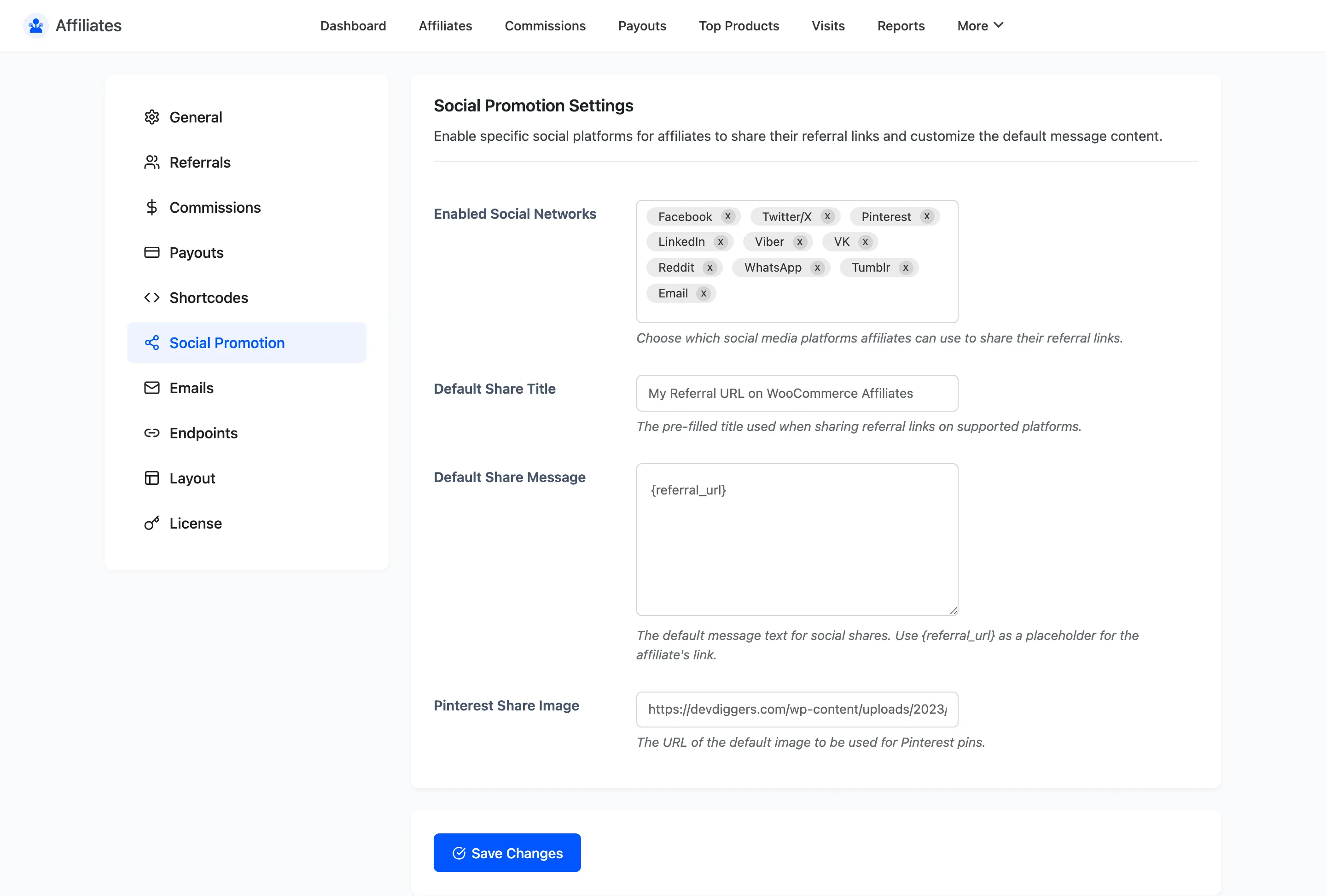
Social Promotion Settings
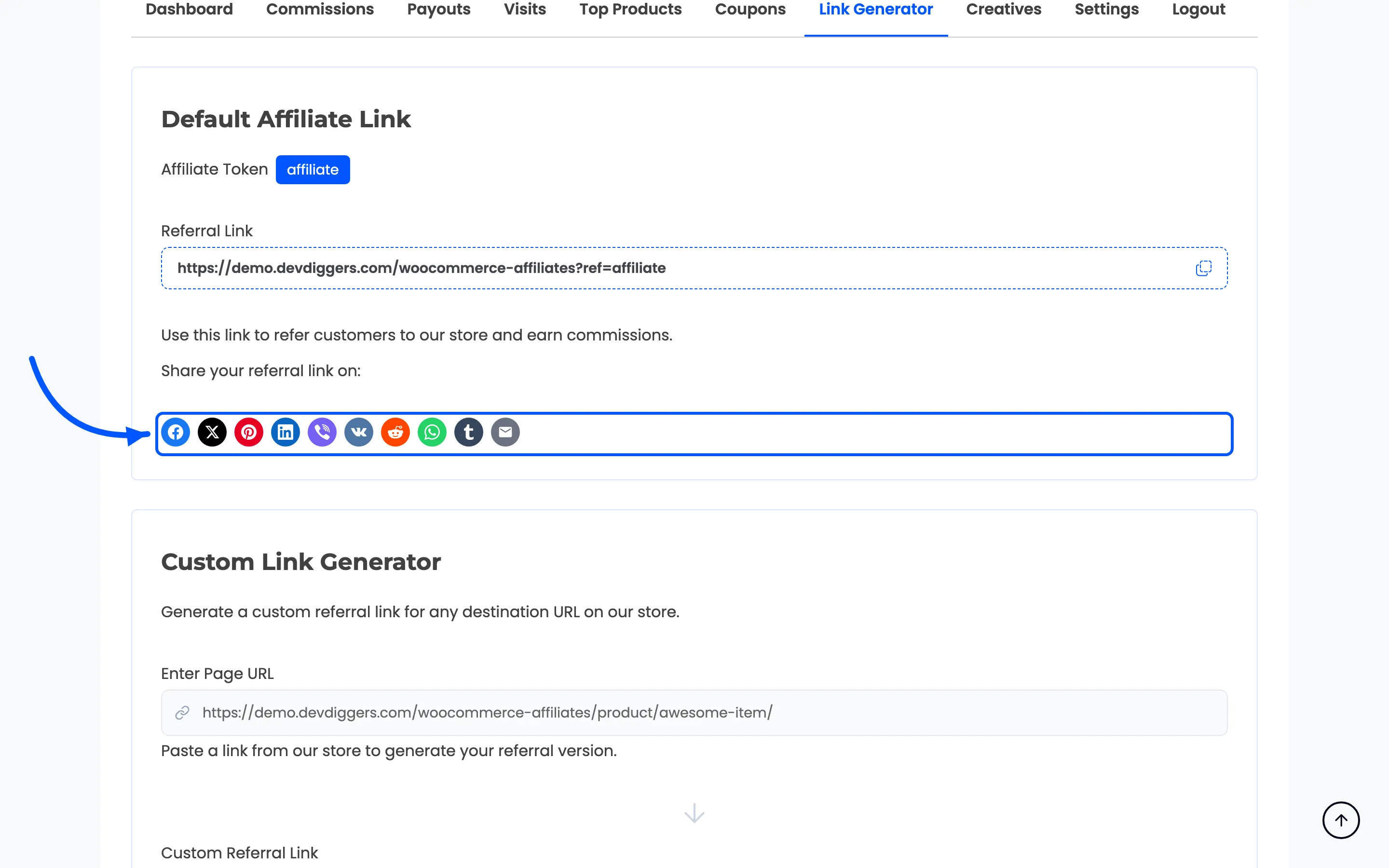
Section titled “Social Promotion Settings”Enabled Social Networks is a multi-select of the ten supported platforms: Facebook, Twitter/X, Pinterest, LinkedIn, Viber, VK, Reddit, WhatsApp, Tumblr and Email. Each one you pick becomes a button in the Share your referral link on row of the link generator.
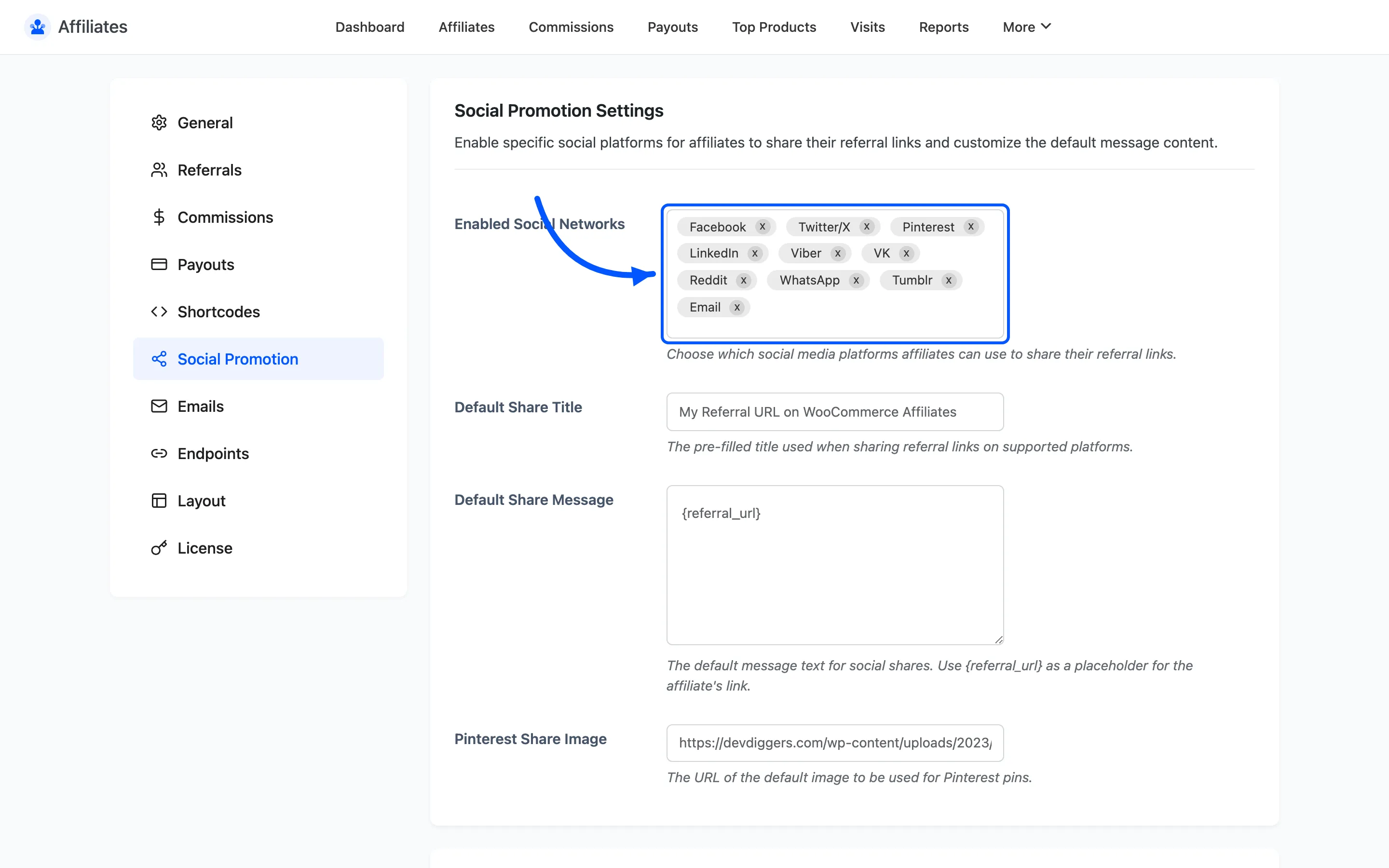
Pick the two or three your affiliates actually use. Ten buttons in a row reads as clutter and slows the choice down.
Default Share Title is the pre-filled title on platforms that carry one. It defaults to
My Referral URL on <your site name>.
Default Share Message is the message body. It defaults to {referral_url}, which is the only
placeholder available here and expands to that affiliate’s link. Write around it, for example
I shop here and you should too: {referral_url}.
Pinterest Share Image takes the URL of the image a Pinterest pin uses. Pinterest needs an image to pin, so leave this empty and the Pinterest button has nothing to work with. Use a square or vertical image; Pinterest crops wide ones badly.
Where the buttons appear
Section titled “Where the buttons appear”The share row renders in two places on the affiliate dashboard Link Generator section. It sits under the Default Affiliate Link, and under any link built with the Custom Link Generator. Both carry that affiliate’s own token, so a share from either one tracks correctly.
Where to go next
Section titled “Where to go next”- Dashboard Endpoints to rename the Link Generator section.
- The Affiliate Experience to see the link generator in context.