

Email Settings
Twelve notifications cover the events an affiliate cares about, from the moment they sign up to the moment they get paid. Each one is switched on by default and can be turned off, rewritten or rebranded.
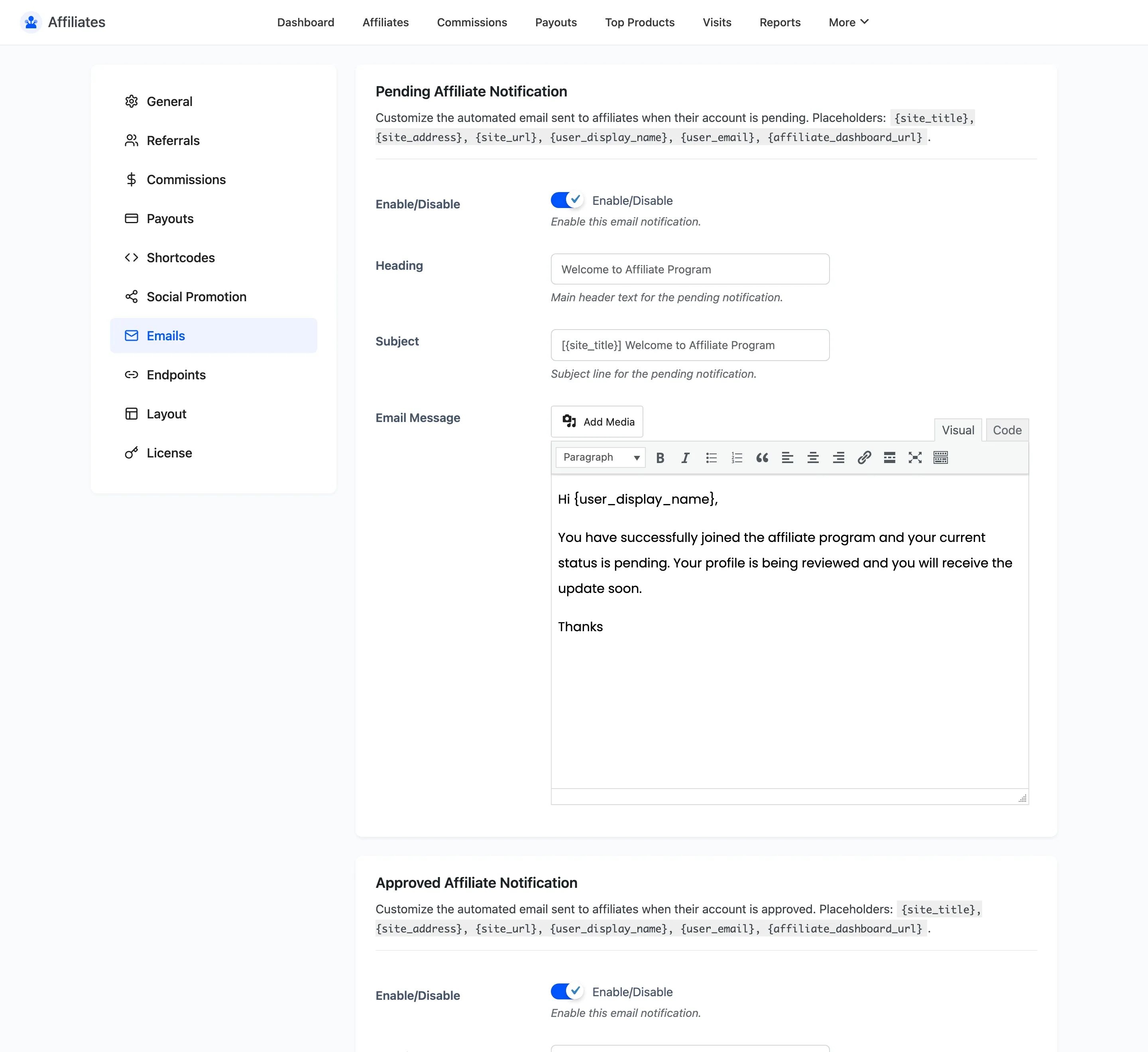
Open Email settings
Section titled “Open Email settings”Go to DevDiggers Plugins → Affiliates → Configuration → Emails.
The twelve notifications
Section titled “The twelve notifications”| Notification | Sent when |
|---|---|
| Pending Affiliate | A signup is received and lands on Pending |
| Approved Affiliate | You approve an affiliate |
| Rejected Affiliate | You reject an affiliate |
| Banned Affiliate | You ban an affiliate |
| Coupon Assignment | You assign a coupon to an affiliate |
| New Commission | A commission is created and set to Pending |
| Paid Commission | A commission moves to Paid |
| Commission Status Change | A commission changes to any other status |
| Payout Pending | A payout is created |
| Payout Completed | You mark a payout Completed |
| Payout Cancelled | You cancel a payout |
| Admin Affiliate Registration | A new affiliate registers, sent to you |
Eleven go to the affiliate. The last one goes to you.
The fields on each notification
Section titled “The fields on each notification”Every section carries the same four or five fields.
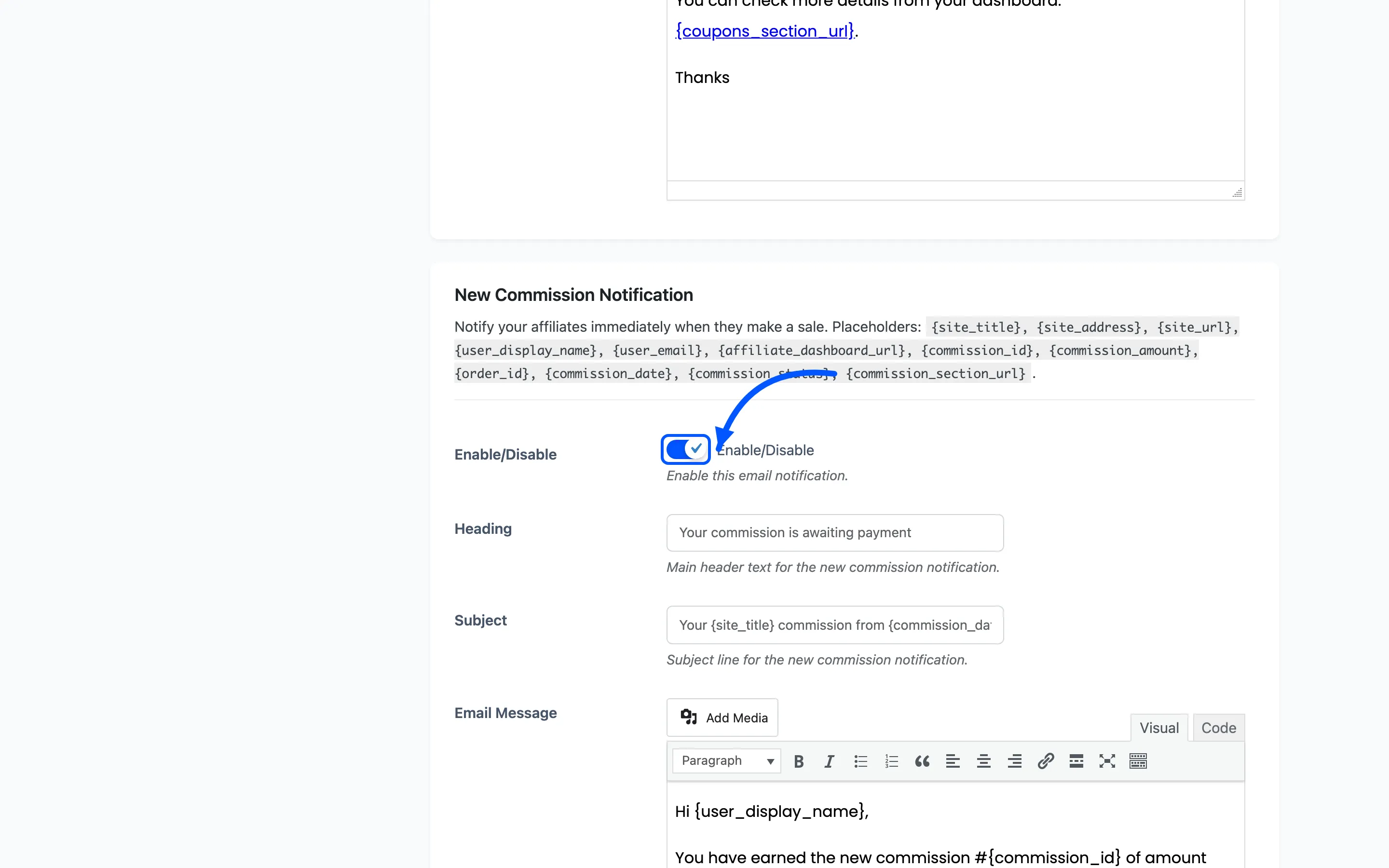
- Enable/Disable switches that notification on or off. All twelve default to on.
- Recipient(s) appears on the admin notification only, and defaults to your WordPress admin email. Enter more than one address separated by commas.
- Heading is the large text at the top of the email body.
- Subject is the email subject line.
- Email Message is the body, edited in a rich text editor so you can add links and formatting.
Placeholders
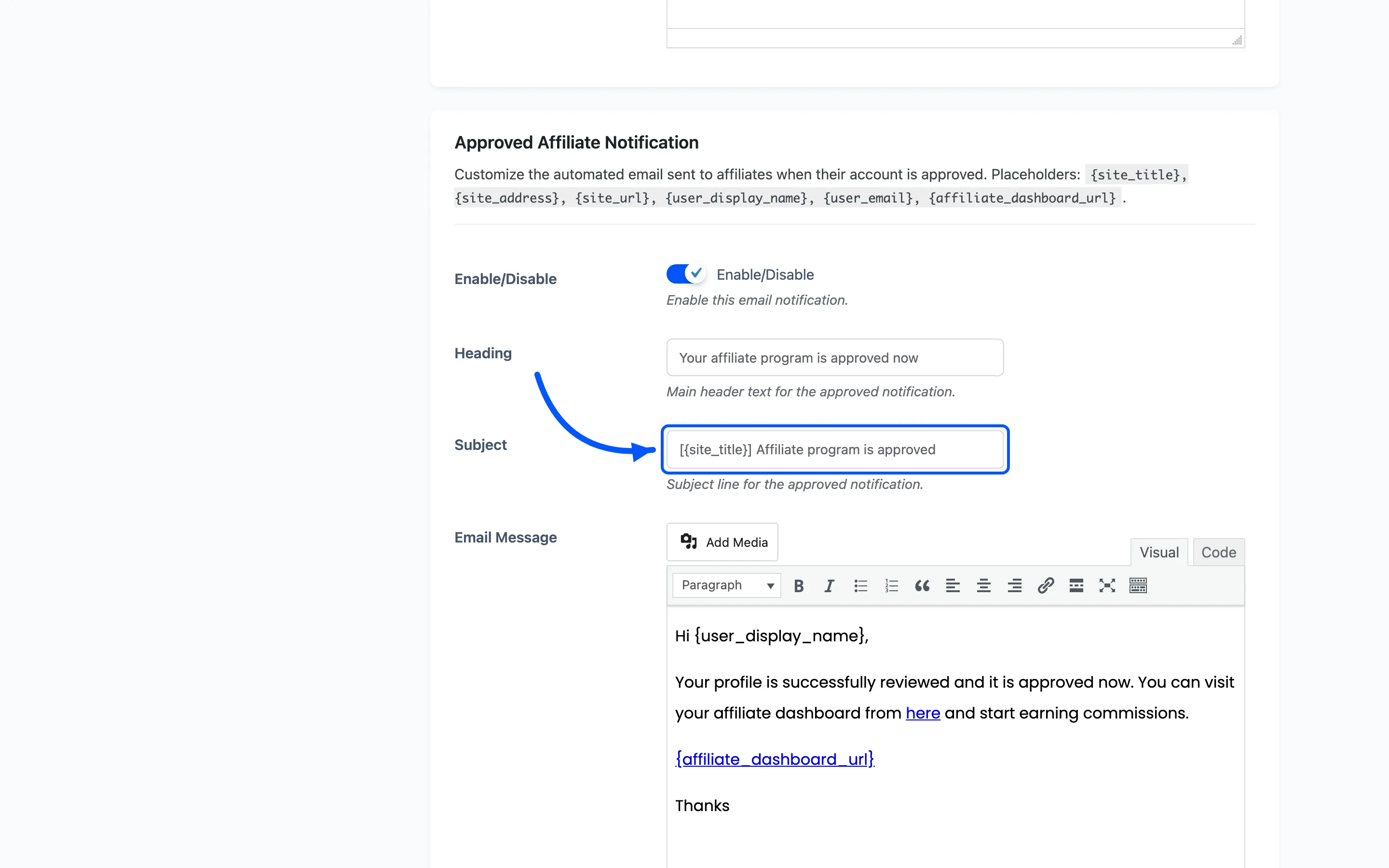
Section titled “Placeholders”The plugin swaps placeholders into the subject, heading and body when it sends. Which ones are available depends on the event.
| Placeholder | Available in |
|---|---|
{site_title} |
Every notification |
{user_display_name} |
Every notification |
{user_email} |
The admin registration notification |
{affiliate_dashboard_url} |
The affiliate status notifications |
{coupon_code} and {coupons_section_url} |
The coupon assignment notification |
{commission_id}, {commission_amount}, {commission_date}, {commission_status} and {commission_section_url} |
The commission notifications |
{payout_id}, {payout_amount}, {payout_payment_method_title} and {payout_section_url} |
The payout notifications |
A placeholder the event does not supply is left as literal text in the sent email. Check the table before adding one.
Per-affiliate control
Section titled “Per-affiliate control”An affiliate can opt out of three of these on their own, from Settings → Email Notifications on their dashboard. The three are new commissions, paid commissions and commission status changes.
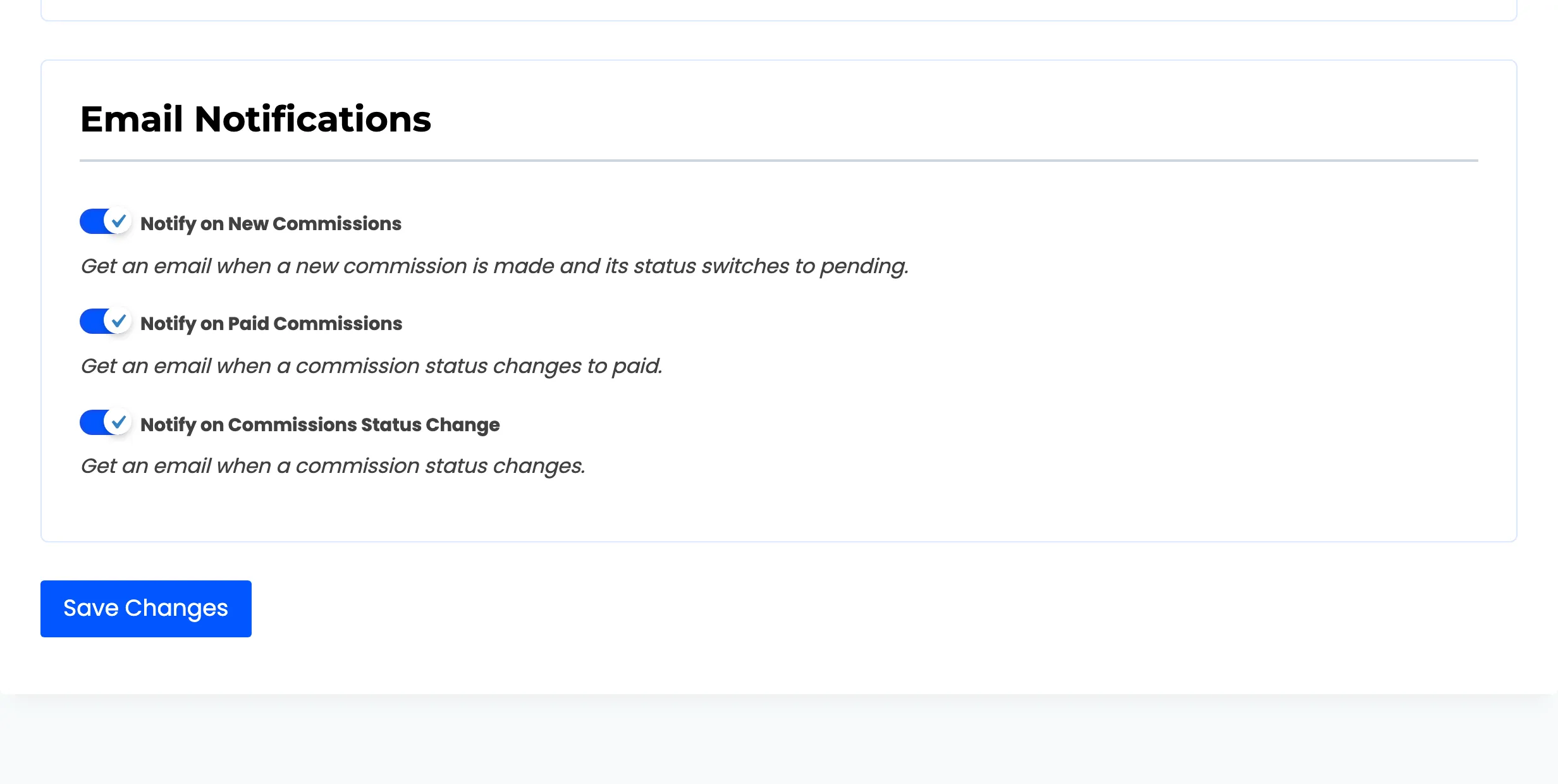
You can set the same three for them on the affiliate’s own screen.
That per-affiliate switch only narrows what the global setting allows. Turn a notification off here and no affiliate receives it, whatever their own preference says.
A note on templates
Section titled “A note on templates”The emails use the WooCommerce email template, so they inherit the header, footer and colours you already set under WooCommerce → Settings → Emails. You do not have to style them twice.
Where to go next
Section titled “Where to go next”- How to Customize Affiliate Emails for a worked example.
- Affiliate Details for the per-affiliate toggles.