

How to Add an Affiliate Leaderboard (Pro)
Competition is one of the cheapest ways to lift affiliate activity, and the same board does a second job on a recruitment page: it shows a prospective partner that people are actually earning.
1. Switch the board on
Section titled “1. Switch the board on”Go to DevDiggers Plugins → Affiliates → Configuration → Shortcodes and scroll to Affiliate Leaderboard.
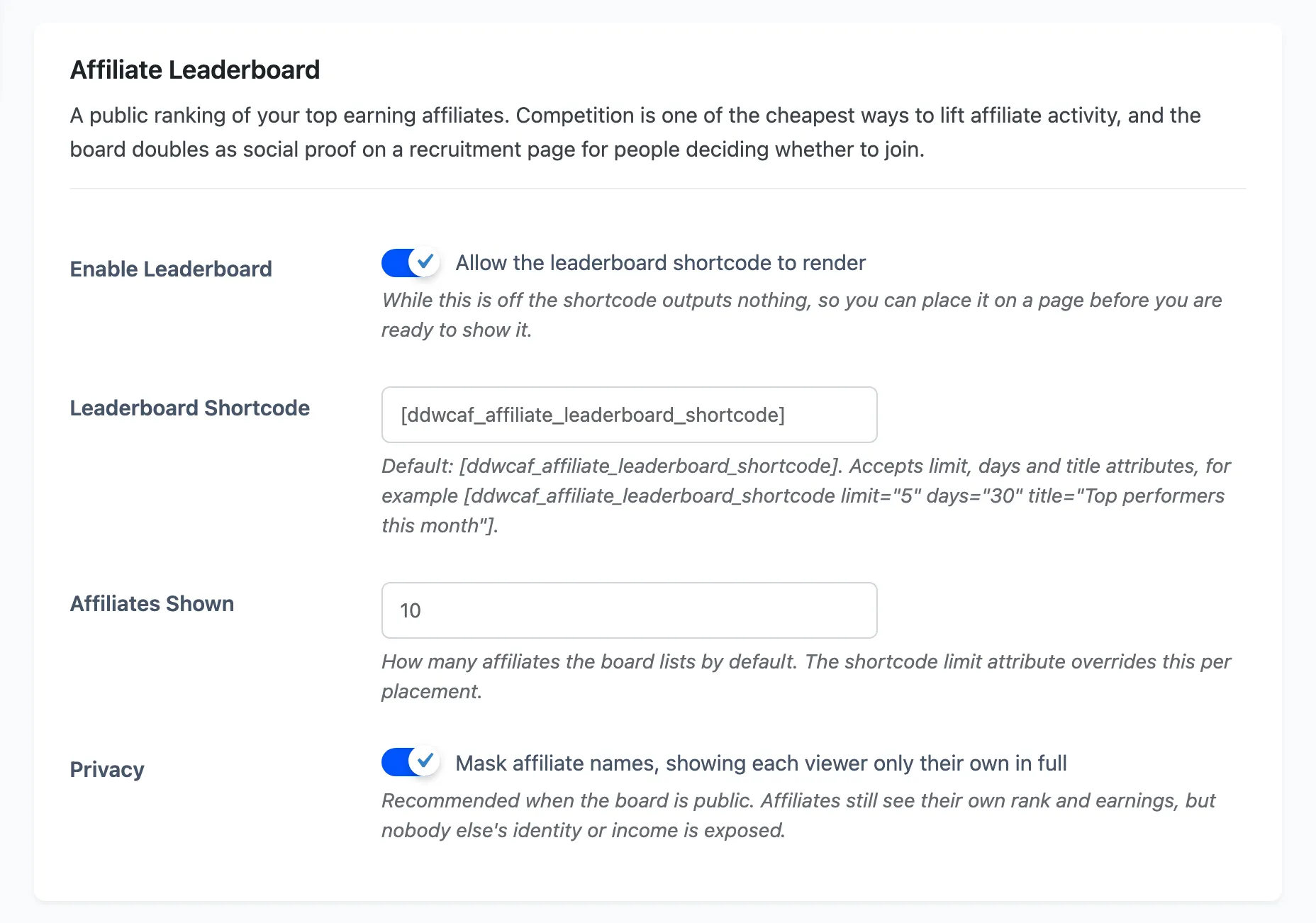
Tick Allow the leaderboard shortcode to render. It is off out of the box, and while it is off the shortcode outputs nothing at all. That is deliberate, so you can build the page first and reveal the board when you are ready.
2. Decide how much to show
Section titled “2. Decide how much to show”Affiliates Shown is the default list length, 10 out of the box.
Privacy masks every name except the viewer’s own, and it is on by default. Leave it on for anything public. Affiliates still see their own rank and their own earnings, and nobody learns what anyone else makes.
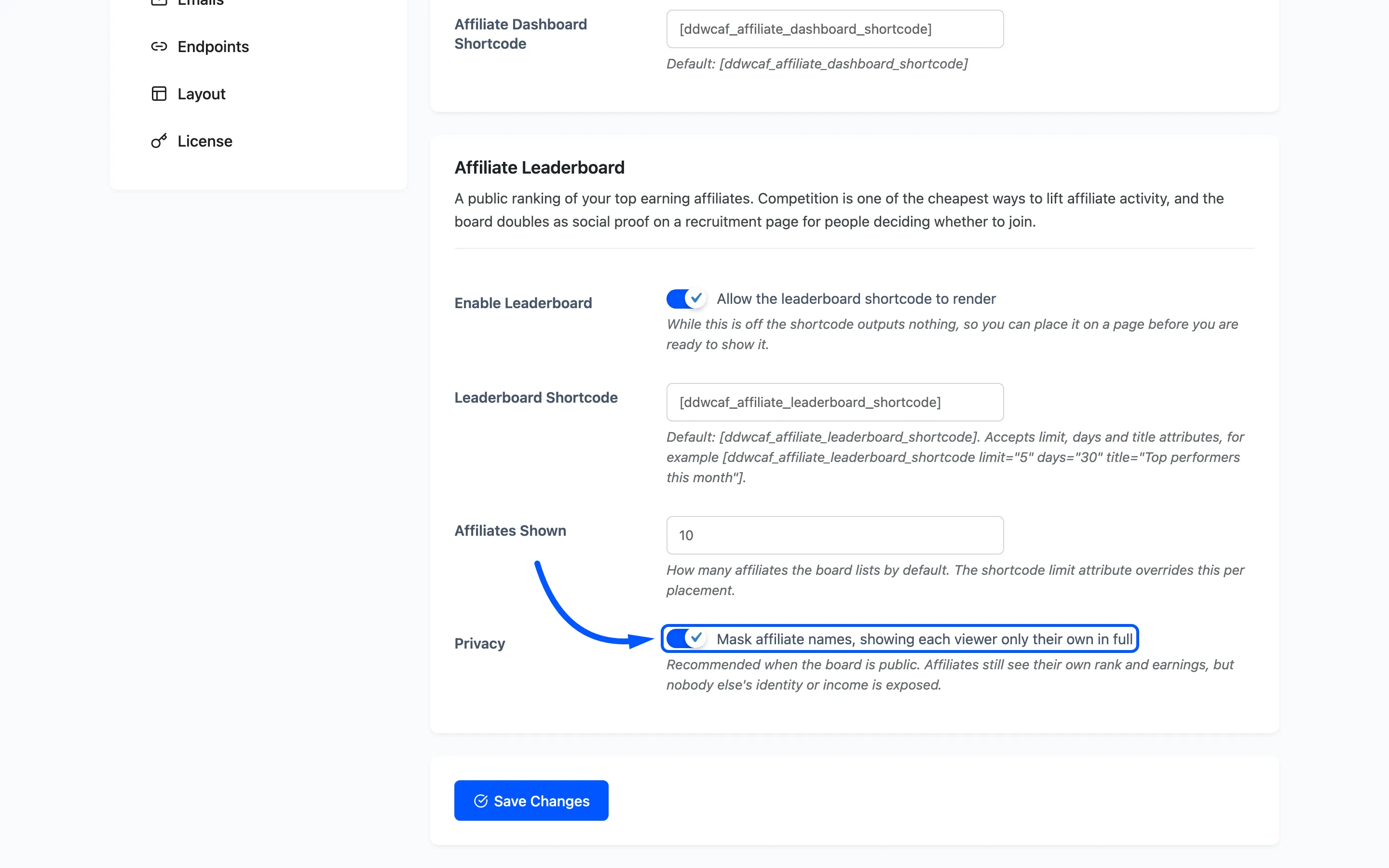
This is what an affiliate sees on a board with privacy on. Their row is picked out, named in full, and everyone else is initials.

3. Choose the look
Section titled “3. Choose the look”Appearance lives on a different tab. Go to Configuration → General and scroll to Affiliate Leaderboard.
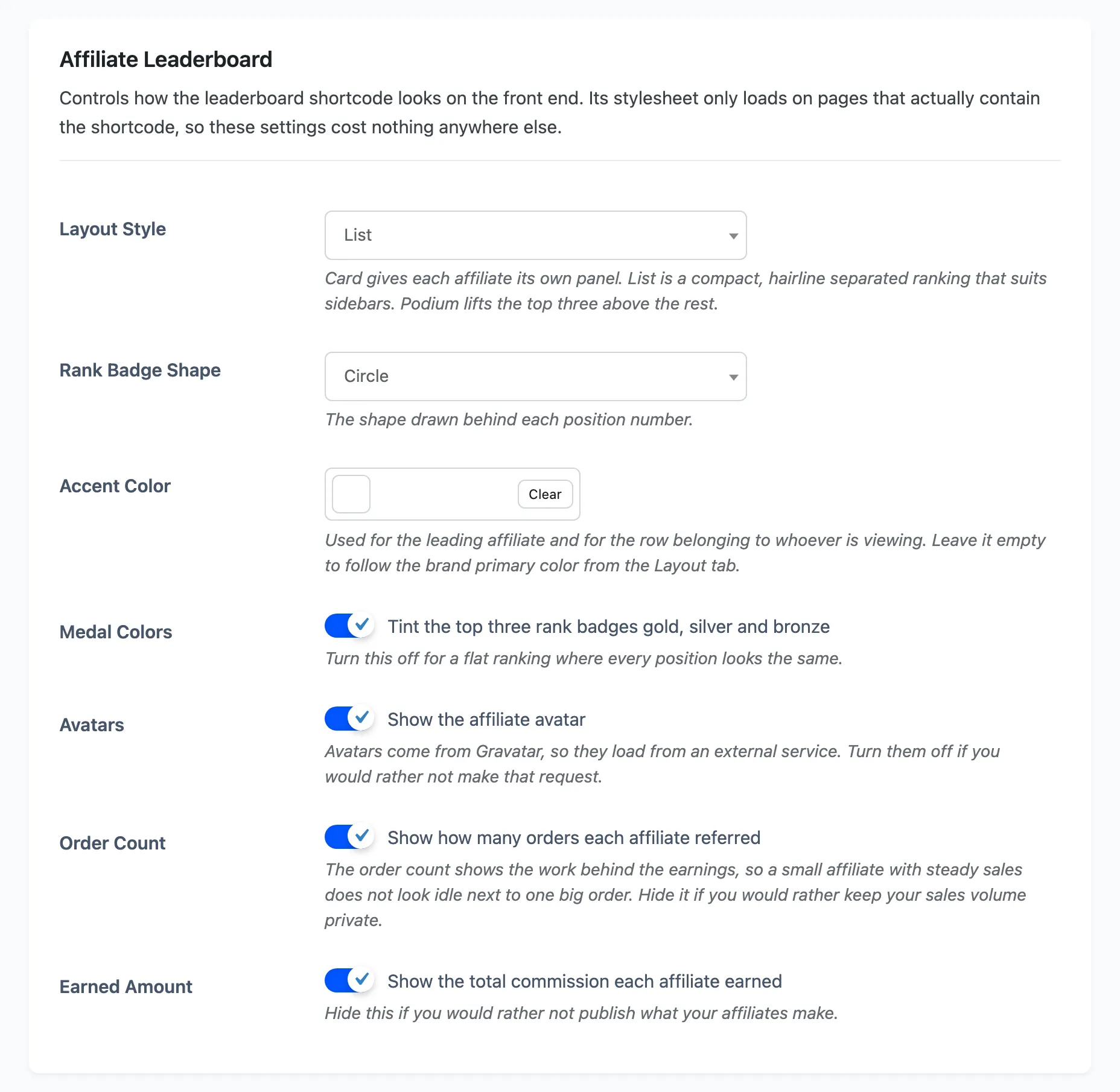
Layout Style is the decision that changes the most.
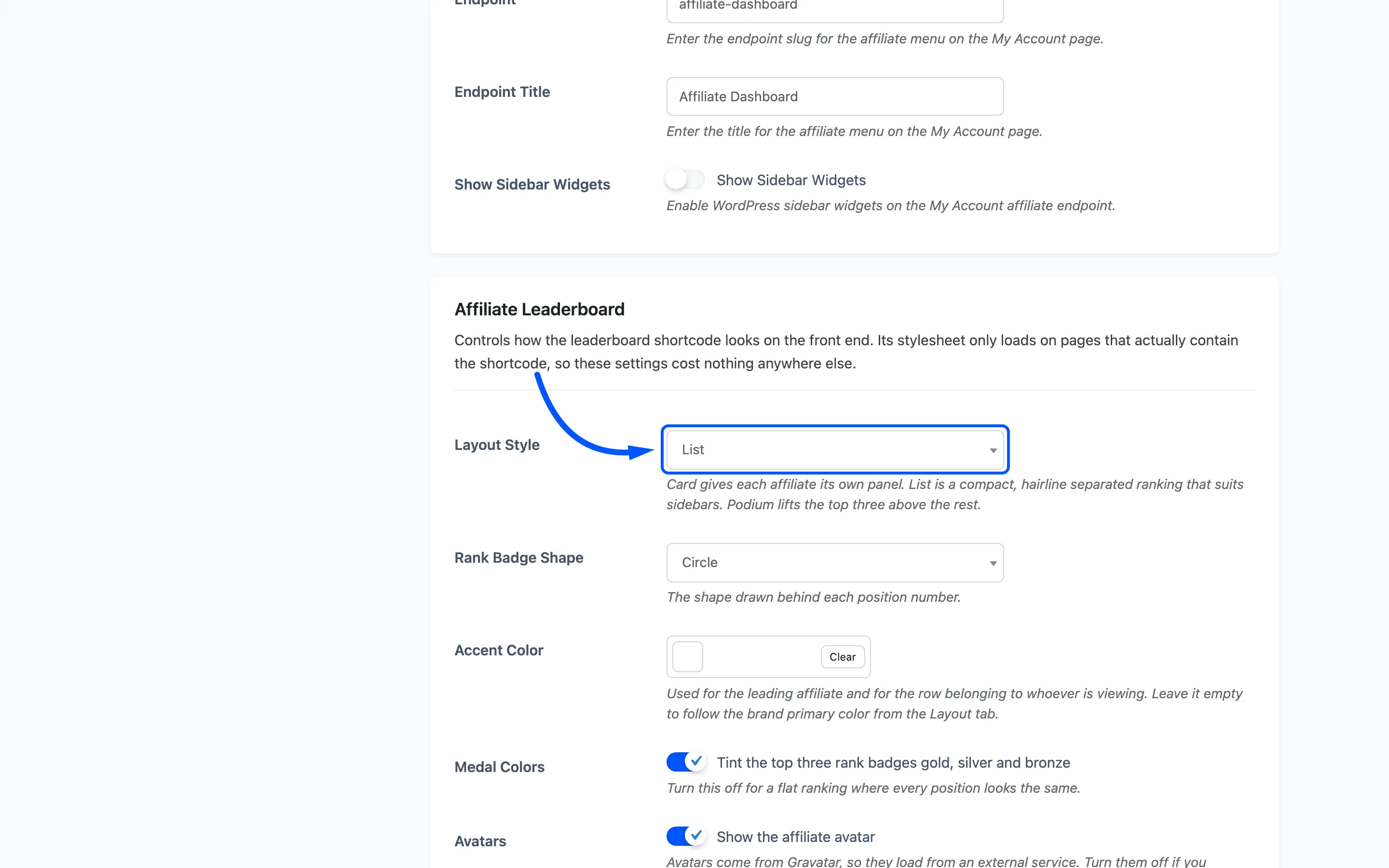
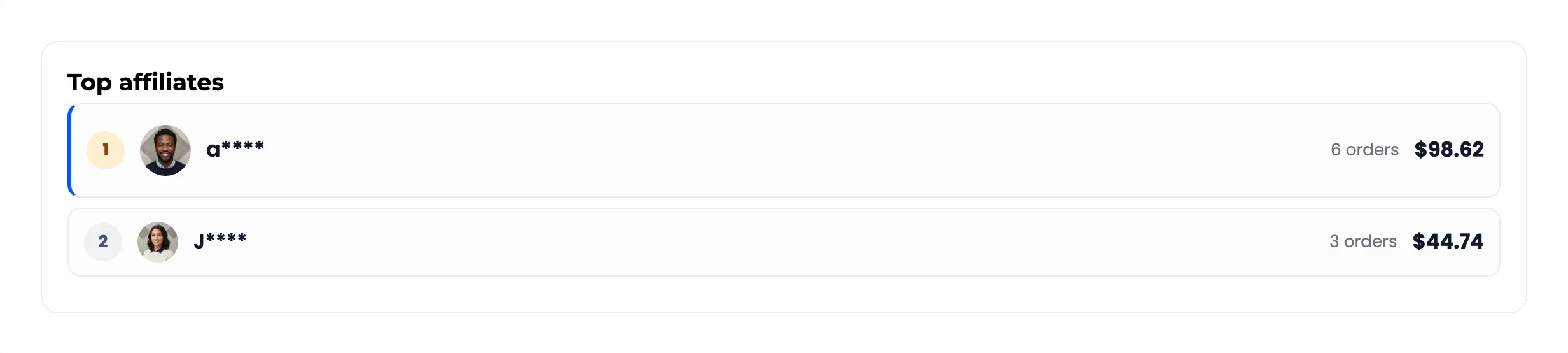
Card gives each affiliate its own panel. It is the default and the right choice for a full width section on a landing page.
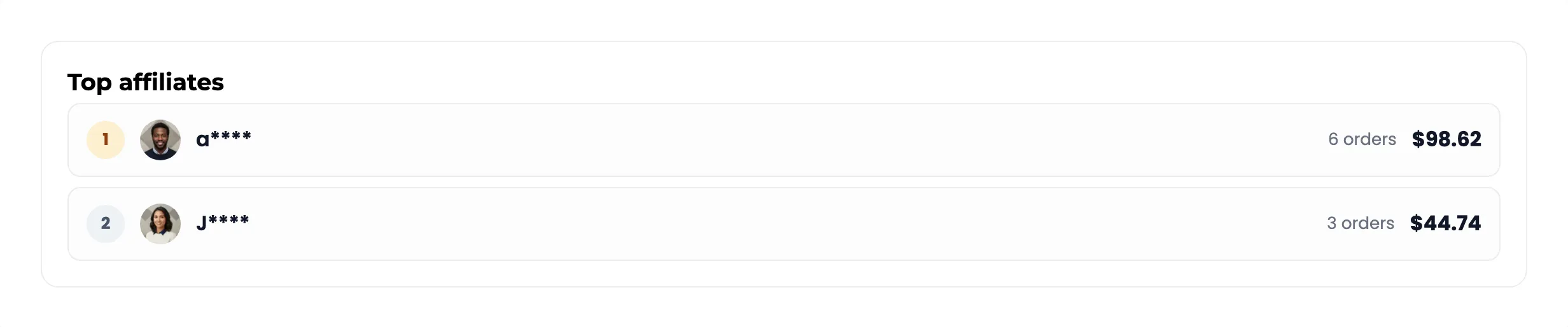
List is compact and hairline separated, which suits a sidebar or a spot where the board is not the main event.

Podium lifts the top three above everyone else, for a board that is running a competition rather than reporting one.
The rest of the section is smaller decisions.
- Rank Badge Shape: the shape behind each position number.
- Accent Color: used for the leader and for the viewer’s own row. Defaults to your brand colour.
- Medal Colors: gold, silver and bronze on the top three.
- Avatars, Order Count and Earned Amount: three switches for what each row carries.
Two of those are worth a thought rather than a default. Order Count shows the work behind the earnings, so a steady seller does not look idle beside one big order. Earned Amount publishes what your affiliates make, which some stores are happy with and some are not.
Avatars come from Gravatar, so leaving them on means the page makes a request to an external service.
4. Place the shortcode
Section titled “4. Place the shortcode”Add the shortcode to any page.
[ddwcaf_affiliate_leaderboard_shortcode]It takes three attributes, and each one overrides the settings for that one placement:
limitsets how many affiliates this board lists.dayslimits it to commissions earned in the last N days, and prints a “Last 30 days” line under the title.titleprints a heading above the board.
[ddwcaf_affiliate_leaderboard_shortcode limit="5" days="30" title="Top performers this month"]The days attribute is what makes a monthly competition possible. One page can carry an all-time
board and a “this month” board side by side, from the same shortcode.
5. Publish and look at it
Section titled “5. Publish and look at it”The stylesheet only loads on pages that contain the shortcode, so the board costs the rest of your site nothing.
A store with no commissions yet renders a single line saying the first sale takes the top spot, rather than an empty box.
What the ranking is built from
Section titled “What the ranking is built from”Every commission that is not cancelled, grouped by affiliate and ordered by total commission. Only affiliates who have earned something appear, so the board never pads itself with people on zero.
It counts commissions, not payouts, so an affiliate ranks for money they have earned whether or not you have paid it yet.
Where to go next
Section titled “Where to go next”- Shortcodes for the other two shortcodes.
- General Settings for every appearance field.