

How to Approve and Manage Affiliates
Approving is the gate on your whole program. Only an approved affiliate’s link sets a cookie, logs a visit or earns a commission. A backlog of pending applications is a backlog of untracked traffic.
Step 1: Find the pending applications
Section titled “Step 1: Find the pending applications”Go to DevDiggers Plugins → Affiliates → Affiliates and set the status filter above the table to Pending.
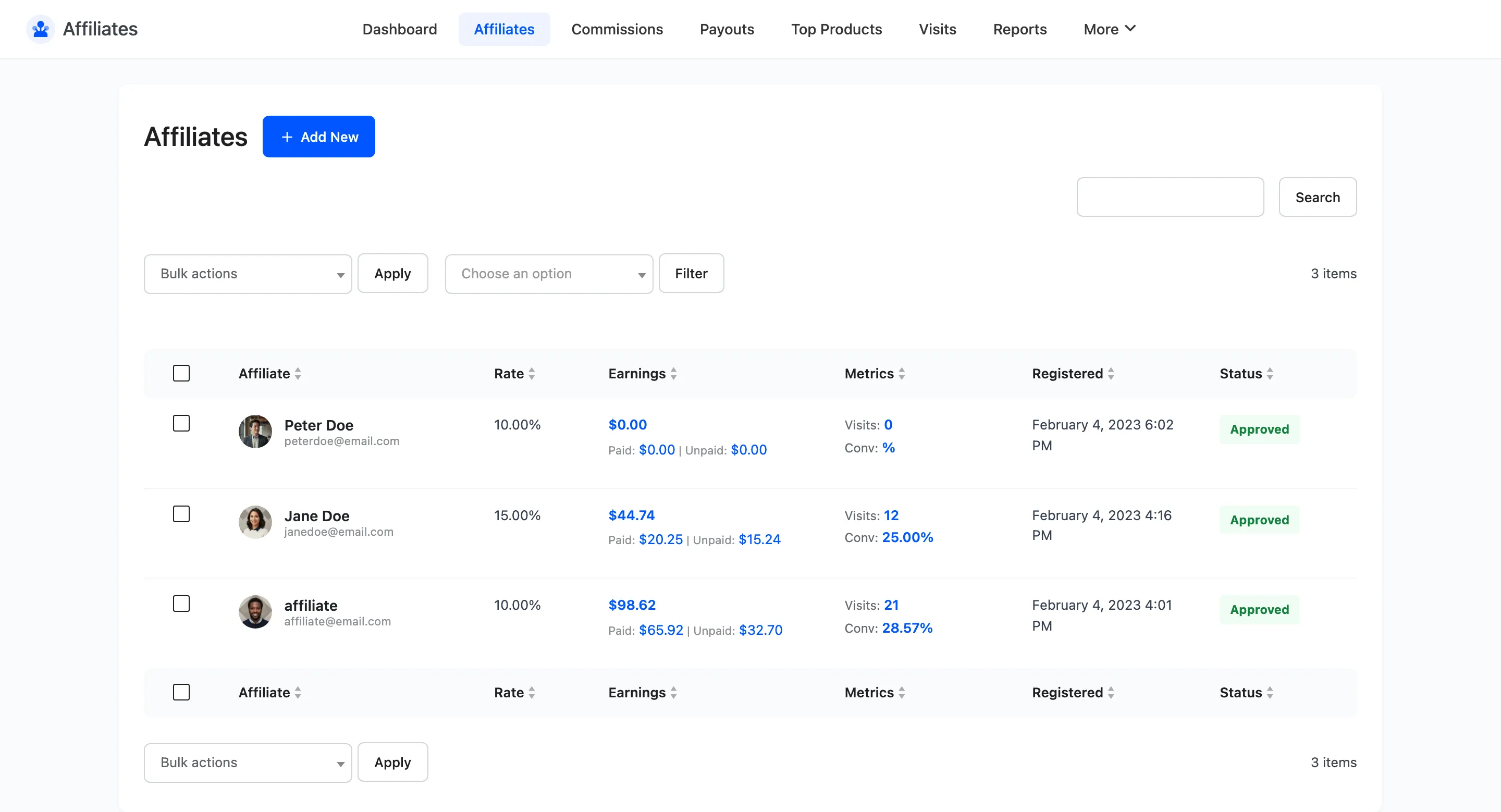
The list is sortable and searchable by ID, name and email. At low volume the filter is enough; at high volume, work through it oldest first so nobody waits weeks.
Step 2: Read the application
Section titled “Step 2: Read the application”Click the affiliate’s name or the View row action to open their screen.
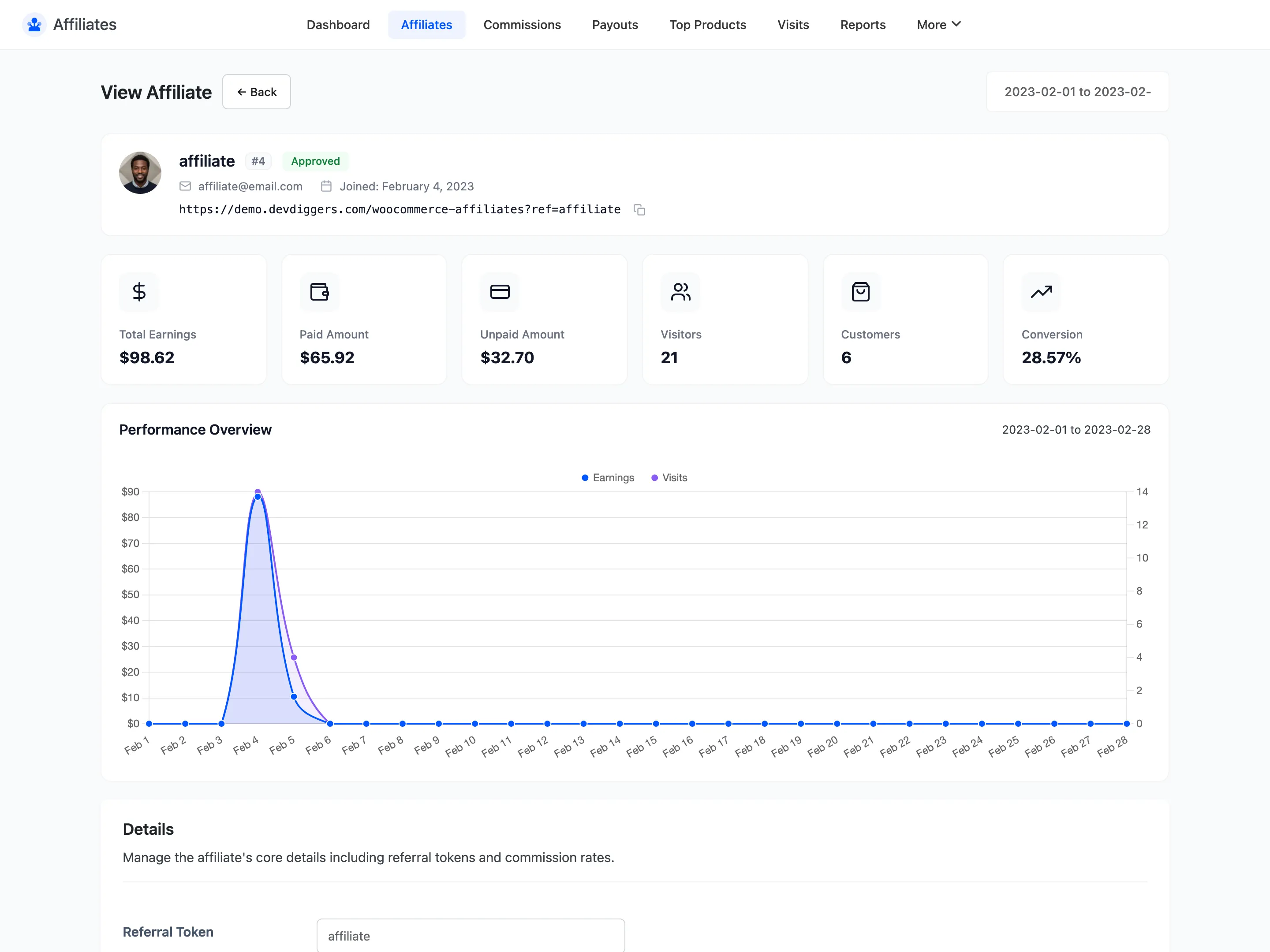
Scroll to Account Info. That block holds the answers to whatever your registration form asked, including How will you promote our site?.
Three signals are worth weighing.
- A real promotion channel: “Website/Blog” with an actual site beats a blank.
- An audience that overlaps yours: A gardening blog promoting server hosting sends traffic that never converts, which costs you nothing directly but clogs your reports.
- A working email: You will need it, because the free version emails nobody.
Step 3: Approve or reject
Section titled “Step 3: Approve or reject”Go back to the list, tick the row, and pick from the bulk actions.
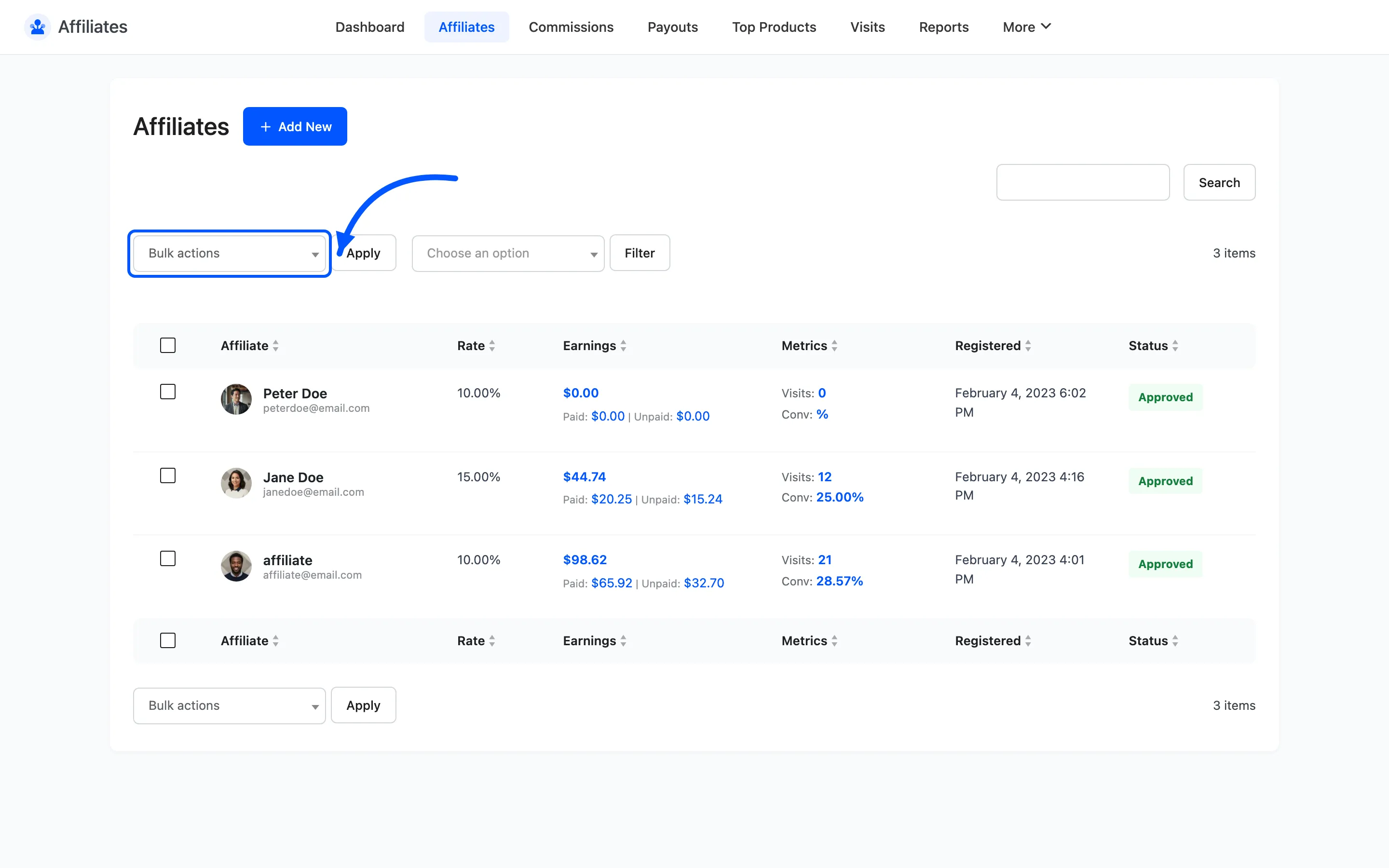
- Approve Affiliate turns tracking on. Their token resolves, visits log, commissions get created.
- Reject Affiliate for an application you do not want.
- Ban Affiliate for someone who broke your terms.
- Change Affiliate Status to Pending to put someone back in the queue.
Rejected and banned behave identically to the plugin: neither earns. The distinction is for you, so that six months later you can tell “never got started” from “we ended this”.
You can approve in bulk. Tick several rows and run Approve Affiliate once.
Step 4: Tell them
Section titled “Step 4: Tell them”Include three things in that first message: their dashboard link, their referral link, and the commission rate. That is enough for them to start.
Step 5: Add a partner directly
Section titled “Step 5: Add a partner directly”For someone you agreed terms with offline, skip the application entirely.
- Click Add New at the top of the affiliates list.
- WordPress opens Add New User with the affiliate fields added.
- Fill in the account details, set Role to Affiliate, then create the user.
The role is what makes them an affiliate. Setting anything else creates an ordinary user and no affiliate record.
They still land on whatever Default Affiliate Status is set to under Configuration → General, which ships as Pending. So approve them after creating them, or change that default first. This is the right route for an existing customer you want to convert into a partner.
Step 6: Set a personal rate
Section titled “Step 6: Set a personal rate”An affiliate who performs deserves more than the default. On their detail screen, set Commission Rate.
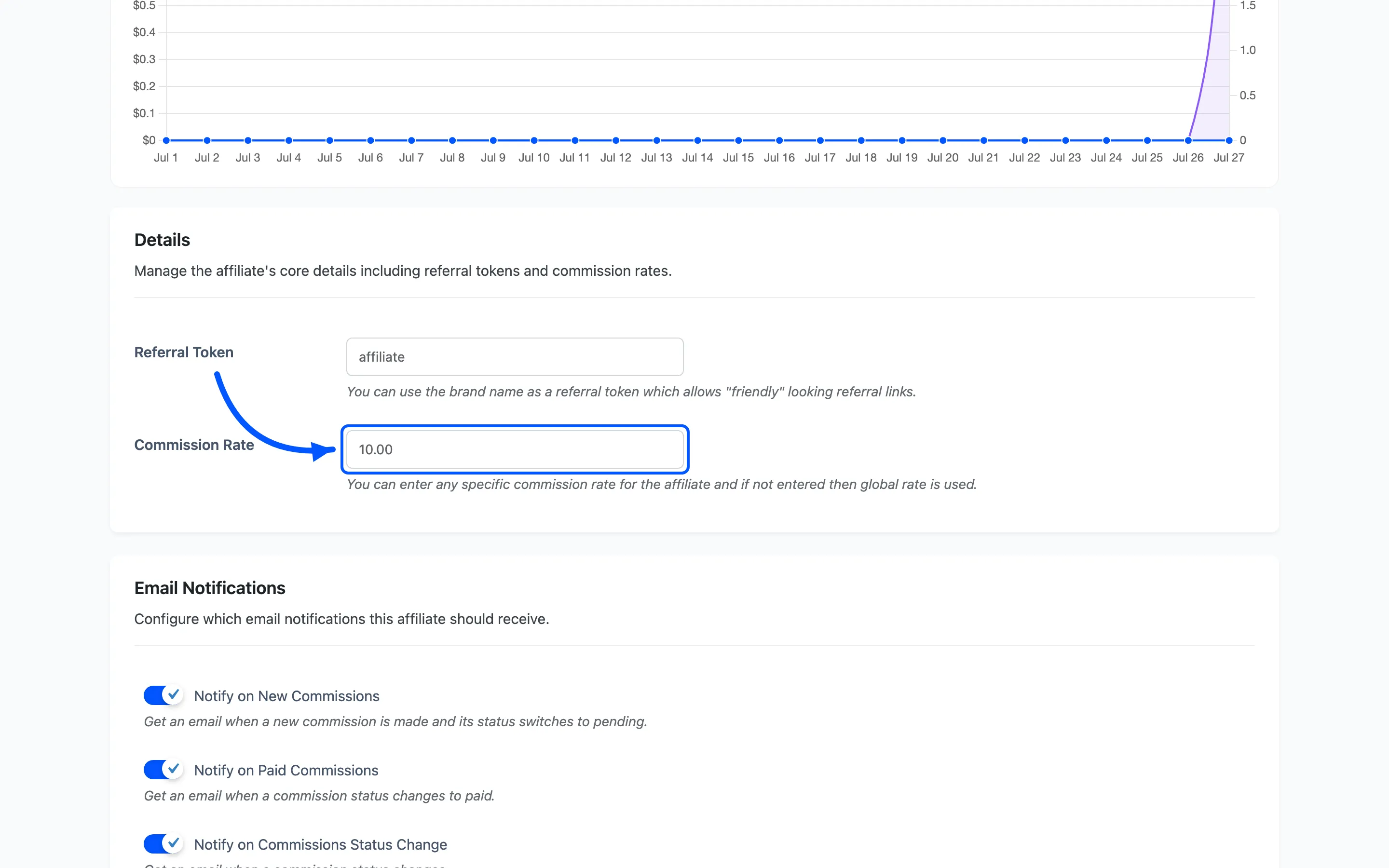
Leave it empty and the global default applies. Enter a value and it overrides the global rate for every commission they earn from then on. Existing commission rows keep the amount they were created with.
This field is free, and it is the main lever the free version gives you for rewarding performance.
Note the one exception: a product, category or user-role rule from Commission Rules beats this rate when one matches the line item. Rules are checked first.
Step 7: Keep the list honest
Section titled “Step 7: Keep the list honest”A monthly pass over the list keeps the program clean.
- Pending rows older than a fortnight are people who have given up. Approve or reject them.
- Approved affiliates with zero visits over months are dead weight in your averages, not a problem to fix. Leave them or ban them, but do not chase them.
- Approved affiliates with visits and no conversions are worth a conversation. Check Visits filtered to Not Converted and look at what they are linking to.
Where to go next
Section titled “Where to go next”- How to Set Commission Rates for the full rate chain.
- Affiliate Details for one partner’s performance over time.