

How to Pay Your Affiliates
The plugin does not move money. It tracks what is owed, groups it into a payout, and records what you paid. The transfer itself happens through your bank or PayPal.
Before you start
Section titled “Before you start”Two things have to be true or a payout has nowhere to go.
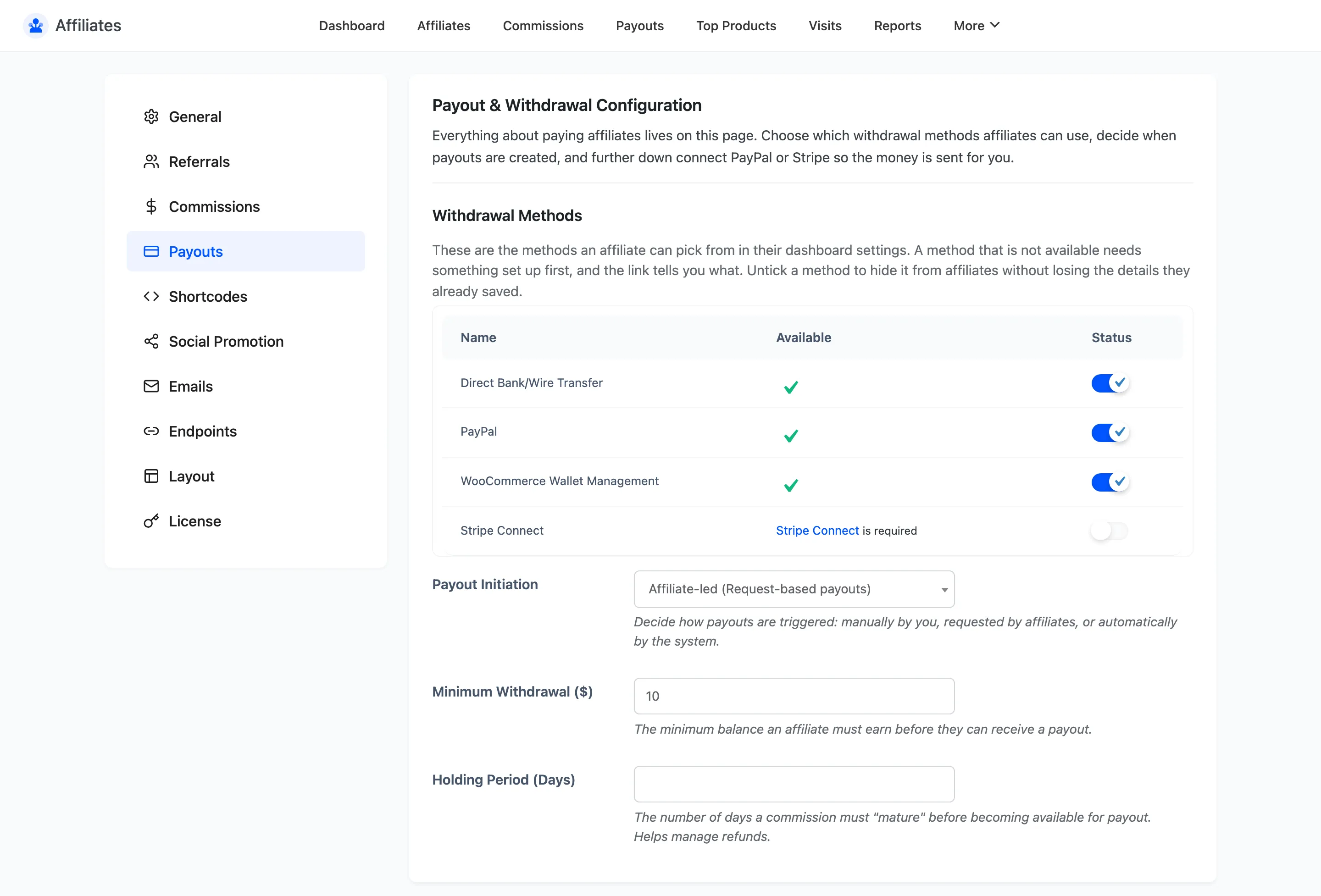
- A withdrawal method is enabled. Go to Configuration → Payouts and tick Status on bank transfer, PayPal, or both.
- The affiliate has filled in their details. They do that on their own dashboard, under Settings → Withdrawal Info.
Step 1: Decide who starts the payout
Section titled “Step 1: Decide who starts the payout”Payout Initiation on the same tab has three options.
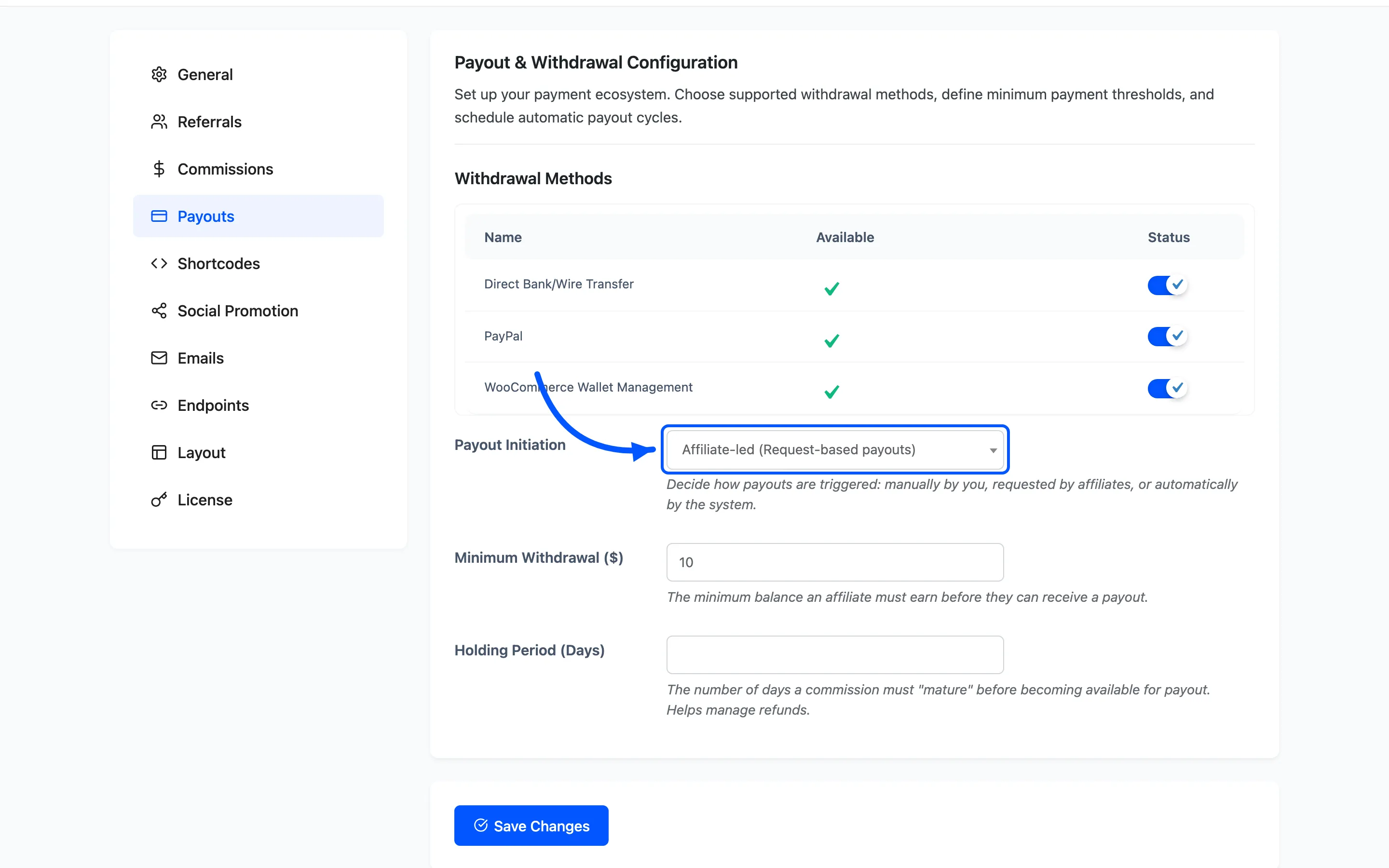
- Administrator-led means you create every payout. This is what the rest of this guide covers.
- Affiliate-led lets affiliates request a withdrawal from their dashboard.
- System-led creates payouts automatically on a day of the month you choose.
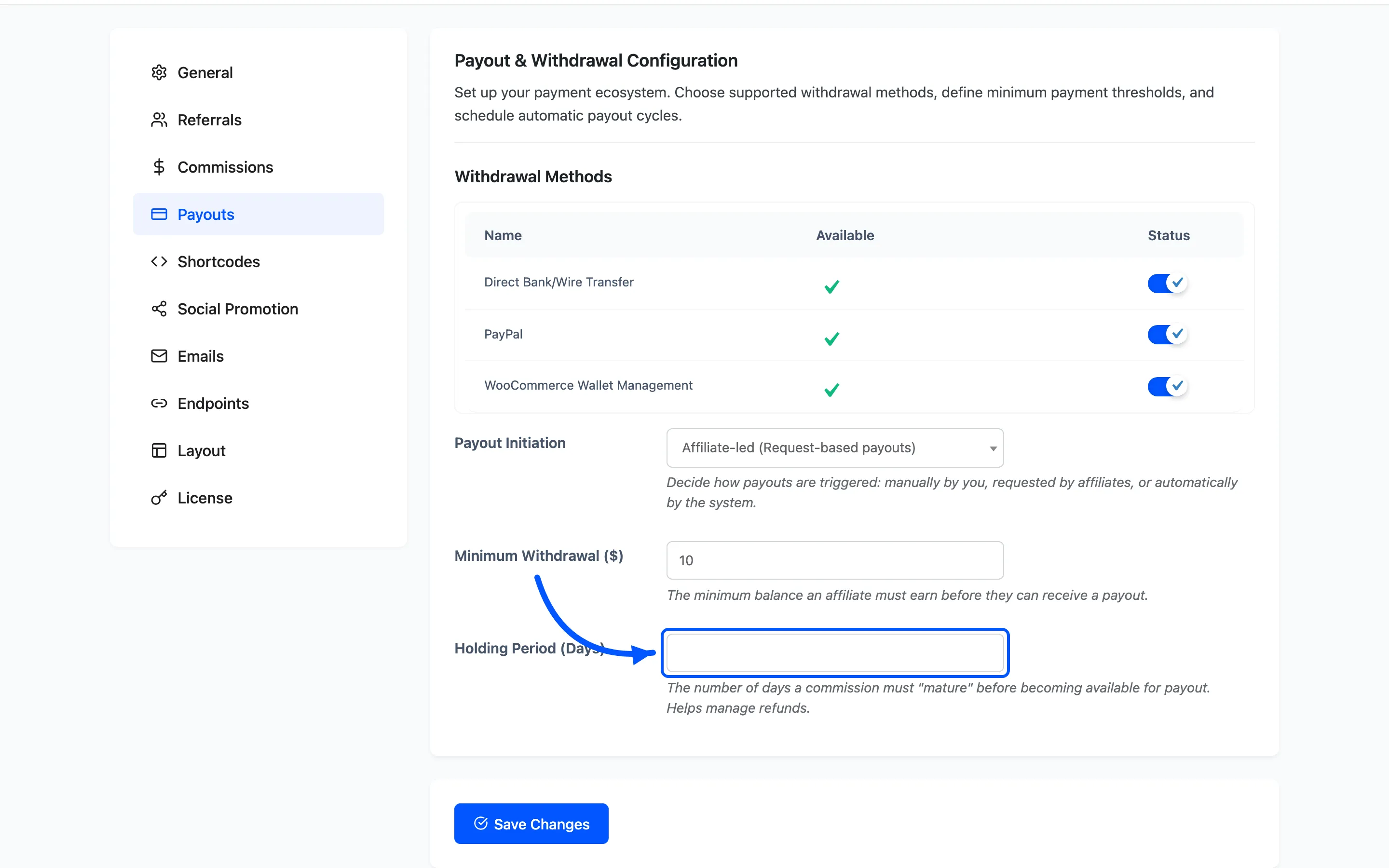
If you are on Pro, set a Holding Period before you pay anyone. It is how long a commission has to age before it can be paid, which gives refunds time to land. Fifteen days is the default and a sensible floor for physical products.
Step 2: Check the affiliate can be paid
Section titled “Step 2: Check the affiliate can be paid”Open the affiliate from DevDiggers Plugins → Affiliates → Affiliates and scroll to Withdrawal Info.
For a bank transfer you need an account name, IBAN and swift code. For PayPal you need an email address. An empty block means the affiliate has not filled theirs in, and a payout you create will have nothing to pay to.
Ask them before you create it, not after.
Step 3: Select the commissions
Section titled “Step 3: Select the commissions”Go to DevDiggers Plugins → Affiliates → Commissions and click the Pending status tab.
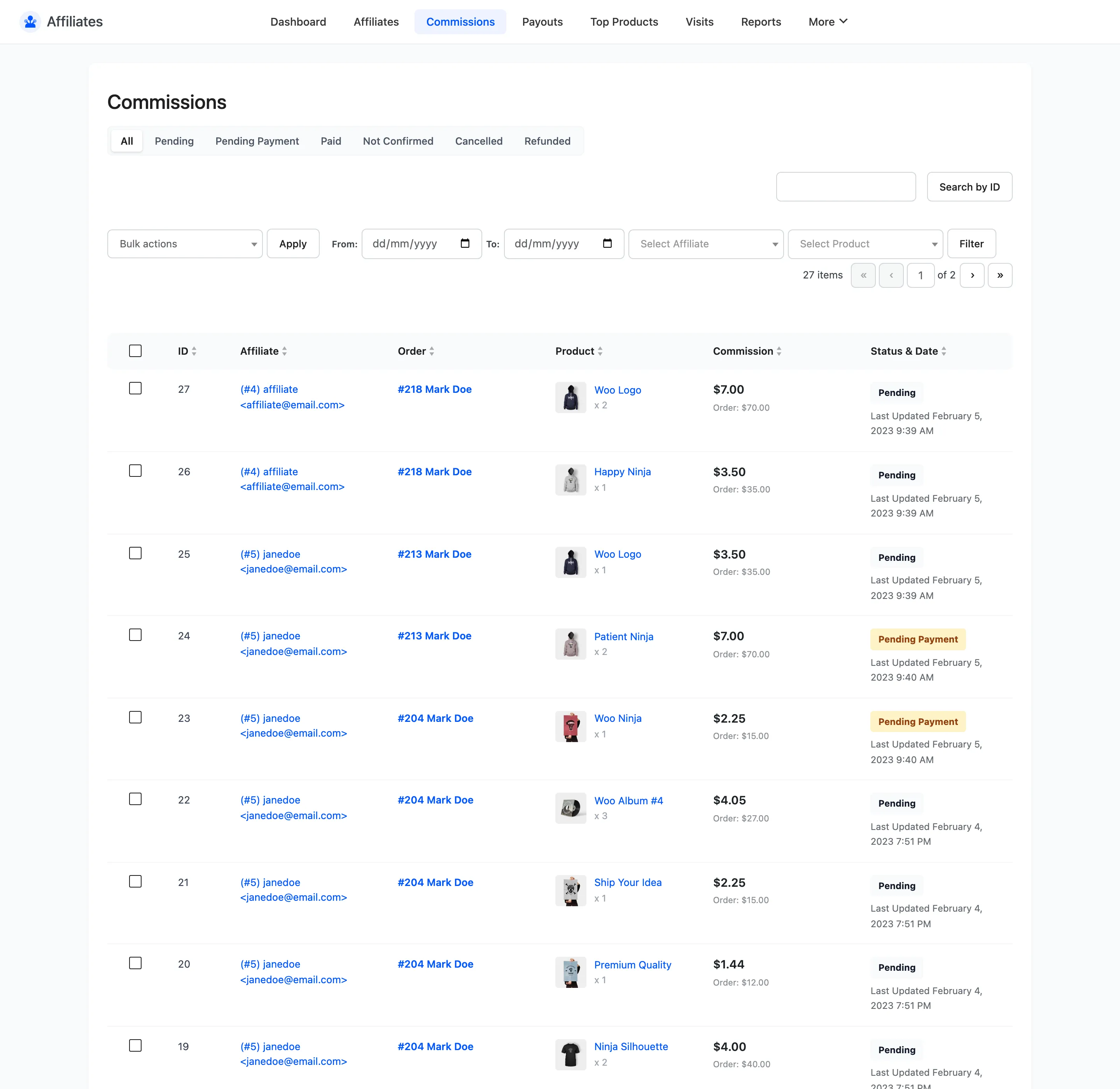
Pending is the state a commission rests in after the order reaches Processing or Completed. It is what is owed.
Use the affiliate selector to filter to one person, and the From and To date fields to limit the period. Then tick the rows you are paying.
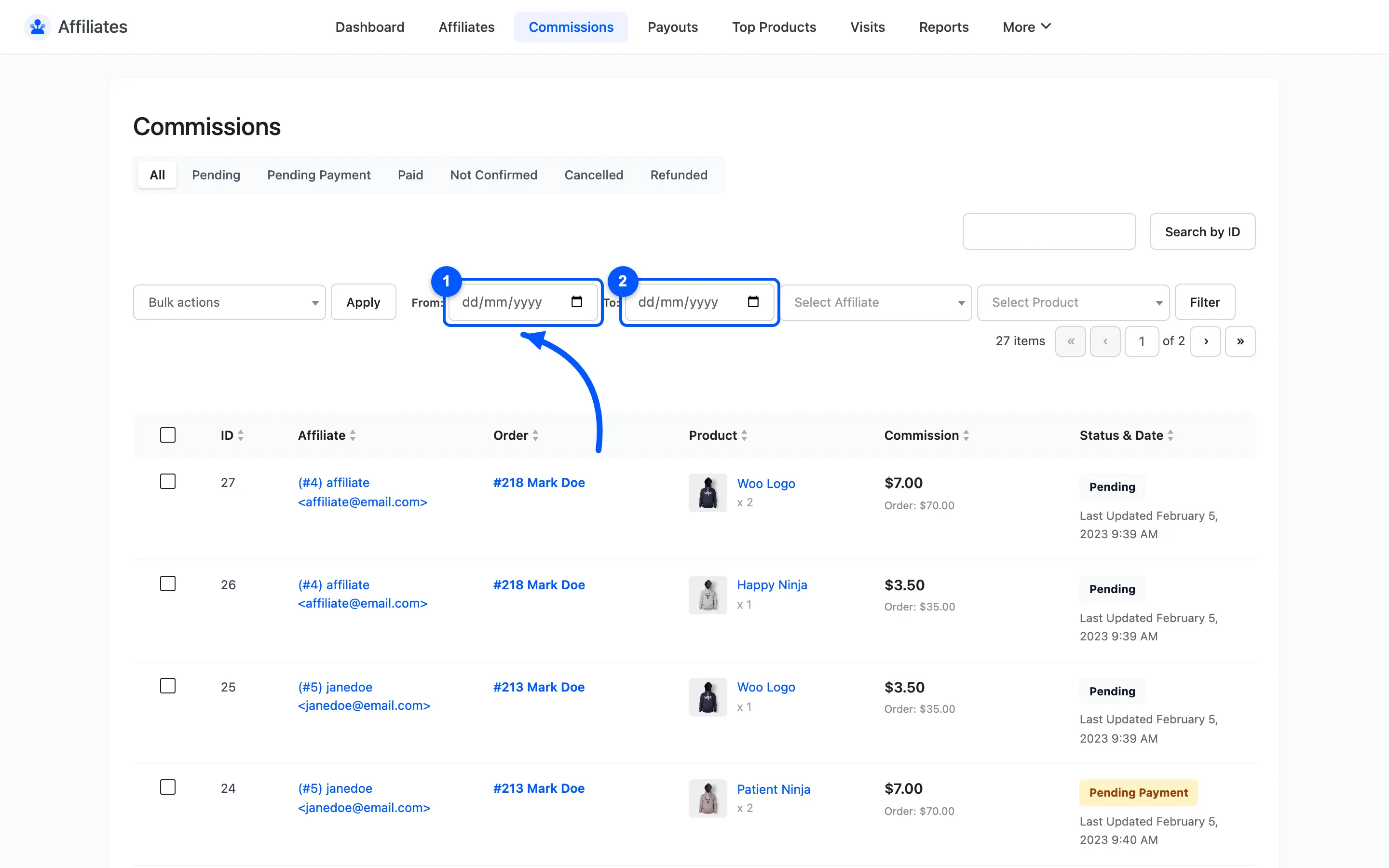
Do not include anything on Not Confirmed. Those orders have not been paid for yet.
Step 4: Create the payout
Section titled “Step 4: Create the payout”With the rows ticked, open the bulk action dropdown. Below the status changes you will find one entry per enabled method.
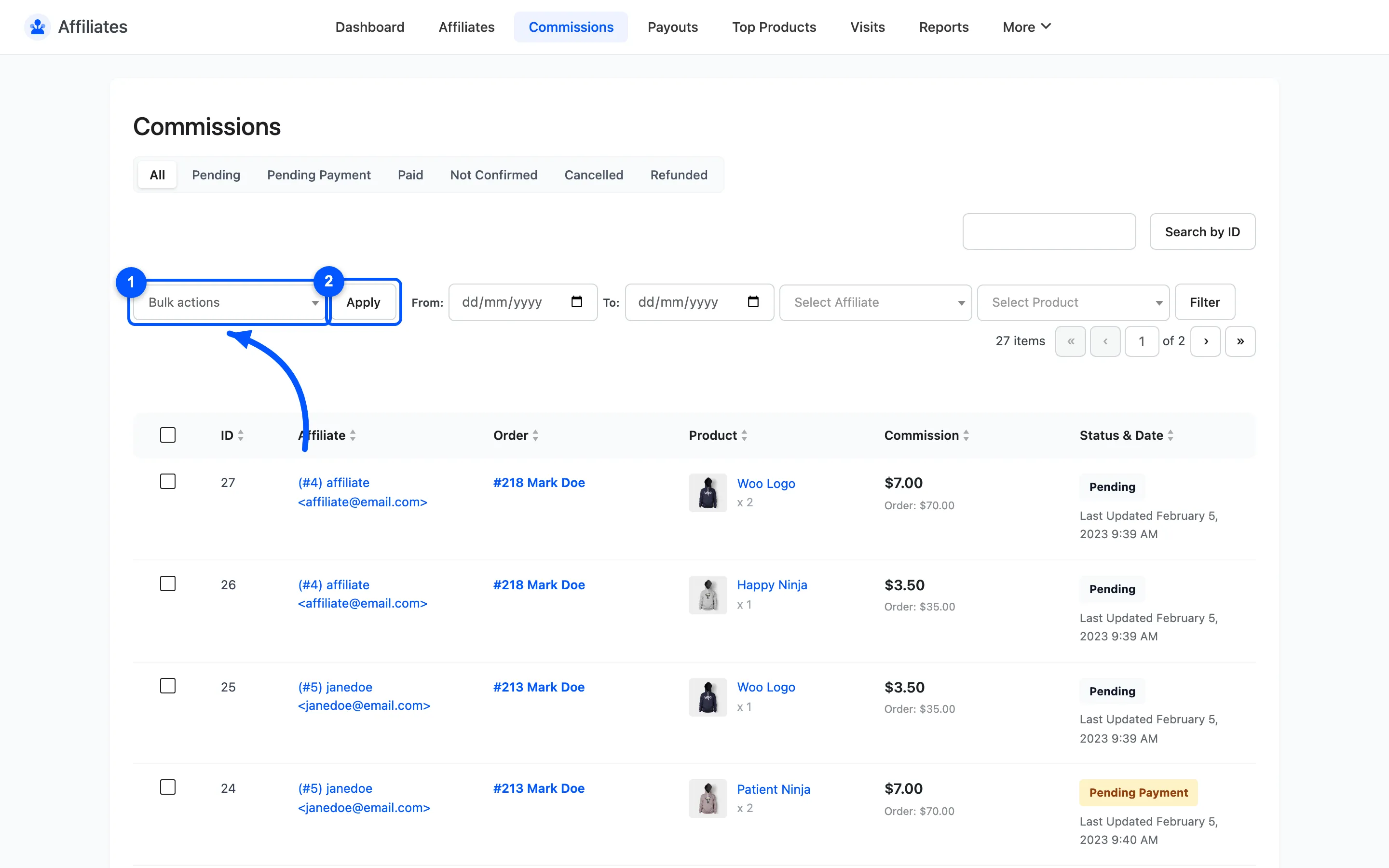
- Pay via Direct Bank/Wire Transfer
- Pay via PayPal
- Pay to Affiliate Default Withdrawal Method
The last one uses whatever each affiliate chose themselves, which is the right choice when you are paying several people at once.
Choosing an action creates a payout per affiliate and moves every commission in it to Pending Payment. That status locks them, so an order edit cannot reverse a commission you have committed to paying.
A shortcut worth knowing about
Section titled “A shortcut worth knowing about”Everything from here down describes paying by hand, which is what the free version does and what a bank transfer will always be.
If you connect PayPal or Stripe, steps 5 to 7 collapse into one: set the payout to Completed and the money is sent for you, with the transaction reference written by the provider. See How Automatic Payouts Work.
Step 5: Open the payout and pay
Section titled “Step 5: Open the payout and pay”Go to DevDiggers Plugins → Affiliates → Payouts and click the new payout’s ID.
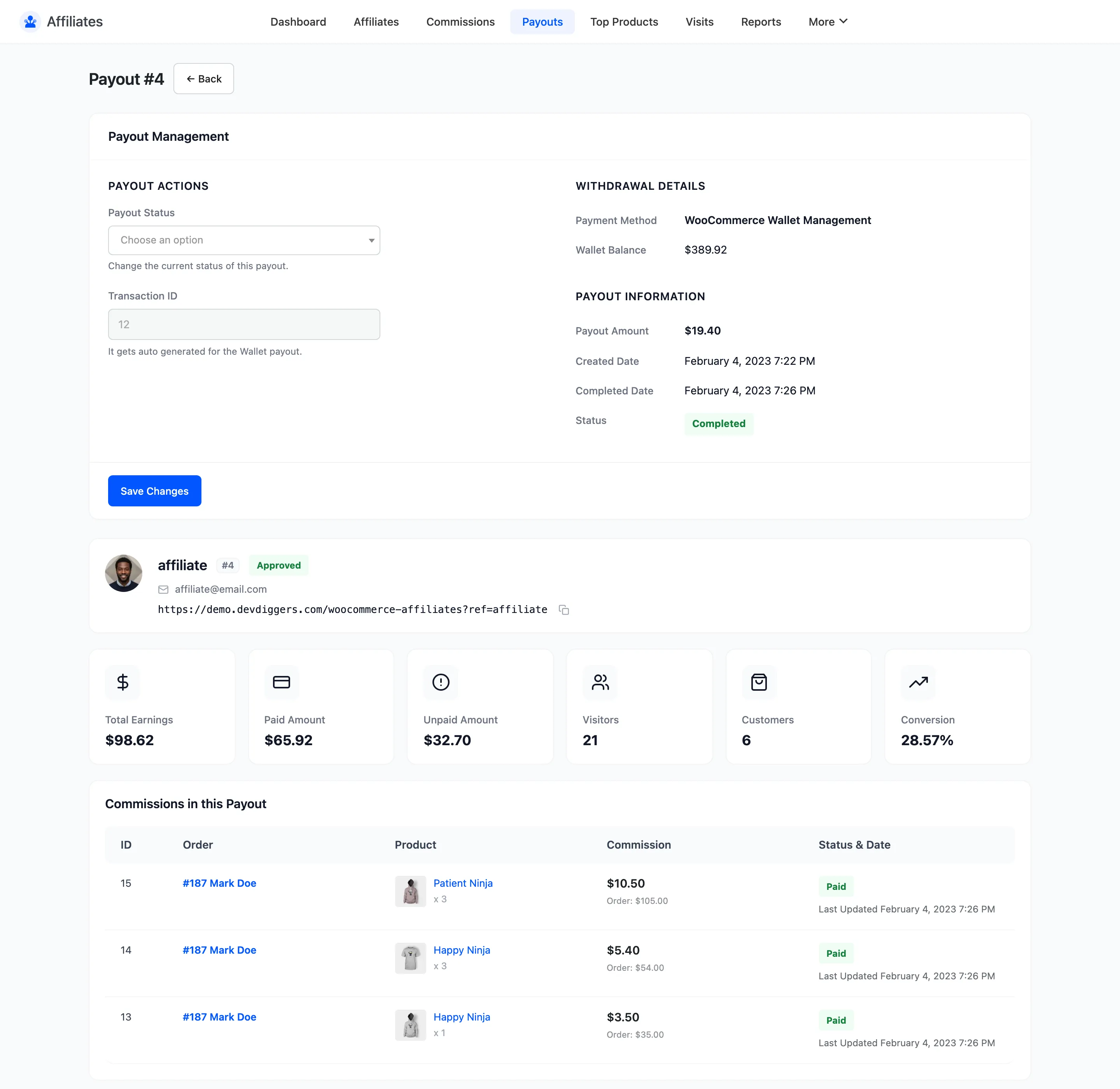
Three blocks matter here.
- Withdrawal Details has the account name, IBAN and swift code, or the PayPal email. This is what you paste into your bank.
- Payout Information has the amount.
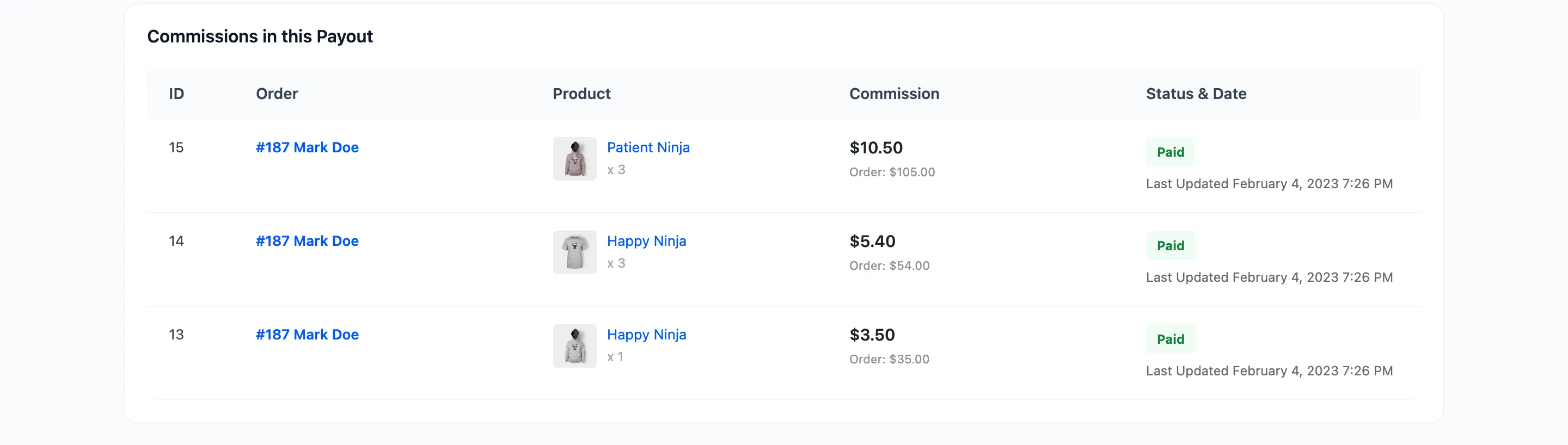
- Commissions in this Payout lists exactly what the payment covers. Check it adds up before you send anything.
Make the transfer through your bank or PayPal.
Step 6: Record the transaction
Section titled “Step 6: Record the transaction”Back on the payout screen, paste the bank or PayPal reference into Transaction ID and save.
The field saves on its own without changing the status. Do this before you complete the payout, so every completed payout carries a reference you can trace when an affiliate says they never received it.
Step 7: Mark it completed
Section titled “Step 7: Mark it completed”Set Payout Status to Completed.
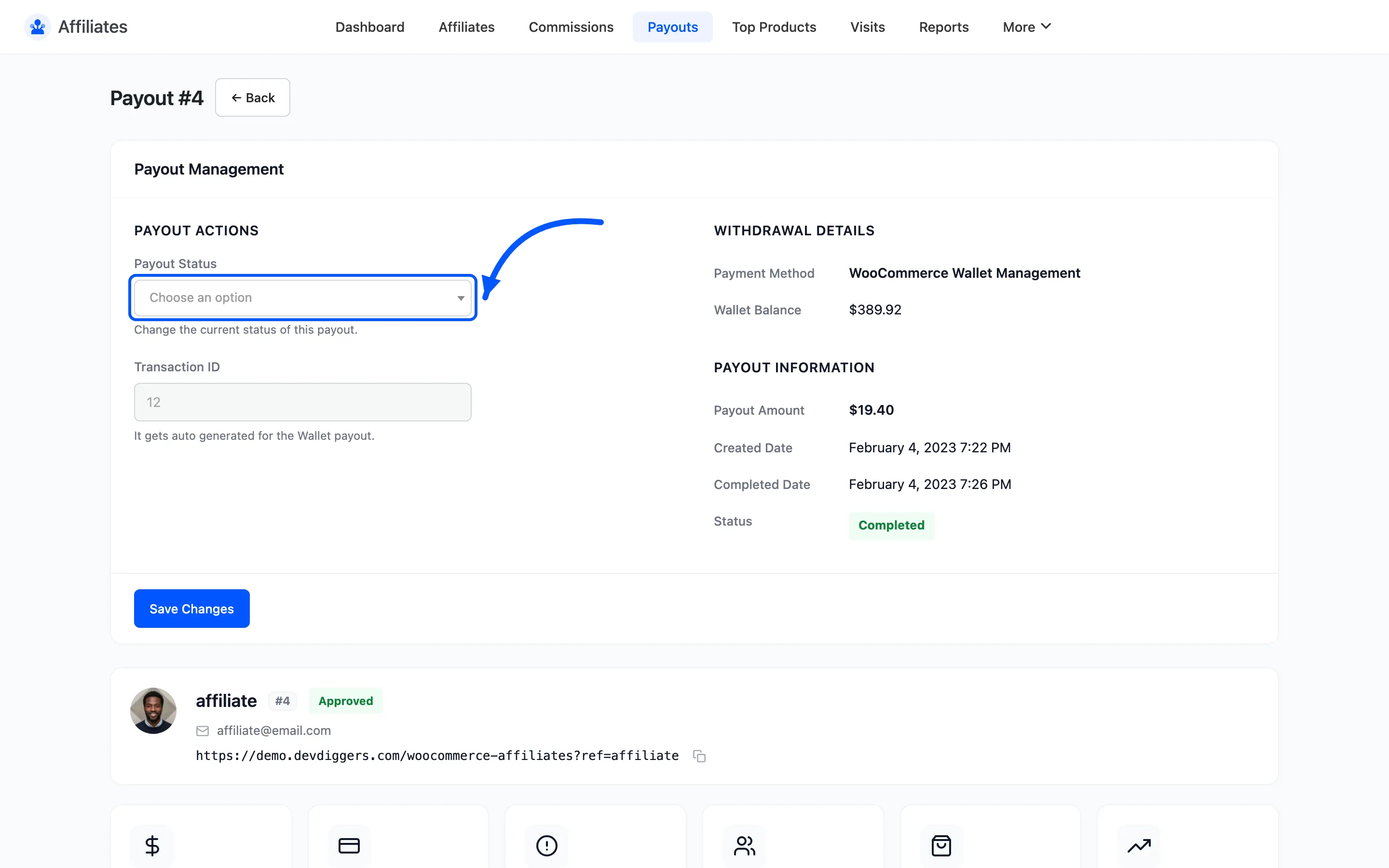
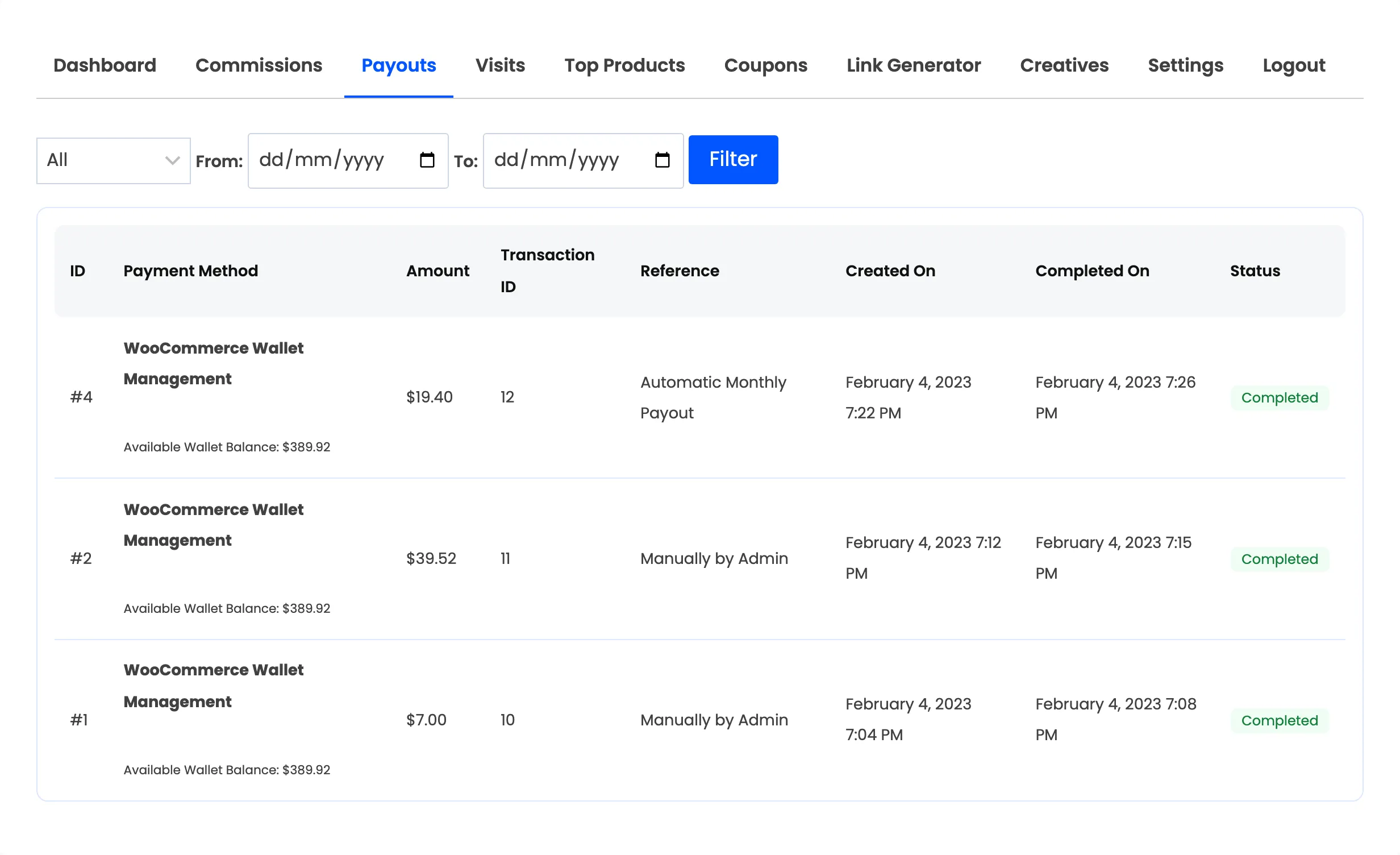
Every commission in the payout moves from Pending Payment to Paid, and the payout’s Completed Date fills in. The affiliate sees it on their own Payouts section immediately.
If something goes wrong
Section titled “If something goes wrong”- The transfer failed. Set the payout to Cancelled. Its commissions are released back to Pending so they can go into a later payout.
- You paid the wrong amount. Cancel the payout, fix the commissions, and create a new one. Do not edit the amount on a completed payout; the commission statuses will not match it.
- A commission should not have been in there. Cancel the payout and change that commission’s status from the Commissions screen. Then create a fresh payout from the remaining rows.
- A gateway refused it. The payout is on Failed rather than Completed, so nothing is recorded as paid. Fix what the gateway log names, then press Send through gateway now.
Getting into a rhythm
Section titled “Getting into a rhythm”Pick a payment day and hold it. Monthly suits most stores: it batches the transfers, gives refunds time to land and makes one clear promise you can put on the signup page.
Where to go next
Section titled “Where to go next”- How to Run a Bulk Payout to pay everyone at once.
- Payout Details for the full screen reference.