

How to Add Marketing Creatives (Pro)
A creative removes work from your affiliates. Instead of building a link and finding an image, they copy one snippet that already carries their referral token.
Before you start
Section titled “Before you start”Prepare the images. Two sizes cover most placements.
- A leaderboard, roughly 728 by 90, for the top of a blog post.
- A rectangle, roughly 300 by 250, for a sidebar.
Export both at twice the size for retina screens and upload them to the WordPress media library before you start.
Put the offer in the image. A banner reading only your logo gets ignored. One reading “20% off running shoes” gets clicked.
Step 1: Open the creatives screen
Section titled “Step 1: Open the creatives screen”Go to DevDiggers Plugins → Affiliates → Creatives.
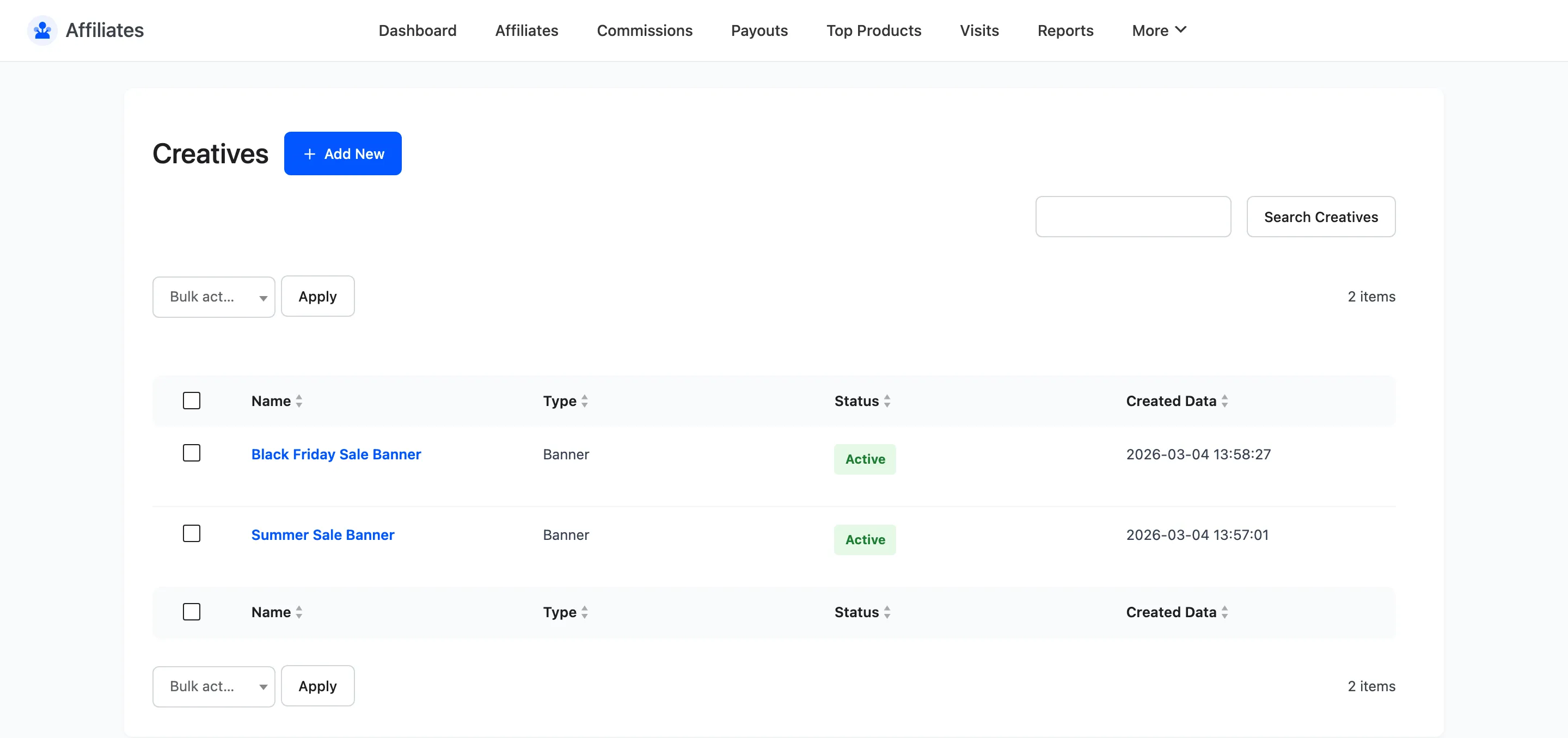
The list shows Name, Type, Status and Created Data, with Edit and Delete row actions.
Step 2: Add a banner
Section titled “Step 2: Add a banner”Click Add New.
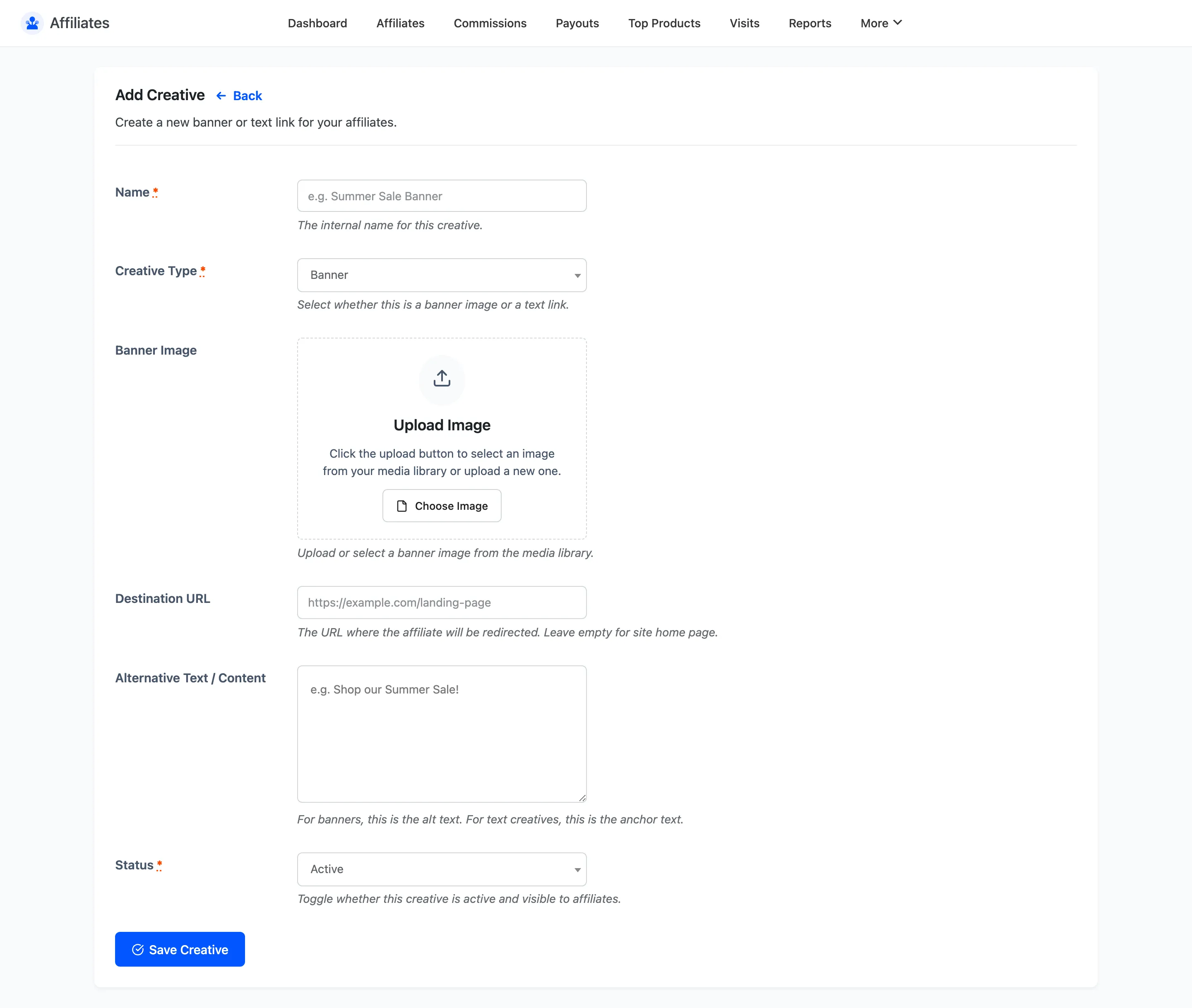
Name is the heading affiliates see above the snippet, so make it descriptive rather than
internal. Summer Sale 728x90 tells an affiliate what they are copying. Banner 3 does not.
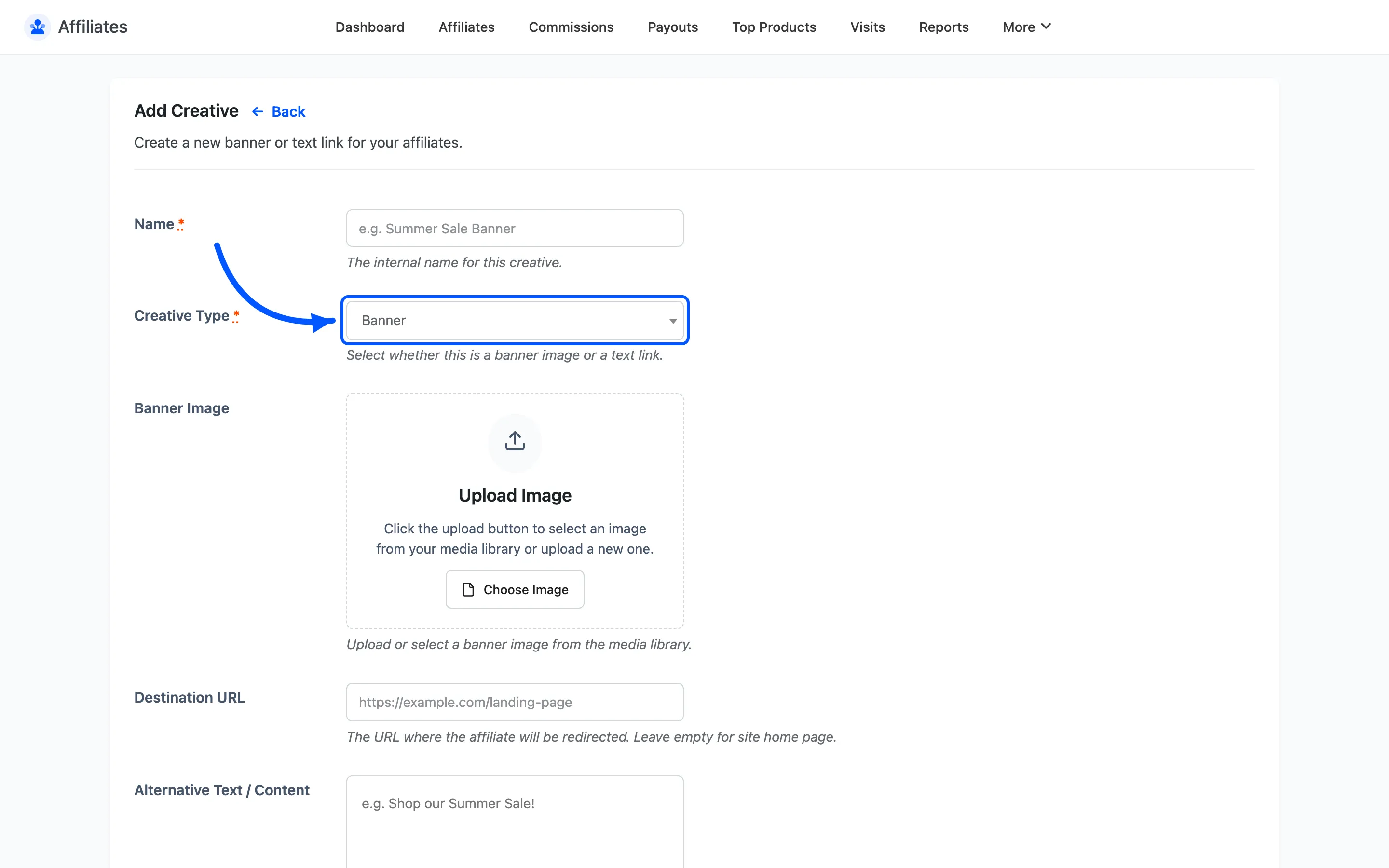
Creative Type is where you pick Banner.
Banner Image opens the media library. Pick the file you uploaded.
Destination URL is where the banner sends the visitor. Leave it empty to send them to your home page, which is almost always the wrong choice. A banner advertising running shoes should land on running shoes.
Alternative Text / Content is the image alt text. Write what the banner says, so the link still makes sense when the image fails to load and so screen readers get something useful.
Set Status to Active and click Save Creative.
Step 3: Add a text link
Section titled “Step 3: Add a text link”Click Add New again and set Creative Type to Text.
For a text creative, two fields change meaning.
- Banner Image is unused.
- Alternative Text / Content becomes the anchor text of the link.
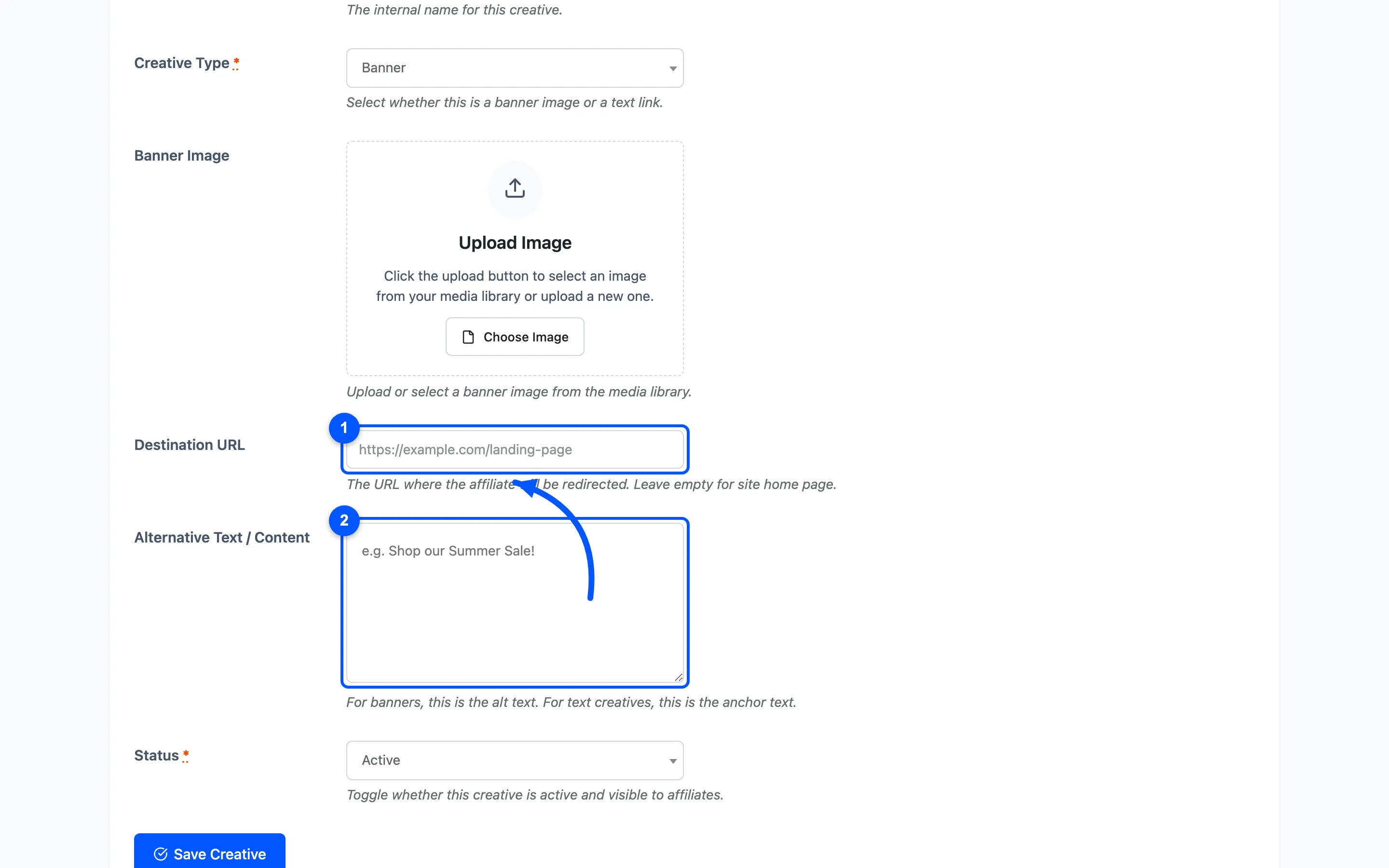
Destination URL still applies, and it is the field that matters most on a text creative. That is where the link points.
Write anchor text that reads naturally inside a sentence: our summer sale, not CLICK HERE.
Text creatives suit newsletters and any placement where an image is heavy or blocked.
Step 4: Check what affiliates get
Section titled “Step 4: Check what affiliates get”Log in as an affiliate and open the Creatives section of their dashboard, or view it on the demo.
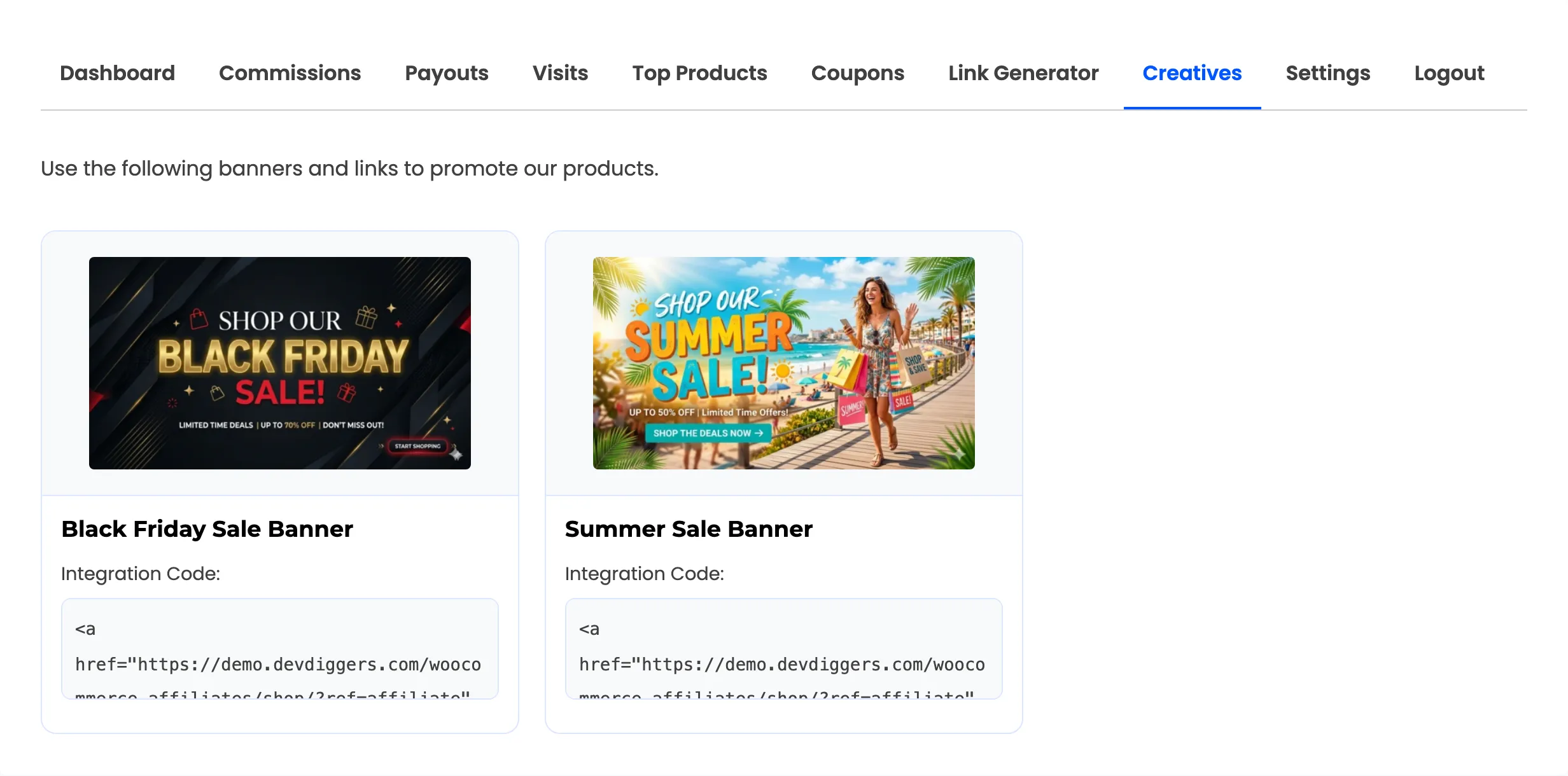
Each active creative renders as a preview plus an Integration Code block. That block holds ready-to-paste HTML: an anchor wrapping an image for a banner, a plain anchor for a text creative.
The referral token in the HTML is that affiliate’s own, so two affiliates copying the same banner get two different links. That is the whole point.
Step 5: Build a useful set
Section titled “Step 5: Build a useful set”Three or four creatives are plenty at launch. More than that and affiliates stop reading the list.
A workable starting set:
- One leaderboard for your best-selling category
- One sidebar rectangle for the same
- One text link for newsletters
- One seasonal banner, swapped out as the season changes
Managing creatives over time
Section titled “Managing creatives over time”- Retire, do not delete. Set an expired seasonal banner to Inactive. Deleting it leaves affiliates with HTML already pasted on their site pointing at a missing image.
- Keep the destination alive. A creative pointing at a product you discontinued sends paid traffic to a 404. When you retire a product, check the creatives that point at it.
- Refresh once a season. A banner that has been up for a year has been scrolled past by the same audience a hundred times.
Where to go next
Section titled “Where to go next”- Creatives for the full screen reference.
- Social Promotion to add share buttons alongside the creatives.