

How to Create Commission Rules (Pro)
Rules exist because a single rate rarely fits a whole catalogue. A 40% margin product can carry 20% commission; a 12% margin product cannot carry 10.
Before you start
Section titled “Before you start”Know your margins per product or per category. A rule that pays more than the product makes is a rule that loses money at scale, and rules apply to every affiliate at once.
Set your global rate first under Commission Settings. Rules are overrides, so the global rate is the fallback for everything they do not cover.
Step 1: Open the rules screen
Section titled “Step 1: Open the rules screen”Go to DevDiggers Plugins → Affiliates → Rules.
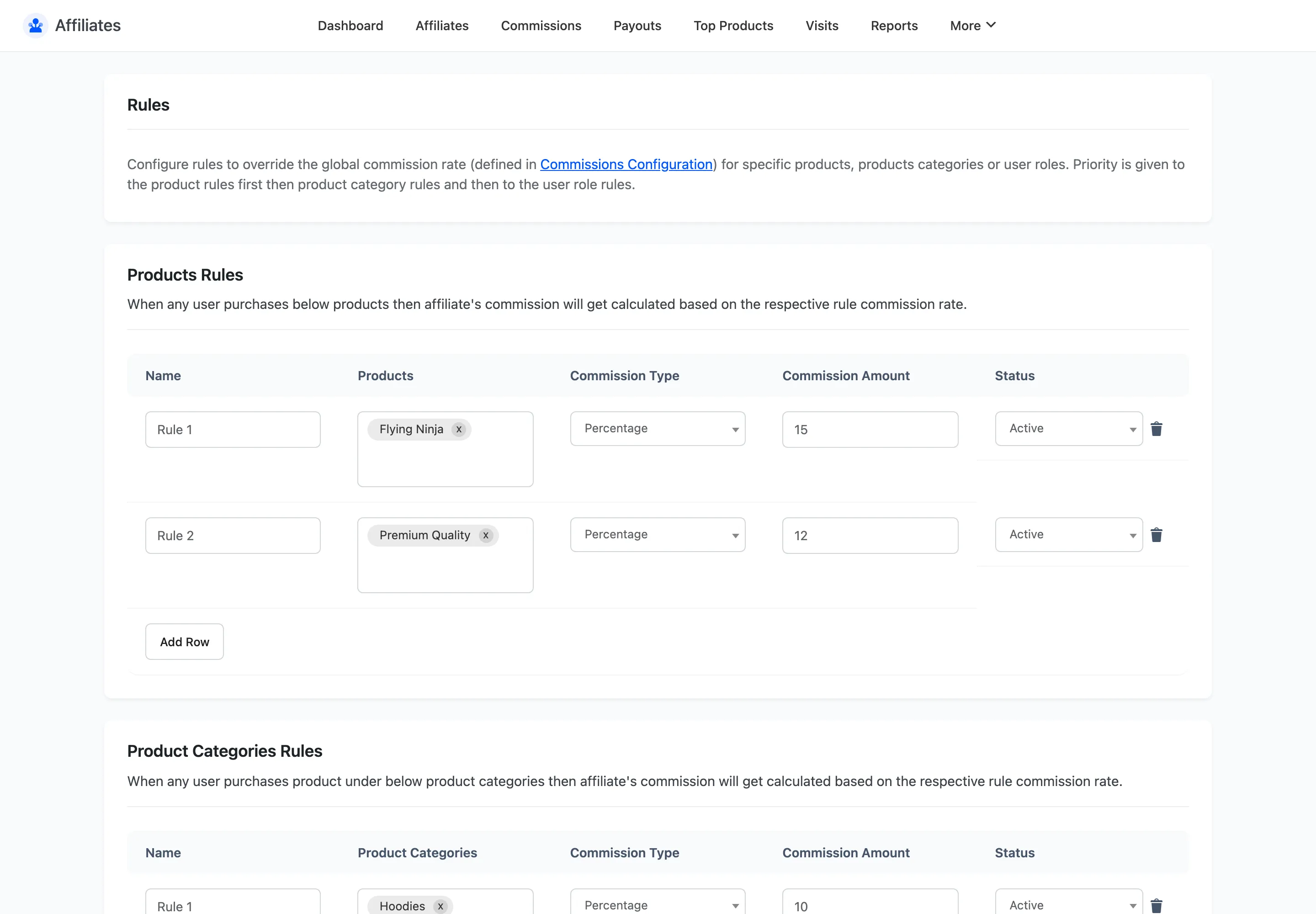
Three tables sit on the one screen, one per rule type. They all save together with the button at the bottom.
Step 2: Add a product rule
Section titled “Step 2: Add a product rule”In the Products Rules table, click Add Row. A new row appears with five fields.
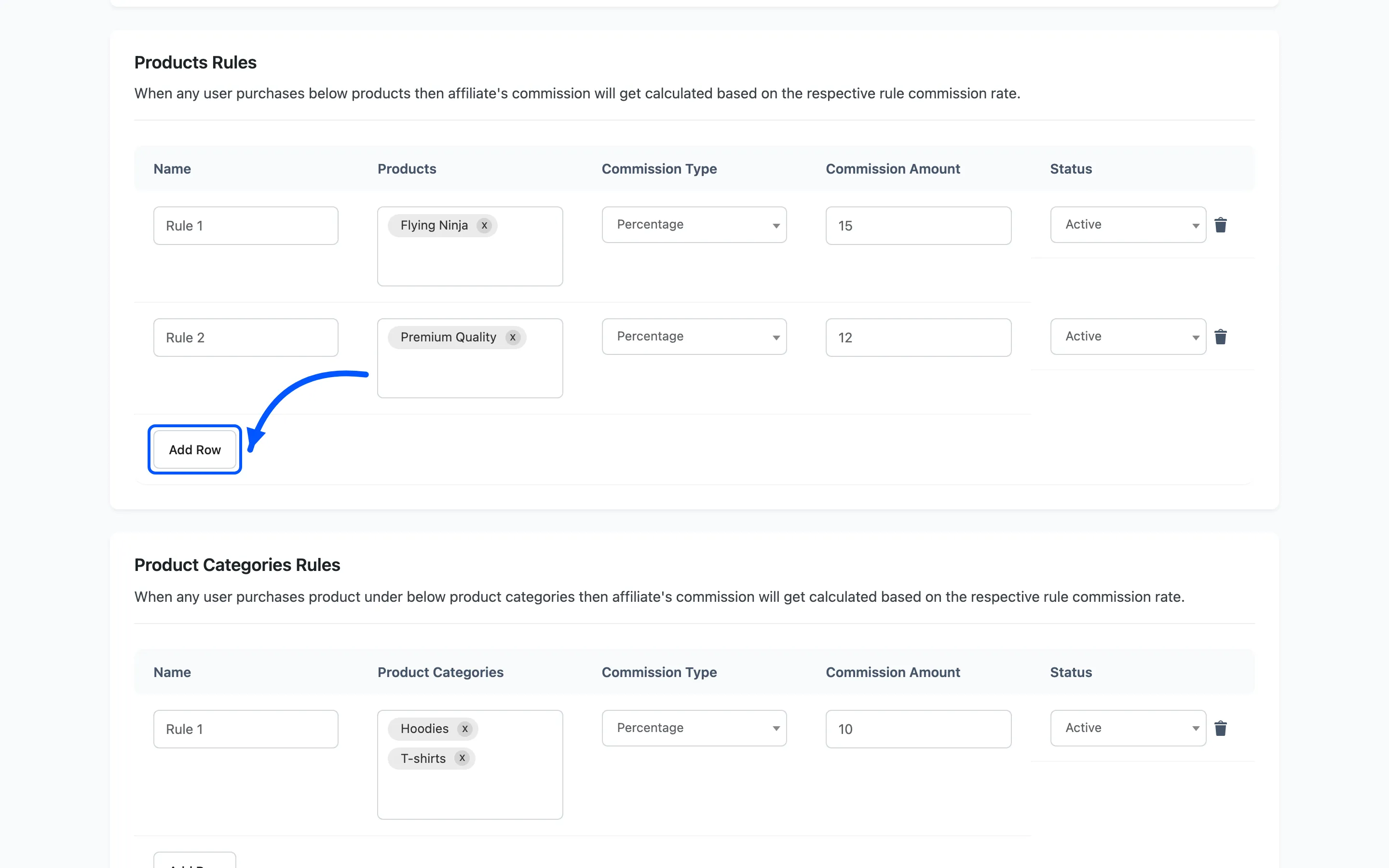
- Name is your own label. Use something you will recognise in six months, like
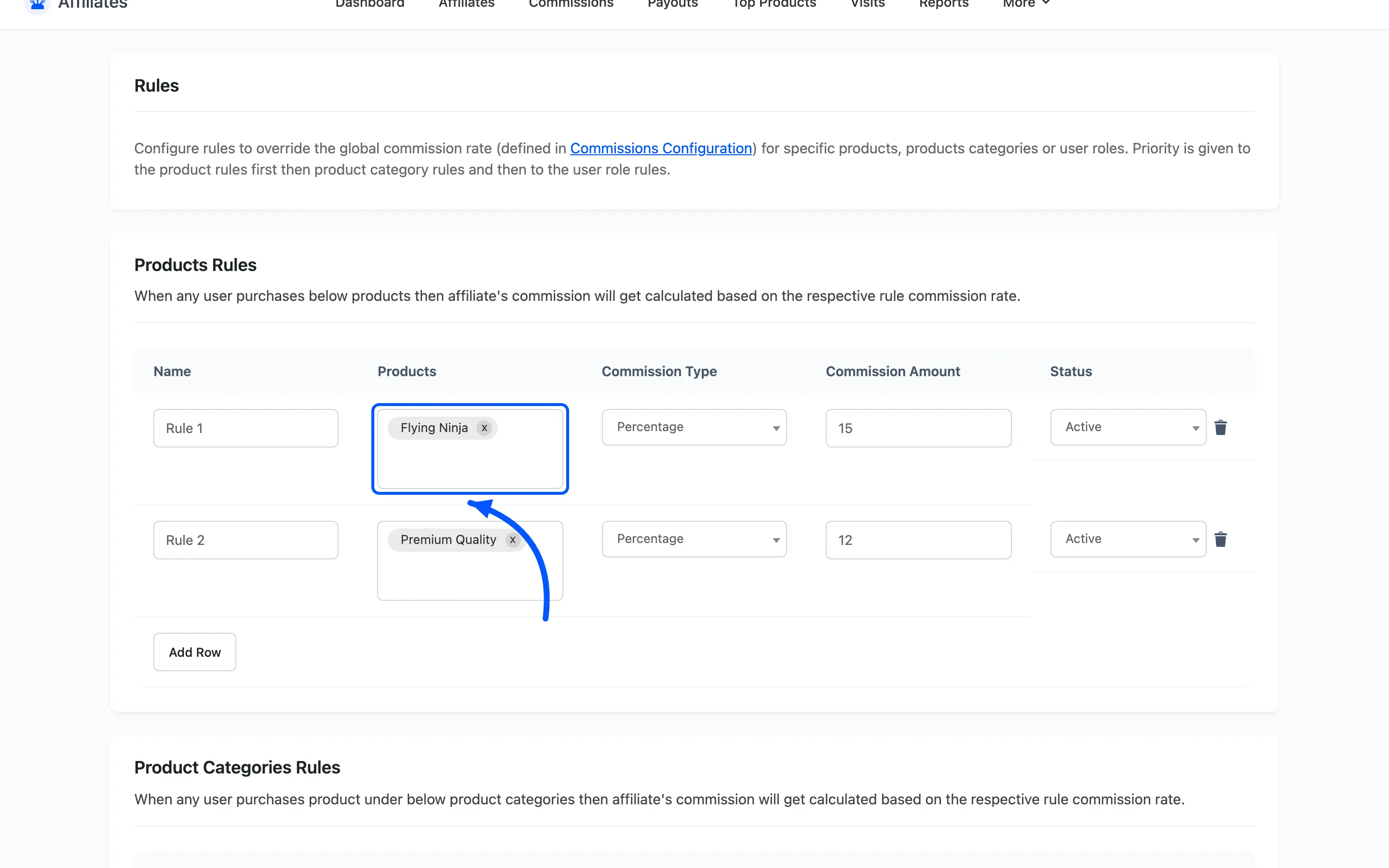
Premium range 20%. - Products is a searchable multi-select. Add every product the rule covers.
- Commission Type is Percentage or Fixed.
- Commission Amount is the number.
- Status is Active or Inactive.
Type a few letters into Products and pick from the results. The field takes as many products as the rule needs.
Percentage is the safer default. It scales with the price, so a rule set today still makes sense after a price change.
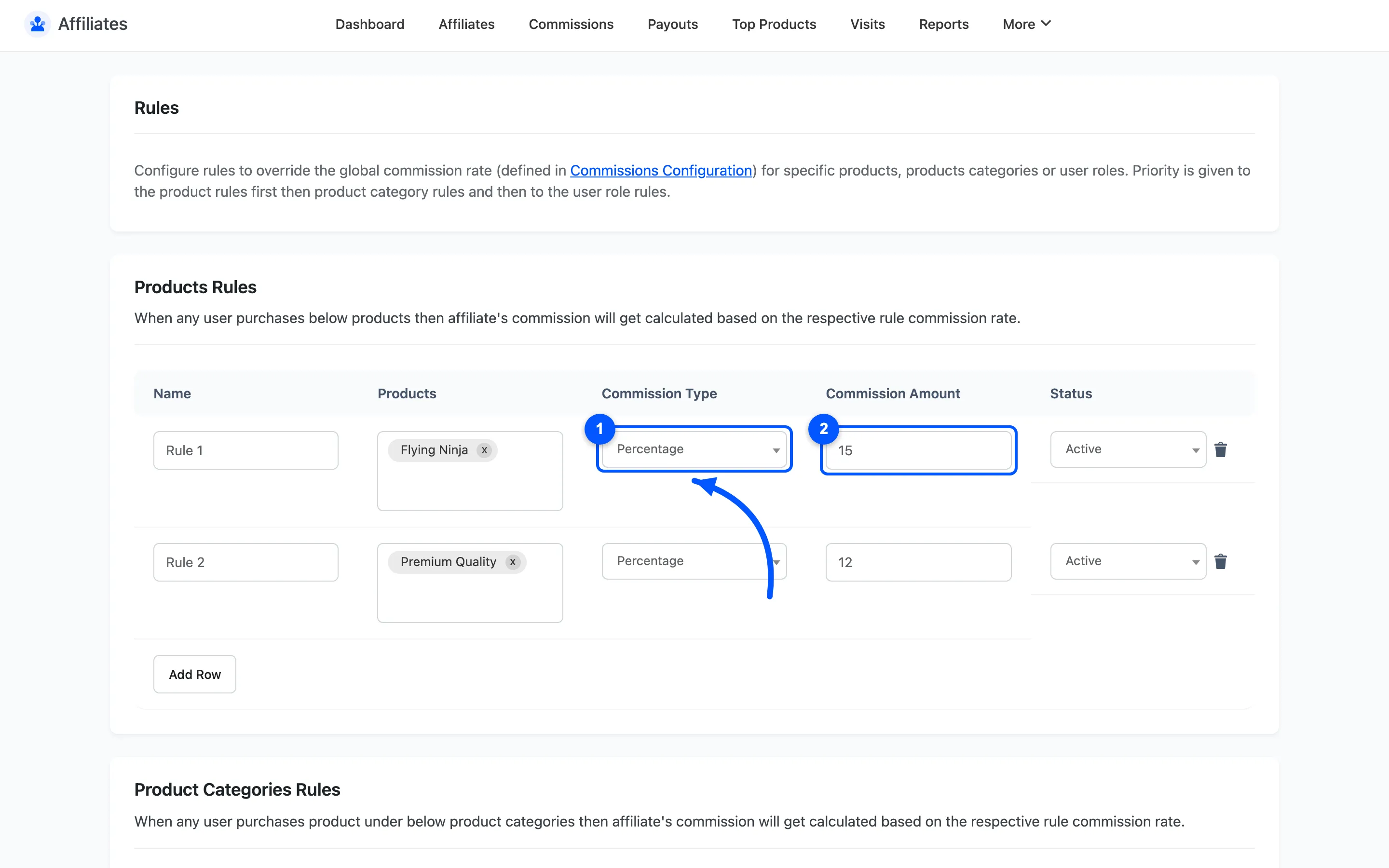
Fixed pays a flat amount per line item regardless of price. Use it for a product with an unusual margin, or where you want a predictable cost per sale. Note it pays once per line, not once per unit: a line with a quantity of three pays the fixed amount once.
Step 3: Add a category rule
Section titled “Step 3: Add a category rule”Categories are usually the better tool. One rule covering a category keeps working as you add products to it, where a product rule needs editing every time.
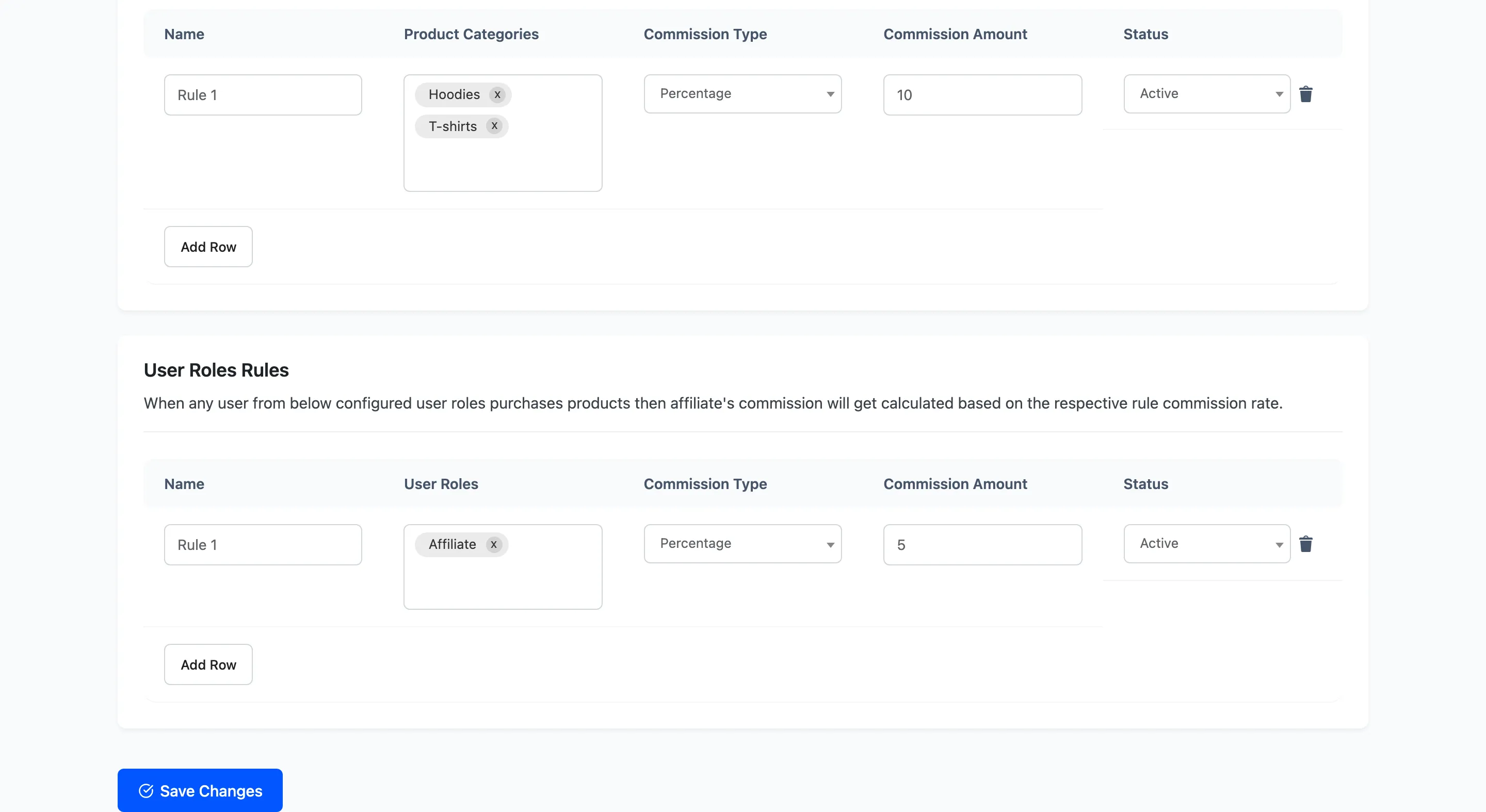
In the Product Categories Rules table, click Add Row and pick the categories.
A rule on a parent category also covers products whose category sits underneath it. A rule on Clothing catches Clothing → Shirts without listing it.
Step 4: Add a user role rule
Section titled “Step 4: Add a user role rule”The User Roles Rules table matches the customer’s role, not the affiliate’s. That distinction catches people out.
The use for it is a store with a wholesale role. Pay a lower percentage on wholesale orders, where the margin is thinner, without touching retail.
Step 5: Activate and save
Section titled “Step 5: Activate and save”Set each row’s Status to Active and click the save button at the bottom of the screen.
Only active rules are considered. Setting a rule to Inactive is the safe way to pause it for a season without losing the products list.
Step 6: Know which rule wins
Section titled “Step 6: Know which rule wins”Rules resolve most specific first:
- Product rules
- Product category rules
- User role rules
So a product rule beats a category rule covering the same item, and both beat a user role rule.
A matching rule also beats the affiliate’s own commission rate. If a product rule applies, the affiliate’s personal rate is never consulted for that line item. This trips people up when they raise a top partner’s rate and see no change on the products a rule already covers.
Where no rule matches, the chain falls back to the affiliate’s own rate, then to any active earnings tier, then to the global default.
Step 7: Test the rate
Section titled “Step 7: Test the rate”- Open an affiliate’s referral link in a private browsing window.
- Buy one product the rule covers and one it does not, in the same order.
- Go to DevDiggers Plugins → Affiliates → Commissions.
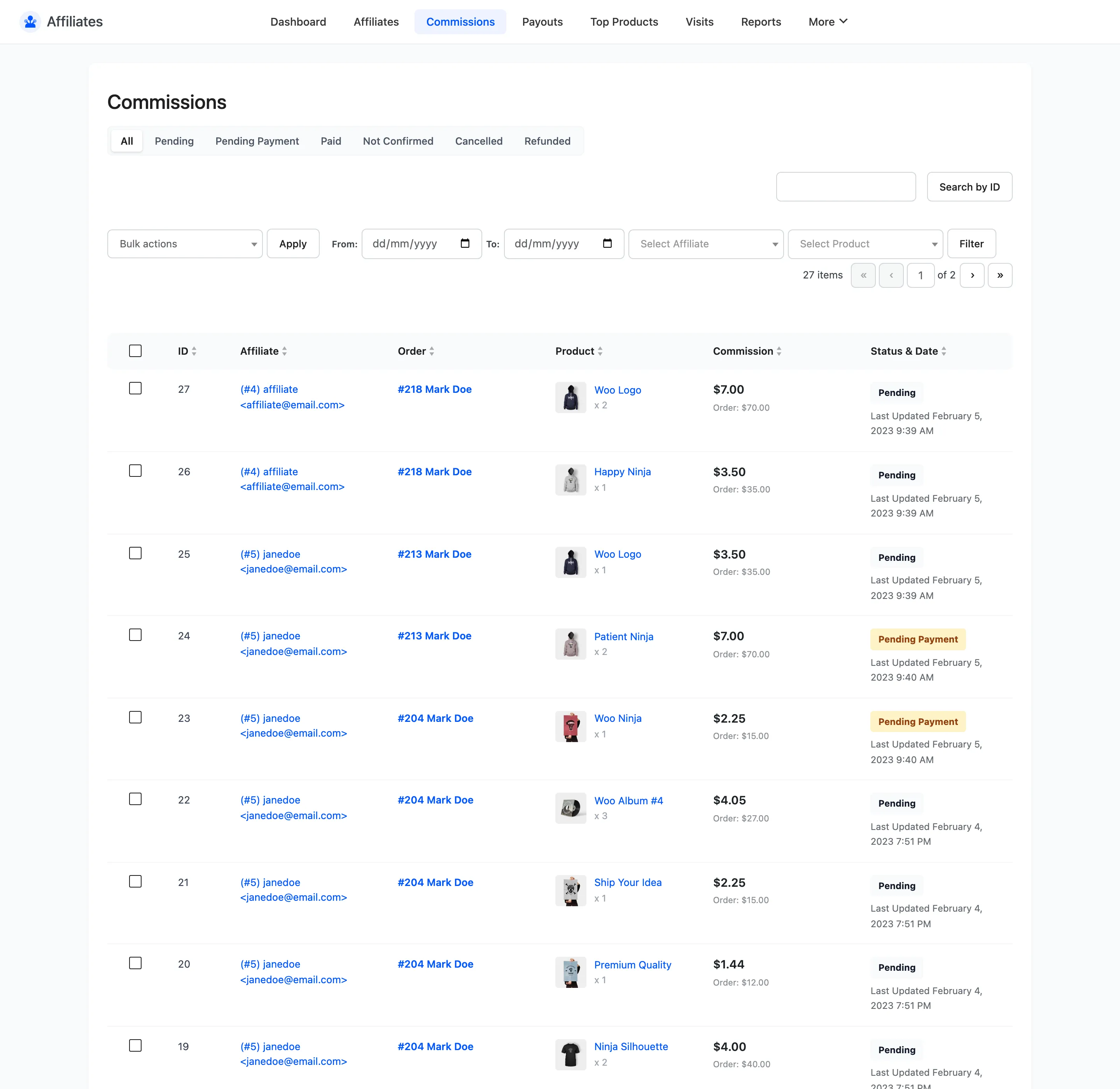
You get two commission rows from that one order. Divide each Commission amount by its line total. You should see two rates: the rule’s rate on the covered product, the fallback on the other.
Buying both in one order is the point. It proves the rule matched a line rather than the order.
Step 8: Watch for overlaps
Section titled “Step 8: Watch for overlaps”Two product rules can list the same product. When they do, the first active matching rule in the table wins. A stale rule near the top quietly overrides a newer one below it.
Keep the tables short. One rule per commercial decision, not one per product.
When a rule takes effect
Section titled “When a rule takes effect”Rules apply to commissions created after you save. Rows already in the list keep the amount they were created with, so a mid-campaign change produces two rates in the same report. Set rules up before you recruit for a campaign, not during it.
Where to go next
Section titled “Where to go next”- Commission Rules for the full screen reference.
- How to Set Up Tiered Commissions to reward volume rather than product mix.