

Affiliate Details
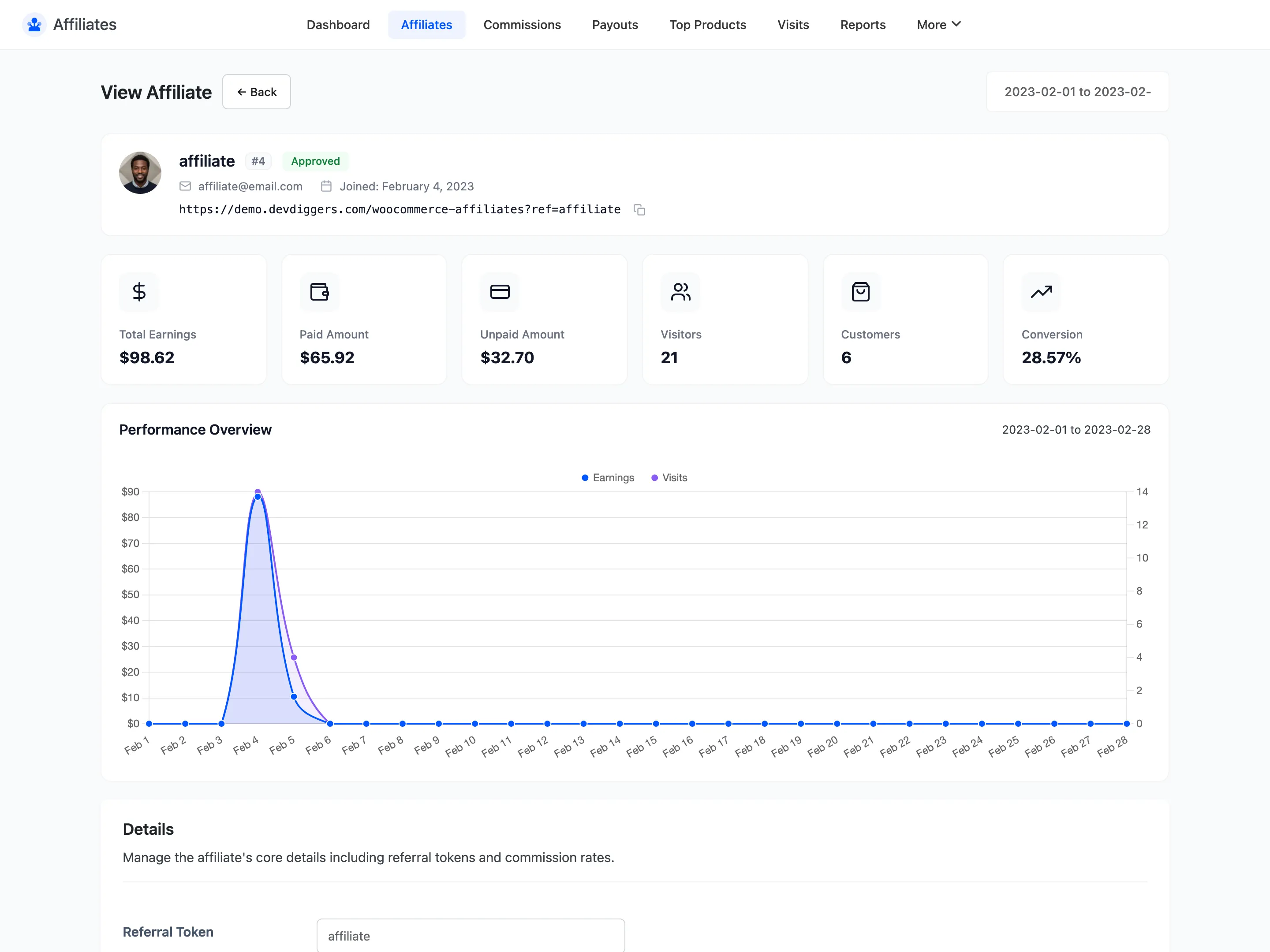
The affiliate detail screen is the single view of one partner. It carries what they have earned, what they have driven, and every setting that applies to them alone.
Open an affiliate
Section titled “Open an affiliate”From the Affiliates list, click an affiliate’s name or their View row action.
Choosing a period
Section titled “Choosing a period”A Quick Select row sits at the top with ten ranges:
- Today, Last 7 Days, Last Week, Last 30 Days, Last Month
- Last 3 Months, Last 6 Months, Year to Date, Last Year, All Time
Custom Range opens From Date and To Date fields with an Apply Range button.
Every number and the chart below follow the range. Start at All Time when you are judging an affiliate overall, then narrow to compare a campaign.
The statistic cards
Section titled “The statistic cards”Six cards match what the affiliate sees on their own dashboard, so a conversation about numbers starts from the same figures.
- Total Earnings, all commission not cancelled
- Paid Amount, commission in a completed payout
- Unpaid Amount, commission still pending
- Visitors, logged referral clicks
- Customers, how many converted
- Conversion, the rate between the two
Performance Overview
Section titled “Performance Overview”A two-line chart plots earnings and visits across the chosen range. A partner whose visits climb while earnings stay flat is sending traffic that does not convert. That is a different problem from sending nothing.
Details
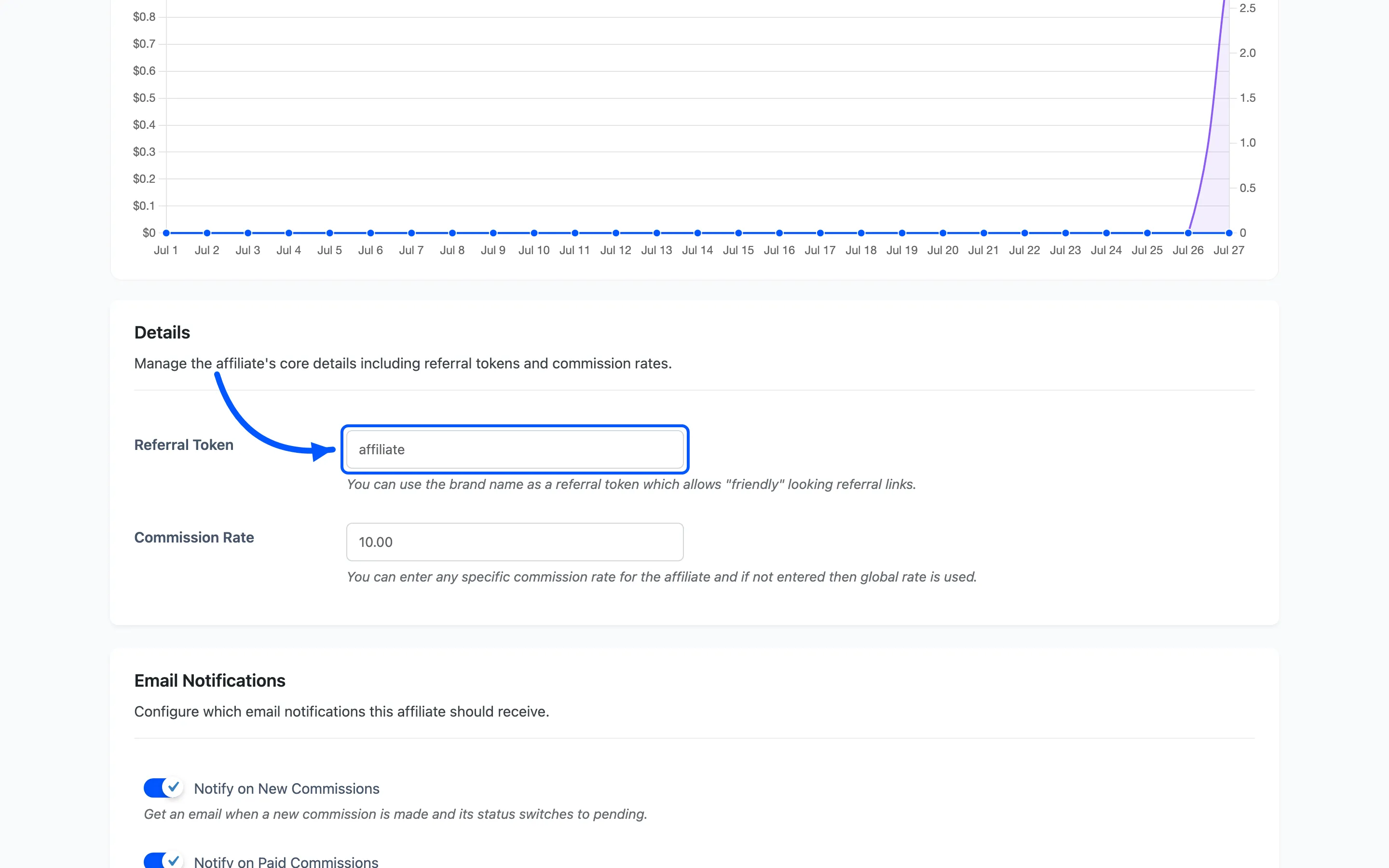
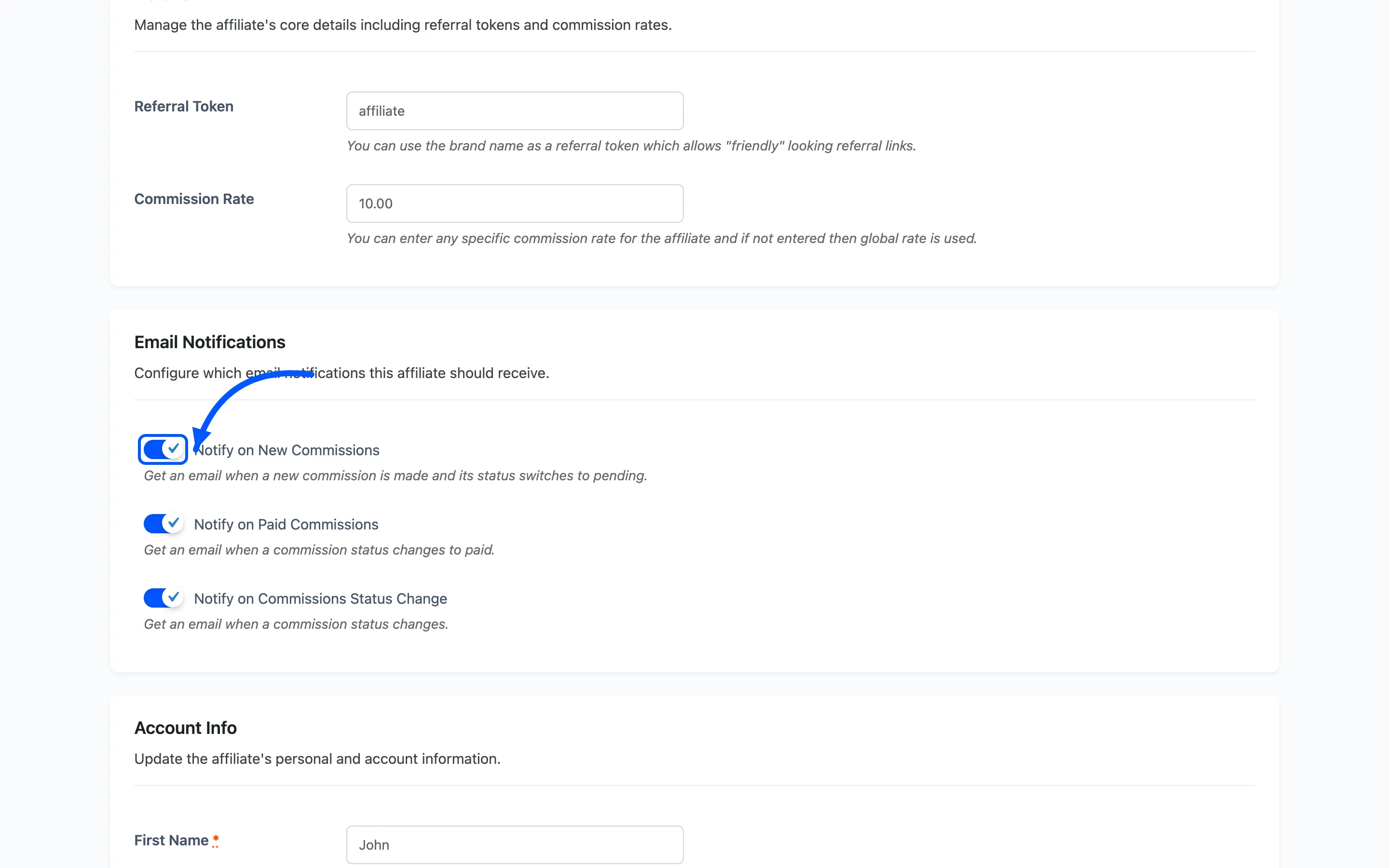
Section titled “Details”Referral Token is the token in this affiliate’s links. Set it to a brand name and their link
becomes ?ref=acmeblog instead of ?ref=12.
Commission Rate is this affiliate’s own percentage. Leave it empty and the global default from Commission Settings applies. Enter a value and it overrides the global rate for every commission they earn from now on.
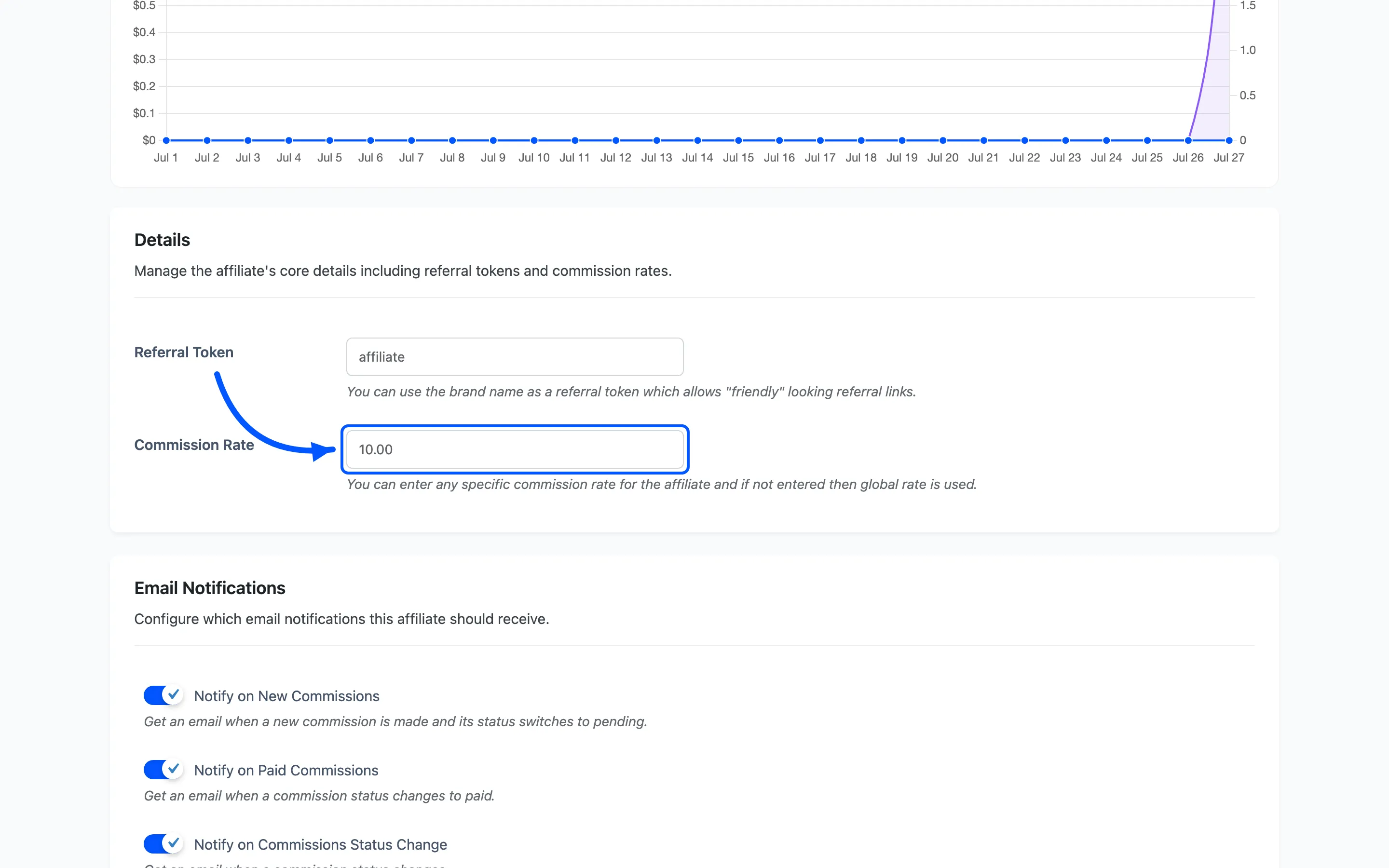
This field is free. It is the tool for rewarding a strong partner without touching everyone else.
A product, category or user-role rule from Commission Rules still beats this rate when one matches the line item. Rules are checked first.
Email Notifications
Section titled “Email Notifications”Three checkboxes decide which emails this affiliate receives.
- Notify on New Commissions
- Notify on Paid Commissions
- Notify on Commissions Status Change
Account Info
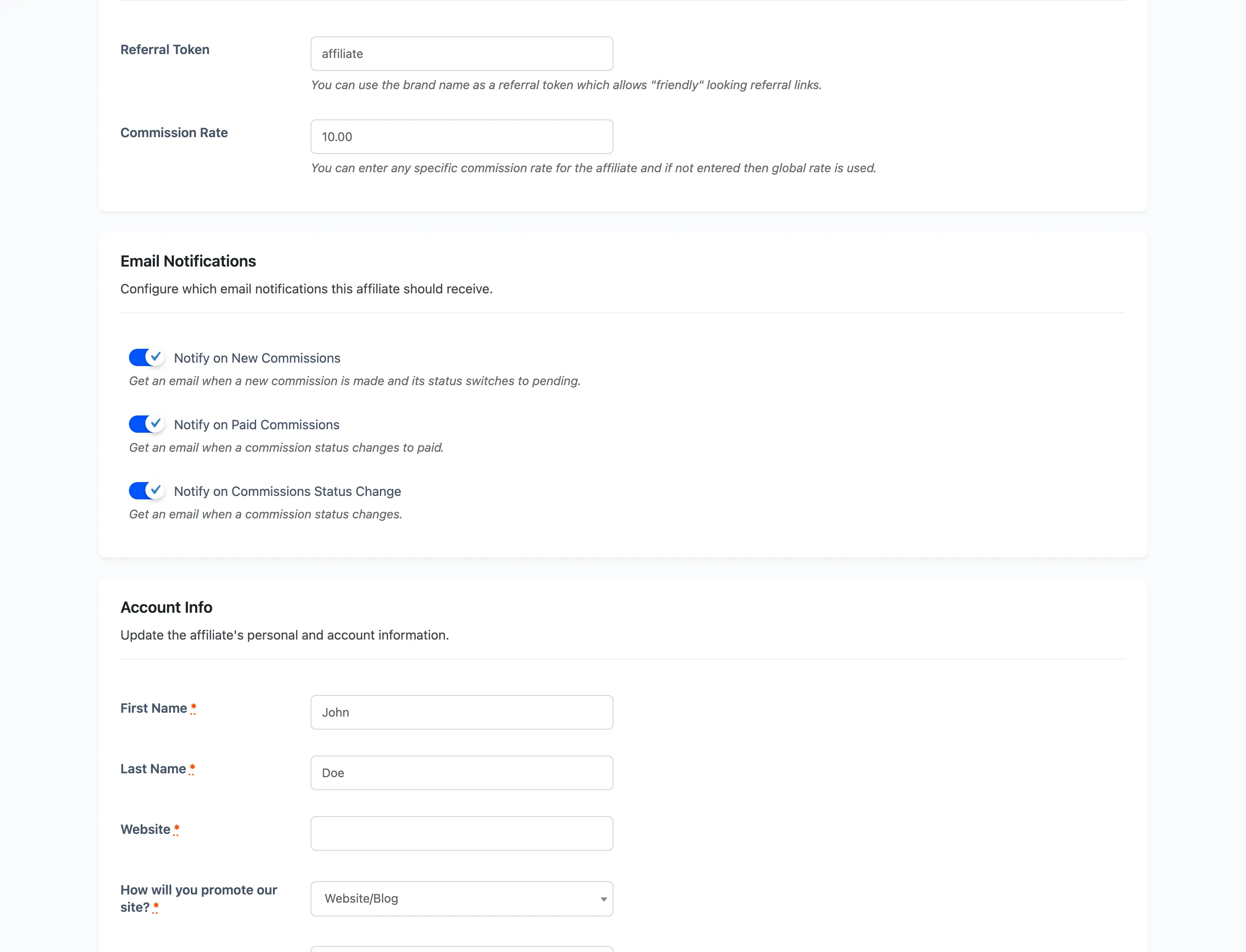
Section titled “Account Info”The affiliate’s registration field values, editable here. This is where you correct a name or read what someone put in How will you promote our site? before approving them.
Withdrawal Info
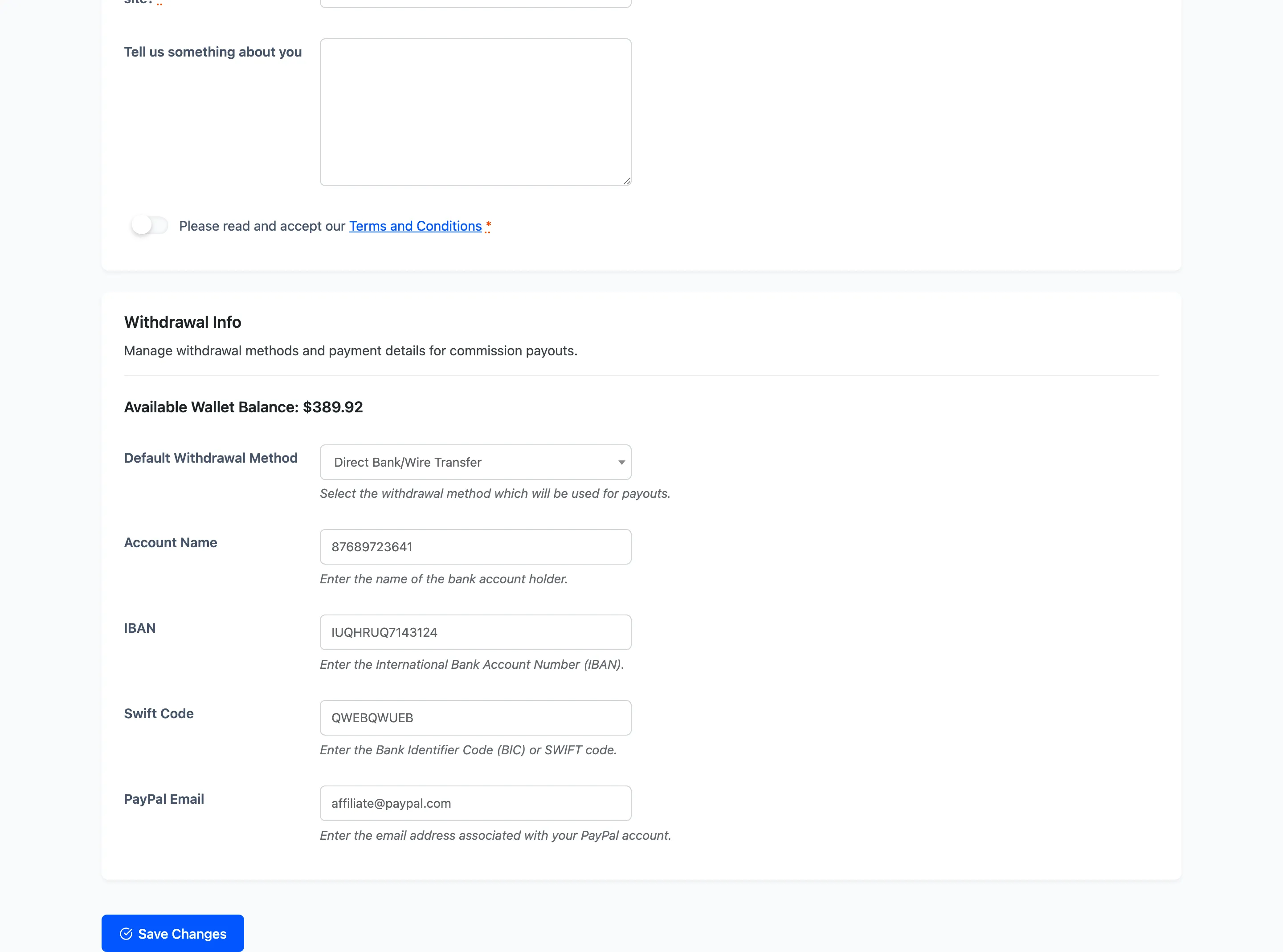
Section titled “Withdrawal Info”The payout details the affiliate saved: their default withdrawal method plus the account name, IBAN and swift code, or a PayPal email. A payout cannot be sent until this is filled in, so check it here before creating one.
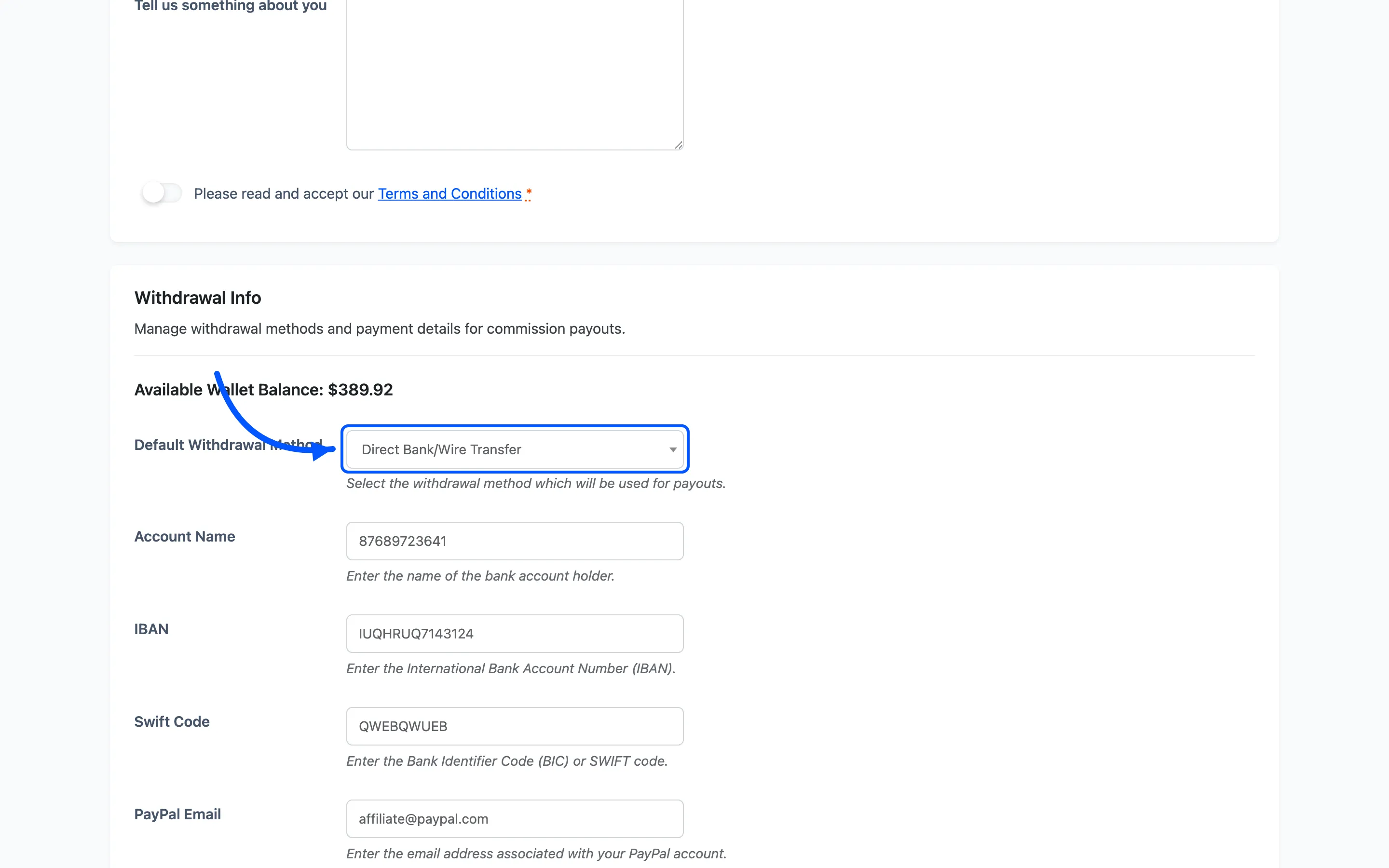
The affiliate fills these in themselves under Settings on their own dashboard. You can correct a typo here, but chasing a missing IBAN is faster as an email than as an edit.
Connected Account ID
Section titled “Connected Account ID”Once Stripe Connect is connected on the Payouts settings tab, a Stripe Connect heading appears in this block with a Connected Account ID field. Stripe holds the account itself, so this field is a link to it rather than a copy of it.
Paste an account id beginning acct_ to attach an affiliate to a Stripe account that already exists.
That covers the two cases the hosted onboarding cannot: someone who onboarded to your platform
elsewhere, and an account that came across in a migration. Leave it empty and the affiliate connects
their own from their dashboard, which is the normal route.
The field description tells you where the account stands. It reports whether Stripe has enabled payouts on it, or whether the affiliate still has onboarding to finish. Clearing the field unlinks the account, and it does not close anything at Stripe.
Where to go next
Section titled “Where to go next”- How to Set Commission Rates for how the rate chain resolves.
- Commissions to see this affiliate’s individual commission rows.