

How to Exclude Products and Categories (Pro)
Some products cannot carry a commission. Gift cards, clearance stock, a loss-leader bundle and anything sold near cost all fall into that group. Exclusions let you run one program without paying out on those lines.
Before you start
Section titled “Before you start”Know your margins per category, not per product. Setting this up product by product is slow, and it goes stale the moment you add stock.
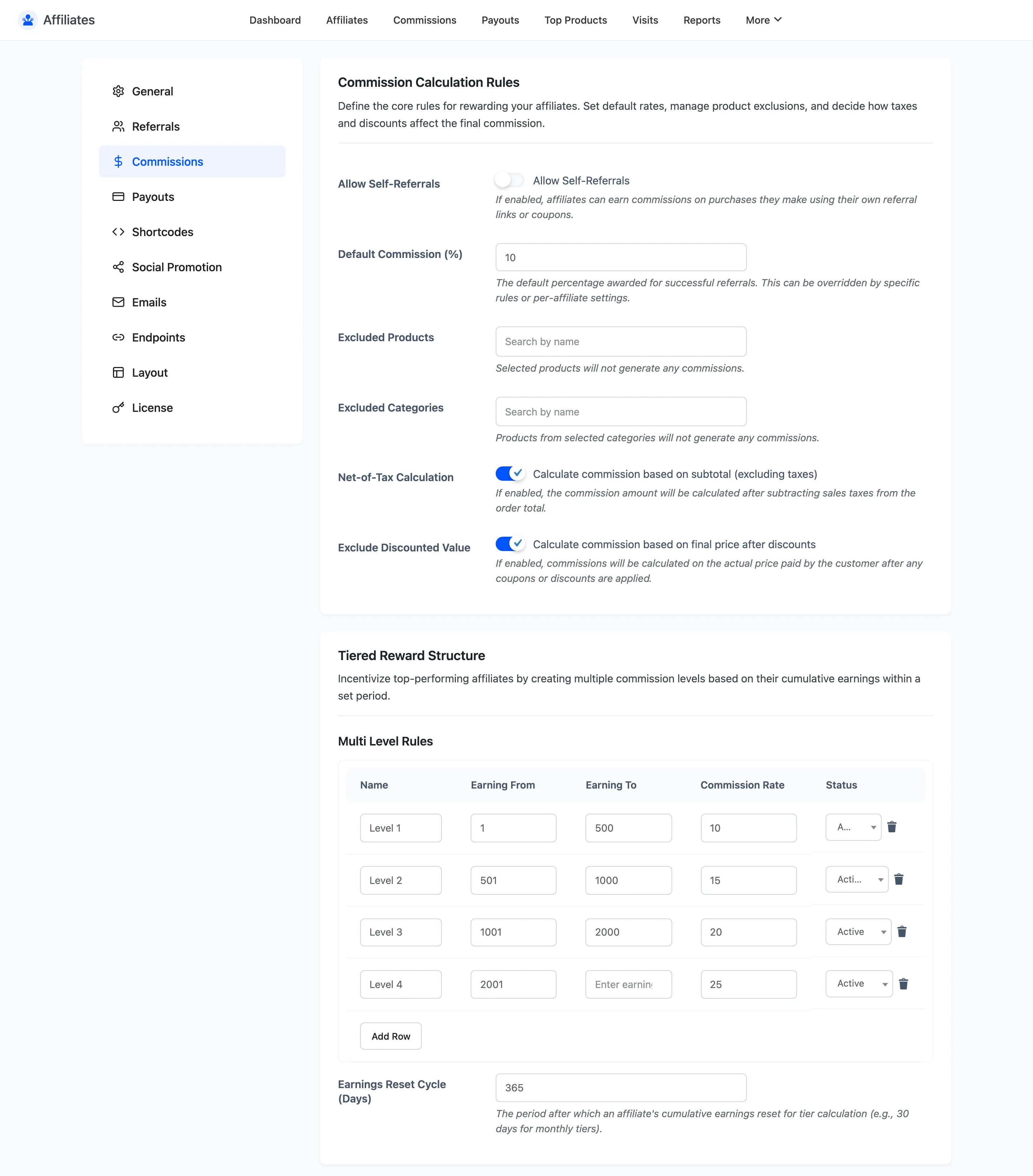
Step 1: Open the Commissions tab
Section titled “Step 1: Open the Commissions tab”Go to DevDiggers Plugins → Affiliates → Configuration → Commissions.
Step 2: Exclude individual products
Section titled “Step 2: Exclude individual products”Click Excluded Products and search by name. The field takes as many products as you need.
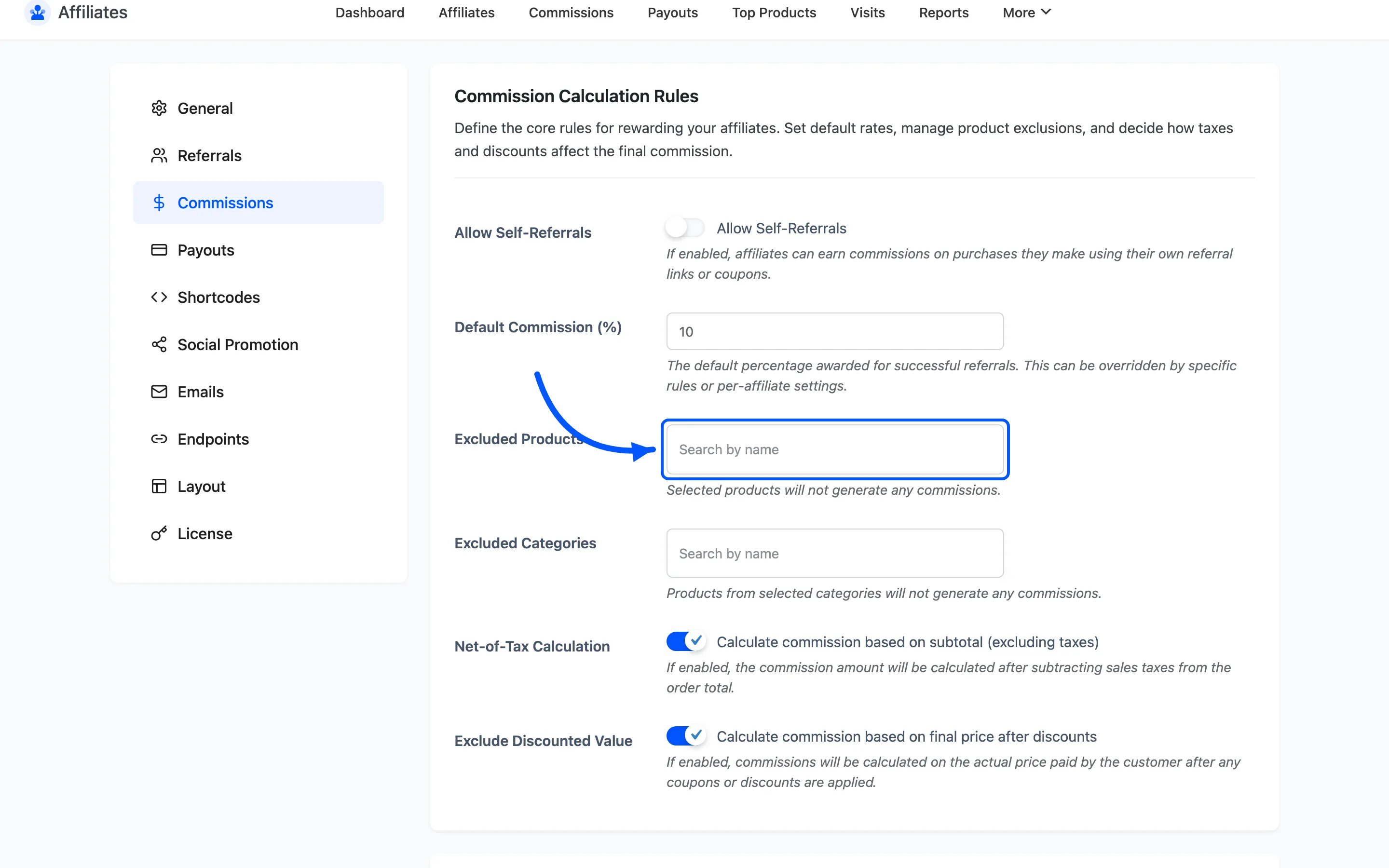
An excluded product produces no commission row at all. It is not a zero-value row, so it never shows up in a report as a line an affiliate might query.
Use this for the handful of items that are genuinely special: a gift card, a deposit product, a service fee.
Step 3: Exclude whole categories
Section titled “Step 3: Exclude whole categories”Click Excluded Categories and pick the ranges you will not pay on.
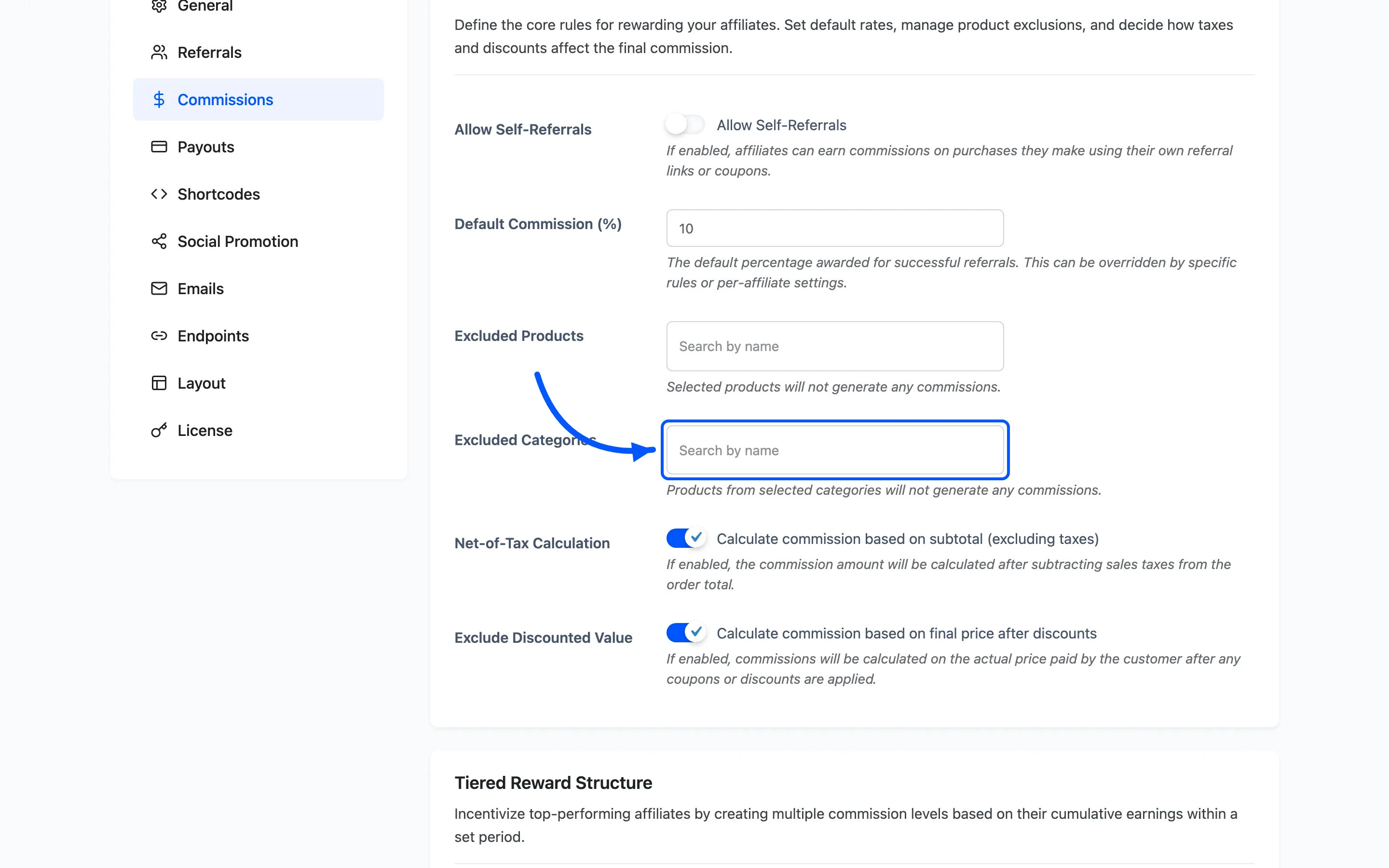
A category exclusion also covers products whose category sits underneath the one you picked. Excluding a parent category covers its children without listing each one.
This is the setting that survives stock changes. New products added to an excluded category are excluded from the moment they are published.
Step 4: Check how variations are treated
Section titled “Step 4: Check how variations are treated”A product variation is matched against its parent product’s categories, not its own. That is usually what you want, and it is worth knowing before you go looking for a per-variation control.
There is no per-variation exclusion. Exclude the parent product if a single variation is the problem.
Step 5: Decide on self-referrals
Section titled “Step 5: Decide on self-referrals”Allow Self-Referrals decides whether an affiliate can earn on their own purchases.
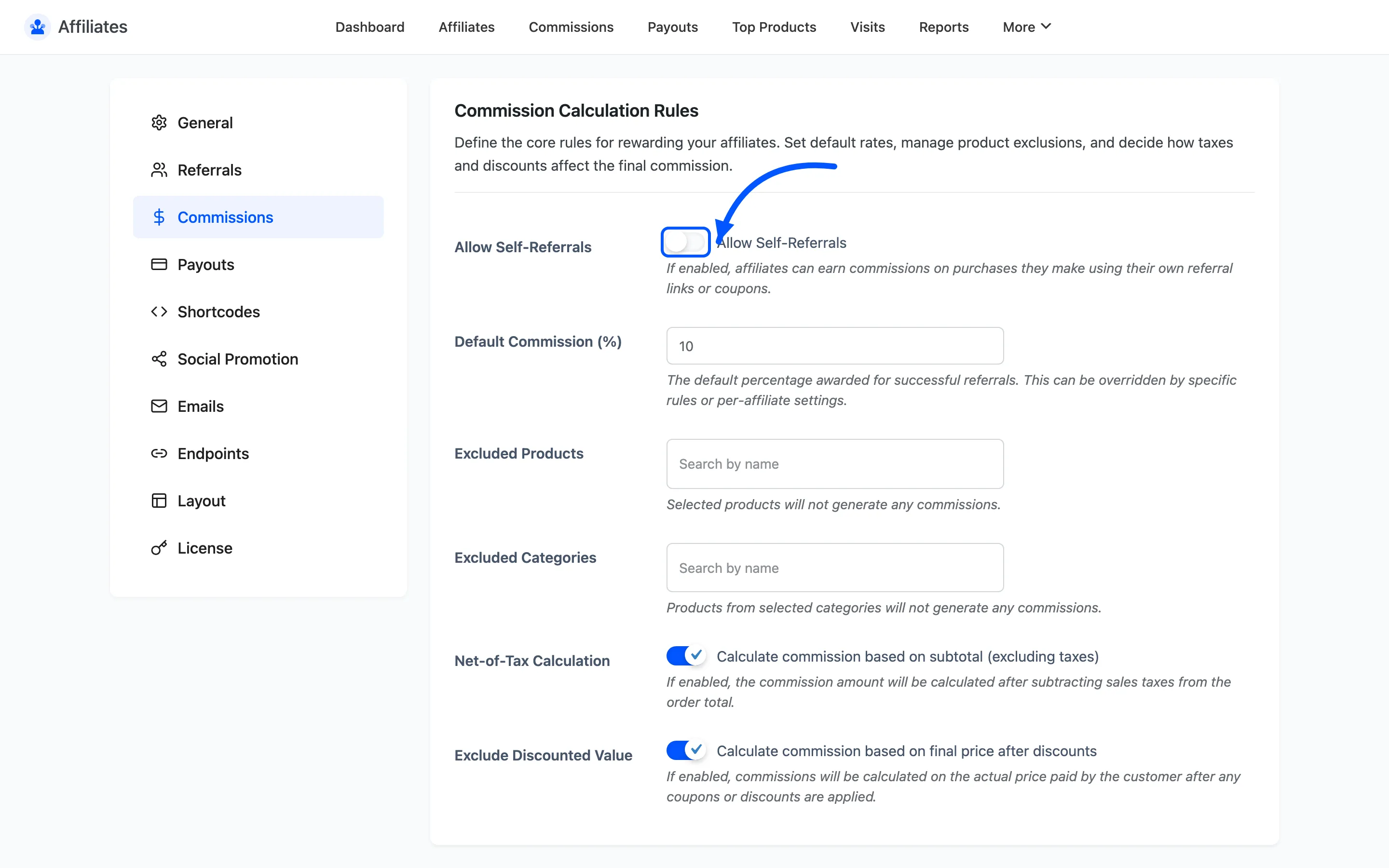
Leave it off in almost every case. Turning it on effectively gives every affiliate a permanent discount equal to their commission rate.
There is one honest reason to turn it on. A creator program where partners genuinely buy and review your products can treat the commission as part of the deal.
Step 6: Save and test
Section titled “Step 6: Save and test”Click Save Changes, then prove it.
- Copy an affiliate’s referral link.
- Open a private browsing window, since administrator clicks are ignored.
- Add an excluded product and a normal product to the cart and place the order.
- Open Affiliates → Commissions and filter to that order.
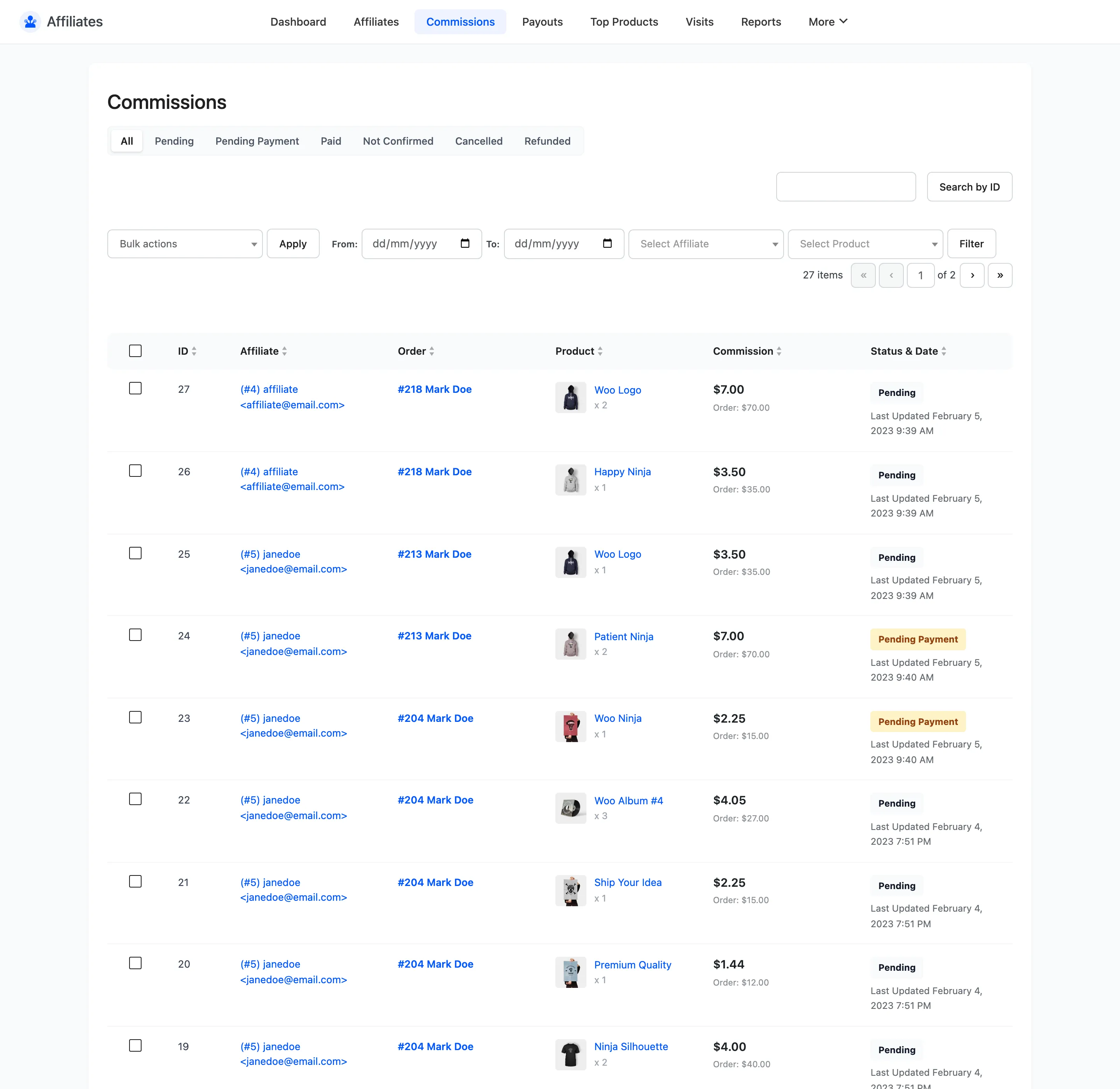
You should see a row for the normal product and nothing for the excluded one. One row per line item is the rule, so a missing row is the proof.
Exclusions against rules
Section titled “Exclusions against rules”Exclusions and commission rules answer different questions, and they are evaluated at different points.
| Excluded Products or Categories | Commission Rules | |
|---|---|---|
| Effect | No commission row is created | A different rate is used |
| Scope | Products and categories | Products, categories and user roles |
| Use it for | Items you cannot pay on | Items worth more or less than your default |
An exclusion beats a rule, because there is no commission for a rate to apply to.
Where to go next
Section titled “Where to go next”- How to Create Commission Rules to pay a different rate instead of nothing.
- Commission Settings for every field on this tab.