

How to Set Commission Rates
There are up to four places a commission rate can come from, and only one of them wins on any given order line. This covers all of them and the order they resolve in.
Step 1: Set the global rate
Section titled “Step 1: Set the global rate”Go to DevDiggers Plugins → Affiliates → Configuration → Commissions and set Default Commission (%).
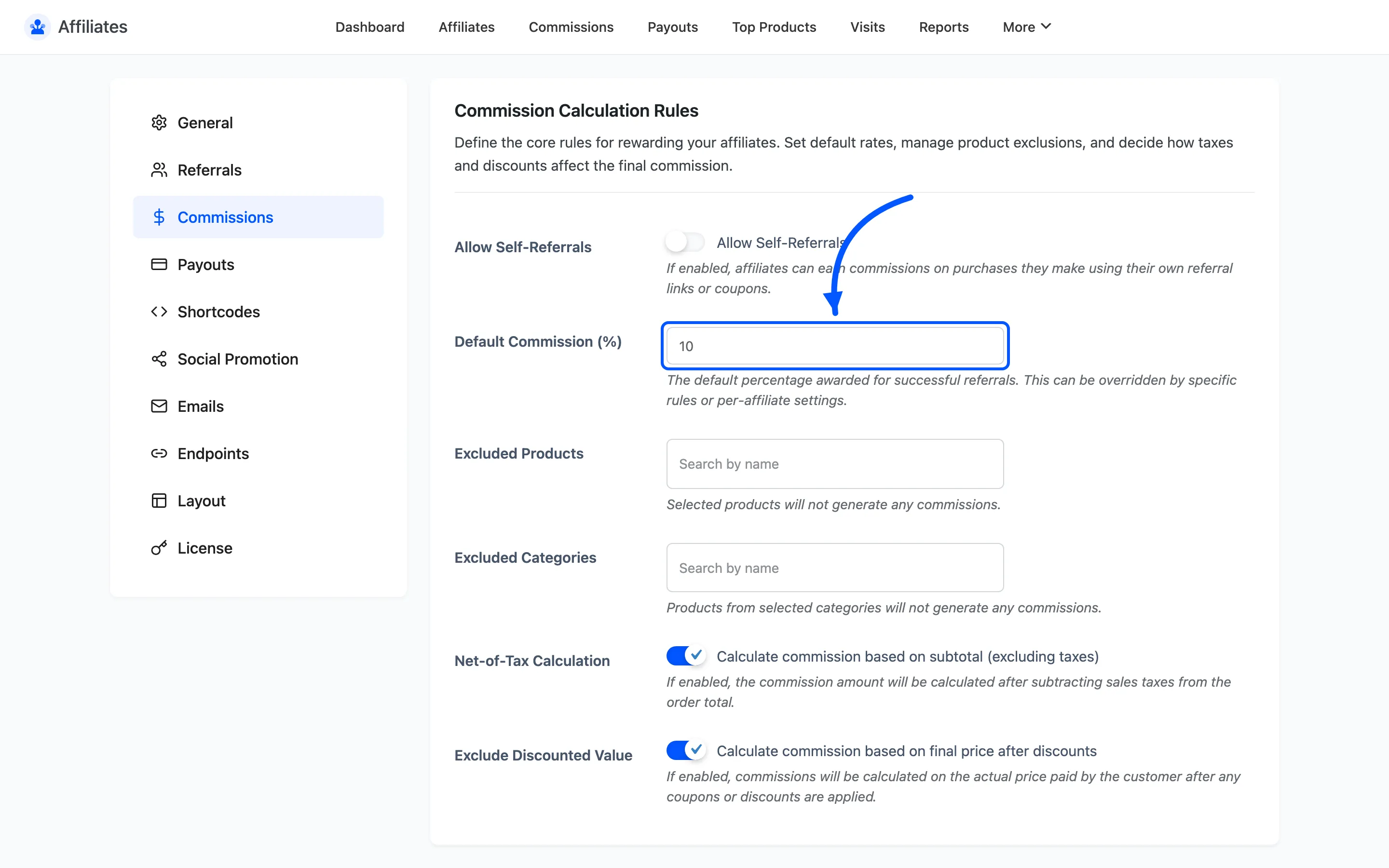
The field accepts 0 to 100 and defaults to 10. This is the rate every affiliate earns unless something more specific overrides it.
Pick a number your margins can carry on every product. Raising one product later is easy. Cutting everyone’s rate after they have started promoting is not.
Step 2: Decide what the percentage applies to
Section titled “Step 2: Decide what the percentage applies to”Two switches directly under the rate decide what the percentage is taken from. Both are on by default, and both should usually stay on.
- Net-of-Tax Calculation calculates on the subtotal, excluding sales tax. Off, you pay commission on money that goes straight to the tax authority.
- Exclude Discounted Value calculates on the price the customer actually paid. Off, an order discounted by half still pays commission on the full price.
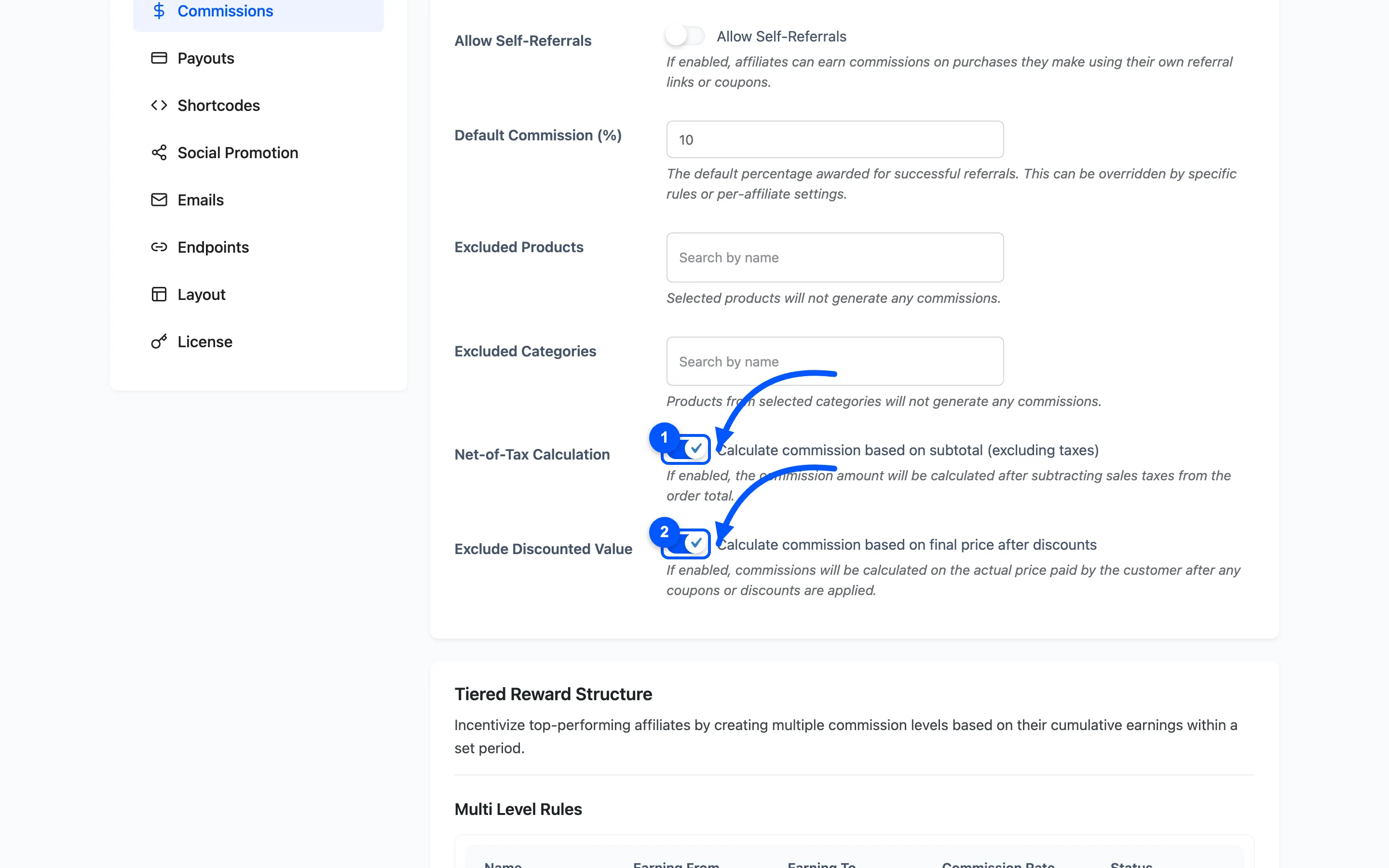
The worked difference on a 100 item, 20% off, 10% tax, at a 10% commission rate:
| Both on | Both off |
|---|---|
| Commission on 80 | Commission on 110 |
| 8.00 | 11.00 |
That is a large swing on the same order, which is why the pair is worth understanding before you go live.
Step 3: Override the rate for one affiliate
Section titled “Step 3: Override the rate for one affiliate”Go to DevDiggers Plugins → Affiliates → Affiliates, open an affiliate, and set Commission Rate.
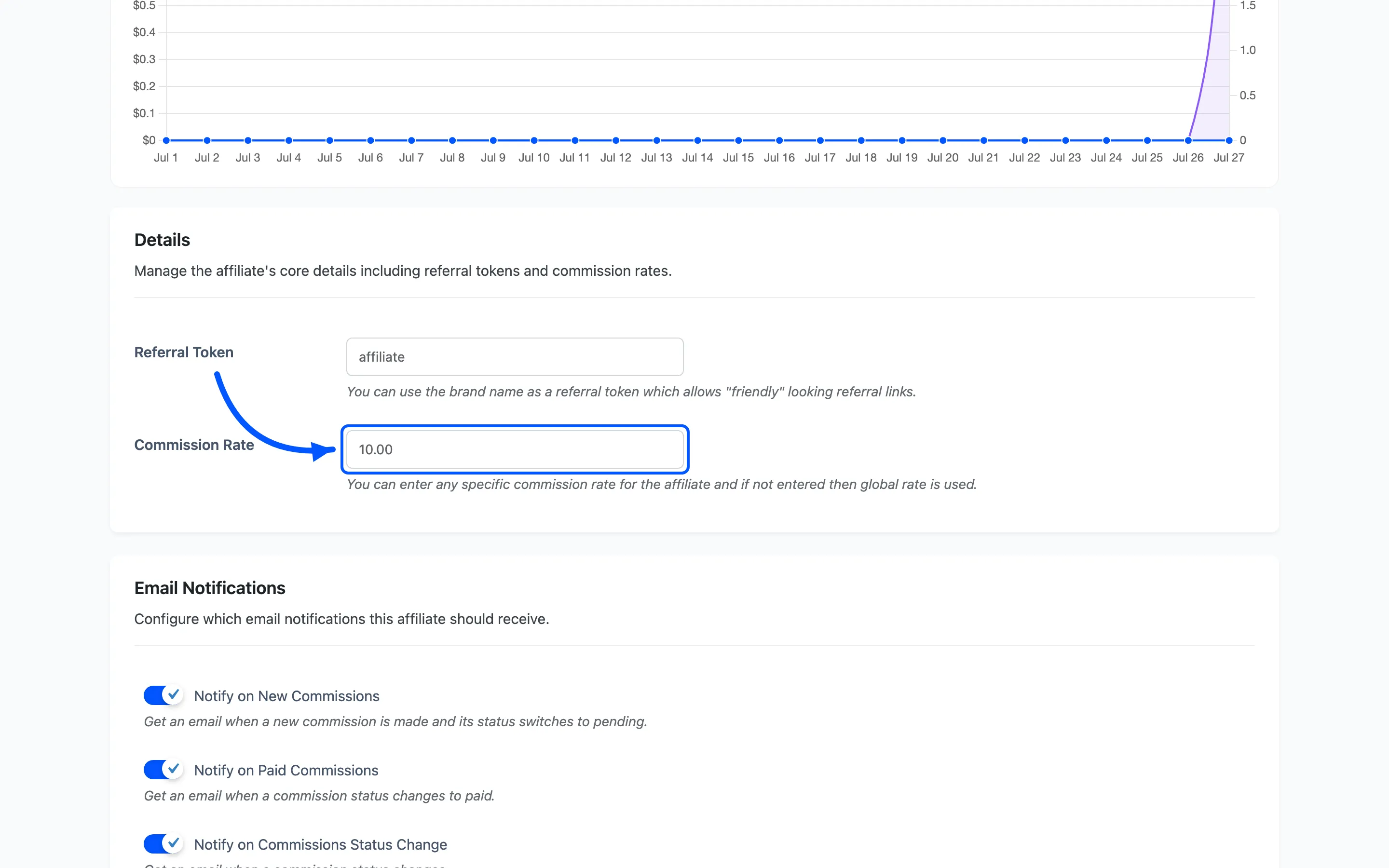
Leave it empty and the global default applies. Enter 15 and that affiliate earns 15% on everything they refer.
This field works in both the free and Pro versions. It is the free version’s only override, and it is enough to run a tiered program by hand. Promote your best partners individually rather than building automated tiers.
Existing commission rows keep the amount they had. The new rate applies from the next order onward.
Step 4: Understand which rate wins
Section titled “Step 4: Understand which rate wins”When more than one rate could apply, the plugin resolves in this order.
- A commission rule matching the line item. Product rules first, then category rules, then user role rules. A matching rule ends the search, so it beats everything below.
- The affiliate’s own Commission Rate, if they have one.
- An active earnings tier, if their cumulative earnings fall in a band.
- The global Default Commission.
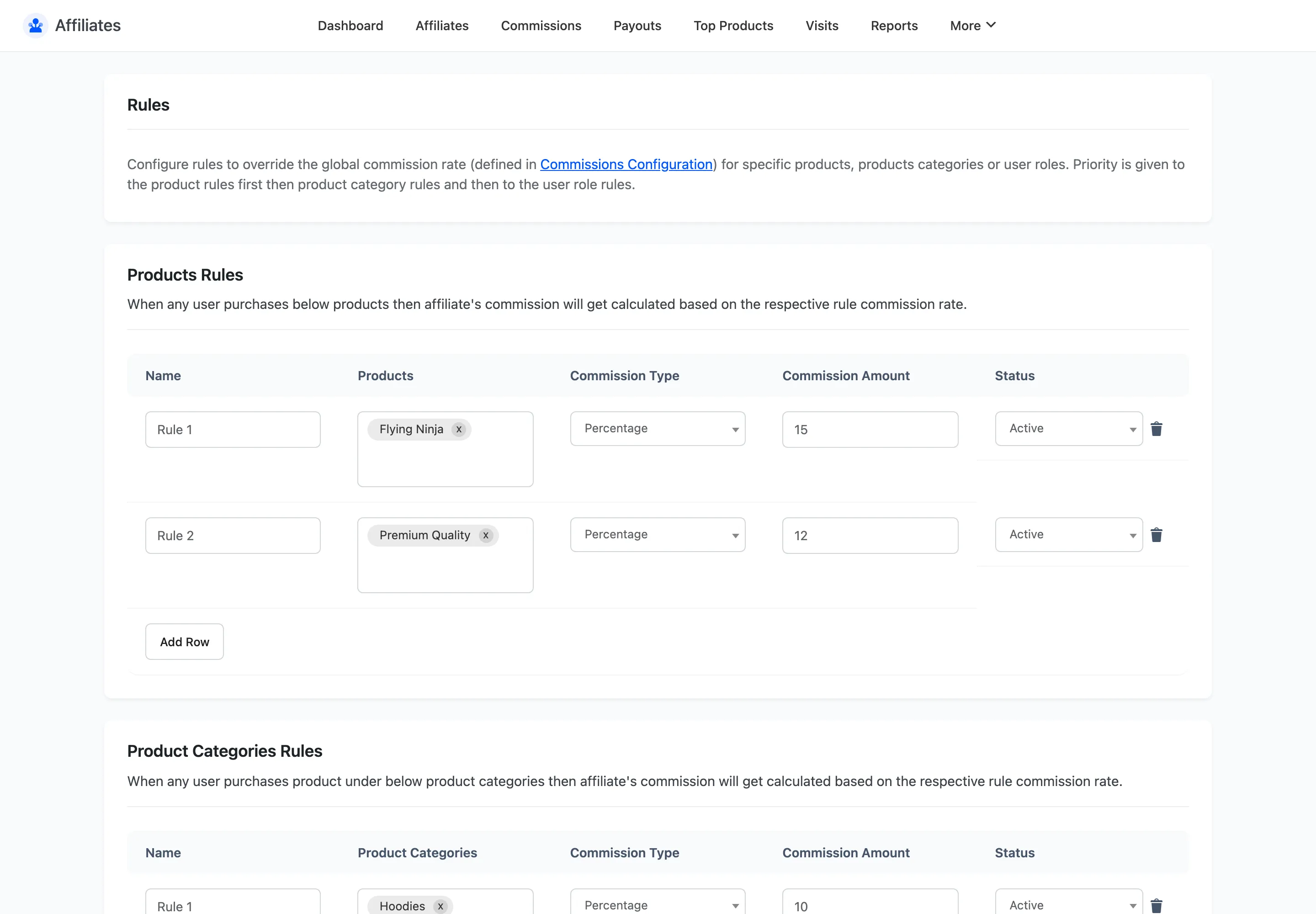
Step 1 is the one that surprises people. If a product rule covers an item, the affiliate’s personal rate is never consulted for that line. Raising a strong partner to 20% does nothing on products already covered by a 12% product rule.
Steps 1 and 3 are Pro. In the free version the chain is two steps: the affiliate’s own rate if set, then the global default.
Step 5: Know the cap
Section titled “Step 5: Know the cap”A commission is never larger than the line total it came from. If a fixed-amount rule pays 50 on a 30 item, the commission is 30.
Percentage rates cannot exceed 100, so the cap only ever bites on fixed rules.
Step 6: Check what actually applied
Section titled “Step 6: Check what actually applied”Do not assume. Place a test order and read it back.
- Open the referral link in a private browsing window, not your admin session. An administrator’s click is ignored on purpose.
- Buy the product you want to check.
- Go to DevDiggers Plugins → Affiliates → Commissions.
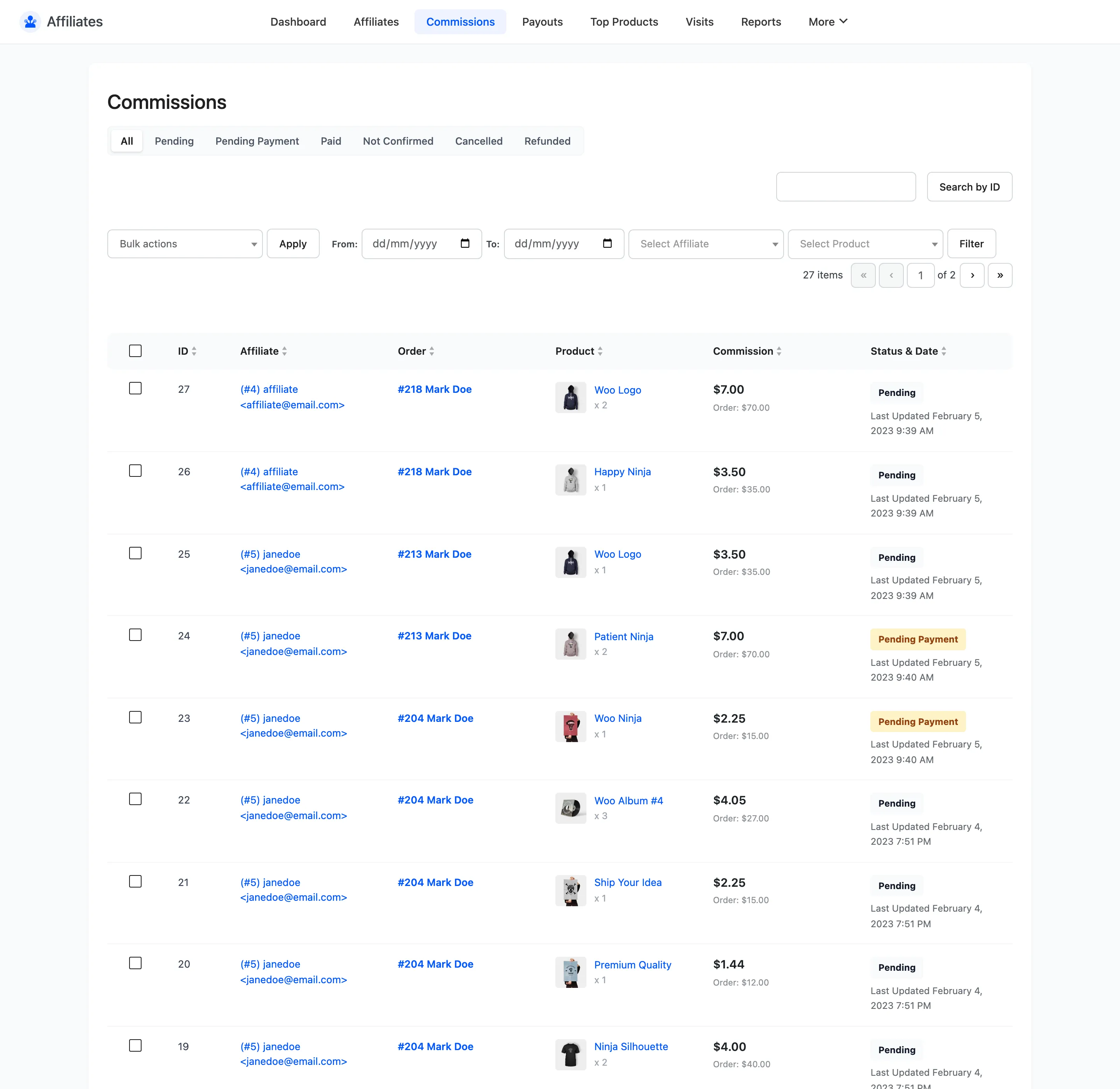
The Commission column shows the amount, with the line total under it. Divide one by the other and you have the rate that actually applied. If it is not the one you expected, work back up the chain in step 4.
One row appears per line item, so an order with three products produces three commissions, each resolved independently.
Step 7: Exclude what should not earn
Section titled “Step 7: Exclude what should not earn”Some products cannot carry a commission at all. Gift cards, shipping-only items, deposits.
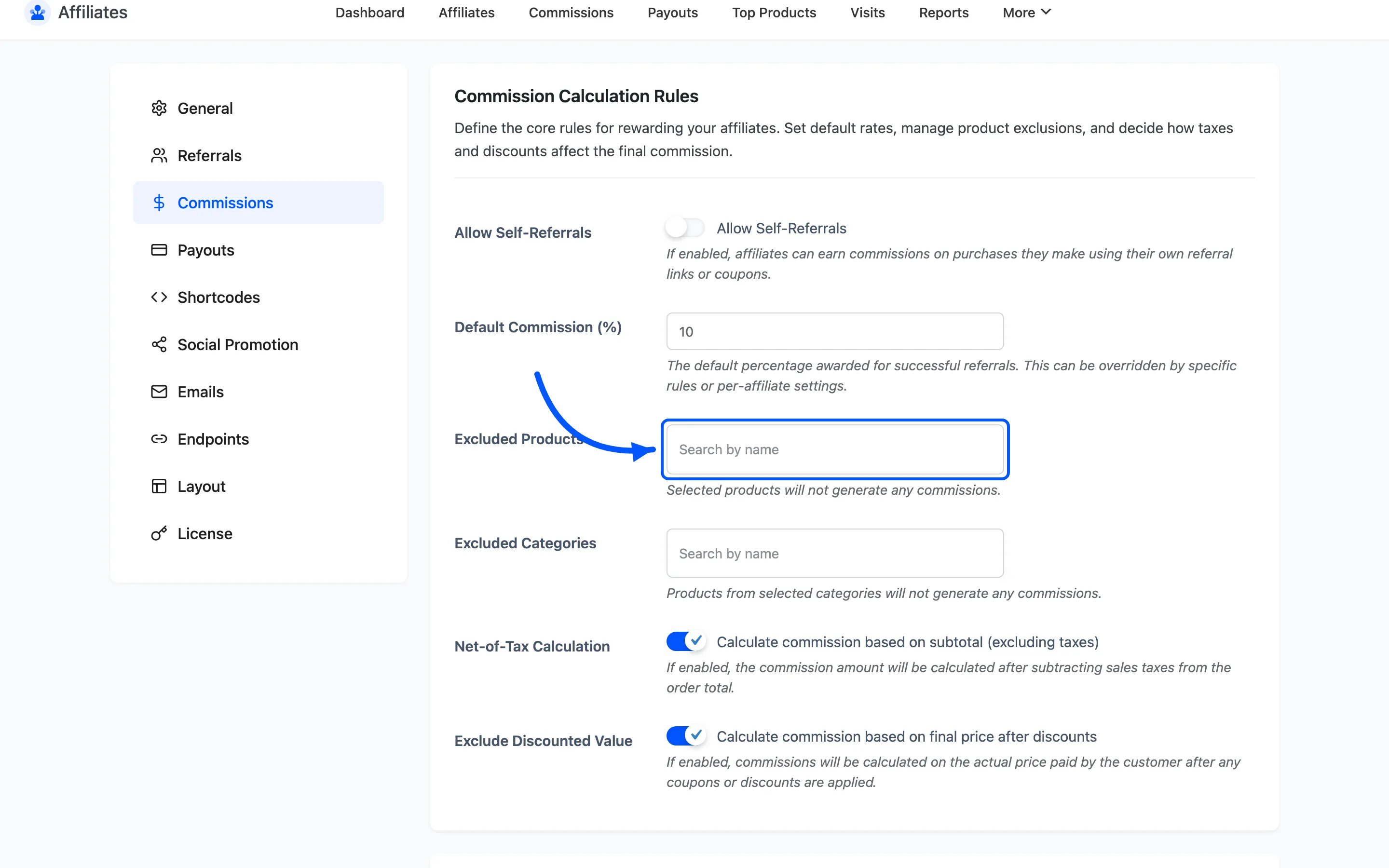
Excluded Products and Excluded Categories stop the selected items generating anything. A category exclusion also covers products in child categories.
Where to go next
Section titled “Where to go next”- How to Create Commission Rules for per-product rates.
- How to Set Up Tiered Commissions to raise rates automatically as affiliates earn.