

Installing and Activating Affiliates
Affiliates for WooCommerce installs like any other WooCommerce extension. Activation also creates a user role and a dashboard page, so check for those before you configure anything.
Before you start
Section titled “Before you start”WooCommerce must be active first. The plugin lists WooCommerce as a required plugin and will not run without it.
- WordPress 6.0 or newer
- WooCommerce 8.5 or newer
- PHP 7.4 or newer
The plugin declares compatibility with WooCommerce High-Performance Order Storage, so leave HPOS switched on if you use it.
Install from a downloaded zip
Section titled “Install from a downloaded zip”Use this for the Pro version bought from DevDiggers.
-
In WordPress admin, go to Plugins → Add New Plugin.

-
Click Upload Plugin at the top of the screen.

-
Click Choose File and select the plugin
.zipyou downloaded.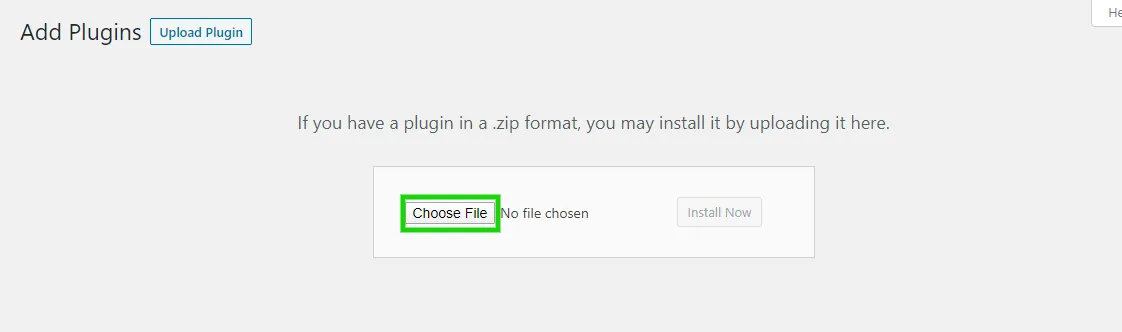
-
Click Install Now.
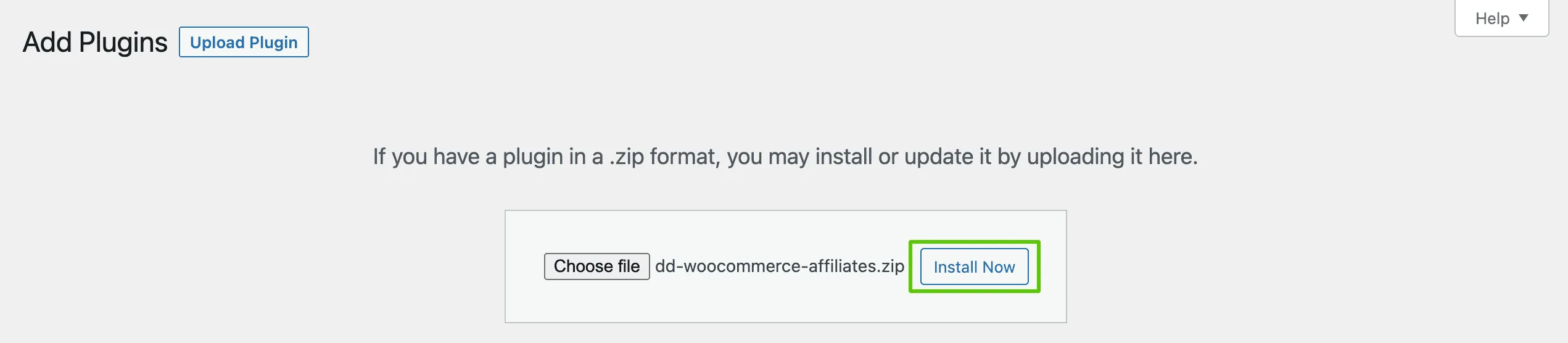
-
When the install finishes, click Activate Plugin.

Do not unzip the file first. WordPress expects the .zip, not the folder inside it.
Install the free version from the directory
Section titled “Install the free version from the directory”- Go to Plugins → Add New Plugin.
- Search for
Affiliates for WooCommerce. - On the plugin card, click Install Now, then click Activate.
What activation creates
Section titled “What activation creates”Activation is not silent here. It sets up four things you will use straight away.
- An Affiliate user role: Every approved affiliate is moved to it. The role has read access and nothing more, so an affiliate can never reach your admin screens.
- An Affiliate Dashboard page, published with
[ddwcaf_affiliate_dashboard_shortcode]already in it. - Four database tables for visits, commissions, commission meta and payouts.
- The setup wizard, which opens the first time you visit the plugin.
Confirm the plugin is active
Section titled “Confirm the plugin is active”The plugin appears as Affiliates under DevDiggers Plugins in the admin sidebar. Open it to reach the dashboard, the settings and every management screen.
Then go to Pages and check that an Affiliate Dashboard page exists. That page is what
affiliates log in to, and the setup wizard asks you to point at it. If it is missing, create a page
and paste [ddwcaf_affiliate_dashboard_shortcode] into it.
If the admin menu is missing, open Plugins → Installed Plugins and confirm both the plugin and WooCommerce are active.
Activate your Pro licence
Section titled “Activate your Pro licence”Where to go next
Section titled “Where to go next”- Setup Wizard to get a working program live in five steps.
- General Settings to point the plugin at your dashboard page.