

How to Pay Affiliates Automatically With Stripe (Pro)
Stripe cannot pay a plain email address the way PayPal can. Every affiliate connects a Stripe Express account once, in a hosted flow where Stripe collects their identity and bank details directly, and your store never sees either. After that, payouts transfer to that account.
That extra step buys you something real: Stripe handles the identity checks, the bank details and the compliance, and you hold none of it.
1. Enable Connect, and finish the platform profile
Section titled “1. Enable Connect, and finish the platform profile”Turn Connect on from Stripe Connect in your Stripe dashboard.
Then complete your Connect platform profile. Stripe asks who covers losses and who collects requirements, and it refuses to create any affiliate account until that is answered and saved.
2. Create an API key
Section titled “2. Create an API key”Go to Stripe API keys. Copy your standard secret key, or create a restricted key with write access to Connect transfers and accounts. The restricted key is the tighter option and the one to prefer.
A key beginning sk_test or rk_test puts the whole integration in test mode. There is no separate
environment switch to keep in sync, which is one fewer thing to get wrong than the PayPal setup.
3. Paste it into the Stripe Connect section
Section titled “3. Paste it into the Stripe Connect section”Go to DevDiggers Plugins → Affiliates → Configuration → Payouts and scroll to Stripe Connect.
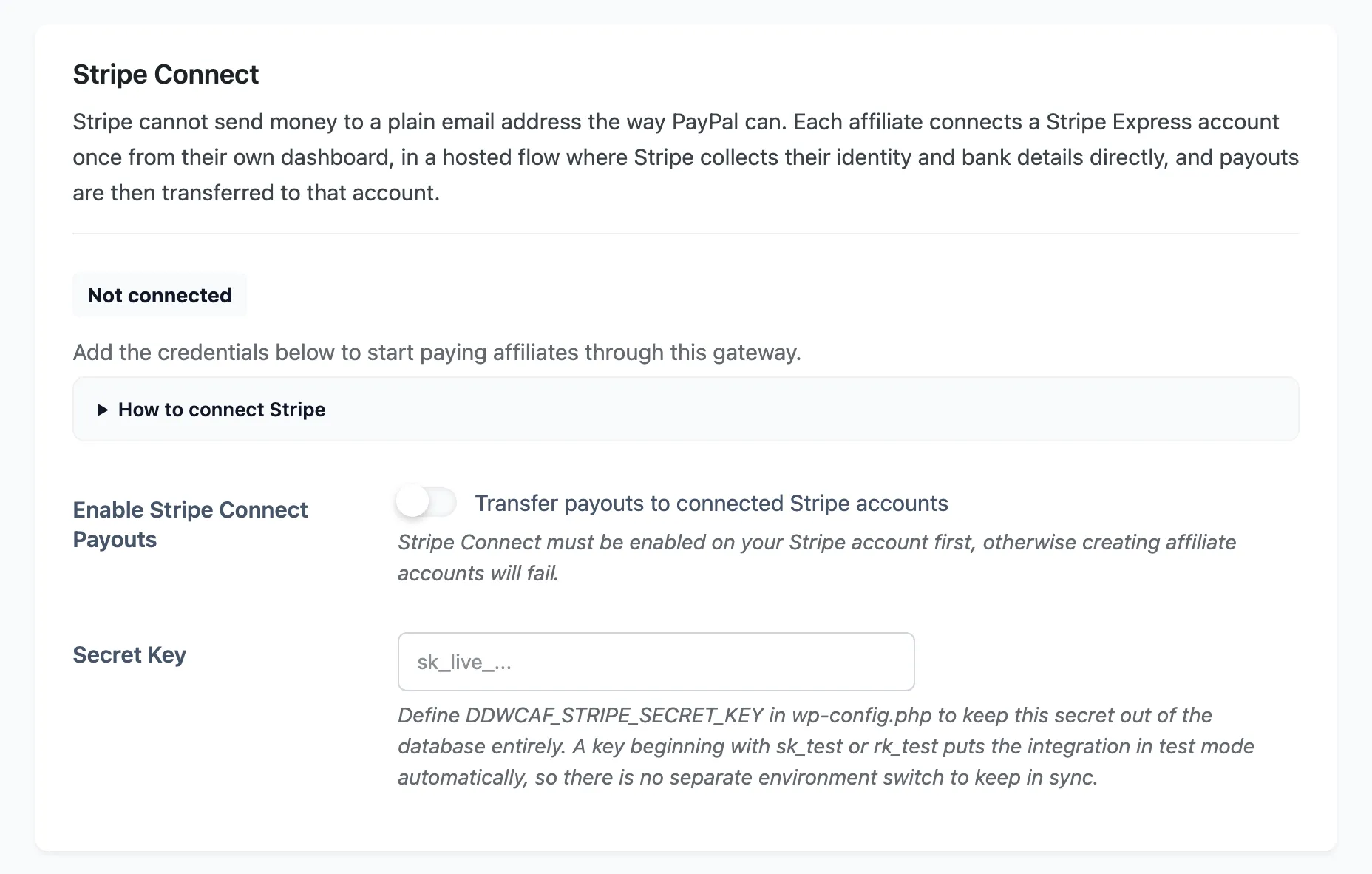
Paste the key into Secret Key and save. The same five steps are on the screen under How to connect Stripe.
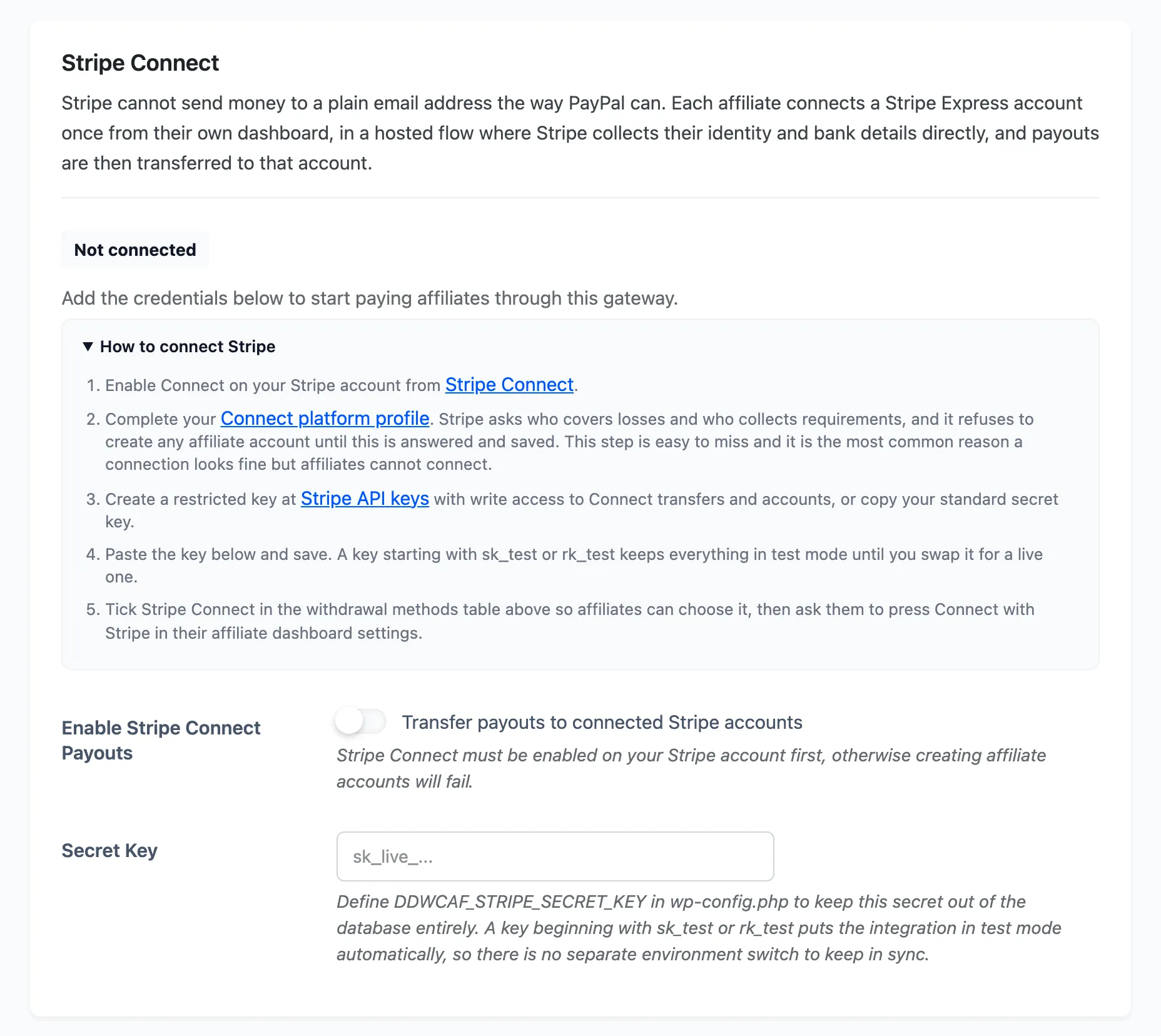
To keep the key out of the database, put it in wp-config.php instead:
define( 'DDWCAF_STRIPE_SECRET_KEY', 'sk_live_your_key' );4. Test, then enable
Section titled “4. Test, then enable”Press Test connection beside the status line. A test key reports Connected in test mode, which is exactly where you want to be first.
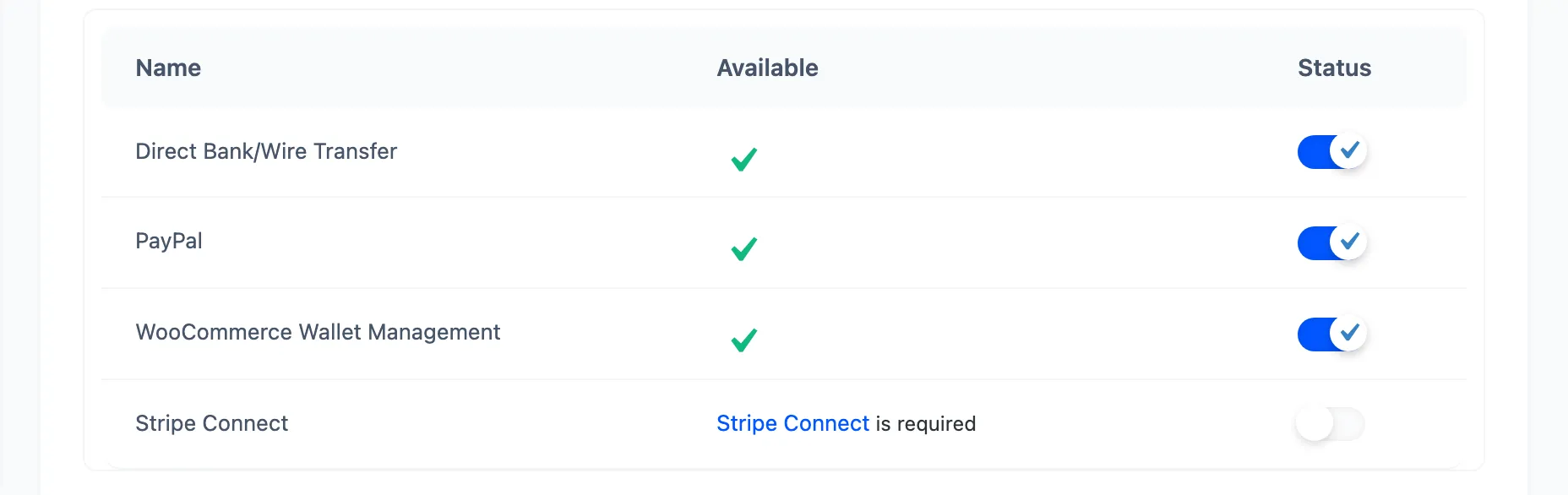
Then tick Enable Stripe Connect Payouts, scroll up, and tick Stripe Connect in the Withdrawal Methods table. Until you do, the row reads Stripe Connect is required and no affiliate can pick the method.
5. Ask your affiliates to connect
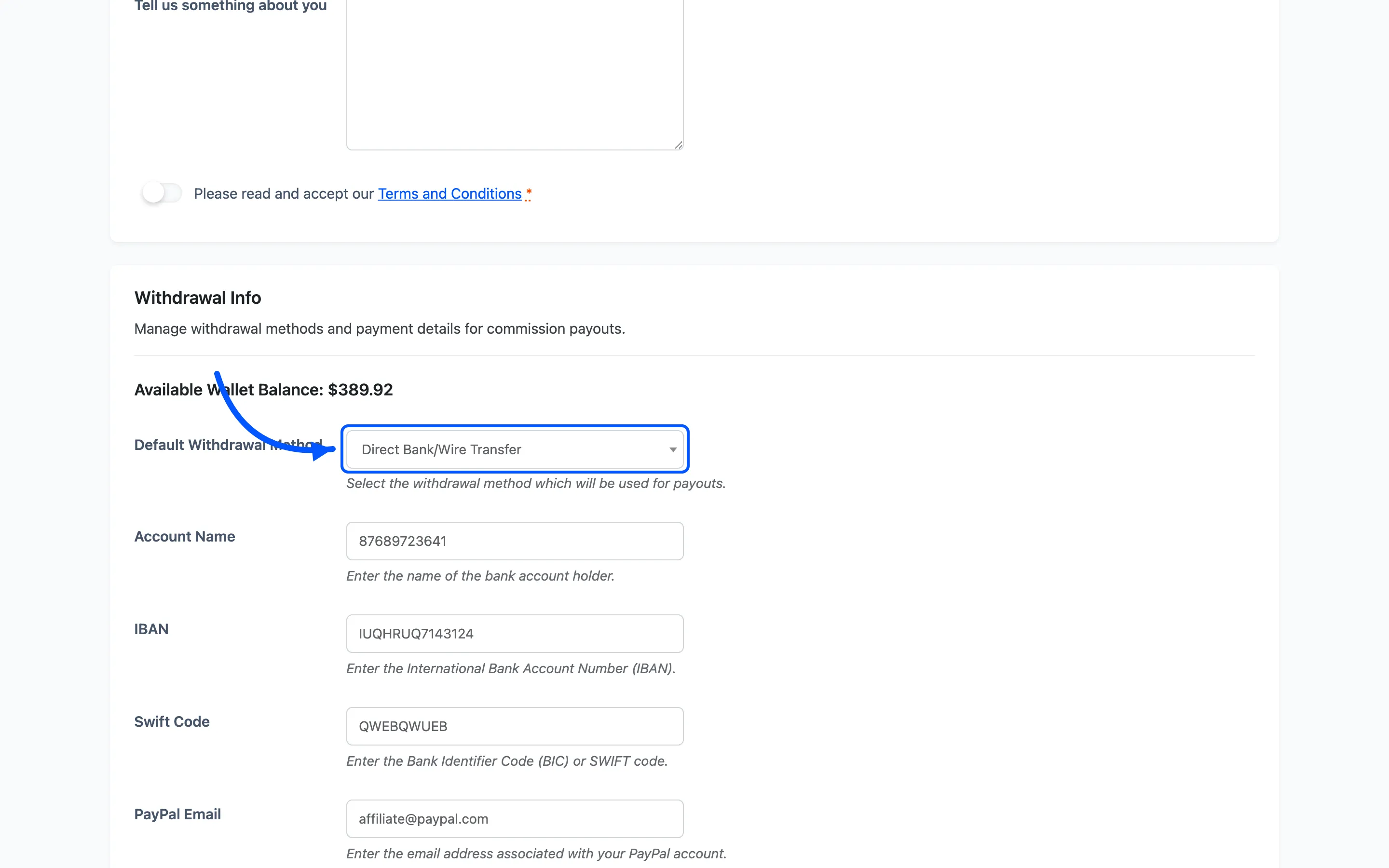
Section titled “5. Ask your affiliates to connect”An affiliate opens Settings → Withdrawal Info on their dashboard, where a Stripe Connect block now appears, and presses Connect with Stripe. Stripe takes it from there.
What they see afterwards depends on how far Stripe got:
- Connect with Stripe means they have not started.
- Finish Stripe setup means the account exists but Stripe still wants details before it will pay anything out.
- The account id plus Open Stripe dashboard means they are ready.
An affiliate who already connected a Stripe account to your store can paste its id into Or use an existing account instead of onboarding a second time.
The Payout Readiness panel below spells out anything still outstanding.

Linking an account yourself
Section titled “Linking an account yourself”You can attach an account on the affiliate’s behalf. Open the affiliate, find Stripe Connect in
the Withdrawal Info block, and paste an id beginning acct_ into Connected Account ID.
Use it for a migration, or for a partner who onboarded to your platform somewhere else. Clearing the field unlinks the account without closing anything at Stripe.
6. Send one payout
Section titled “6. Send one payout”Open a small pending payout from a connected affiliate and set it to Completed. Read the Gateway Log on that screen rather than trusting the status alone.
Reversals are the reason to be careful
Section titled “Reversals are the reason to be careful”Taking a completed Stripe payout back out of Completed reverses the transfer and pulls the money back. That is what keeps the ledger and the bank in step, and it is not undone by switching the gateway off afterwards.
How Automatic Payouts Work covers the reversal rules in full.
Where to go next
Section titled “Where to go next”- How to Pay Affiliates Automatically With PayPal for the simpler gateway.
- Payout Settings for every field on the tab.