

How to Handle Refunds and Reversals
Refunds are the part of an affiliate program nobody sets up in advance and everybody meets in month two. The plugin handles most of it, but one case needs you.
What the plugin does automatically
Section titled “What the plugin does automatically”Everything below happens without any setting to turn on, in both the free and Pro versions.
| What you do in WooCommerce | What happens to the commission |
|---|---|
| Refund the whole order | Every row on the order flips to Refunded |
| Refund one line item | That row’s amount is reduced and the refund is recorded |
| Cancel the order | Every row flips to Cancelled |
| Mark the order Failed | Every row flips to Cancelled |
| Move the order back to Processing | Rows return to Pending |
Step 1: Refund the order
Section titled “Step 1: Refund the order”Refund in WooCommerce exactly as you normally would. There is no affiliate step, and no separate screen to visit.
The plugin listens for the refund and updates the commissions itself.
Step 2: Read what happened
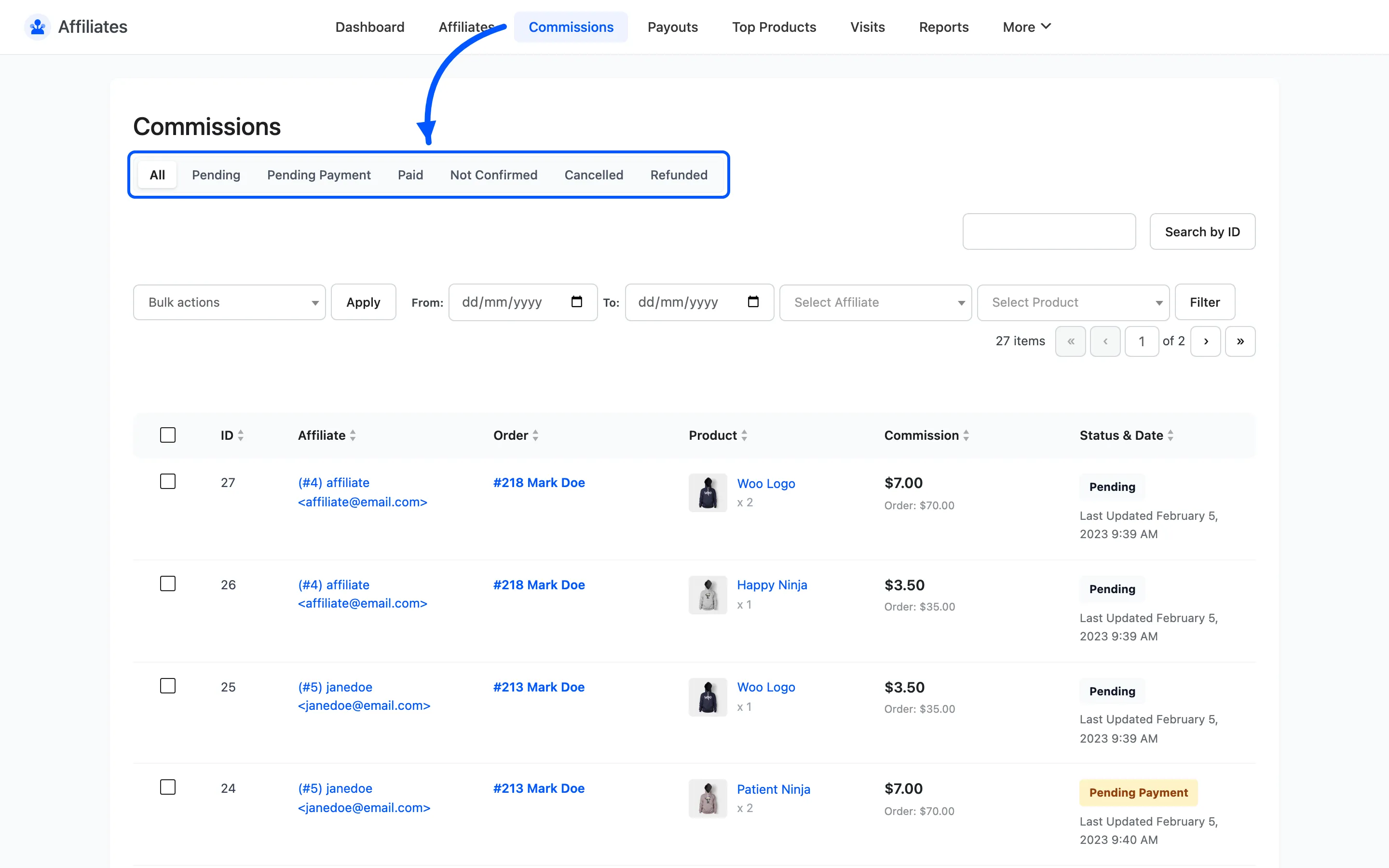
Section titled “Step 2: Read what happened”Go to DevDiggers Plugins → Affiliates → Commissions and find the order.
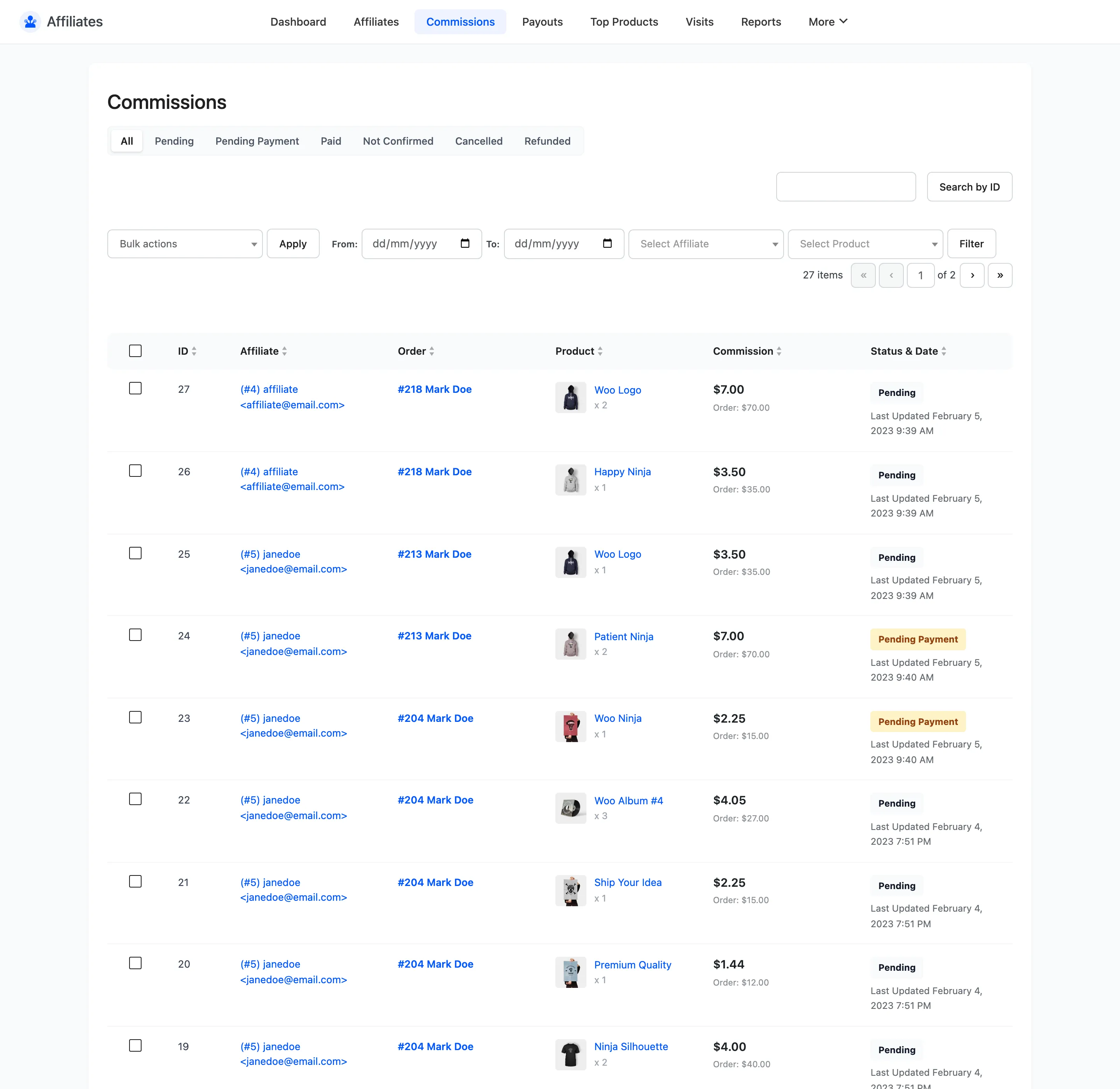
Use the status links above the table to jump straight to Refunded.
Step 3: Understand full against partial
Section titled “Step 3: Understand full against partial”The two cases behave differently, and the difference is worth knowing before you refund anything.
- A full refund sets the WooCommerce order status to Refunded. Every commission on that order moves to Refunded and stops counting as money owed.
- A partial refund leaves the order status alone. The plugin instead recalculates the refunded line, subtracts the commission on the refunded amount, and stores that figure in the row’s refund column.
So a partial refund does not cancel a commission. It shrinks it, and the row stays payable at the smaller amount.
Step 4: Check whether it was already paid
Section titled “Step 4: Check whether it was already paid”This is the case the plugin will not solve for you.
A commission sitting at Pending payment or Paid is skipped by the status change. It keeps its status and its amount, whatever happens to the order afterwards.
That is deliberate. Once a commission is inside a payout you have committed to, silently rewriting it would leave your payout records disagreeing with your own records.
Step 5: Recover a paid commission
Section titled “Step 5: Recover a paid commission”There is no reversal button on a commission, so handle it the way you would any other overpayment.
One exception is worth knowing. If the whole payout was wrong rather than one commission inside it, and it was sent through Stripe, taking the payout back out of Completed reverses the transfer and pulls the money back. That undoes a payment, not a commission, so it is the right move only when the entire payout should not have gone out. See How Automatic Payouts Work.
- Note the amount from the Refunded row.
- Tell the affiliate, before they see a smaller payout than they expected.
- Deduct it when you create their next payout, and put the reason in the transaction reference.
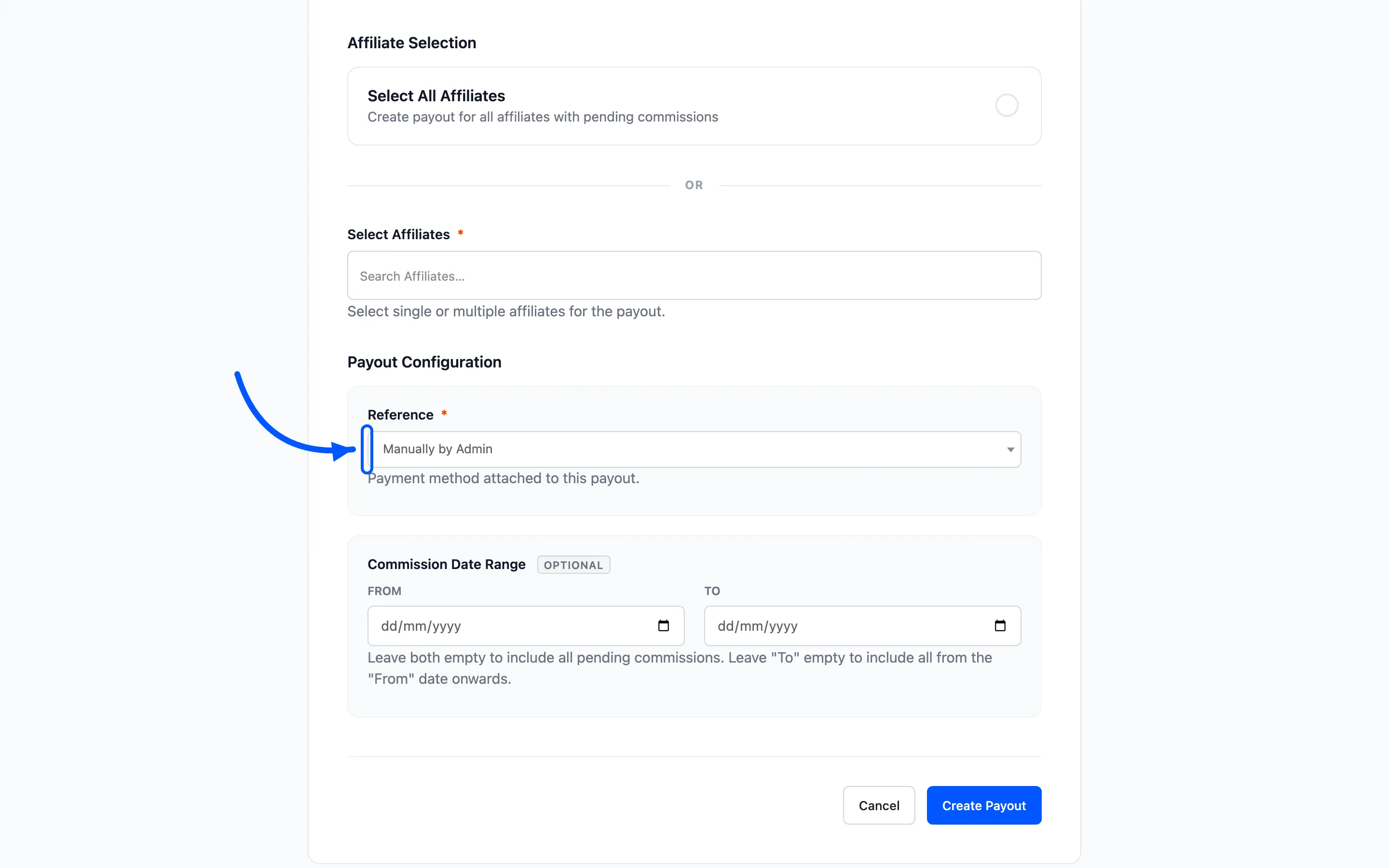
The reference field is the only free-text field on a payout, so it is the only place this can be recorded.
Prevent it instead
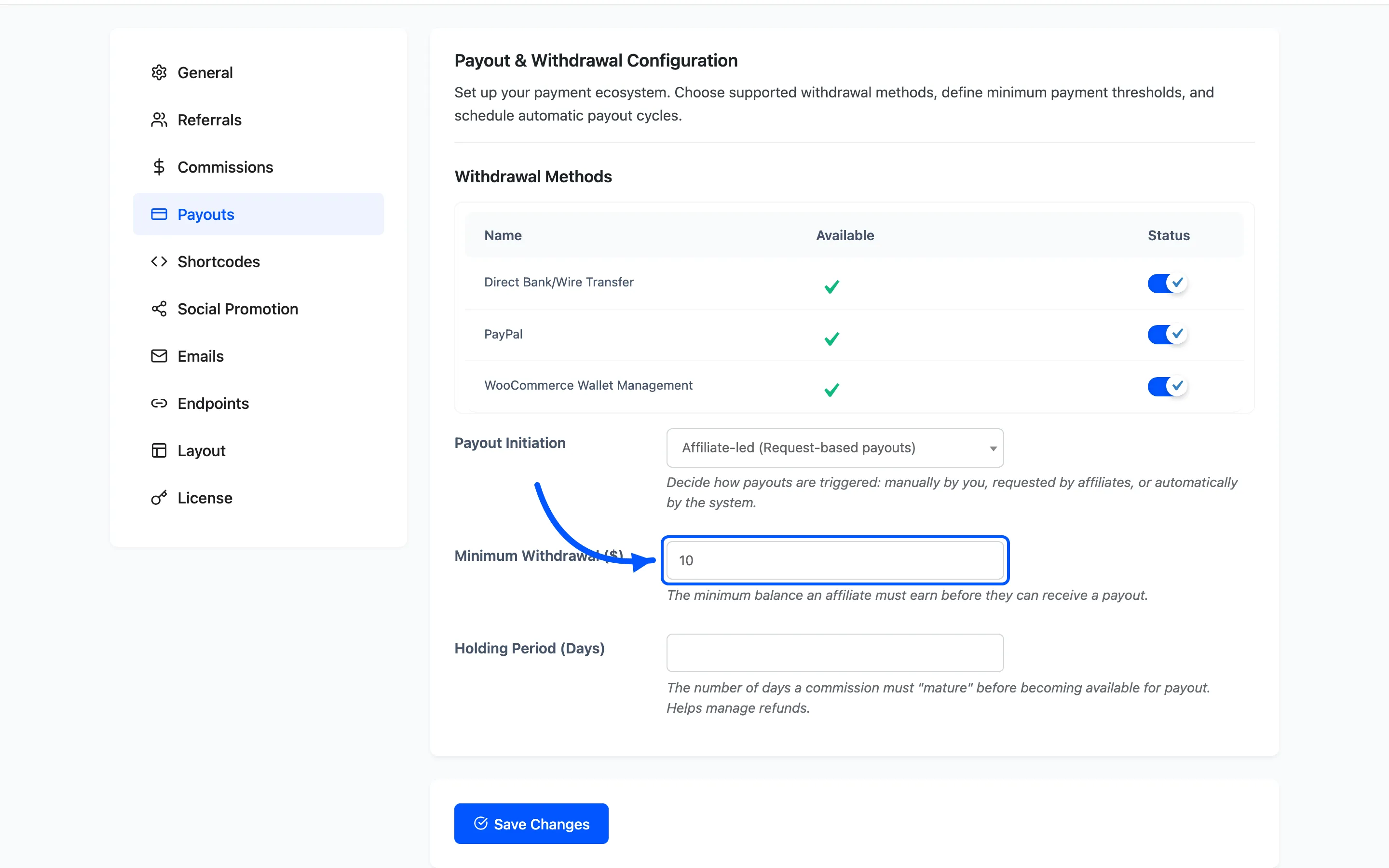
Section titled “Prevent it instead”The cheapest fix is not to pay too early. Two Pro settings exist for exactly this.
Commission Holding Period keeps a commission out of payouts until it is a set number of days old, which covers your normal return window.
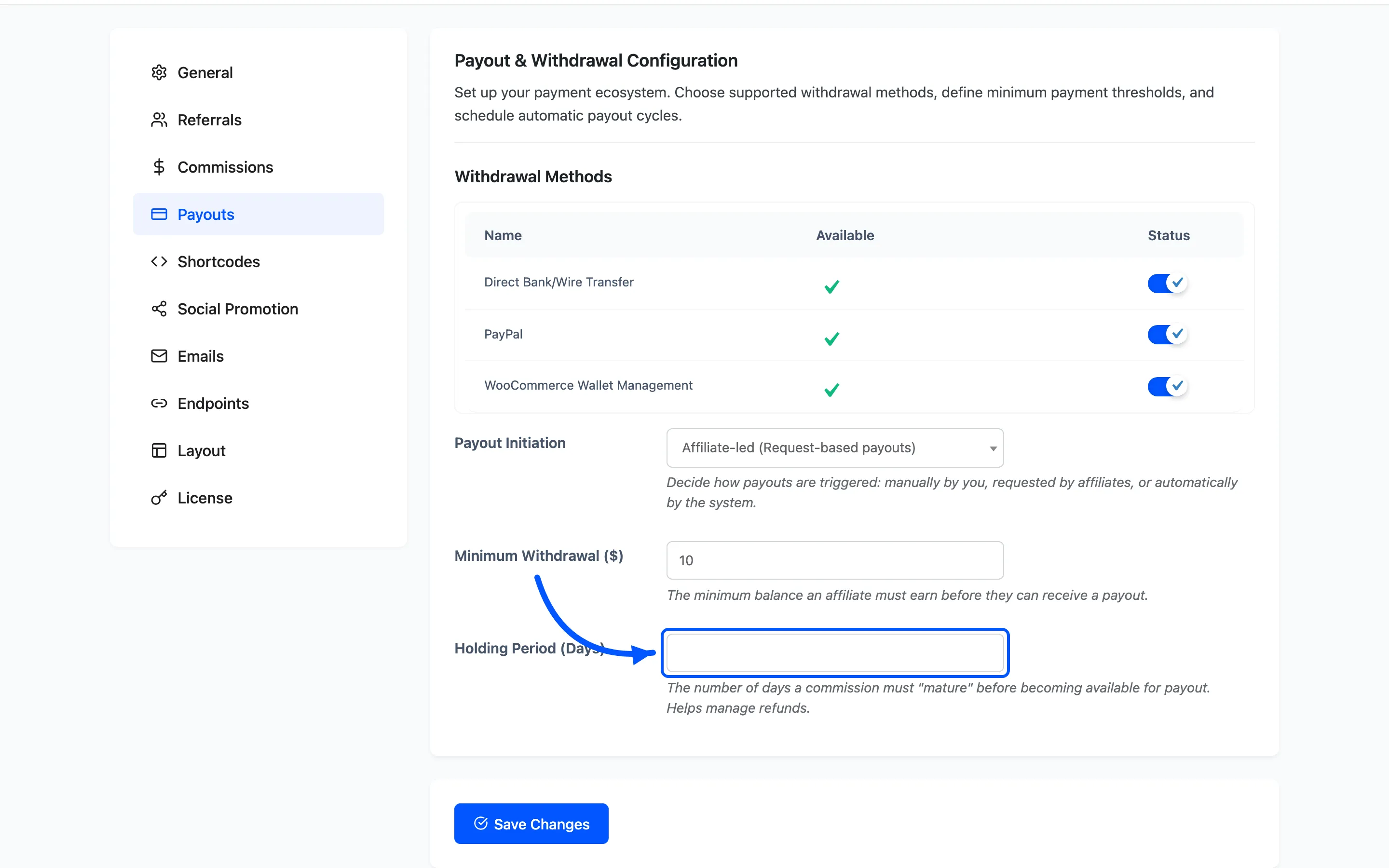
Minimum Withdrawal stops tiny payouts going out constantly, which reduces how often a refund lands after payment.
Watch the refund trend, not the refund
Section titled “Watch the refund trend, not the refund”One refund tells you nothing. A rising Refunded Commissions line under flat earnings tells you a partner is driving orders that do not stick.
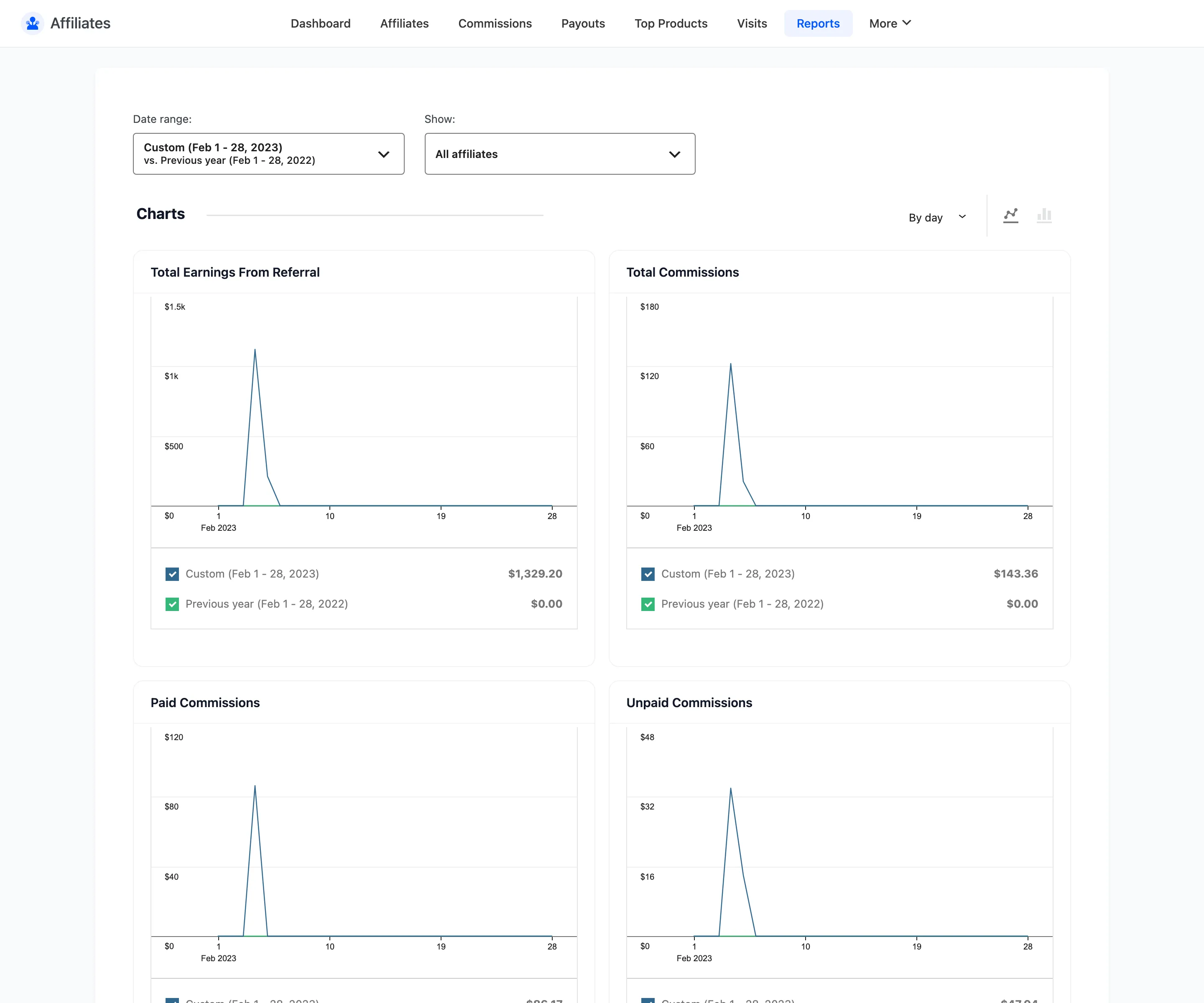
Filter Show to one affiliate at a time to find the source. Traffic that converts and then returns costs more than traffic that never converts.
Where to go next
Section titled “Where to go next”- Commissions for every status and filter on that screen.
- How to Pay Your Affiliates for the payout workflow this feeds.