

How to Refund a Pay Later Order
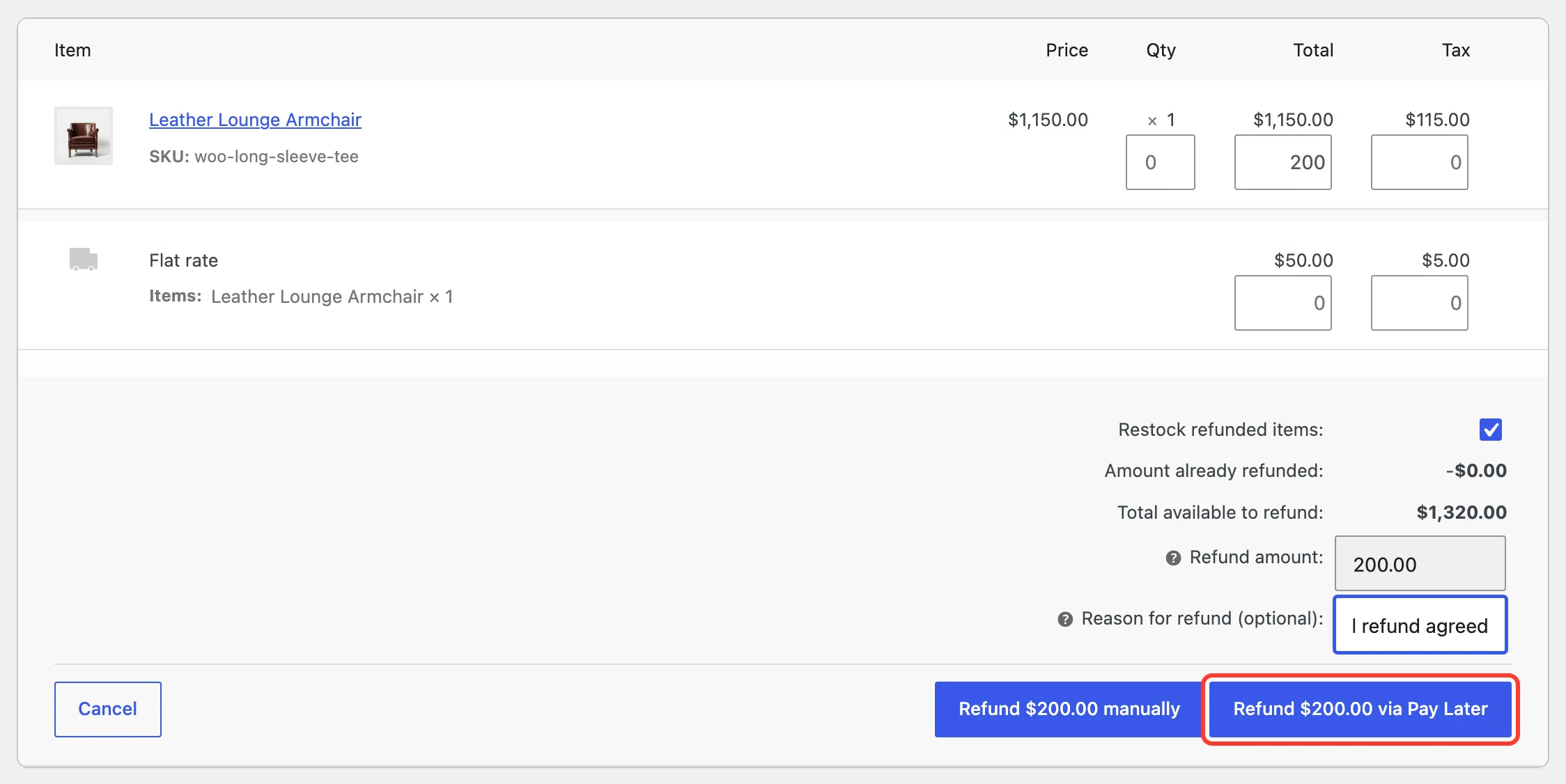
A Pay Later order is refunded like any other WooCommerce order. The money goes back on the customer’s credit instead of a card. The demo refunds $200.00 of Amara’s $1,320.00 armchair order, on the Pay monthly plan, for a scuffed armrest.
Step 1: Open the order
Section titled “Step 1: Open the order”Open the order under WooCommerce → Orders and click Refund under the items.
Step 2: Enter the refund
Section titled “Step 2: Enter the refund”Enter the refund against the line, or type the total in Refund amount. Add a Reason for refund: it becomes the note the customer sees.
Step 3: Refund through Pay Later
Section titled “Step 3: Refund through Pay Later”Click Refund $200.00 via Buy Now, Pay Later and confirm.
Step 4: Check the schedule
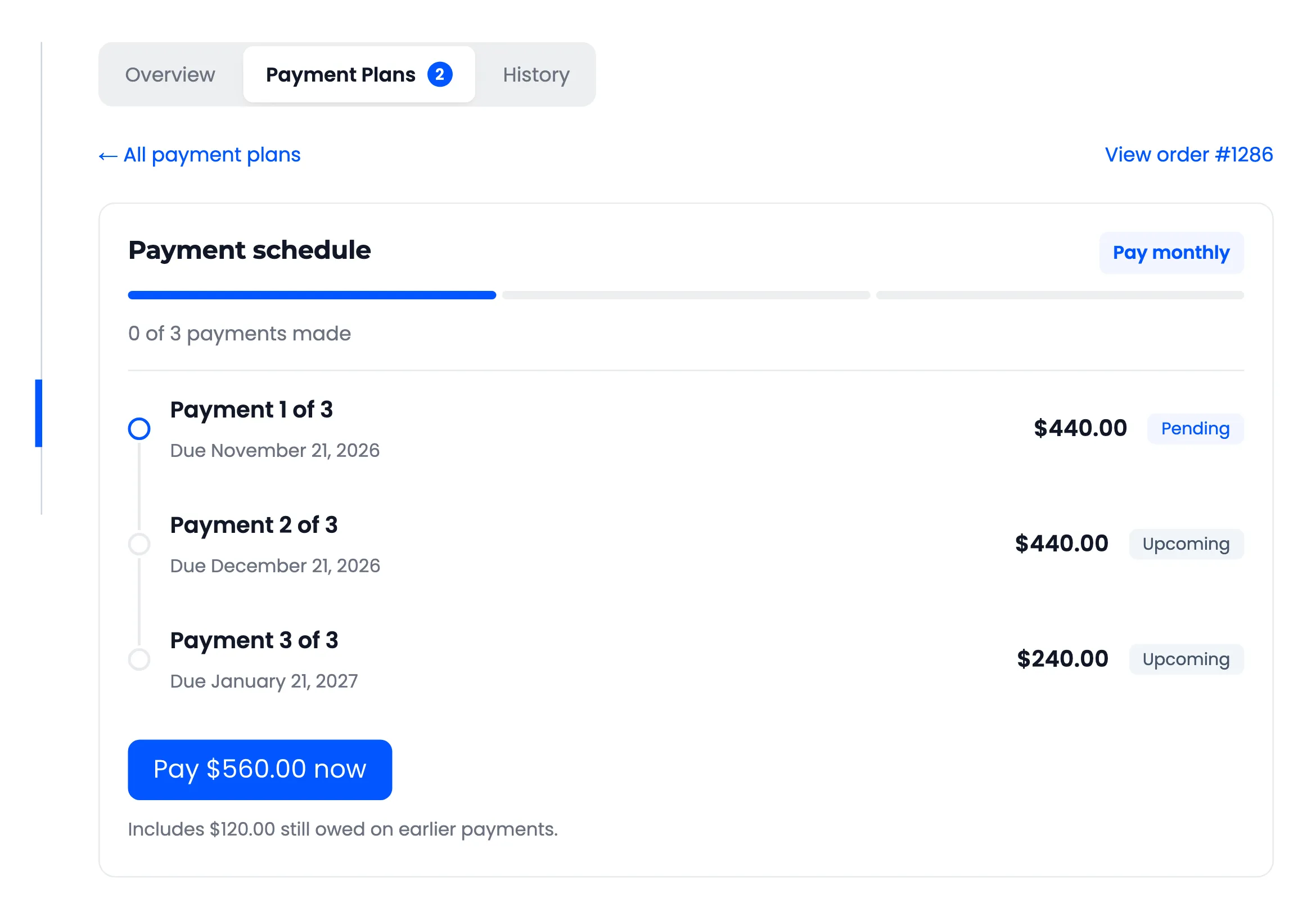
Section titled “Step 4: Check the schedule”The refund comes off the payments still to make, the last one first. Amara’s third payment of $440.00 dropped to $240.00, and her first two did not change.
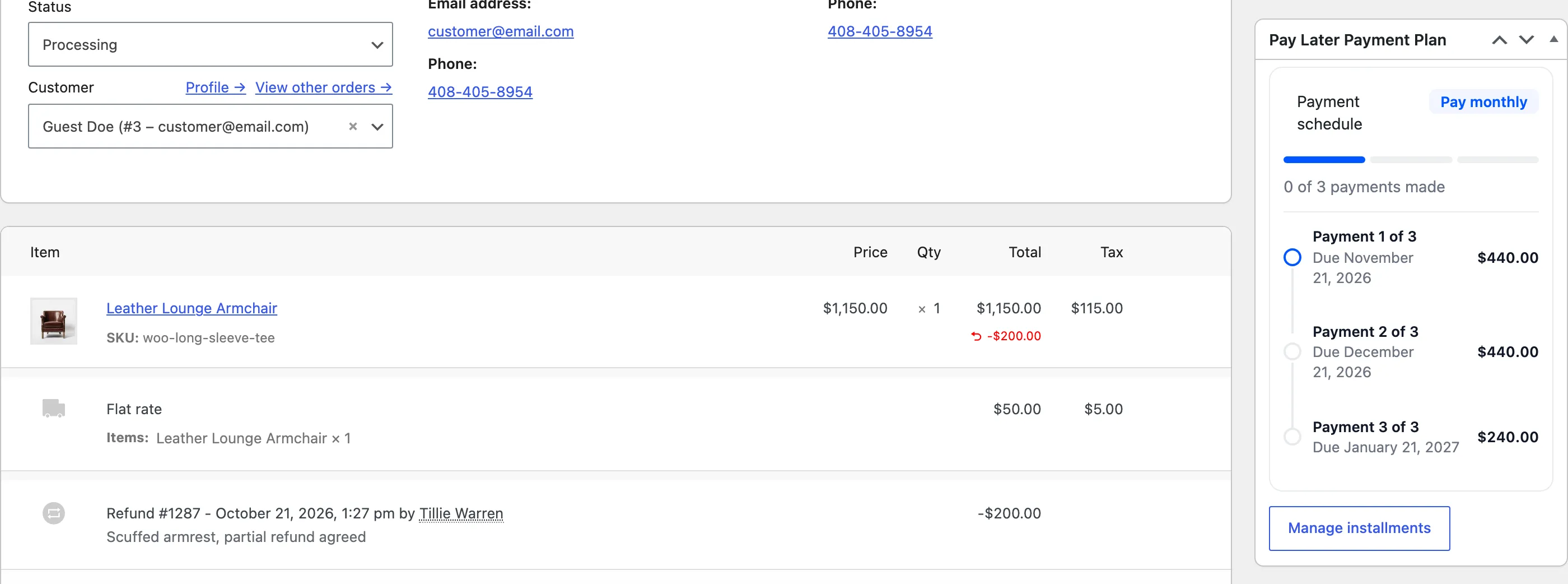
The order notes record the refund and the credit it returned.
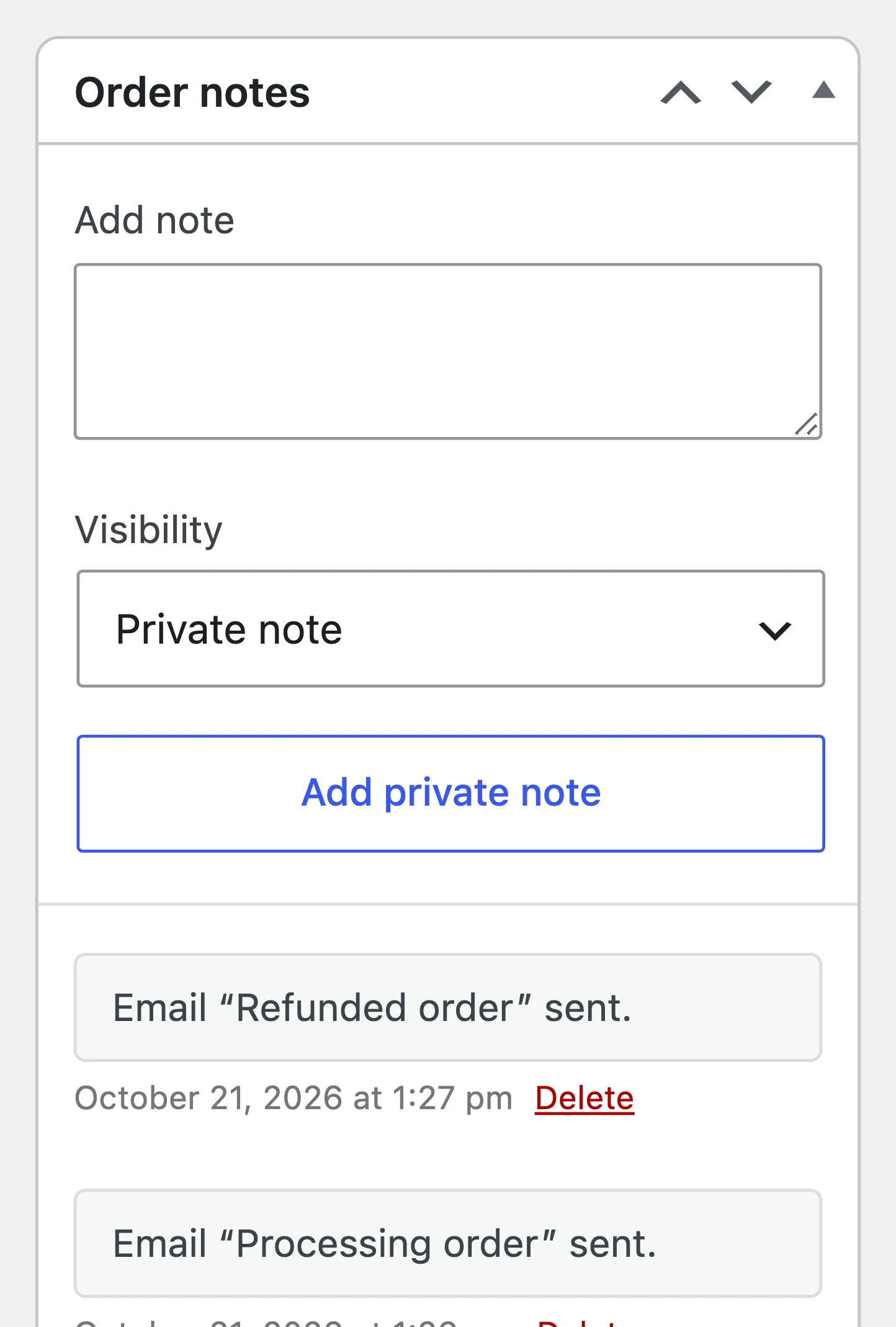
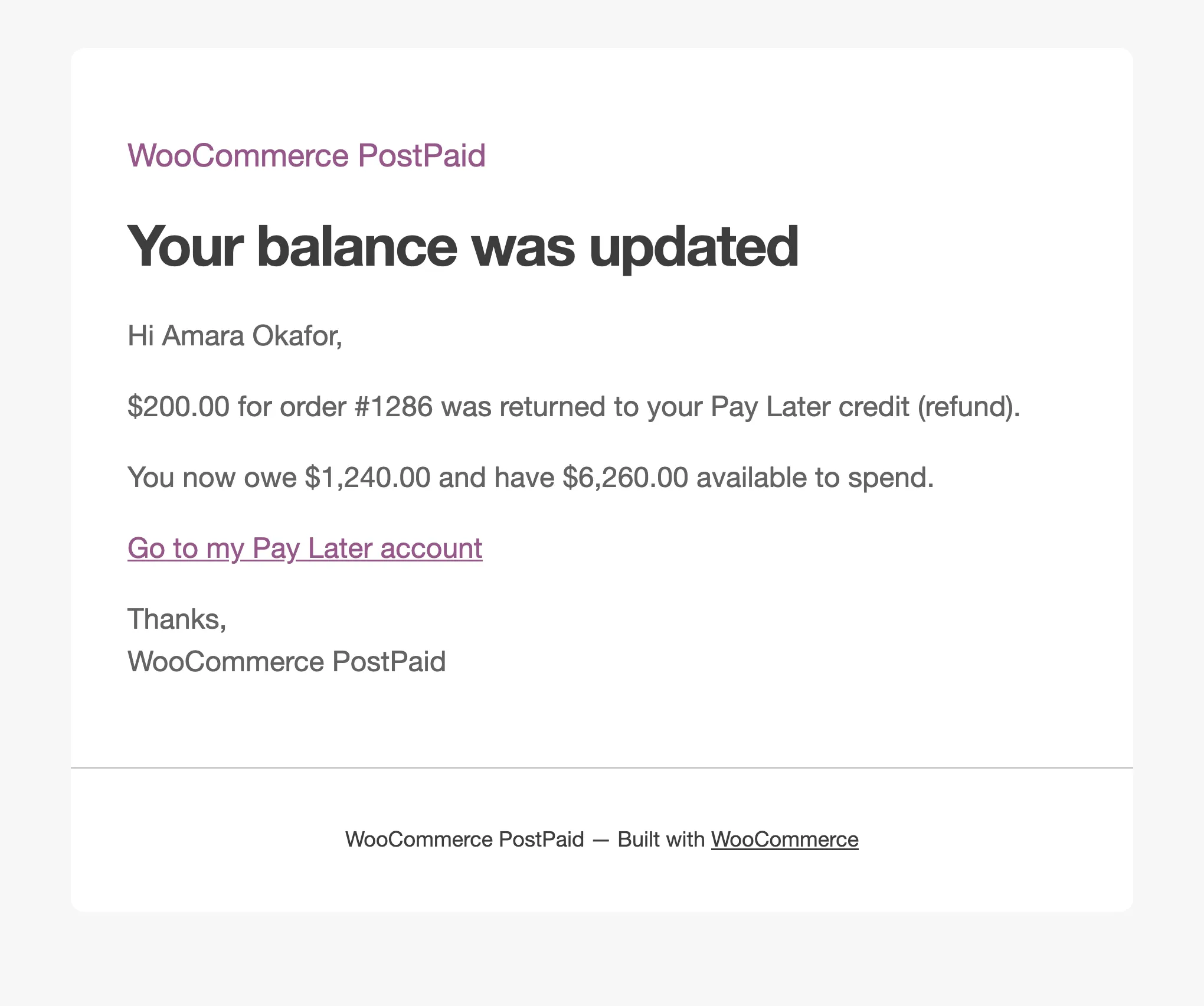
An Order Refund transaction is written, and Amara gets Your Pay Later balance was updated for order.
Late fees stay
Section titled “Late fees stay”A refund only reduces what the order itself costs. A late fee added to one of its payments stays owed, because it was earned by the missed date. Waive one with Adjust Balance.
To cancel an unpaid order outright, cancel it instead. See How to Cancel a Pay Later Order.