Appearance Settings (Pro)
The Appearance tab styles the Pay Later section in My Account. Open DevDiggers Plugins → Pay Later → Configuration → Appearance.
Layout
Section titled “Layout”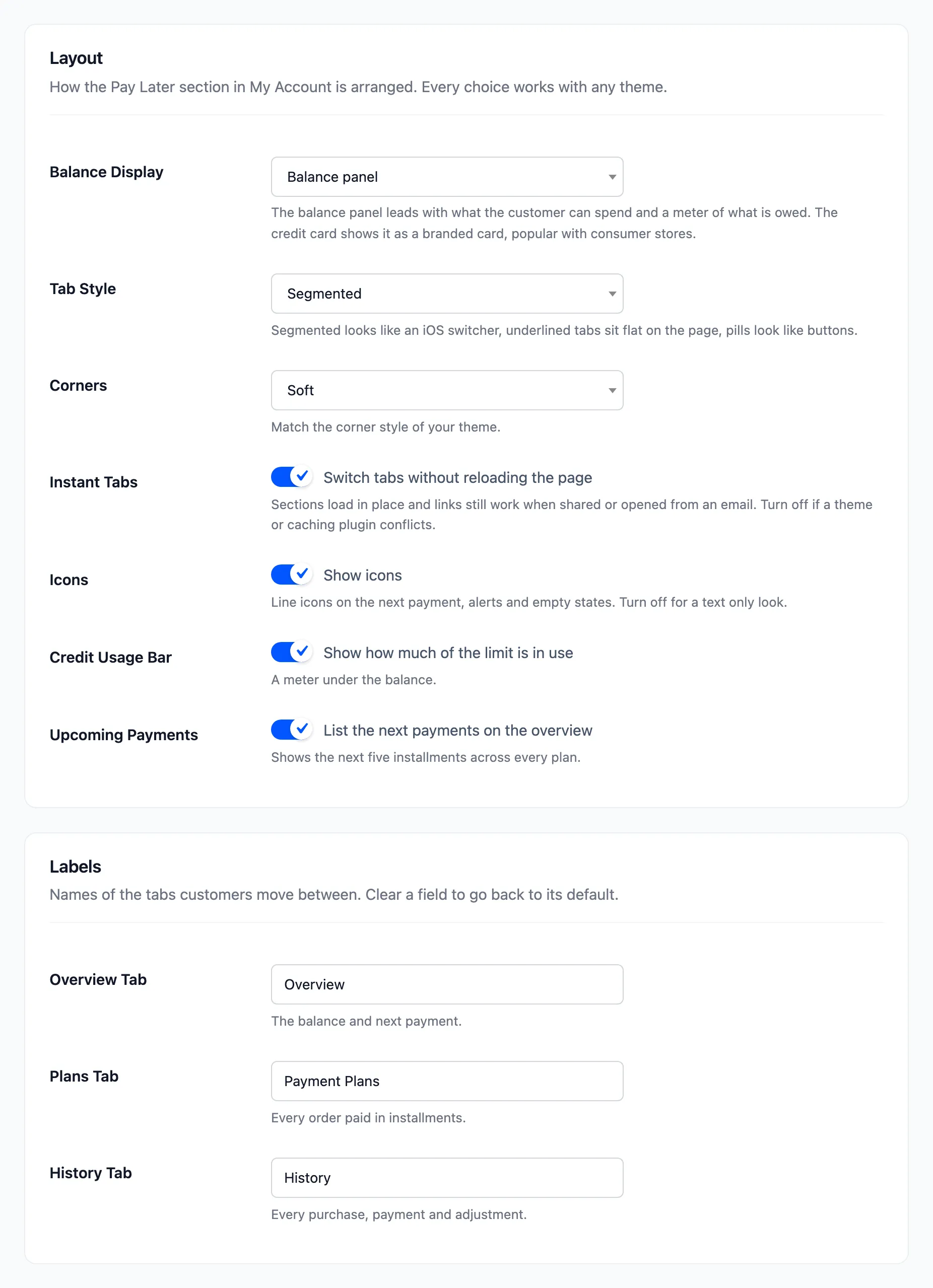
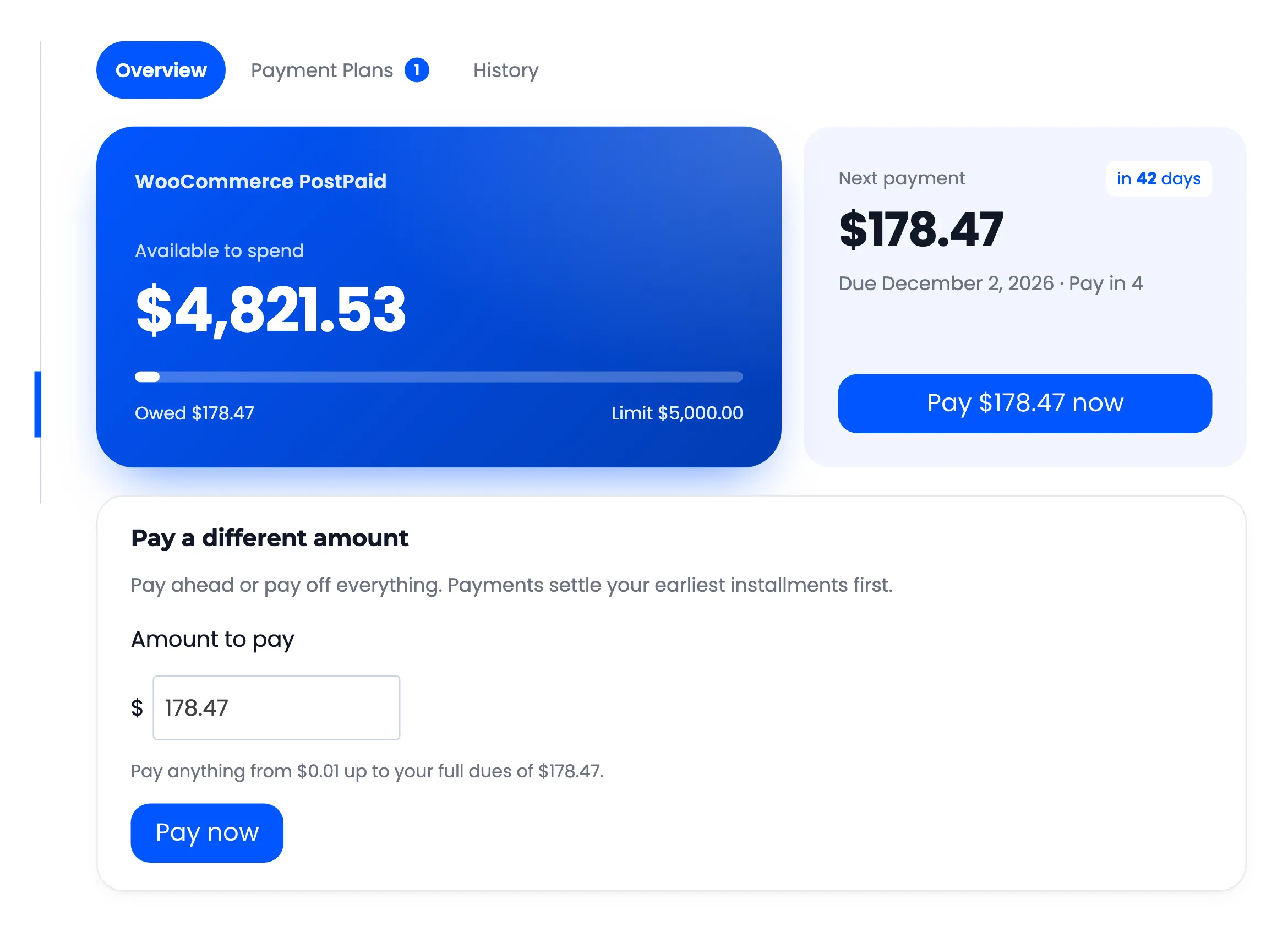
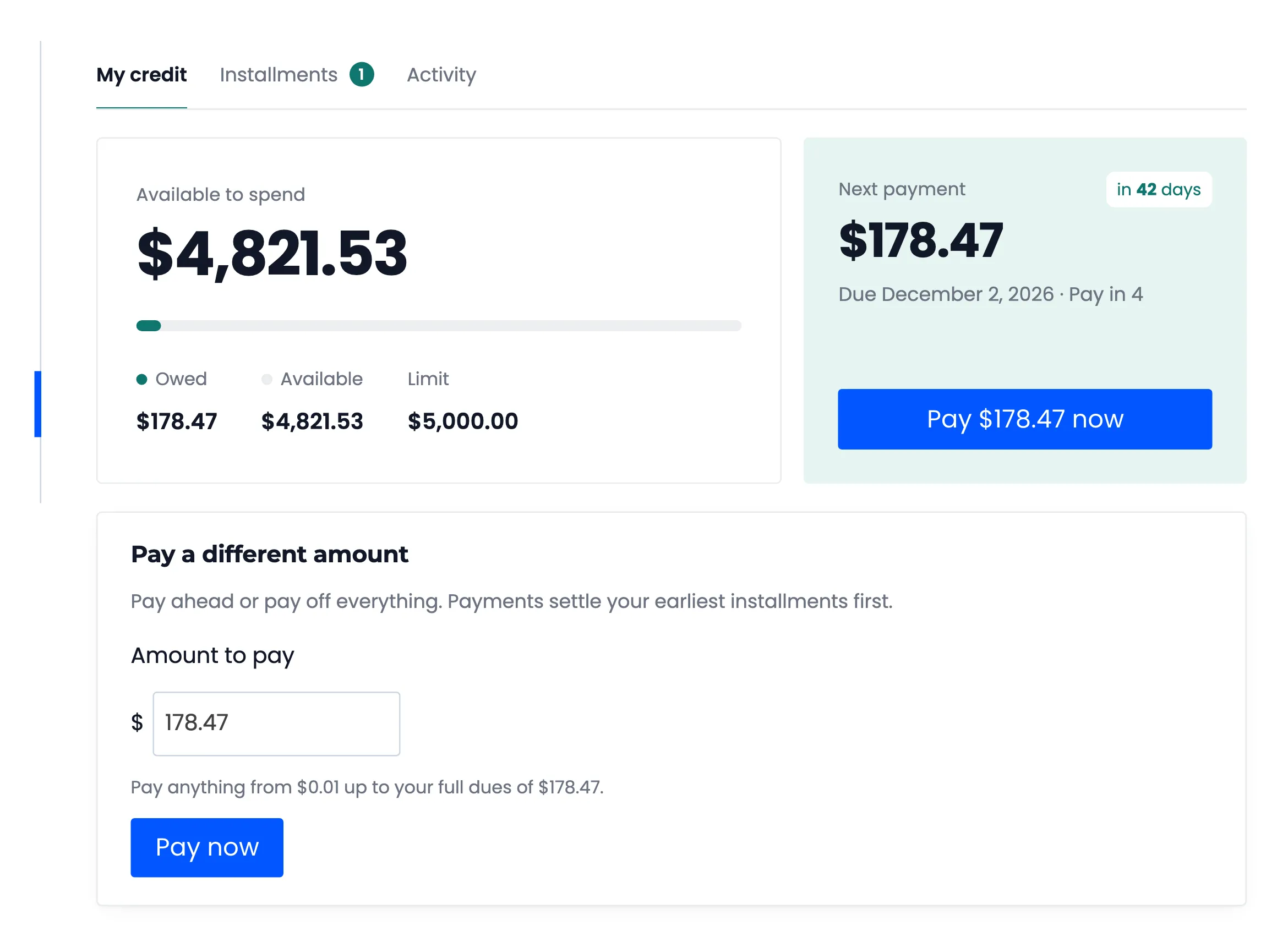
- Balance Display: Balance panel (default) leads with what the customer can spend and a meter of what is owed. Credit card shows it as a branded card.
- Tab Style: Segmented (default), Underline or Pills.
- Corners: Sharp, Soft (default) or Round.
- Instant Tabs: “Switch tabs without reloading the page”. On by default. Turn it off if a theme or caching plugin conflicts.
- Icons: “Show icons”. On by default.
- Credit Usage Bar: “Show how much of the limit is in use”. On by default.
- Upcoming Payments: “List the next payments on the overview”. On by default. Shows the next five installments across every plan.
Labels
Section titled “Labels”- Overview Tab: Default Overview.
- Plans Tab: Default Payment Plans.
- History Tab: Default History.
Clear a field to go back to its default.
Colors
Section titled “Colors”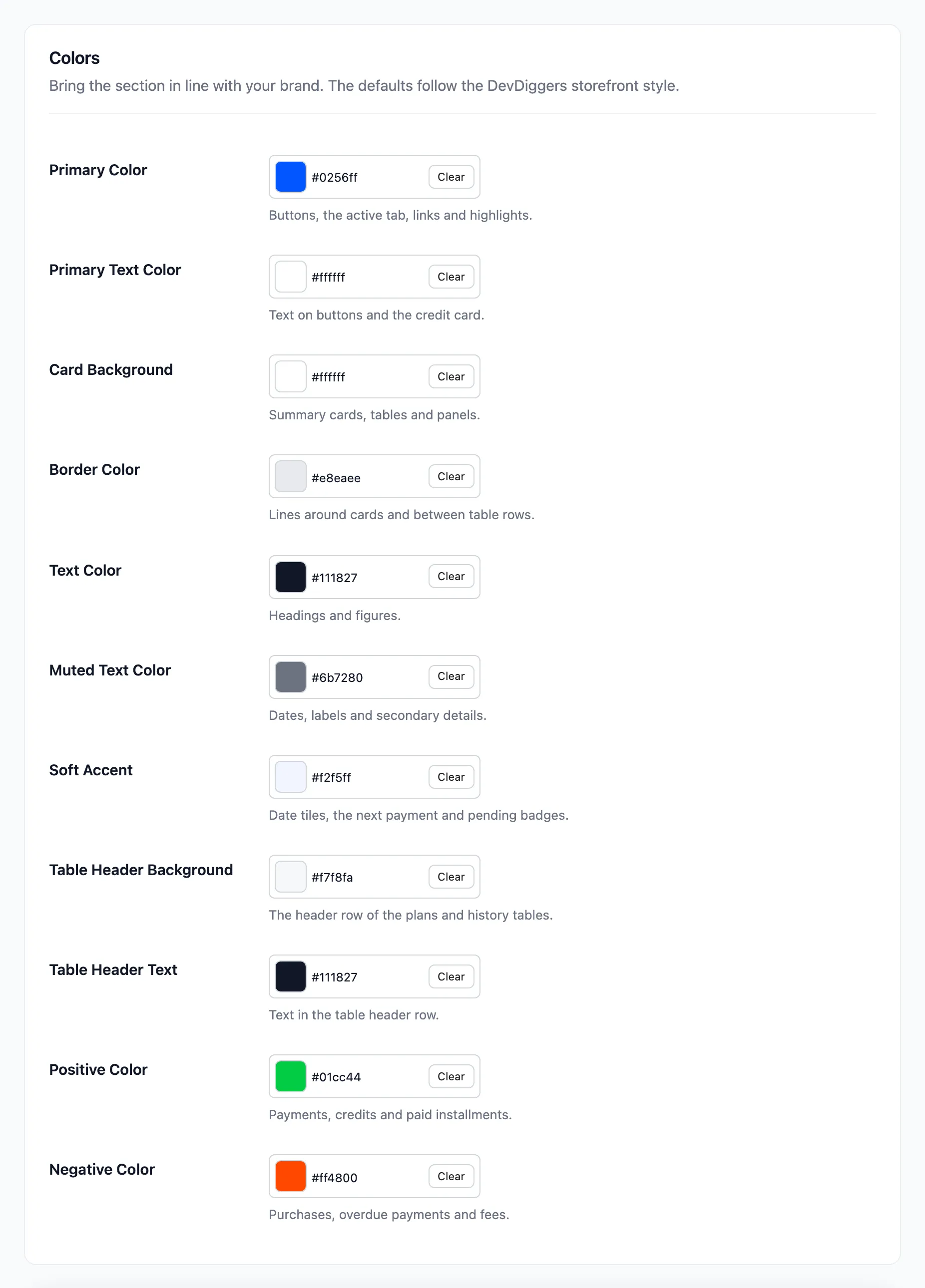
Eleven colors, each with its default:
- Primary Color: Buttons, the active tab, links and highlights. #0256ff.
- Primary Text Color: Text on buttons and the credit card. #ffffff.
- Card Background: Summary cards, tables and panels. #ffffff.
- Border Color: Lines around cards and between rows. #e8eaee.
- Text Color: Headings and figures. #111827.
- Muted Text Color: Dates, labels and secondary details. #6b7280.
- Soft Accent: Date tiles, the next payment and pending badges. #f2f5ff.
- Table Header Background: #f7f8fa.
- Table Header Text: #111827.
- Positive Color: Payments, credits and paid installments. #01cc44.
- Negative Color: Purchases, overdue payments and fees. #ff4800.
The same colors and corners apply to the payment schedule on the thank you page and the order view, and to the installment message.
Click Save Changes at the bottom of the tab. See How to Match the Customer Area to Your Brand (Pro).
In the free version
Section titled “In the free version”