

The Customer Experience
This page walks through Pay Later from the customer’s side, in the order they meet it. Every screenshot is from the demo store with the plugin’s default look.
On product, shop and cart pages
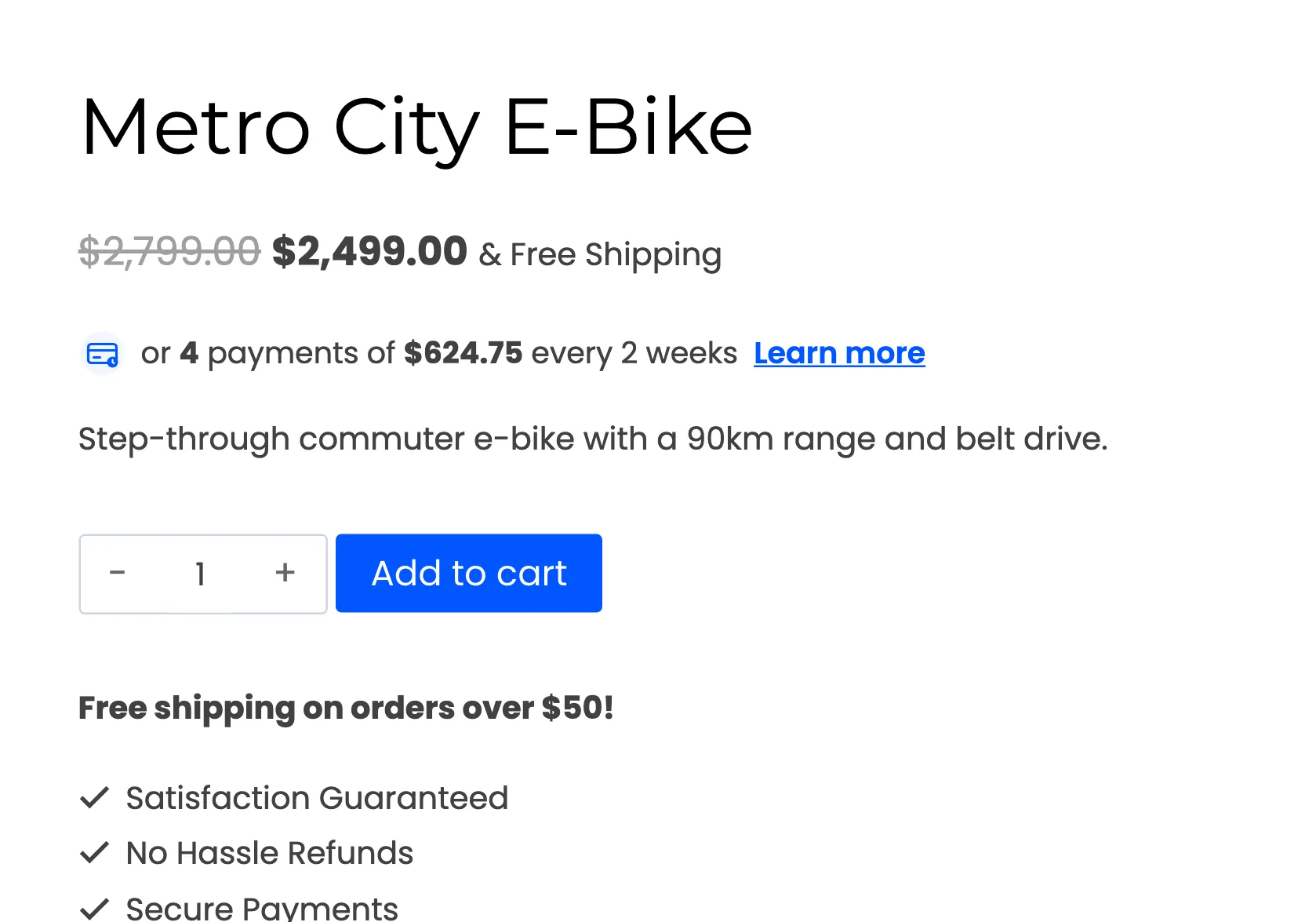
Section titled “On product, shop and cart pages”Under the price, shoppers see what the product costs per installment, with a Learn more link. Guests see it too, as an invitation to apply.
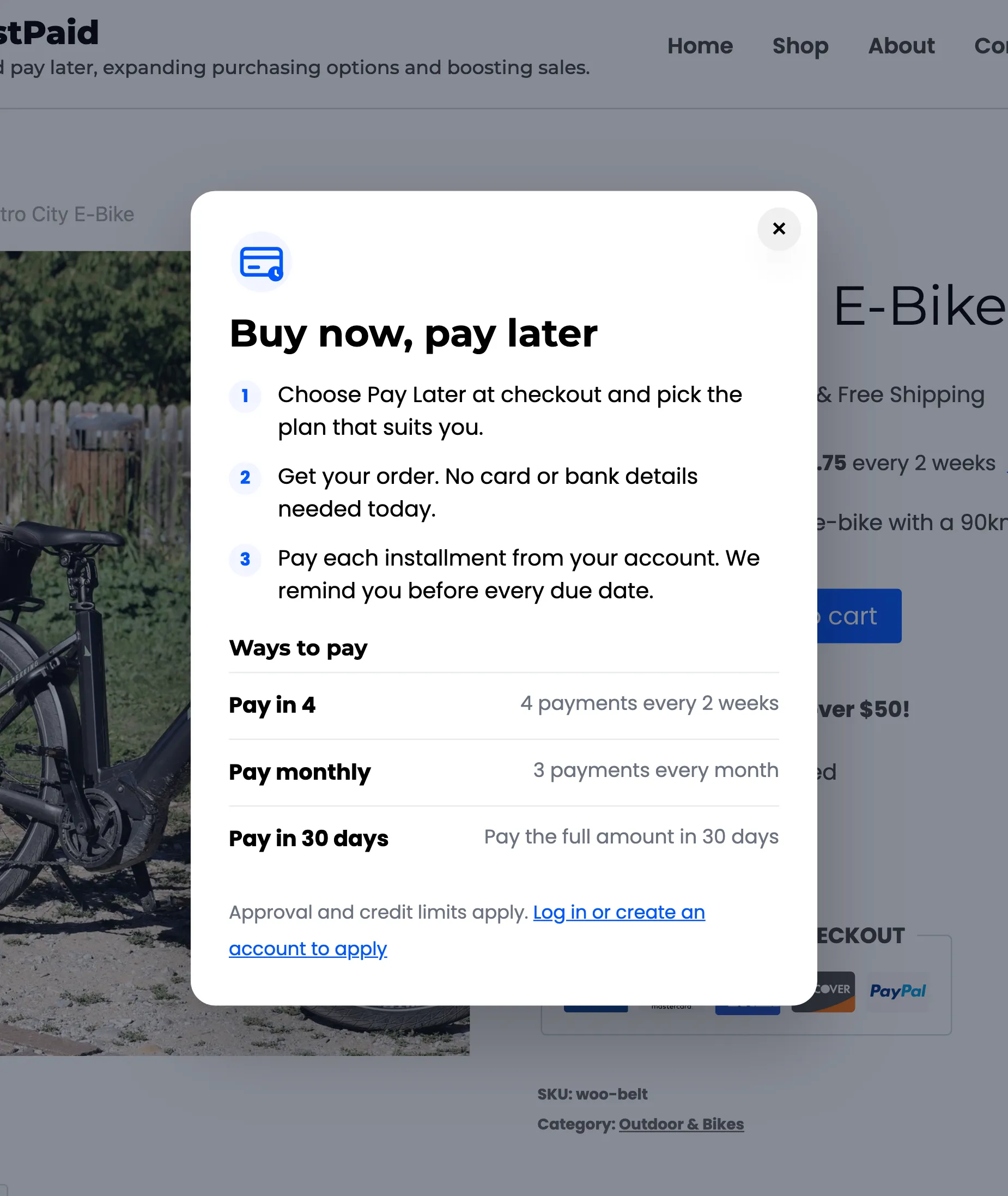
Learn more opens a short explainer: three steps, the plans you offer, and a link to log in or to the customer’s Pay Later account.
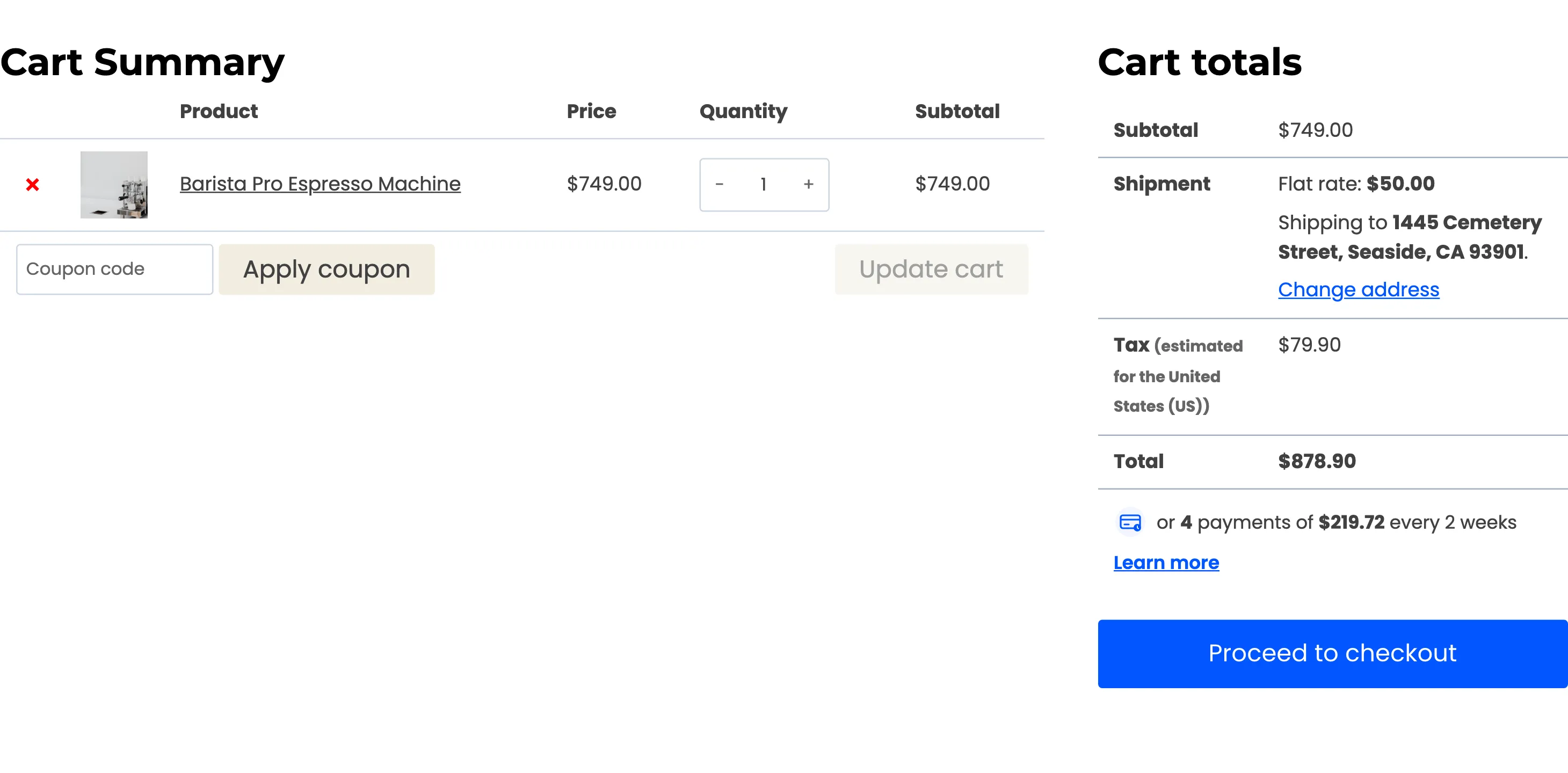
The cart shows the same line under the order total, worked out for the whole cart.
See How to Show Installment Prices on Your Store.
Applying in My Account
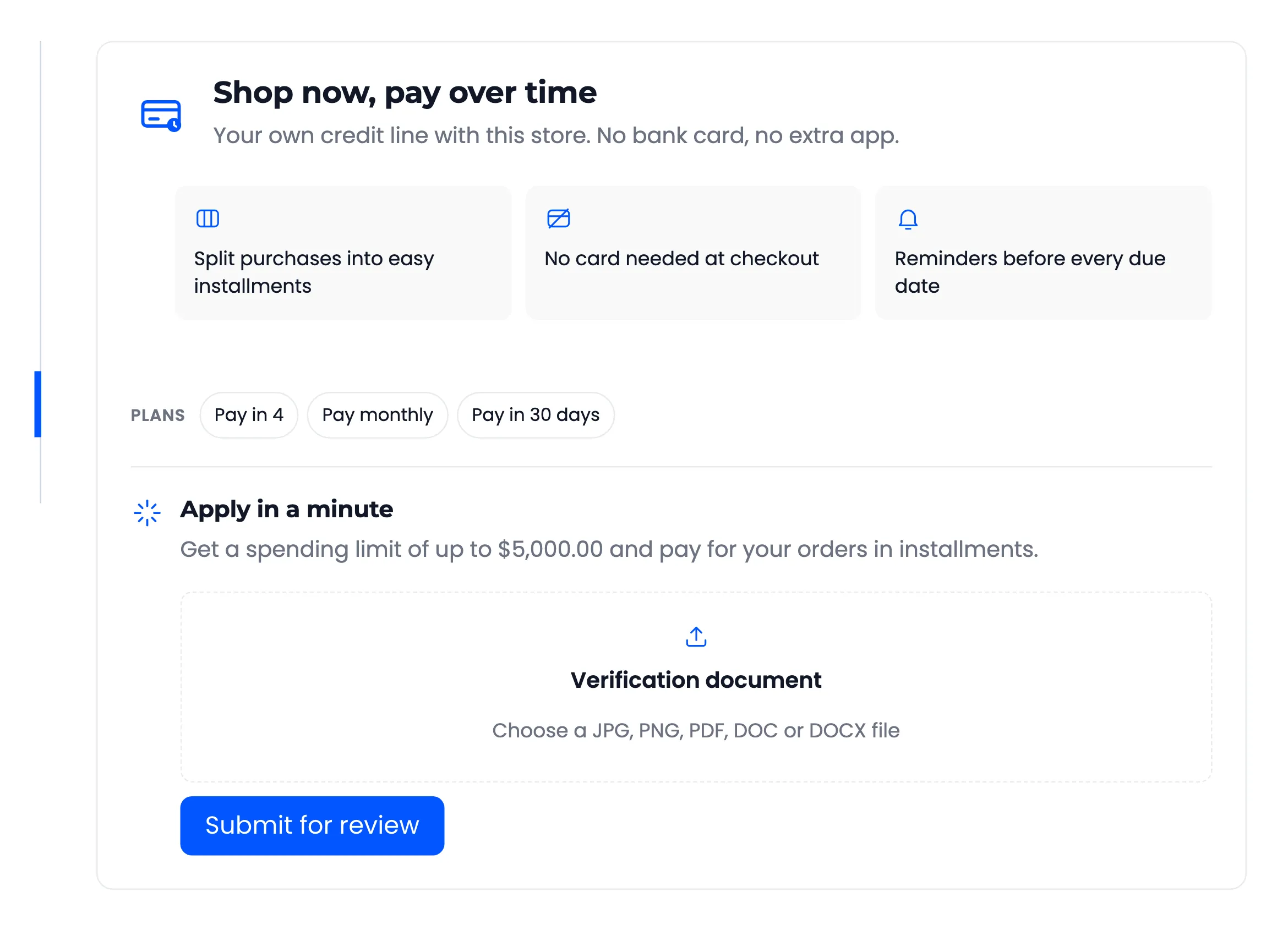
Section titled “Applying in My Account”A logged-in customer finds Pay Later in their My Account menu. Before they apply, the page explains the offer: their credit limit, the benefits and the plans. What happens next depends on how you approve customers.
- Administrator approval: One button, Apply for Pay Later.
- Document upload (Pro): A box to attach an ID or business licence, then Submit for review.
- No verification: Nothing to apply for. The section opens on their balance.
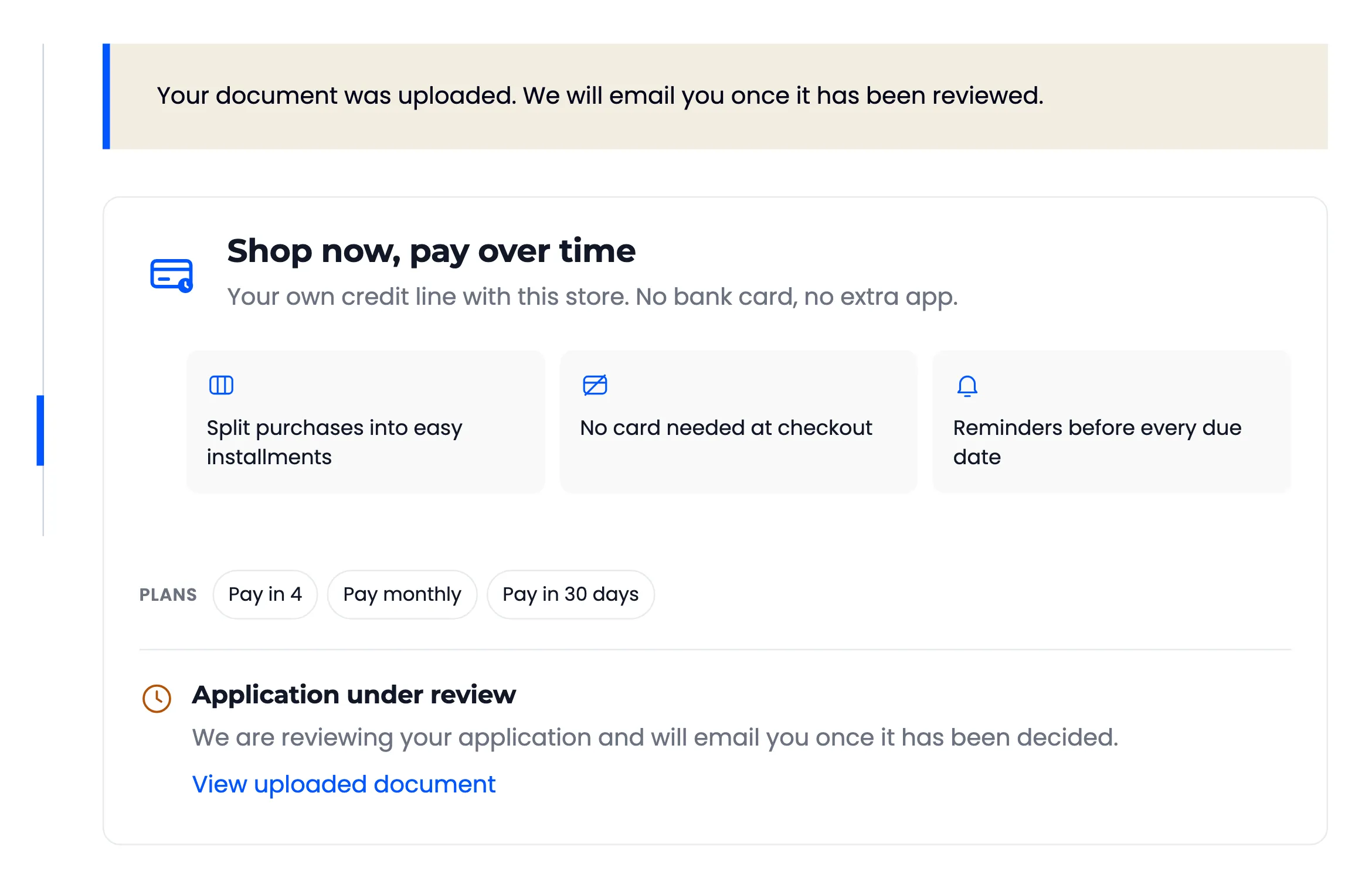
While you review the application, the page says Application under review. Once you decide, the customer gets an email and the page changes to match.
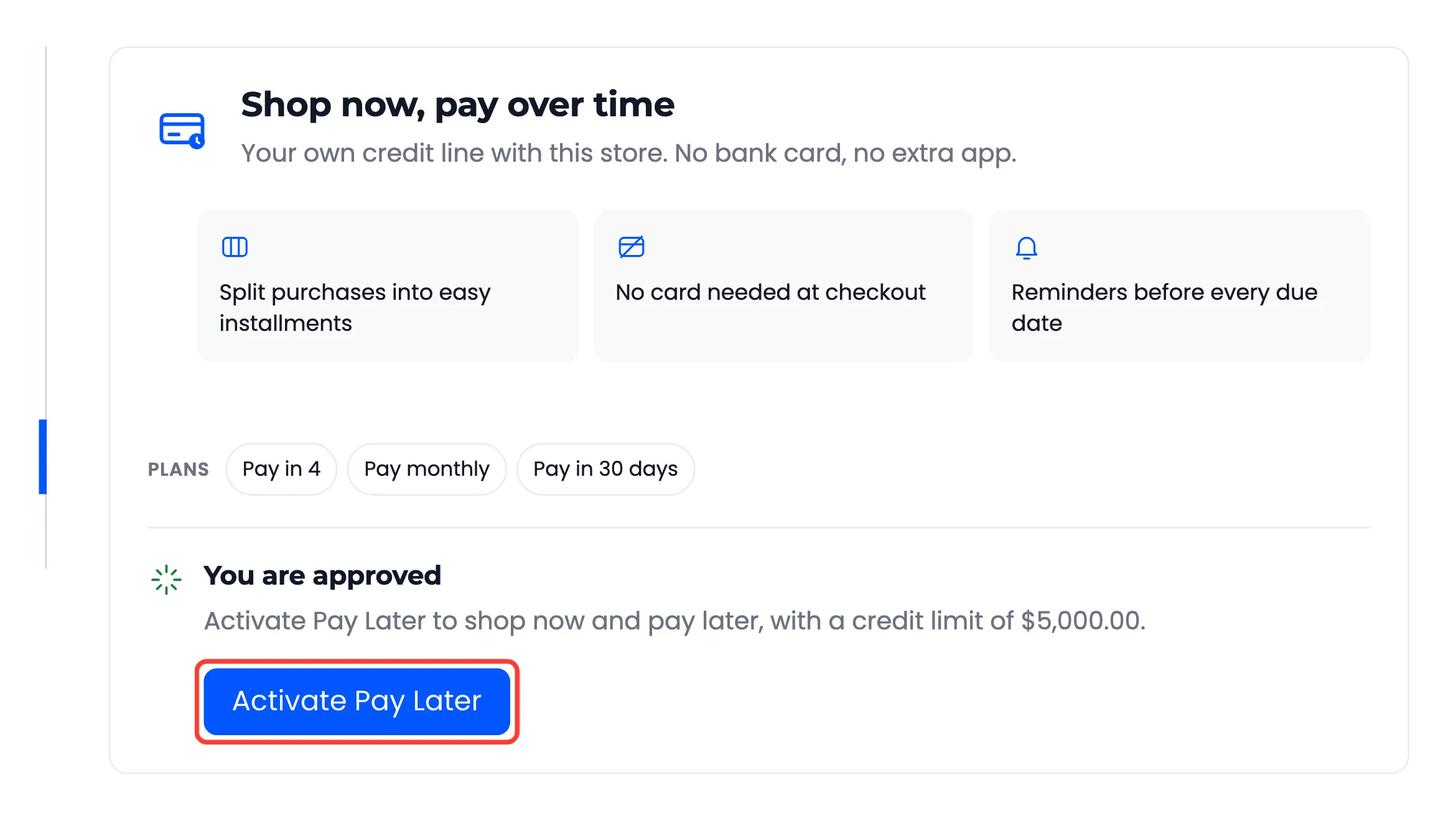
An approved customer clicks Activate Pay Later, unless you start credit on approval. A rejected customer sees Application not approved, and in Pro can upload a new document if you allow it.
Choosing a plan at checkout
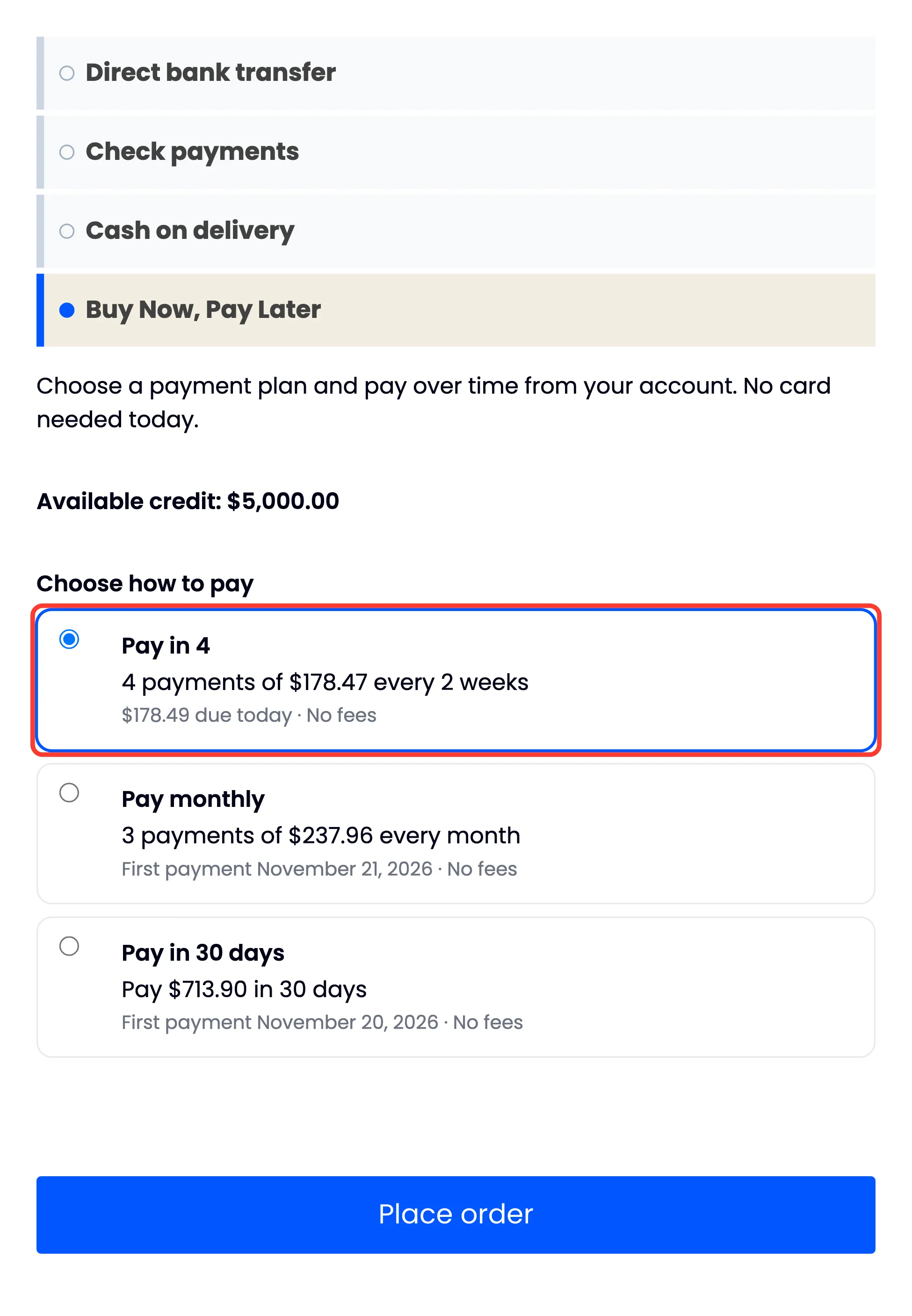
Section titled “Choosing a plan at checkout”At checkout, Buy Now, Pay Later lists the customer’s available credit and every plan that fits the order. Each plan shows the amount of each payment, what is due today or when the first payment falls, and any fee.
After Place order, the thank you page shows the payment schedule, with a button to pay the first installment straight away.
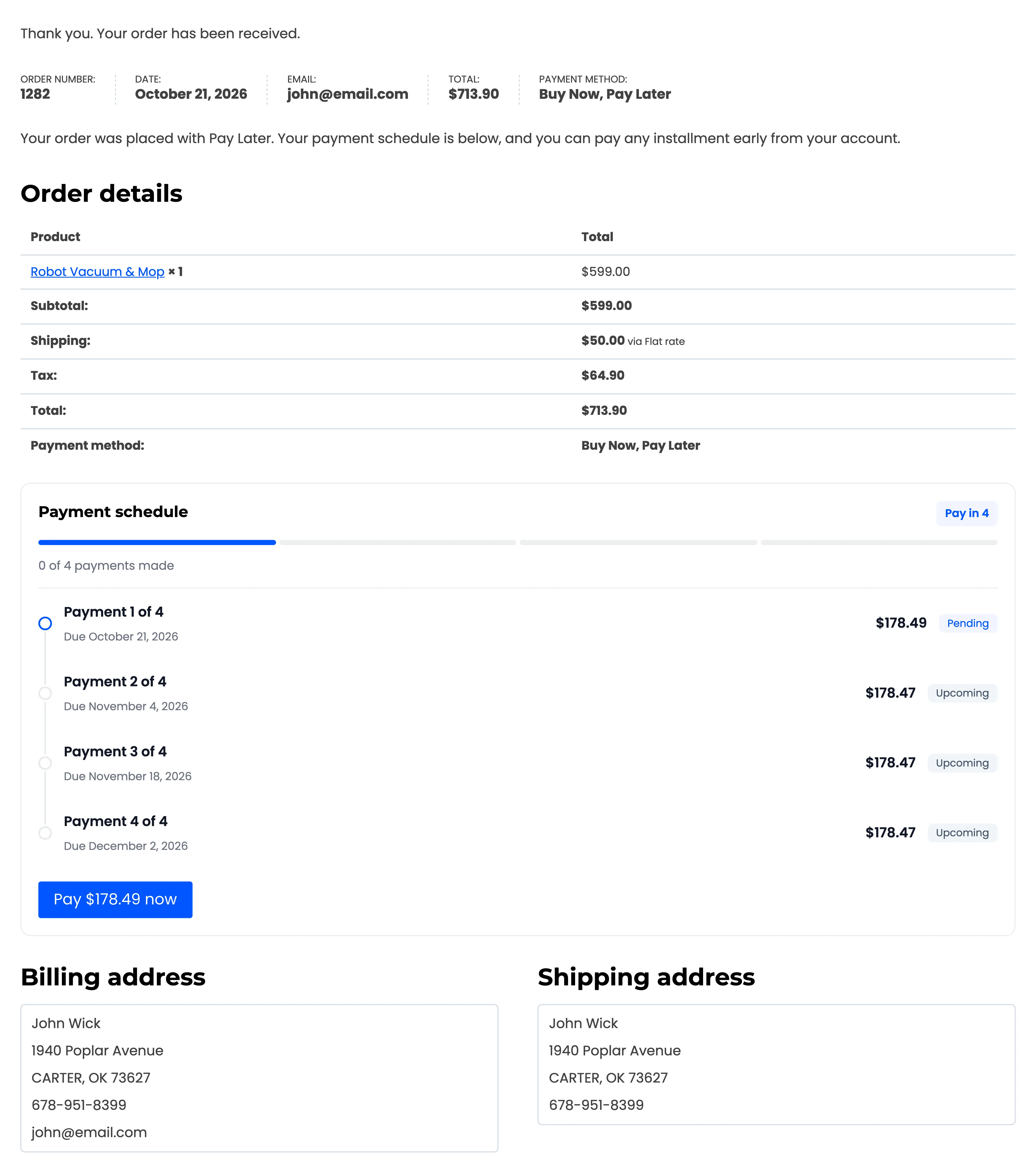
The same schedule arrives by email, and stays on the order under My Account → Orders.
The Pay Later section
Section titled “The Pay Later section”The section has three tabs.
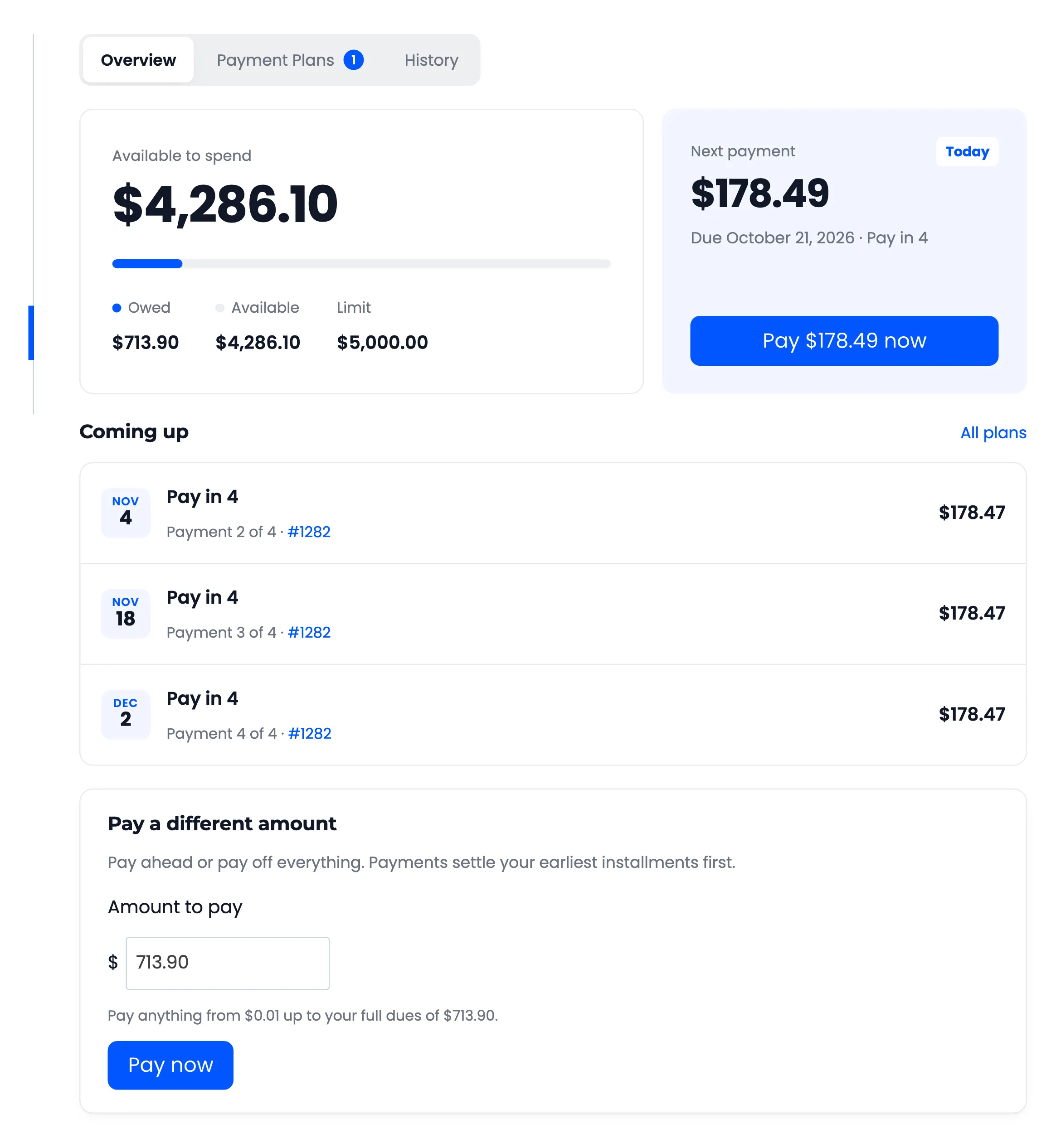
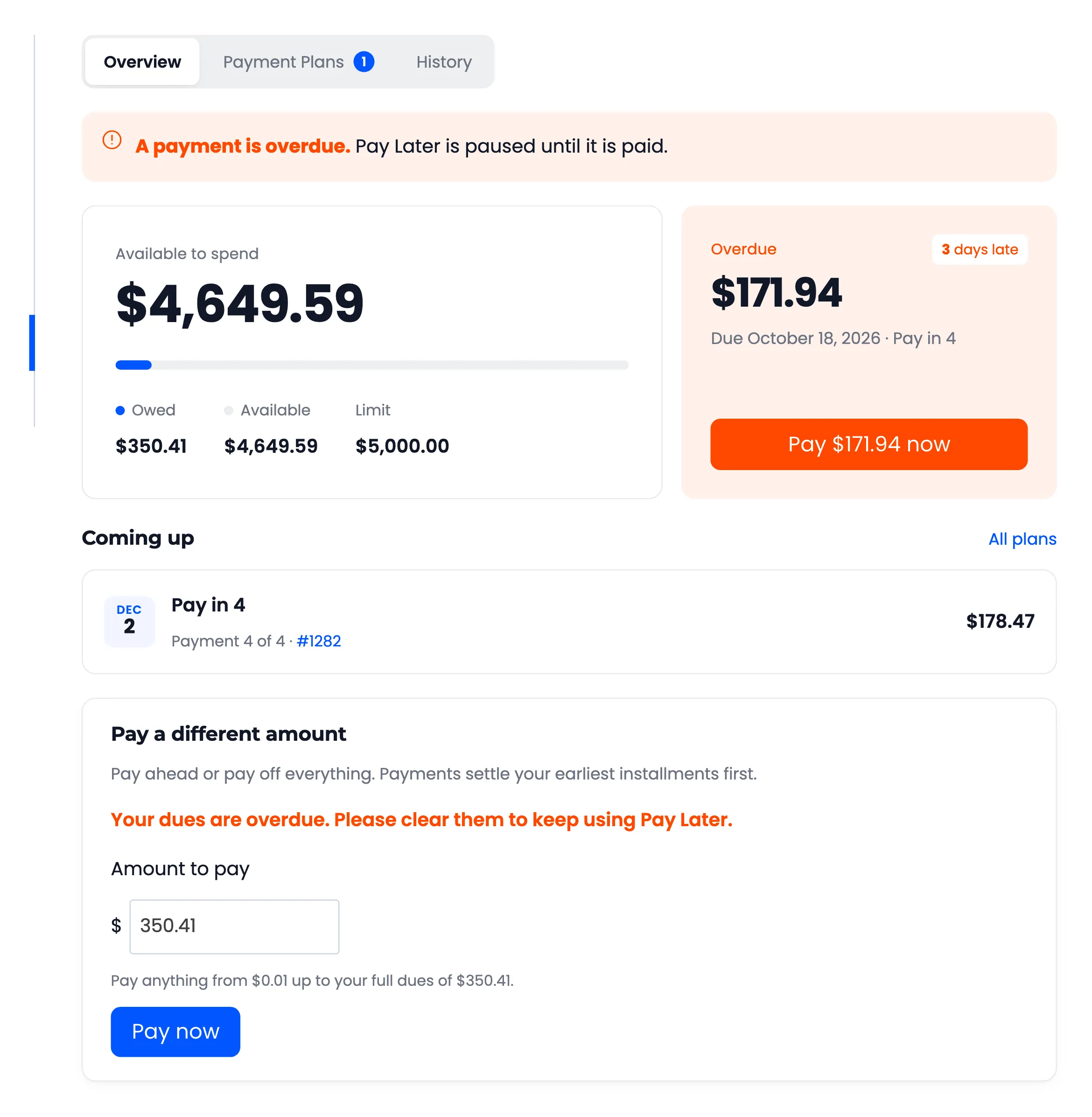
- Overview: What they can spend, what they owe, their next payment with a Pay now button, the payments coming up, and a form to pay a different amount.
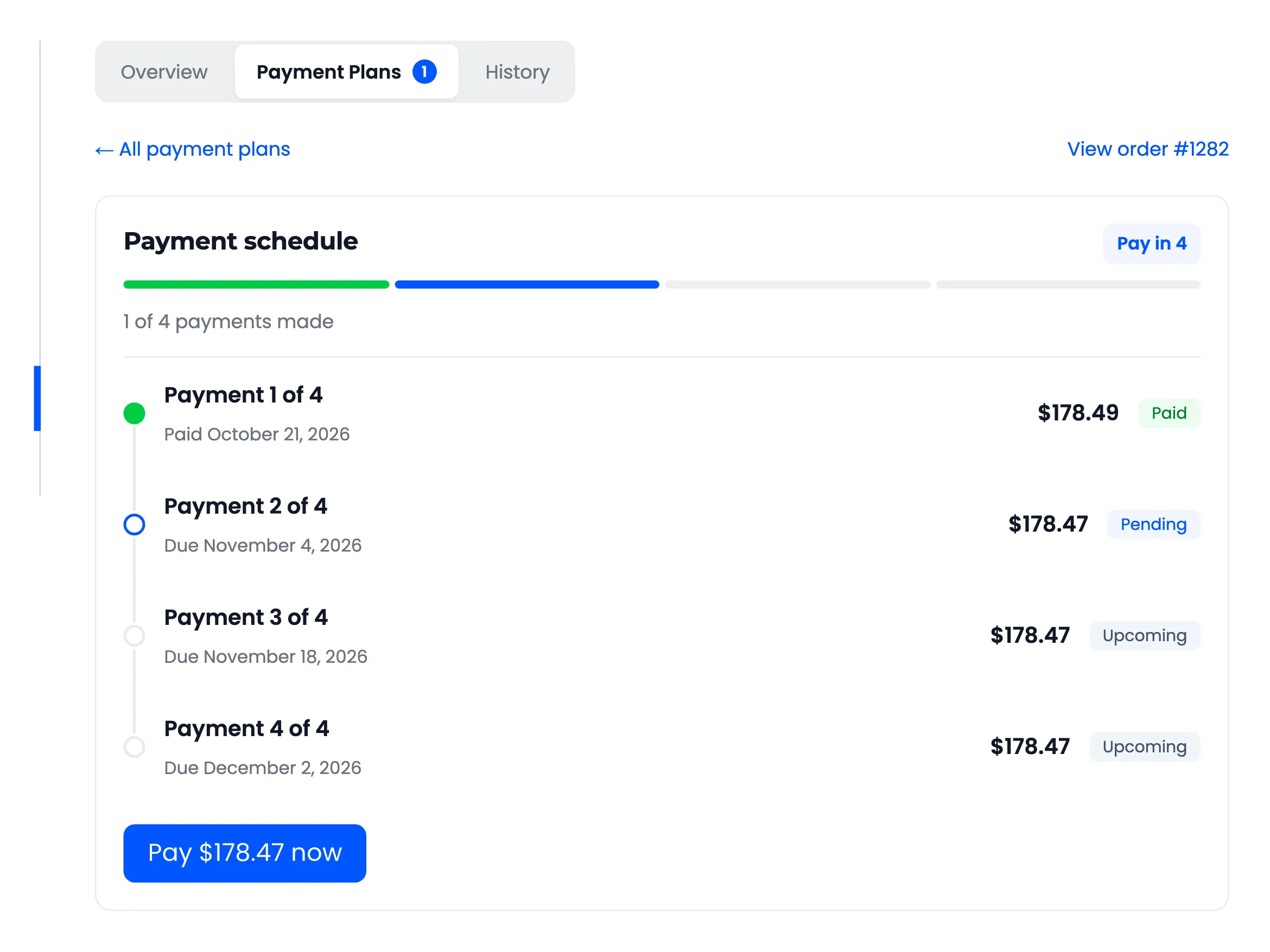
- Payment Plans: Every order paid with Pay Later, with its progress. A plan opens to its full schedule.
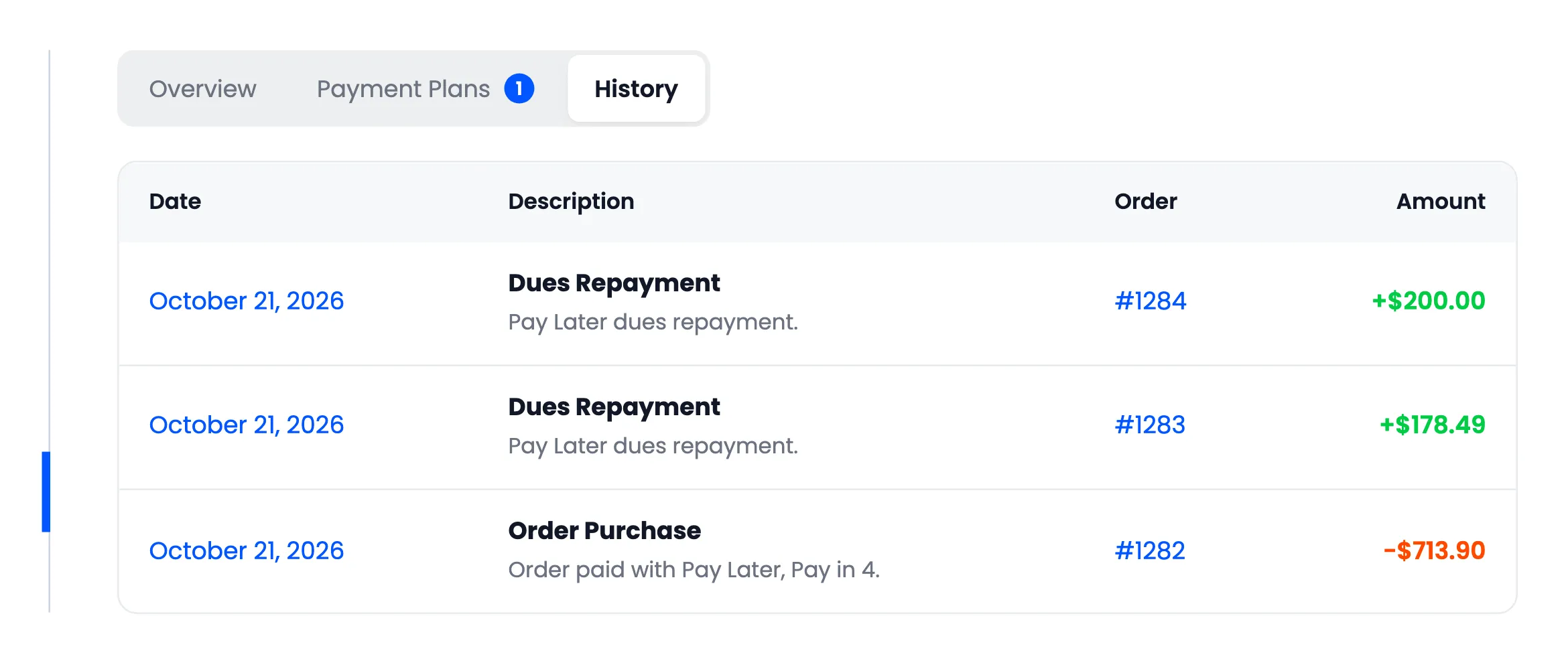
- History: Every purchase, payment, refund and adjustment, newest first.
Paying an installment
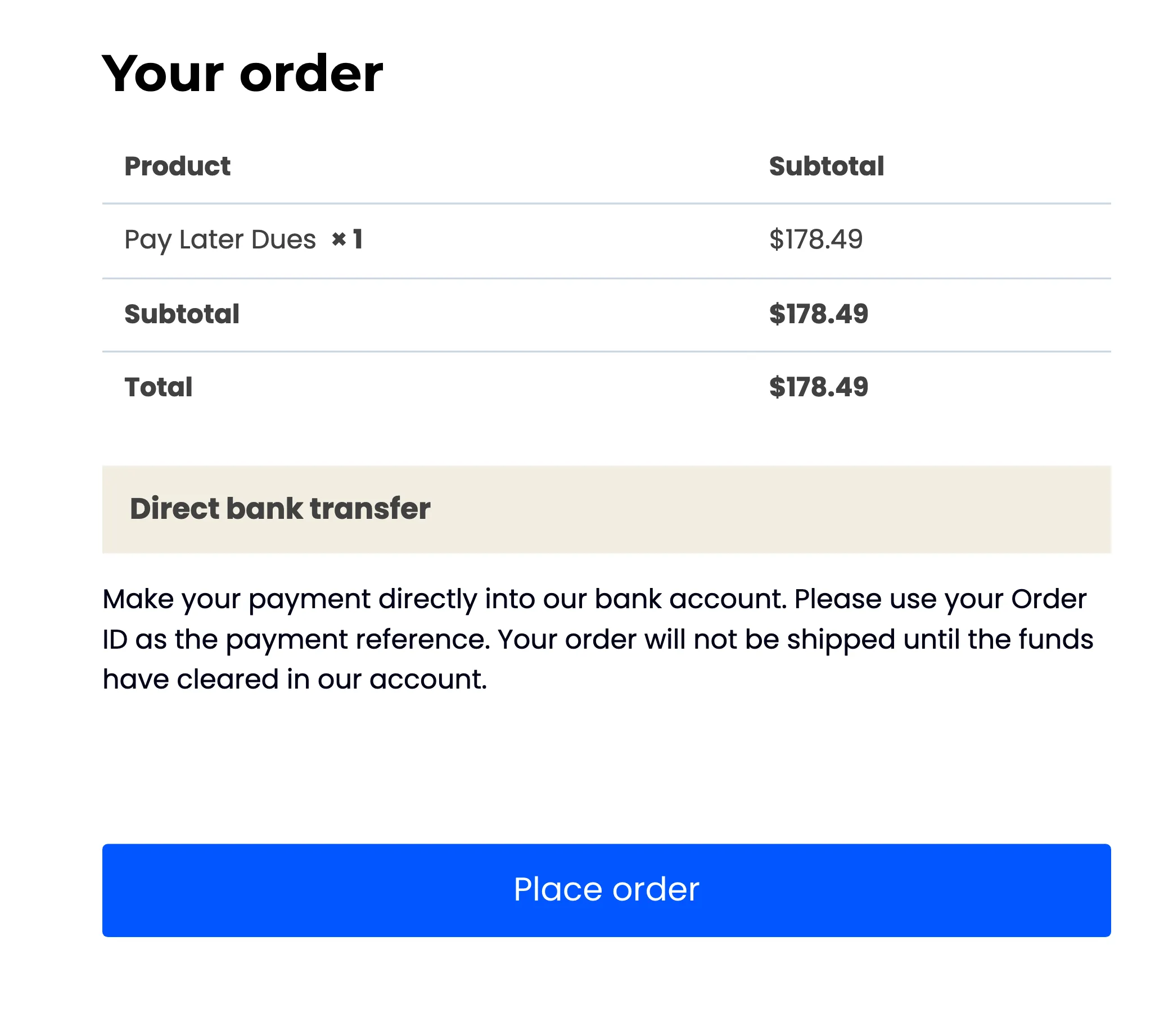
Section titled “Paying an installment”Pay now opens the checkout with a Pay Later Dues line for that amount. The customer pays it with any of your payment methods except Pay Later, cash on delivery and check. Once the payment is confirmed, the installment shows Paid and the credit is available again.
See How to Pay an Installment.
When a payment is late
Section titled “When a payment is late”The overview turns red and says how many days late the payment is. With Pause Credit on, the checkout explains that Pay Later is unavailable until the payment is made.
Emails the customer receives
Section titled “Emails the customer receives”- Payment Plan Confirmation when they check out.
- Payment Reminder before each due date.
- Overdue Payment when a payment is missed.
- Payment Received after each payment.
- Refund or Cancellation and Balance Adjusted by the Store when their balance changes.
- Application Approved or Application Not Approved after you review them.
See Emails for every email’s wording.