Reminders & Fees Settings
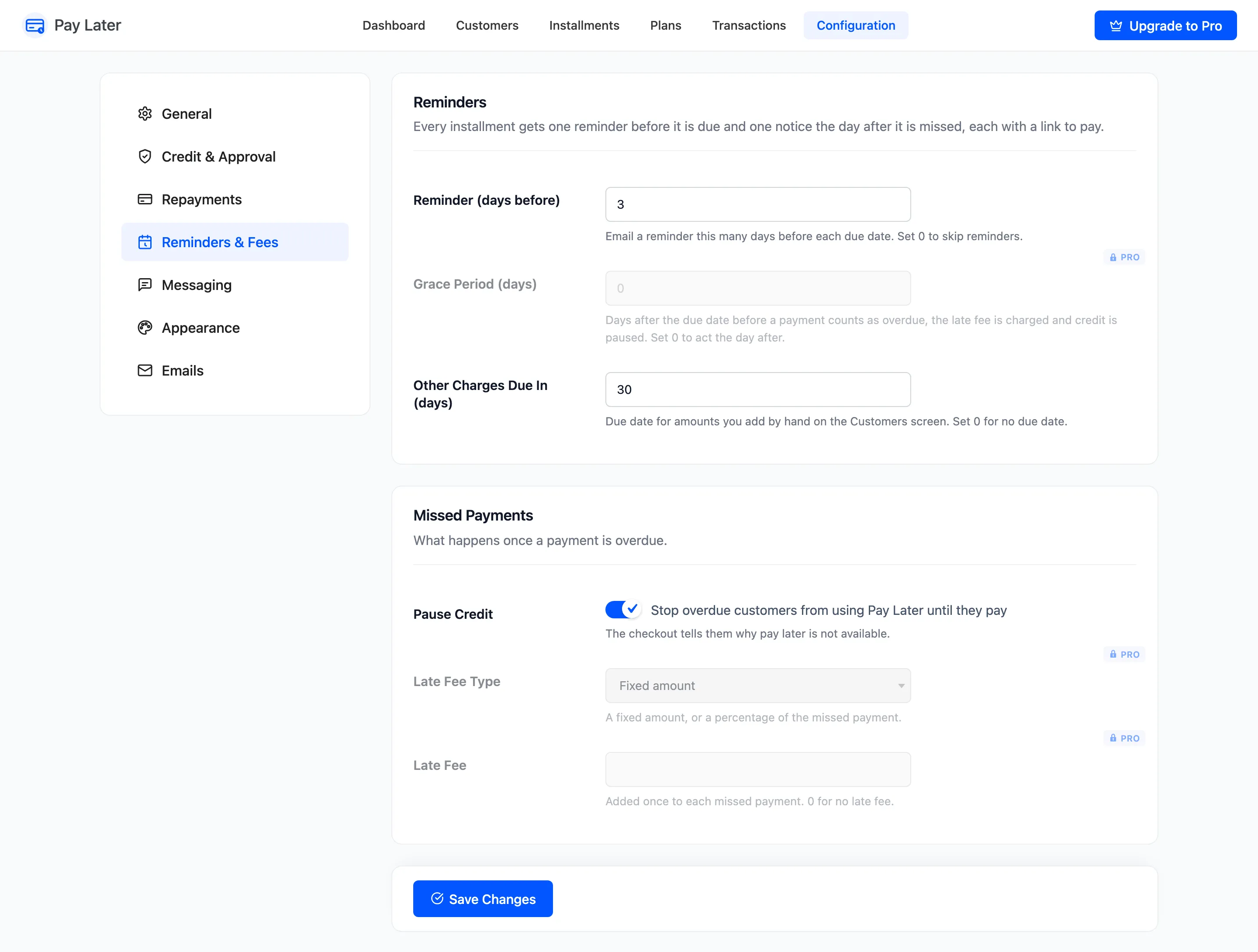
The Reminders & Fees tab decides how customers are reminded and what happens when they miss a payment. Open DevDiggers Plugins → Pay Later → Configuration → Reminders & Fees.
Reminders
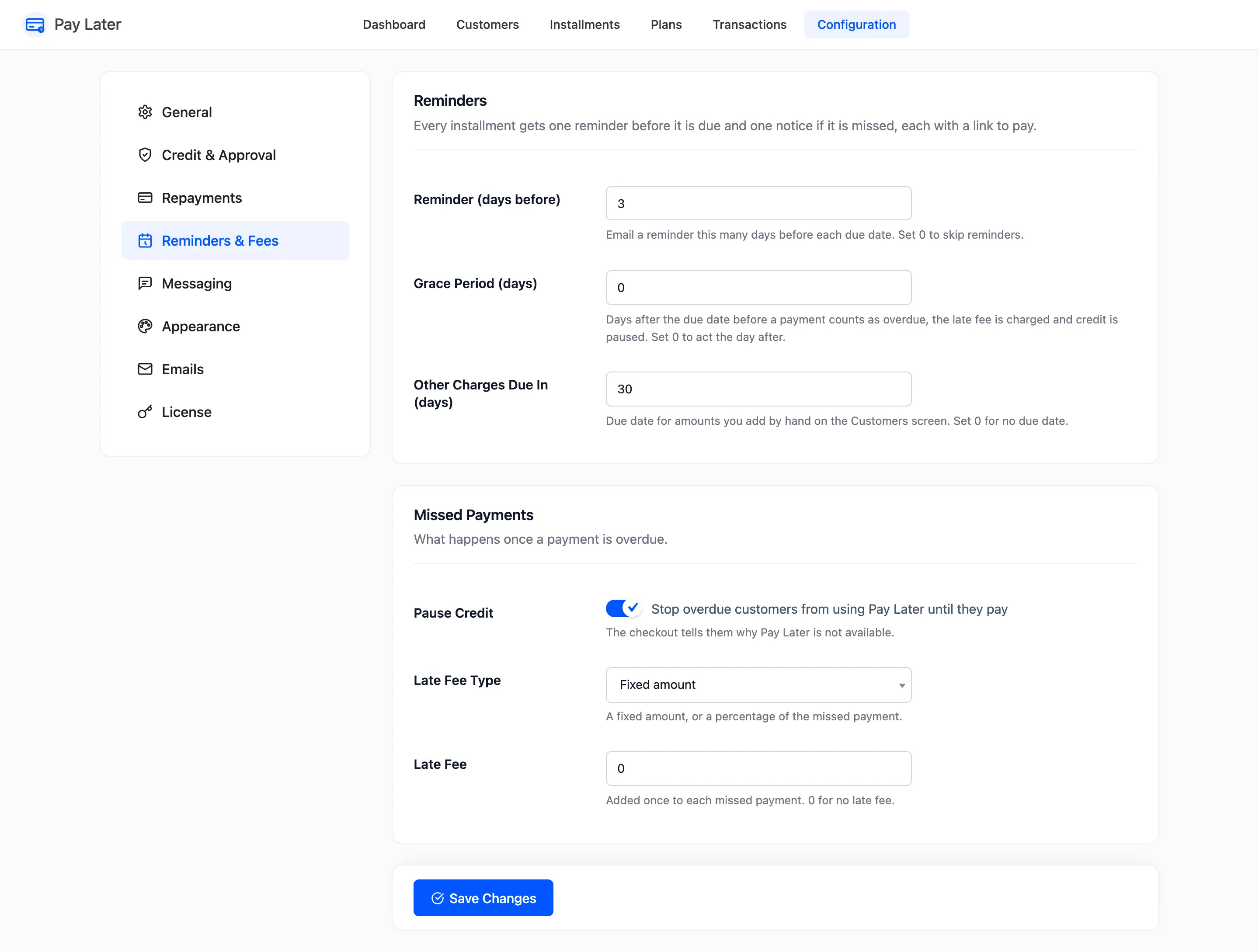
Section titled “Reminders”Every installment gets one reminder before it is due and one notice if it is missed, each with a link to pay.
- Reminder (days before): Email a reminder this many days before each due date. 3 by default. 0 sends no reminders.
- Grace Period (days) (Pro): Days after the due date before a payment counts as overdue. Until then there is no overdue notice, no late fee and no pause. 0 by default, which acts the day after.
- Other Charges Due In (days): The due date of dues you add by hand with Adjust Balance. 30 by default. 0 gives them no due date.
Missed Payments
Section titled “Missed Payments”- Pause Credit: “Stop overdue customers from using Pay Later until they pay”. On by default. The checkout tells them why Pay Later is not available.
- Late Fee Type (Pro): Fixed amount (default), or Percentage of the amount of the missed payment.
- Late Fee (Pro): Added once to each missed payment. 0 by default, for no late fee.
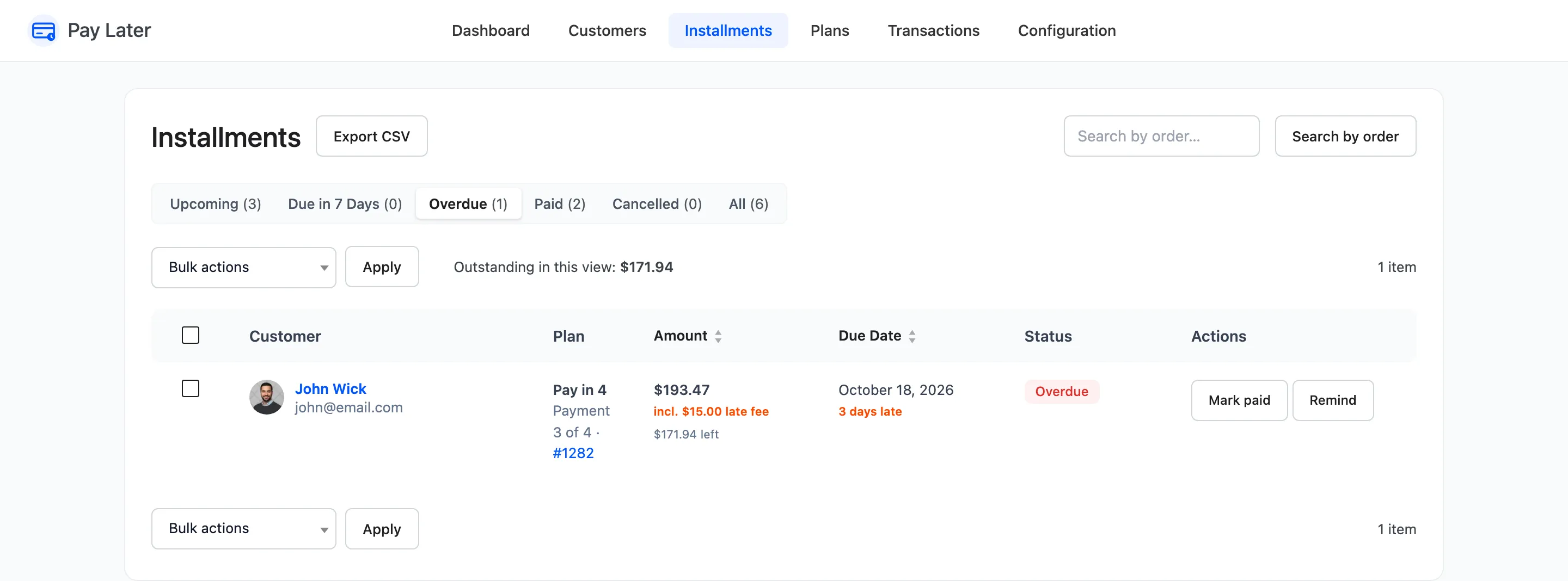
The late fee joins the missed installment. It shows in the overdue email, on the Installments screen and in My Account, and a refund or cancellation never removes it.
Click Save Changes at the bottom of the tab.
When the checks run
Section titled “When the checks run”A task runs once a day, around 9:00 UTC, on the first visit to your site after that time. Each run sends a reminder for each installment due within the reminder window that has not had one yet. It then handles each missed installment once, so a missed payment a skipped run did not catch is handled by the next run. See How to Handle a Missed Payment.
In the free version
Section titled “In the free version”Grace Period, Late Fee Type and Late Fee show as locked rows. Reminders, the overdue notice and Pause Credit work the same.