

How Pay Later Works
This page follows John, a customer of the demo store, from his first visit to his last payment. Each step names the screen where you see it. The numbers are the real ones from the demo.
The three numbers on every account
Section titled “The three numbers on every account”Every customer has a credit limit, what they owe, and what is available to spend. Available is always the limit minus what they owe.
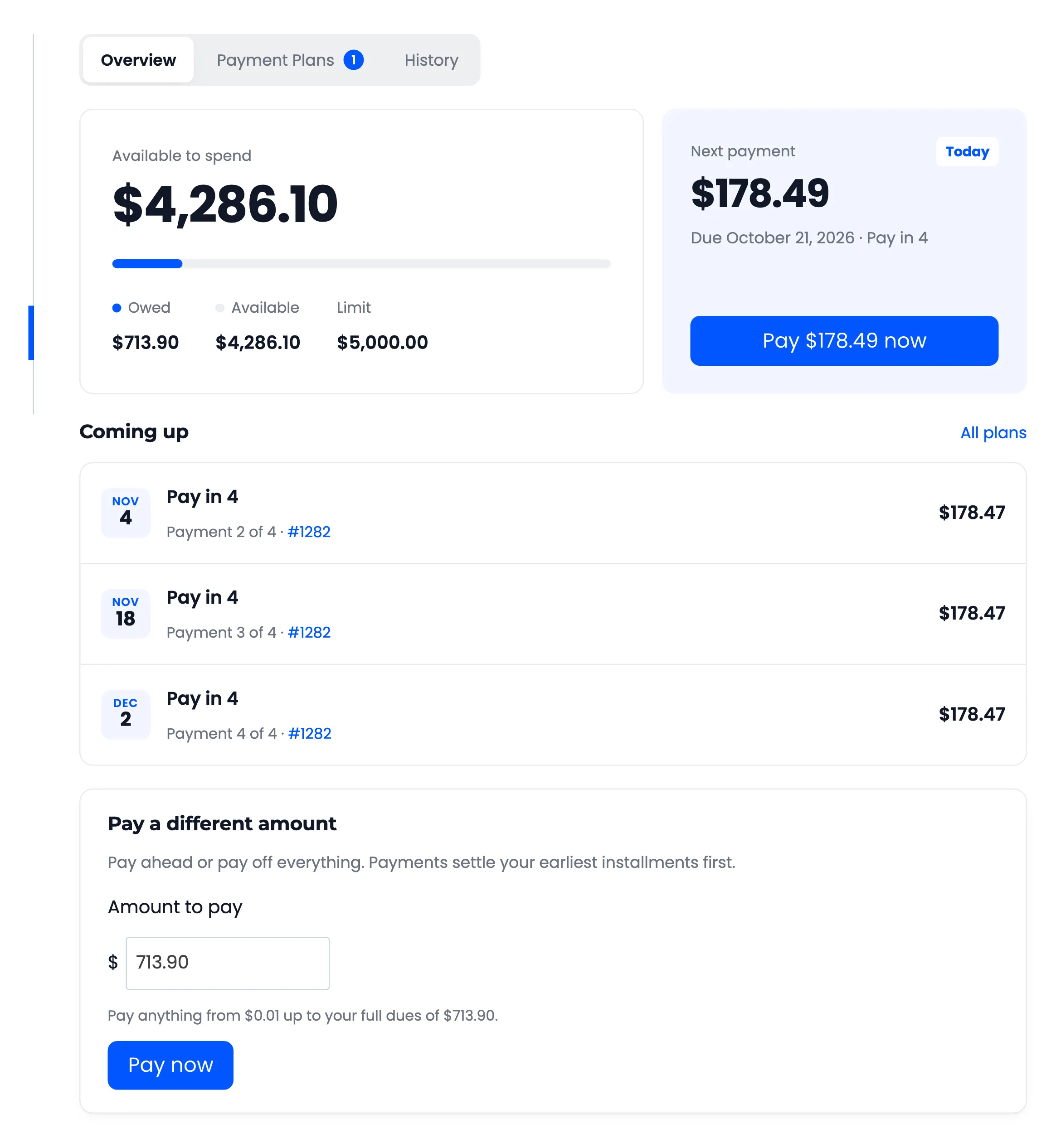
- Credit limit: Every customer starts with the Default Credit Limit under Configuration → Credit & Approval. The amount is saved on the customer the moment their credit starts, so a later change to the default does not move their limit. In Pro you set a limit per customer.
- Owed: The sum of their unpaid installments, plus any late fees.
- Available: What they can still buy with Pay Later. An order bigger than this never shows Pay Later.
1. The customer is approved
Section titled “1. The customer is approved”Nobody can use Pay Later until they are approved and their credit has started. How that happens depends on Approval Process:
- Administrator approves without a document: The customer clicks Apply for Pay Later in My Account, and you approve them on the Customers screen.
- Upload a document, approved by an administrator (Pro): The same, with an ID or business licence attached to the application.
- No verification: Every logged-in customer is approved from the start.
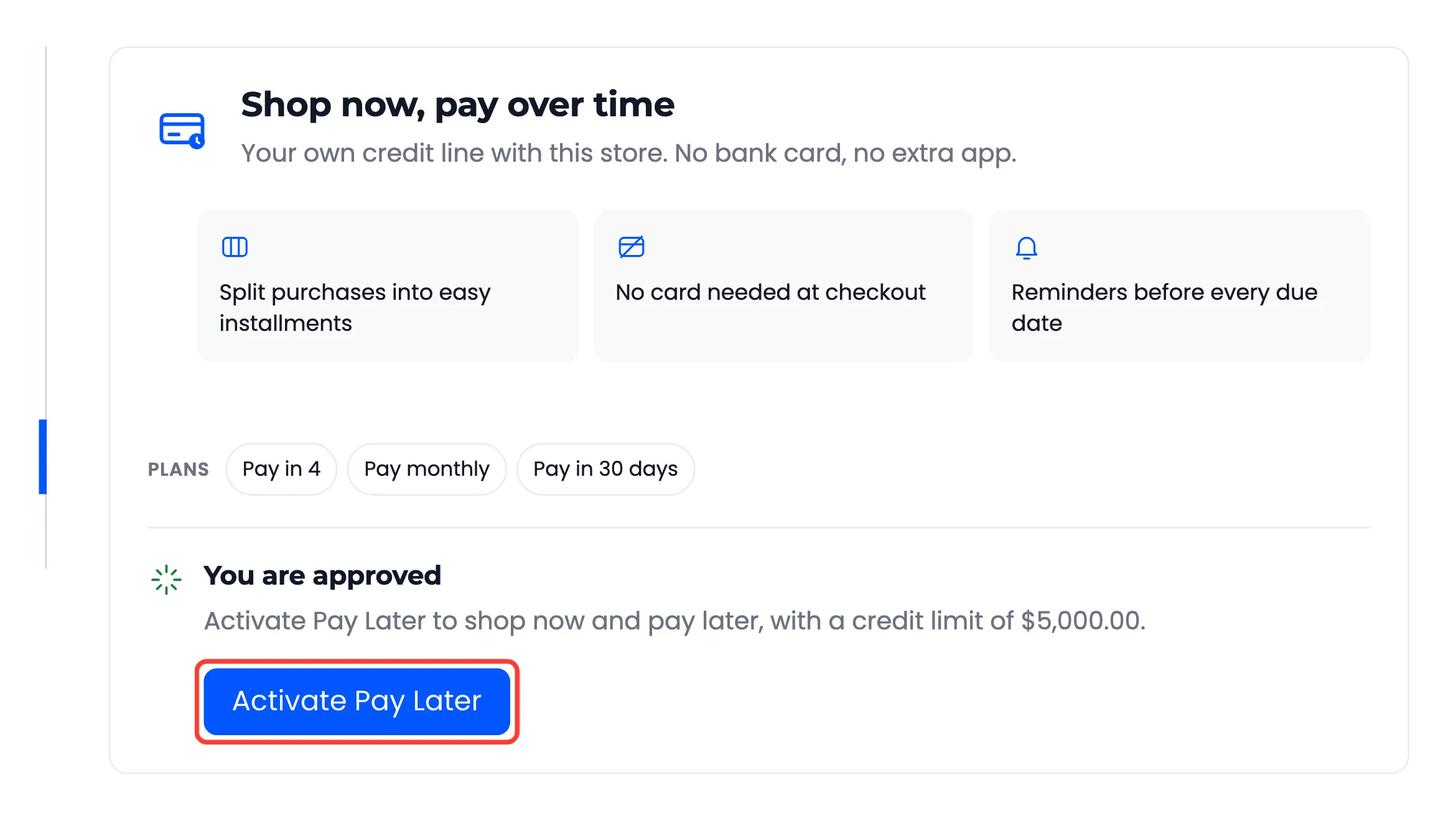
With Activate on Approval on, credit starts the moment a customer is approved. With it off, the customer clicks Activate Pay Later in My Account. John applied with a document, was approved, and activated his credit himself.
2. Checkout checks the order
Section titled “2. Checkout checks the order”Pay Later appears at checkout only when every one of these is true:
- The customer is logged in. Guests never see it.
- In Pro, their user role is allowed.
- They are approved and their credit has started.
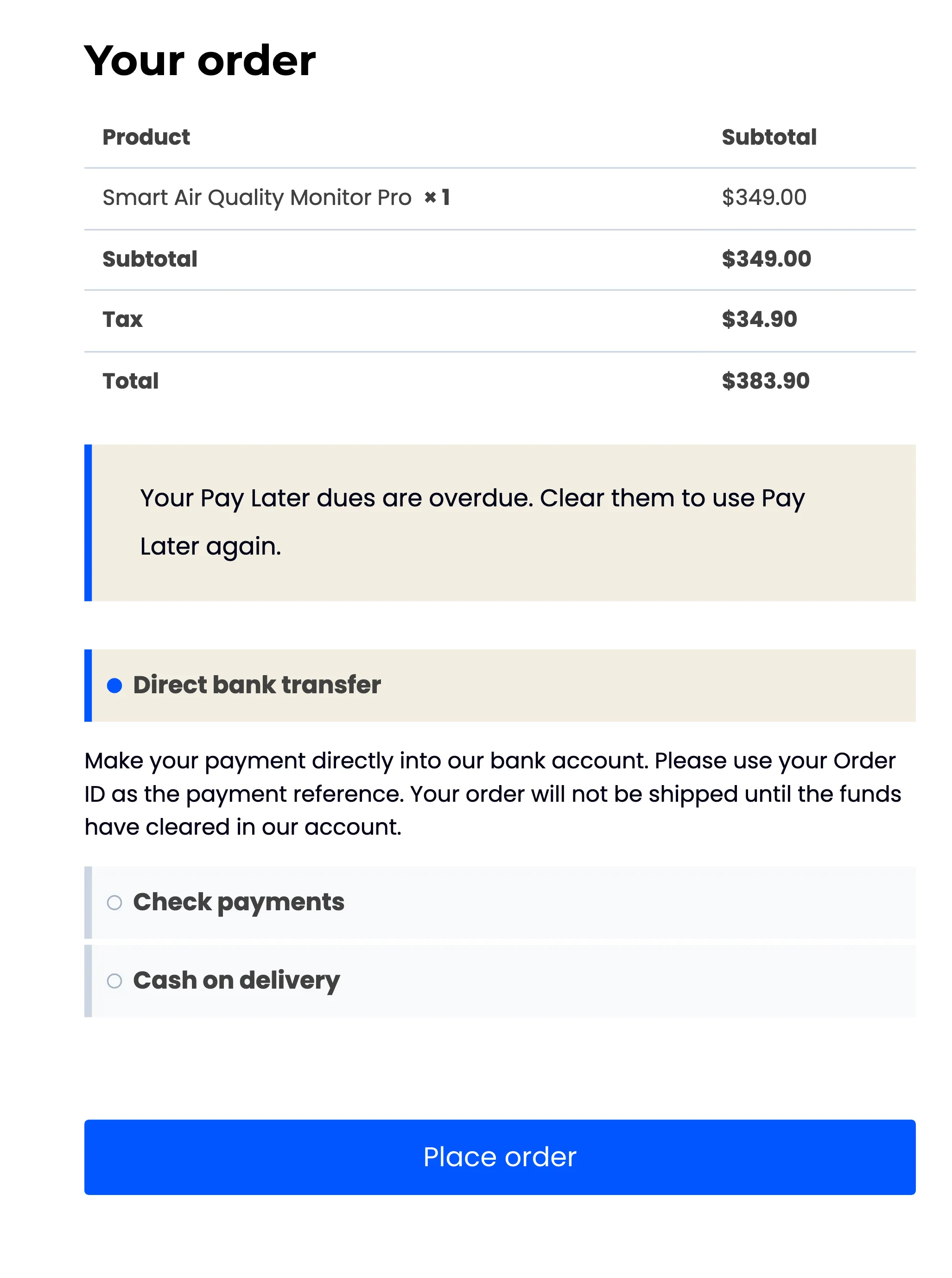
- They have no overdue payment, if Pause Credit is on.
- The order total is inside Minimum Order Amount and Maximum Order Amount.
- Their available credit covers the order.
- At least one active plan accepts the order: its order range fits, and the credit covers the order plus the plan fee.
- The cart holds no excluded product (Pro) and is not a Pay Later repayment.
- The shipping method and virtual order settings of the payment method allow it.
Checks 4 to 6 explain themselves. When one fails for a customer whose credit has started, the checkout says why above the payment methods.
3. The customer picks a plan
Section titled “3. The customer picks a plan”The payment method lists every plan that fits, with the amount of each payment and any fee. John’s order was $713.90 and he picked Pay in 4.
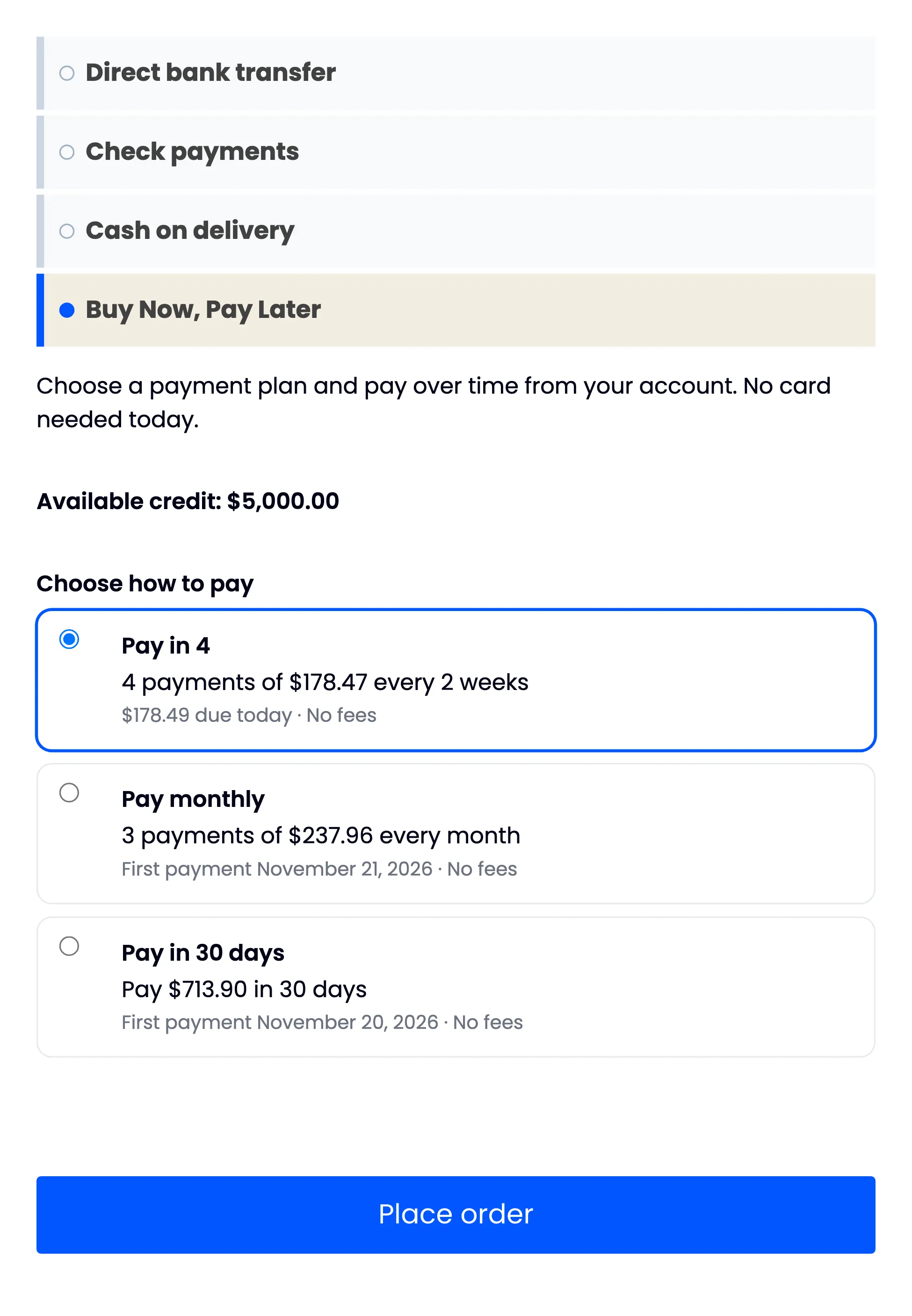
The order total, plan fee included, is split into equal payments. Any rounding goes on the first payment, so the parts always add up: $178.49 today, then three of $178.47 two weeks apart. Every payment is due by the end of its day.
4. The order is placed
Section titled “4. The order is placed”The order total, and the plan fee if any, come off John’s available credit. Three things are written:
- Installments: One row per payment, on the Installments screen and in his account.
- Transactions: An Order Purchase row, and a Plan Fee row when the plan has a fee.
- The schedule: On the thank you page, in the Payment Plan Confirmation email, and in a Pay Later Payment Plan box on the order screen.
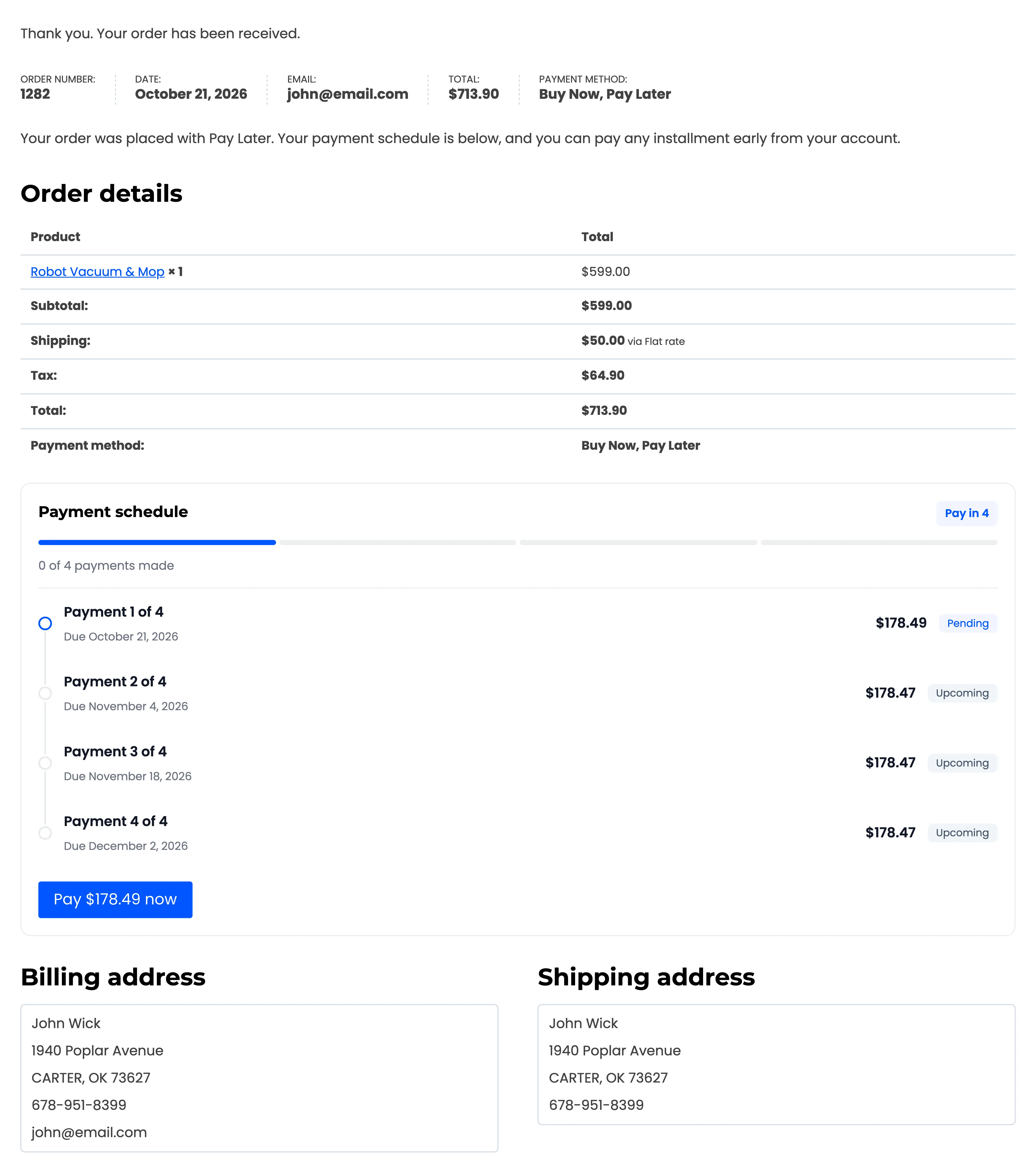
A plan whose first payment is due at purchase, like Pay in 4, holds the order On hold until that payment comes in. Stock is reduced straight away. Every other plan sends the order to Processing at once, like any paid order.
5. The customer pays an installment
Section titled “5. The customer pays an installment”John pays from My Account → Pay Later. Pay $178.49 now puts a Pay Later Dues item for that amount in a fresh cart and opens the checkout. He pays with any method you accept, except Pay Later itself, cash on delivery and check.
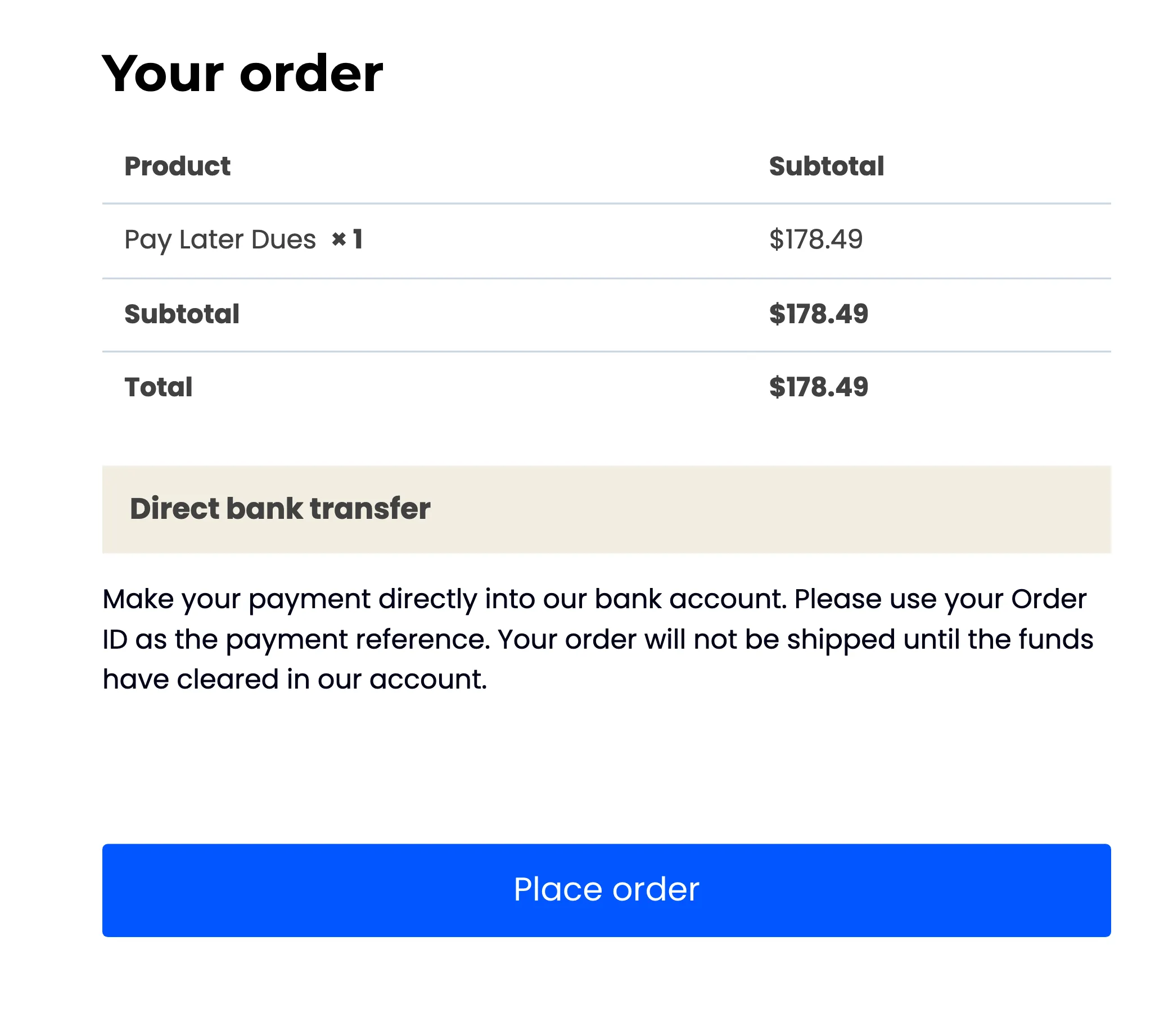
The payment counts once that repayment order reaches Processing or Completed. A card payment does that on its own. A bank transfer waits On hold until you confirm the money arrived and change the status.
Then three things happen. The amount goes back on his available credit. The earliest installment is marked Paid. And because it was the first payment of a held order, order #1242 moves to Processing with the note “First Pay Later installment received.”
6. Reminders and missed payments
Section titled “6. Reminders and missed payments”A task runs once a day, around 9:00 UTC, on the first visit to your site after that time. For each installment it sends:
- One reminder, the set number of days before the due date. Three days by default.
- One overdue notice, once the due date and any grace period (Pro) have passed. In Pro, the late fee is added to that installment at the same moment.
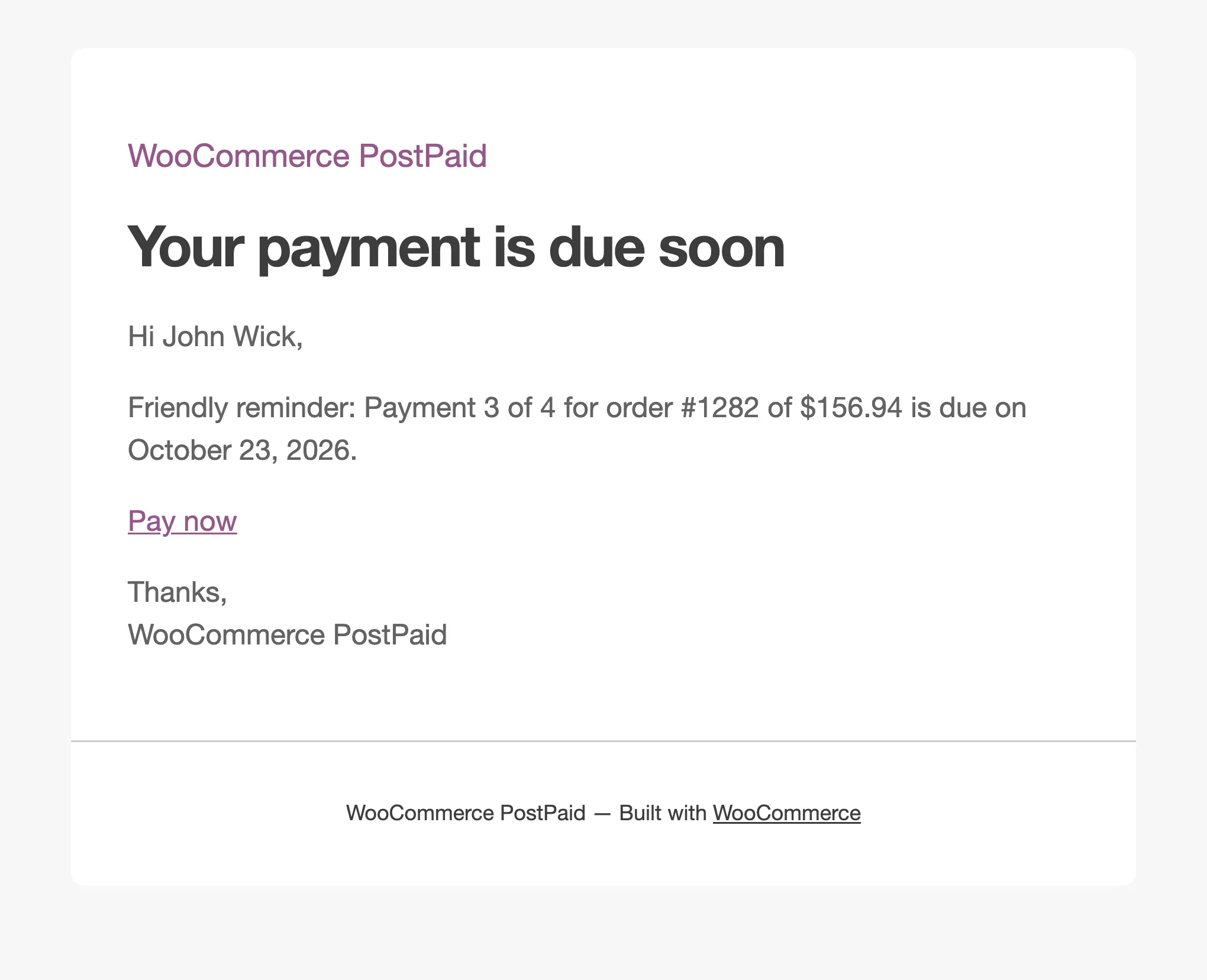
While an installment is overdue, Pause Credit keeps Pay Later off at checkout for that customer. Paying the overdue installment switches it back on.
7. The plan ends
Section titled “7. The plan ends”When the last installment of a plan with several payments is paid, the order gets the note “Pay Later payment plan completed. Every installment is paid.” In My Account the plan shows Completed.
Refunds and cancellations
Section titled “Refunds and cancellations”- Refund: A refund on the order screen returns the amount to the customer’s credit. It comes off the order’s unpaid installments, the last one first. Late fees stay.
- Cancelled or failed order: With Restore Credit on, everything still owed on the order comes back, and its open installments are cancelled.
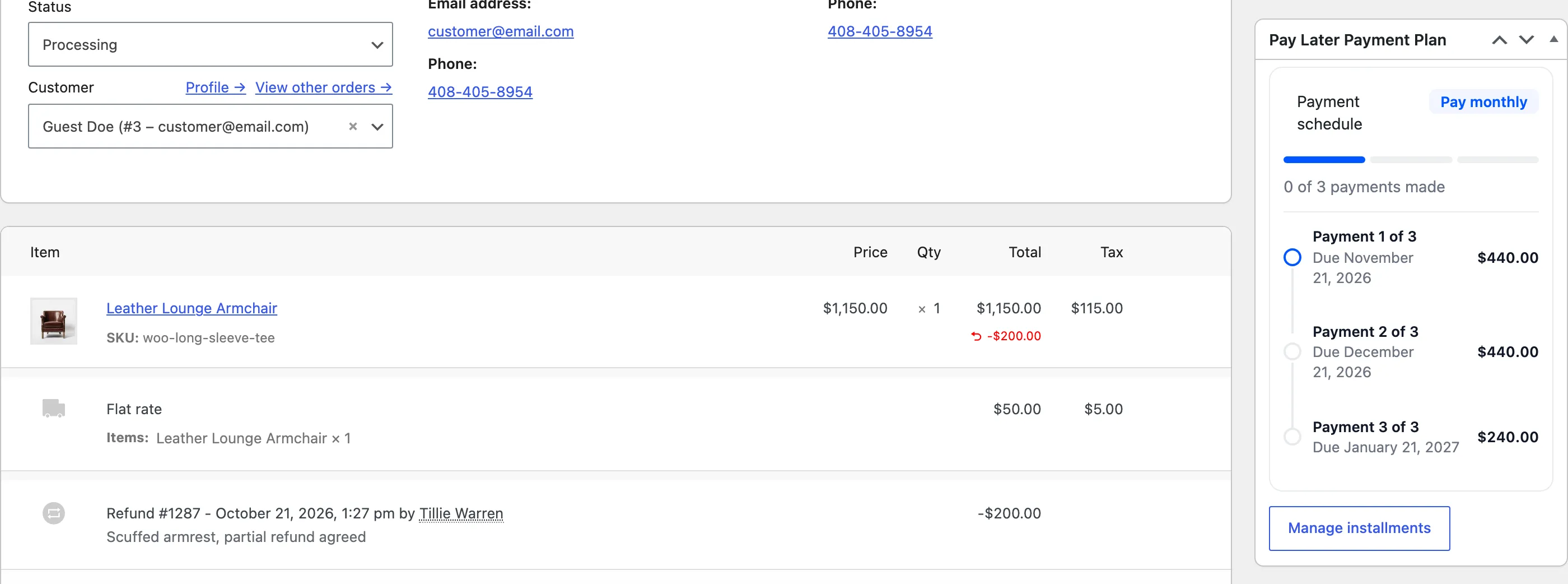
See How to Refund a Pay Later Order and How to Cancel a Pay Later Order.
Charges you add yourself
Section titled “Charges you add yourself”Adjust Balance on the Customers screen adds or removes dues by hand. Added dues become one installment, due after Other Charges Due In (days), 30 by default. Removed dues settle the earliest installments, like a payment.