

How to Create a Payment Plan (Pro)
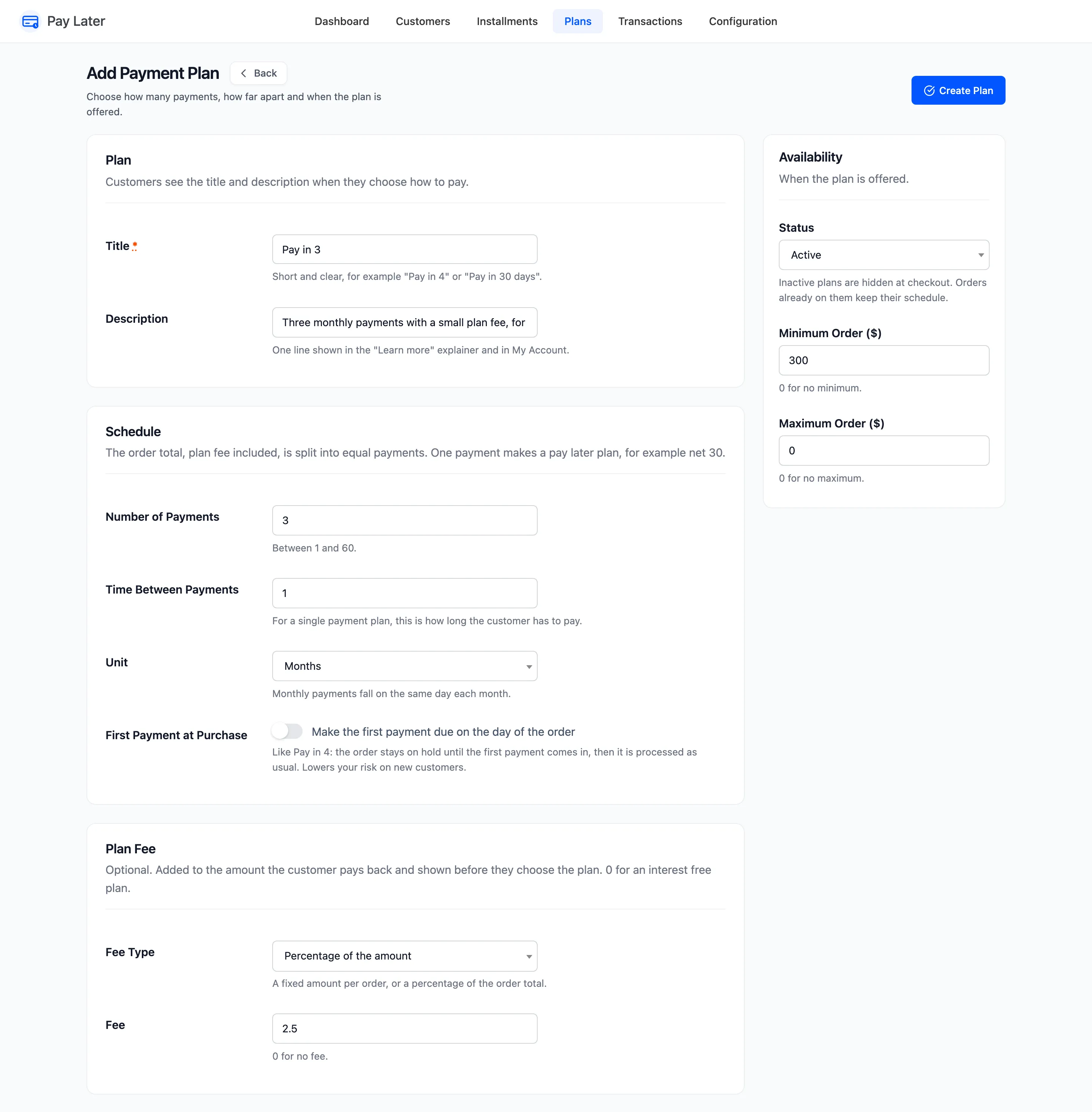
The demo creates Pay in 3: three monthly payments with a 2.5% fee, for orders of $300 or more.
Step 1: Open Add Plan
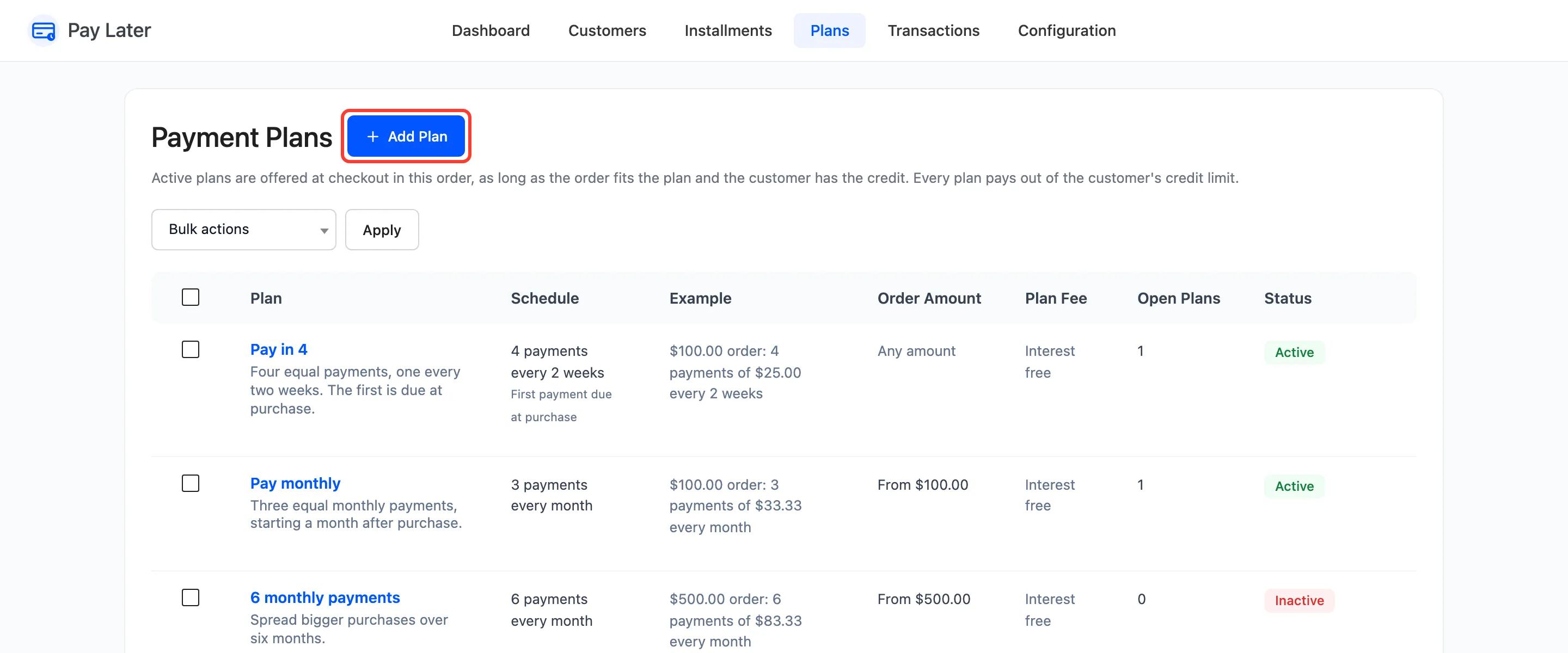
Section titled “Step 1: Open Add Plan”Go to DevDiggers Plugins → Pay Later → Plans and click Add Plan.
Step 2: Name it
Section titled “Step 2: Name it”Enter a Title, such as “Pay in 3”, and a one-line Description. Customers see both at checkout, in the Learn more window and in My Account.
Step 3: Set the schedule
Section titled “Step 3: Set the schedule”- Number of Payments: 3.
- Time Between Payments: 1, with Unit set to Months. Monthly payments fall on the same day each month.
- First Payment at Purchase: Leave it unticked, so the first payment is due a month after the order.
Step 4: Set the fee and range
Section titled “Step 4: Set the fee and range”- Fee Type: Percentage of the amount, and Fee: 2.5. Leave 0 for an interest free plan.
- Minimum Order: 300. Maximum Order: 0, for no maximum.
- Status: Active.
Step 5: Create it
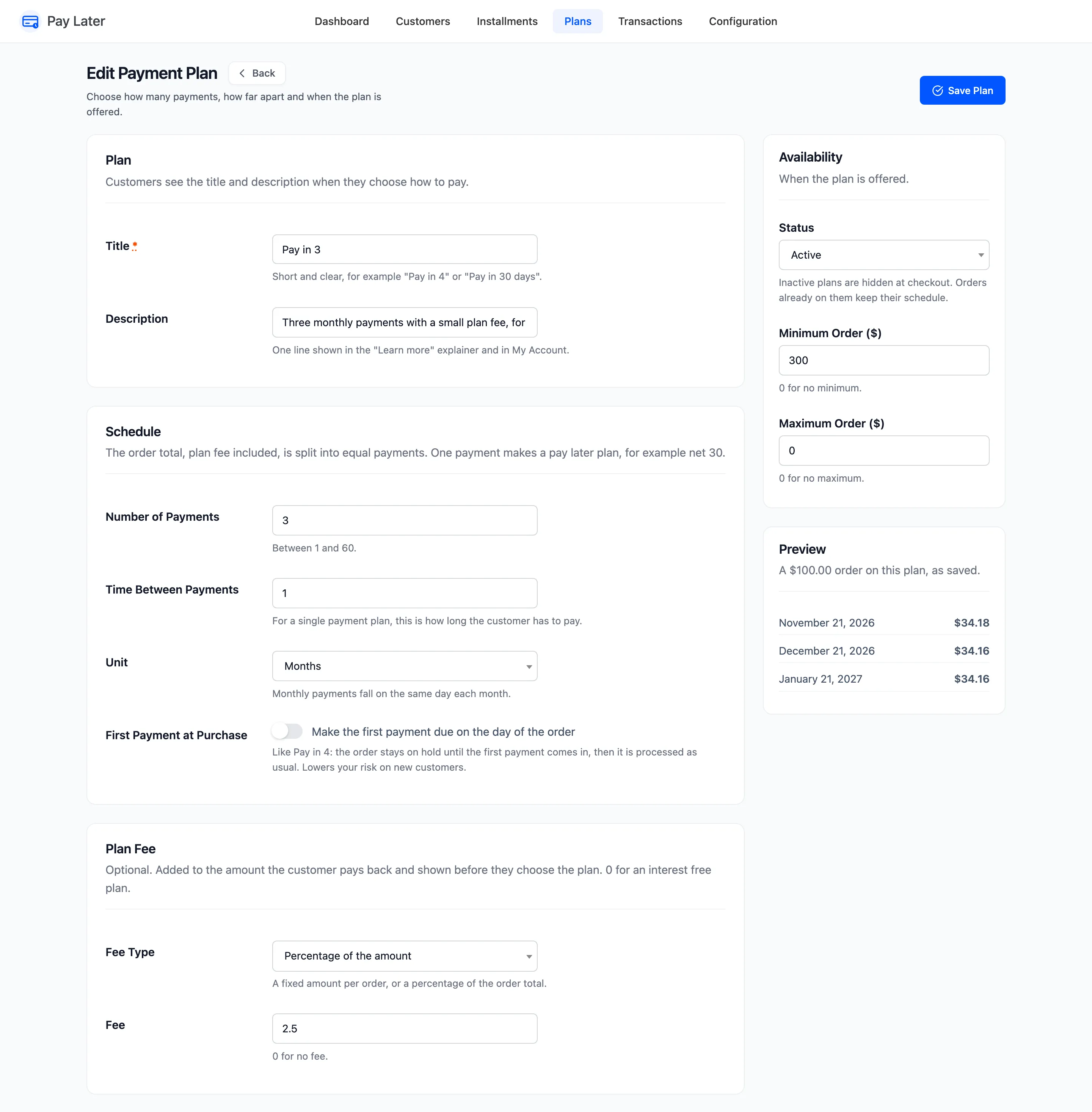
Section titled “Step 5: Create it”Click Create Plan. The editor reopens with Preview: what a $100.00 order would pay on the plan, with dates.
The plan joins the list, and checkout offers it to every order it fits.
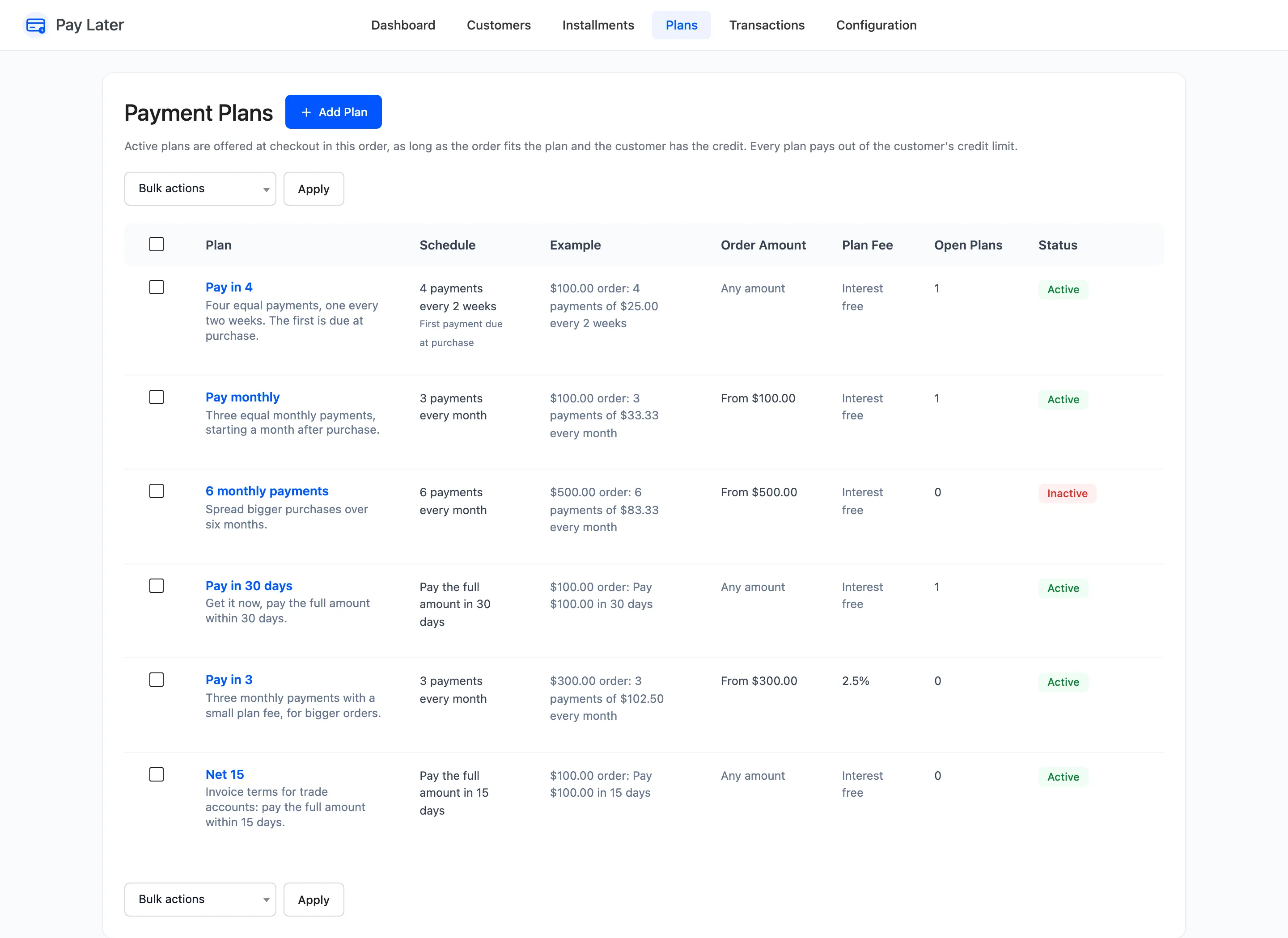
Plans appear at checkout in the order they were created. The installment message on product pages advertises the plan with the most payments that fits the price, unless you choose one under Configuration → Messaging.