Credit & Approval Settings
The Credit & Approval tab decides who gets credit, how much, and for which orders. Open DevDiggers Plugins → Pay Later → Configuration → Credit & Approval.
Credit Limit
Section titled “Credit Limit”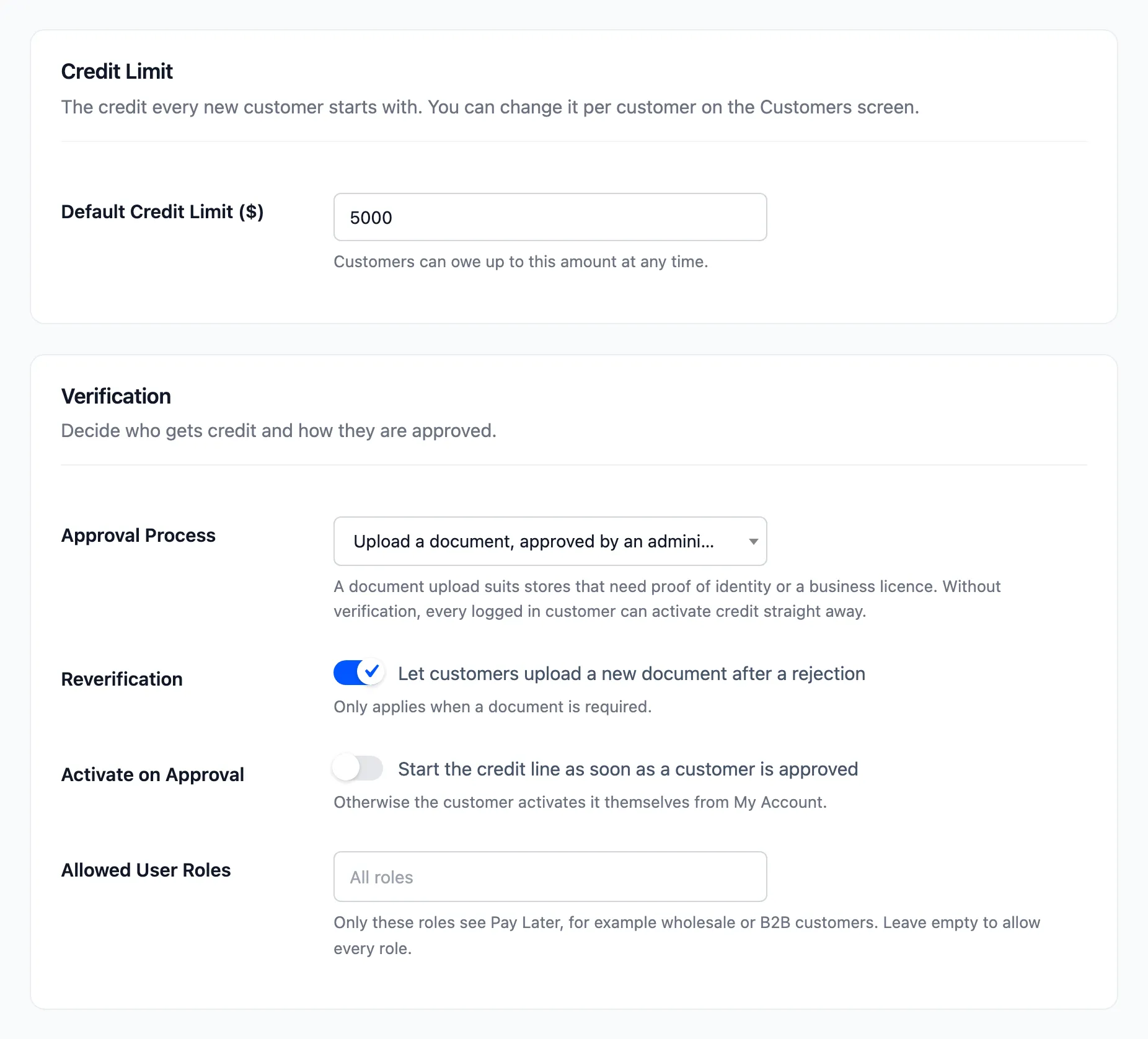
- Default Credit Limit: What every new customer can owe at any time. 1000 in your store currency on a new install. The demo uses $5,000.
The limit is saved on the customer when their credit starts. Changing the default later moves the limit of customers who have not started yet, and leaves everyone else alone. In Pro you change one customer’s limit on the Customers screen.
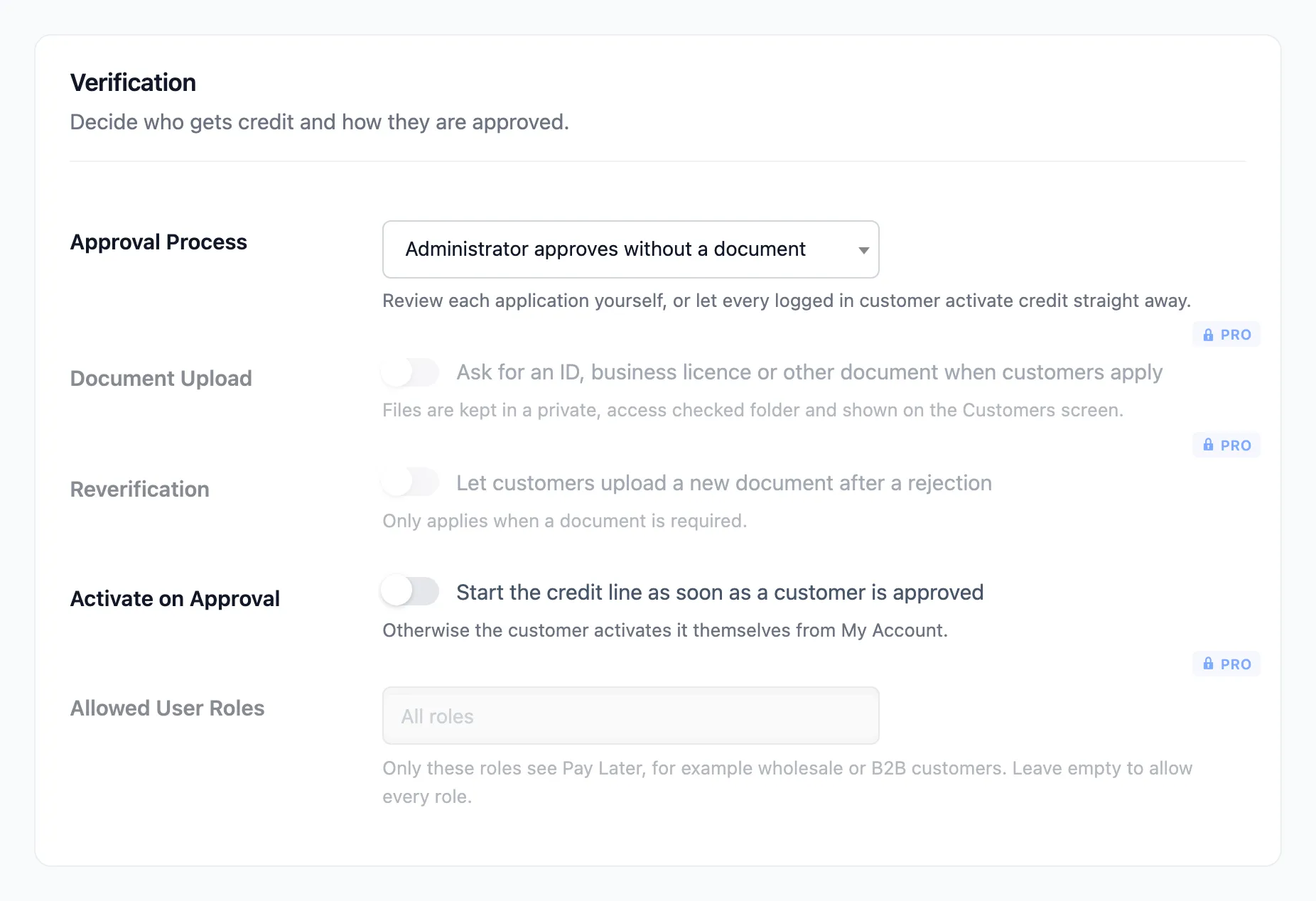
Verification
Section titled “Verification”- Approval Process: How a customer becomes eligible.
- Upload a document, approved by an administrator (Pro): The customer attaches an ID, a business licence or any proof you ask for. The Pro default.
- Administrator approves without a document: The customer clicks Apply for Pay Later and you approve them. The free default.
- No verification, every customer is eligible: Every logged-in customer can start credit straight away.
- Reverification (Pro): “Let customers upload a new document after a rejection”. Off by default. Only applies with a document upload.
- Activate on Approval: “Start the credit line as soon as a customer is approved”. Off by default, so an approved customer clicks Activate Pay Later themselves. With No verification, this starts credit the first time the customer opens their Pay Later section or reaches the checkout.
- Allowed User Roles (Pro): Only these roles see Pay Later, for example a wholesale role. Empty by default, which allows every role.
Documents are kept in a private folder and opened from the Document column of the Customers screen. Accepted types are JPG, PNG, PDF, DOC and DOCX, up to your site’s upload size limit.
See How to Approve Customers for Pay Later.
Order Amount
Section titled “Order Amount”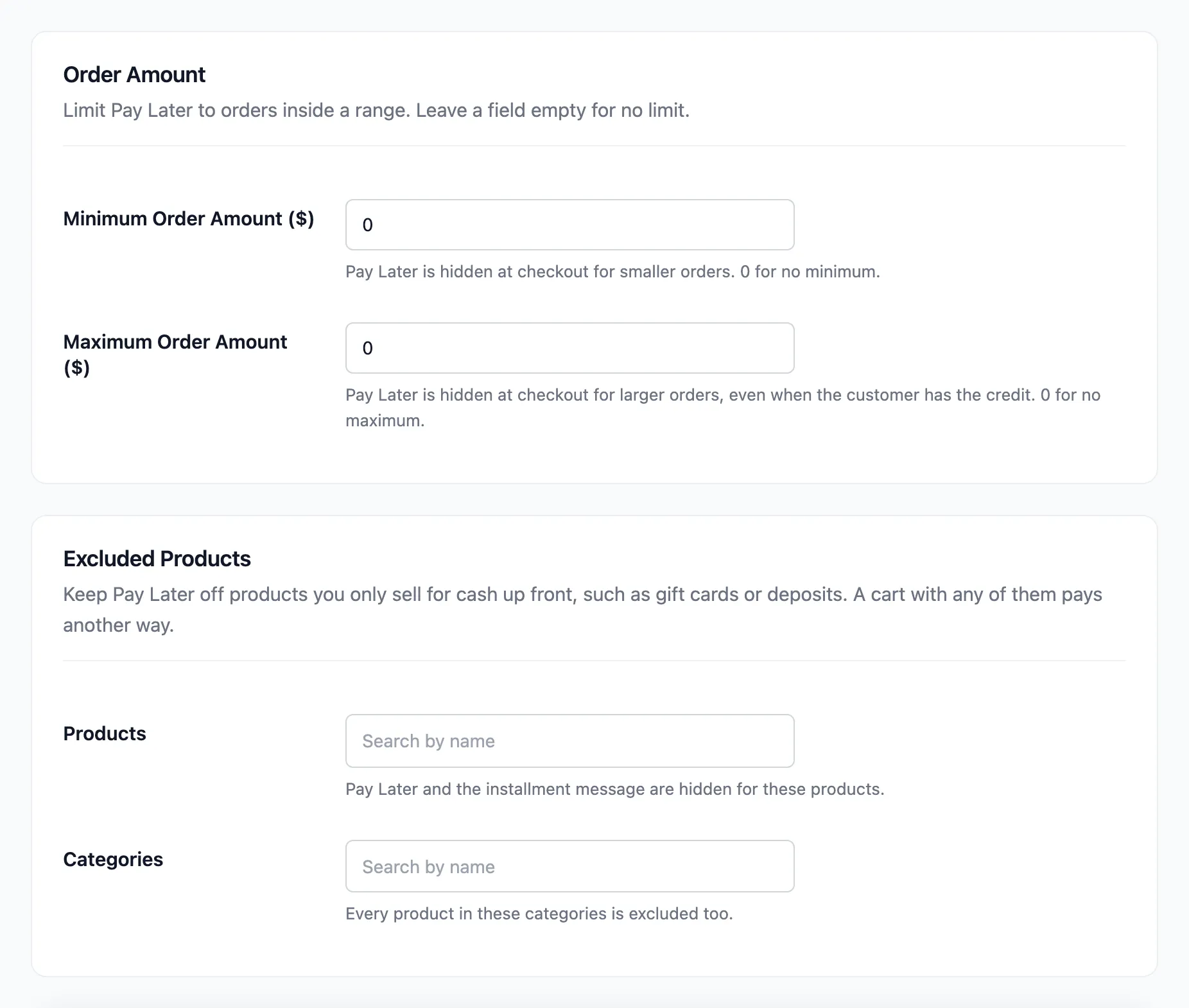
- Minimum Order Amount: Pay Later is hidden at checkout for smaller orders. 0 means no minimum.
- Maximum Order Amount: Pay Later is hidden for larger orders, even when the customer has the credit. 0 means no maximum.
An approved customer whose order is outside the range sees why at checkout, for example “Pay Later needs an order total of at least $1,000.00.”
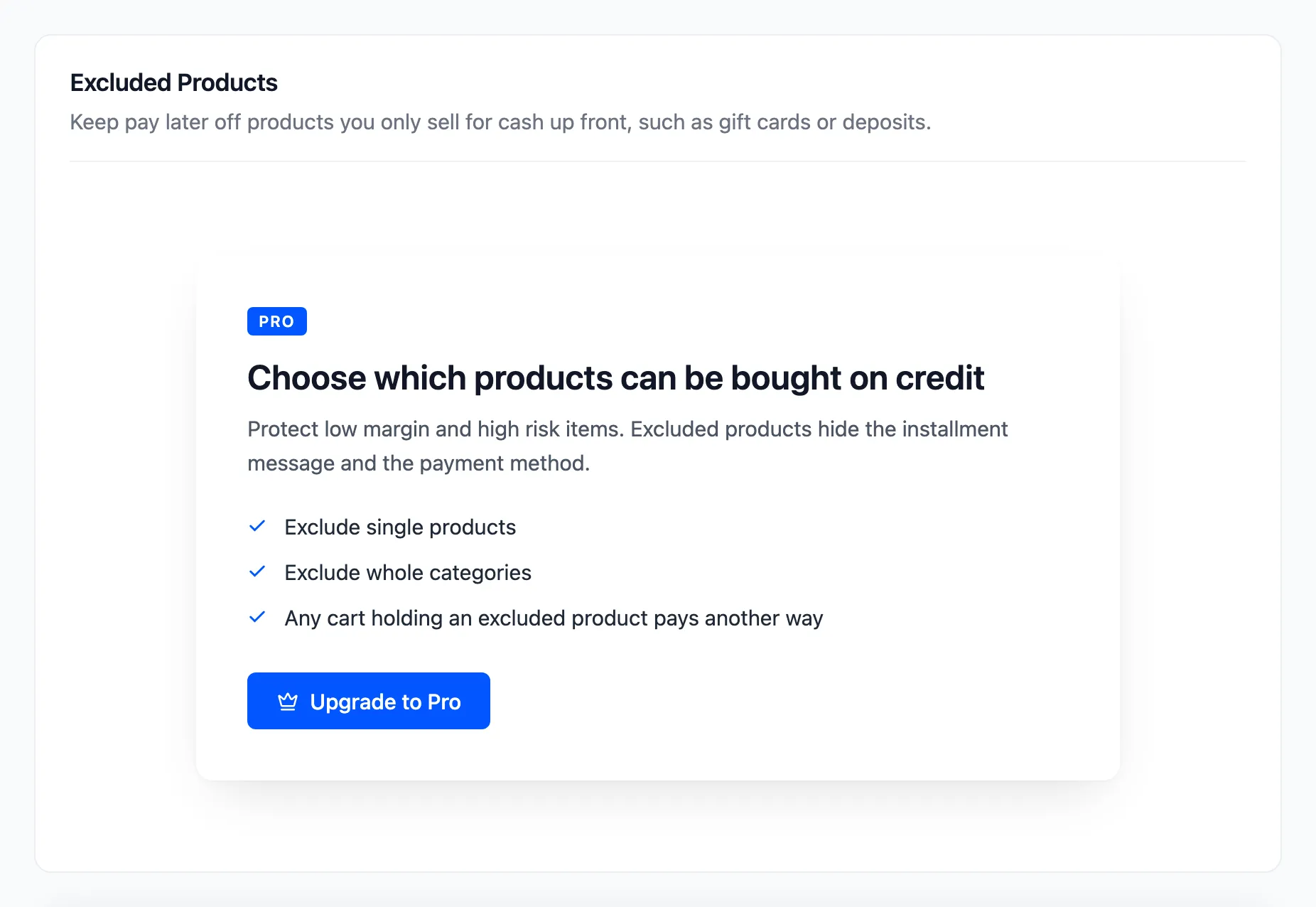
Excluded Products (Pro)
Section titled “Excluded Products (Pro)”- Products: Pay Later and the installment message are hidden for these products.
- Categories: Every product in these categories is excluded too.
A cart holding any excluded product pays another way. See How to Exclude Products from Pay Later (Pro).
Click Save Changes at the bottom of the tab.
In the free version
Section titled “In the free version”Document upload, reverification and allowed roles show as locked rows, and Excluded Products as an upgrade card.