

How to Handle a Missed Payment
A missed payment is handled once, automatically: one email, one late fee, and a pause on new Pay Later orders until it is paid. The demo follows John, whose third payment of $156.94 fell three days behind.
Step 1: Decide the rules
Section titled “Step 1: Decide the rules”Go to DevDiggers Plugins → Pay Later → Configuration → Reminders & Fees:
- Pause Credit: On by default. Overdue customers cannot use Pay Later until they pay.
- Grace Period (days) (Pro): Days of slack after the due date. 0 by default.
- Late Fee Type and Late Fee (Pro): A fixed amount or a percentage of the missed payment, added once. The demo uses a $15.00 fixed fee.
Click Save Changes.
Step 2: The payment is missed
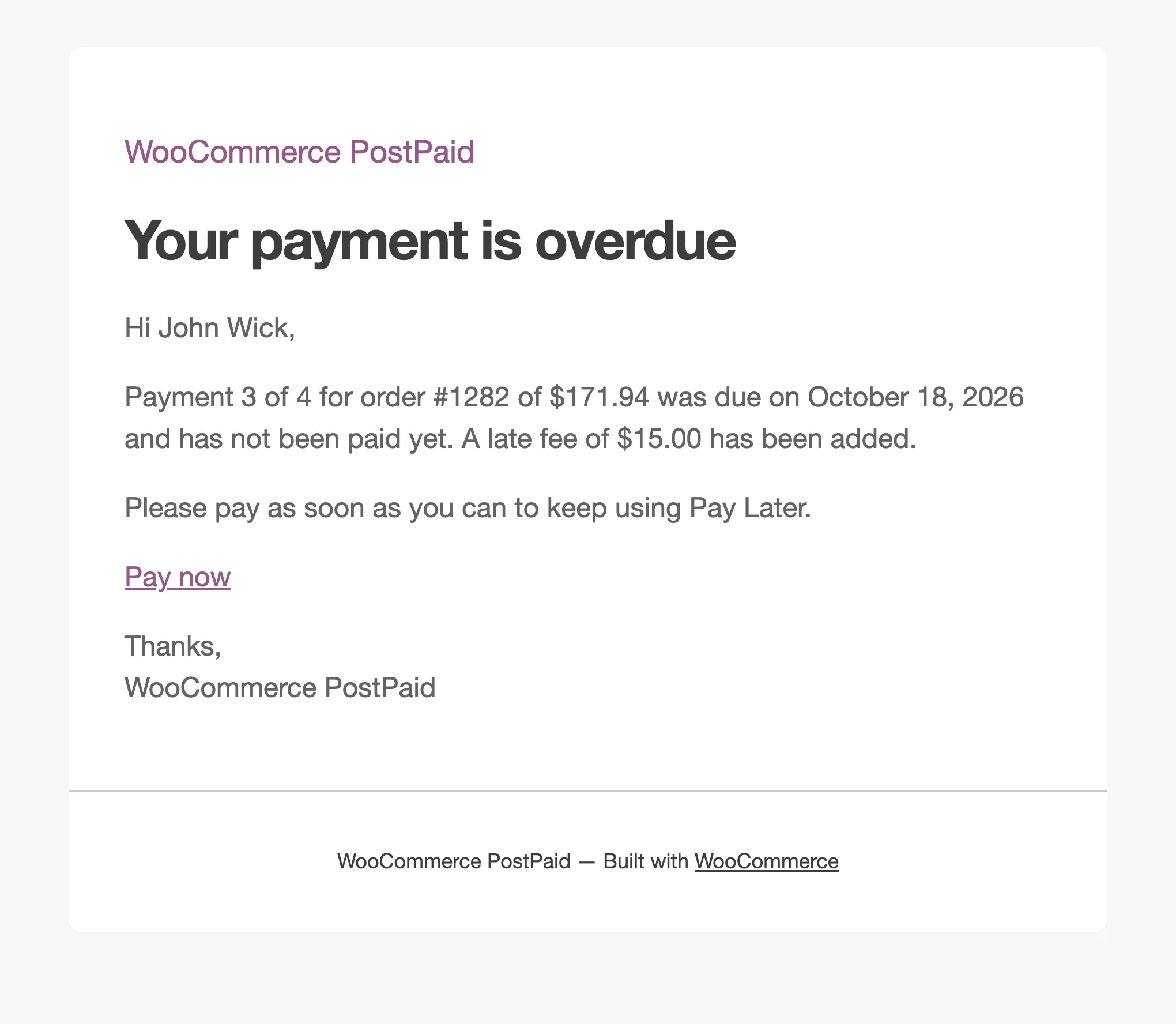
Section titled “Step 2: The payment is missed”The first daily run after the due date and any grace period acts once. In Pro it adds the late fee to the installment and writes a Late Fee transaction. It then emails Your payment of $171.94 is overdue, the late fee included.
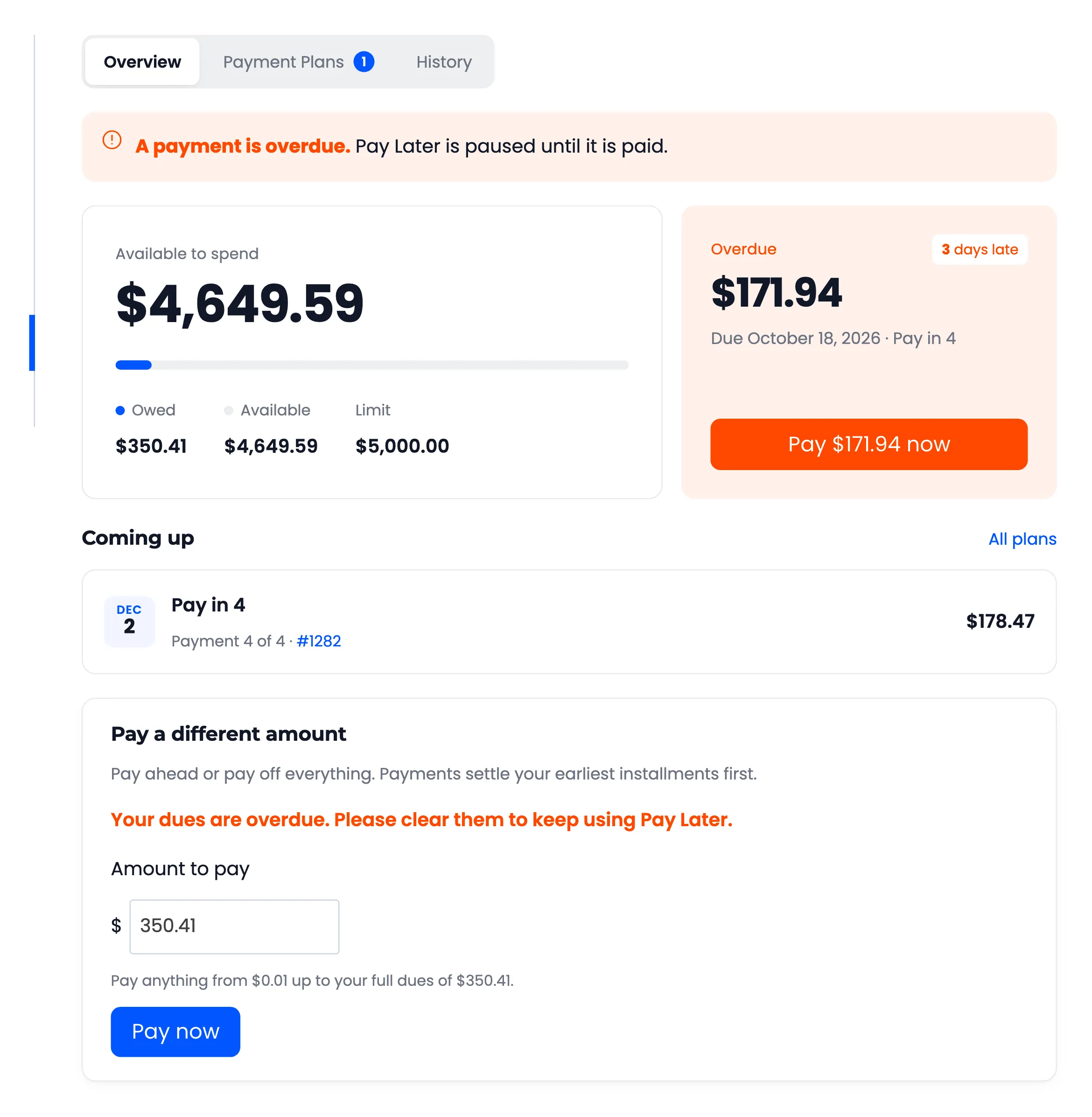
The customer’s Pay Later page turns red, says how many days late the payment is, and points to Pay now.
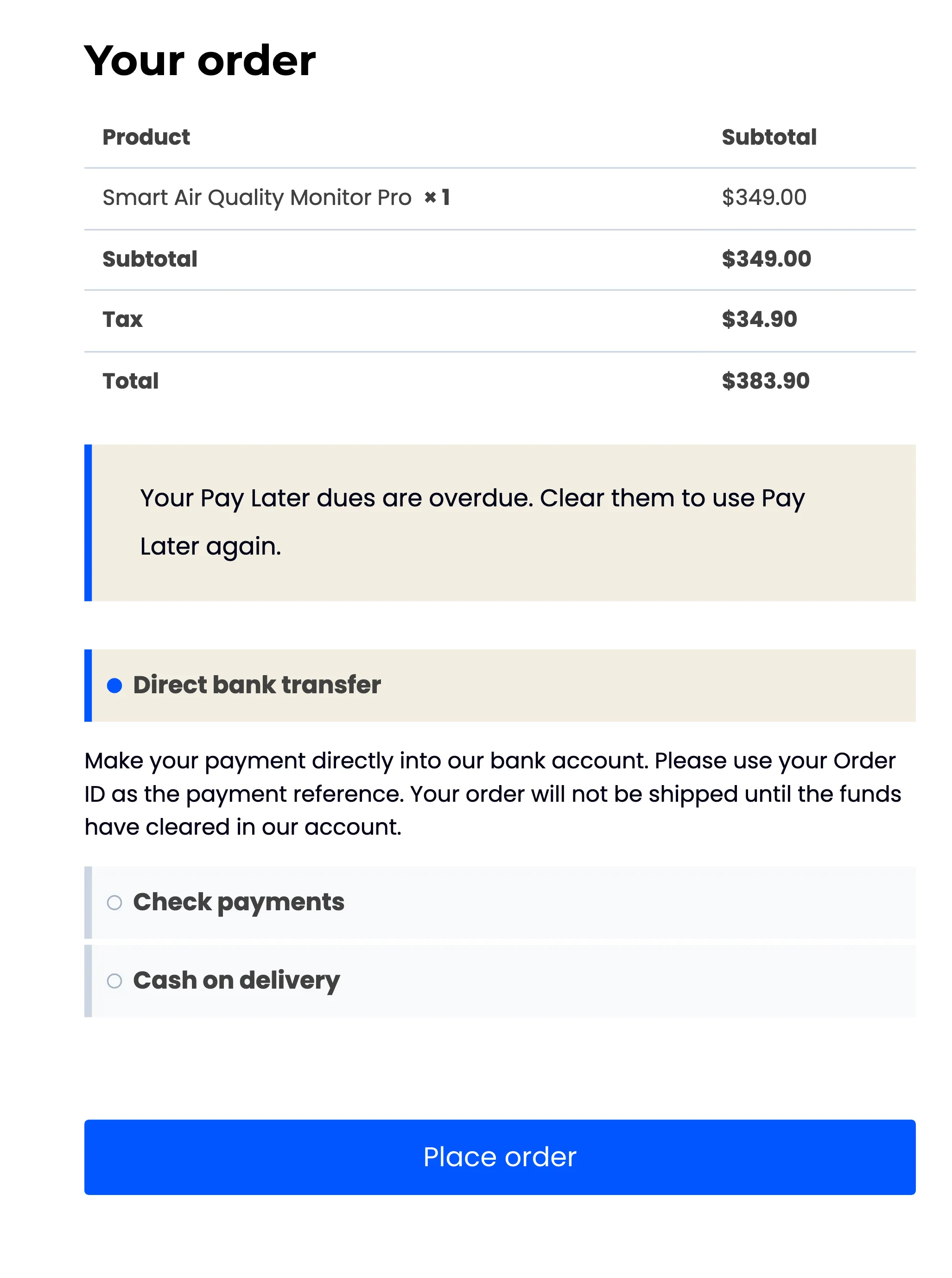
With Pause Credit on, the checkout explains why Pay Later is missing.
Step 3: Follow it up
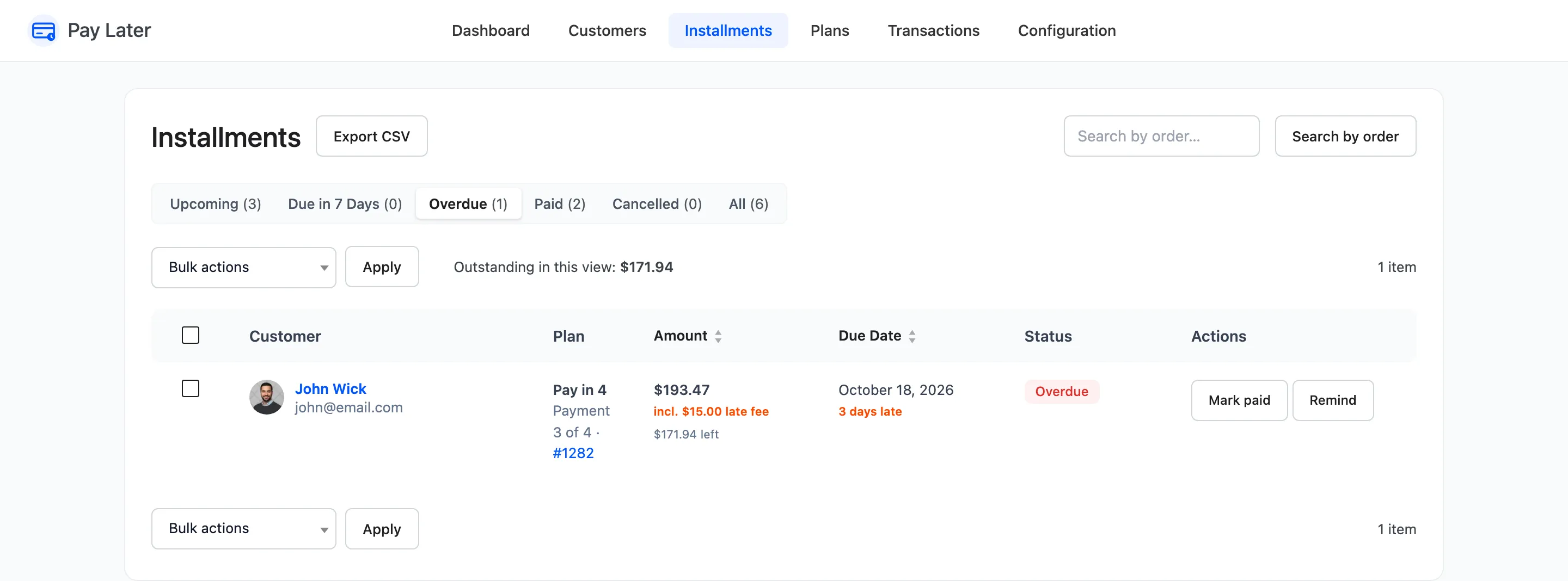
Section titled “Step 3: Follow it up”Installments → Overdue lists every late installment with its late fee and how many days late it is.
Customers → Overdue lists the customers, with “Overdue since” under their dues.
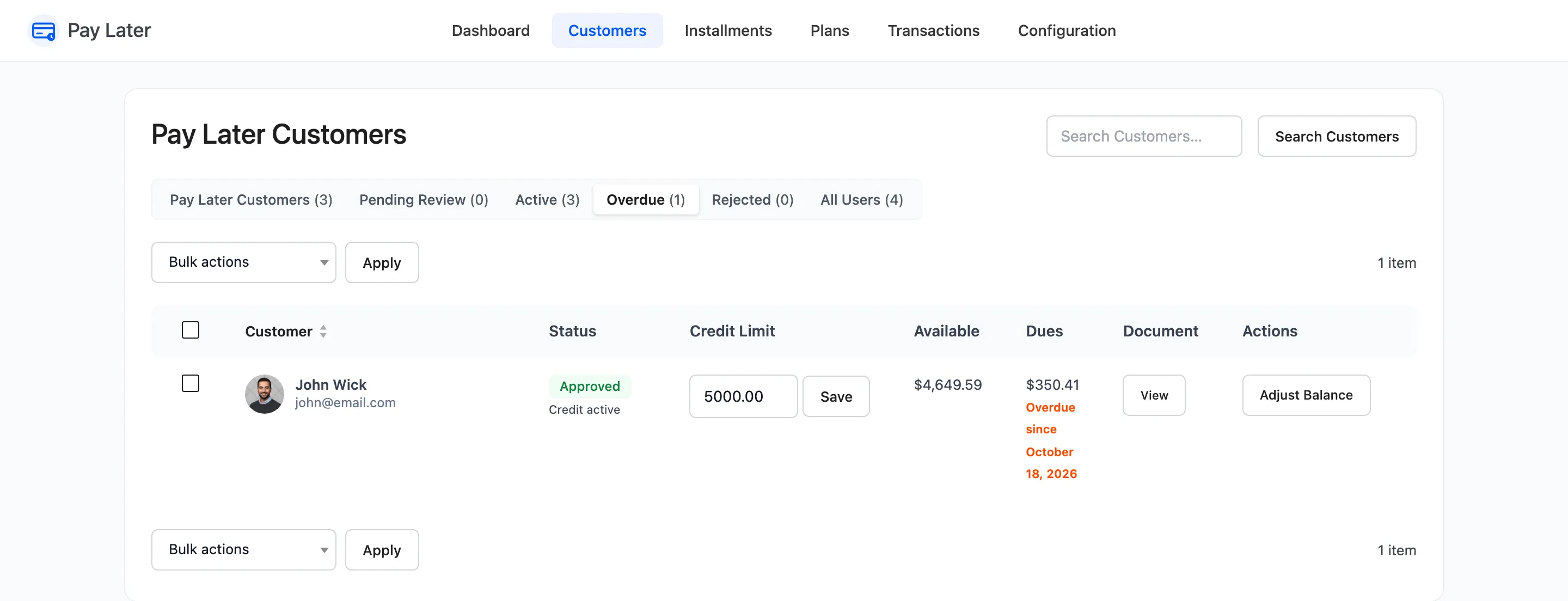
In Pro, Remind sends the overdue email again.
Step 4: The customer catches up
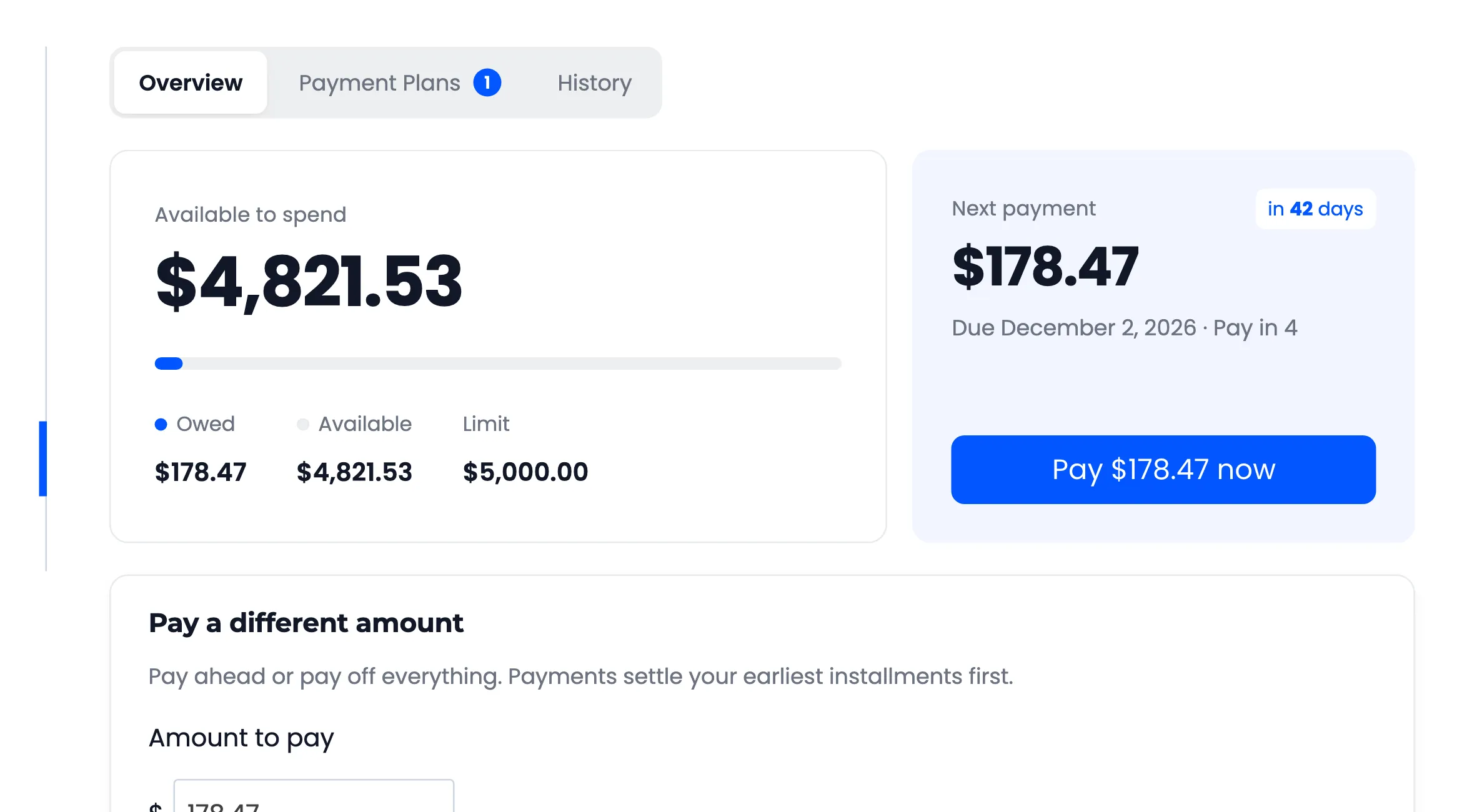
Section titled “Step 4: The customer catches up”The customer pays the overdue amount with Pay now, which includes the late fee. Once it is confirmed, the pause lifts and their account is back to normal.
A late fee is never removed by a refund or a cancellation, because it was earned by the missed date. To waive one, reduce the customer’s dues with Adjust Balance.