

How to Pay an Installment
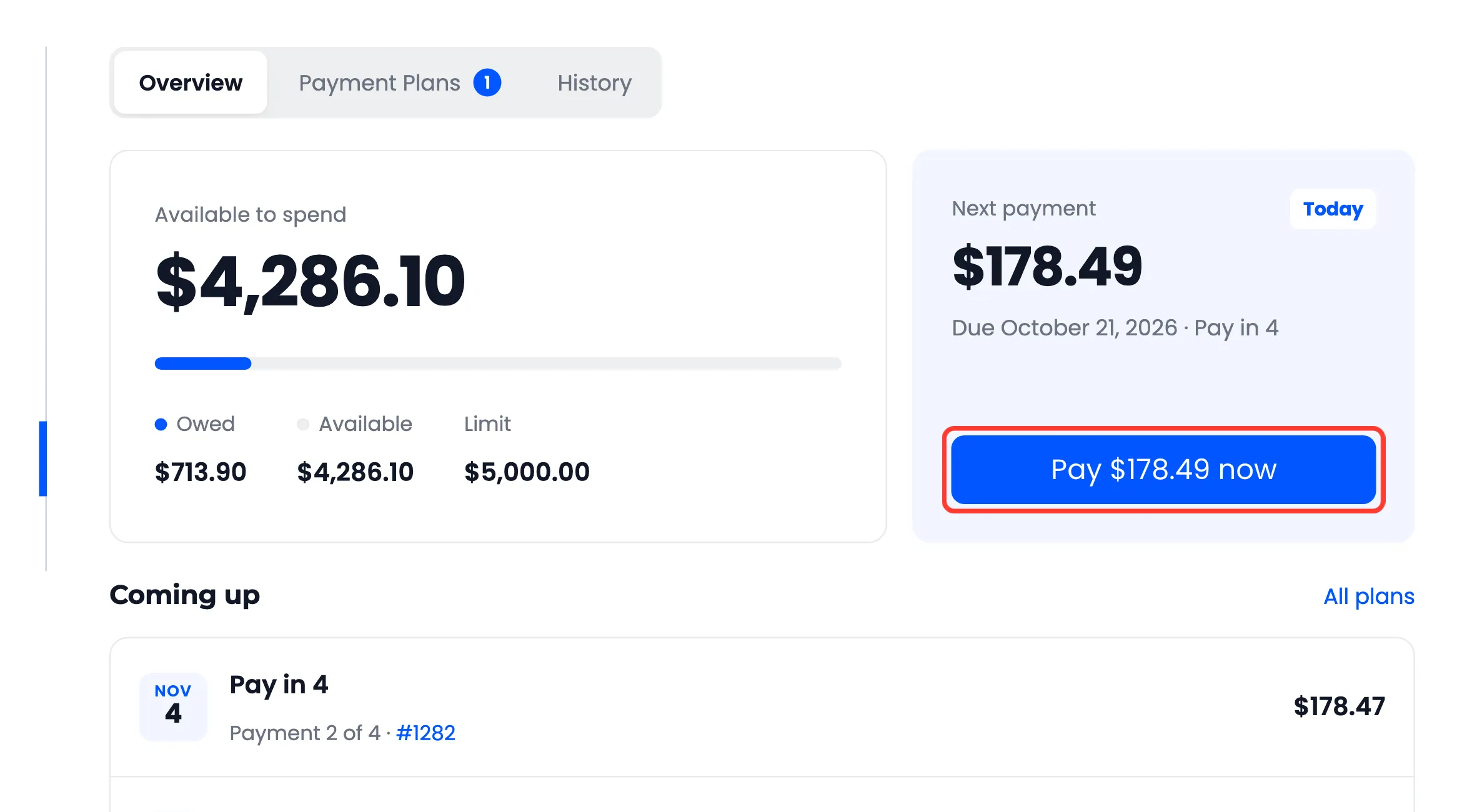
Customers pay installments through your normal checkout, so the money reaches you through your usual payment methods. This follows John paying the first $178.49 of his Pay in 4 order by bank transfer.
Step 1: Open the next payment
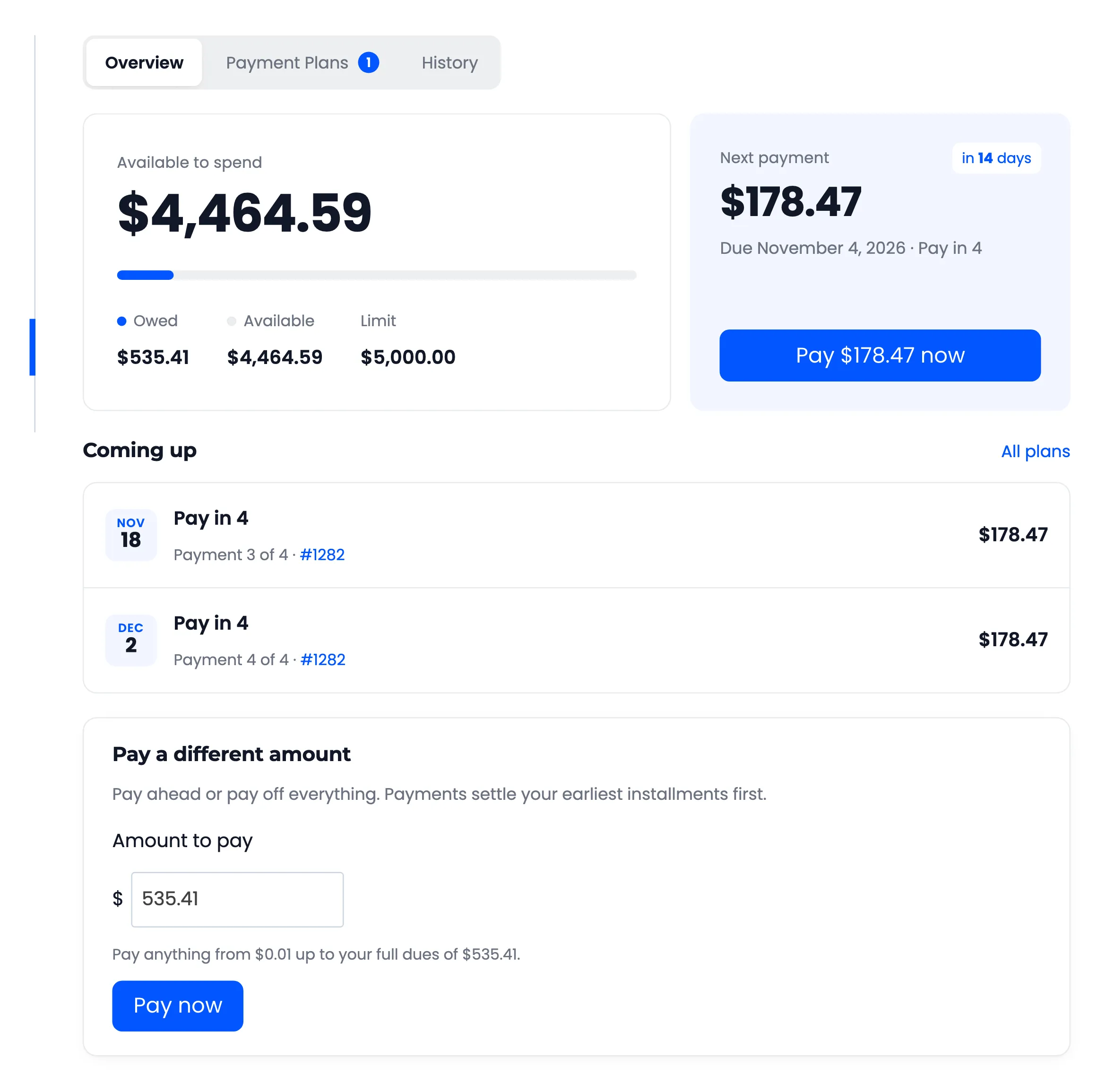
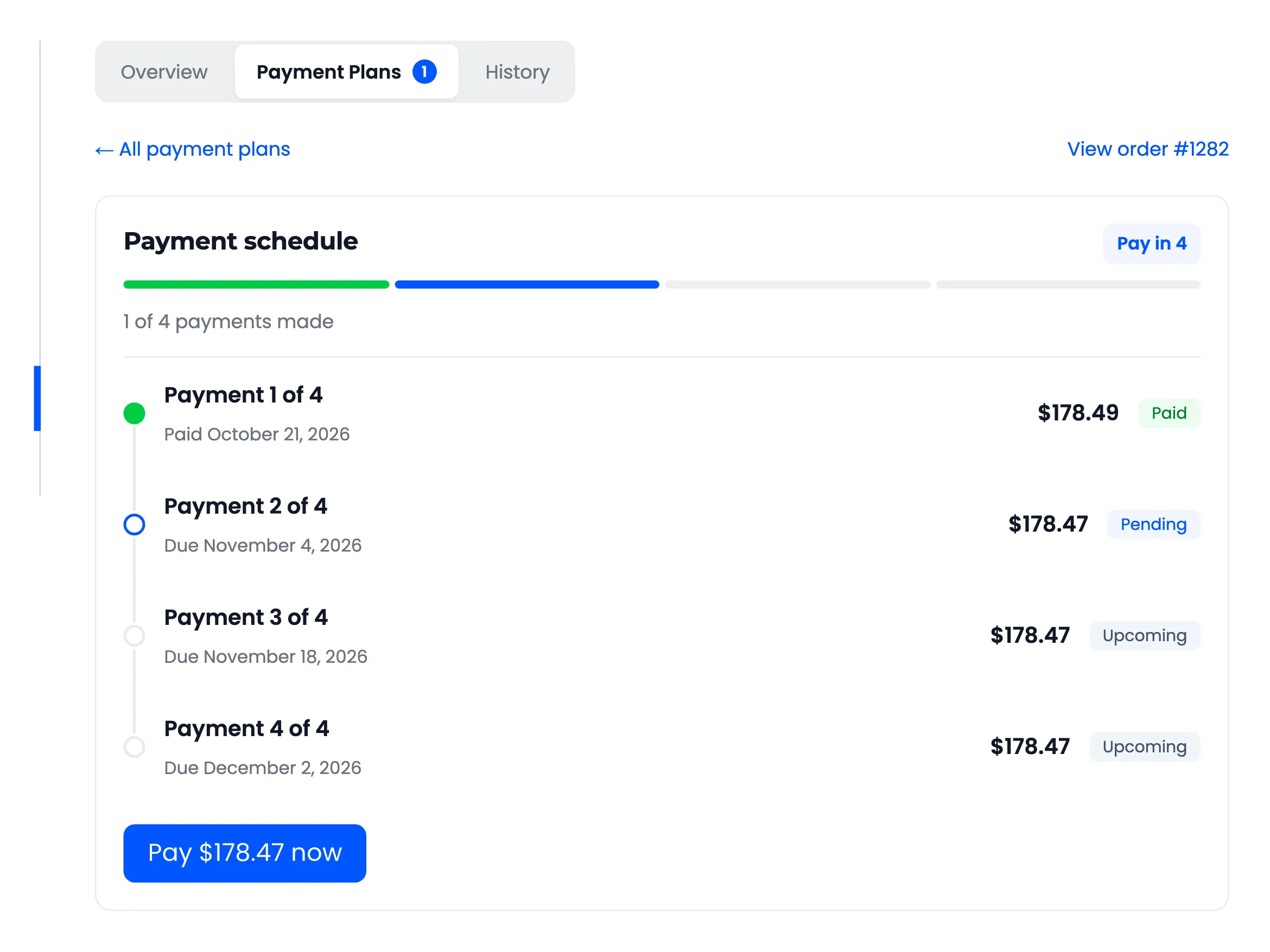
Section titled “Step 1: Open the next payment”The customer opens My Account → Pay Later. The Next payment card shows the amount, the due date and Pay now. The same button sits on the thank you page and on each plan’s schedule.
Step 2: Pay at checkout
Section titled “Step 2: Pay at checkout”Pay now empties the cart, adds one Pay Later Dues line for that amount and opens the checkout. The quantity is fixed at one, and other products cannot join the cart until it is paid or removed.
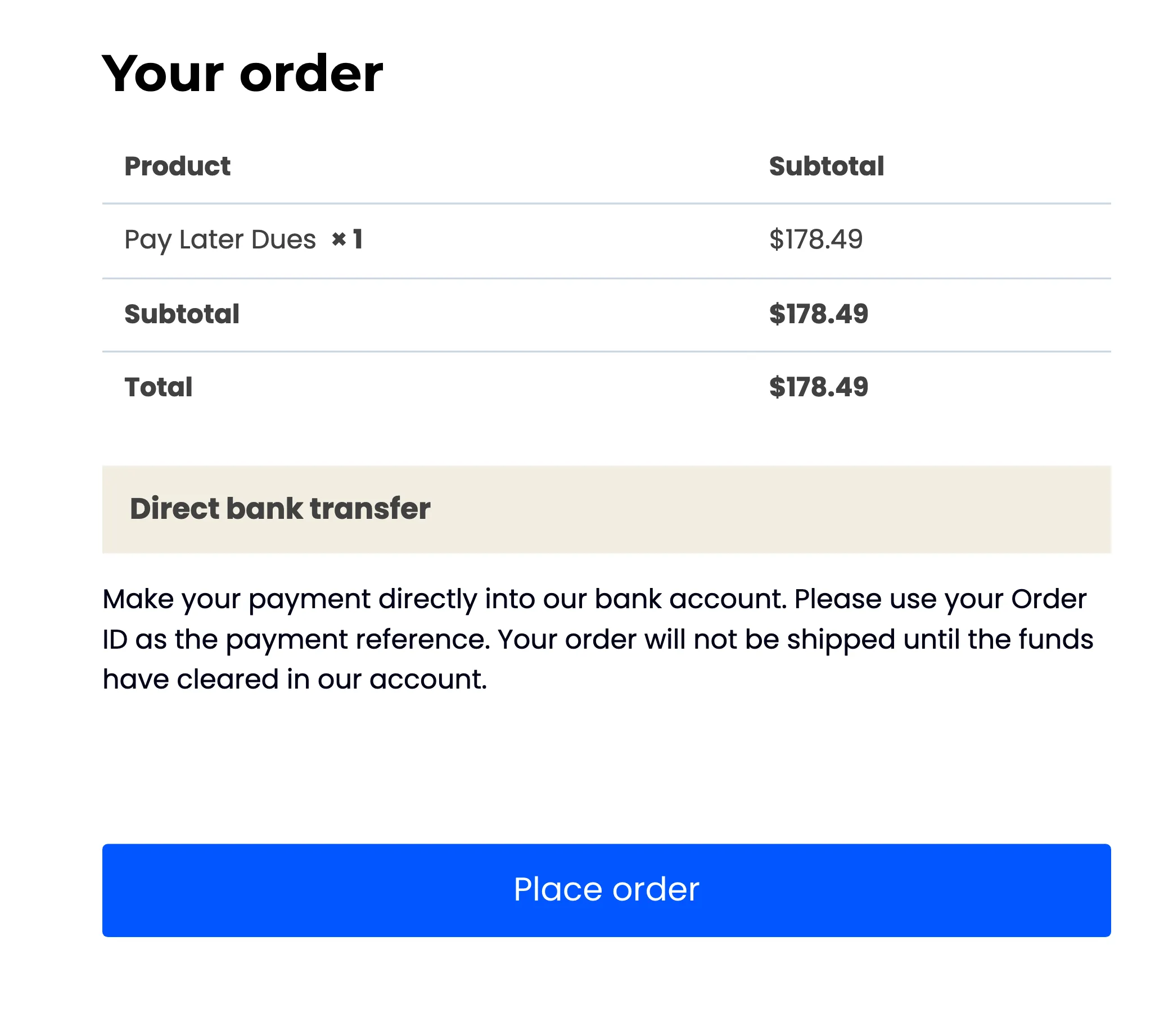
Every payment method you accept is offered except three that cannot pay it now: Pay Later itself, cash on delivery and check. John chose Direct bank transfer.
Step 3: Confirm the money arrived
Section titled “Step 3: Confirm the money arrived”The payment counts when the repayment order reaches Processing or Completed. Card and wallet payments get there on their own.
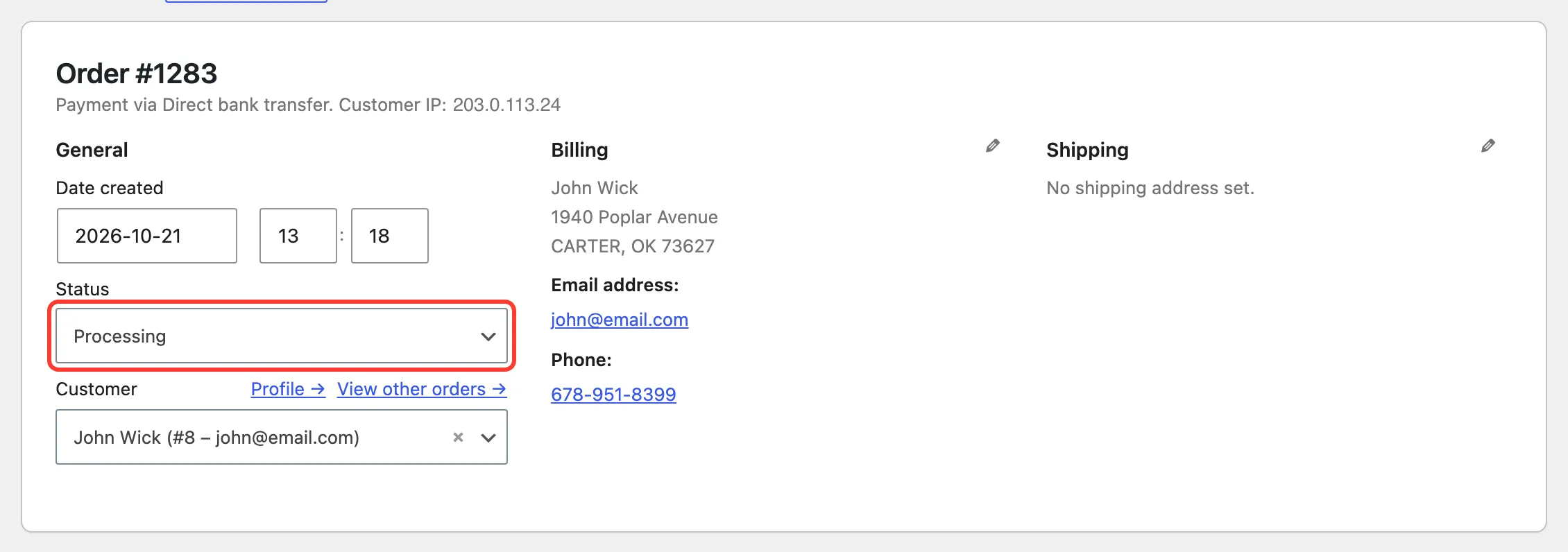
A bank transfer waits On hold. When the money is in your account, open the order, set Status to Processing and click Update.
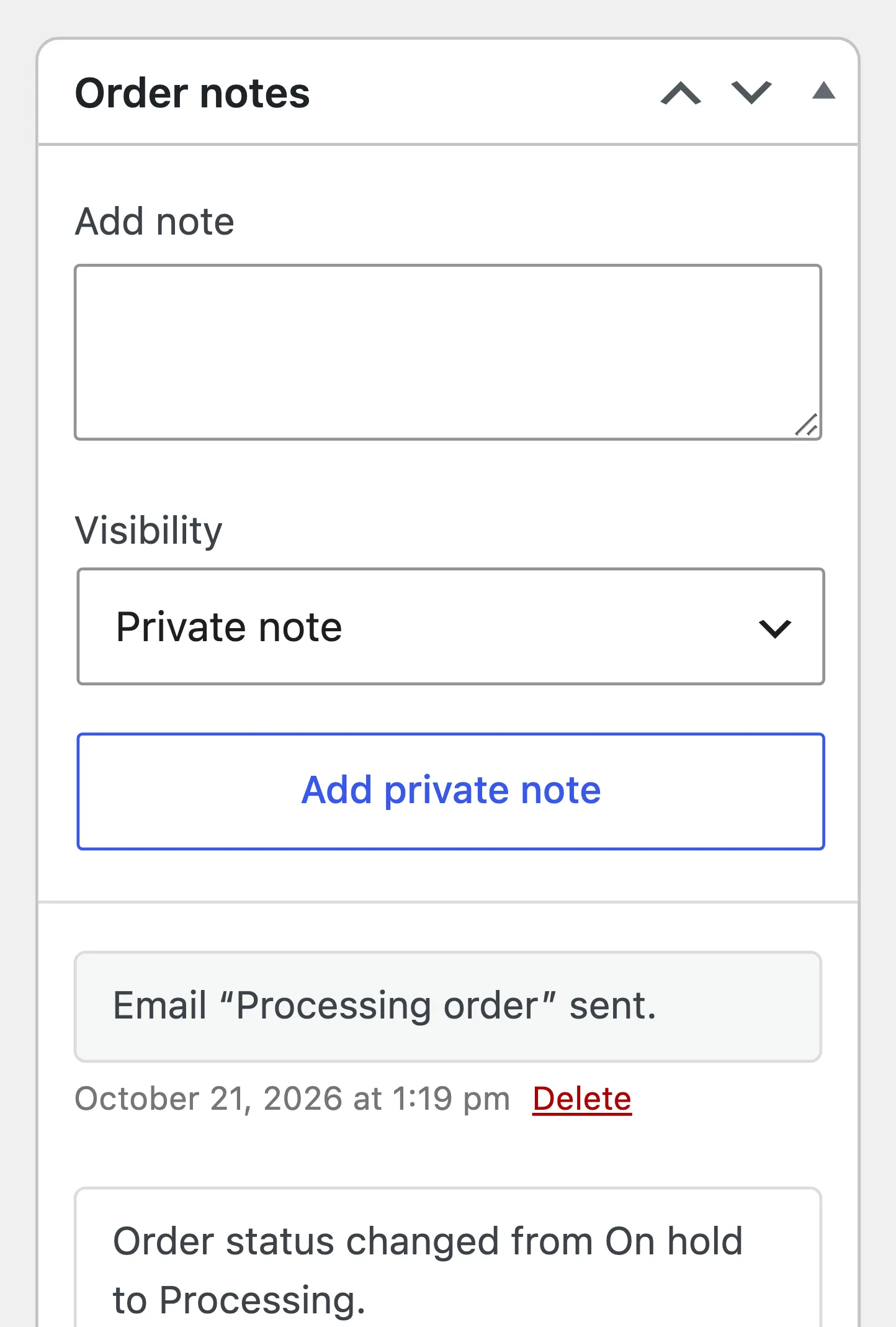
The order notes then read “Pay Later dues credited to the customer.”
Step 4: Check the result
Section titled “Step 4: Check the result”The payment settles the earliest installment. John’s first payment shows Paid, his credit is back to $4,464.59, and the Next payment card moves on to November 4.
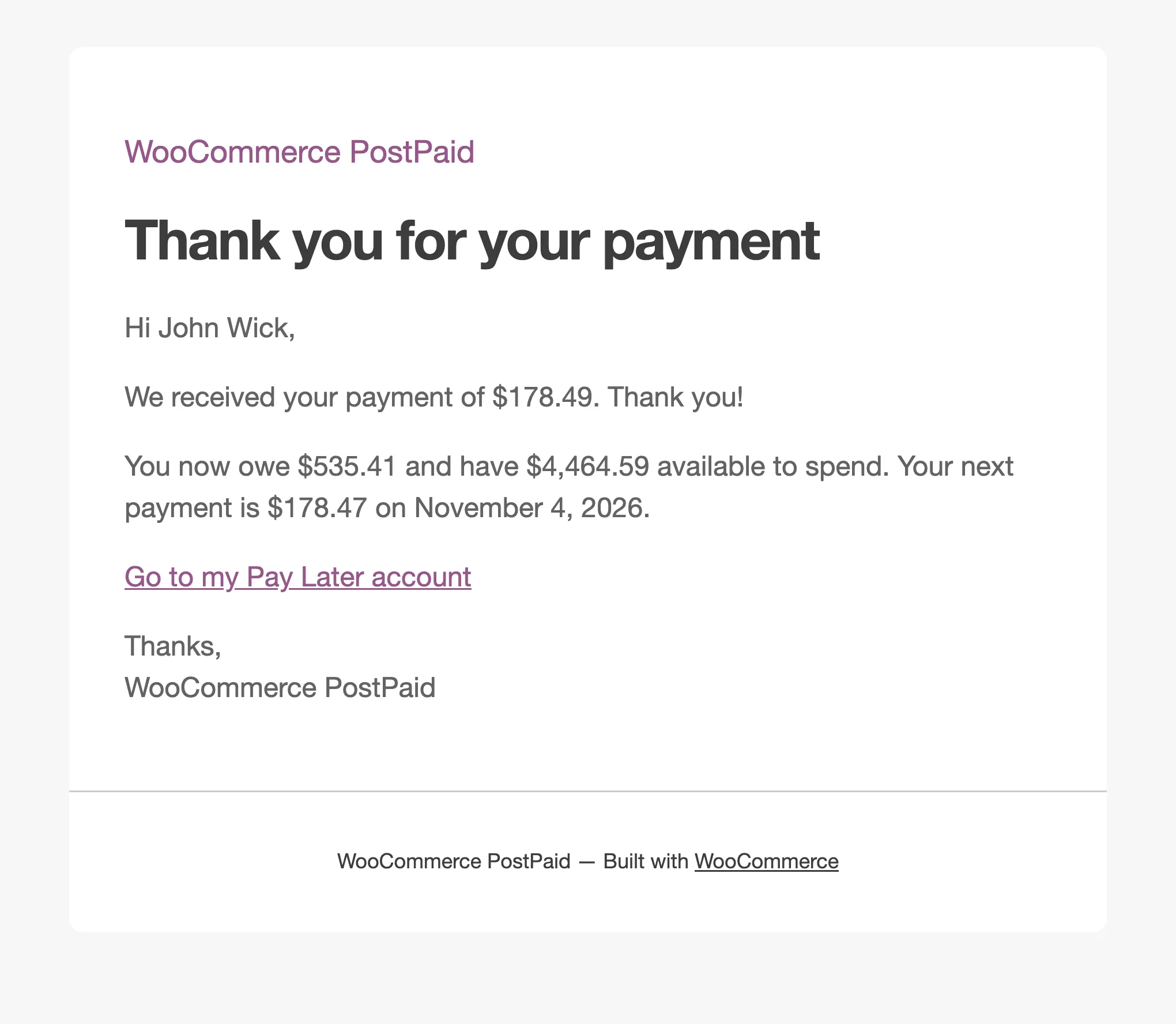
He also receives We received your payment of $178.49, with what he owes now and what he can spend.
Because it was the first payment of a held order, order #1242 moved to Processing at the same time. See How to Take the First Payment at Purchase.