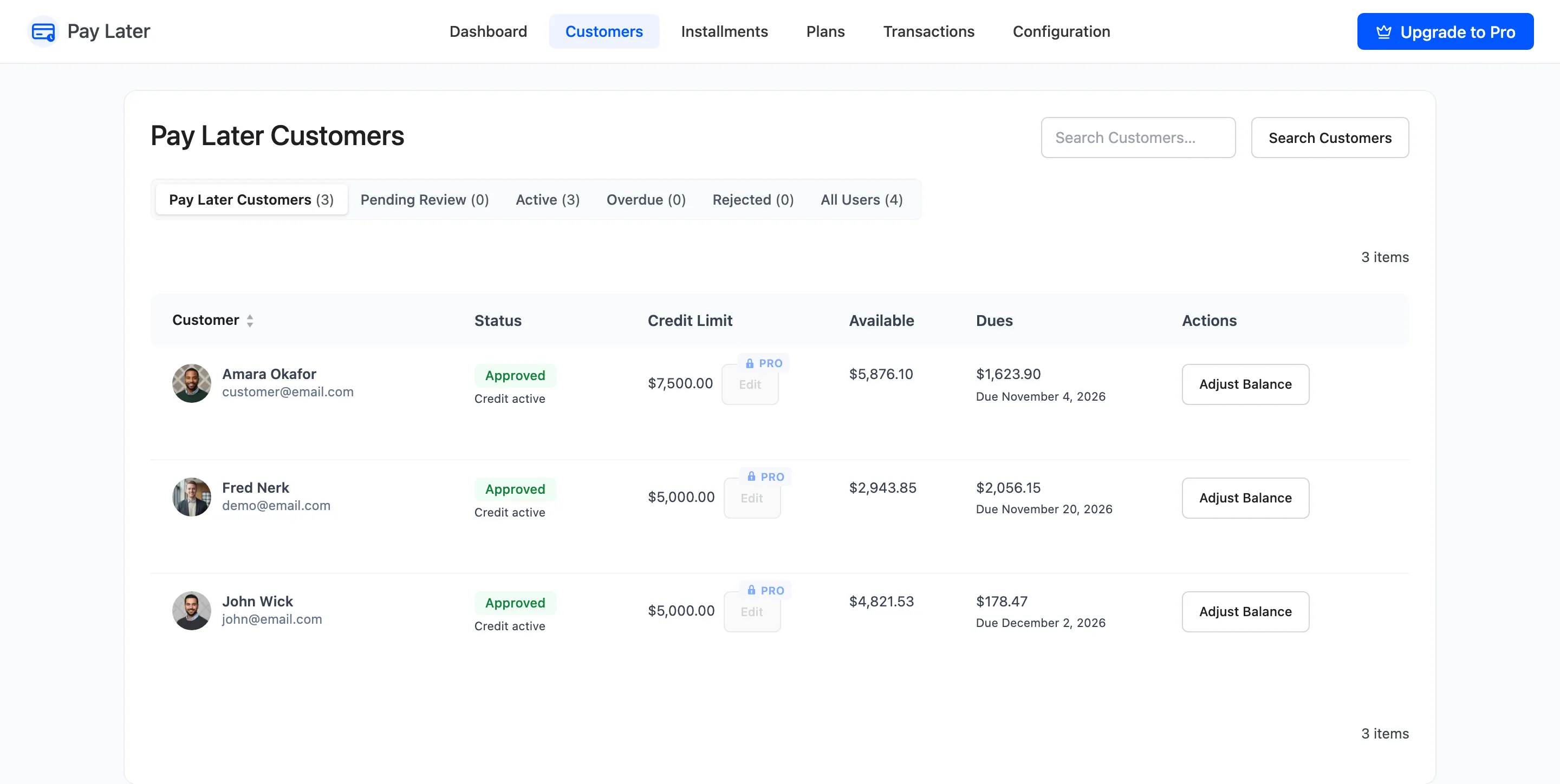
The Customers Screen
The Customers screen is where you approve customers and look after their credit. Open DevDiggers Plugins → Pay Later → Customers.
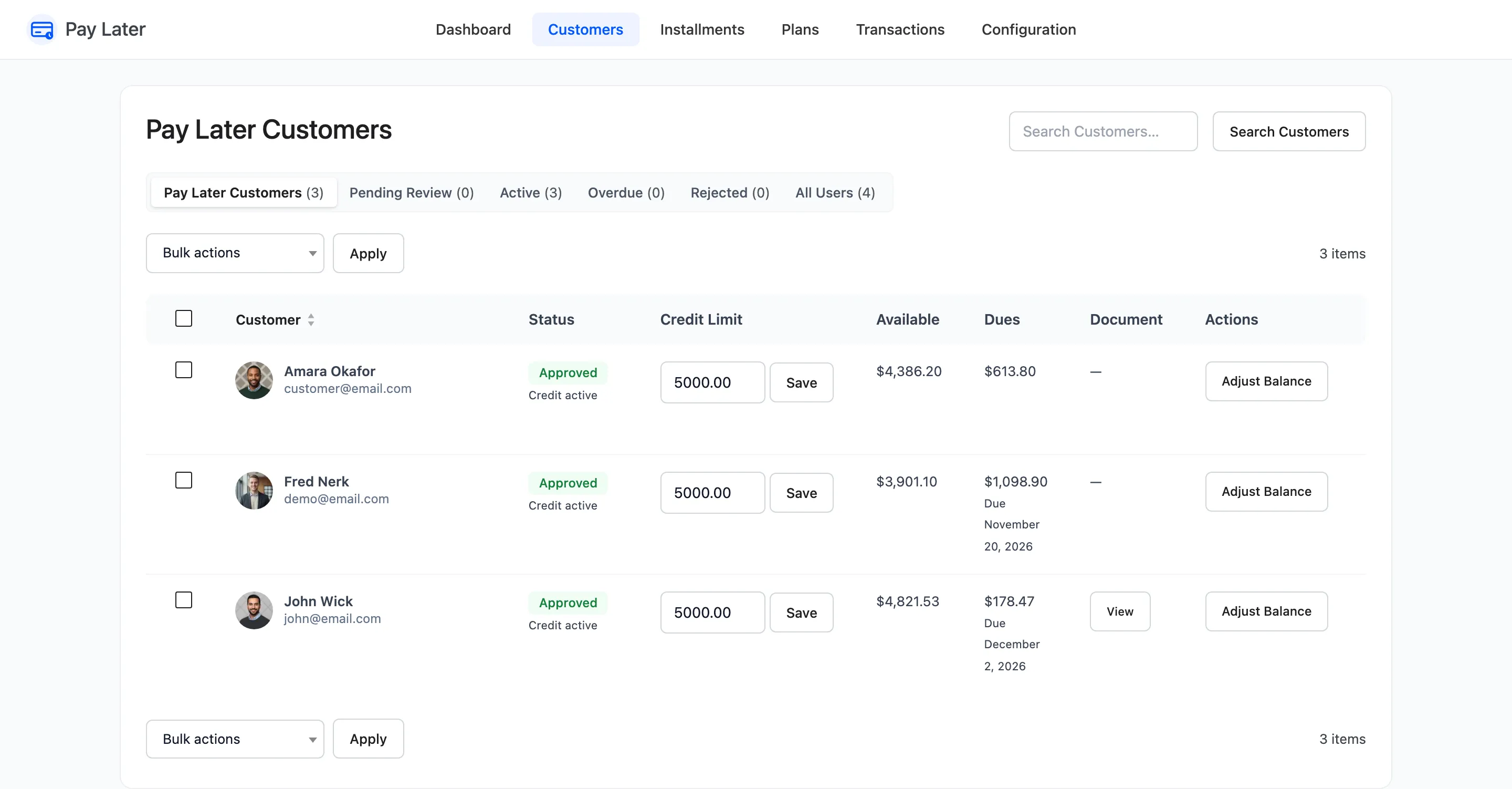
- Pay Later Customers: Everyone who has applied or whose credit has started.
- Pending Review: Applications waiting for you.
- Active: Customers whose credit has started.
- Overdue: Customers with a missed payment.
- Rejected: Customers you turned down.
- All Users: Every user on the site, including those who never applied.
Search Customers matches the name, username and email.
Columns
Section titled “Columns”- Customer: Avatar, name and email. Hover for the row actions.
- Status: Pending, Approved, Rejected or Not Applied. Under Approved it says “Credit active” or “Not activated yet”.
- Credit Limit: The customer’s limit. In Pro you change it right here.
- Available: What they can still spend.
- Dues: What they owe, with the next due date, or “Overdue since” and a date in red.
- Document (Pro): View opens their uploaded document in a new tab.
- Actions: Adjust Balance.
Row actions
Section titled “Row actions”- Approve, Reject and Mark Pending: Change the status. Approving and rejecting email the customer. With No verification selected, these do not show, since everyone is approved.
- Transactions: The Transactions screen for this customer.
- Profile: Their WordPress user profile.
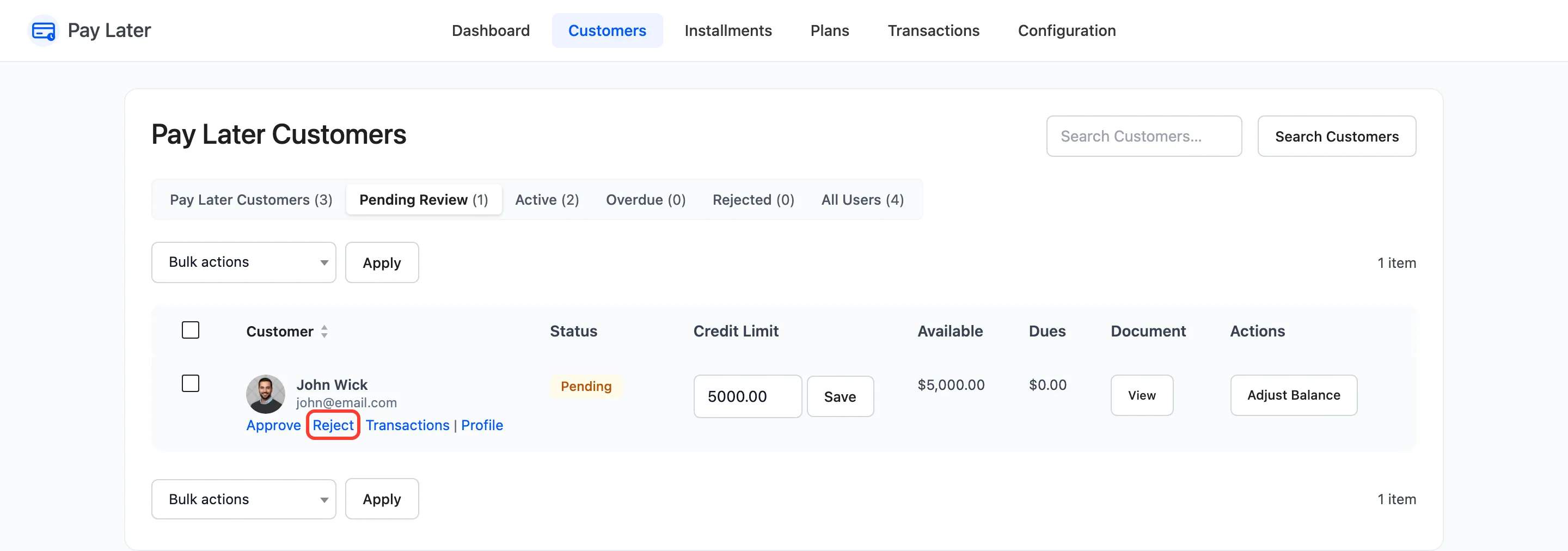
Bulk actions (Pro) apply Approve, Reject or Mark Pending to every ticked customer.
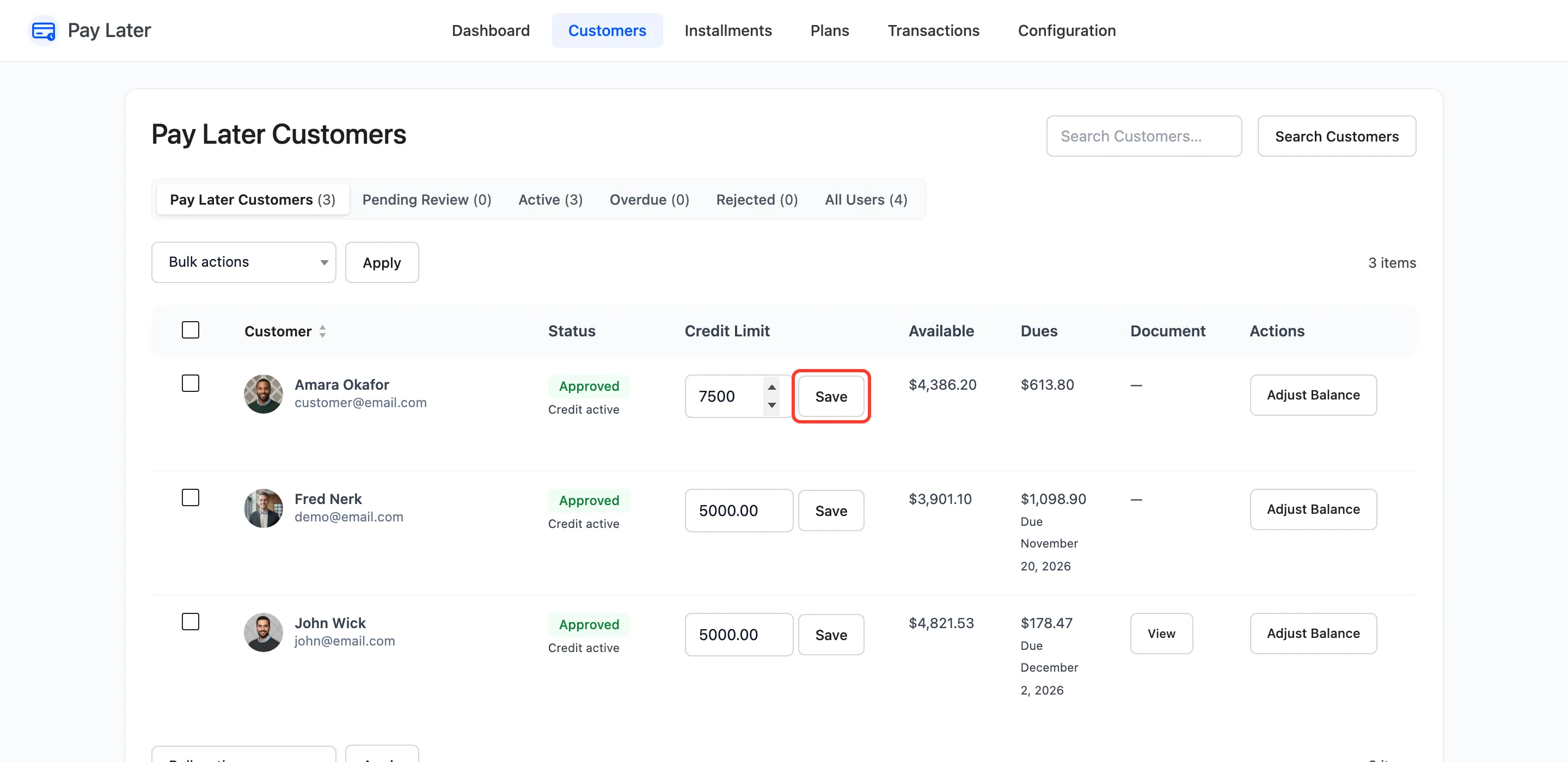
Change a credit limit (Pro)
Section titled “Change a credit limit (Pro)”Type the new limit in Credit Limit and click Save. “Credit limit updated.” confirms it. What the customer owes stays the same, so their available credit moves by the same difference.
Adjust a balance
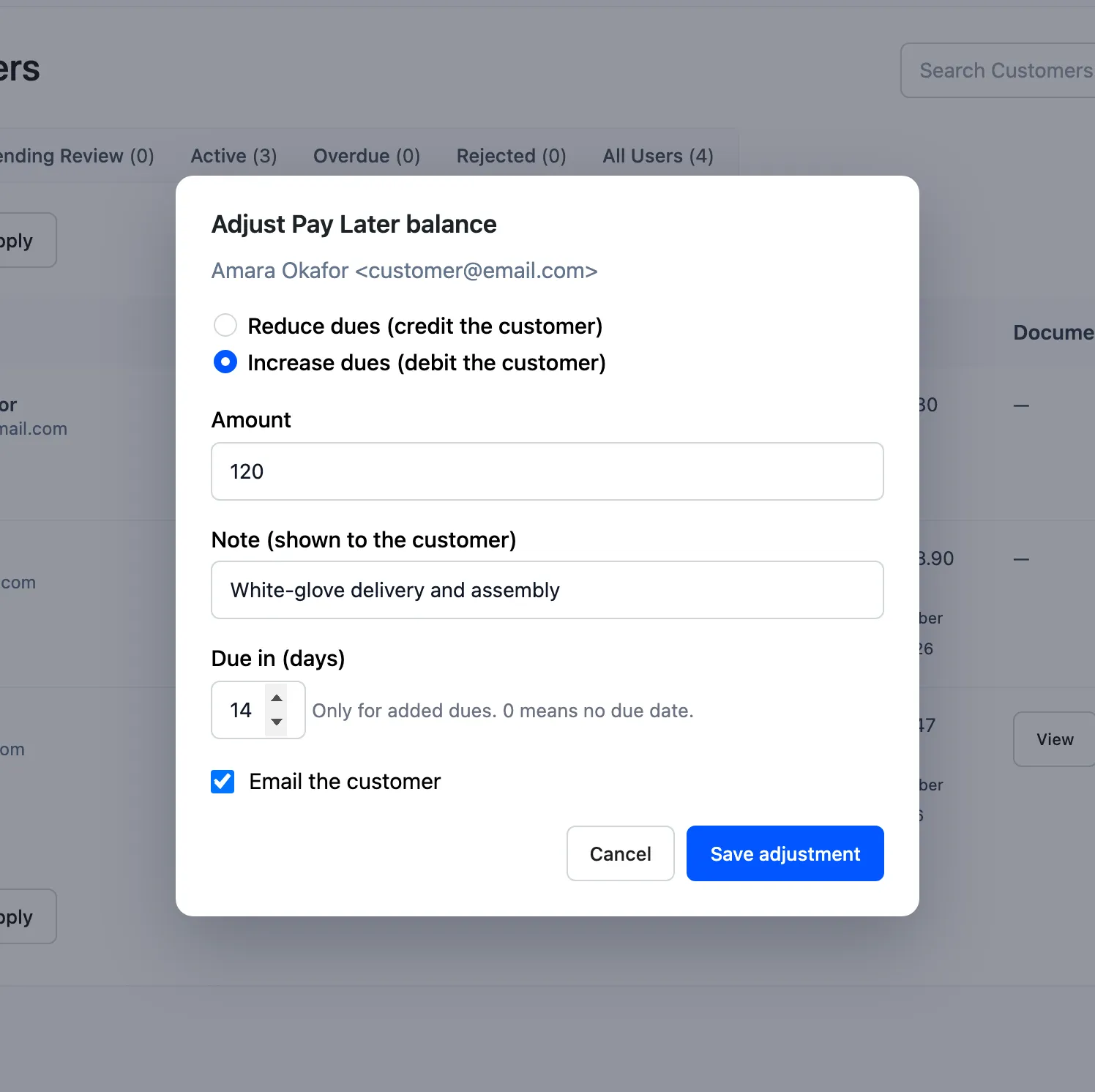
Section titled “Adjust a balance”Adjust Balance opens a small window:
- Reduce dues (credit the customer) or Increase dues (debit the customer).
- Amount and a Note, which the customer sees in their history.
- Due in (days): For added dues only. Defaults to Other Charges Due In (days). 0 means no due date.
- Email the customer: Sends Balance Adjusted by the Store.
Added dues become one installment. Reduced dues settle the earliest installments, like a payment. A customer whose credit has not started yet has it started by the adjustment. See How to Add or Remove Dues by Hand.
In the free version
Section titled “In the free version”The free version has the same screen. The Credit Limit shows the store default with a locked Save, there is no Document column, and there are no bulk actions.