

How to Let Rejected Customers Apply Again (Pro)
A blurry photo or an expired licence should not end an application. With Reverification on, a rejected customer can send a new document without contacting you.
Step 1: Turn on Reverification
Section titled “Step 1: Turn on Reverification”Go to Configuration → Credit & Approval and tick Reverification, “Let customers upload a new document after a rejection”. It is off by default. Click Save Changes.
Step 2: Reject the document
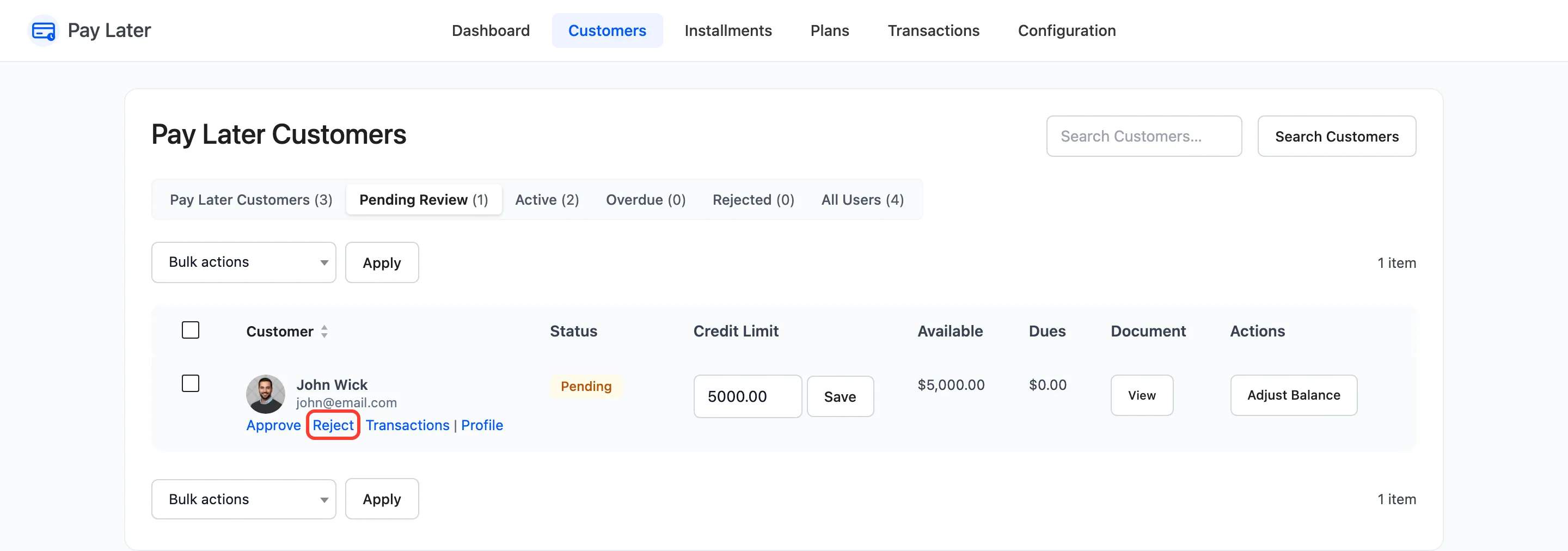
Section titled “Step 2: Reject the document”On Customers → Pending Review, hover the applicant and click Reject.
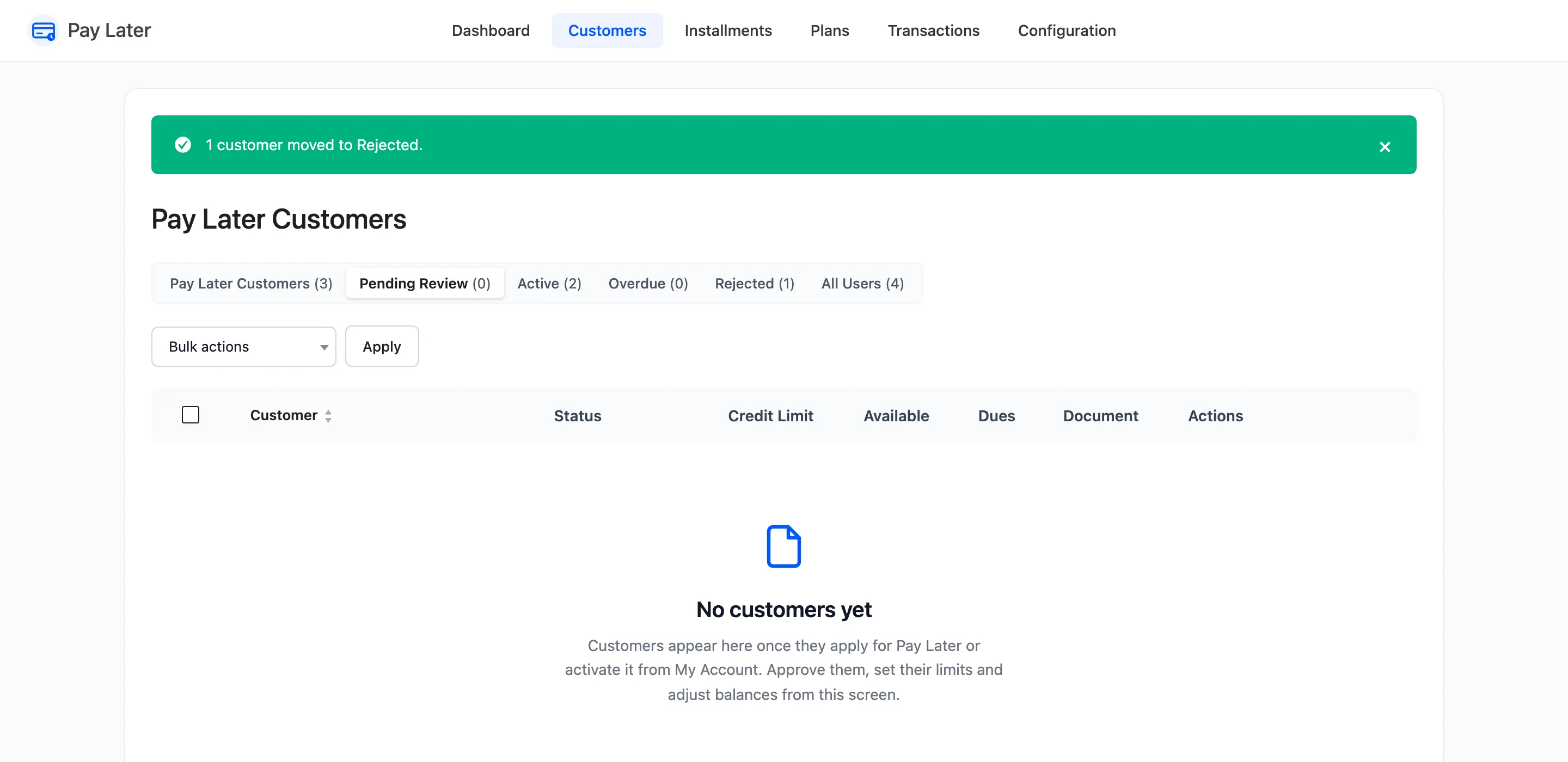
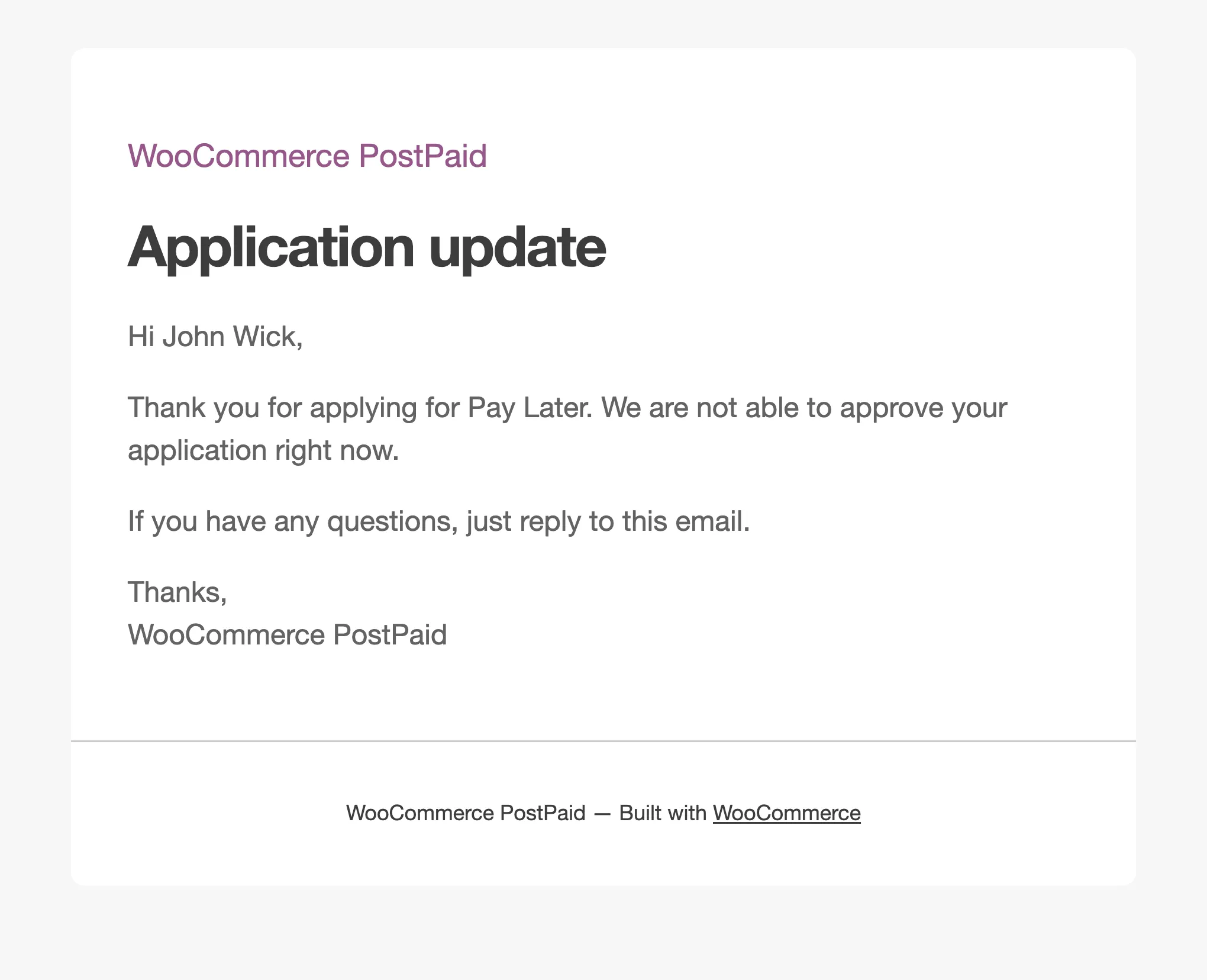
“1 customer moved to Rejected.” confirms it, and the customer gets An update on your Pay Later application.
Step 3: The customer uploads a new one
Section titled “Step 3: The customer uploads a new one”With Reverification off, the customer’s page only says the application was not approved.
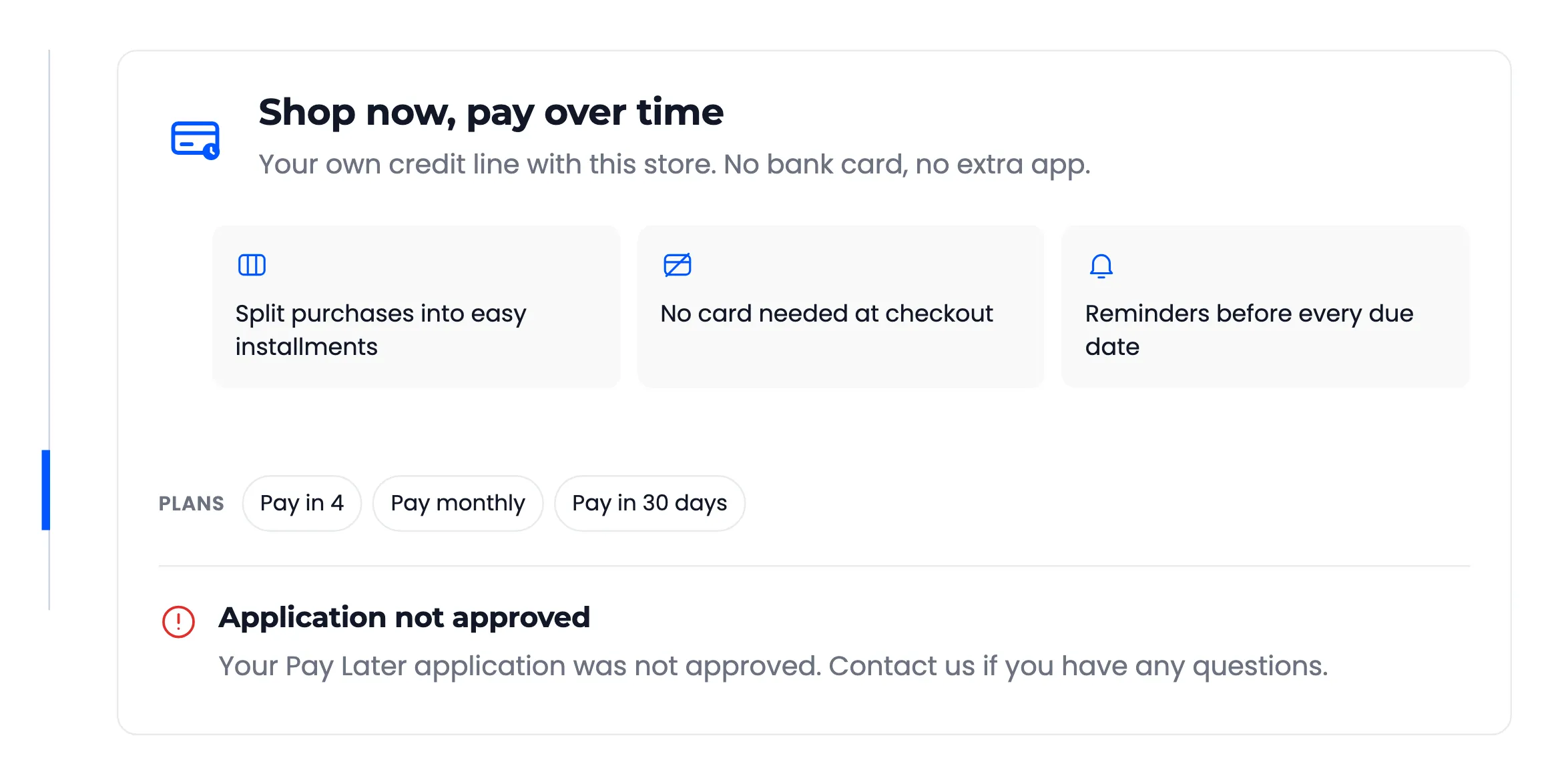
With it on, the page asks for a new document, and links to the one they sent.
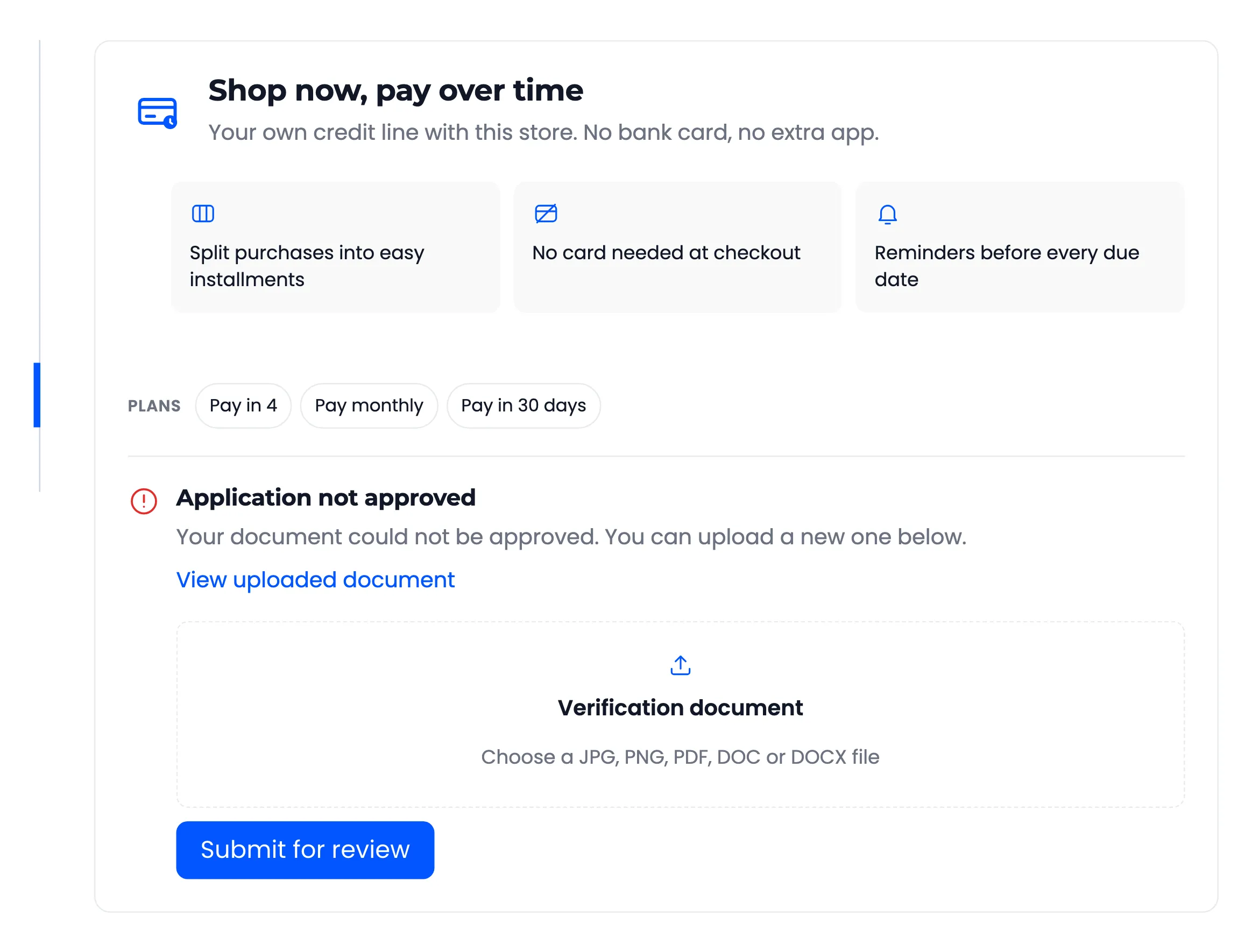
The new file replaces the old one, and the customer is back in review.
Step 4: Review it again
Section titled “Step 4: Review it again”The customer reappears under Pending Review, and you get a new New Application (Store) email. Approve or reject as before.