

How to Cancel a Pay Later Order
Cancel an order that will not be fulfilled: an item you cannot supply, or a change of mind before it ships. The demo cancels Amara’s $383.90 order on Pay in 30 days.
Step 1: Check Restore Credit
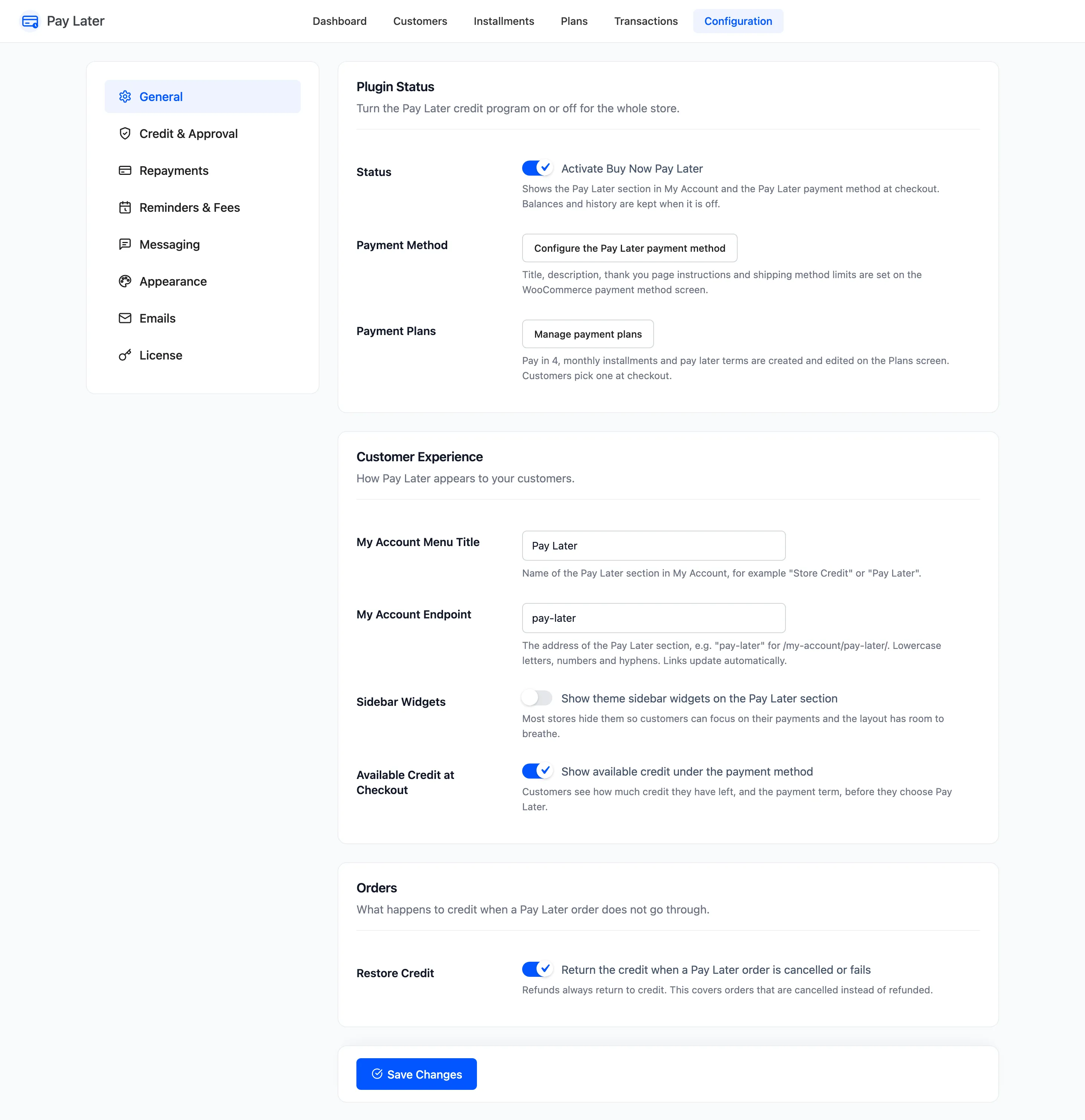
Section titled “Step 1: Check Restore Credit”Go to DevDiggers Plugins → Pay Later → Configuration → General and make sure Restore Credit is ticked: “Return the credit when a Pay Later order is cancelled or fails”. It is on by default.
Step 2: Cancel the order
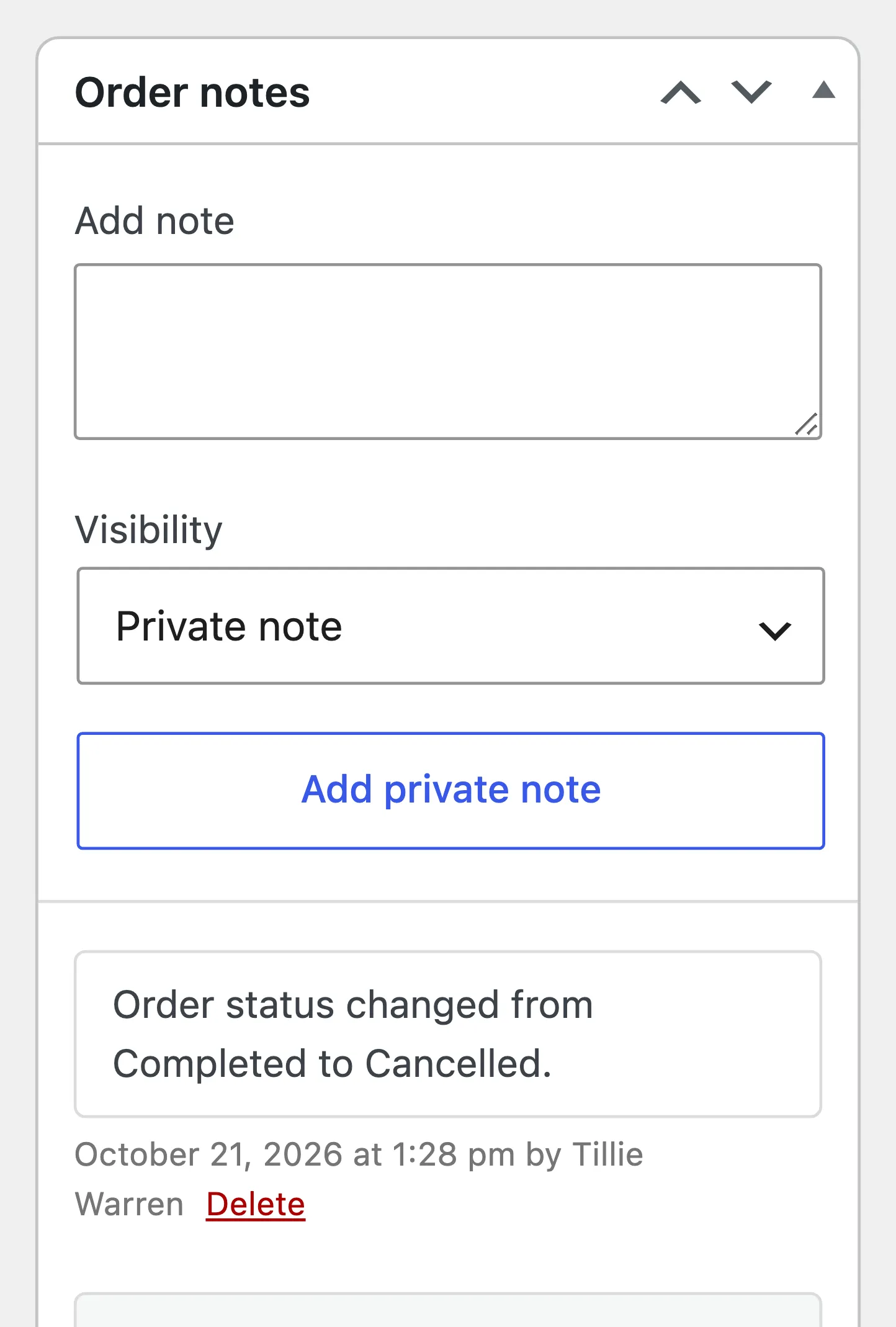
Section titled “Step 2: Cancel the order”Open the order under WooCommerce → Orders, set Status to Cancelled and click Update. A Failed order is treated the same way.
Step 3: Check the result
Section titled “Step 3: Check the result”What the customer still owes on the order comes back on their credit, and the order note reads “Pay Later credit of $383.90 restored to the customer.”
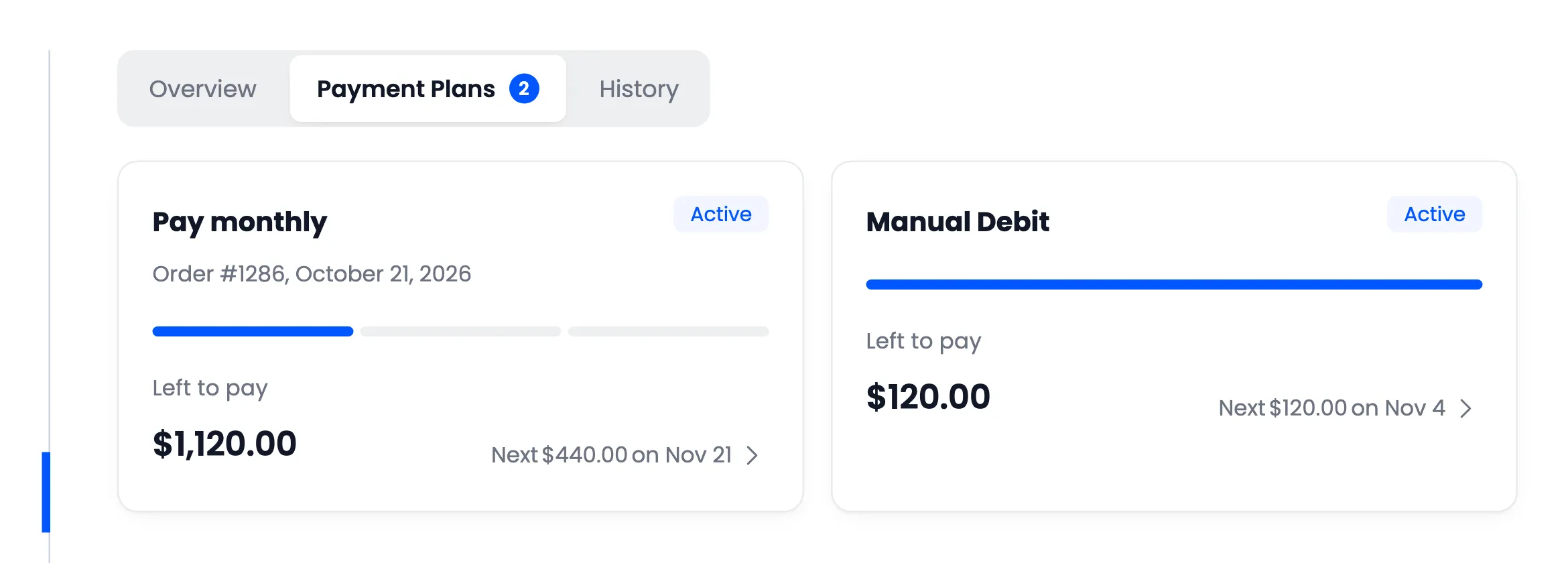
The order’s open payments show Cancelled, and in My Account the plan is marked Cancelled.
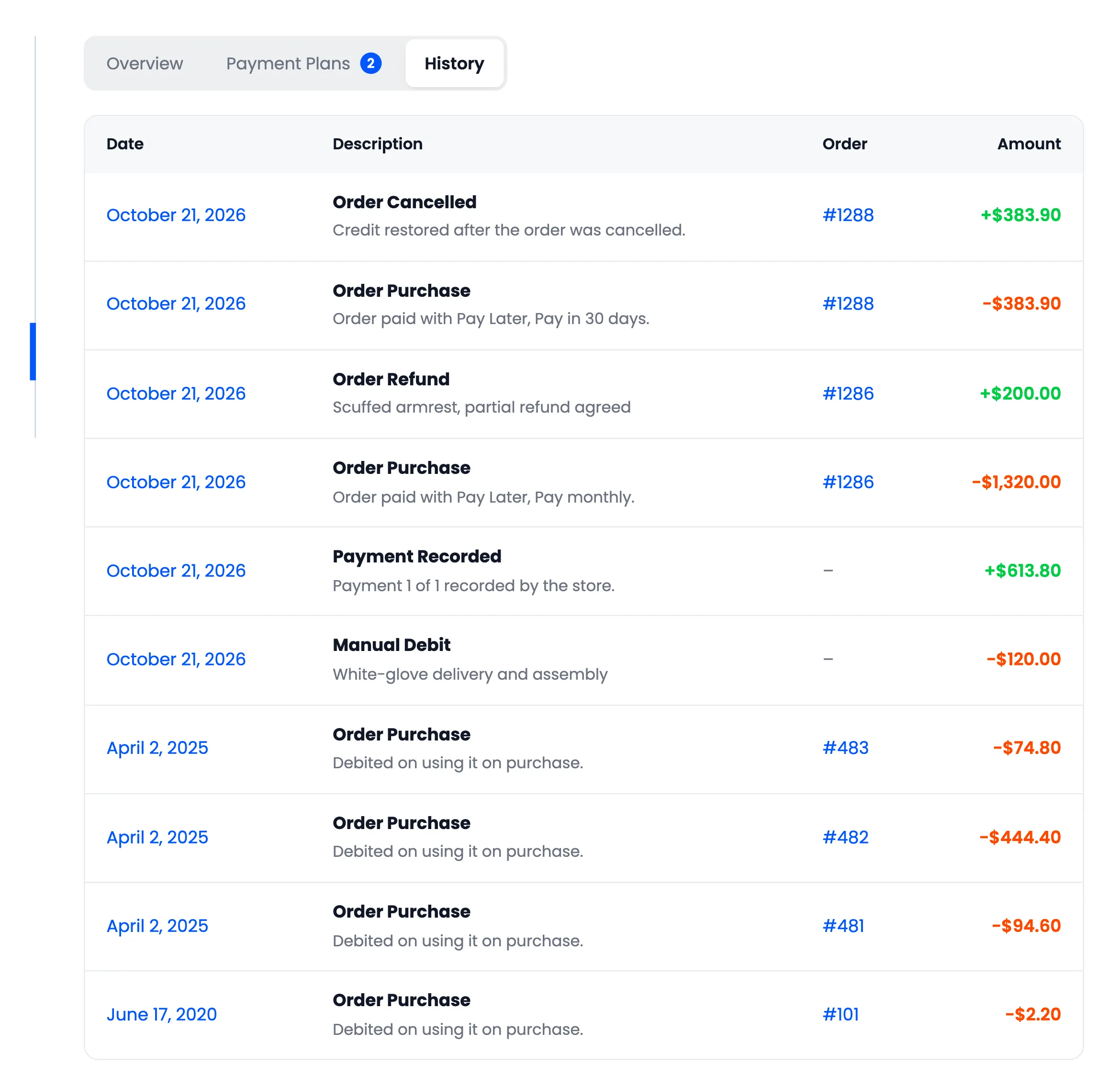
The History tab shows an Order Cancelled credit, and the customer gets Your Pay Later balance was updated for order.
What comes back
Section titled “What comes back”Only what is still owed on the order. Payments the customer already made on it, and any refunds you already made, are left out, so nothing is returned twice. Late fees stay owed.
With Restore Credit off, cancelling changes nothing on the customer’s account. Refund the order instead to return the credit.