

How to Top Up a Wallet
A top-up is an ordinary WooCommerce order for a hidden product. Knowing that explains every odd thing about it, so this walks the whole route.
Step 1: Open My Wallet
Section titled “Step 1: Open My Wallet”Sign in, go to My Account, and click My Wallet in the menu.
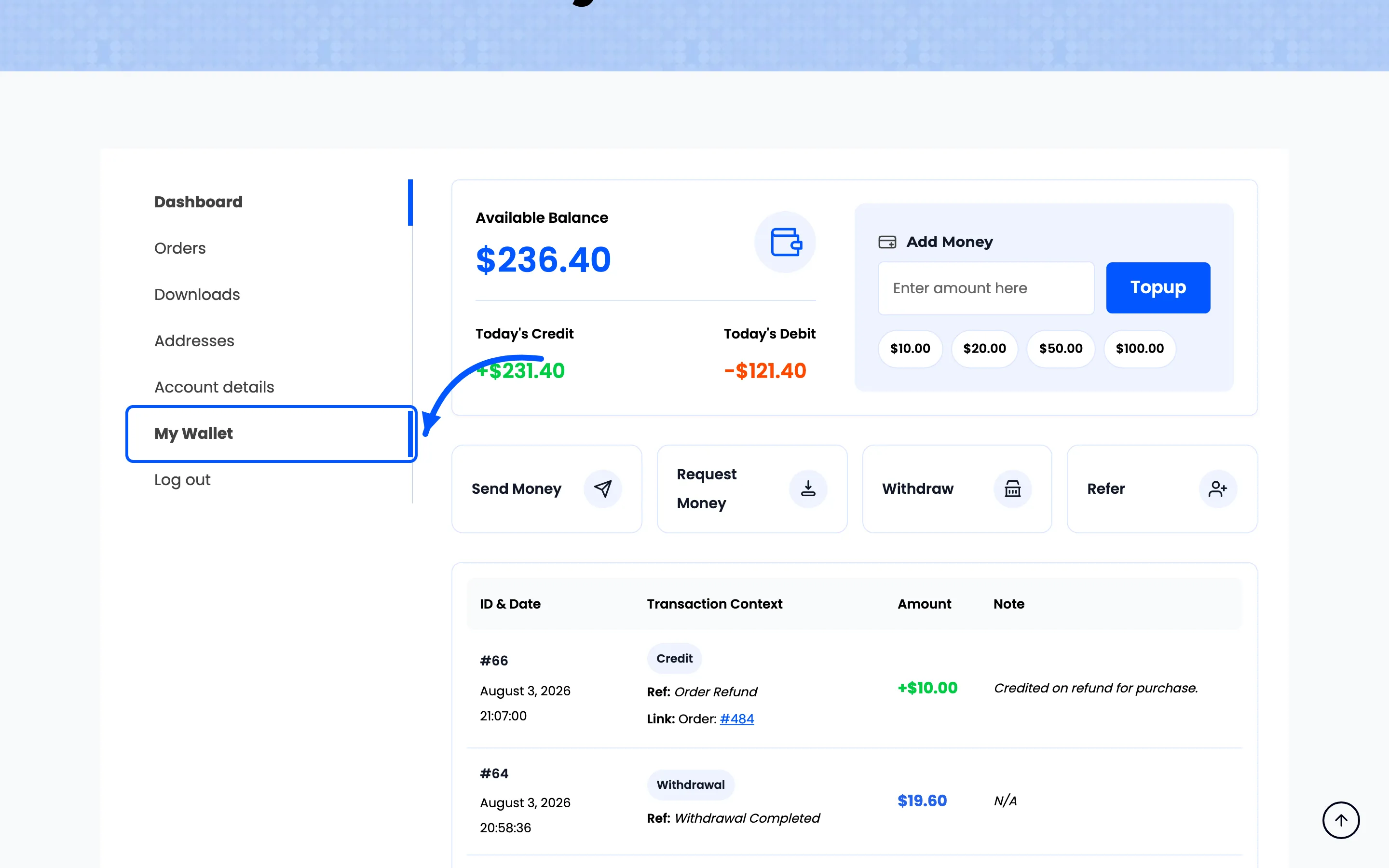
The link is only there for signed-in customers. Guests have no wallet, because a wallet belongs to an account.
Step 2: Enter an amount
Section titled “Step 2: Enter an amount”The Add Money box is on the right of the balance card.
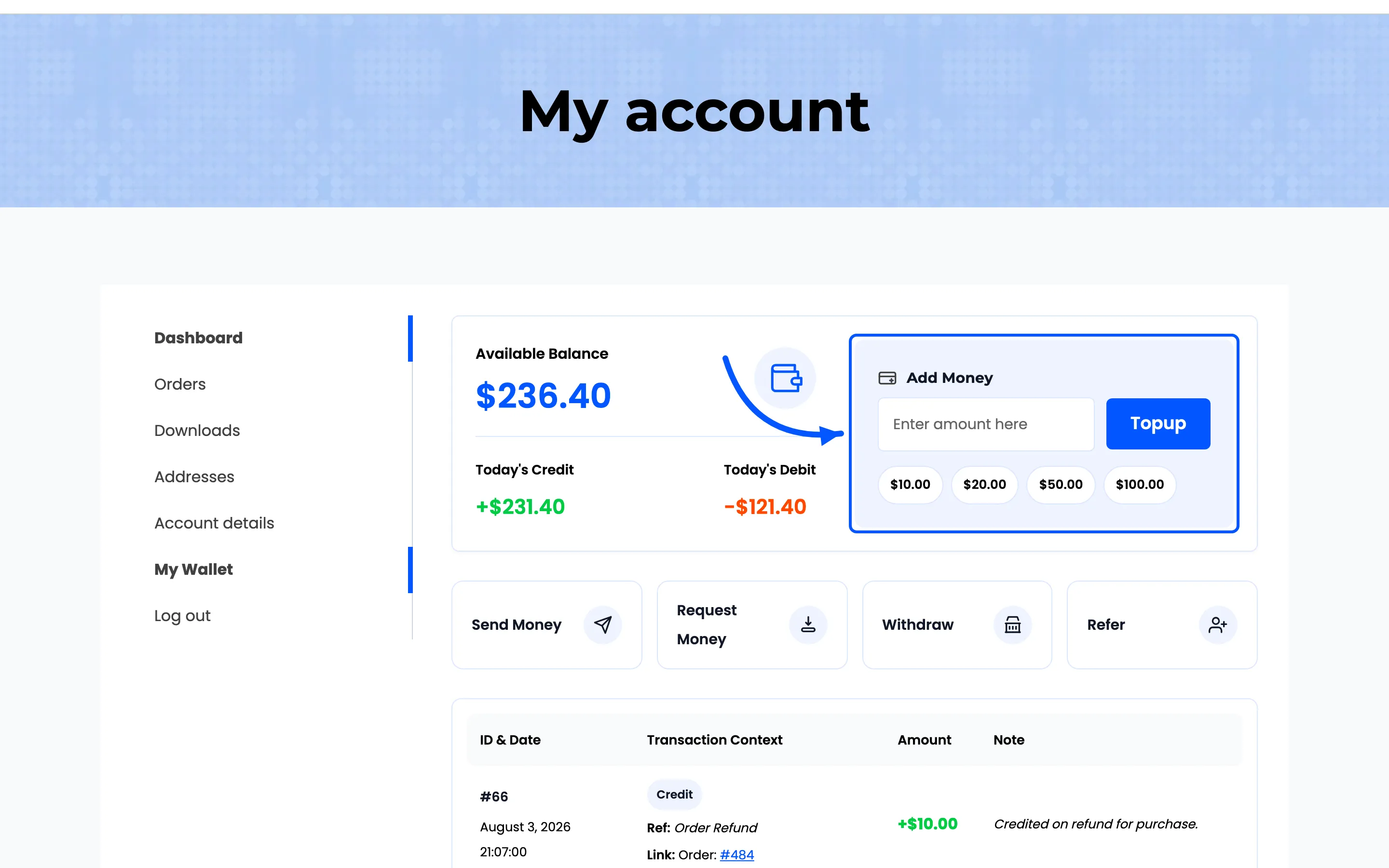
Type any amount, or press one of the preset buttons under the field to fill it in.
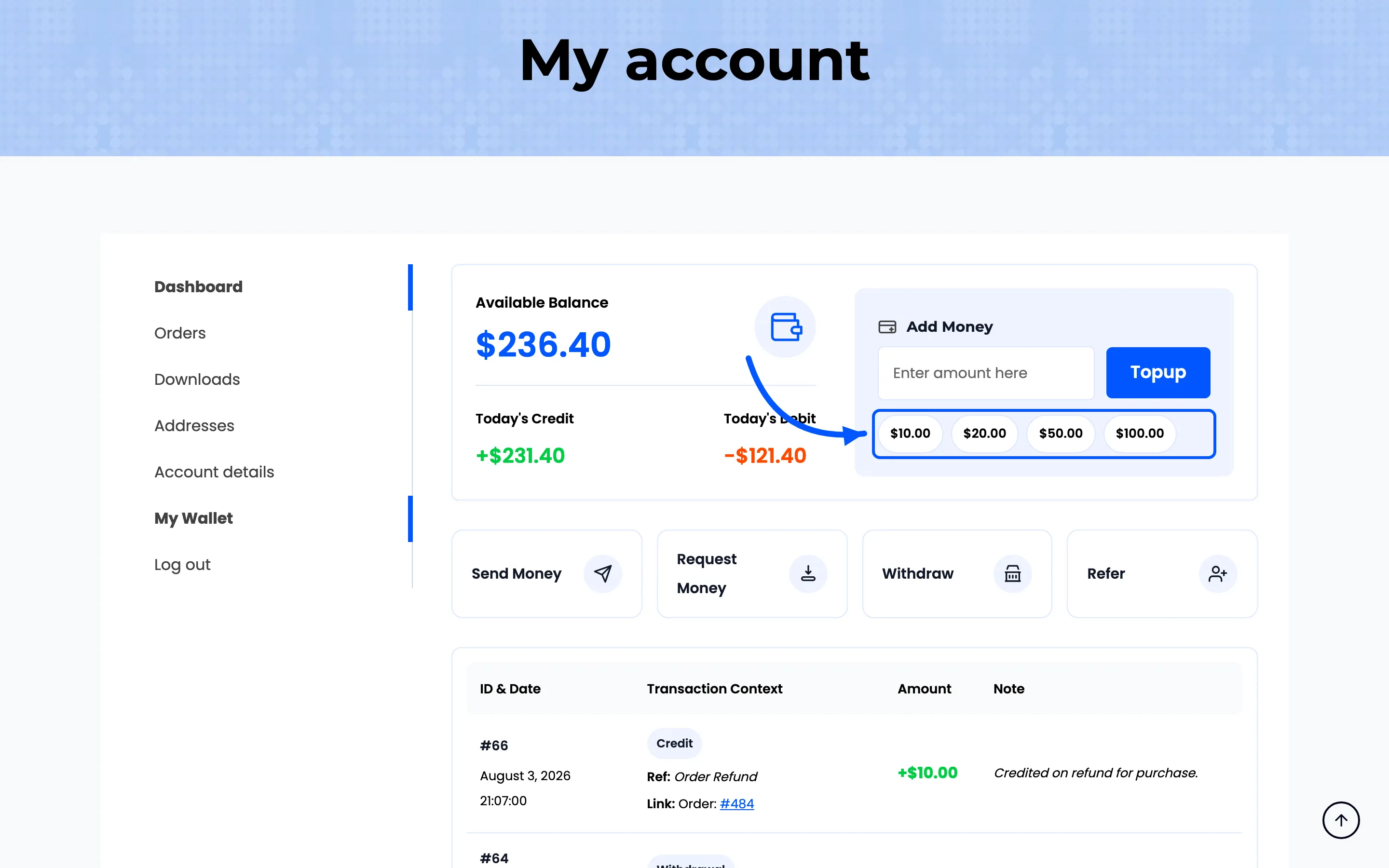
An amount outside the limits is refused with a notice naming the limit, and the customer is returned here with nothing changed.
Step 3: Press Topup
Section titled “Step 3: Press Topup”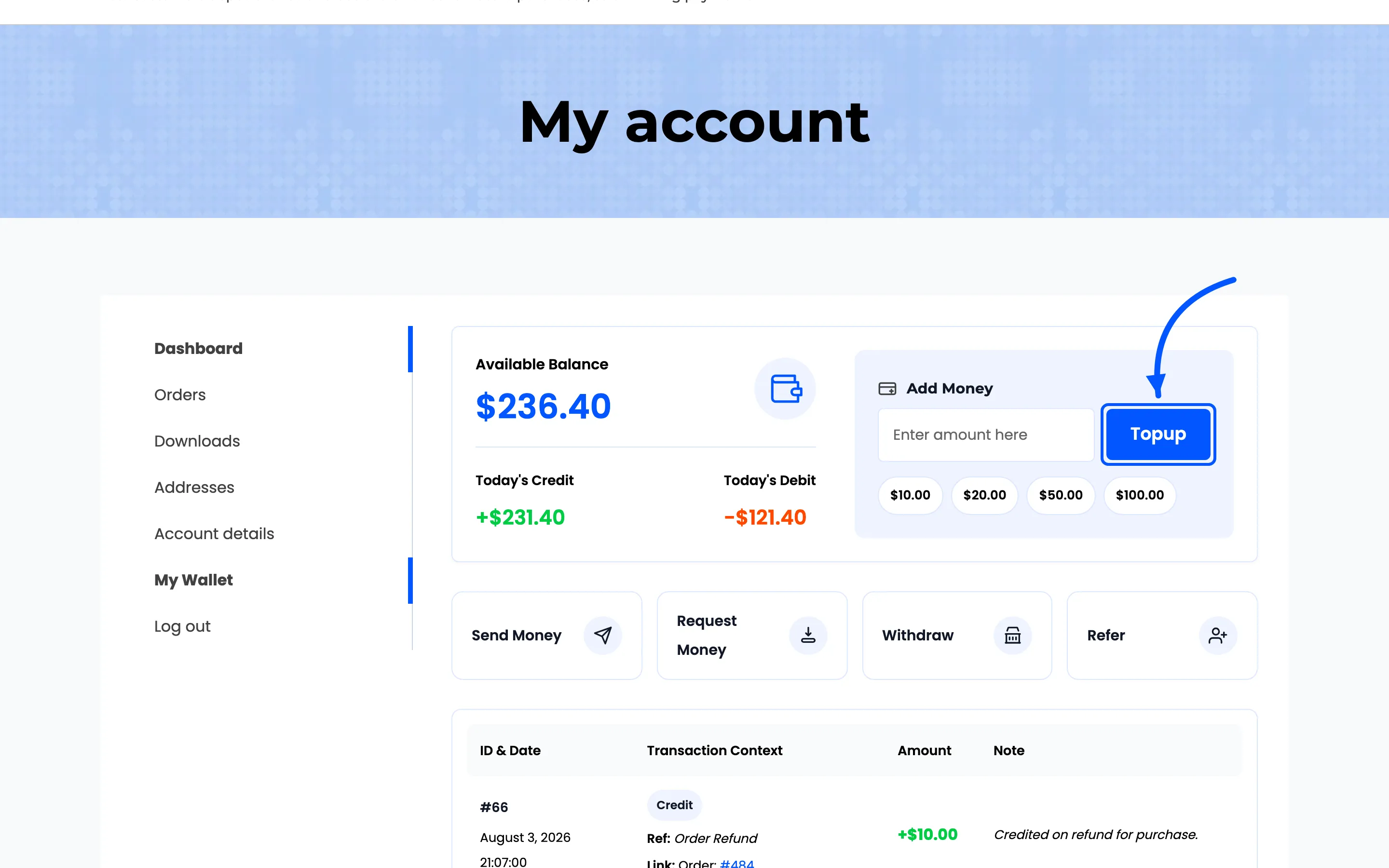
Two things happen at once, and the first one surprises people.
- The cart is emptied. Anything already in it is removed. A top-up cannot share a cart with ordinary products.
- The Wallet Topup product is added, priced at the amount typed.
The customer is then sent to the checkout, or to the cart when Redirect to Checkout on Top-up is off.
Step 4: Pay for it
Section titled “Step 4: Pay for it”The checkout is the normal one, with the payment methods narrowed.
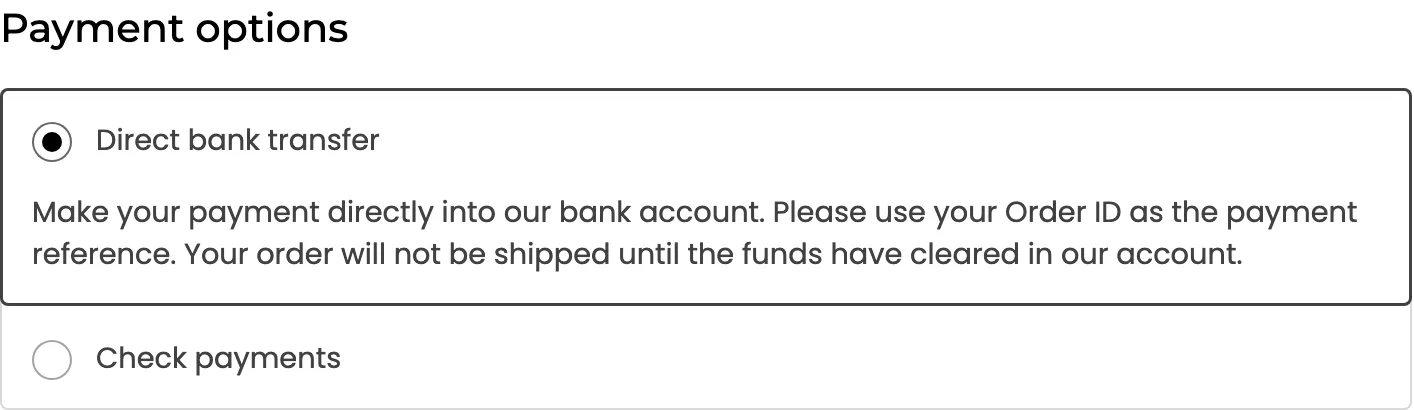
Two rules apply here, both automatic.
- The Wallet method is removed. A balance cannot buy more balance.
- Only the gateways you allowed for top-ups remain, from Configuration → General.
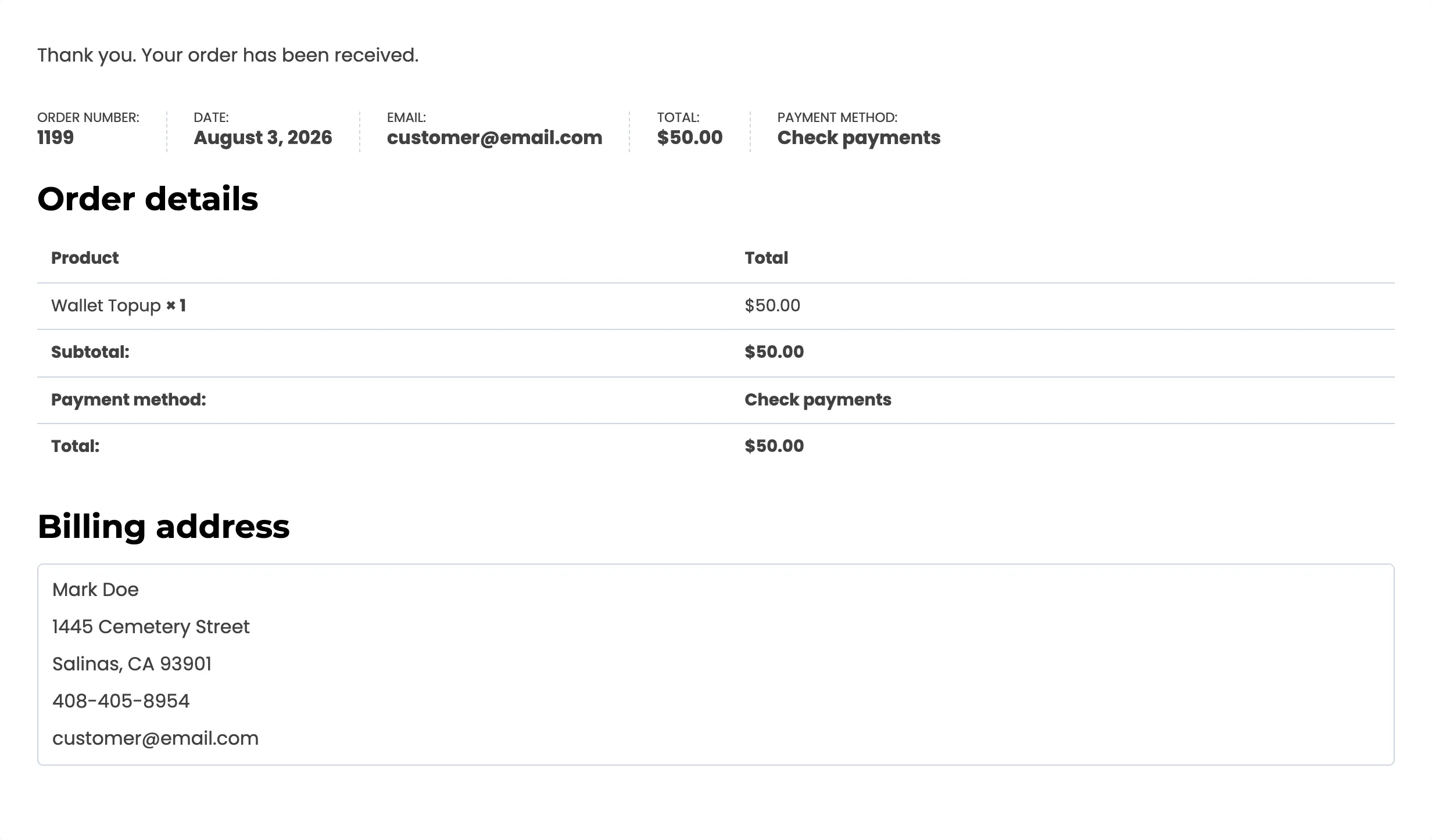
The order summary shows one line, Wallet Topup, at the amount asked for. Place the order and pay as usual.
Step 5: Wait for the order to complete
Section titled “Step 5: Wait for the order to complete”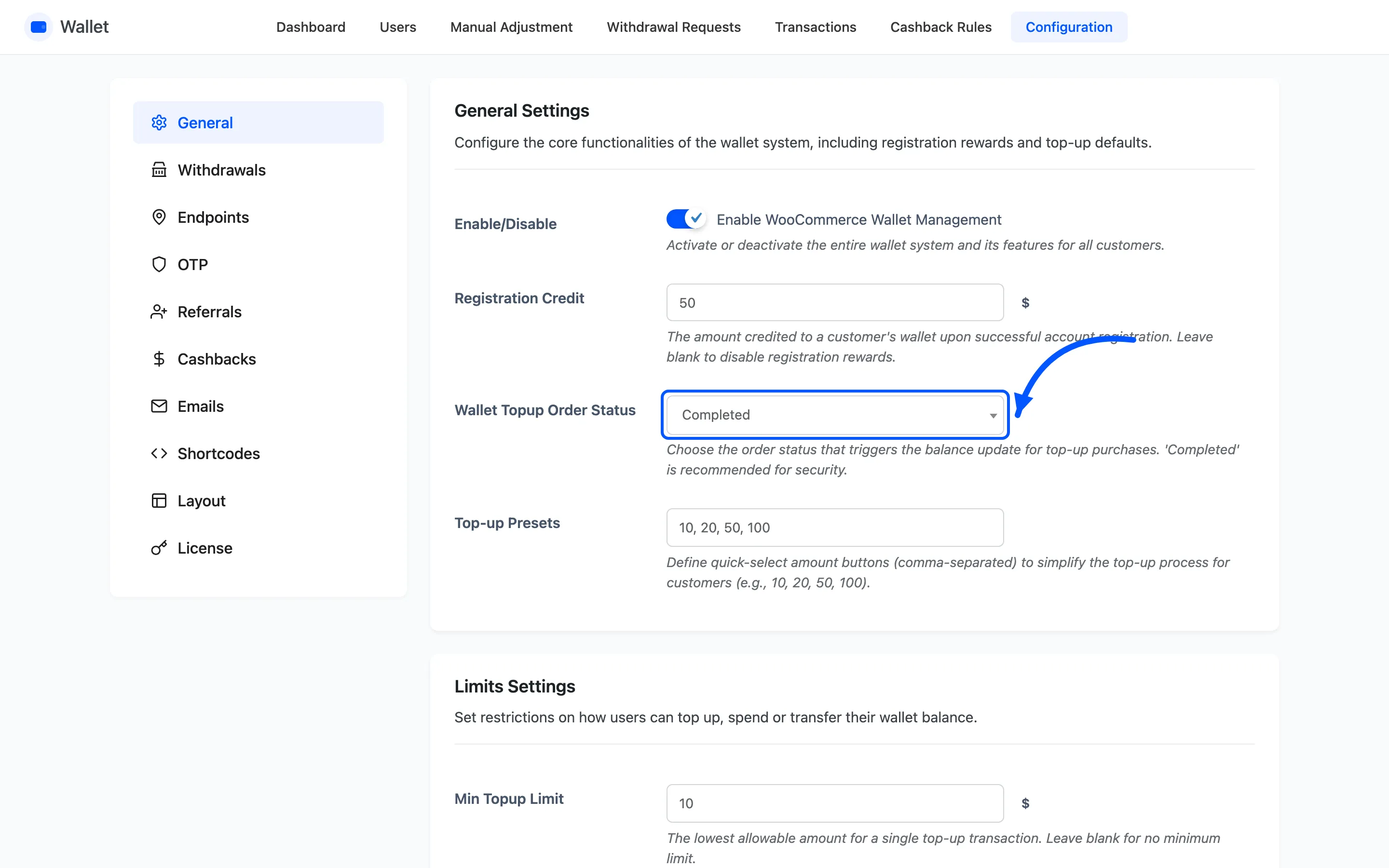
This is the step that generates support tickets. The balance does not move when the order is placed. It moves when the order reaches Completed.
Which is fine, because Wallet Topup Order Status ships set to Completed. That forces every top-up order to Completed as soon as it is placed, so the money lands straight away.
Set it to Default and the order sits on whatever status the gateway gives it, and the customer waits until you mark it Completed. That is the right choice with bank transfer and the wrong one with a card gateway.
What the top-up leaves behind
Section titled “What the top-up leaves behind”One credit on the wallet, for the order subtotal, with the reason Wallet Topup and a link back to the order that paid for it.
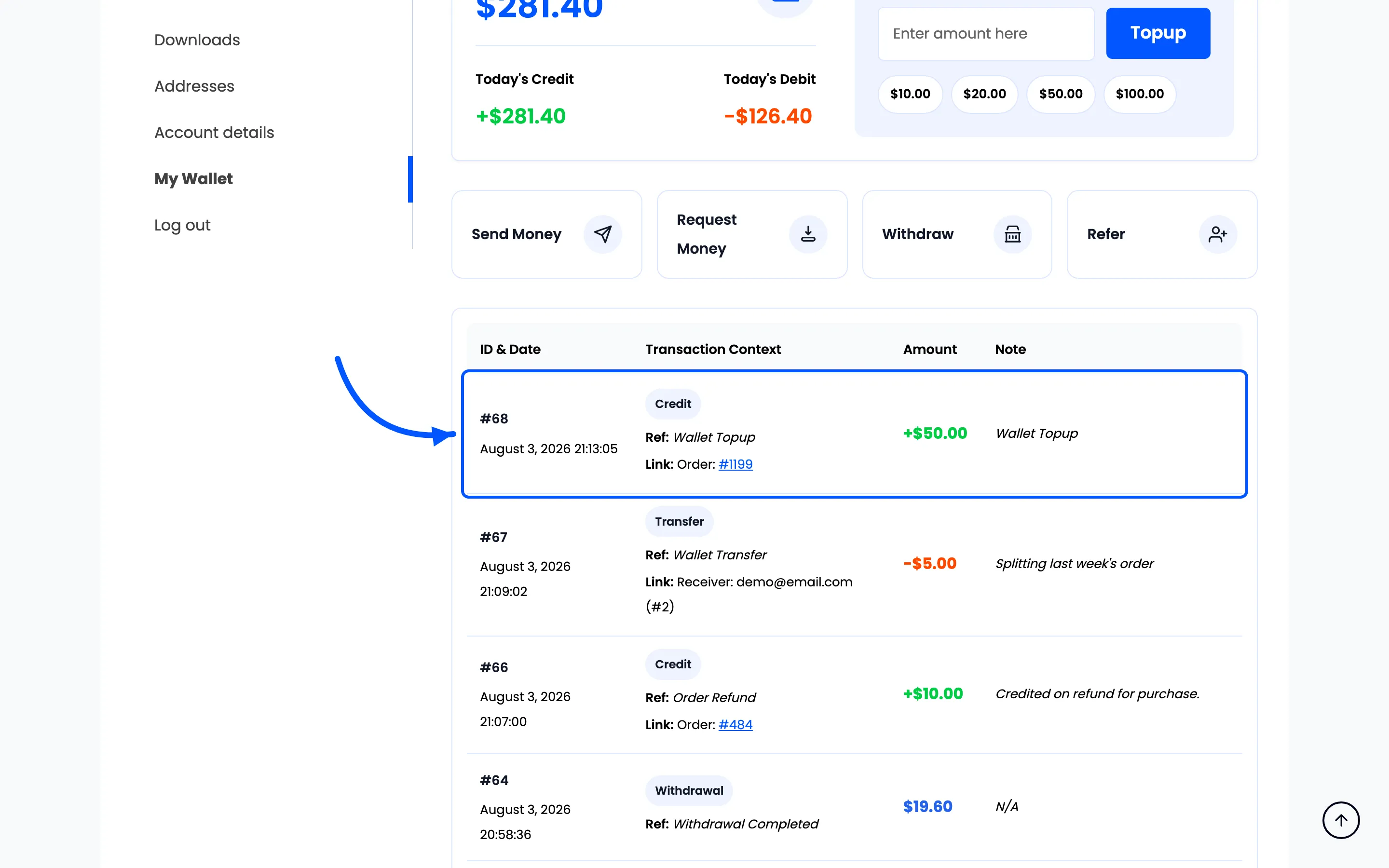
It sits at the top of the customer’s own history on the wallet page.
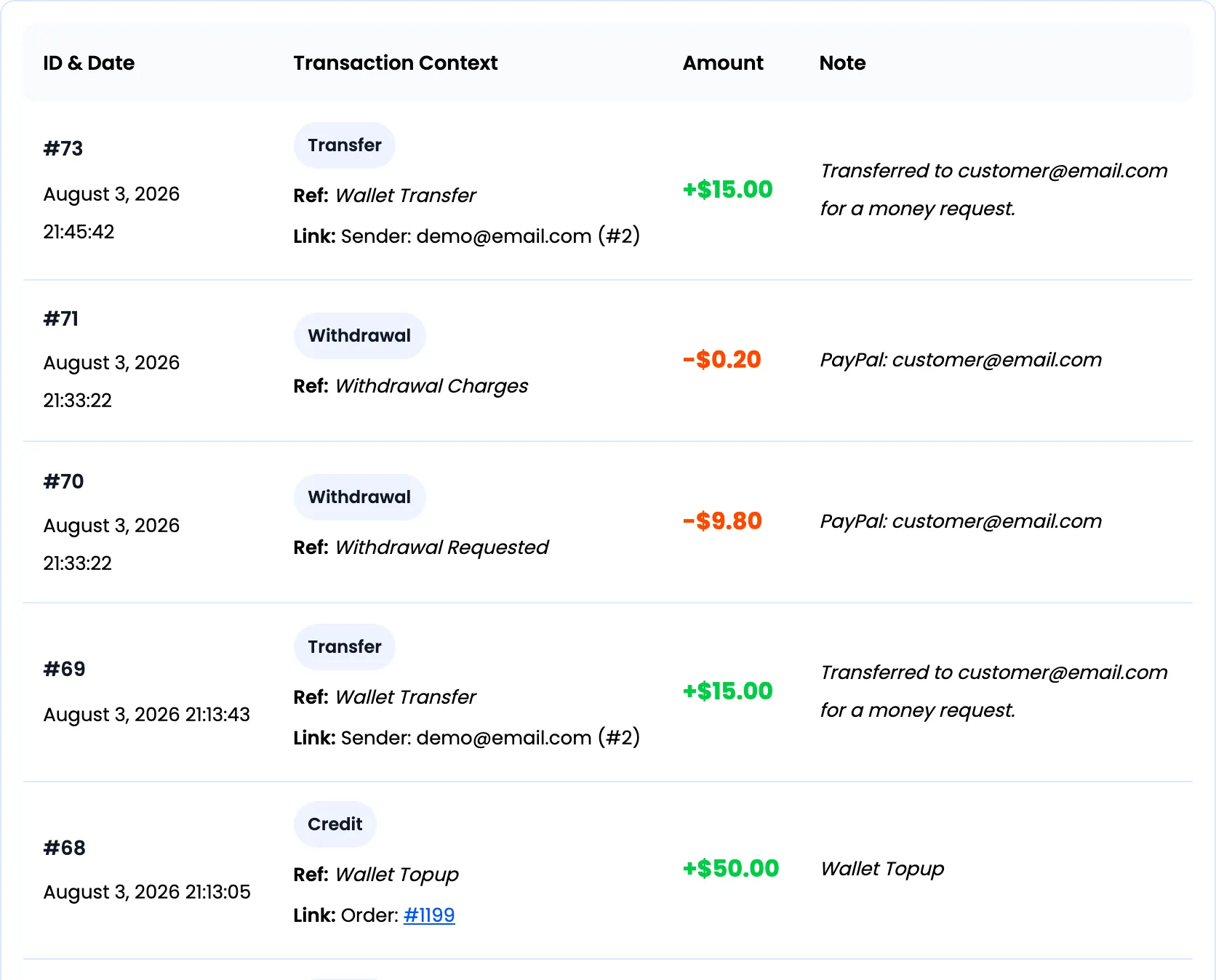
The customer gets the Wallet Credited email, and the row appears on Transactions in the admin.
Two things that catch people out
Section titled “Two things that catch people out”- A top-up earns cashback from Topup rules only. Cart, user role and first-order rules are all skipped, because a top-up is not a purchase. Build Topup bands on Cashback Rules if you want to reward bigger top-ups.
- Nothing else can join the cart. While the top-up is in there, adding another product is refused with a notice. Finishing or emptying the cart clears it.