

OTP Settings (Pro)
A wallet balance is money, and a hijacked account can move it in one click. OTP puts an emailed code between the button and the transfer.
Go to DevDiggers Plugins → Wallet → Configuration → OTP.
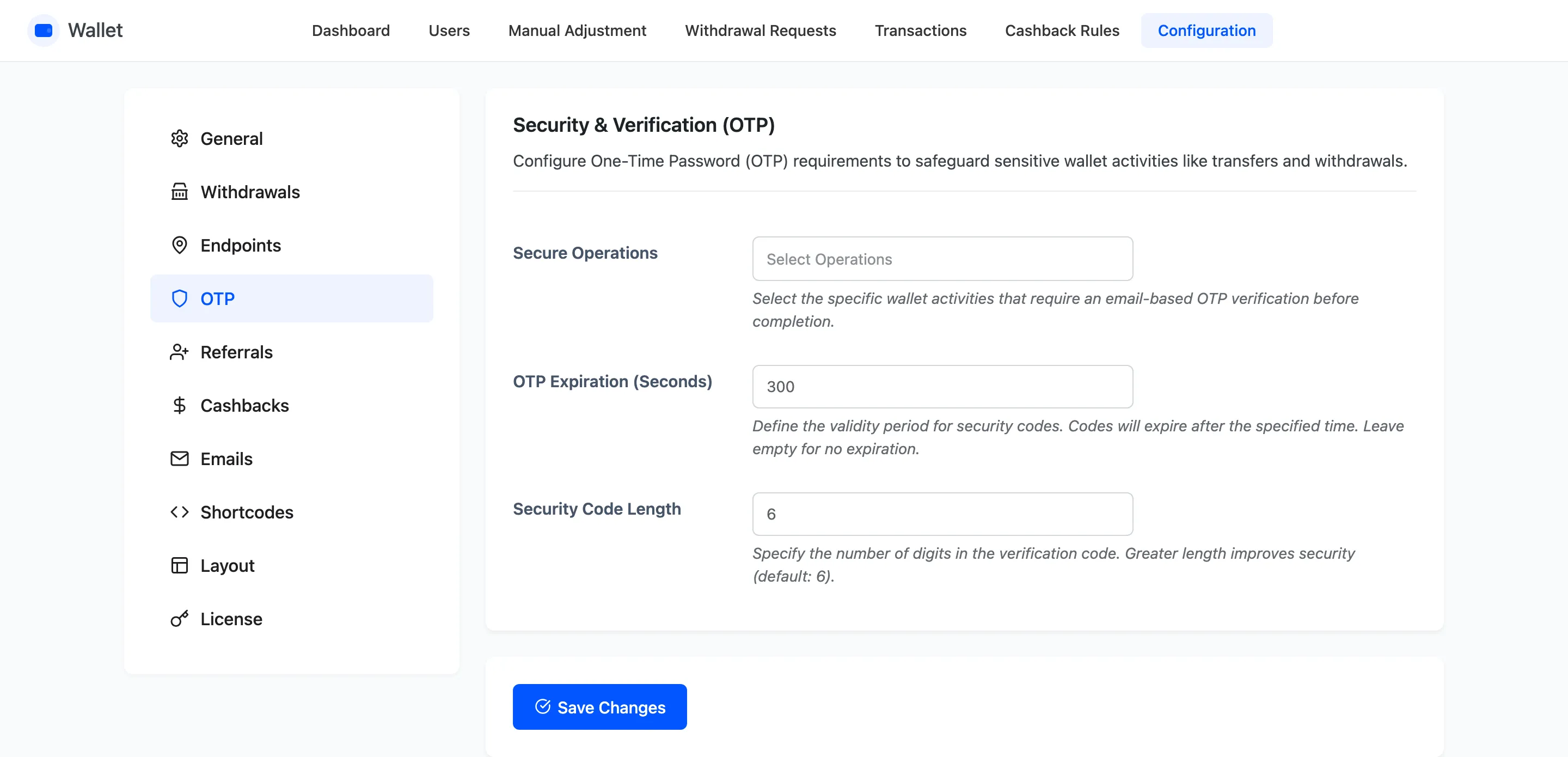
The fields
Section titled “The fields”Secure Operations
Section titled “Secure Operations”Which operations require a code. Pick any combination of three.
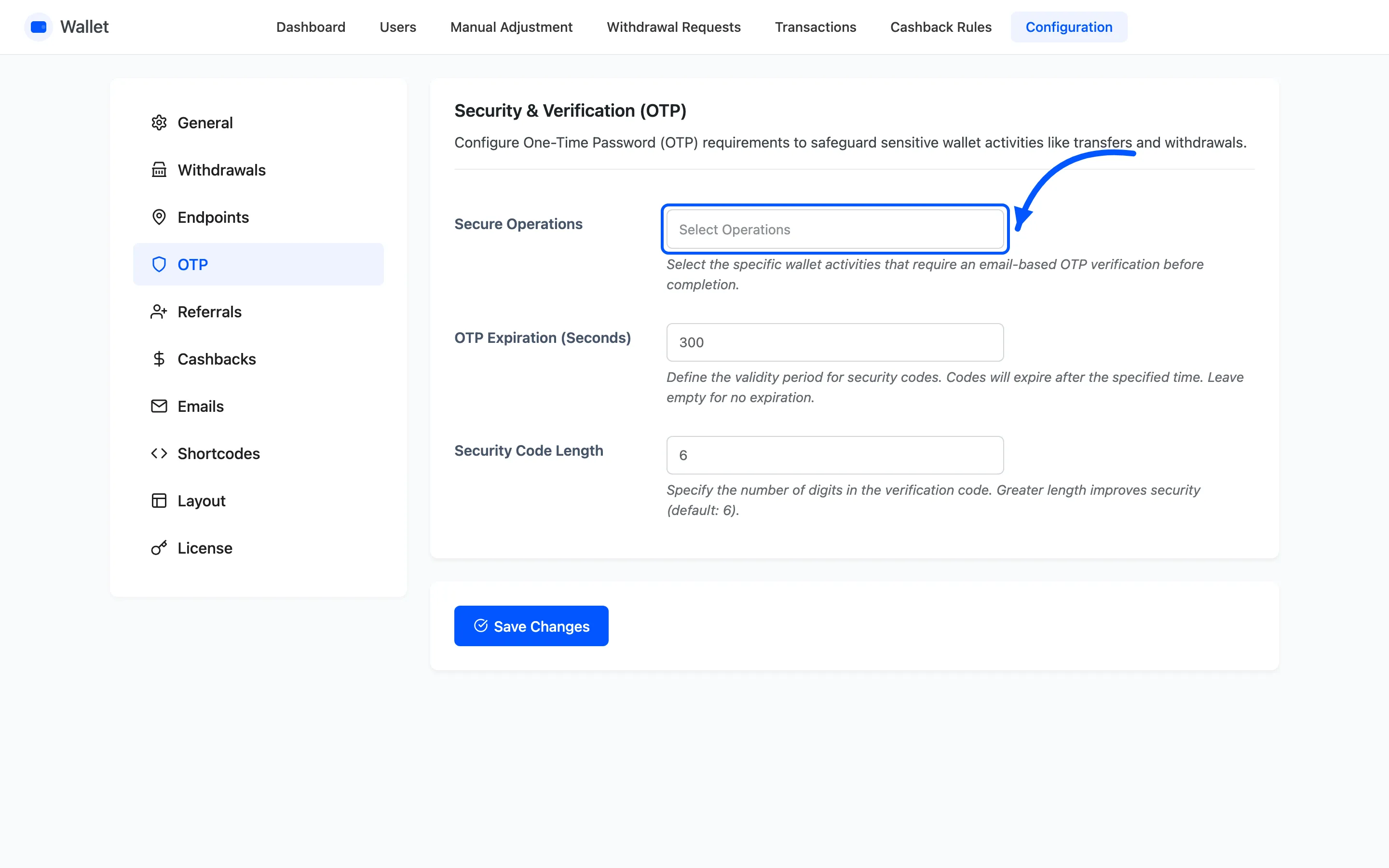
- Send Money
- Request Money
- Withdrawals
Leave it empty and no operation ever asks for a code. That is the default, so OTP does nothing until you choose something here.
Withdrawals is the one to pick first. It is the only operation that takes money off your store.
OTP Expiration (Seconds)
Section titled “OTP Expiration (Seconds)”How long a code stays valid. Empty means it never expires.
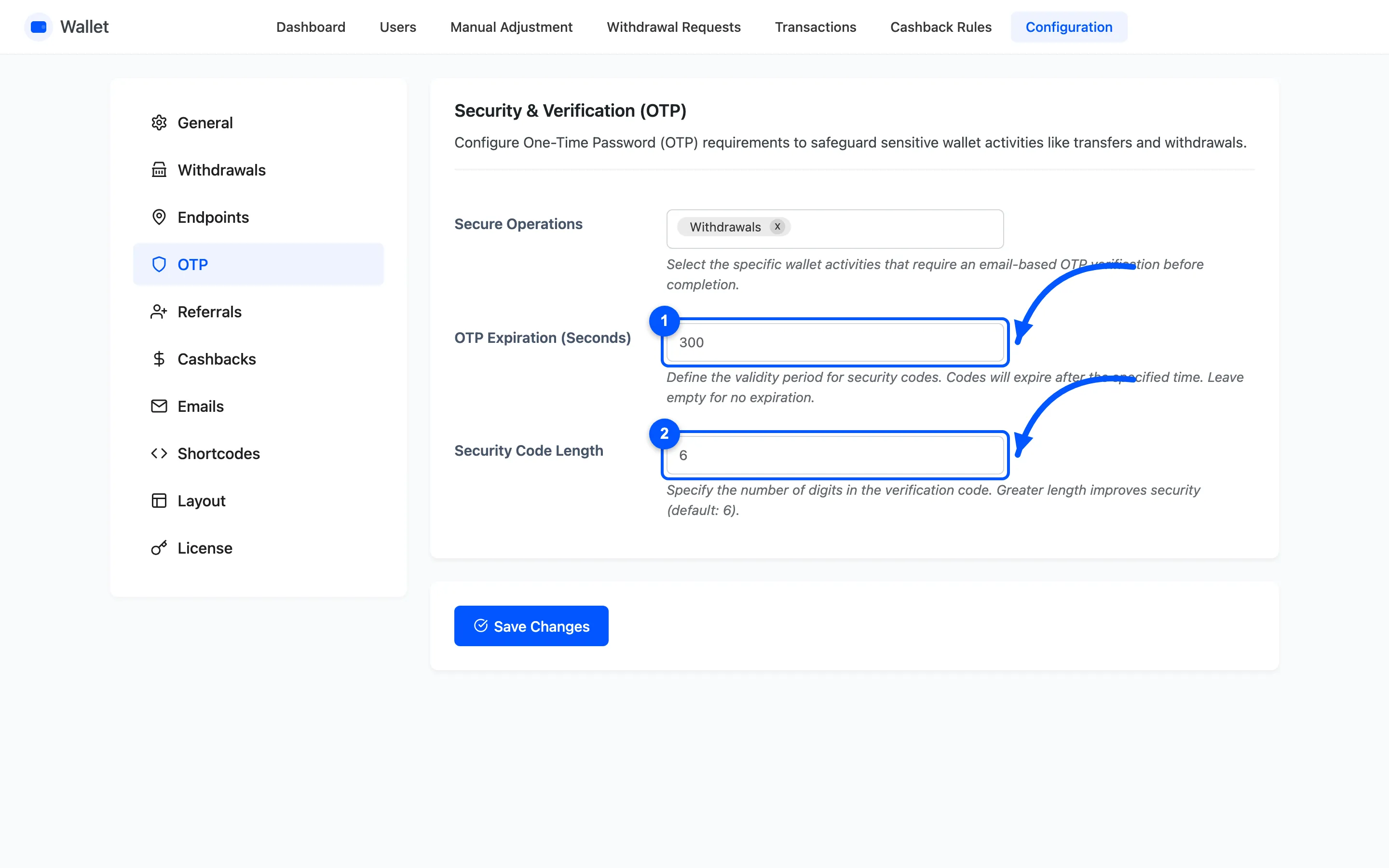
Keep it short. Five minutes is enough for someone to switch to their inbox and back. It is also short enough that a code left in an old email is useless.
Security Code Length
Section titled “Security Code Length”How many digits. Default 6.
Six is the number people expect and the number they can hold in their head between two tabs. Longer is measurably safer and measurably more annoying.
What the customer sees
Section titled “What the customer sees”Each of the three operations opens a popup like this one.
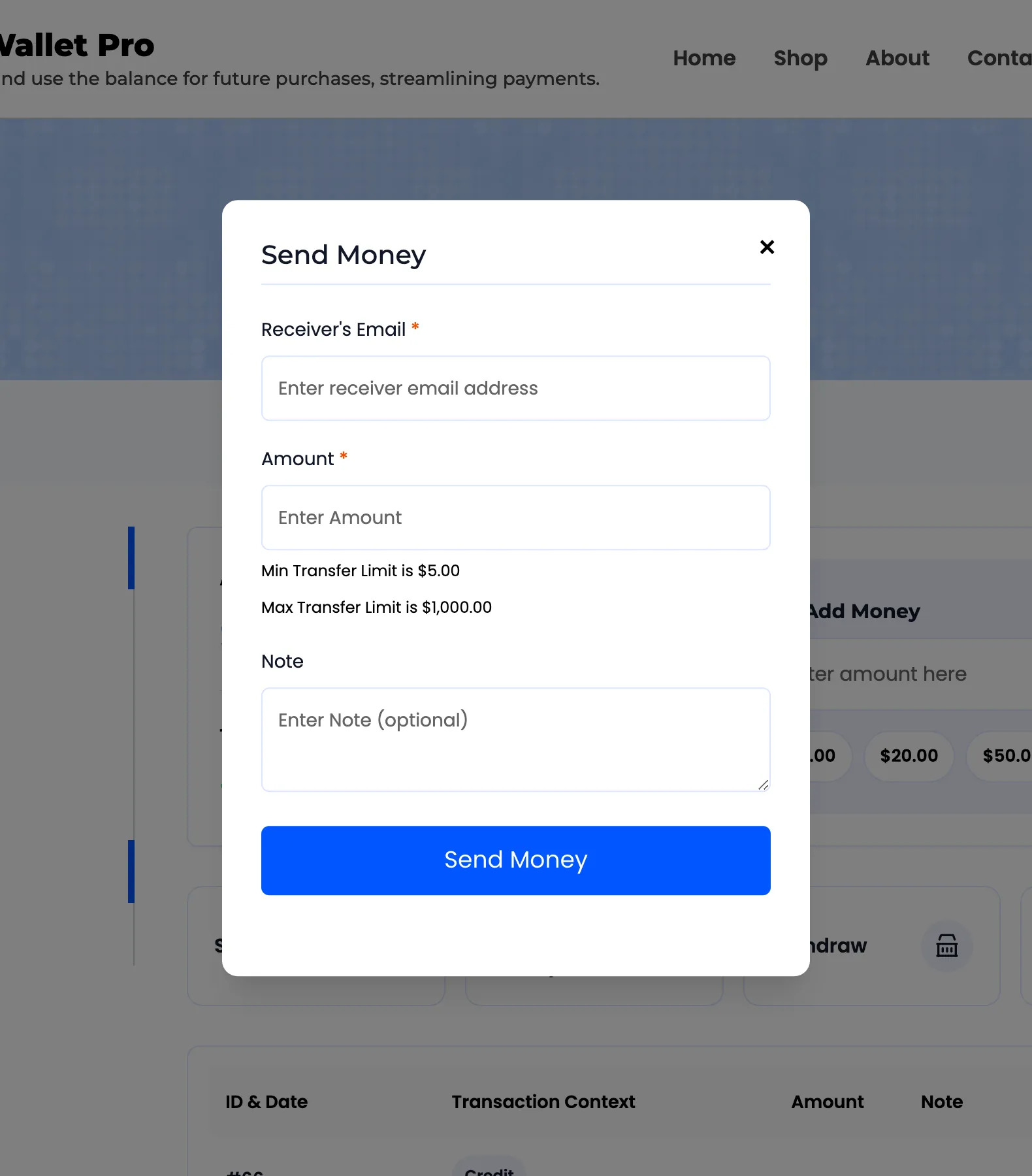
With OTP on for that operation, the popup submits as usual. It then swaps to a Verify OTP form asking for the code that has just been emailed. Entering it completes the operation. Closing the popup abandons it, and nothing has moved.
The email itself is Security OTP Verification under Configuration → Emails.
Before you switch it on
Section titled “Before you switch it on”Send a test email from your store first. OTP is only as reliable as your mail. A store whose transactional email lands in spam puts every wallet transfer behind a code nobody receives. The symptom is a customer saying the button does nothing.
Where to go next
Section titled “Where to go next”- Email Settings to reword the code email
- Withdrawal Settings
- How to Send Money to Another Customer