

Transactions
Every change to every balance, newest first. Nothing moves in a wallet without a row here, which makes this the screen that settles arguments.
Go to DevDiggers Plugins → Wallet → Transactions.
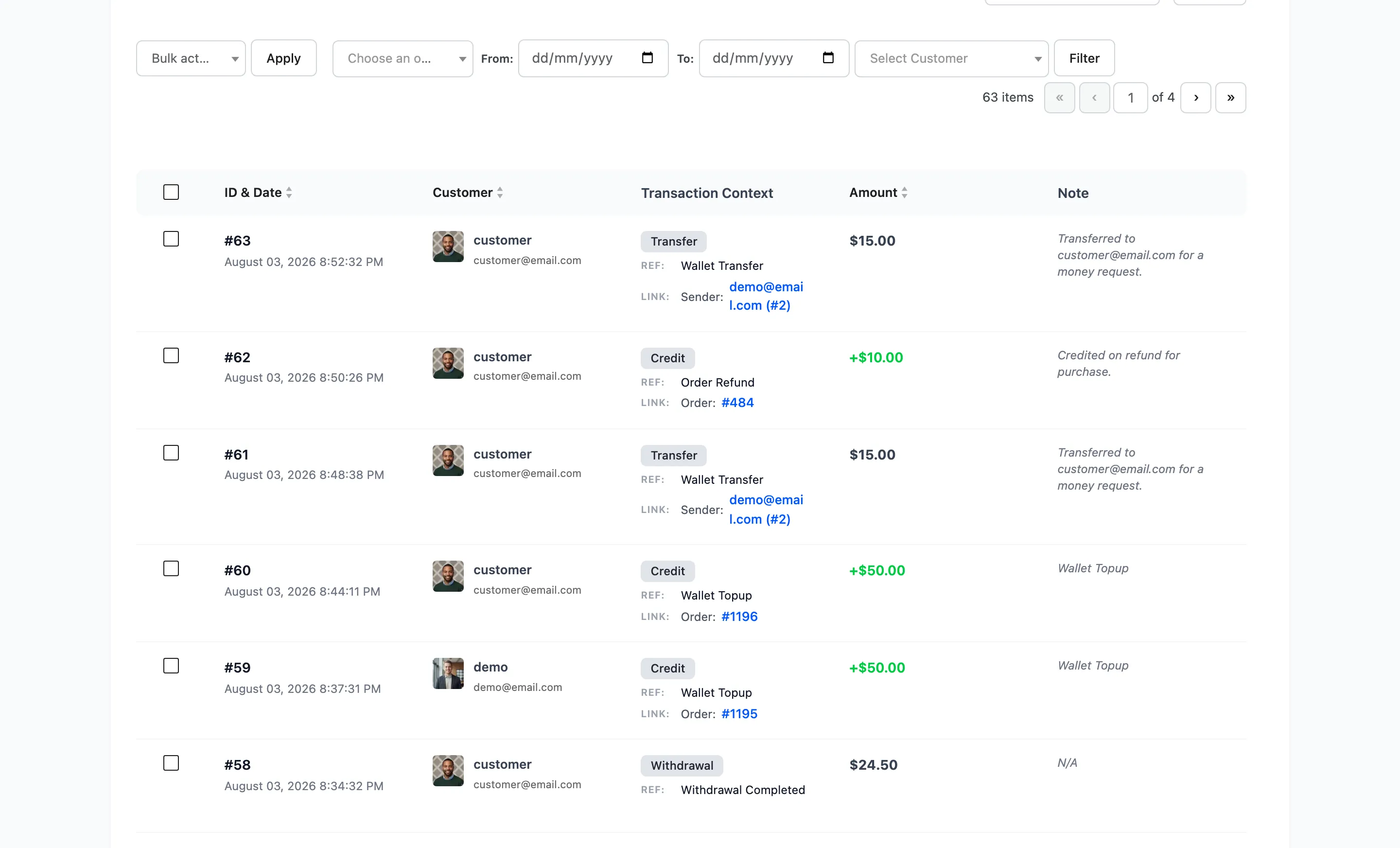
The columns
Section titled “The columns”| Column | What it shows |
|---|---|
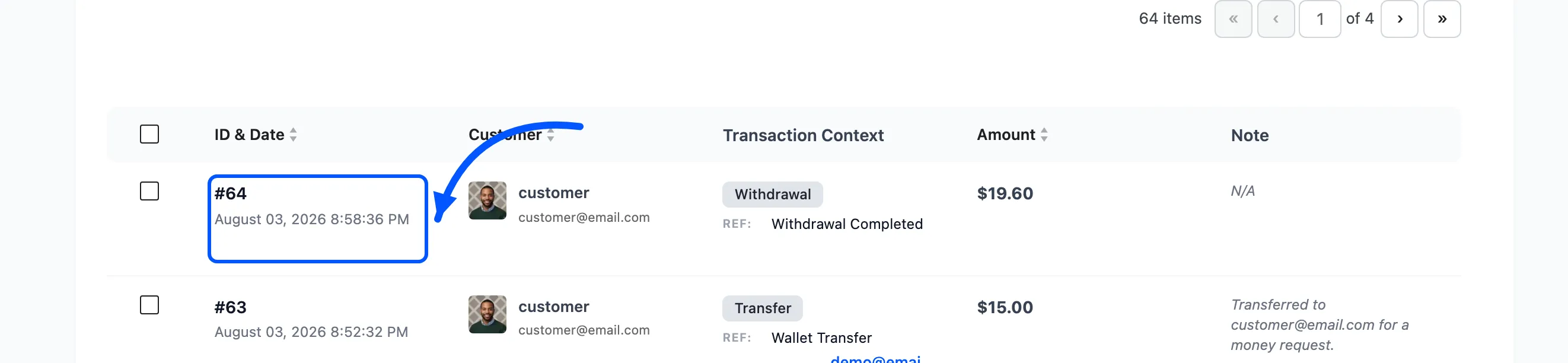
| ID & Date | The row number and when it happened, plus an expiry date where one applies |
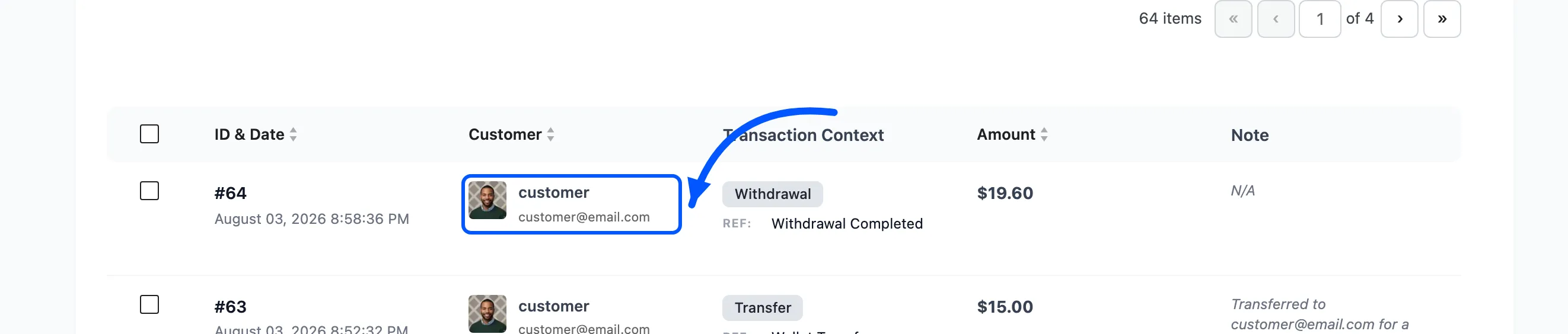
| Customer | Avatar, username and email of the wallet that moved |
| Transaction Context | The type, the reason, and a link to the order or sender |
| Amount | The value, signed |
| Note | Whatever was recorded with it |
ID & Date, Customer and Amount are sortable.
Transaction Context is the column that matters
Section titled “Transaction Context is the column that matters”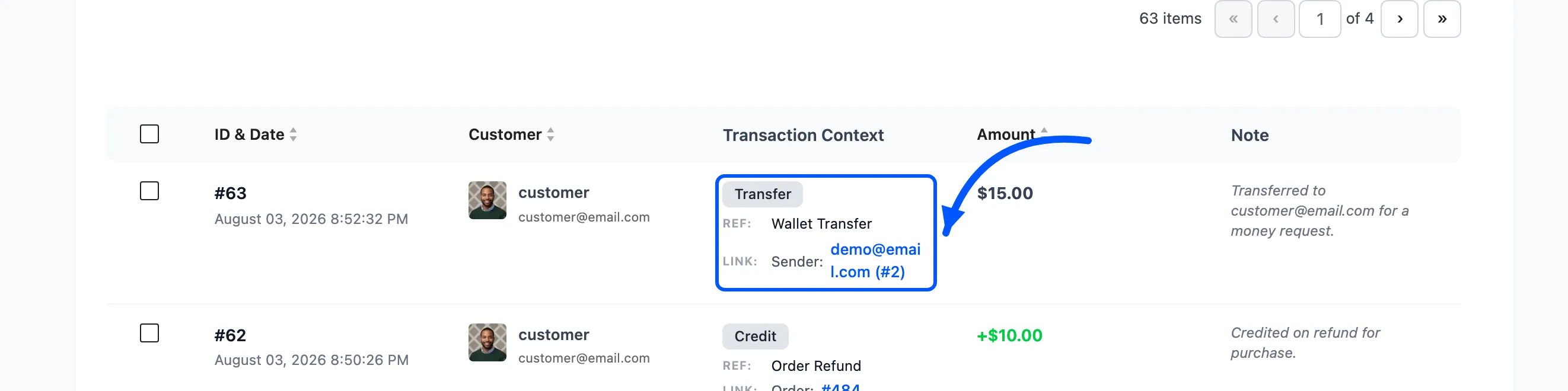
Three tiers stacked in one cell.
- The type, as a badge: Credit, Debit, Transfer or Withdrawal.
- The reference, which is the reason in plain words: Order Payment, Cart Cashback, Wallet Topup, Withdrawal Requested, Registration Credit, Cashback Expiry, and so on.
- The link, which is the order the row belongs to, or the customer who sent the money.
Type and reference are not the same thing, and reading only the type is how people misread this screen. Four different references write a Debit, and they mean four different things.
The expiry date
Section titled “The expiry date”A cashback credit with an expiry shows it in red under the date. That is your warning that the row will be reversed by the daily job unless it is spent.
Filtering
Section titled “Filtering”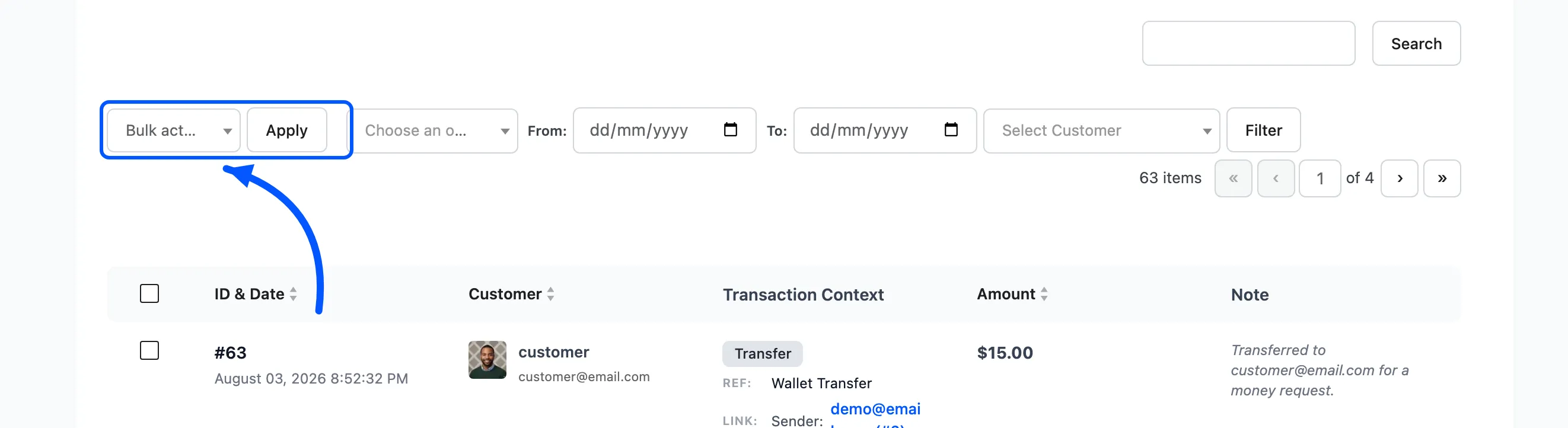
Four filters that combine, then Filter.
- Transaction Type: Credit, Debit, Transfer or Withdrawal.
- From and To dates. Filling only From gives you that single day.
- Customer, a searchable picker.
Reset appears once anything is applied, and clears all four.
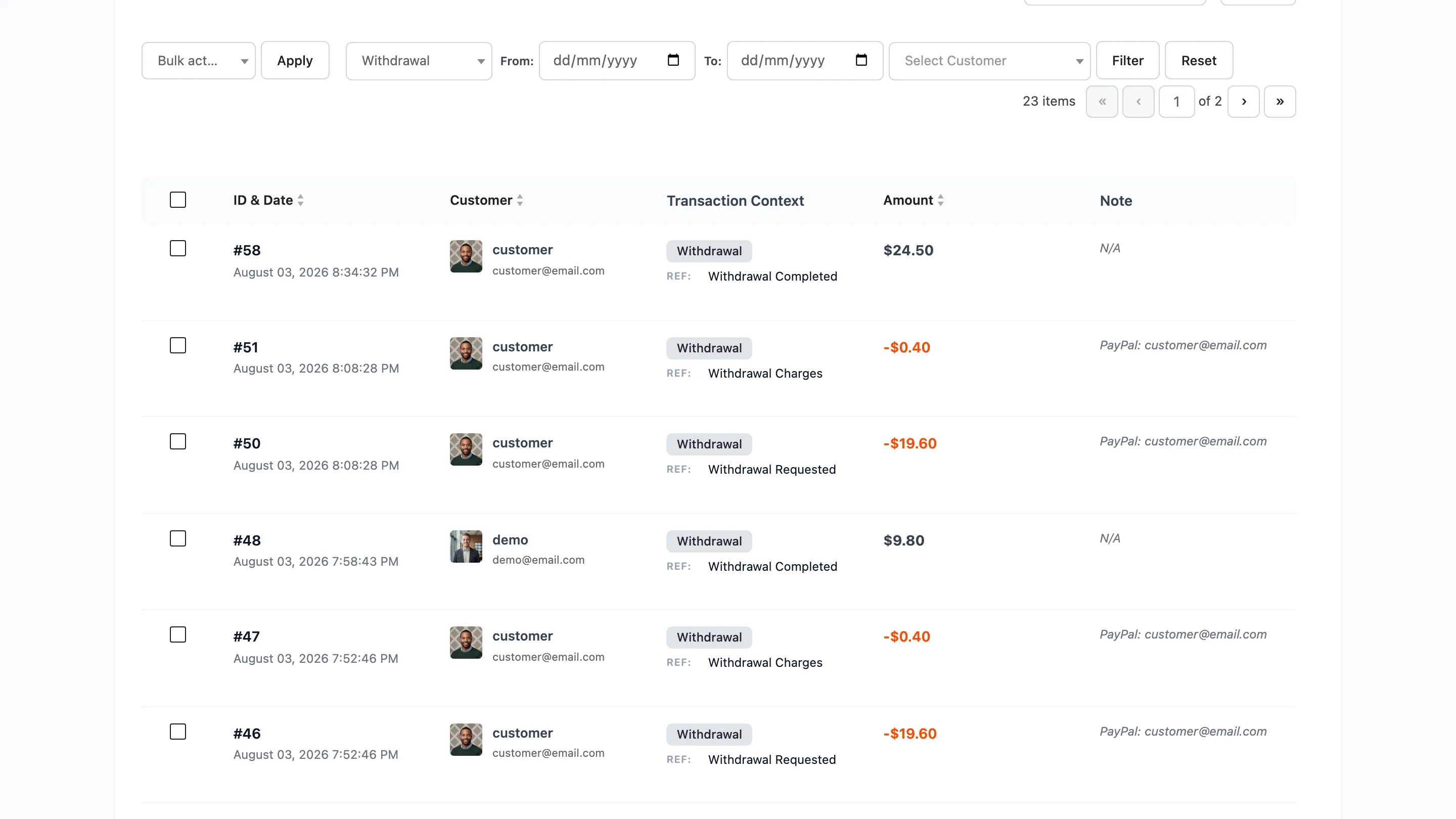
Filtering to Withdrawal is the month-end view: every payout requested, every fee charged, every one completed or cancelled, in one list.
Search
Section titled “Search”The search box matches the transaction ID and nothing else. To find a customer’s rows, use the Customer filter, or click the count on the Users list.
Deleting a row
Section titled “Deleting a row”Each row has a Delete action under its ID, and the checkboxes give a bulk delete.
Results per page
Section titled “Results per page”Screen Options at the top right, default 20.