

Cashback Settings
Five sections. This tab decides how cashback behaves. The rules that decide whether a customer earns any live on Cashback Rules.
Go to DevDiggers Plugins → Wallet → Configuration → Cashbacks.
Global Cashback Settings
Section titled “Global Cashback Settings”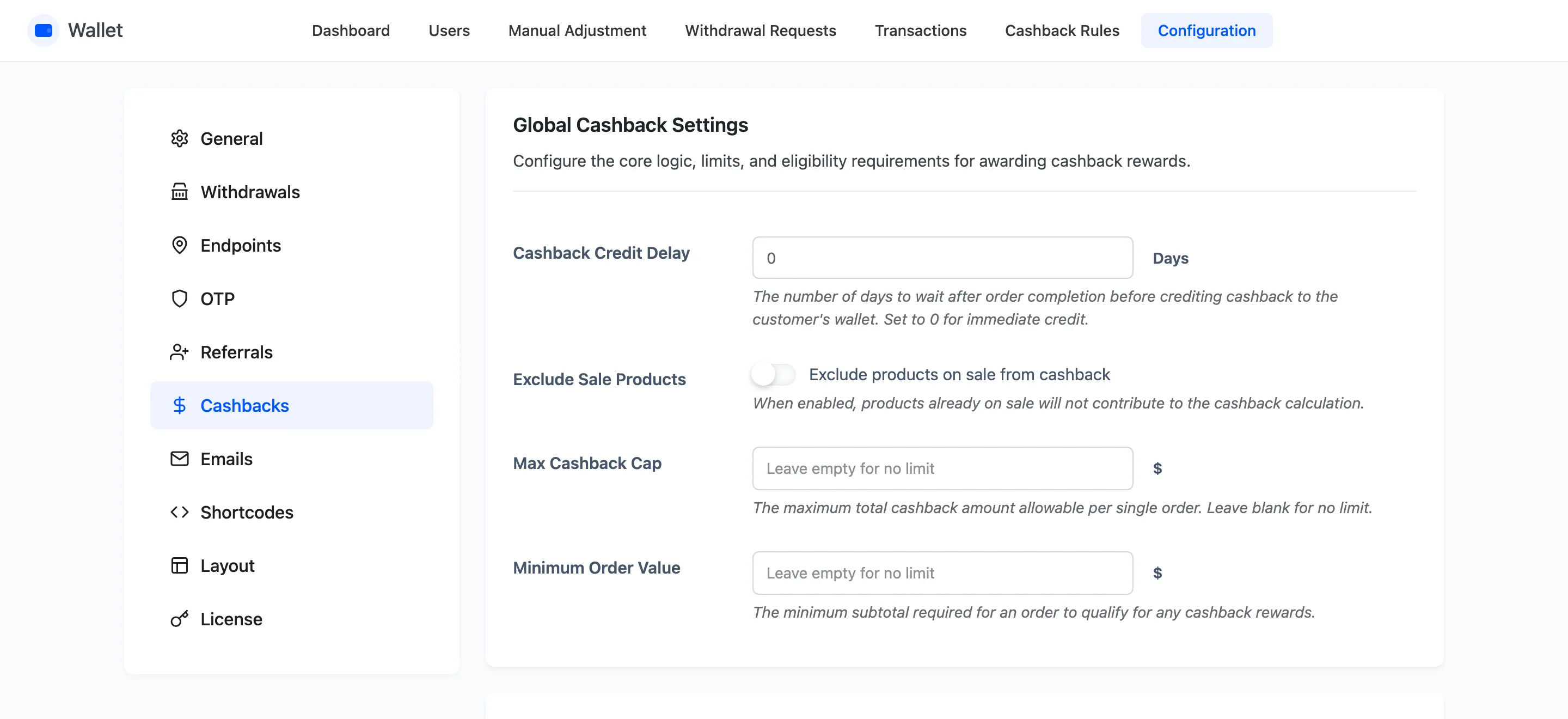
Cashback Credit Delay
Section titled “Cashback Credit Delay”Days to wait after an order completes before the credit lands. Zero credits it immediately.
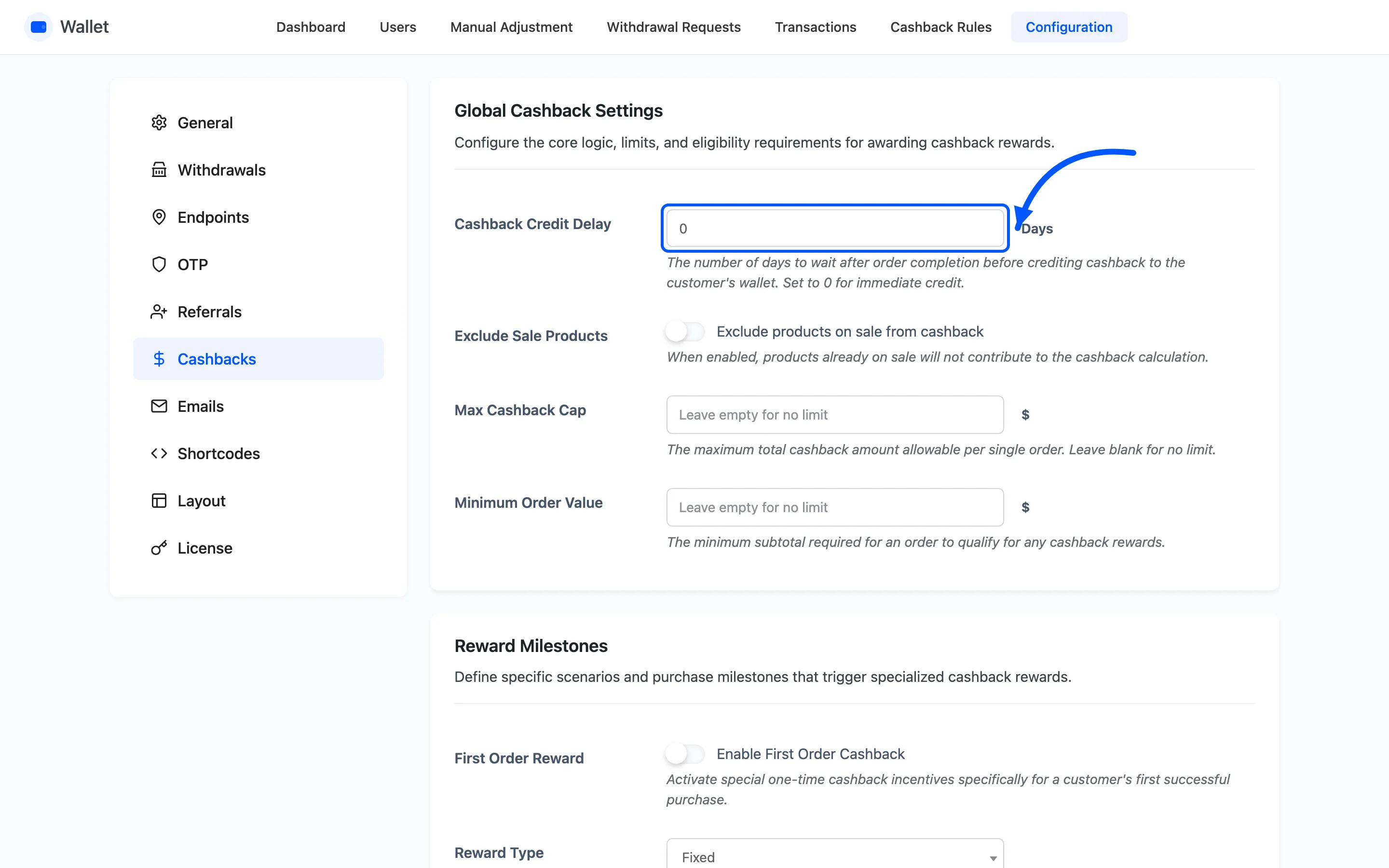
Set it to cover your returns window. Cashback paid on day one and refunded on day twenty is money you have to take back from a customer who has already spent it.
Exclude Sale Products
Section titled “Exclude Sale Products”Drops products already on sale out of the calculation. Off by default.
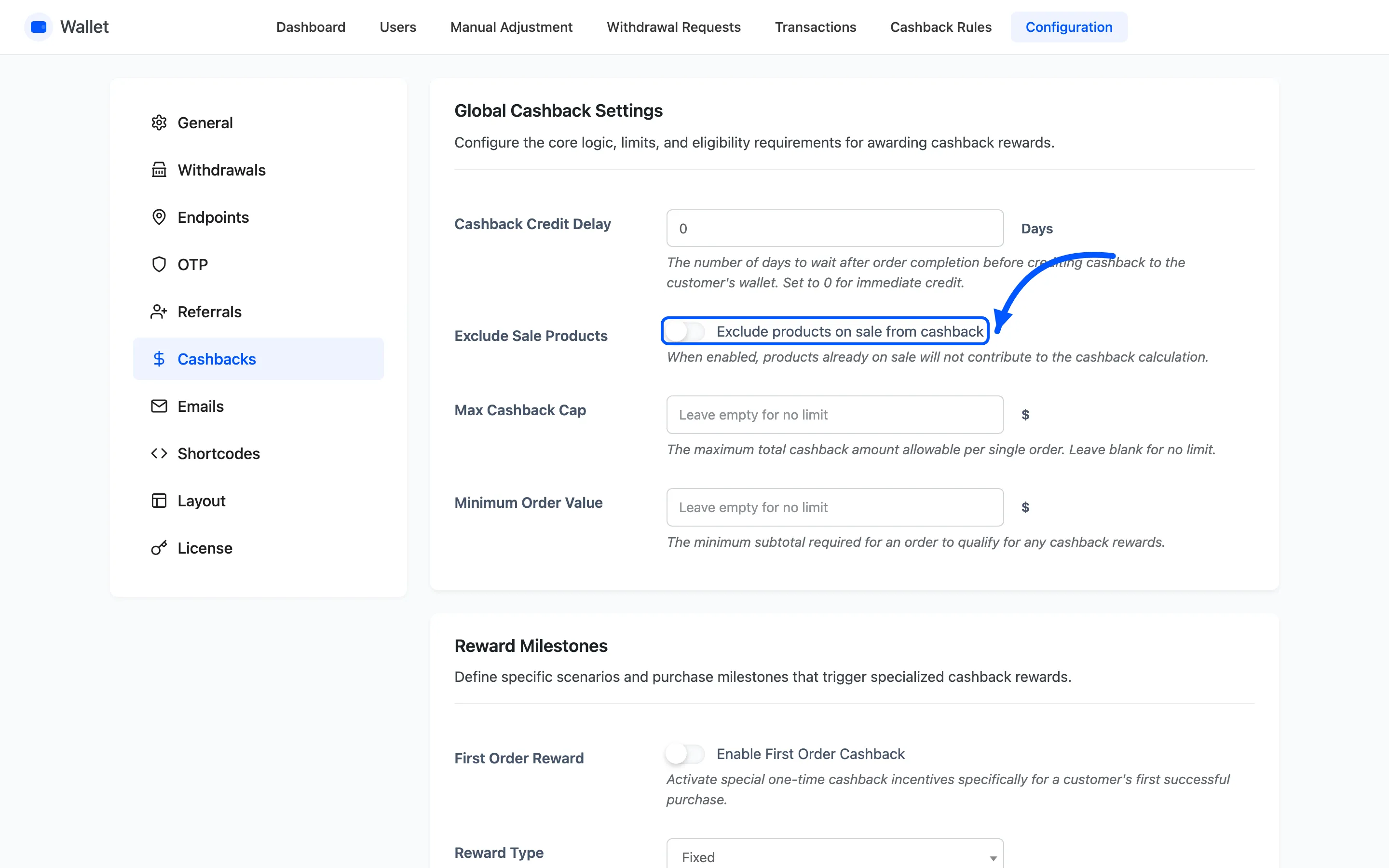
An excluded product is skipped and its line total comes off the subtotal the rules match against. A cart of nothing but sale items therefore earns nothing at all, not even a cart rule.
Max Cashback Cap
Section titled “Max Cashback Cap”The most cashback one order may earn, across every rule. Empty means no cap.
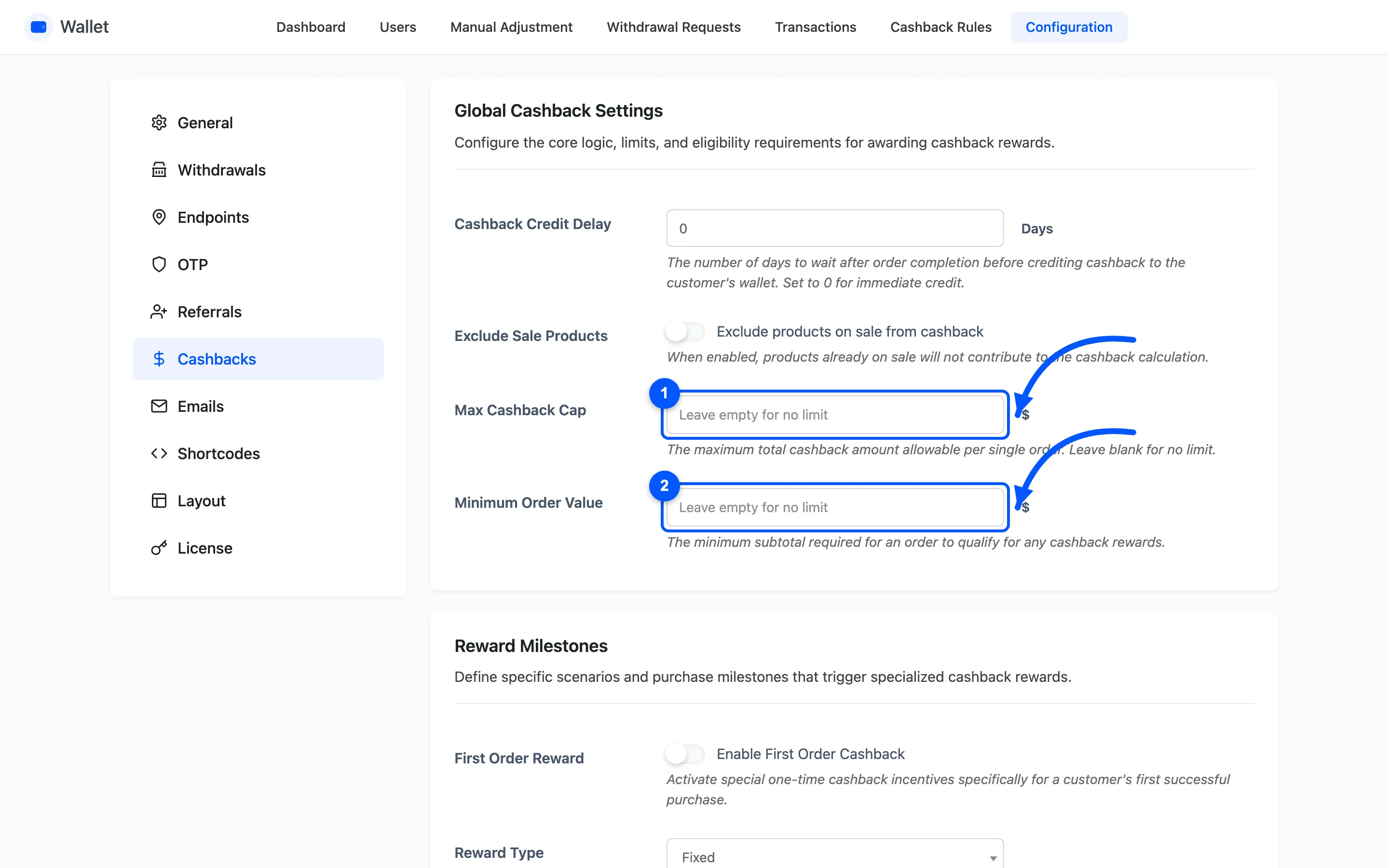
The cap scales, it does not truncate. Two rules paying $6 and $4 under a $5 cap become $3 and $2. Every kind is reduced by the same proportion, so the split stays readable in the transaction list.
Minimum Order Value
Section titled “Minimum Order Value”The subtotal an order must reach to earn anything. Empty means no minimum.
It is checked before any rule runs, and it compares the subtotal, before shipping and tax.
Reward Milestones
Section titled “Reward Milestones”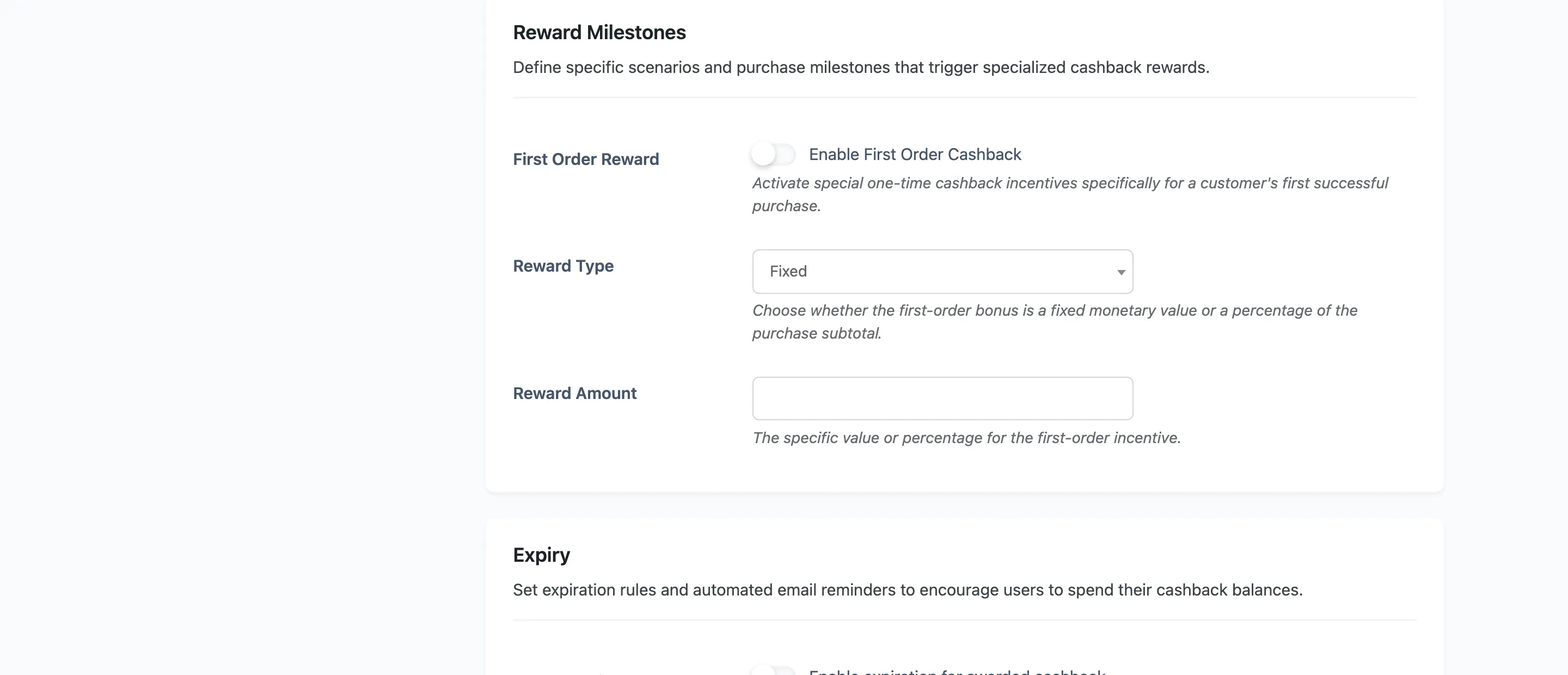
First Order Reward
Section titled “First Order Reward”Pays a one-off bonus on a customer’s first successful order.
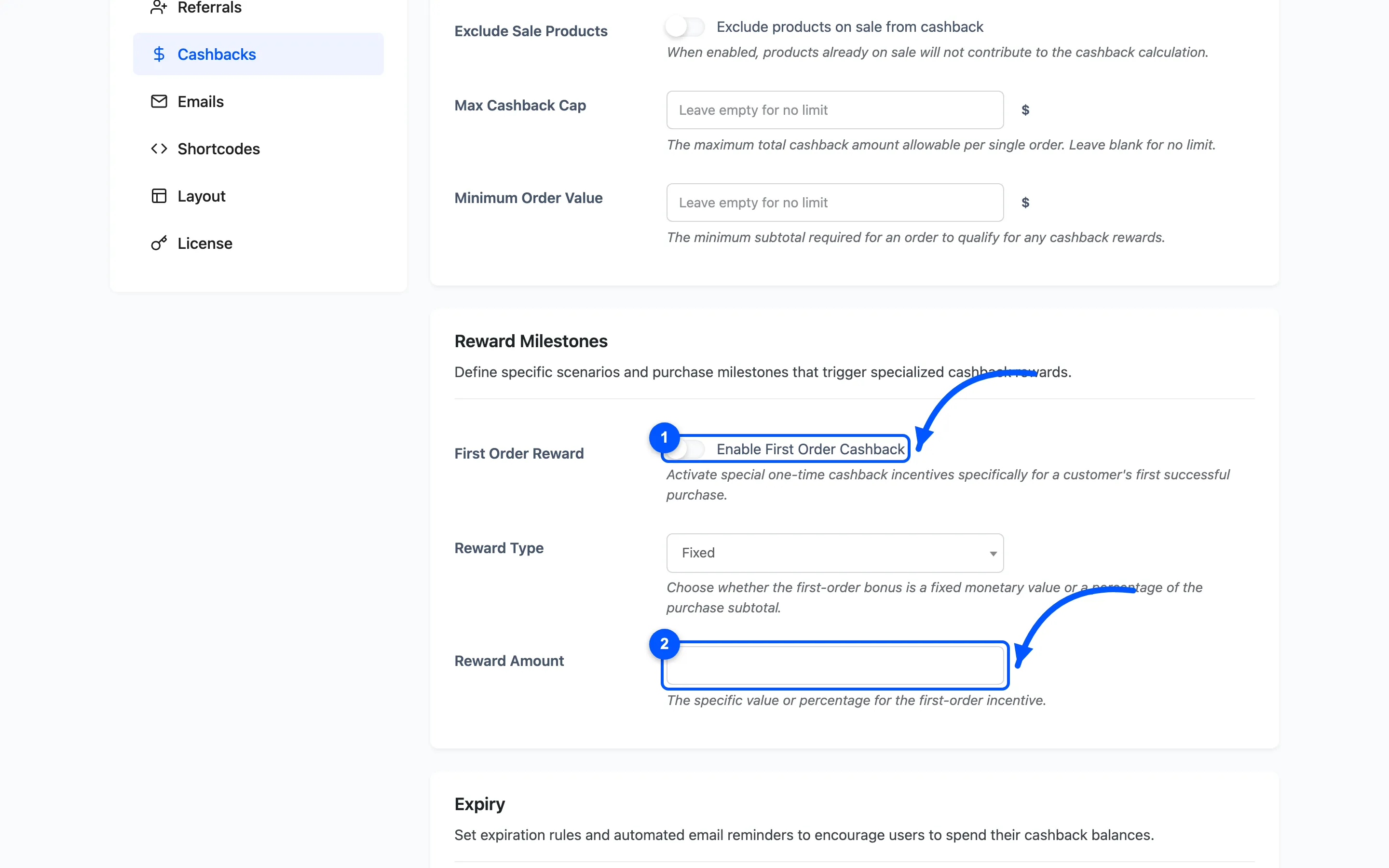
“First” means no other order in Completed, Processing or On hold. A customer whose only previous order was cancelled still counts as new.
Reward Type and Reward Amount
Section titled “Reward Type and Reward Amount”Fixed treats the amount as money, Percentage as a share of the order subtotal.
The bonus stacks with cart and product cashback rather than replacing them, so check the pair against your Max Cashback Cap.
Expiry
Section titled “Expiry”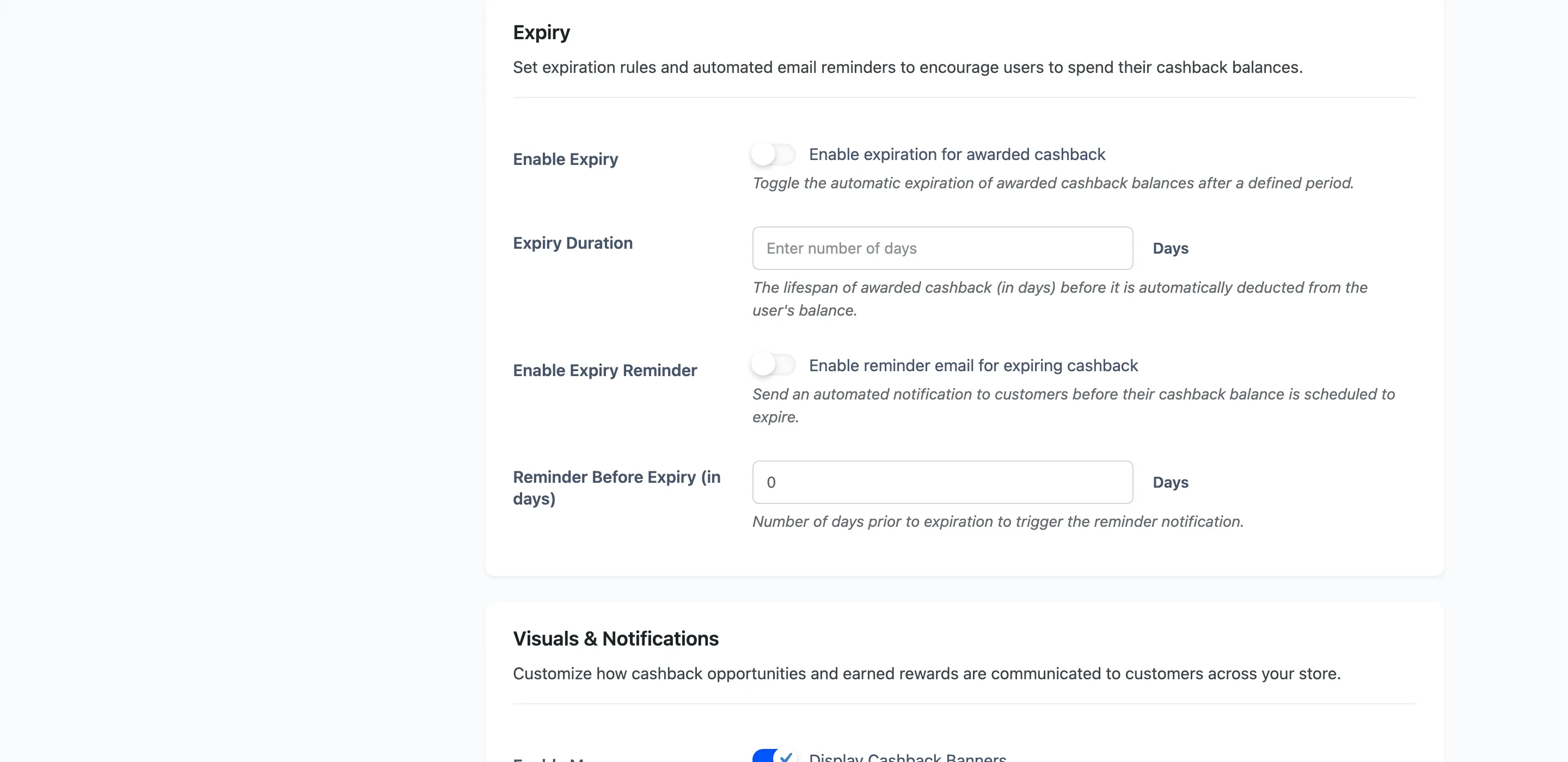
Enable Expiry and Expiry Duration
Section titled “Enable Expiry and Expiry Duration”Give every cashback credit an expiry date, this many days out. A daily job debits anything past its date.
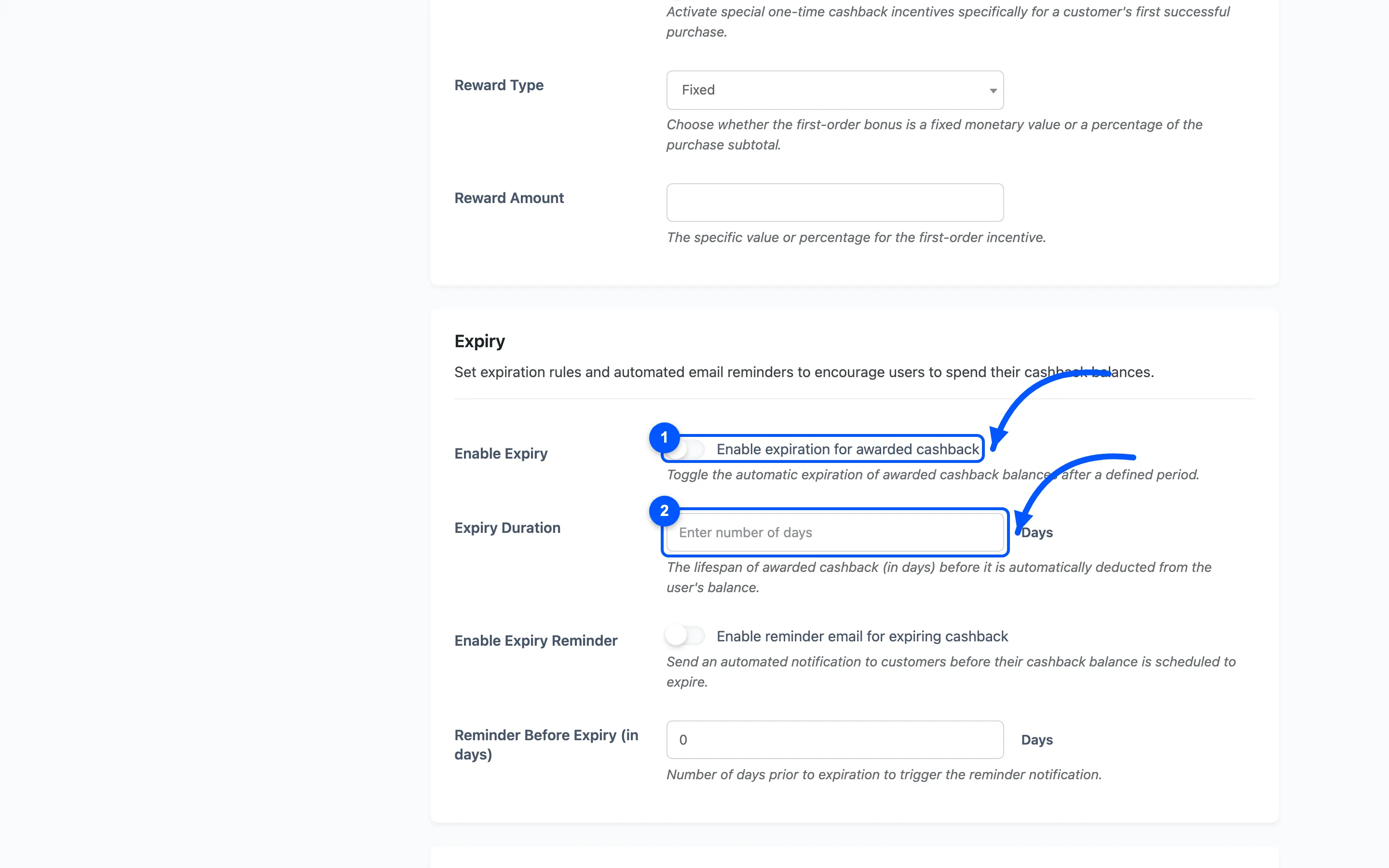
Only cashback expires. Top-ups, transfers, refunds and manual credits carry no expiry date and are never taken back by this.
Spending is treated as soonest-to-expire first, so a customer who has spent since earning is not charged twice when the old credit lapses.
Enable Expiry Reminder and Reminder Before Expiry
Section titled “Enable Expiry Reminder and Reminder Before Expiry”Emails a warning this many days before a credit expires, once per credit.
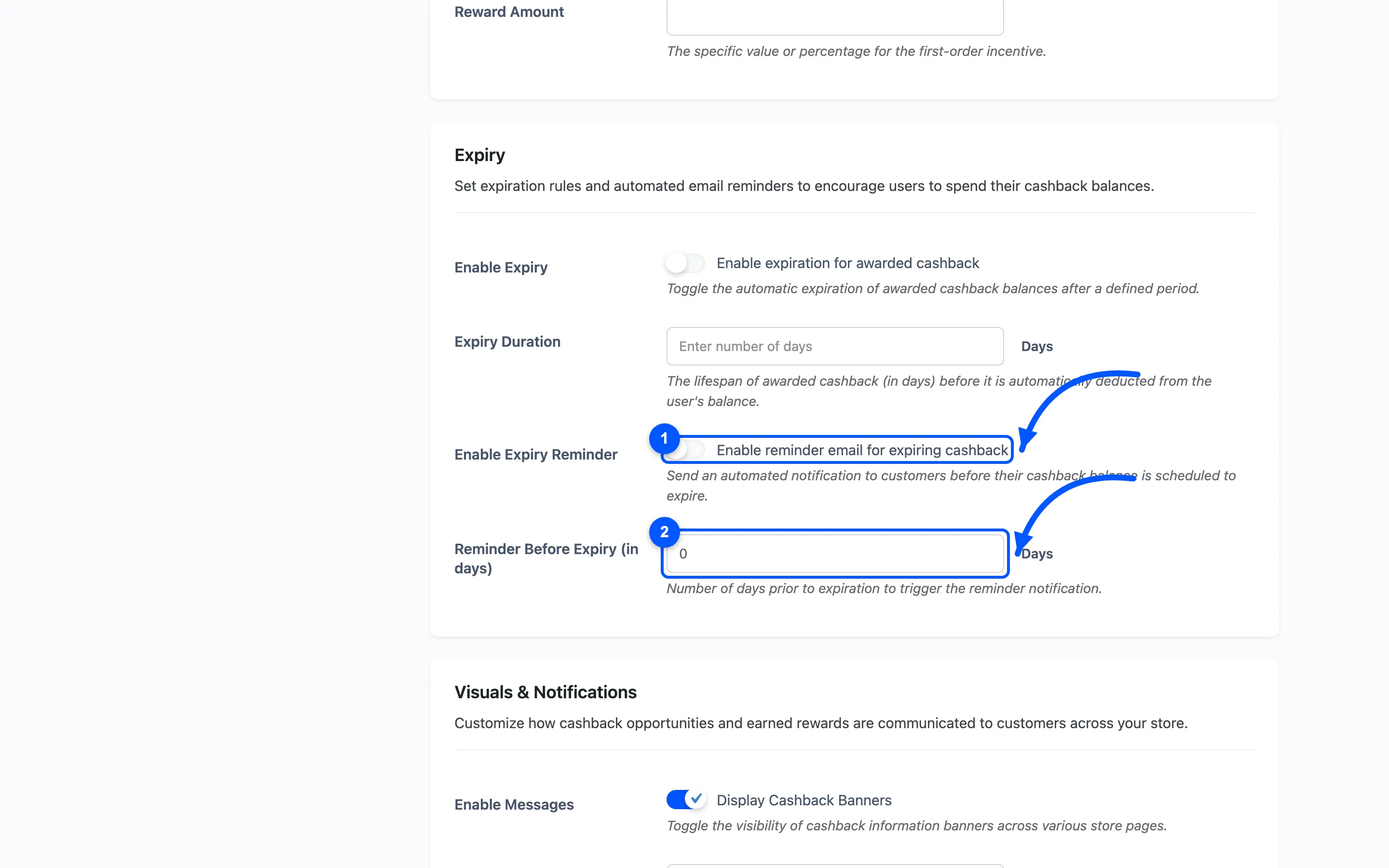
Set the reminder to a few days at least. A warning that arrives the morning the credit dies reads as a taunt rather than a favour.
Visuals and Notifications
Section titled “Visuals and Notifications”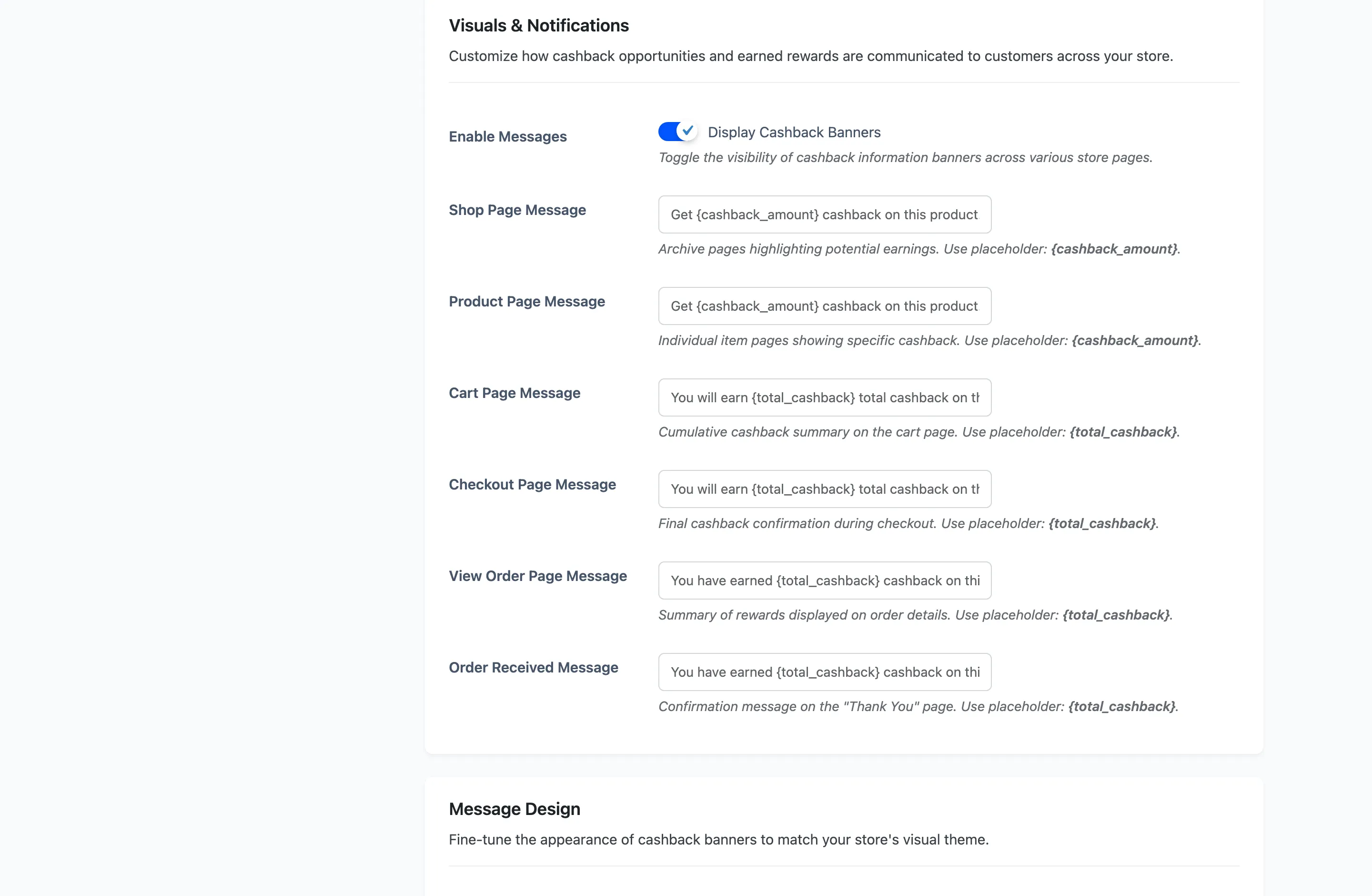
Enable Messages
Section titled “Enable Messages”Shows the cashback banners on the storefront. On by default.
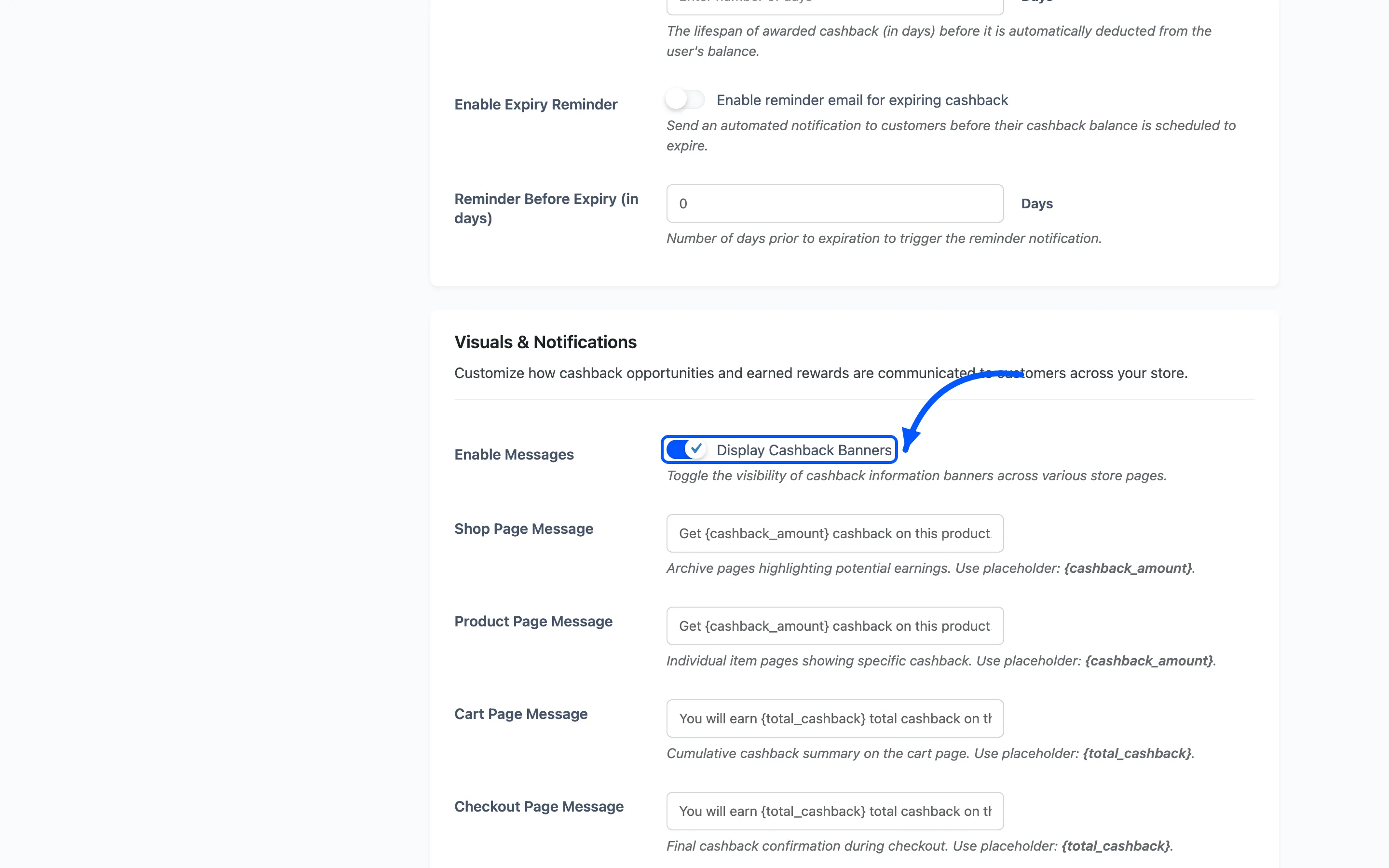
The six message fields
Section titled “The six message fields”One per page, each with its own placeholder.
- Shop Page Message and Product Page Message use
{cashback_amount}, the cashback on that one product. Both are Pro. - Cart Page Message and Checkout Page Message use
{total_cashback}, the cashback on the whole order, before it is placed. - View Order Page Message and Order Received Message use
{total_cashback}, the cashback actually awarded.
Leave a field empty and that page shows nothing. That is the way to run cashback quietly on the product pages and only mention it at the checkout.
A page shows nothing when the amount works out at zero, so an ineligible cart is never told about a reward it will not get.
Message Design
Section titled “Message Design”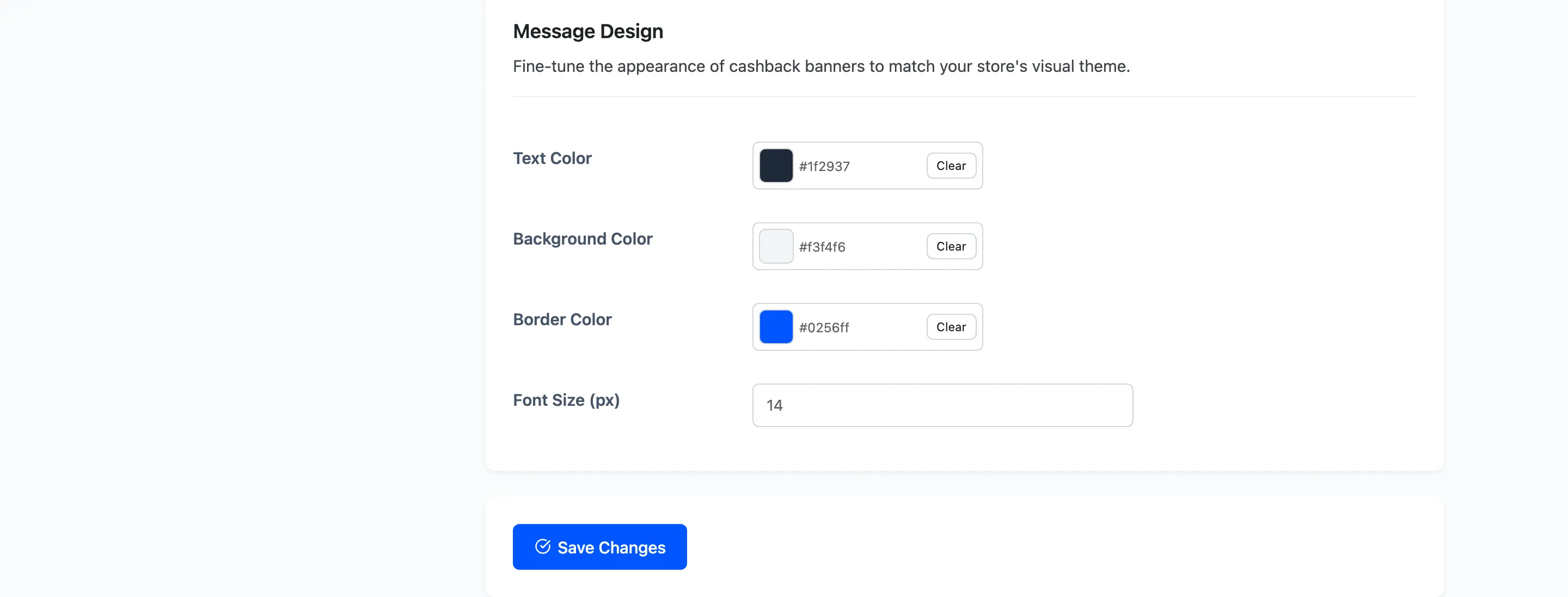
Four fields, all free: Text Color, Background Color, Border Color and Font Size (px). They style every one of the six banners together.
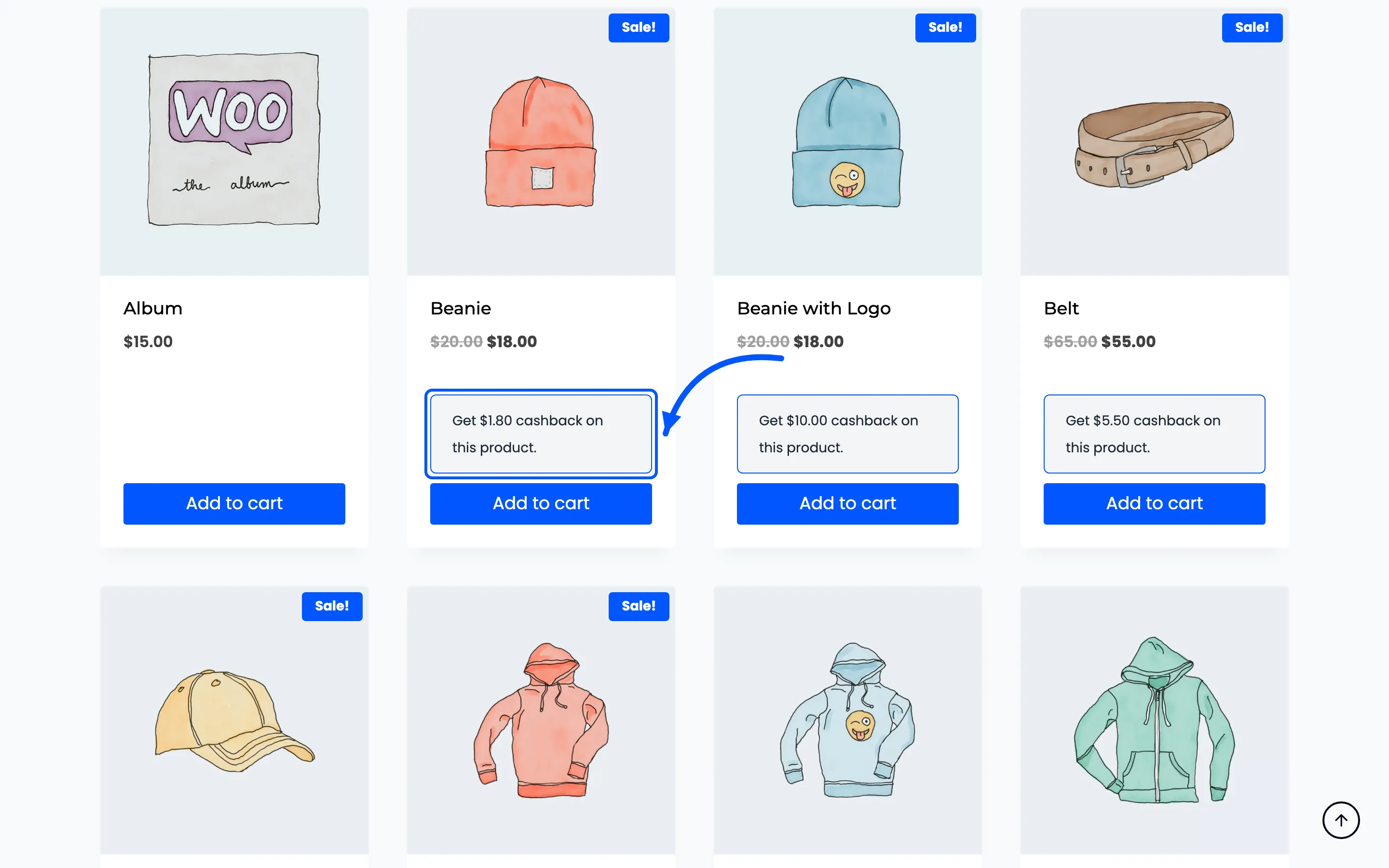
Defaults are a grey panel with a brand-blue border. Match your theme’s notice styling rather than your brand colour, so it reads as information and not as an advert.