

How to Send Money to Another Customer
Send Money is the one wallet operation that is instant and irreversible. It is worth setting the limits before you tell anyone it exists.
Step 1: Set the transfer limits
Section titled “Step 1: Set the transfer limits”Go to DevDiggers Plugins → Wallet → Configuration → General, and set Min Transfer Limit and Max Transfer Limit under Limits Settings.
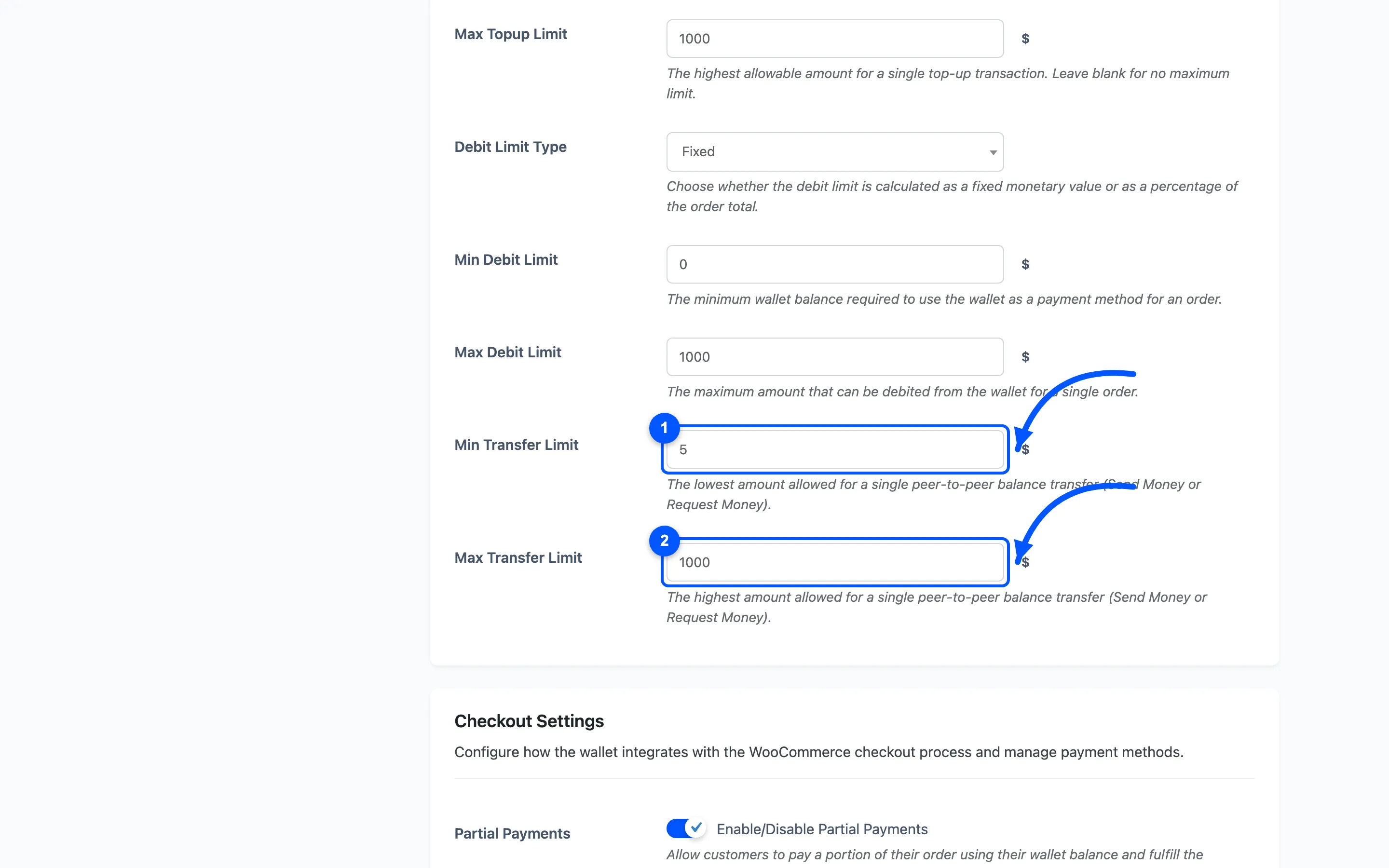
Both are shown inside the popup, so a customer sees them before they submit rather than after.
Step 2: Open the Send Money popup
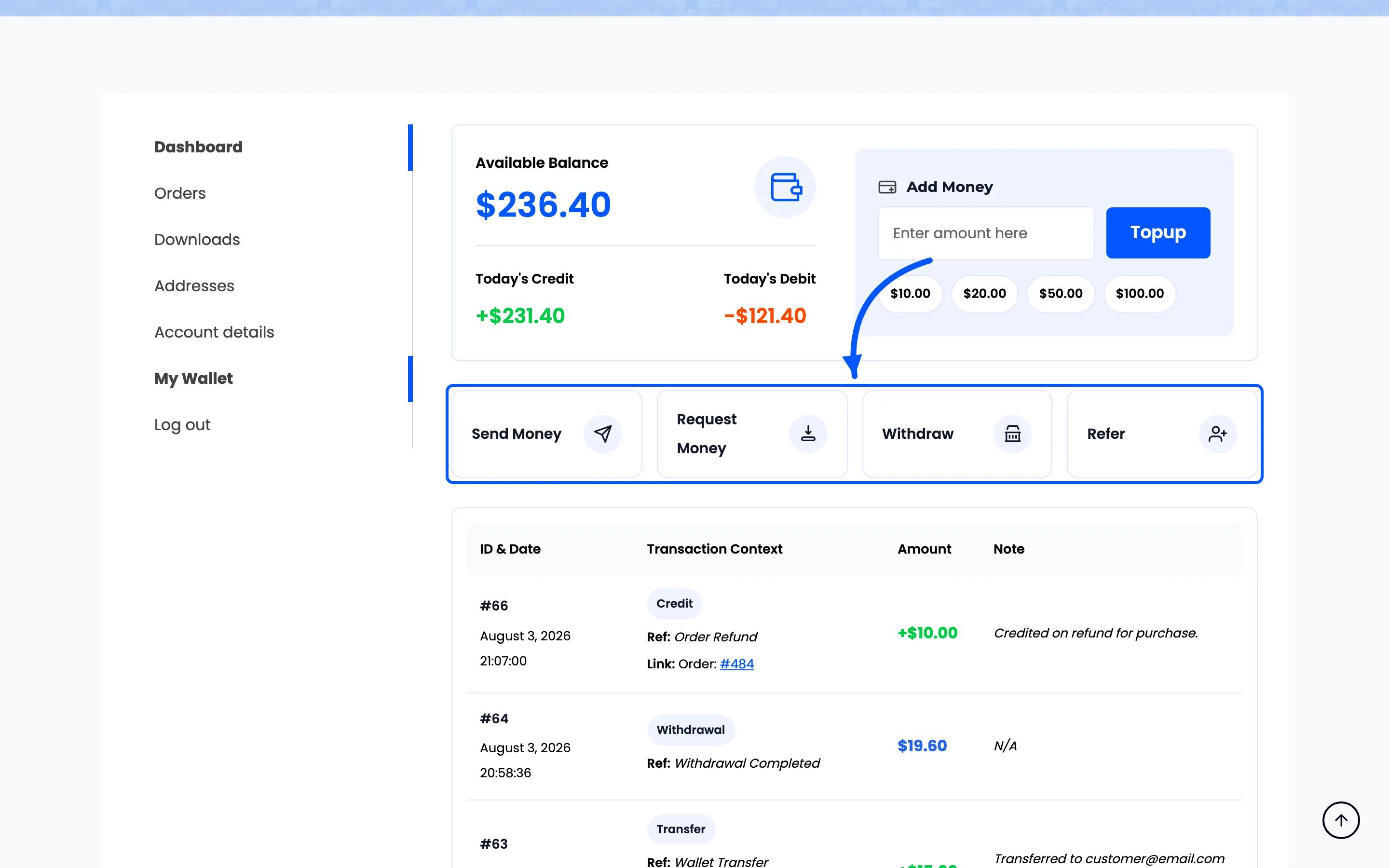
Section titled “Step 2: Open the Send Money popup”On My Account → My Wallet, press Send Money in the operations row.
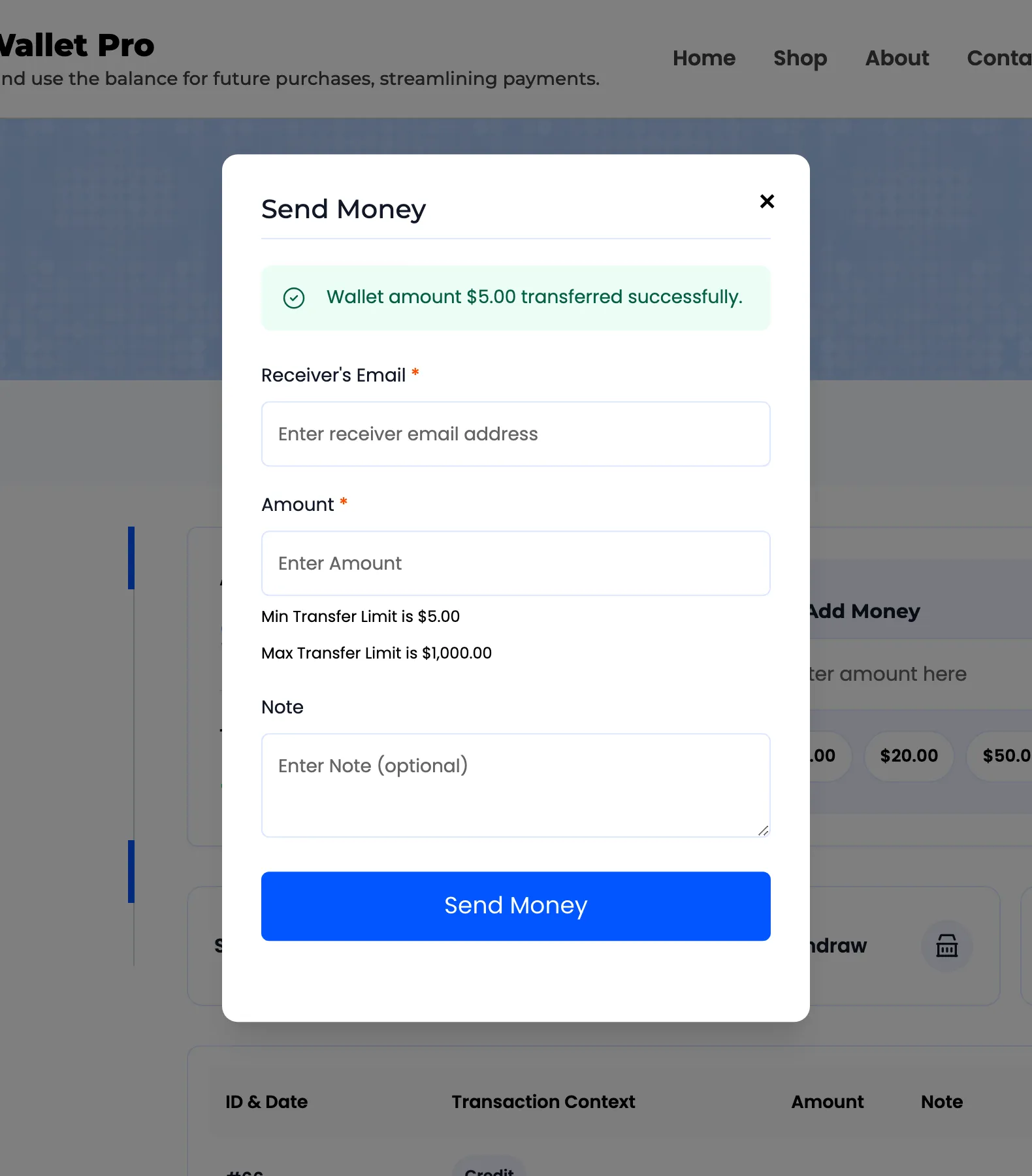
Step 3: Enter the receiver, the amount and a note
Section titled “Step 3: Enter the receiver, the amount and a note”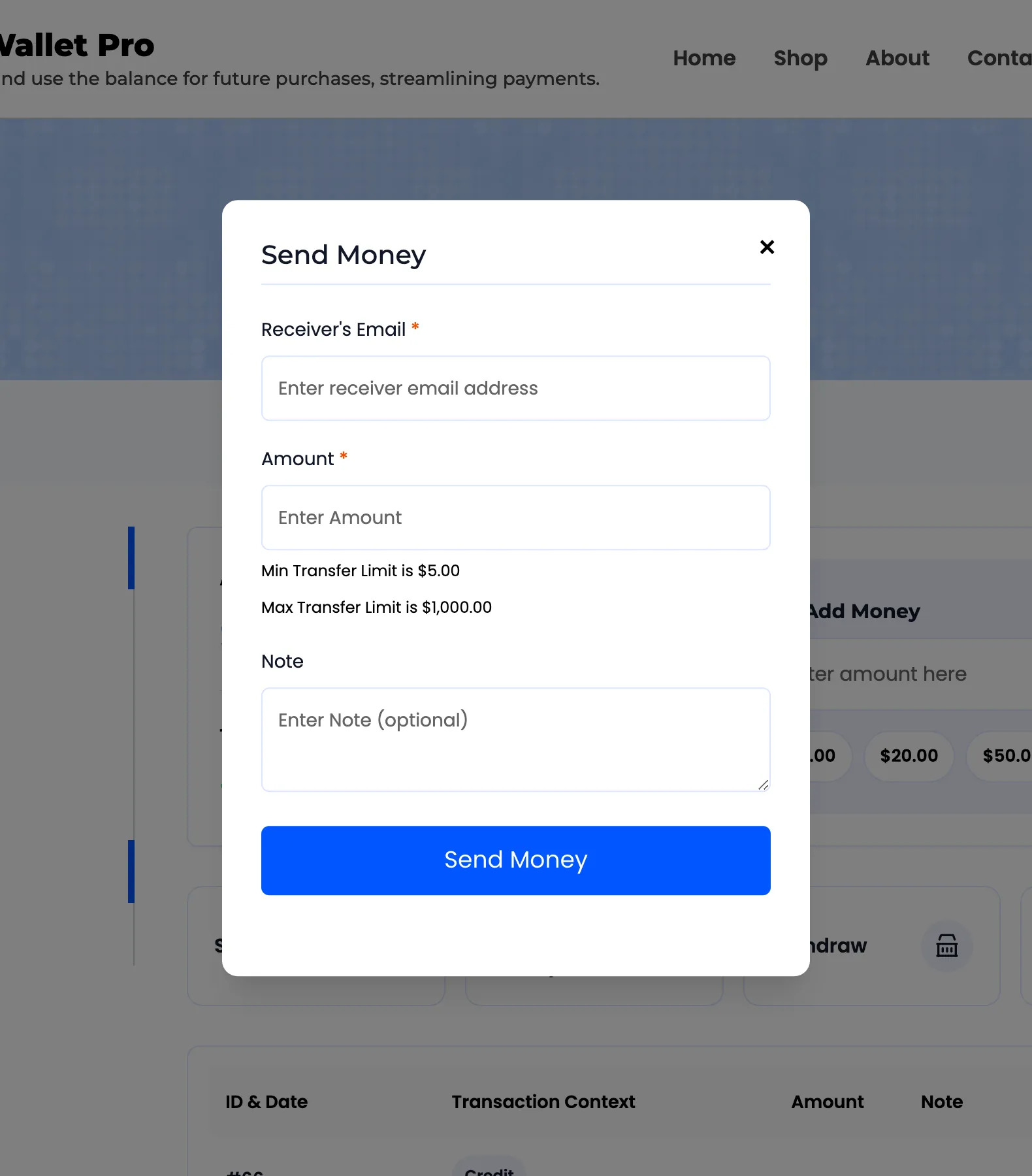
- Receiver’s Email must be the address on an existing account. There is no picker and no search, because one customer has no business browsing a list of the others.
- Amount is bounded by the two limits and by the sender’s own balance.
- Note is optional and travels with the money into the receiver’s email.
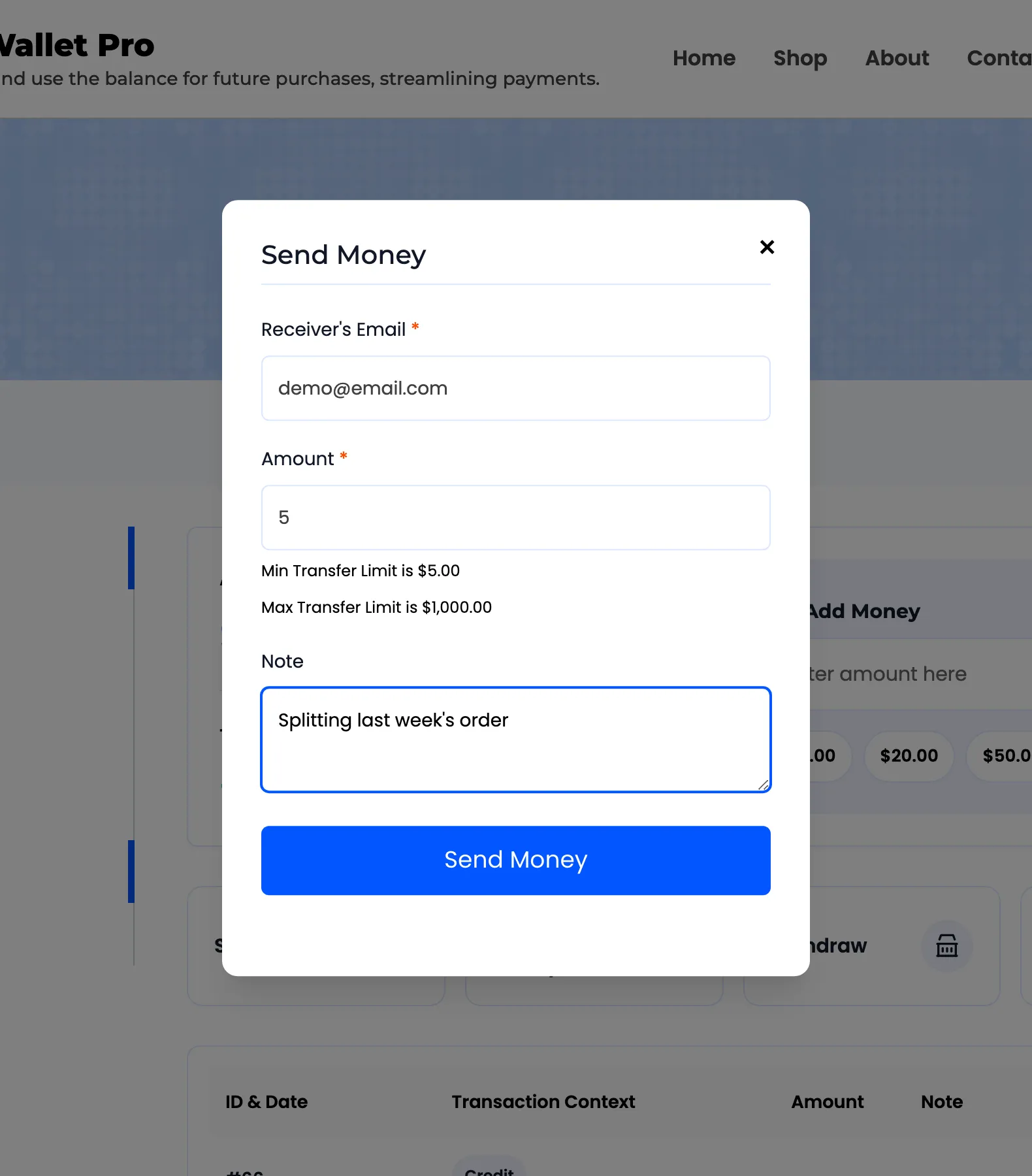
Four things are refused, each with its own message. An address with no account, the sender’s own address, an amount above the balance, and an amount outside the limits.
Step 4: Press Send Money
Section titled “Step 4: Press Send Money”The money moves immediately. The popup confirms it and the form clears, ready for another.
There is no undo. The sender cannot pull it back and you cannot reverse it from the admin. The only correction is a manual adjustment on both accounts, and that is two more rows in a history someone will read later.
Step 5: Check both wallets
Section titled “Step 5: Check both wallets”The sender’s balance falls, the receiver’s rises, and one transaction row records it, typed Transfer, showing the sender.
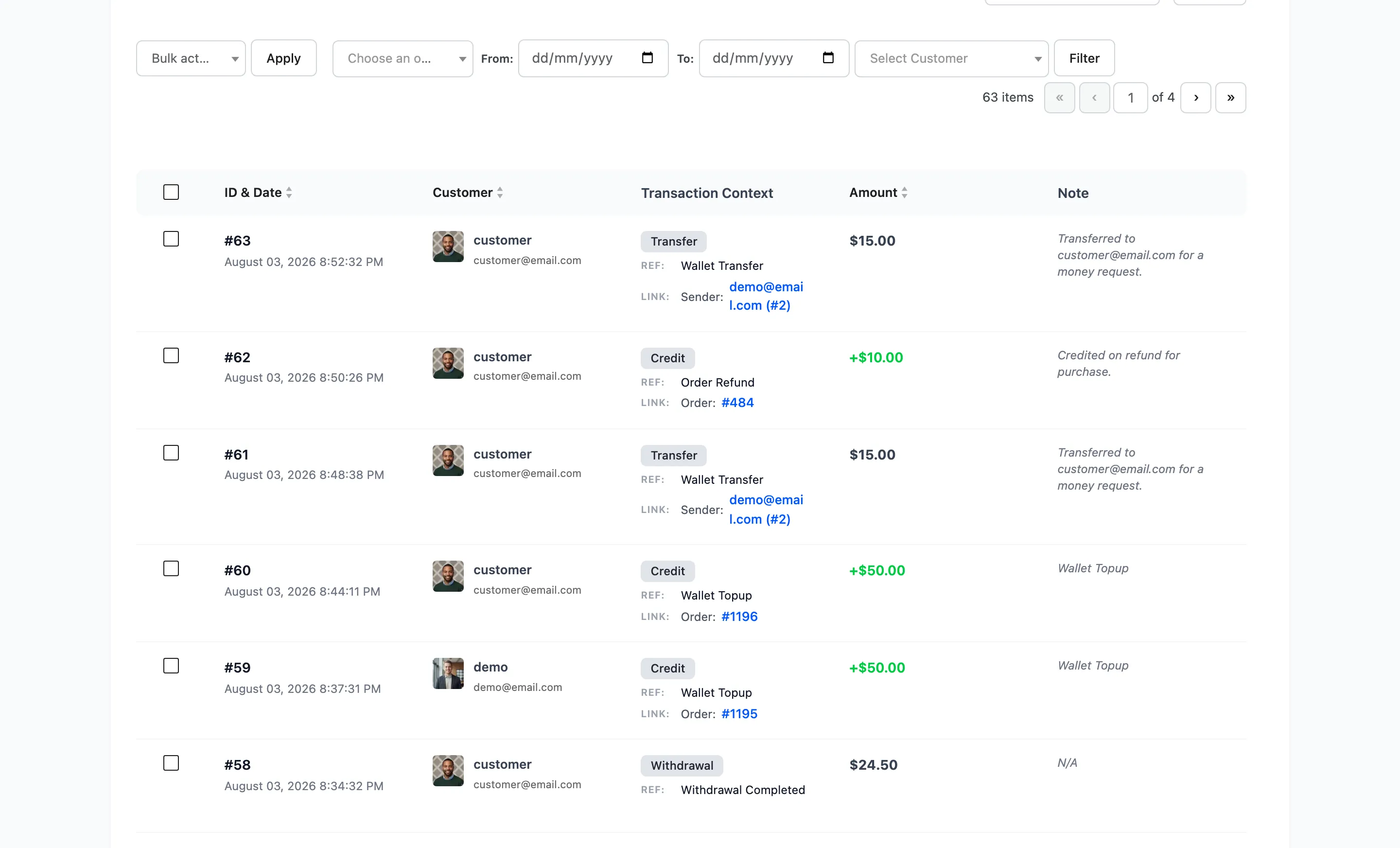
Both people are emailed. The sender gets the debit notice with the reason Transfer Sent, the receiver the credit notice with Transfer Received, each carrying the note.