

General Settings
The General tab is three sections: the switches that make the wallet exist, the limits that bound it, and how it meets the checkout.
Go to DevDiggers Plugins → Wallet → Configuration → General.
General Settings
Section titled “General Settings”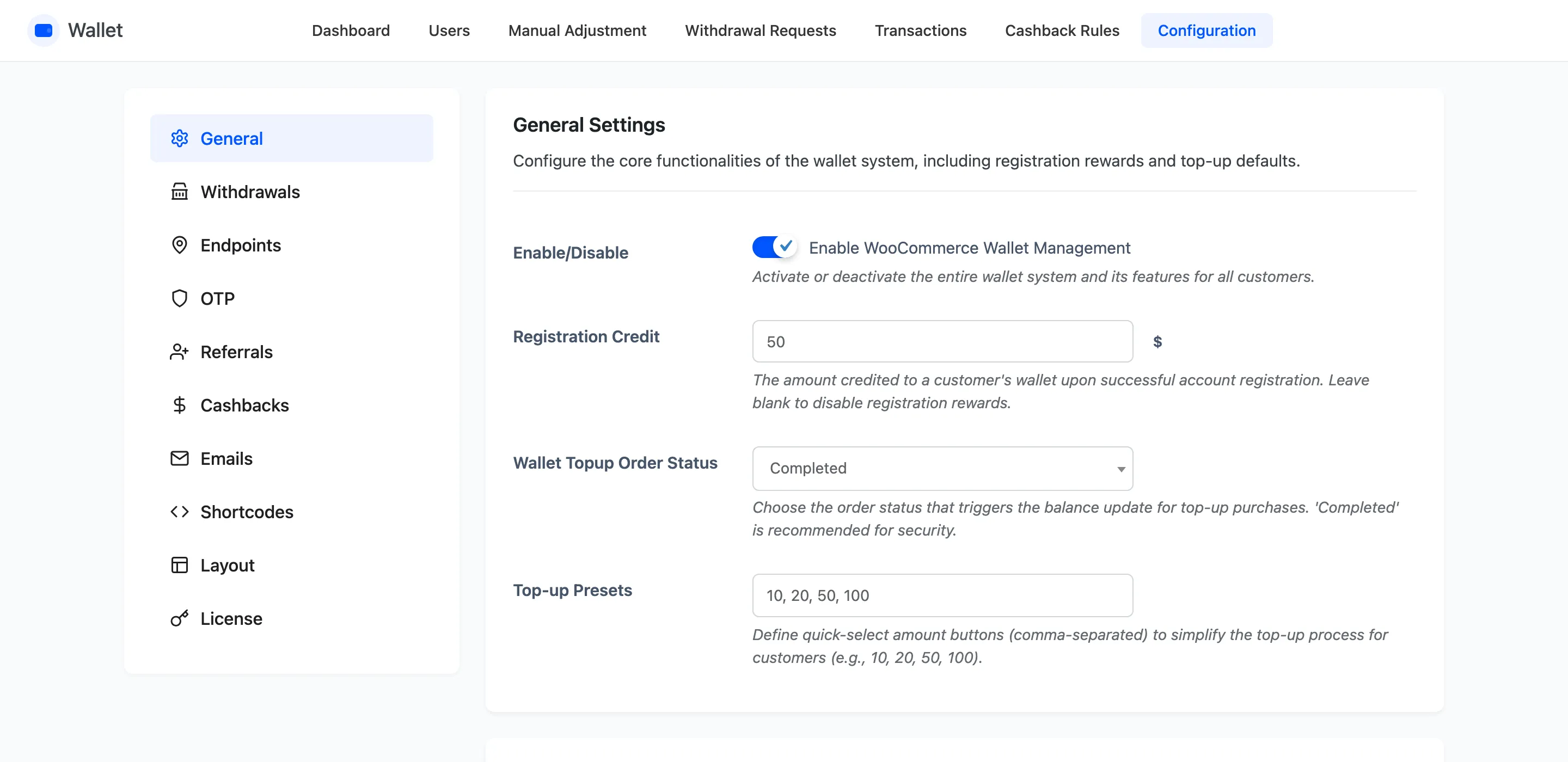
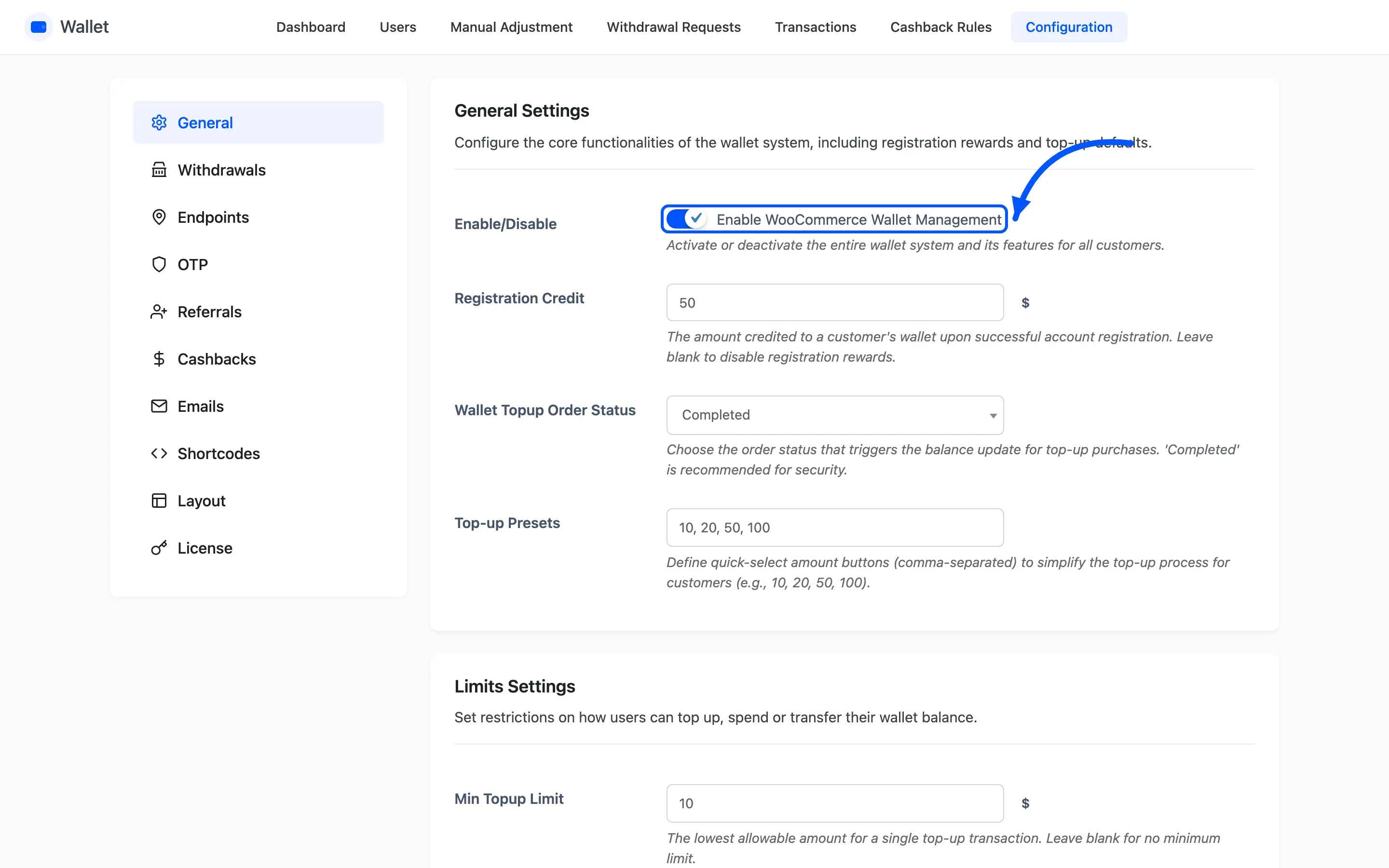
Enable/Disable
Section titled “Enable/Disable”The master switch. Off, and no wallet page, no payment method and no cashback appear anywhere on the storefront. Default is off until the setup wizard turns it on.
Registration Credit
Section titled “Registration Credit”The amount credited to a new account on registration. Blank or zero disables it.
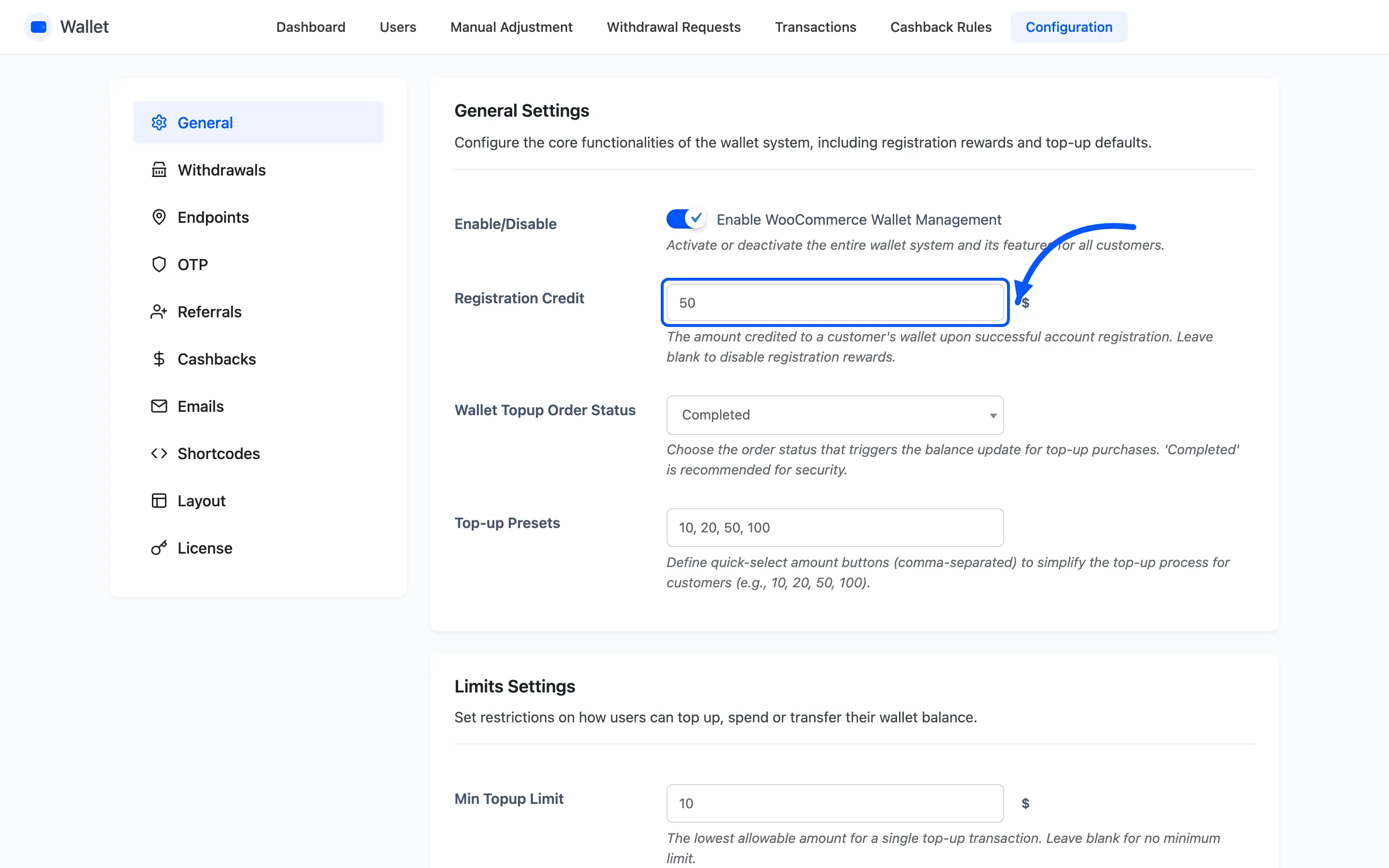
It is paid once, at account creation, and the amount is also shown to logged-out visitors as a notice on the account page. Change it and the notice changes with it.
Wallet Topup Order Status
Section titled “Wallet Topup Order Status”Which order status releases a top-up into the balance.
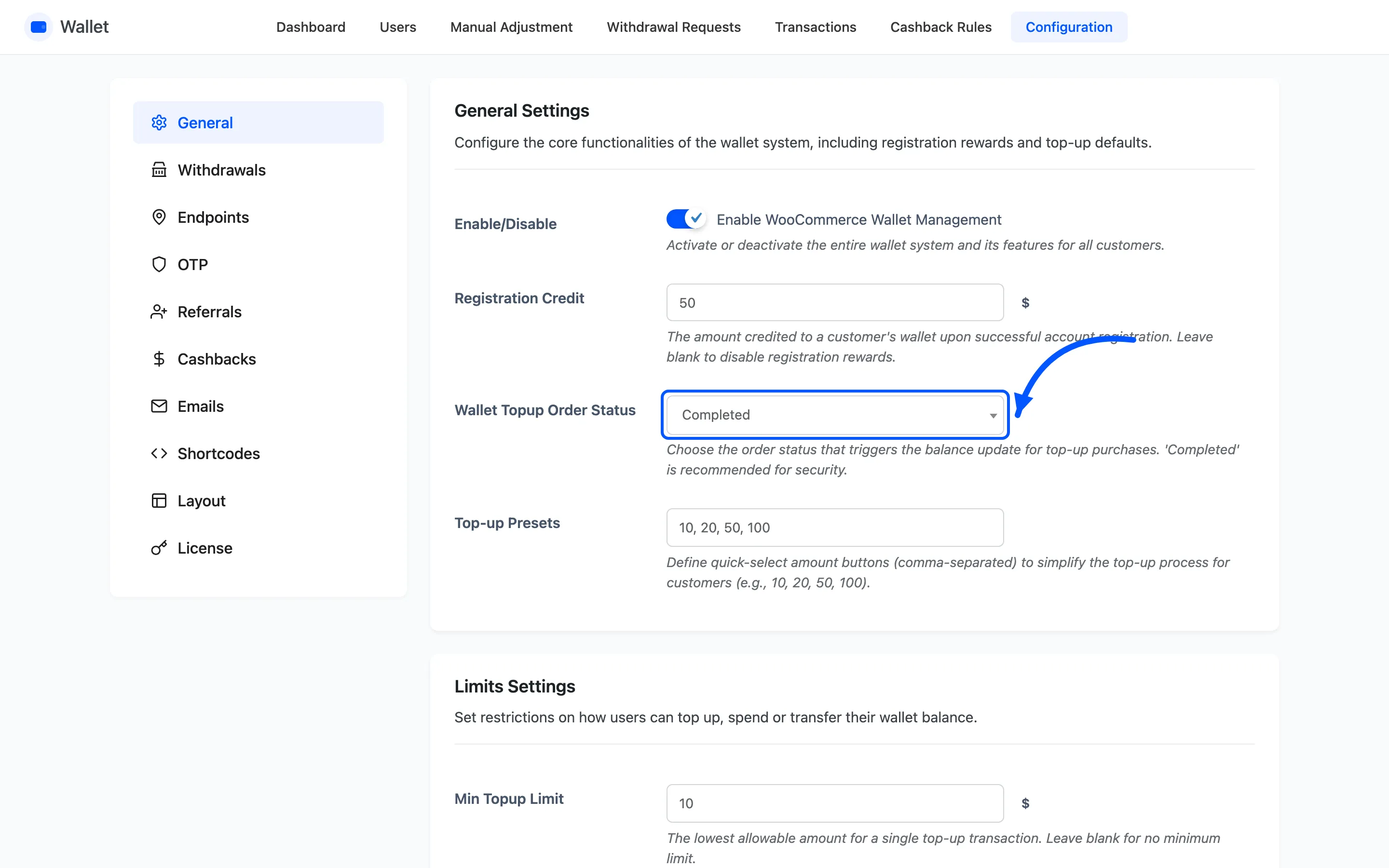
- Completed forces every top-up order to Completed as soon as it is placed, so the money lands straight away. This is the default.
- Default leaves the order on whatever status the gateway sets, and the credit waits until something moves it to Completed.
Choose Default with an offline gateway such as bank transfer, so nobody gets balance before you have seen the money.
Top-up Presets
Section titled “Top-up Presets”The quick-select amounts under the Add Money field, comma separated. Default 10, 20, 50, 100.
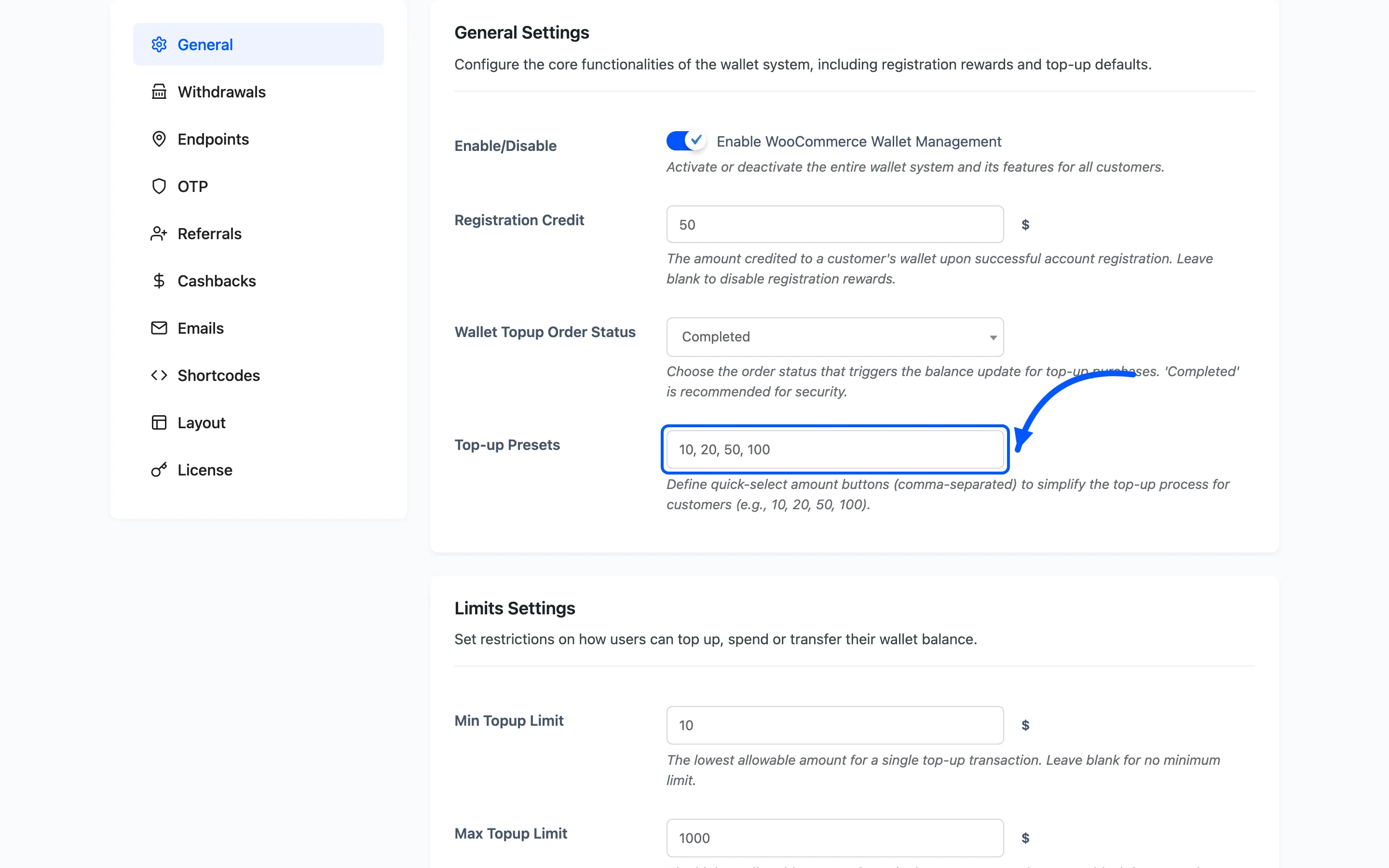
Non-numeric entries are skipped rather than shown, so a stray word costs you a button and nothing worse.
Limits Settings
Section titled “Limits Settings”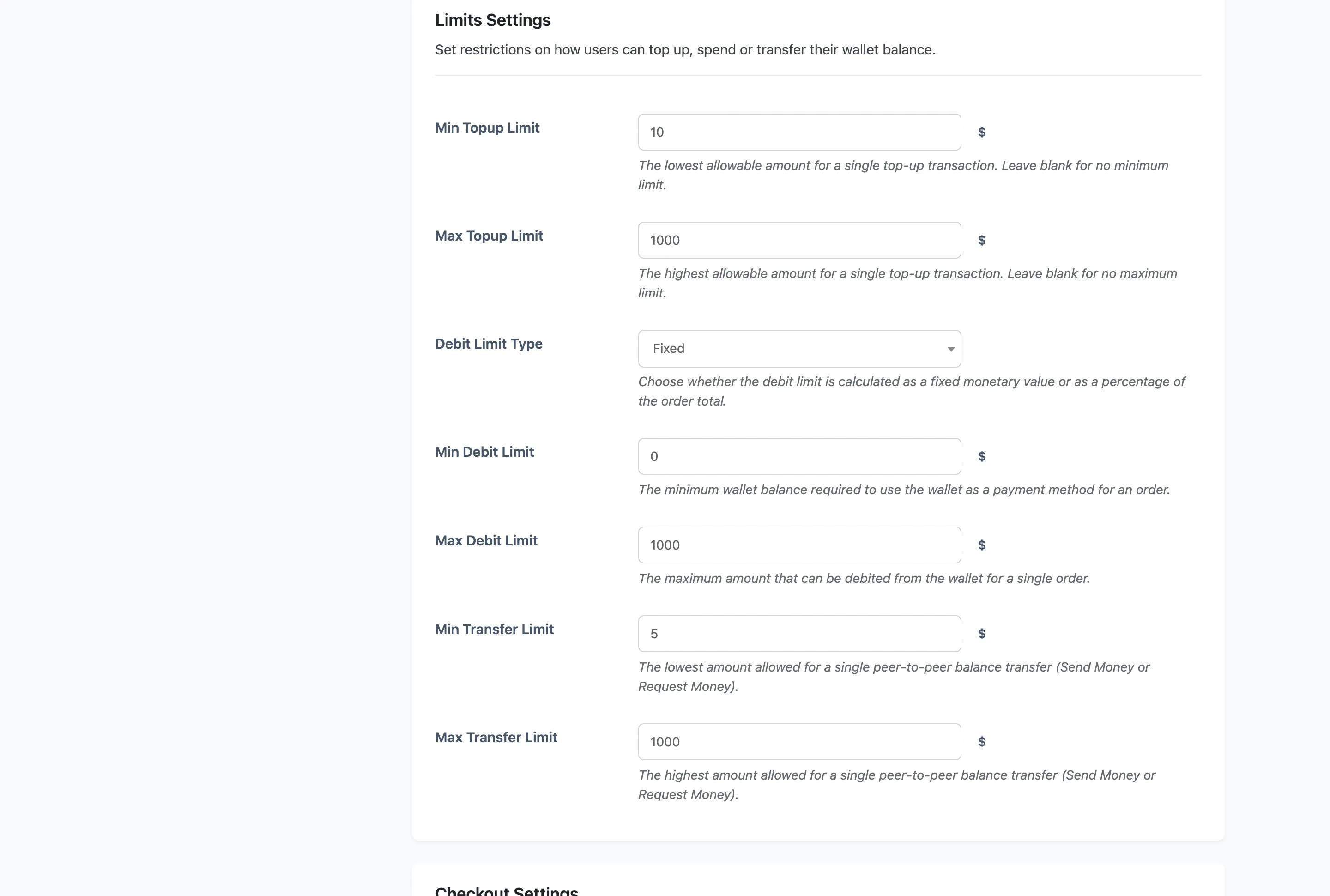
Min Topup Limit and Max Topup Limit
Section titled “Min Topup Limit and Max Topup Limit”The smallest and largest single top-up. Leave either blank for no bound.
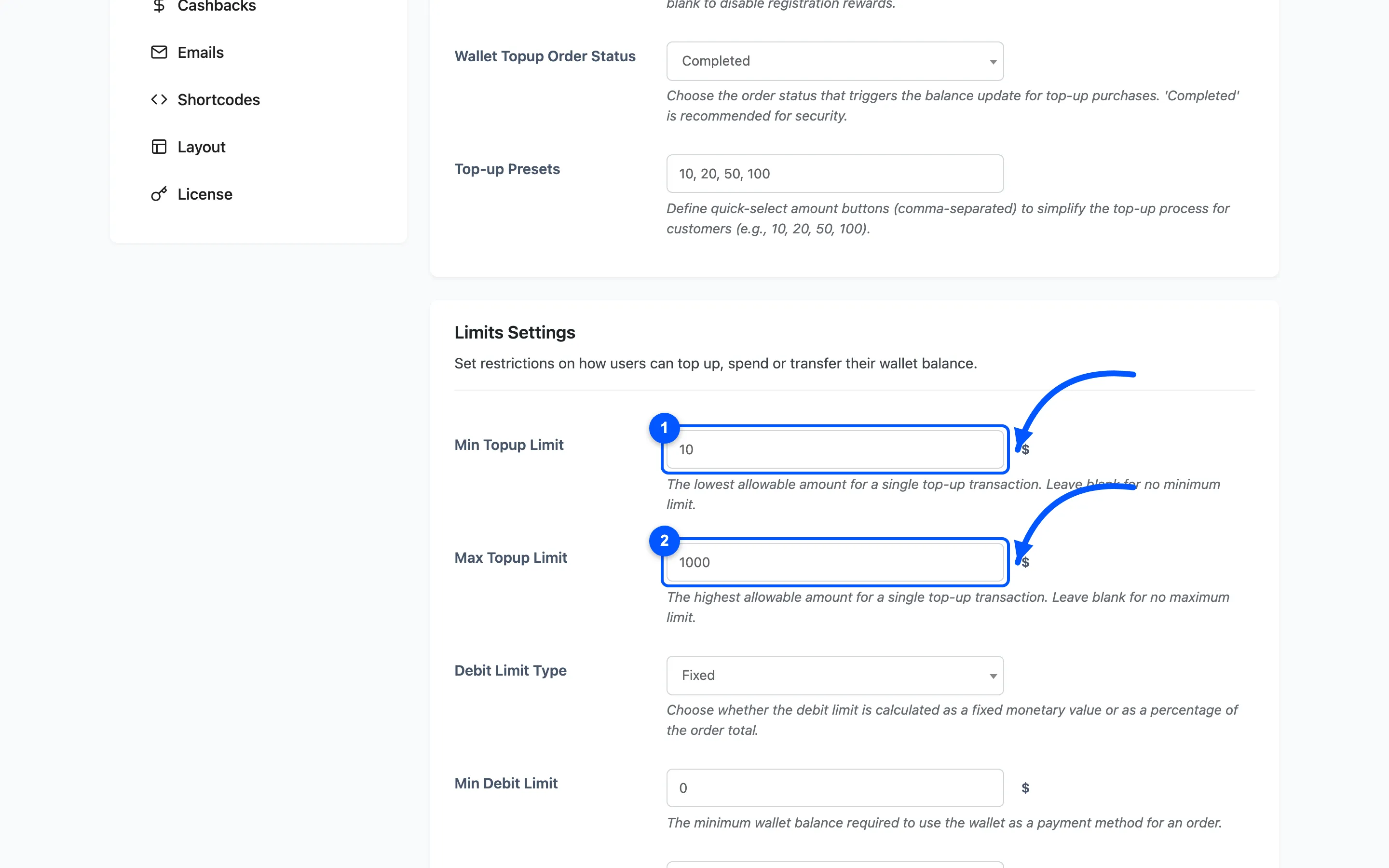
A top-up outside the range is refused with a notice naming the limit it broke, and the customer is sent back to the wallet page.
Debit Limit Type
Section titled “Debit Limit Type”Whether the two debit limits below are read as money or as a percentage of the order total.
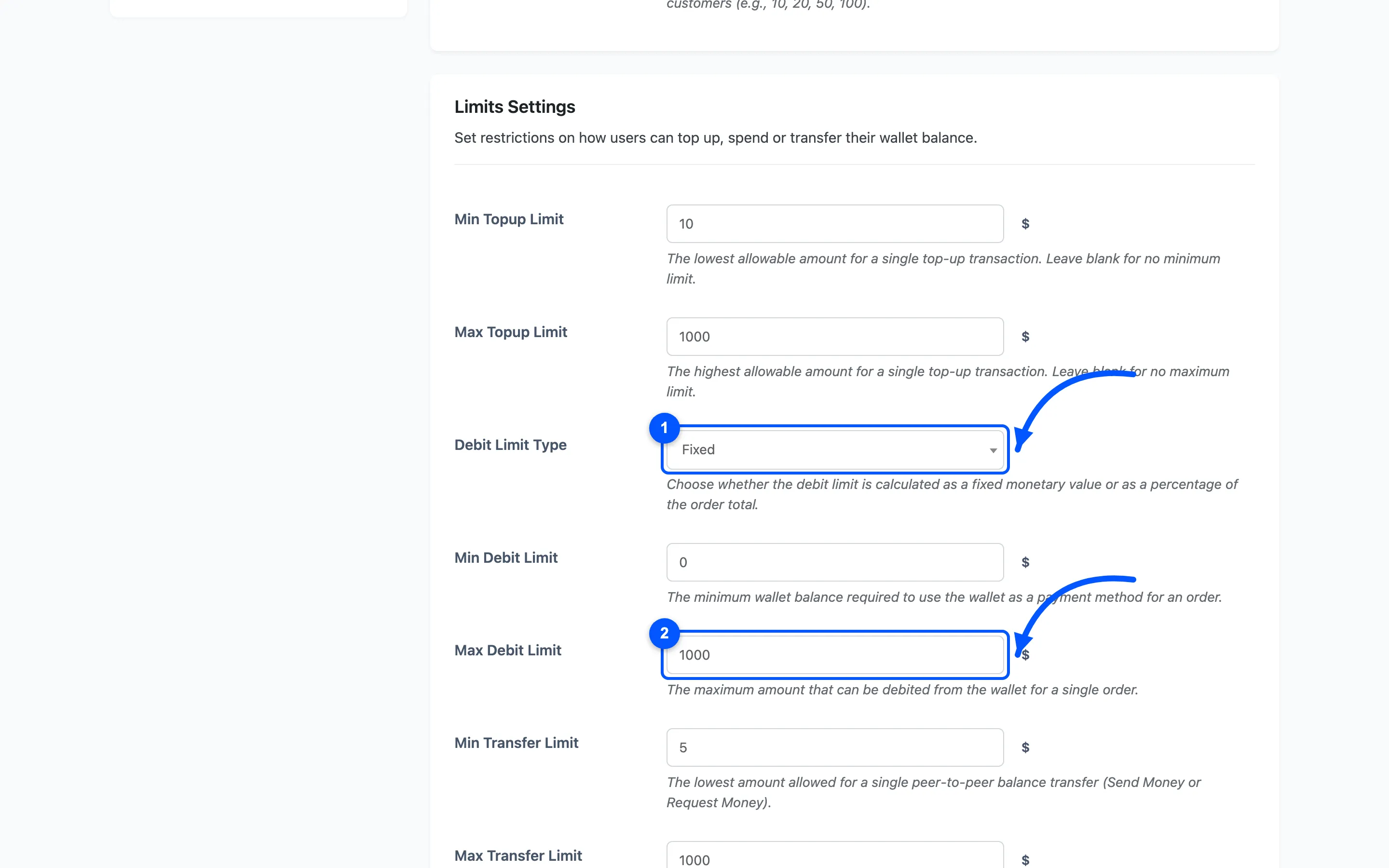
- Fixed treats them as amounts.
- Percentage treats them as a share of the order being paid for.
Min Debit Limit and Max Debit Limit
Section titled “Min Debit Limit and Max Debit Limit”Min Debit Limit is the balance needed before the wallet may be used at all. Max Debit Limit is the most that may come off one order.
Max Debit Limit is the one with visible consequences. An order above it loses the Wallet payment method entirely, and gains the partial payment panel instead.
Min Transfer Limit and Max Transfer Limit
Section titled “Min Transfer Limit and Max Transfer Limit”The bounds on one Send Money or Request Money.
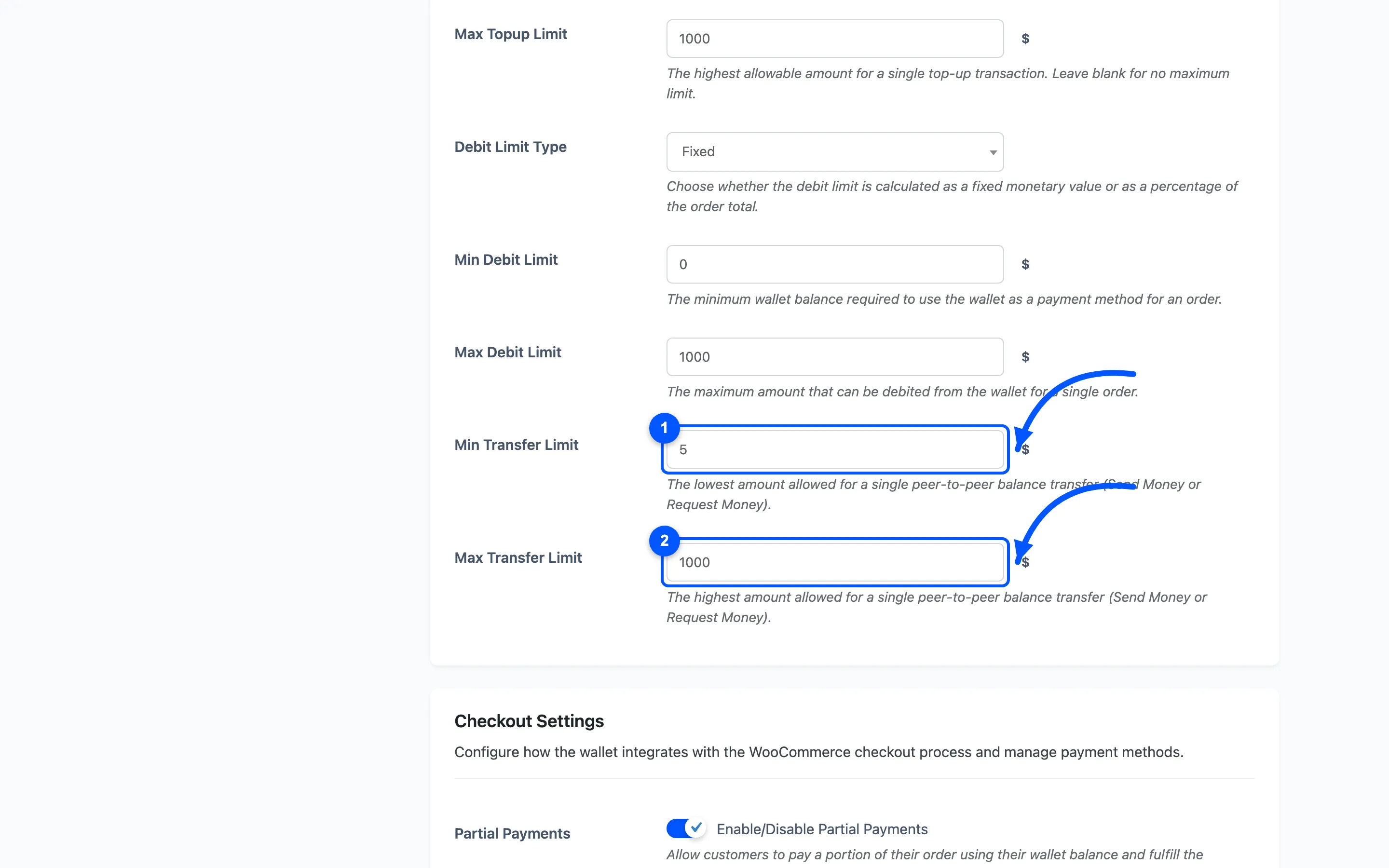
Both are shown to the customer inside the popup, under the amount field, so they know before they submit.
Checkout Settings
Section titled “Checkout Settings”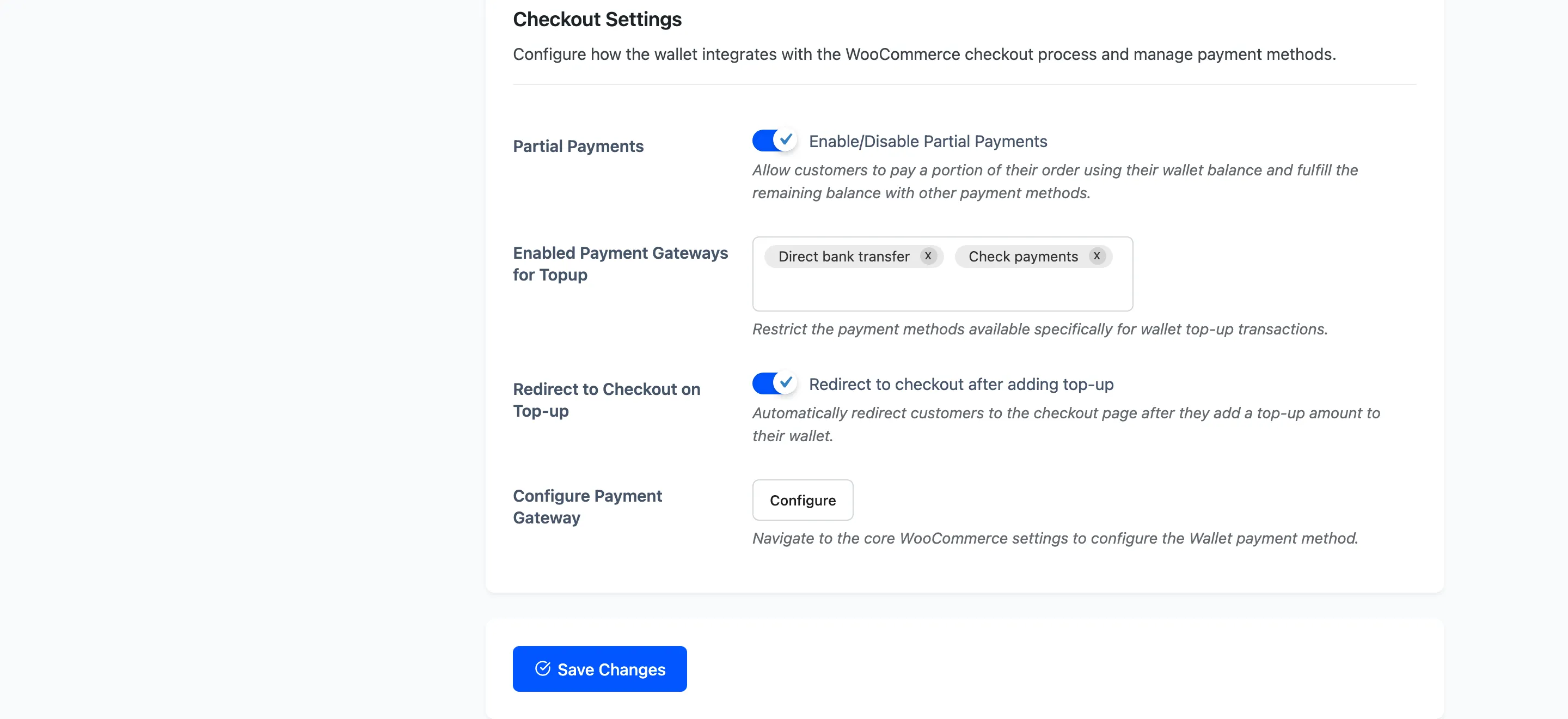
Partial Payments
Section titled “Partial Payments”Lets a customer put part of an order on the wallet and settle the rest another way.
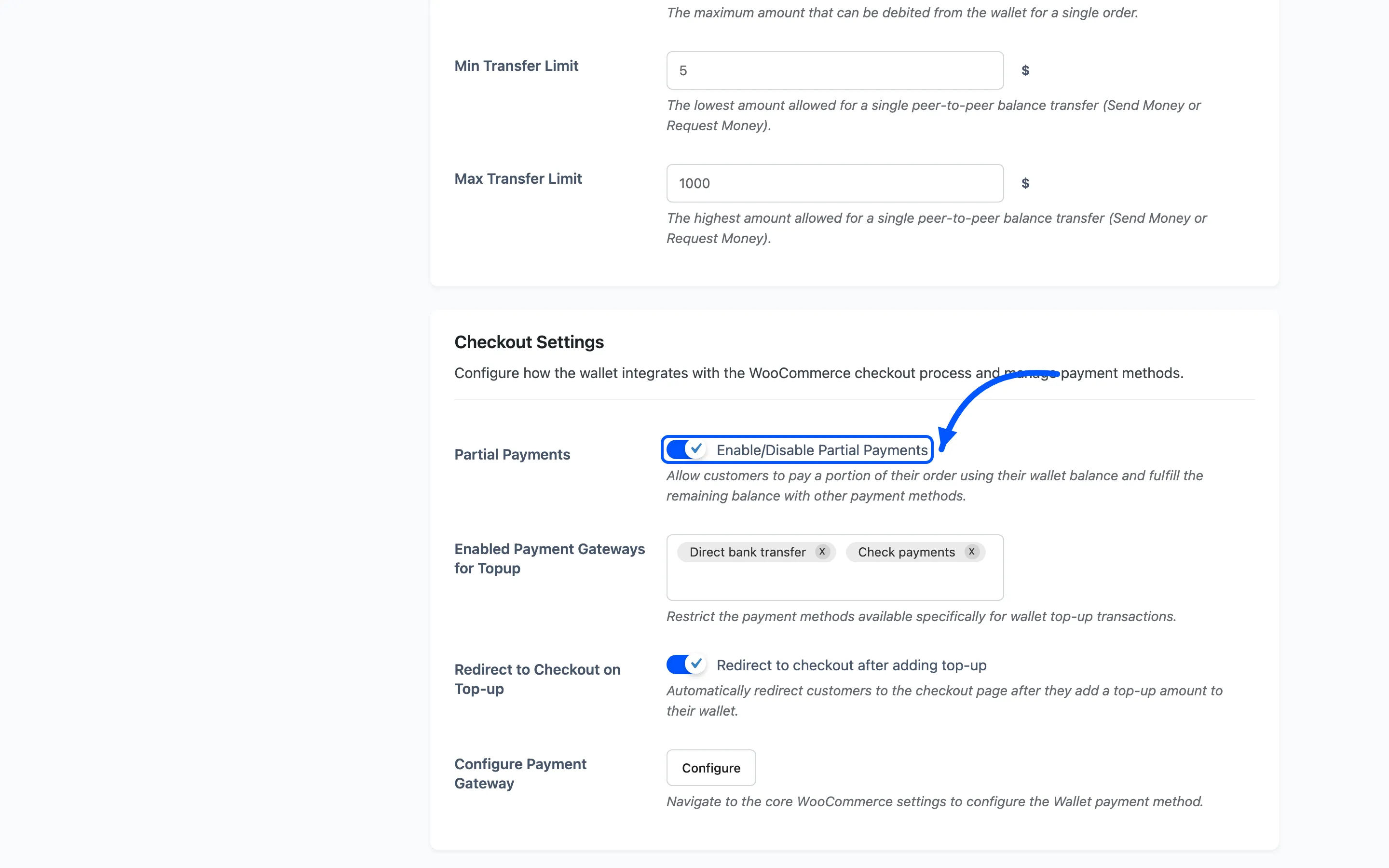
The panel only appears when it is needed. The balance must be above zero, and the order must cost more than the balance or more than Max Debit Limit.
Enabled Payment Gateways for Topup
Section titled “Enabled Payment Gateways for Topup”Restricts which methods may be used to buy a top-up. Leave it empty to allow all of them.
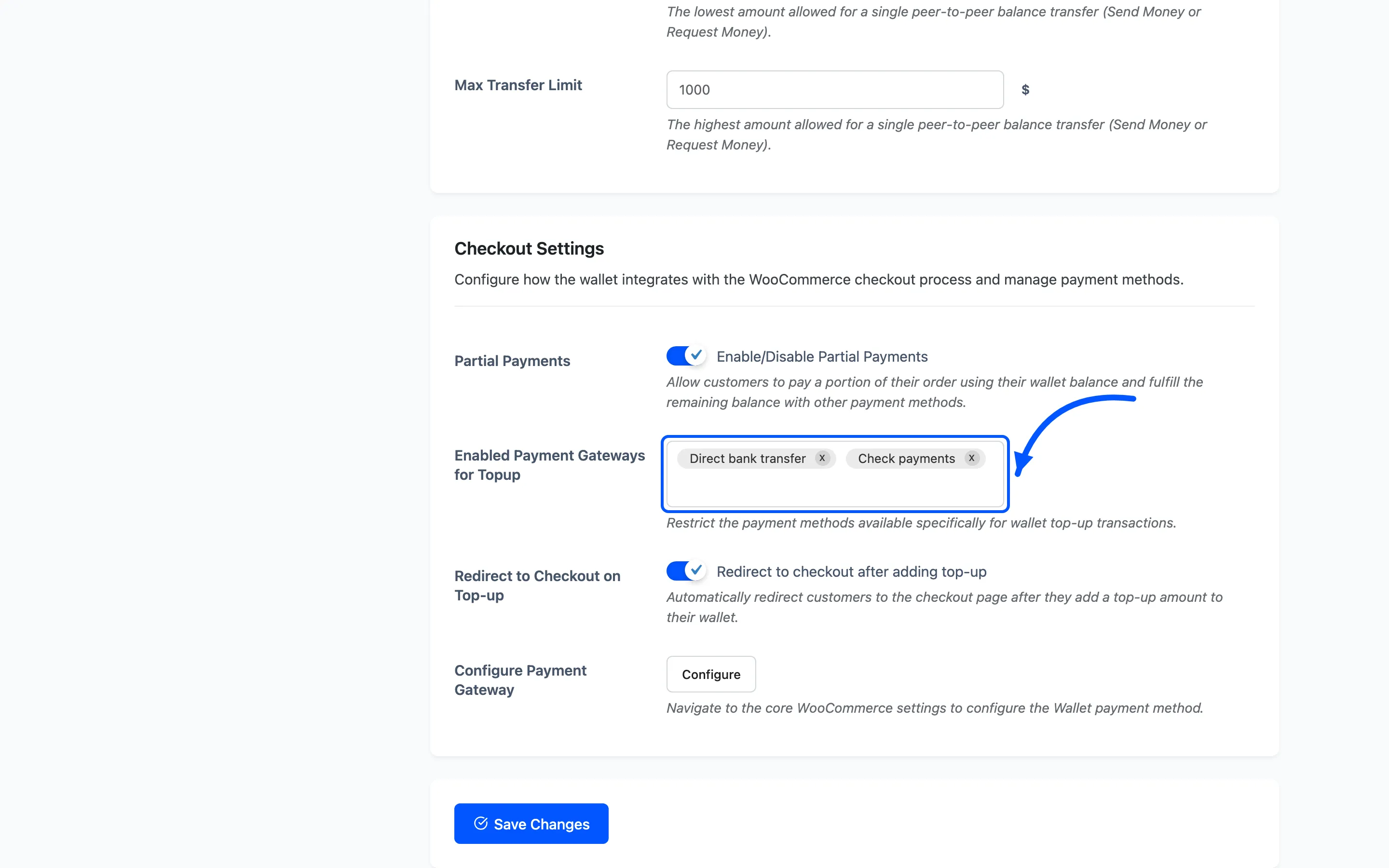
Worth setting. A top-up bought on a gateway that charges you a percentage costs you that percentage twice. Once on the top-up, and again when the balance is spent.
The Wallet method itself is always removed from a top-up checkout, whatever you choose here.
Redirect to Checkout on Top-up
Section titled “Redirect to Checkout on Top-up”Sends the customer straight to the checkout after they press Topup, rather than to the cart. Default on.
Configure Payment Gateway
Section titled “Configure Payment Gateway”Not a setting, a link. It opens the Wallet payment method’s own WooCommerce settings, covered in The Wallet Payment Gateway.