

Installing and Activating Wallet Management
Wallet Management installs like any other WooCommerce extension. Activation creates a hidden product, two database tables and a payment method, so check for those before you configure anything.
Before you start
Section titled “Before you start”WooCommerce must be active first. The plugin lists WooCommerce as a required plugin and will not run without it.
- WordPress 6.0 or newer
- WooCommerce 9.0 or newer
- PHP 7.4 or newer
Pro needs the free plugin beside it
Section titled “Pro needs the free plugin beside it”This is the part people miss. The Pro plugin does not run on its own. It checks for the free plugin and stays inert without it.
The Pro build registers the free plugin as a dependency and installs and activates it for you. In
practice you upload Pro and both end up active. Installing by hand, put
devdiggers-wallet-for-woocommerce on first, then the Pro zip.
Install from a downloaded zip
Section titled “Install from a downloaded zip”Use this for the Pro version bought from DevDiggers.
-
In WordPress admin, go to Plugins → Add New Plugin.

-
Click Upload Plugin at the top of the screen.

-
Click Choose File and select the plugin
.zipyou downloaded.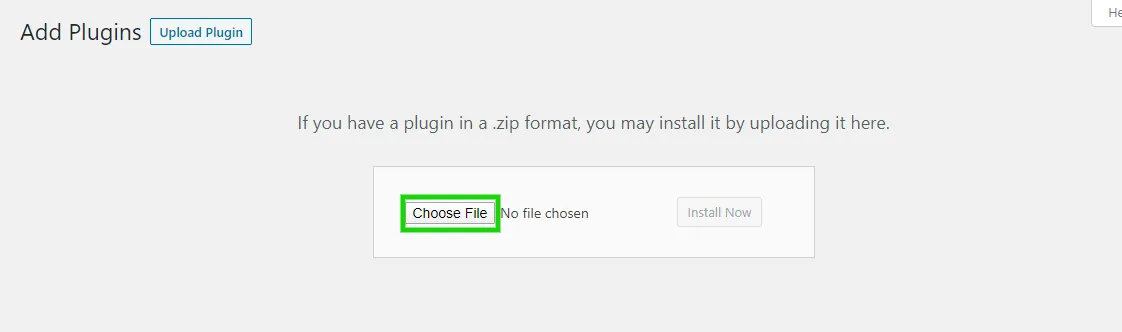
-
Click Install Now.

-
When the install finishes, click Activate Plugin.

Do not unzip the file first. WordPress expects the .zip, not the folder inside it.
Install the free version from the directory
Section titled “Install the free version from the directory”Search for DevDiggers Wallet for WooCommerce under Plugins → Add New Plugin, then install and activate it. No zip and no licence key.
Check what activation created
Section titled “Check what activation created”Four things appear, and each one is worth a look.
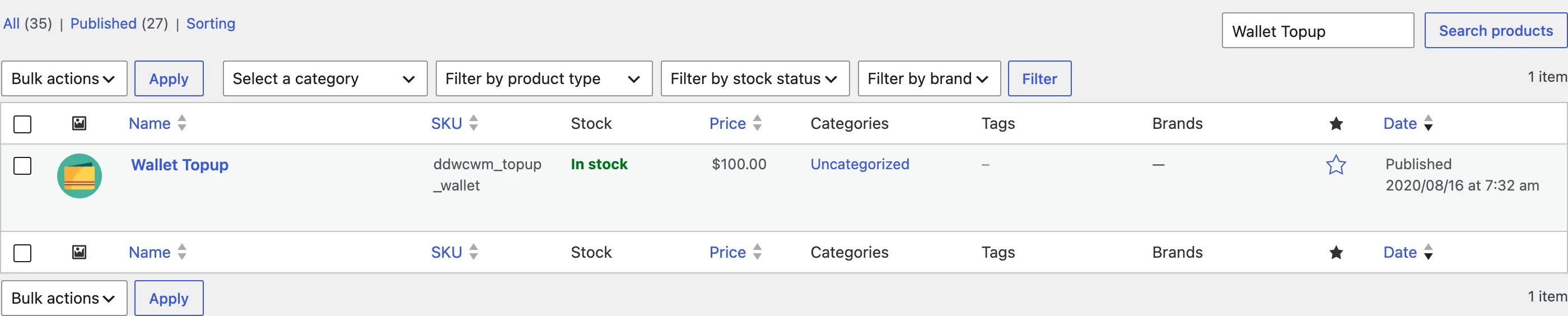
- A hidden Wallet Topup product: Slug
ddwcwm-wallet-topup, SKUddwcwm_topup_wallet, priced at zero, virtual, sold individually and not taxed. Top-ups are sold through it and its price is set per order, so leave it alone. - Two database tables, one for transactions and one for cashback rules.
- A My Wallet endpoint in My Account, at
/my-account/my-wallet/. Rename it under Configuration → Endpoints. - A Wallet payment method in WooCommerce, switched off until you enable it. See the payment gateway doc.
Finish the setup wizard
Section titled “Finish the setup wizard”Activation redirects you into the setup wizard. It switches the wallet on and sets the handful of options that decide whether anything happens at all.
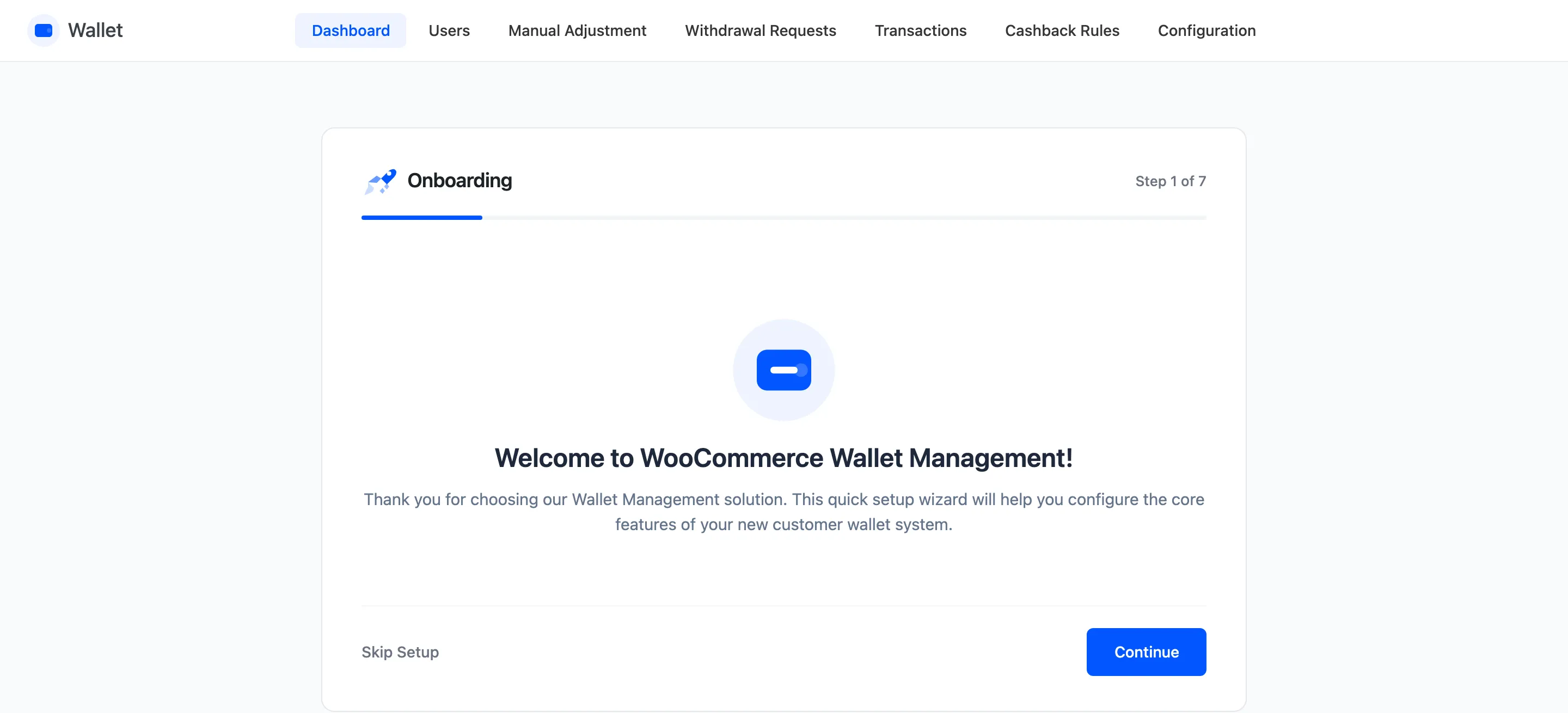
Work through it now. Everything it asks can be changed later under Configuration, and nothing outside the wizard is switched on for you.
If the My Wallet link does not appear
Section titled “If the My Wallet link does not appear”The endpoint is a rewrite rule, and a stale permalink cache hides it. Go to Settings → Permalinks and click Save Changes without editing anything. That flushes the rules and the link appears.