

Manual Adjustment
The screen for putting money into a wallet, or taking it out, by hand. Goodwill credits, corrections, compensation and prize money all go through here.
Go to DevDiggers Plugins → Wallet → Manual Adjustment, or use the Manual Adjustment button above the Users list.
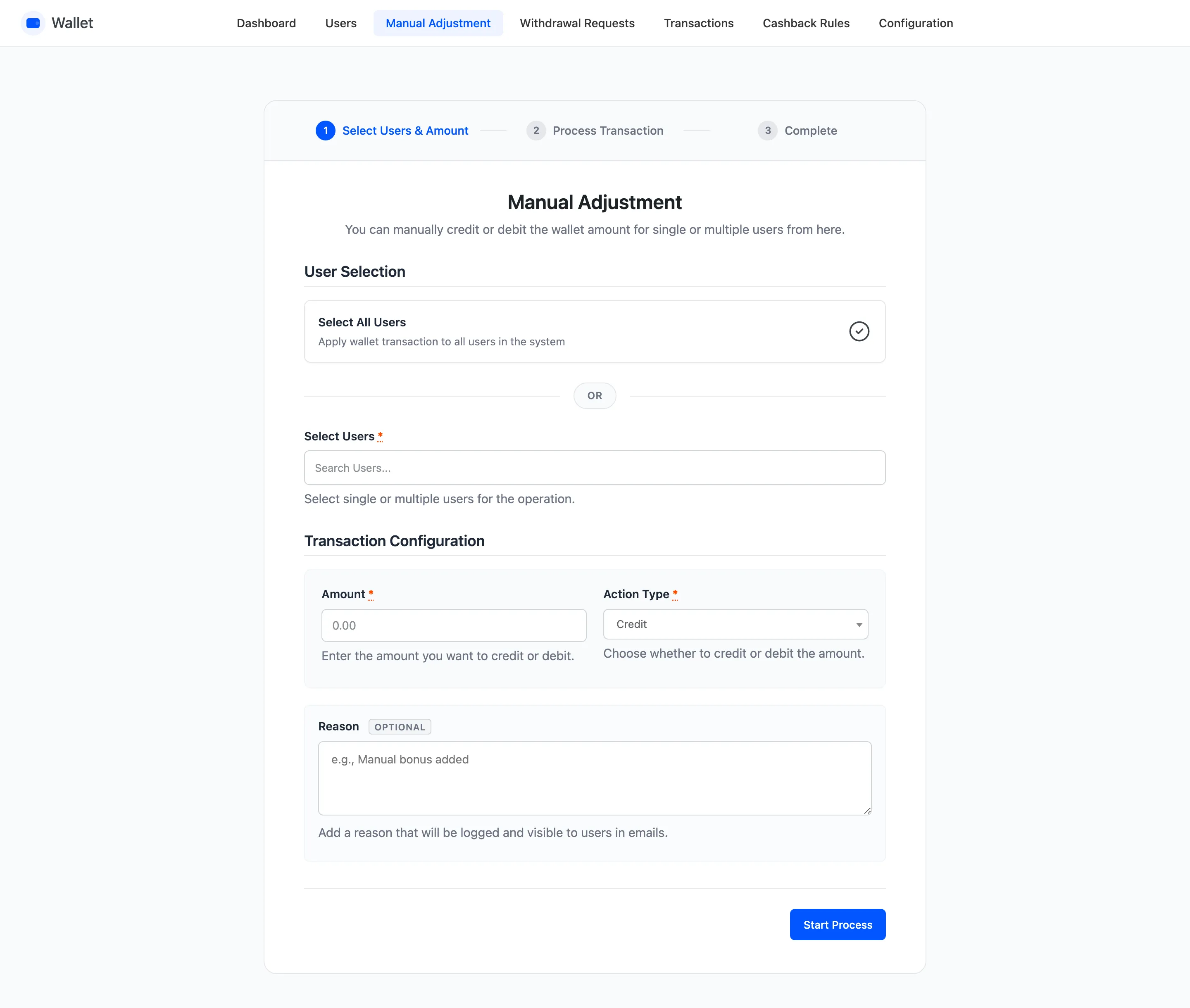
Three steps
Section titled “Three steps”The screen is a wizard: Select Users & Amount, Process Transaction, then Complete. You fill in one form, it works through the accounts in batches, and it reports what happened.
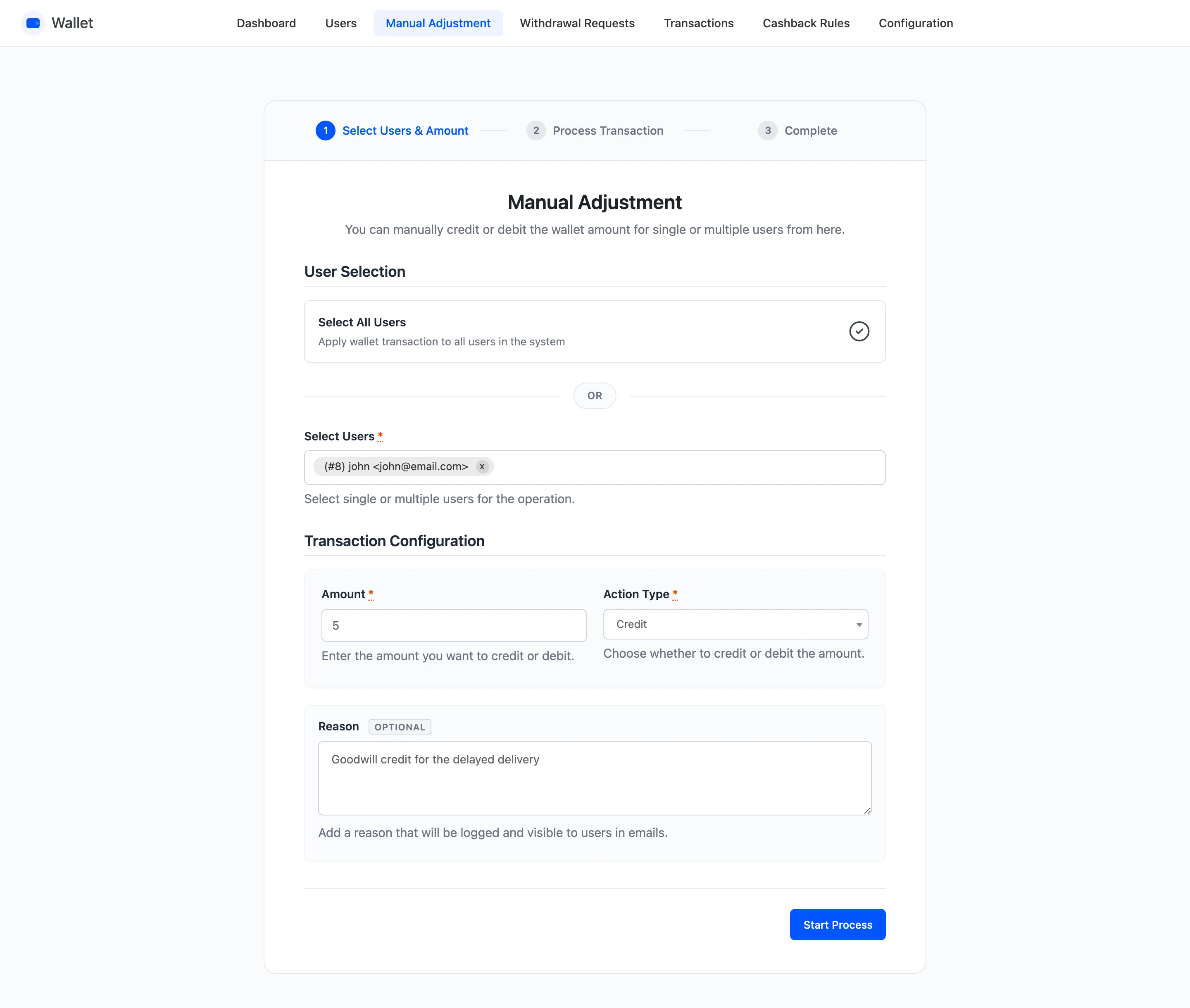
Choosing who
Section titled “Choosing who”Two ways, and they are exclusive.
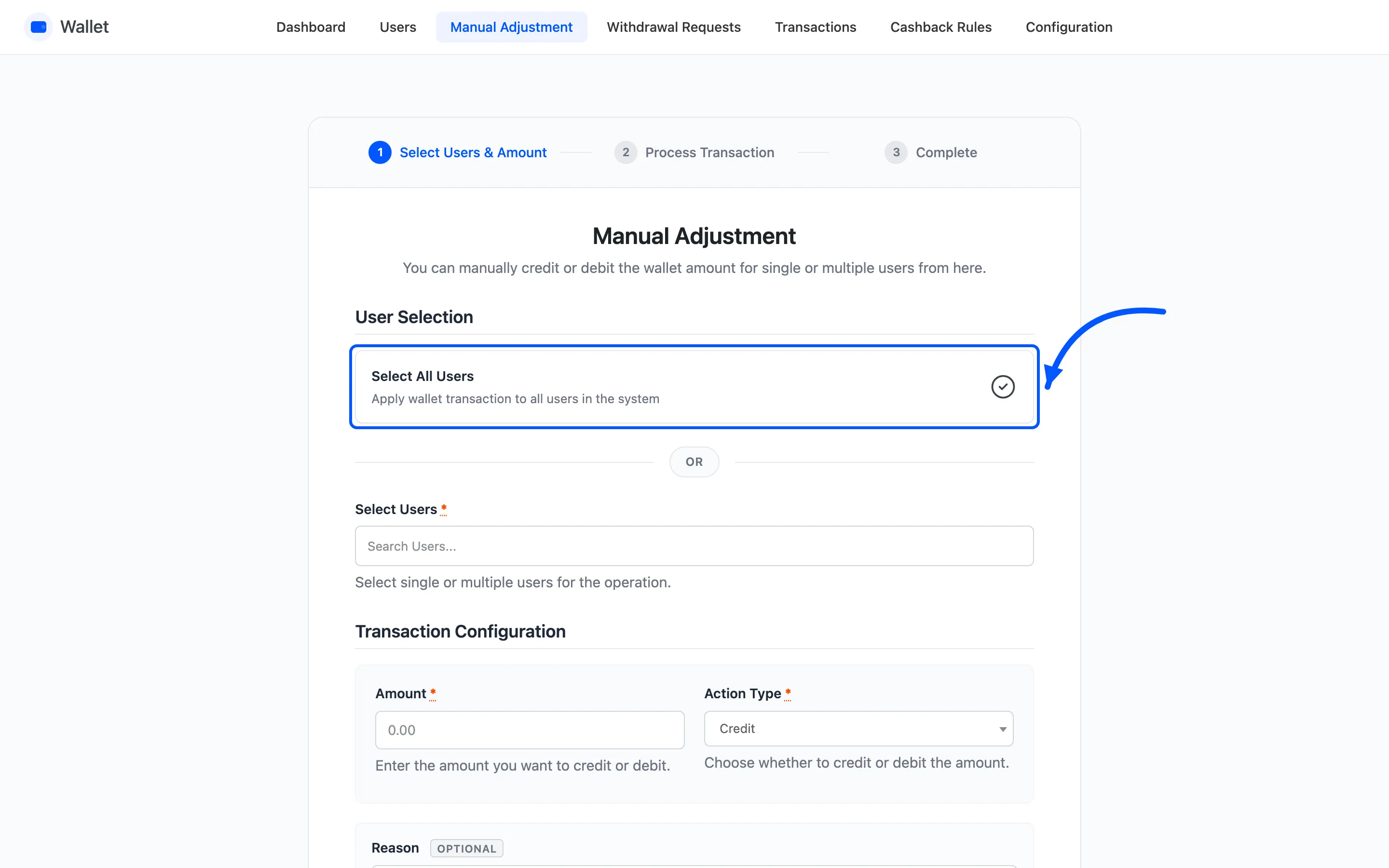
Select All Users applies the adjustment to every account on the site. Use it for a store-wide gesture, and read the count on the summary screen before you believe it worked.
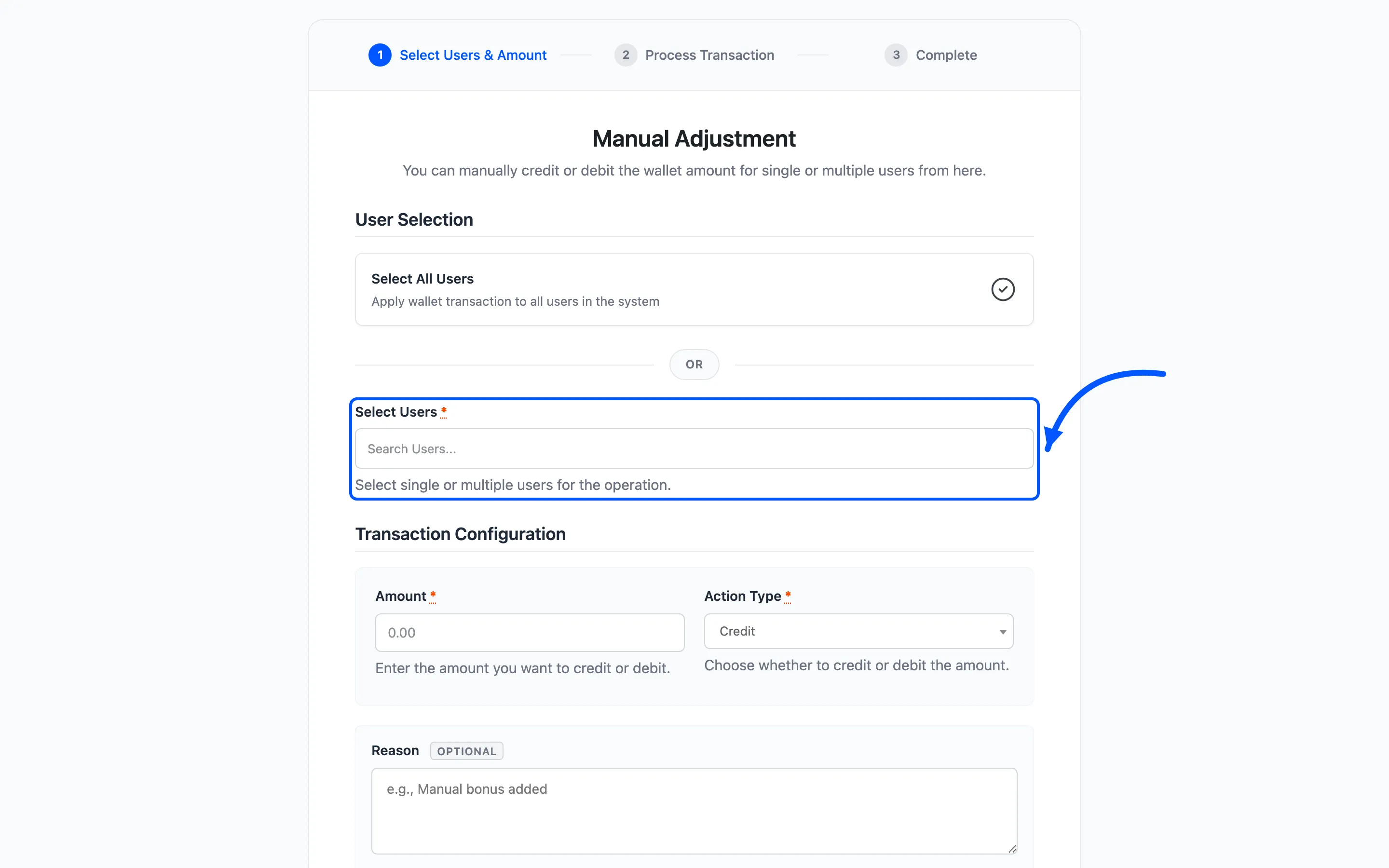
Select Users is a searchable multi-select. Type a name, an email or an ID and pick as many as you need. This is the everyday route.
Amount and Action Type
Section titled “Amount and Action Type”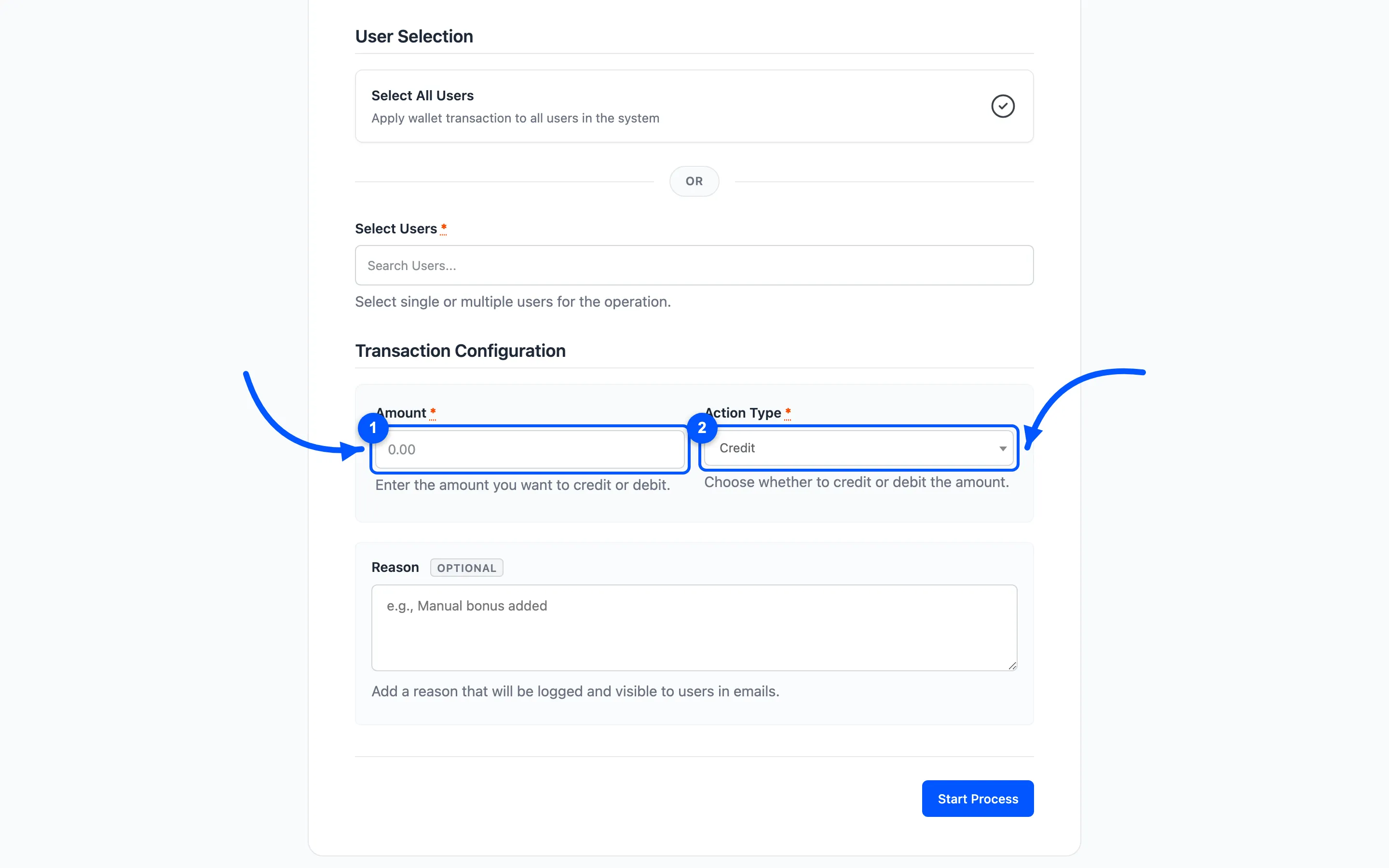
Amount is a positive number, minimum 0.01. Action Type is Credit or Debit, and it decides the direction. Do not put a minus sign in the amount, the dropdown is what makes it a debit.
Both are required.
Reason
Section titled “Reason”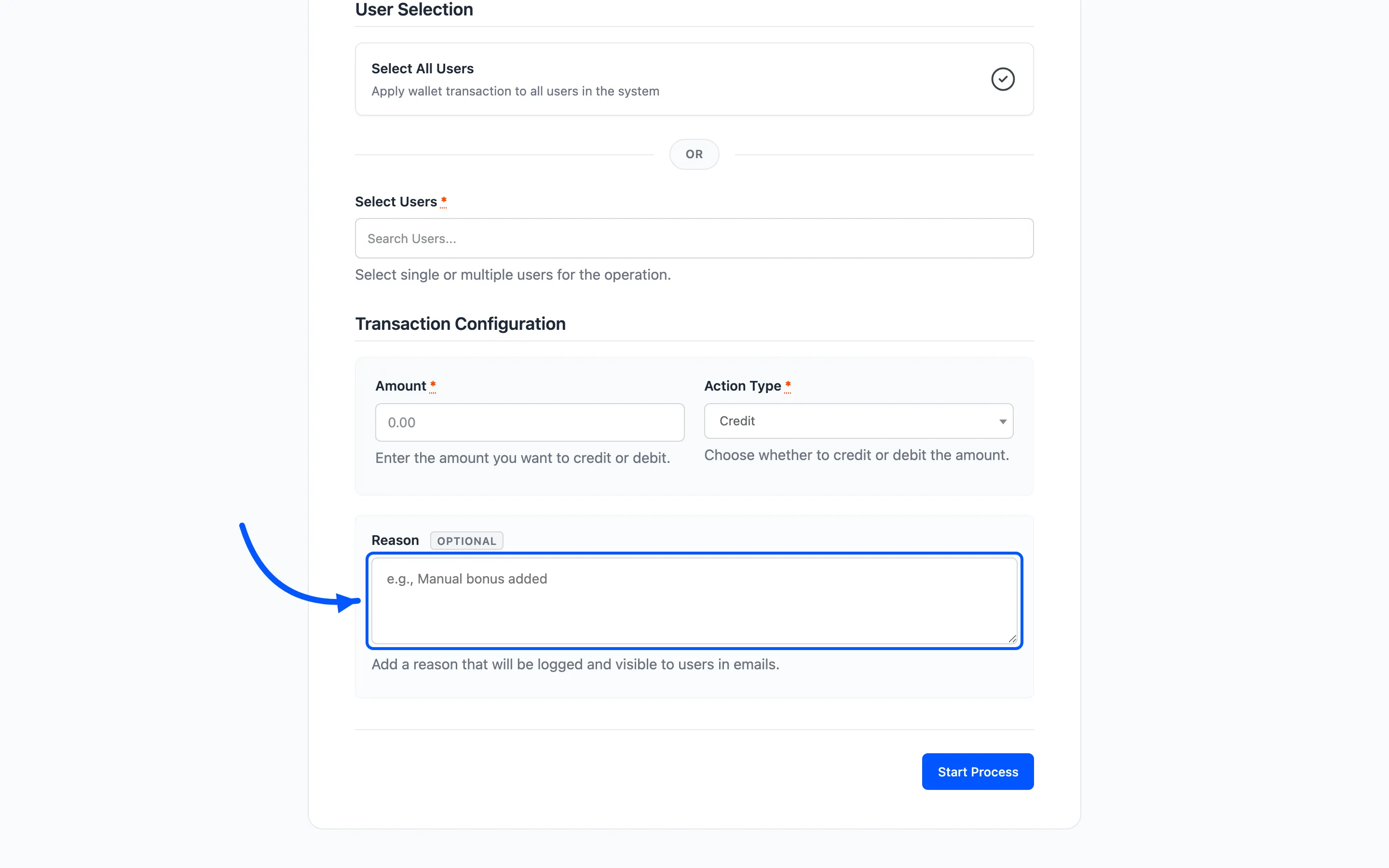
Optional, and worth filling in every time. It is stored on the transaction row and it is what the customer reads in the adjustment email.
“Refund for the damaged item on order #1042” answers the question before it is asked. Blank leaves the email saying an adjustment was made by the admin, which reads as a mistake.
Starting the process
Section titled “Starting the process”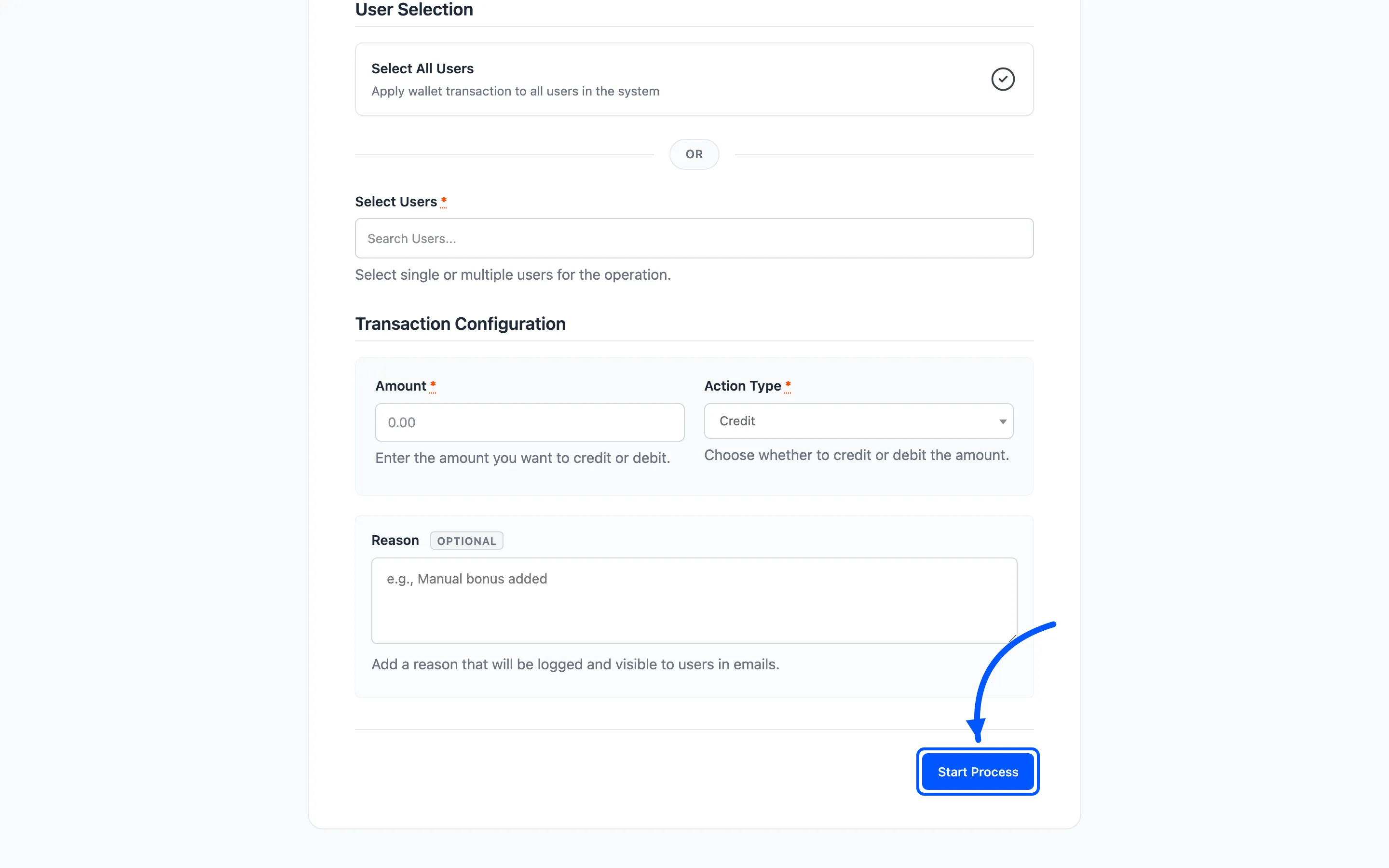
Start Process moves to step two and shows a progress bar with a running count. It works in batches, so a store-wide credit does not time out.
Reading the summary
Section titled “Reading the summary”Step three reports three figures: total users processed, successfully processed, and failed to process. Where anything failed, View Failed Process Details expands to name each account, the message, the amount asked for and the balance it had.
Failures are almost always a debit larger than the balance. The plugin will not push a wallet negative, so it skips that account and tells you which.
Start Again clears the form for another run. Done returns to the Users list.
What it writes
Section titled “What it writes”One transaction row per account, typed Credit or Debit, with the reference Manual Adjustment and your reason in the note. It sends the Manual Adjustment email, which is a separate template from the ordinary credit and debit notices.
Where to go next
Section titled “Where to go next”- How to Credit or Debit a Wallet
- Import and Export for hundreds at once
- Email Settings