

How to Approve a Withdrawal Request (Pro)
The plugin does not move real money. This is a work list: read it, pay from your own account, then record what you did.
Step 1: Open Withdrawal Requests
Section titled “Step 1: Open Withdrawal Requests”Go to DevDiggers Plugins → Wallet → Withdrawal Requests.
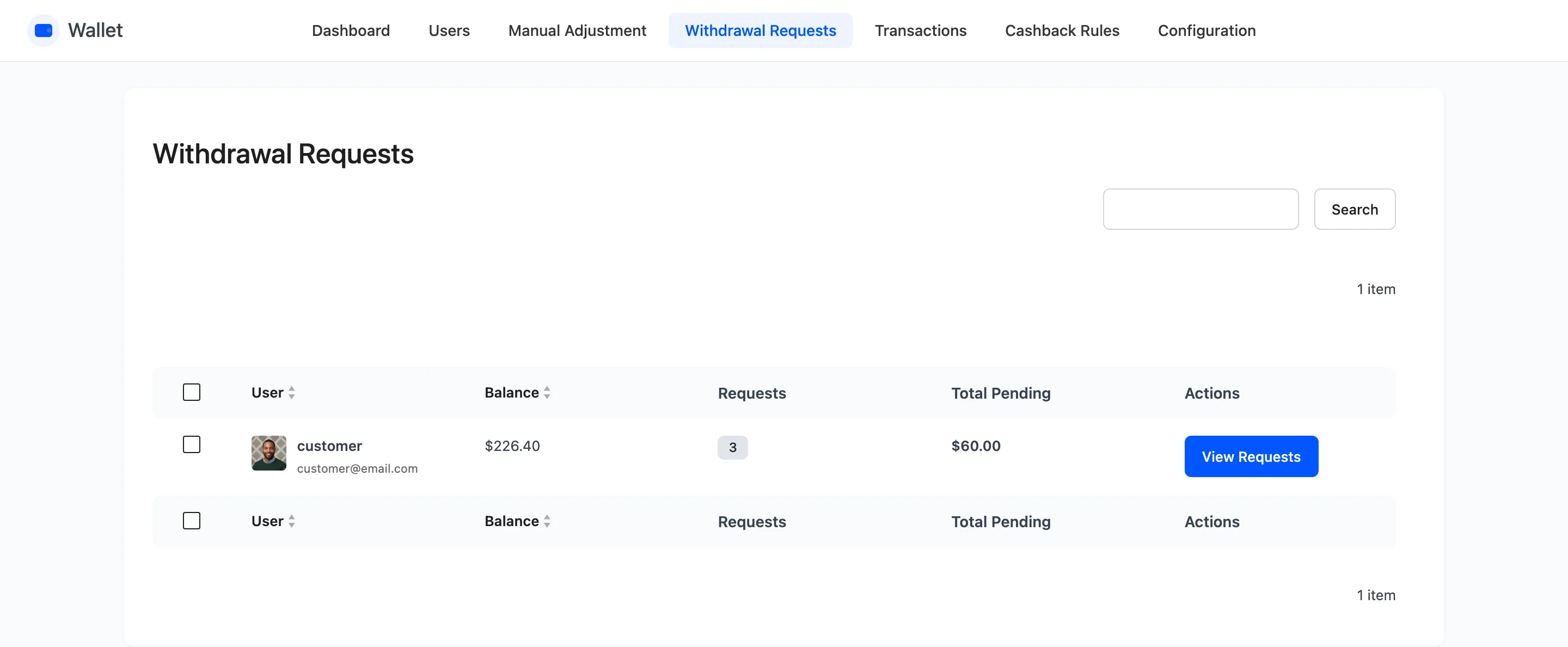
One row per customer, not per request. Requests is how many they have waiting and Total Pending is the sum before fees.
Balance is what is left after the requests were taken, not what they had. The money is already out of the wallet.
Step 2: Open the customer’s requests
Section titled “Step 2: Open the customer’s requests”Press View Requests on their row.
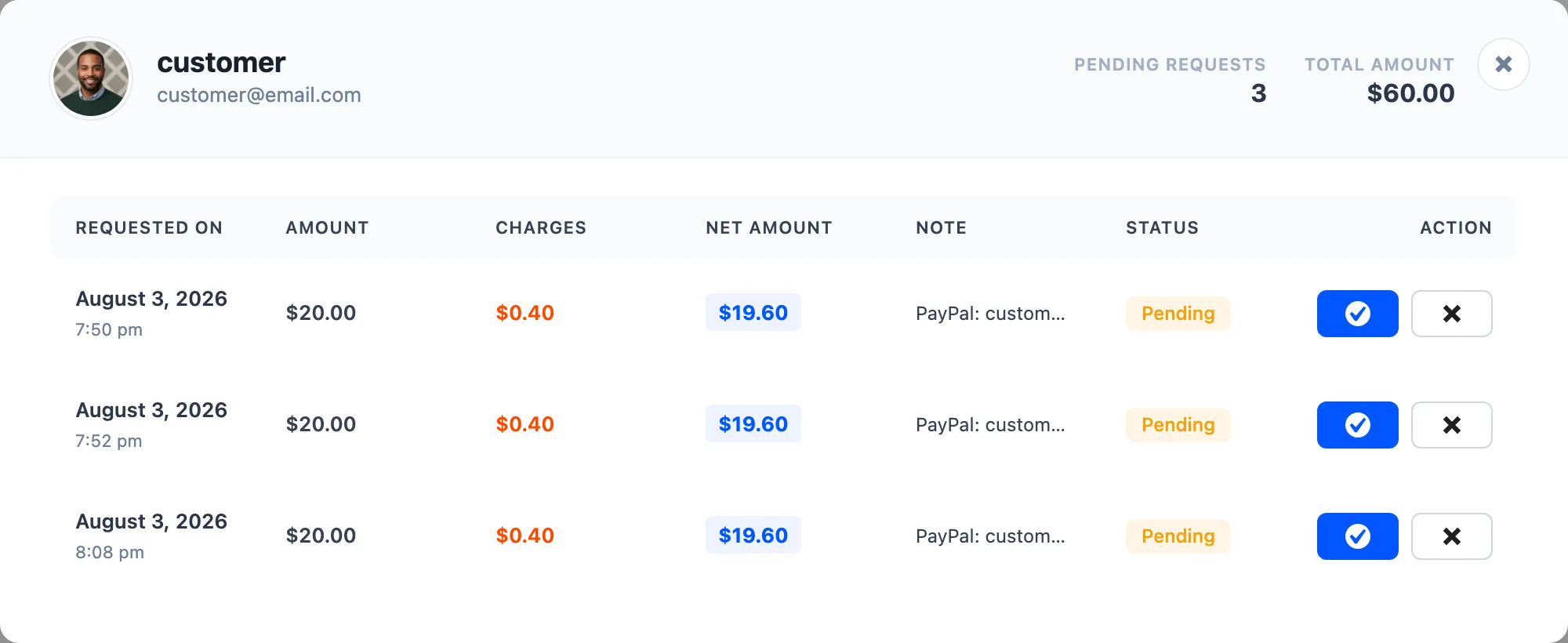
Every pending request in full: when it was asked for, the amount, the charges, the net amount, the note and the status.
Step 3: Read the net amount and the note
Section titled “Step 3: Read the net amount and the note”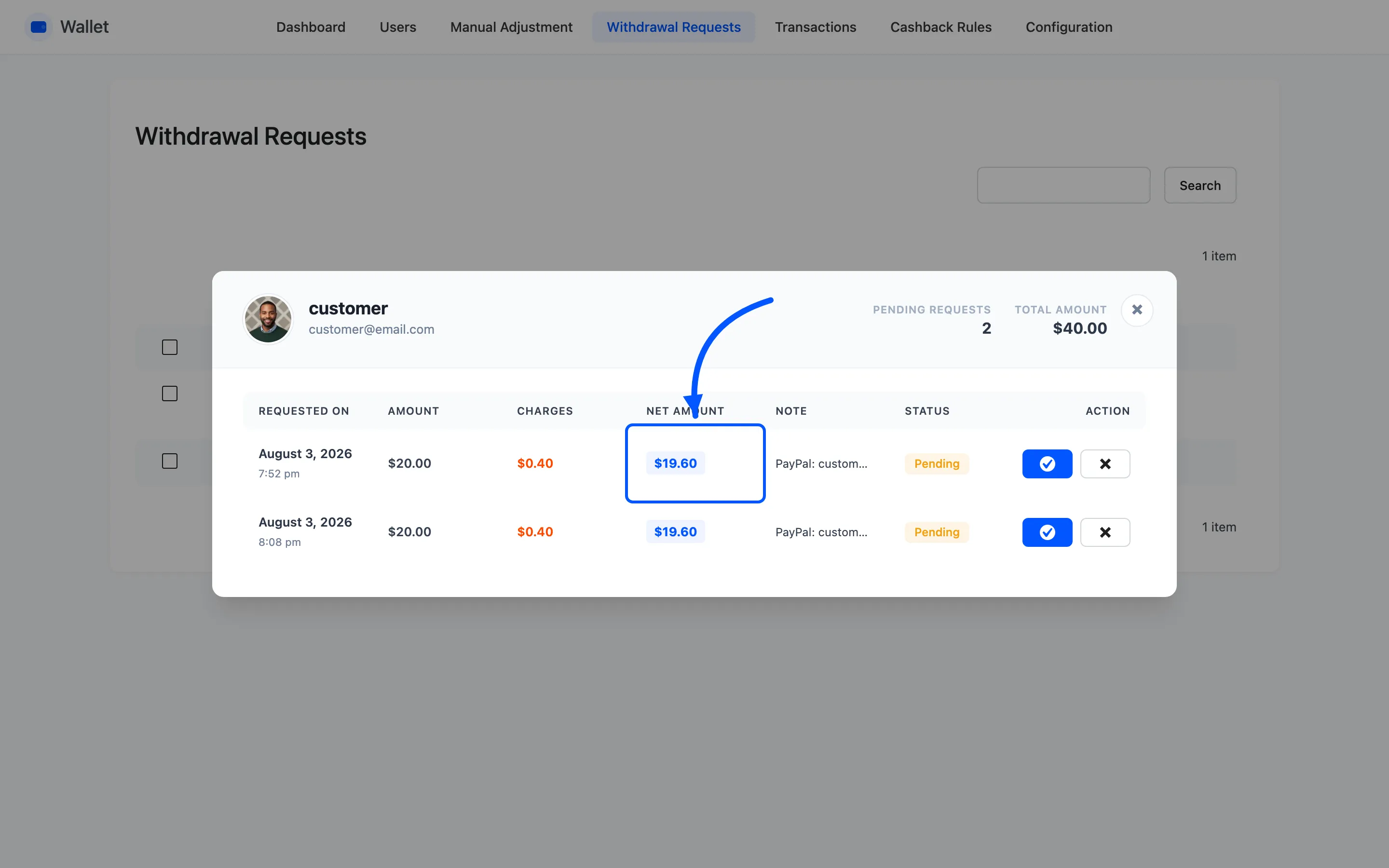
Two columns decide what you do, and one of them is easy to misread.
- Net Amount is what you owe. Amount is what came out of the wallet, and Charges is your fee. Pay the net figure.
- Note is the payout details, in the customer’s own words. It is the only place they exist.
Paying the Amount rather than the Net Amount means you have absorbed the fee yourself. Nothing on the screen will tell you that you did.
Step 4: Send the money
Section titled “Step 4: Send the money”Outside WordPress, by whatever route the note names. Bank transfer, PayPal, store credit somewhere else, it does not matter to the plugin.
There is nothing to screenshot for this step. It happens in your bank or your payment provider, not in WordPress, and the plugin never sees it.
Do this before the next step. Marking it paid removes the row, and the queue is the only thing tracking the debt.
Step 5: Mark it paid, or cancel it
Section titled “Step 5: Mark it paid, or cancel it”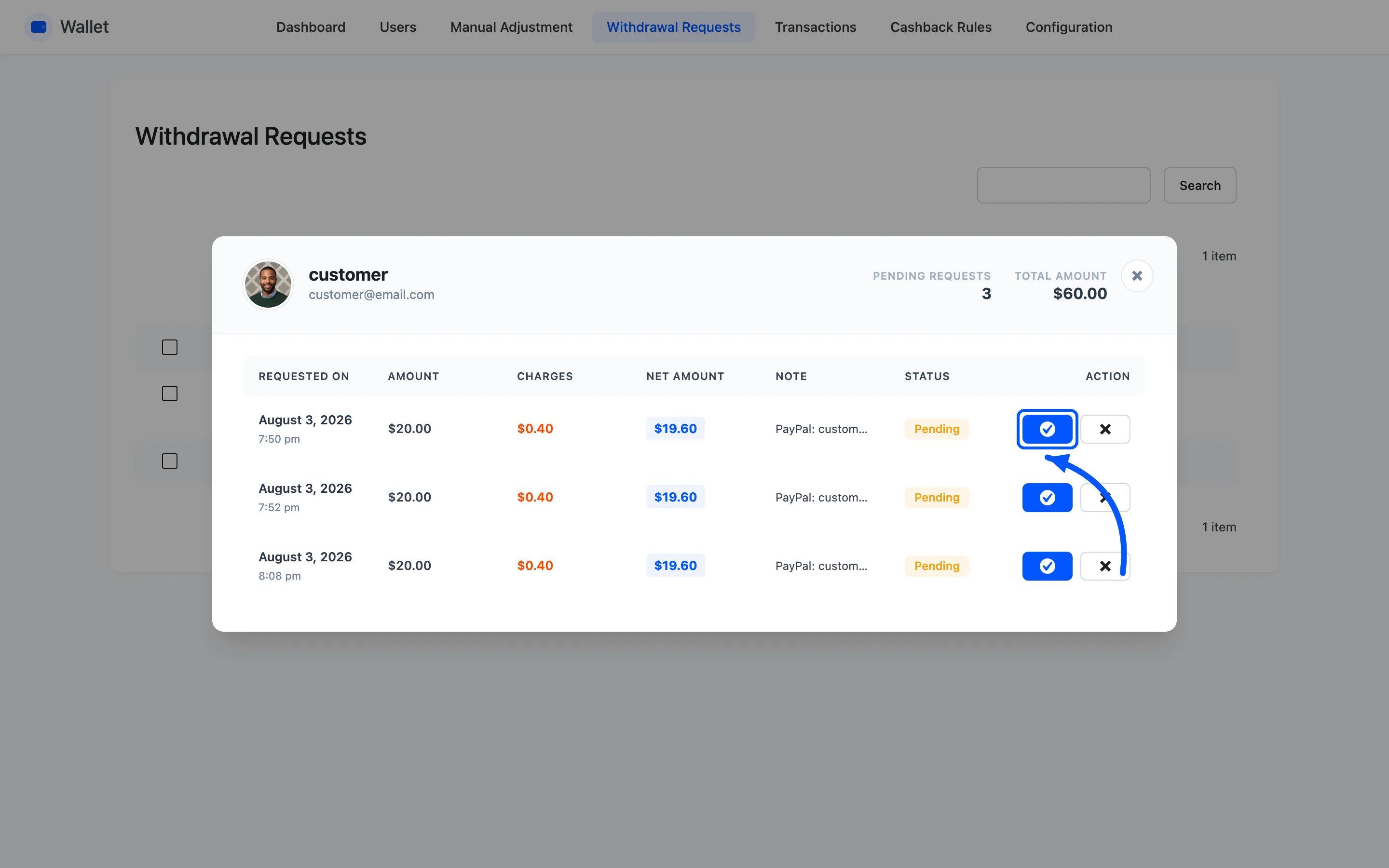
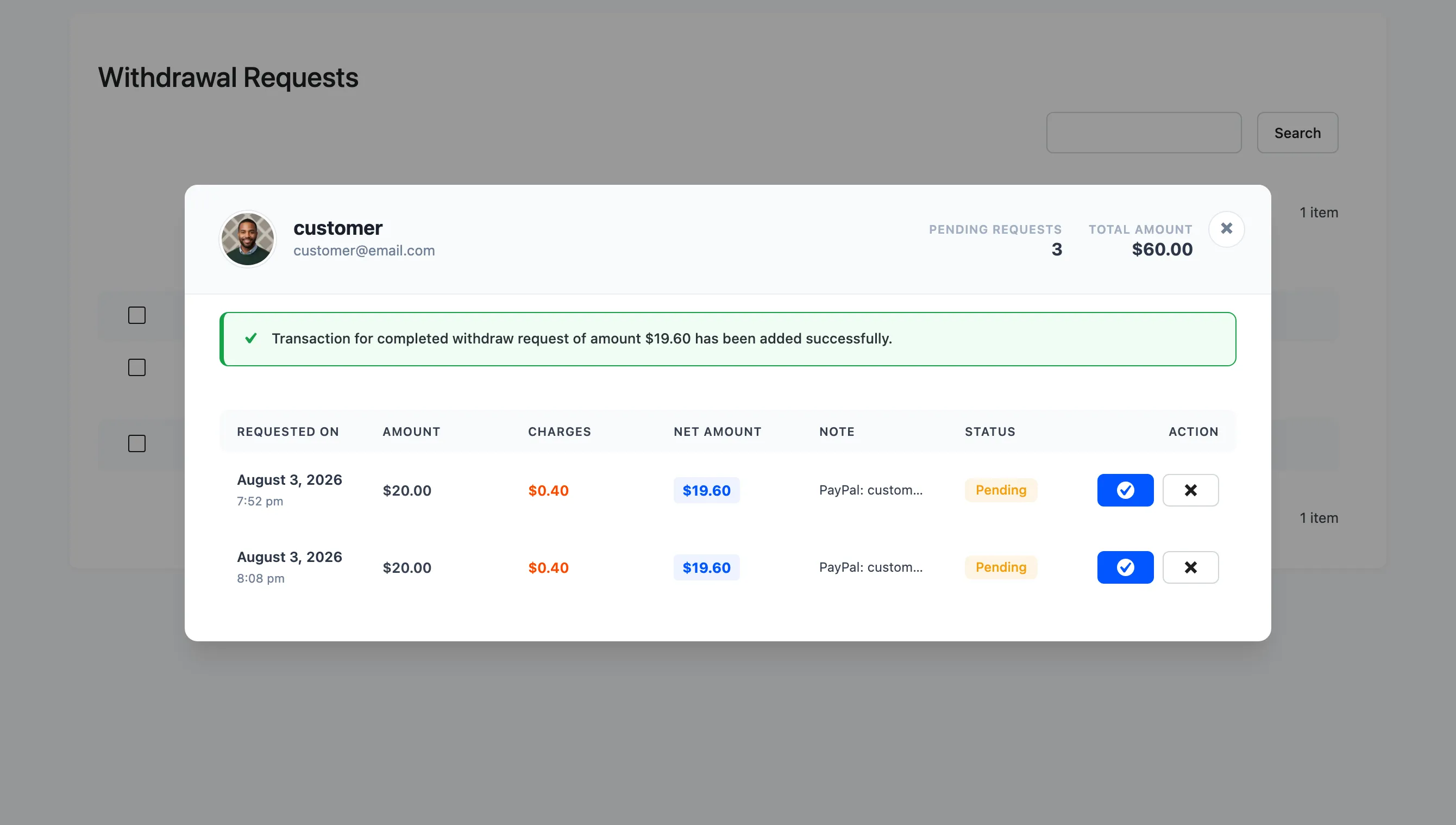
Mark as Paid is the tick. It writes a Withdrawal Completed transaction for the net amount, removes the request, and emails the customer that their withdrawal is complete.
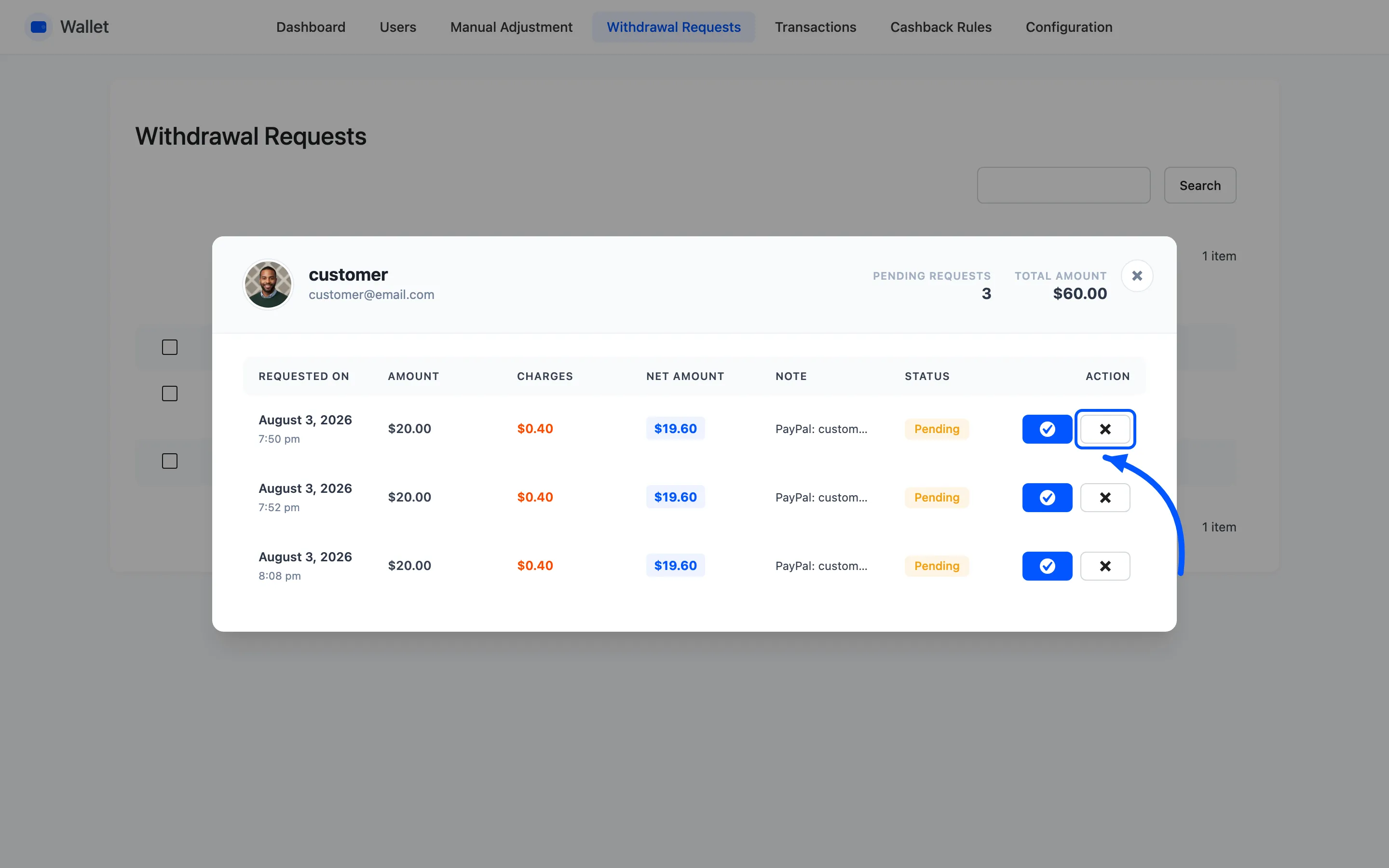
Cancel is the cross. It credits the full amount before charges back into the wallet, writes a Withdrawal Cancelled transaction, removes the request, and emails the customer.
Cancelling refunds the fee as well as the amount, so a customer whose payout you could not make is left exactly where they started.
Step 6: Check it landed
Section titled “Step 6: Check it landed”Go to Transactions and filter Transaction Type to Withdrawal.
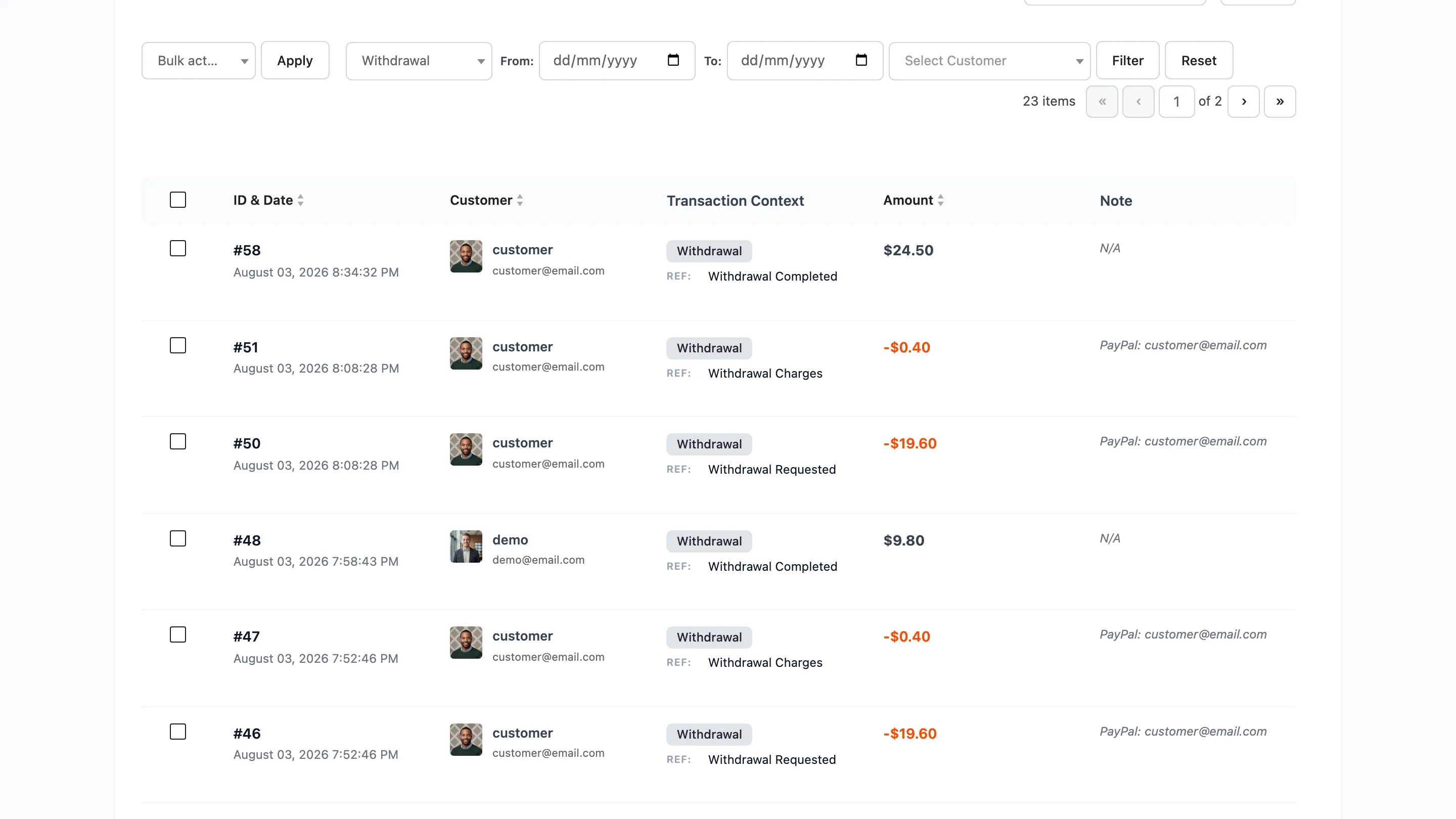
That view is your payout record: every request, every fee, and every one completed or cancelled. It is also what Total Withdrawals on the dashboard is counting, and that card only counts the ones marked paid.